
Setting up a Sennheiser Momentum 4 Wireless headphones for the first time takes only a few minutes once the charging, pairing, and app steps are done in the right order. Most people find that skipping the initial charge or rushing the pairing step is what causes confusion later, so this guide lays out the process exactly as it should happen, from unboxing to the first song.
Quick Summary: What This Setup Covers
- Charge the headphones fully before the first use to avoid interrupted setup
- Power on the headset and let it enter pairing mode automatically
- Connect via Bluetooth from a phone, tablet, or Windows 11 computer
- Install the Sennheiser Smart Control app for sound personalization
- Adjust the headband for a proper fit and accurate sound
- Total setup time: around 5 to 10 minutes, not counting charging
Step-by-Step Guide to Setting Up Sennheiser Momentum 4 Wireless
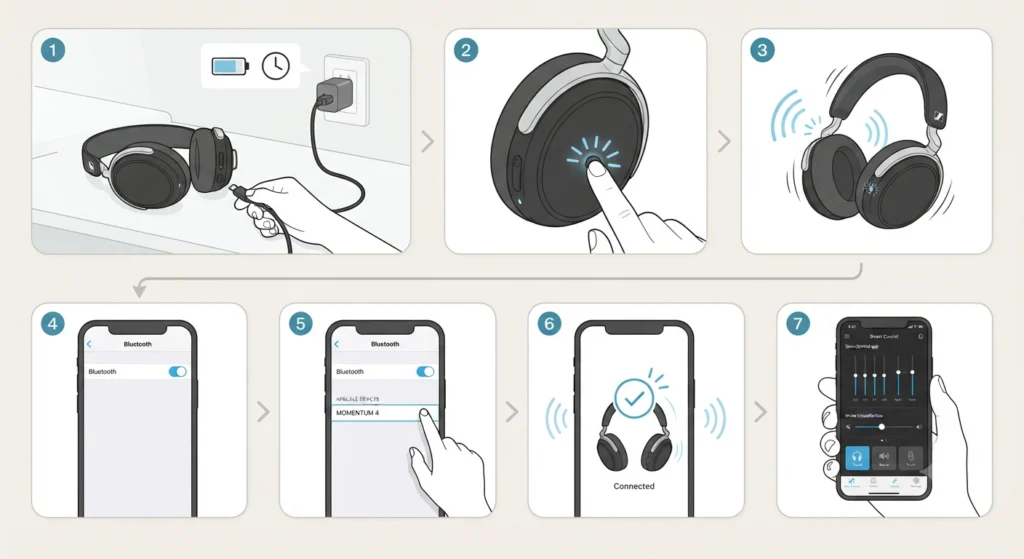
This is the exact sequence that gets the headphones connected and ready to use without any guesswork.
- Step 1: Connect the headphones to a power source using the included USB-C cable before doing anything else. A full charge takes around 2 hours and delivers up to 60 hours of playback, so this step is worth doing even if the headphones only need a partial charge to get started.
- Step 2: Press and hold the power button on the right earcup for about 3 to 5 seconds until an audible tone plays and the LED indicator starts flashing. This turns the headphones on.
- Step 3: Since the pairing list is empty on a brand-new unit, the headphones will automatically enter pairing mode the very first time they power on. The LED will flash continuously, and a short melody will sound to confirm this.
- Step 4: On the connecting device – phone, tablet, or computer – open Bluetooth settings and turn Bluetooth on. Tap or click search for new devices.
- Step 5: Select ‘MOMENTUM 4’ from the list of available Bluetooth devices. If a PIN is requested, entering 0000 will complete the connection.
- Step 6: Wait for the confirmation. The headphones will play the voice prompts ‘Pairing successful’ followed by ‘Connected,’ which means the Bluetooth link is active and ready.
- Step 7: Download the Sennheiser Smart Control app from the App Store or Google Play, then open it to finish personalizing sound settings, touch controls, and noise cancellation preferences.
Pairing With a Windows 11 Laptop or Desktop
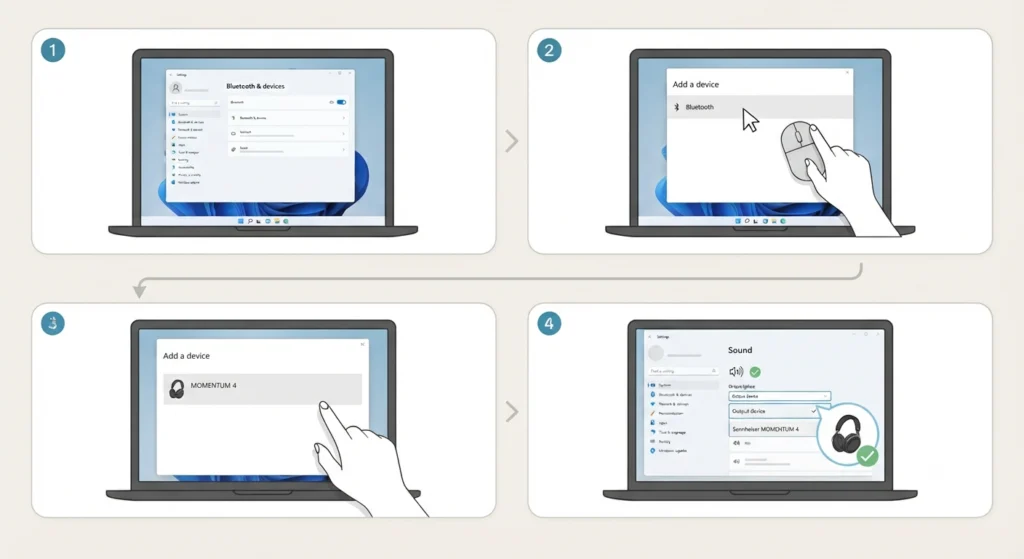
Pairing with a Windows 11 machine follows a similar path, but a couple of extra checks make the process smoother. Open Settings, go to Bluetooth and devices, then choose Add device and select Bluetooth. Once ‘MOMENTUM 4’ appears in the list, select it and wait for Windows to confirm the connection. If the headset connects but sound continues to play through the laptop speakers instead, adjusting audio output settings on Windows 11 resolves that mismatch in under a minute by manually setting the Momentum 4 as the default playback device.
Setting Up the Sennheiser Smart Control App
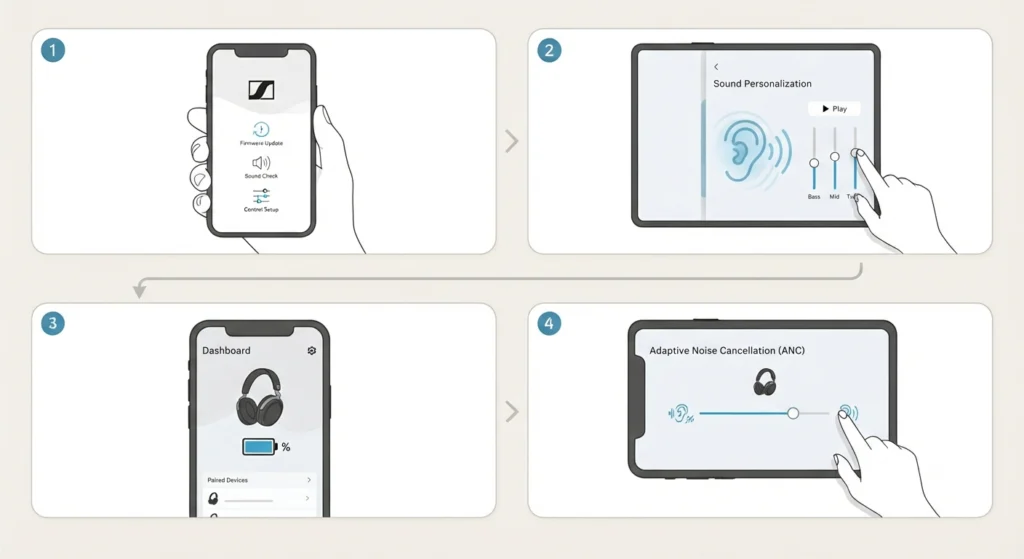
The Smart Control app is where the Momentum 4 experience really gets dialed in. After installation, the app walks through a short onboarding process that includes firmware checks, sound personalization, and control customization. The built-in equalizer offers several presets, but a custom profile built from the sound personalization test – which plays a few audio samples and asks for preference sliders – tends to produce noticeably better results than the default flat setting. The app also displays battery percentage, manages paired devices, and controls the strength of Adaptive Noise Cancellation.
Getting the Perfect Fit for Comfort and Sound Quality
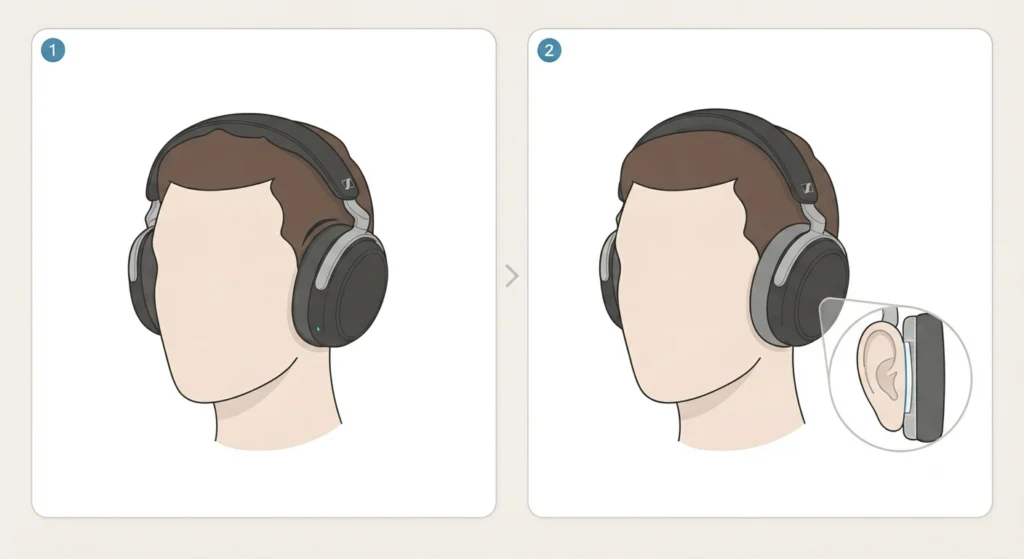
A loose or uneven fit changes how the headphones sound just as much as any equalizer setting. Extend the headband on both sides evenly until the earcups sit fully over the ears without pressing too tightly. The cushions should form a light seal around the ears rather than resting on top of them, since that seal is what keeps bass response accurate and noise cancellation working as intended.
Pro-Tip: Try adjusting the fit while music is already playing. Small changes to headband tension are much easier to judge by ear than by sight, and most people land on the right adjustment within a few seconds once sound is playing.
Tips for a Smooth First-Time Setup
A handful of small habits make the whole process go faster and prevent common frustrations down the line.
- Keep the headphones within about 20 centimeters of the connecting device during the very first pairing attempt, since first-time pairing mode has a shorter effective range than normal use.
- Turn off Bluetooth on any other nearby device that has previously connected to the Momentum 4, since an old connection can sometimes take priority and block a new pairing attempt.
- Update the headphone firmware through the Smart Control app soon after setup, since firmware updates often improve Bluetooth stability and battery reporting accuracy.
- For video calls or voice assistant use right after setup, check that the microphone is actually selected as the input source. If calls sound muffled or the mic isn’t picked up at all, resolving microphone detection problems on Windows 11 walks through the exact settings to check.
Pro-Tip: The Momentum 4 can remember up to six paired devices and stay actively connected to two of them at once through Multipoint. This means a laptop and a phone can both stay linked simultaneously, and switching between a call on the phone and music on the laptop happens without repeating the pairing process.
Common Setup Problems and Quick Fixes
Most first-time setup issues come down to one of these three situations.
- Headphones don’t appear in the Bluetooth list: Confirm the LED is actively flashing, which means pairing mode is on. If it isn’t flashing, hold the power button again for a few seconds to trigger pairing mode manually.
- Pairing completes but there’s no sound: Check that the correct playback device is selected in the connected device’s audio settings, and confirm the volume on both the headphones and the source device is turned up.
- Headphones keep disconnecting: This is usually caused by another previously paired device competing for the connection. Turning off Bluetooth on nearby devices that aren’t currently in use typically solves it.
Frequently Asked Questions
How long does it take to fully charge the Sennheiser Momentum 4 Wireless?
A full charge takes approximately 2 hours using the included USB-C cable and provides up to 60 hours of playback time.
Do the Momentum 4 headphones automatically enter pairing mode the first time?
Yes. Since the pairing list is empty on a new unit, the headphones automatically enter pairing mode the very first time they are powered on.
What PIN code is needed during pairing?
If a device asks for a PIN during pairing, entering 0000 completes the connection.
How many devices can the Momentum 4 remember?
The headphones can store connection profiles for up to six different Bluetooth devices and stay actively connected to two of them at the same time through Multipoint.
Is the Sennheiser Smart Control app required to use the headphones?
No, the headphones work for music, calls, and voice assistant access without the app. The app is recommended, though, since it unlocks equalizer settings, sound personalization, and touch control customization.
What Bluetooth version does the Momentum 4 Wireless use?
The Momentum 4 Wireless uses Bluetooth 5.2 and supports high-resolution codecs including aptX Adaptive and AAC when the source device supports them.
How does a 5-minute charge affect playback time?
A quick 5-minute charge provides approximately 3 hours of playback, which is useful when time is limited before heading out.
Why won’t the Momentum 4 connect to a Windows 11 laptop?
This is usually caused by the device not being set as the default playback source. Checking and adjusting the audio output settings in Windows 11 typically resolves the issue.
How is the headband adjusted for a proper fit?
Extend both sides of the headband evenly until the earcups rest fully over the ears with a light, even seal, rather than pressing tightly or sitting off-center.
Can the Momentum 4 be used with a wired connection instead of Bluetooth?
Yes. The headphones support a wired connection using the included audio cable, which is useful for situations where Bluetooth isn’t available or preferred.