
Dealing with Sennheiser Momentum 4 not pairing to Bluetooth is one of the most frustrating moments for any headphone owner – especially when the audio quality on these cans is so good. The good news is that most pairing failures come down to a handful of fixable causes: a cluttered device list, a firmware hiccup, or the headphones simply not entering pairing mode correctly. This step-by-step guide walks through every proven fix to get the Momentum 4 connected again fast.
Quick Summary – Key Takeaways
- Always put the Momentum 4 into active pairing mode before connecting – the headphones do not pair automatically on first use without it
- Clearing the paired device list (factory reset) resolves most stubborn pairing failures
- Keeping firmware updated via the Sennheiser Smart Control app prevents many recurring Bluetooth issues
- Bluetooth interference from other devices and operating system Bluetooth cache can silently block new connections
- Most pairing problems are solved within the first two fixes below
Fix 1: Put the Momentum 4 into Pairing Mode Correctly
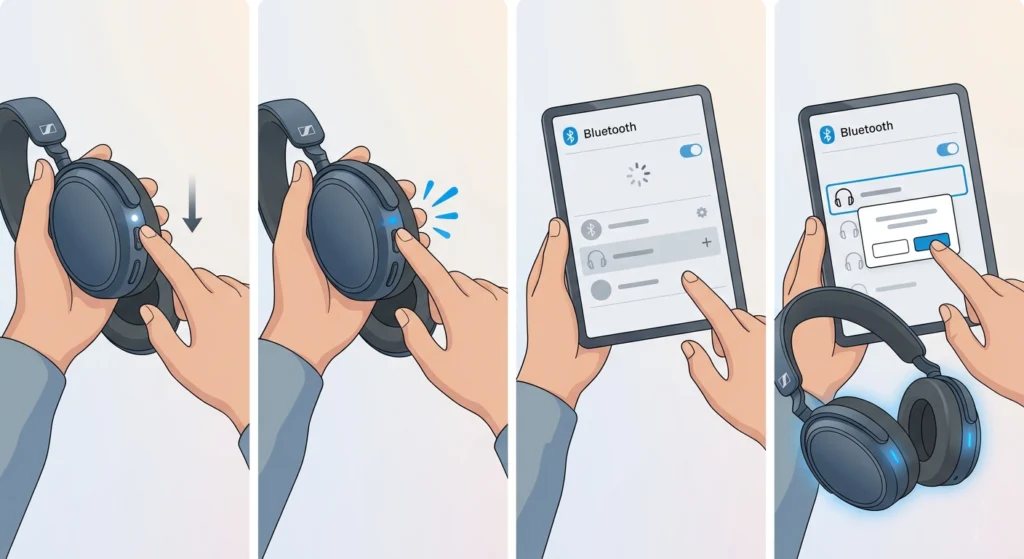
This is the most overlooked step. The Momentum 4 does not broadcast a pairing signal unless it is actively placed into pairing mode. Simply powering on the headphones connects them to the last paired device – it does not make them discoverable to new ones.
- Step 1: Power off the headphones completely by holding the power button until the LED turns off.
- Step 2: Press and hold the power button for approximately 5-6 seconds until the LED flashes blue rapidly. This rapid blue flashing confirms pairing mode is active.
- Step 3: Open Bluetooth settings on the phone, tablet, laptop, or PC and scan for new devices.
- Step 4: Select ‘Sennheiser Momentum 4’ from the available device list and confirm the connection.
The key is to wait for that fast blue flash. A slow flash or solid light means it connected to a previous device instead of entering pairing mode. If that happens, repeat from Step 1.
Fix 2: Clear the Momentum 4 Paired Device List (Factory Reset)
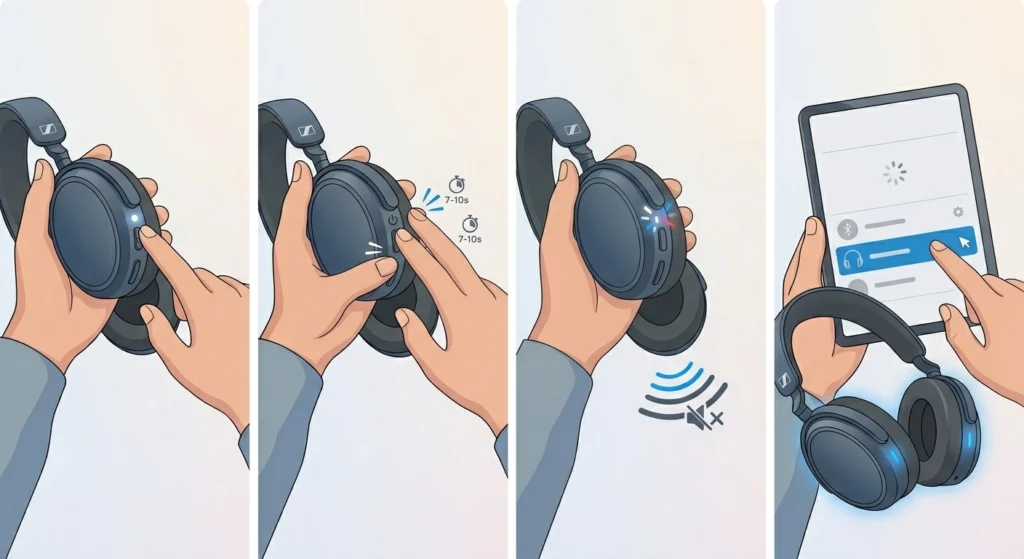
The Momentum 4 stores up to eight paired devices. When the list is full, or when a corrupted pairing entry is stored, the headphones can refuse new connections entirely. A full reset wipes all stored devices and gives the headphones a clean slate.
- Step 1: Power on the Momentum 4.
- Step 2: Press and hold both the volume up button and the power button simultaneously for about 7-10 seconds.
- Step 3: The LED will flash a sequence and the headphones will announce ‘Device list cleared’ or play a confirmation tone.
- Step 4: The Momentum 4 will automatically enter pairing mode after the reset. Connect the device now.
After clearing the list, delete the Momentum 4 from the Bluetooth settings on any previously connected device too. This prevents the device from trying to reconnect using an outdated pairing entry.
Pro-Tip: On Windows 11, removing a Bluetooth device from settings does not always fully clear the pairing data. Go to Device Manager, show hidden devices, and remove any ghosted Sennheiser entries there as well. This is especially useful if dealing with re-pairing Bluetooth headphones for stereo sound on Windows.
Fix 3: Remove and Re-Add the Device on the Host Device
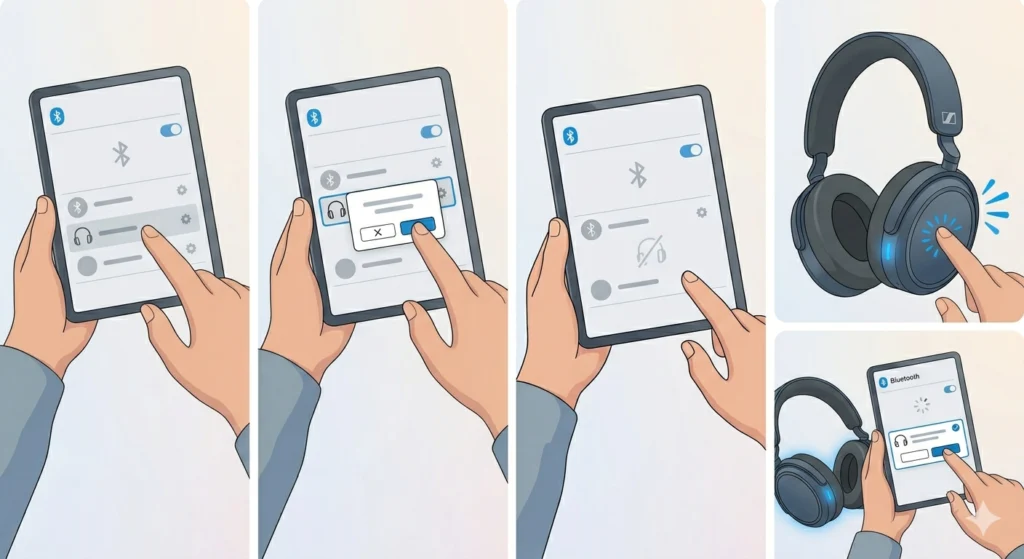
Sometimes the problem is on the phone or computer side, not the headphones. An old, broken pairing profile stored on the host device can block a fresh connection even when the headphones are in pairing mode.
- Step 1: Open Bluetooth settings on the phone or computer.
- Step 2: Find ‘Sennheiser Momentum 4’ in the paired or known devices list.
- Step 3: Tap ‘Forget’ or ‘Remove Device’ to delete it completely.
- Step 4: Put the Momentum 4 into pairing mode (hold power button for 5-6 seconds until the blue LED flashes fast).
- Step 5: Scan for new devices and pair fresh.
Fix 4: Update Sennheiser Momentum 4 Firmware
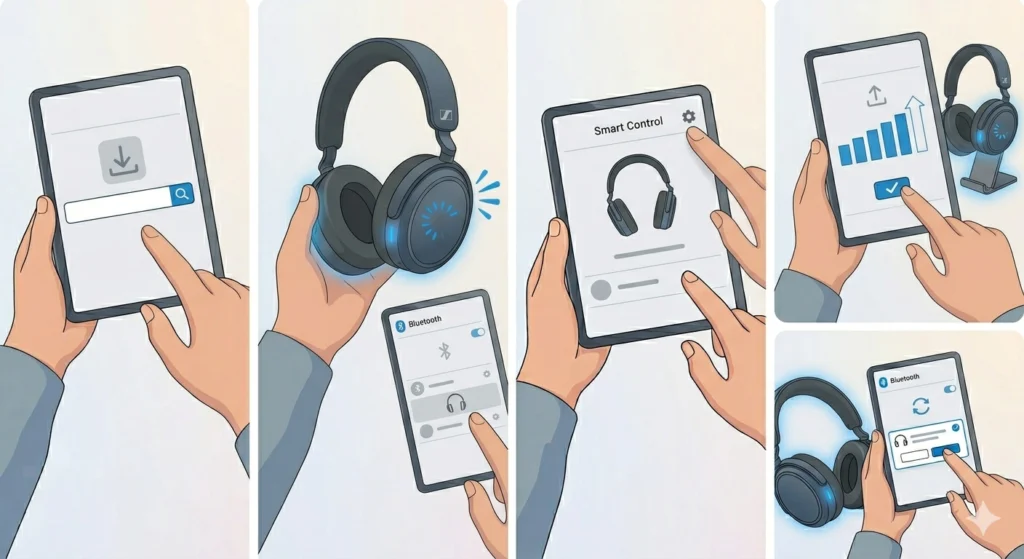
Bluetooth pairing bugs are one of the most common things Sennheiser patches through firmware updates. Running outdated firmware means living with known bugs that have already been fixed.
- Step 1: Download the ‘Sennheiser Smart Control’ app on a smartphone (available on iOS and Android).
- Step 2: Pair the Momentum 4 to the phone first – this may require using Fix 1 or Fix 2 above.
- Step 3: Open Smart Control and navigate to the headphone settings.
- Step 4: If a firmware update is available, tap ‘Update’ and keep the headphones close to the phone during the update.
- Step 5: Once updated, attempt pairing to the original device again.
Most people find that a firmware update alone resolves recurring pairing issues that keep coming back after a temporary fix.
Fix 5: Reduce Bluetooth Interference
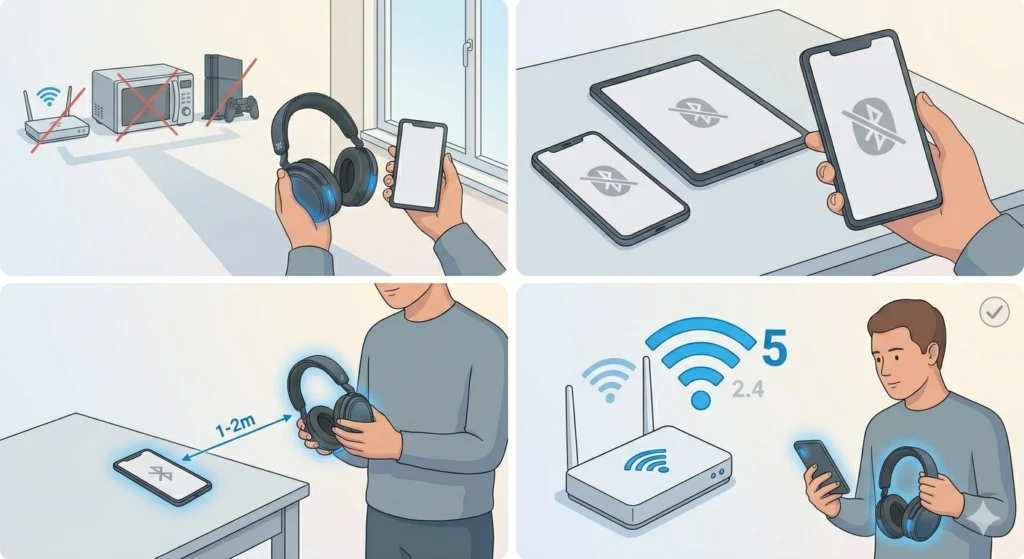
Bluetooth operates on the 2.4 GHz frequency – the same band used by Wi-Fi routers, microwaves, baby monitors, and other wireless devices. Heavy interference can prevent the Momentum 4 from completing a pairing handshake.
- Step 1: Move the Momentum 4 and the host device to a different room, away from routers and other wireless electronics.
- Step 2: Turn off Bluetooth on any other nearby devices that are not in use.
- Step 3: Attempt pairing again within 1-2 meters of the host device.
- Step 4: If the connection succeeds, the environment was the issue. Using a 5 GHz Wi-Fi band on the router reduces ongoing interference significantly.
Fix 6: Restart Bluetooth on the Host Device
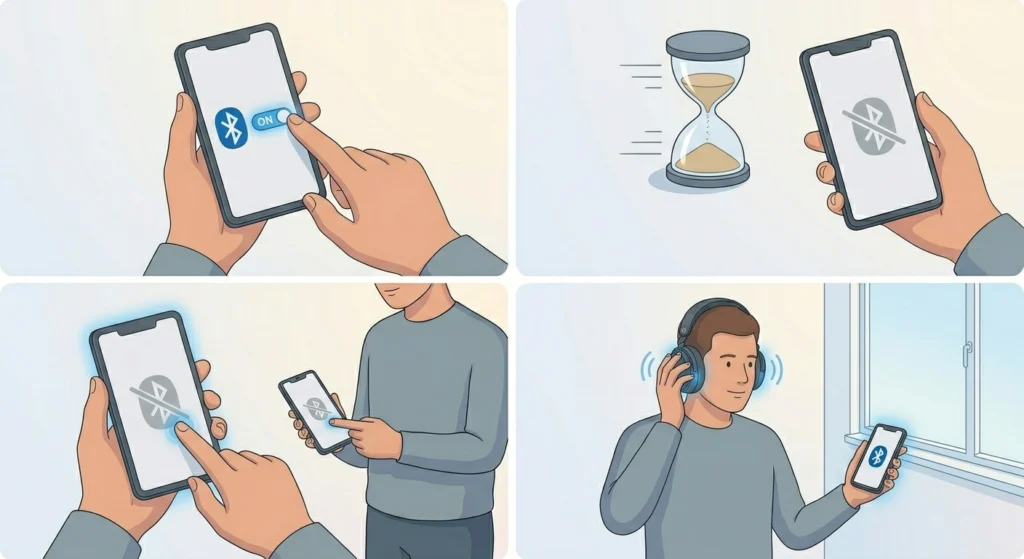
Bluetooth stacks on phones and computers can get stuck in a bad state – especially after sleep mode, updates, or connecting and disconnecting multiple devices rapidly. A quick Bluetooth toggle or full device restart often clears this.
- Step 1: Turn Bluetooth off completely on the phone or computer.
- Step 2: Wait 15-20 seconds.
- Step 3: Turn Bluetooth back on.
- Step 4: Put the Momentum 4 into pairing mode and attempt connection again.
If toggling does not help, do a full restart of the host device. On Windows 11, Bluetooth service issues sometimes require a deeper fix – resetting audio settings on Windows 11 can help clear underlying conflicts that block Bluetooth audio devices from connecting.
Pro-Tip: On Android, ‘Clear Bluetooth Cache’ is a separate step that goes beyond just toggling. Go to Settings – Apps – Show System Apps – Bluetooth – Storage – Clear Cache. This works best when the phone detects the headphones but fails to complete the pairing or keeps disconnecting immediately after.
Tips for Keeping the Momentum 4 Pairing Reliably
- Keep the firmware updated through the Sennheiser Smart Control app whenever a new version releases
- Avoid pairing to more than 6-7 devices at once – leaving at least one or two slots free prevents overflow issues
- Store the headphones powered off when not in use to prevent background reconnection attempts that can cause list conflicts
- Pair to frequently used devices first – the Momentum 4 prioritizes recently connected devices when powered on
- When switching between devices (phone to laptop, for example), disconnect from the current device through the app or Bluetooth settings before connecting to the next one
Common Problems and Solutions
Momentum 4 Appears in Bluetooth List But Will Not Connect
This usually means there is a stale pairing entry. Forget the device on the host side and clear the device list on the headphones using Fix 2, then pair fresh.
Momentum 4 Not Showing Up in Bluetooth Scan at All
The headphones are not in pairing mode. Hold the power button for 5-6 seconds until the blue LED flashes rapidly. If still not visible, interference or Bluetooth cache on the host device may be the cause – restart Bluetooth and try again within close range.
Momentum 4 Keeps Disconnecting Right After Pairing
This often points to a firmware issue or Bluetooth driver problem on the host device. Update firmware via Smart Control, and on Windows, check if the Bluetooth driver needs updating through Device Manager.
Momentum 4 Connected But No Sound
The headphones may be connected over the wrong Bluetooth profile (HFP instead of A2DP). On Windows 11, check the active audio output and make sure Momentum 4 is selected as the output device in sound settings.
Frequently Asked Questions
How do you put Sennheiser Momentum 4 into pairing mode?
Hold the power button for 5-6 seconds after powering off. The LED will flash blue rapidly to confirm pairing mode is active. Only then will the headphones appear as discoverable to new devices.
How many devices can Sennheiser Momentum 4 pair with at once?
The Momentum 4 stores up to eight paired devices and supports Bluetooth multipoint, allowing simultaneous active connection to two devices at once.
How do you reset Sennheiser Momentum 4 to fix pairing issues?
Press and hold the volume up button and the power button simultaneously for about 7-10 seconds. The headphones will announce that the device list has been cleared and will automatically enter pairing mode.
Why does Sennheiser Momentum 4 keep connecting to an old device instead of a new one?
The Momentum 4 auto-connects to the most recently used device when powered on. To connect to a new device, either disconnect from the old device first through the Sennheiser Smart Control app, or hold the power button to force pairing mode.
Does the Sennheiser Smart Control app help with pairing issues?
Yes. The app allows management of the paired device list, firmware updates, and multipoint connection settings – all of which directly affect pairing reliability.
Why won’t Sennheiser Momentum 4 pair to a Windows 11 PC?
Windows 11 sometimes retains corrupted Bluetooth pairing data. Remove the headphones from Bluetooth settings, clear them from Device Manager under hidden devices, and re-pair. Keeping Bluetooth drivers updated also prevents recurring issues.
Can interference cause Sennheiser Momentum 4 pairing to fail?
Yes. Heavy 2.4 GHz interference from routers, microwaves, or other Bluetooth devices can prevent the pairing handshake from completing. Move closer to the host device and away from interference sources and try again.
Is it normal for Sennheiser Momentum 4 to drop from pairing mode quickly?
Pairing mode times out after about 3 minutes if no connection is made. If the scan on the host device takes too long, the headphones exit pairing mode. Simply hold the power button again to re-enter it.
Does updating firmware fix Bluetooth pairing problems on Momentum 4?
In many cases, yes. Sennheiser regularly patches Bluetooth stability and pairing bugs through firmware updates. Always check for updates in the Smart Control app before assuming a hardware fault.
What should be done if none of the fixes resolve the pairing issue?
If all fixes have been tried – including a full device list reset, firmware update, and interference reduction – contact Sennheiser support directly. The headphones may have a hardware-level Bluetooth fault covered under warranty.