
Resetting a JLab Studio Pro ANC headset is one of the fastest ways to fix pairing glitches, audio dropouts, or connection issues that build up over time. Most people find that a factory reset solves problems that regular troubleshooting cannot touch, especially when the headphones start acting stubborn after months of daily use.
Key Takeaways
- Resetting the Studio Pro ANC restores Bluetooth pairing memory and clears connection errors
- The process takes less than a minute and needs no tools or app downloads
- Forgetting the device from Bluetooth settings first prevents reconnection issues
- The power button is held for 8 seconds until the LED flashes blue and red
- Reconnecting afterward requires selecting the headphones again from the device list
Step-by-Step Guide to Reset JLab Studio Pro ANC
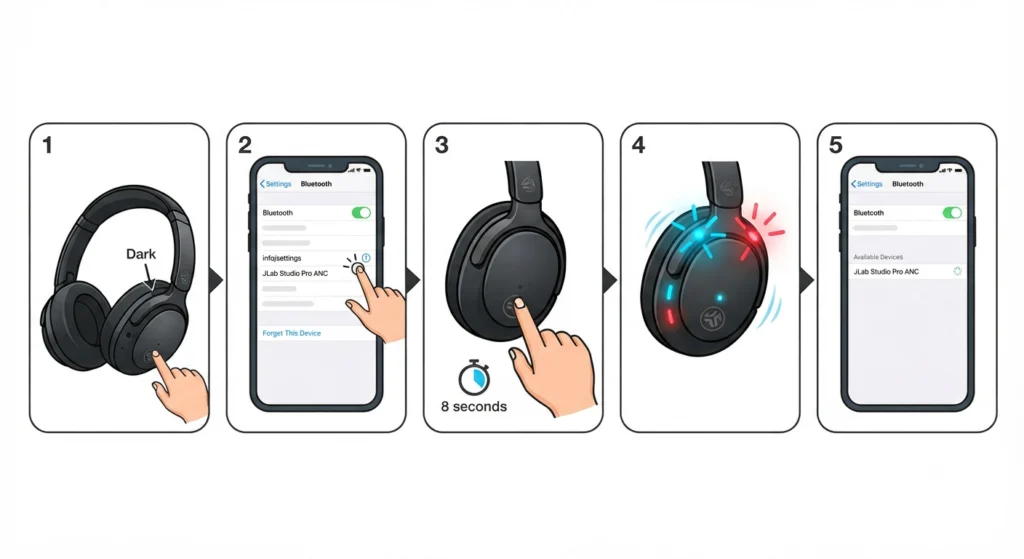
This method works directly on the headphones themselves and applies to the current JLab Studio Pro ANC over-ear model. Following the order below prevents the headphones from getting stuck in a half-paired state.
- Step 1: Turn off the JLab Studio Pro ANC headphones completely and confirm the LED indicator is off.
- Step 2: Open Bluetooth settings on the phone, tablet, or computer previously paired with the headphones, then forget or unpair the JLab Studio Pro ANC device.
- Step 3: Press and hold the power button on the headphones for about 8 seconds.
- Step 4: Release the button once the LED starts flashing blue and red alternately, which confirms the headphones are wiped and back in pairing mode.
- Step 5: Open Bluetooth settings again and select ‘JLab Studio Pro ANC’ from the list of available devices to connect.
Pro-Tip: Always unpair the headphones from every previously connected device before starting the reset. Skipping this step is the most common reason people end up with a headset that connects but plays no sound afterward.
Reconnecting After the Reset
Once the LED settles into a steady blue light, the headphones are ready to pair like new. On a Windows 11 laptop, this is also a good moment to double-check the connection quality by re-pairing the Bluetooth audio device for proper stereo sound, since a factory reset sometimes defaults the headphones to mono or a lower audio profile until the pairing is refreshed.
If the sound comes through only on one side, or the volume feels lower than usual right after reconnecting, it usually has nothing to do with the headphones themselves. The playback device often needs a quick nudge in the audio settings to recognize the new connection properly.
Tips for a Smooth Reset
- Charge the headphones to at least 30 percent before starting, since a low battery can interrupt the reset midway
- Stay within a few feet of the paired device during the process to avoid Bluetooth interference
- Close other Bluetooth-connected devices nearby that might compete for the connection
- Wait a few seconds after the LED changes before pressing any other button
The key is to move through each step without rushing. Most reset failures happen because the power button gets released too early, before the LED shows the blue and red flash pattern.
Common Problems After Resetting JLab Studio Pro ANC
Headphones Do Not Appear in the Bluetooth List
This usually means the reset did not fully complete. Powering the headphones off, then repeating the 8 second hold on the power button, typically brings them back into pairing mode.
Sound Plays But ANC Will Not Turn On
Active noise cancelling activates through a separate press and hold of the ANC button, not the power button. After a reset, this button still functions independently, so a 2 second press should switch it back on.
Audio Sounds Distorted or Too Quiet
This is often tied to the playback device rather than the headphones. On Windows 11 machines, adjusting the audio output settings after a fresh pairing usually restores normal volume and clarity right away.
Frequently Asked Questions
How long does it take to reset JLab Studio Pro ANC headphones?
The entire process takes under a minute, from holding the power button to seeing the blue and red flash confirming the reset.
Does resetting delete saved Bluetooth pairings?
Yes, a factory reset clears all previously stored Bluetooth pairing data, so the headphones need to be paired again as a new device afterward.
Will resetting fix a headphone that will not charge?
A reset addresses pairing and connection issues, not charging hardware problems. If the headphones will not charge at all, checking the cable and charging port is a more direct first step.
Can the JLab Studio Pro ANC be reset without a phone nearby?
Yes, the reset itself only involves the headphones. A phone or computer is only needed afterward to reconnect via Bluetooth.
What does the blue and red flashing light mean?
That pattern confirms the headphones have entered pairing mode after being powered on through the 8 second button hold, which is the same indicator used during a reset.
Is there a separate button just for factory reset?
No, the JLab Studio Pro ANC uses the main power button for this process. There is no dedicated reset pinhole on this model.
Why does the headset show as connected but play no audio?
This typically happens when the previous pairing was not fully removed from the device settings. Forgetting the device completely before reconnecting usually resolves it.
Does a factory reset affect ANC or sound presets?
The reset clears Bluetooth pairing memory but does not permanently change the sound presets, since those cycle through the button controls each time the headphones connect.
How often should JLab Studio Pro ANC headphones be reset?
There is no fixed schedule. A reset is only needed when pairing issues, audio dropouts, or connection errors appear and basic reconnecting does not fix them.
Can this reset method work on other JLab wireless headphones?
The Studio Pro ANC uses the standard JLab wireless headphone reset pattern, though earbud models like the JBuds series use a different tap-based method instead of a button hold.