
Learning how to reset Beats Studio Pro to factory settings is often the fastest fix when pairing gets stuck, audio cuts out, or the headphones stop responding the way they should. This guide walks through the exact steps, using the official reset method built into the hardware.
Quick Summary
- Resetting Beats Studio Pro takes less than 30 seconds and requires no app or software.
- The reset is done using two physical buttons – no cables needed.
- A successful reset is confirmed when the LED light flashes.
- Once reset, the headphones automatically enter pairing mode.
- Battery should be above 20 percent before starting the process.
Step-by-Step Guide to Reset Beats Studio Pro
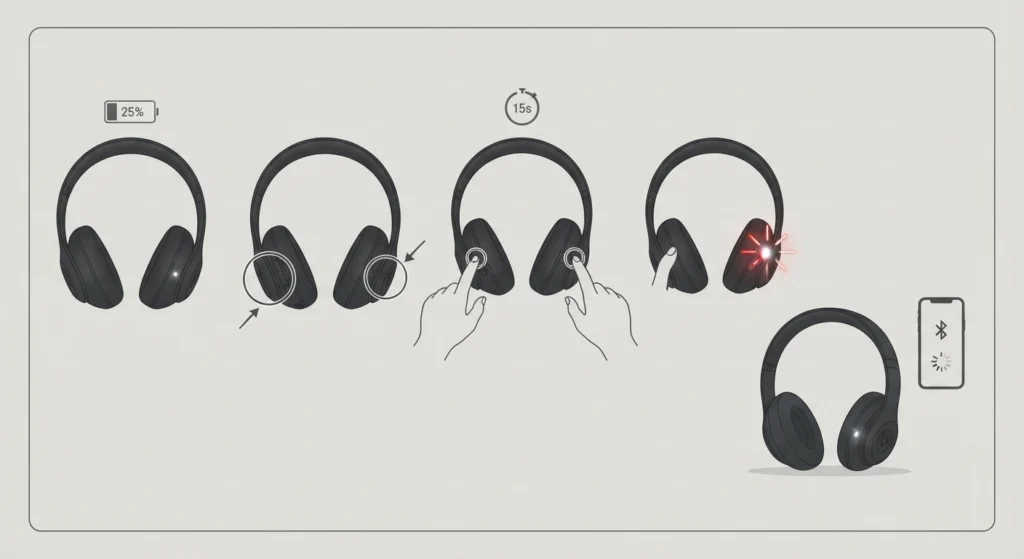
Beats Studio Pro uses a specific button combination for a full factory reset. This works whether the headphones are having trouble connecting to a phone, laptop, or any other Bluetooth device.
- Step 1: Make sure the headphones are powered on and have enough charge, ideally above 20 percent.
- Step 2: Locate the volume button on the left ear cup and the power button on the right ear cup.
- Step 3: Press and hold both buttons at the same time for 15 seconds.
- Step 4: Watch for the LED indicator light to flash, then release both buttons.
- Step 5: The headphones will automatically restart and enter pairing mode, ready to connect as a new device.
Pro-Tip: Hold both buttons firmly and avoid releasing early. Letting go before the light flashes is the most common reason the reset does not complete on the first try.
Pairing Beats Studio Pro Again After a Reset
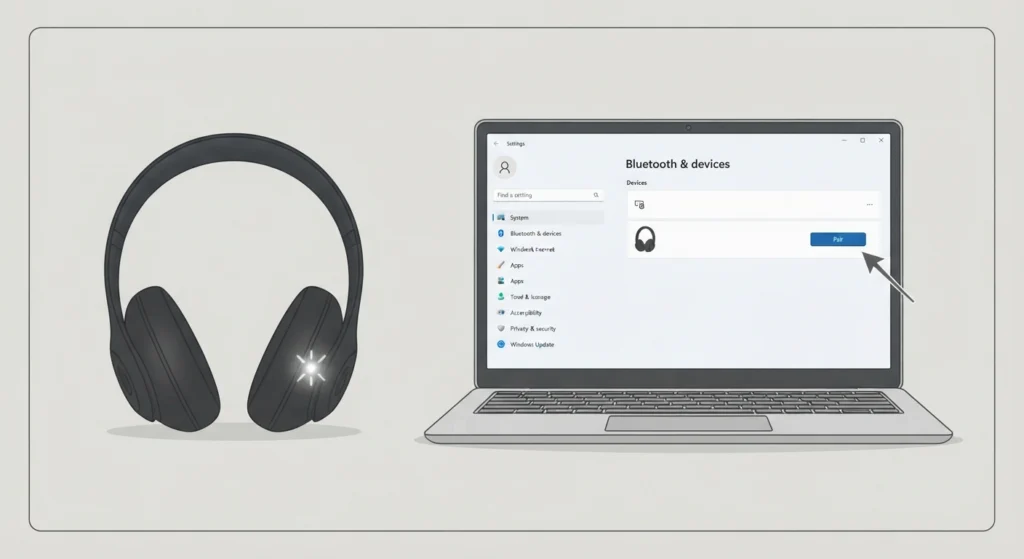
Once the reset is complete, the headphones show up as a new Bluetooth device on any phone, tablet, or computer. On a Windows laptop, this means opening Bluetooth settings and selecting Beats Studio Pro from the list of available devices. Anyone switching between multiple devices or setting up stereo sound on a PC can find a detailed walkthrough for re-pairing Bluetooth earbuds for stereo sound on Windows, which covers the same pairing screen used for headphones.
Tips for a Smooth Factory Reset
- Charge the headphones for at least 15-20 minutes before resetting if the battery is low.
- Remove Beats Studio Pro from the Bluetooth list on any previously paired device before reconnecting, so old pairing data does not interfere.
- Keep the headphones close to the device being paired, ideally within three feet, during the first connection after a reset.
- Update the connected phone or computer’s Bluetooth drivers if pairing still feels unreliable after the reset.
Pro-Tip: A factory reset clears saved Bluetooth pairings but does not affect the firmware version. There is no need to reinstall or update anything through the Beats app afterward unless a firmware update was already pending.
Common Problems When Resetting Beats Studio Pro
The LED Light Does Not Flash
This usually means the buttons were not held long enough or not pressed at exactly the same time. Release both buttons, wait five seconds, and try again, holding for the full 15 seconds.
Headphones Do Not Show Up After Reset
If the headphones do not appear in the Bluetooth list after a reset, the connected device may need its Bluetooth turned off and back on. On a Windows 11 computer, checking and resetting audio settings can also clear out any leftover configuration blocking a fresh connection.
Sound Is Distorted or One-Sided After Reconnecting
This is rarely related to the reset itself and more often tied to how the audio output is configured on the connected device. Adjusting the output channel settings usually resolves it within a minute or two.
Frequently Asked Questions
Does resetting Beats Studio Pro delete music or saved files?
No. Beats Studio Pro does not store music, apps, or personal files. A reset only clears Bluetooth pairing information and restores default settings.
How long does it take to reset Beats Studio Pro?
The full process takes about 15-20 seconds, from holding the buttons to seeing the LED light flash.
Will a factory reset fix Bluetooth pairing issues?
In most cases, yes. Clearing old pairing data through a reset resolves the majority of connection problems between Beats Studio Pro and phones or computers.
Can Beats Studio Pro be reset without the charging case?
Yes. Unlike some Beats earbuds, Studio Pro is an over-ear headphone and does not use a charging case for its reset process. The reset is done entirely through the two buttons on the ear cups.
What happens if the headphones are turned off during reset?
The headphones need to be powered on for the reset combination to work. If they are off, turn them on first, then follow the button-press steps.
Does a factory reset remove firmware updates?
No. Firmware stays intact after a reset. Only pairing history and custom settings are cleared.
Why won’t Beats Studio Pro go into pairing mode after a reset?
If pairing mode does not activate automatically, try repeating the reset steps once more, making sure the LED flashes before releasing the buttons.
Is it safe to reset Beats Studio Pro frequently?
Yes. There is no risk to the hardware from resetting multiple times. It is a normal troubleshooting step built into the design.
Can Beats Studio Pro be reset while charging?
Yes, the reset process works whether the headphones are charging or running on battery, as long as they are powered on.
Do all Beats headphone models reset the same way?
No. Button combinations vary by model. The steps in this guide apply specifically to Beats Studio Pro.