
If the Razer Barracuda X is not charging, the cause is usually something simple, like a worn cable, a weak USB port, or a bit of debris in the charging port. This guide covers the fixes Razer Support itself recommends, in the order that saves the most time.
Key Takeaways
- Start with the cable that came in the box and plug it straight into a computer USB port.
- Swap the cable and the USB port to rule out the cheapest culprits first.
- Check the charging port for debris or looseness.
- Confirm charging status in Razer Synapse or the Razer Audio App.
- If nothing works, contact Razer Support with the serial number and proof of purchase.
How to Fix Razer Barracuda X Not Charging (Step-by-Step)
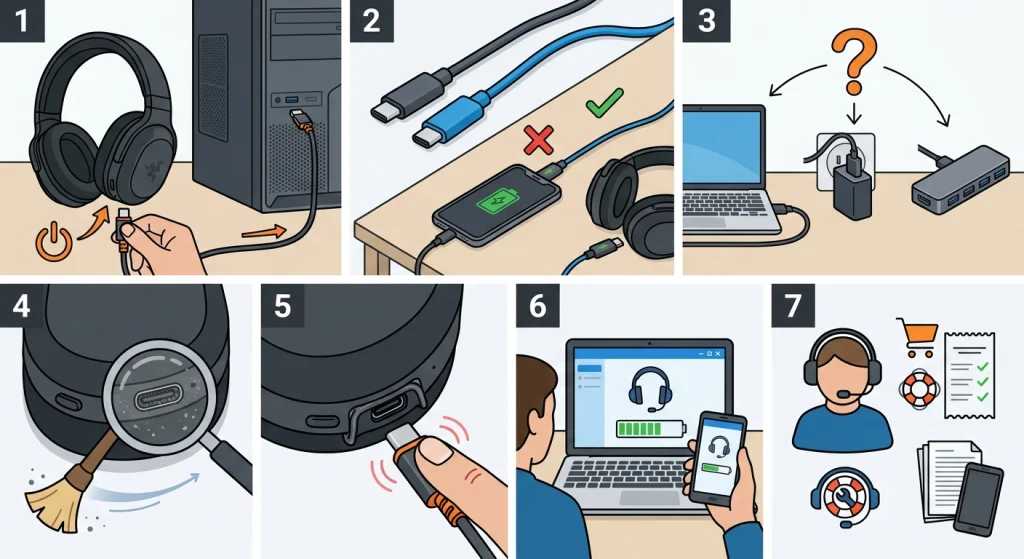
Work through these in order. Most people find that one of the first four steps brings the headset back to life.
- Step 1: Plug the original charging cable firmly into the headset, then connect the other end directly to a USB port on a computer. Razer Support specifically recommends charging straight from a PC USB port with the cable that shipped with the headset.
- Step 2: Test the cable. Charge the headset with a different USB cable, or use the same cable to charge another device. A cable can look perfectly fine and still fail to deliver power.
- Step 3: Test the power source. Try another USB port, another computer, or a wall charger. Plugging another device into the same port is a quick way to confirm that the port itself works.
- Step 4: Inspect the charging port on the headset. Look for lint, dust, or debris packed inside. If anything is visible, clean it gently with a soft brush or a short burst of compressed air. Never push metal objects inside.
- Step 5: Check that the port is not loose or damaged. The cable should seat snugly. If the connector wobbles or the port looks bent, stop there and move to Step 7.
- Step 6: Open Razer Synapse or the Razer Audio App and look at the Device Status for the headset. This shows whether the software detects the headset as charging.
- Step 7: If the headset still refuses to charge, contact Razer Support. Have the serial number and proof of purchase ready so the warranty can be validated.
Fix 1: Switch to the Original Cable and a Direct USB Port
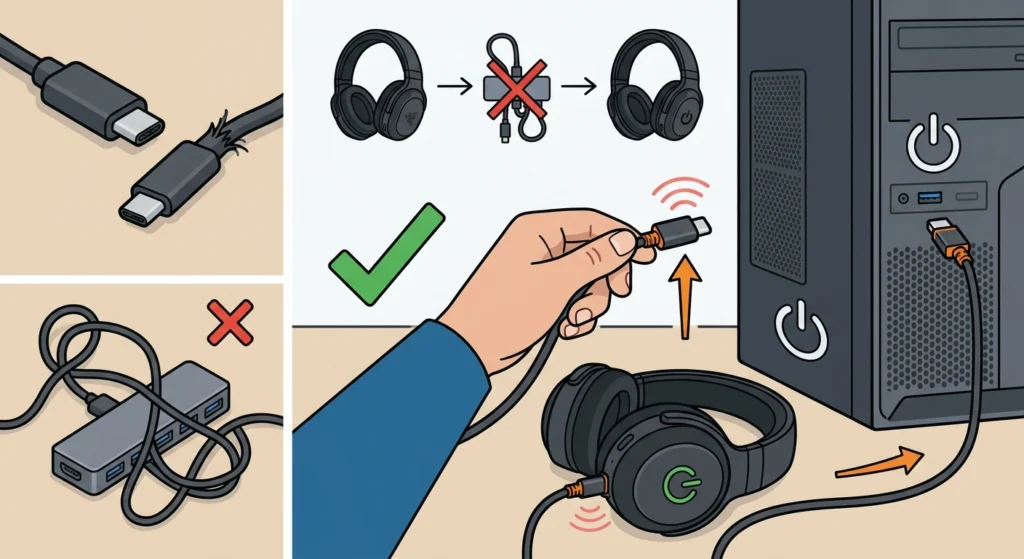
Many charging problems come from the connection, not the headset. Extension cables, loose hubs, and phone chargers with unusual output can all interrupt charging. Using the included cable straight into the computer removes those variables in a single move.
Pro-Tip: Change only one thing at a time. If the cable and the USB port are swapped together, there is no way to tell which one was the problem. Swap the cable first, then the port.
Fix 2: Clean the Charging Port
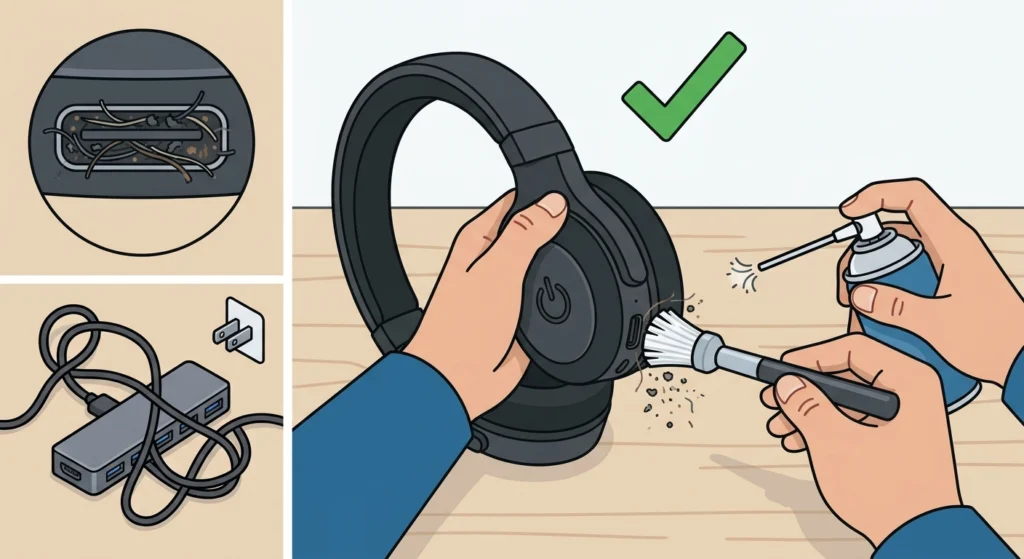
Think of the charging port like a pocket. Over months of travel in a bag or on a desk, it quietly collects lint, and that lint can stop the connector from seating all the way in. A soft brush or compressed air is enough to clear it. Keep the headset powered off and unplugged while cleaning.
Fix 3: Confirm Charging Status in the Razer Software
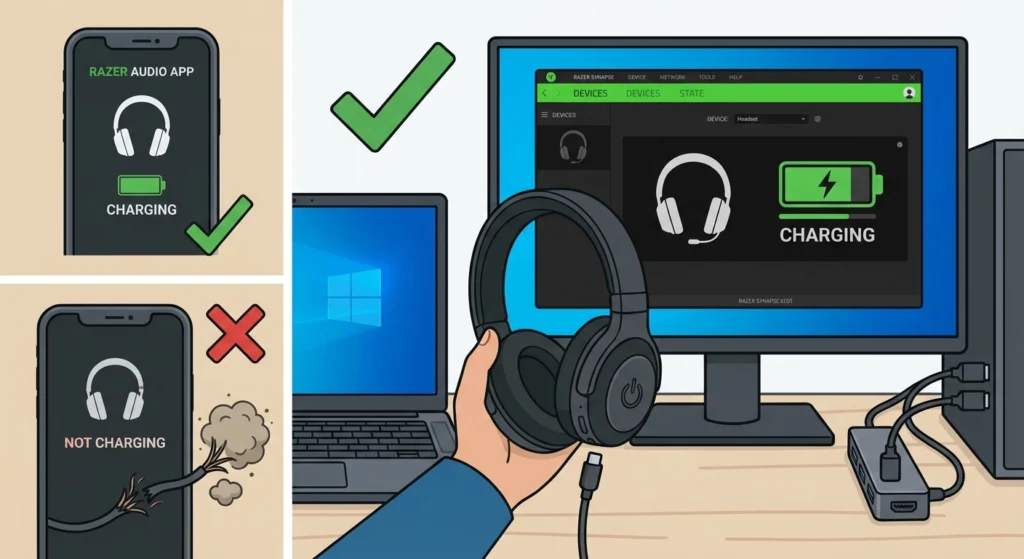
Razer Synapse and the Razer Audio App both display the headset’s Device Status. If the software shows the headset as connected and charging, the headset is receiving power, and the battery may simply need more time. If nothing shows up, the problem is more likely the cable, the port, or the headset itself.
Tips for Keeping the Razer Barracuda X Charging Reliably
- Keep the original cable and avoid bending it sharply at the connector.
- Plug the cable in straight, not at an angle, to avoid stressing the port.
- Store the headset in a case or pouch so lint stays out of the charging port.
- Once the headset powers up again on Windows 11, the sound may still go to the wrong device. This guide on adjusting audio output settings shows how to pick the right output.
- If the headset connects over Bluetooth but the sound is off, re-pairing the device for stereo sound on Windows is the cleanest way to start fresh.
Pro-Tip: Warranty claims move faster when the serial number and proof of purchase are ready before contacting Razer Support. Keep a photo of the receipt on a phone so it is always at hand.
Common Problems and Quick Fixes
The Headset Stops Charging After a Few Minutes
Try a different cable first, then a different USB port. Razer Support has asked users with this exact symptom to test another cable before anything else. If the behavior continues, contact Razer Support.
A Brand New Headset Will Not Charge
Run through the cable and port checks in the steps above. If the headset still shows no sign of charging, contact the seller or Razer Support, since a new unit is covered by warranty.
The Charger Seems Done but the Battery Reads Low
Check the battery reading in the Razer Synapse or the Razer Audio App, then try a different cable and port. If the reading stays low after a full charging session, contact Razer Support.
The Charging Port Feels Loose
A loose or damaged port cannot be fixed with cleaning. Avoid forcing the connector and contact Razer Support instead.
Frequently Asked Questions
Why is the Razer Barracuda X not charging?
The most common causes are a faulty cable, a weak or inactive USB port, or debris in the charging port. Testing each one in turn usually reveals the problem.
Which cable should be used to charge the Razer Barracuda X?
The cable that came with the headset is the best choice. Razer Support recommends using it and connecting directly to a PC USB port.
Should the headset be charged from a computer or a wall charger?
Razer Support suggests a direct computer USB port. A wall charger can still be used as a test to confirm whether the original port was the issue.
How can the charging port be cleaned safely?
Use a soft brush or compressed air while the headset is unplugged. Avoid metal tools, since they can damage the contacts inside the port.
How can charging status be checked on a PC?
Open Razer Synapse or the Razer Audio App and view the headset’s Device Status. It shows whether the headset is detected and charging.
What should be done if a new Razer Barracuda X will not charge?
Try another cable and another USB port first. If the headset still does not respond, contact Razer Support with the serial number and proof of purchase.
Why does the headset stop charging after only a few minutes?
This is often linked to the cable or the port. Testing a different cable and a different USB port is the first step Razer Support suggests.
What if the charging port is loose or damaged?
Cleaning will not repair physical damage. Stop using force on the connector and contact Razer Support to ask about repair or replacement options.
What information does Razer Support need for a warranty check?
Razer Support asks for the headset’s serial number and proof of purchase so the warranty can be validated.
Is it worth trying another computer to charge the headset?
Yes. Testing another computer helps confirm whether the original USB port was the problem or whether the headset is the one that has the fault.