
Key Takeaways
- Google Pixel Buds Pro 2 not showing up in the app is usually caused by an outdated app, a broken Bluetooth connection, or missing permissions.
- Forgetting and re-pairing the earbuds solves the issue in most cases.
- Location and nearby devices permissions must be enabled for the app to detect the earbuds properly.
- A factory reset of the Pixel Buds Pro 2 is the most reliable fix when nothing else works.
- Keeping both the phone software and the Pixel Buds app updated prevents this problem from returning.
Google Pixel Buds Pro 2 not showing up in the app is a common issue that pops up right after setup, following an update, or after switching phones. This guide walks through the exact fixes that get the earbuds recognized again, without wasting time on unrelated topics.
Step-by-Step Guide to Fix Pixel Buds Pro 2 Not Showing Up in the App
Most people find that this issue comes down to one of five root causes: a stale Bluetooth connection, an outdated app version, blocked permissions, a software glitch on the phone, or a fault on the earbuds themselves. Working through the methods below in order clears up the vast majority of cases.
Method 1: Reconnect the Earbuds Through Bluetooth Settings
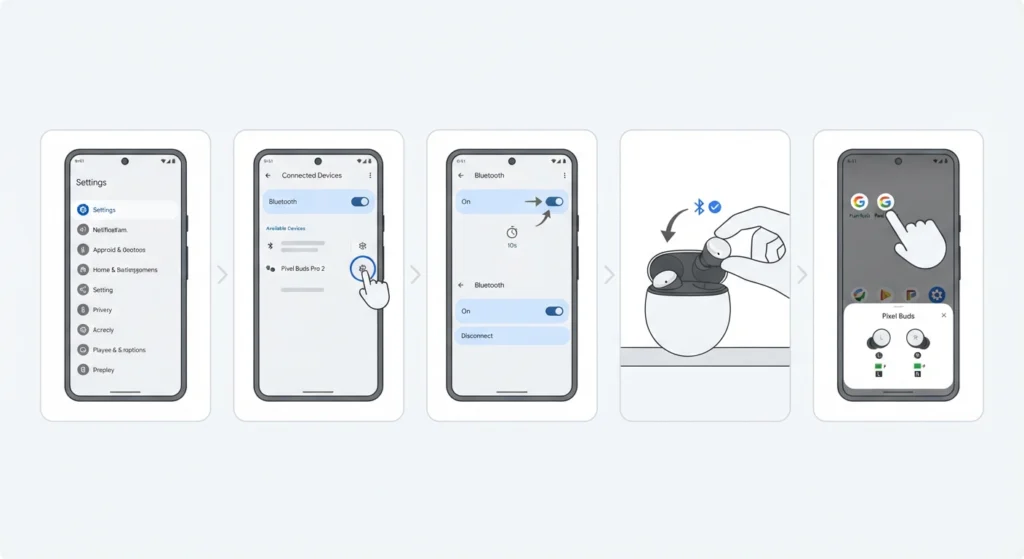
A dropped or corrupted Bluetooth link is the most frequent reason the app fails to display the earbuds. Refreshing that connection often solves the problem in under a minute.
- Step 1: Open Settings on the phone and go to Connected Devices.
- Step 2: Tap the gear icon next to the Pixel Buds Pro 2 entry and select Disconnect.
- Step 3: Turn Bluetooth off, wait about ten seconds, then turn it back on.
- Step 4: Take the earbuds out of the case and let them reconnect automatically.
- Step 5: Open the Pixel Buds app again to check if the earbuds now appear.
Method 2: Forget and Re-Pair the Pixel Buds Pro 2
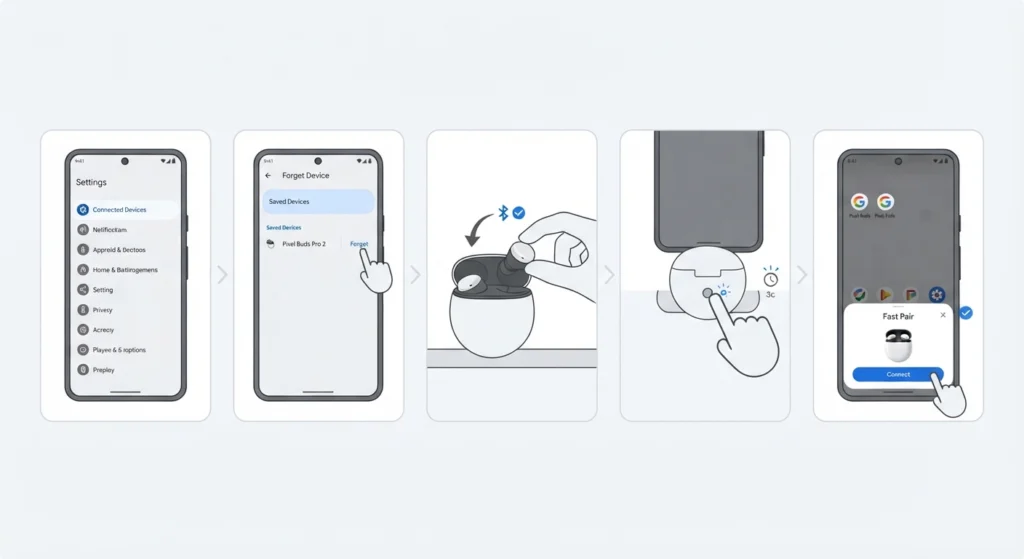
When a simple reconnect does not work, removing the saved pairing and starting fresh clears out any corrupted connection data that the app cannot read.
- Step 1: Go to Settings, then Connected Devices, then Saved Devices.
- Step 2: Select the Pixel Buds Pro 2 and tap Forget.
- Step 3: Place both earbuds back in the case and close the lid for ten seconds.
- Step 4: Open the lid near the phone and press the pairing button on the back of the case for three seconds.
- Step 5: Wait for the Fast Pair pop-up notification and follow it through to complete setup.
This same forget-and-repair approach also applies when connecting Pixel Buds Pro 2 to a Windows laptop for calls or media, and the process for re-pairing Bluetooth earbuds for stereo sound on Windows follows nearly identical steps.
Method 3: Enable Location and Nearby Devices Permissions
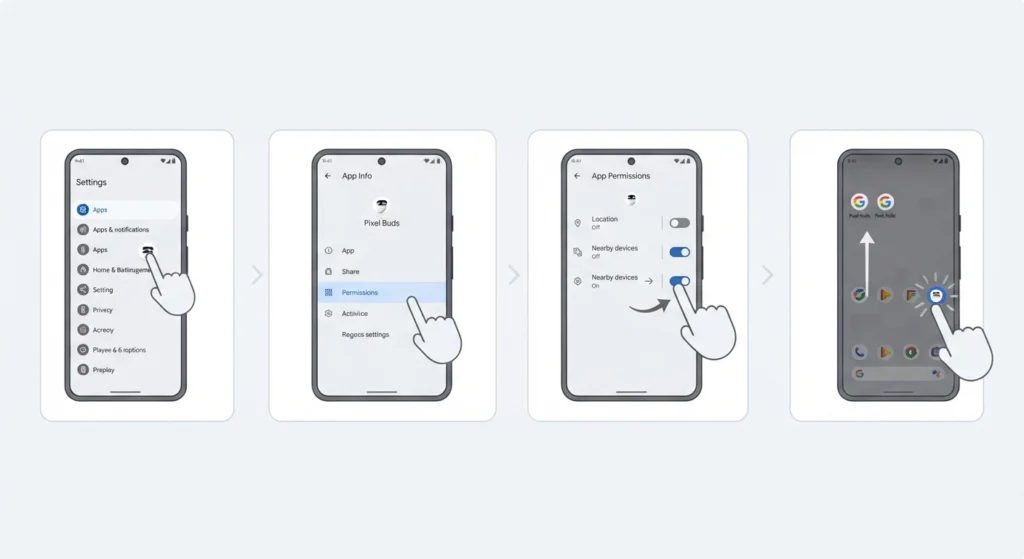
Android relies on location and nearby device permissions to scan for Bluetooth accessories. If these are turned off, the Pixel Buds app has no way to detect the earbuds even when they are connected.
- Step 1: Open Settings and go to Apps, then select the Pixel Buds app.
- Step 2: Tap Permissions.
- Step 3: Turn on Location and Nearby Devices if either shows as denied.
- Step 4: Close the app fully and reopen it to trigger a fresh scan.
Method 4: Update the Pixel Buds App and Phone Software
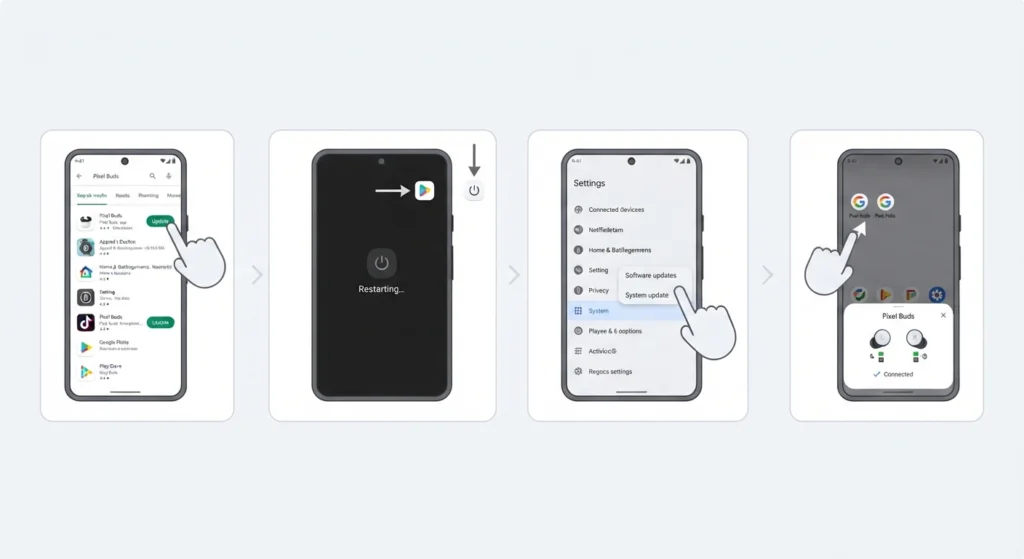
An outdated app version is a quiet but common cause of this issue, especially after Google pushes a new update to the earbuds firmware that the older app version does not recognize.
- Step 1: Open the Play Store and search for Pixel Buds.
- Step 2: Tap Update if one is available, then restart the phone.
- Step 3: Go to Settings, then System, then Software Updates, and install any pending Android update.
- Step 4: Reopen the Pixel Buds app and check the connection status again.
Method 5: Clear Cache for the Pixel Buds App and Google Play Services
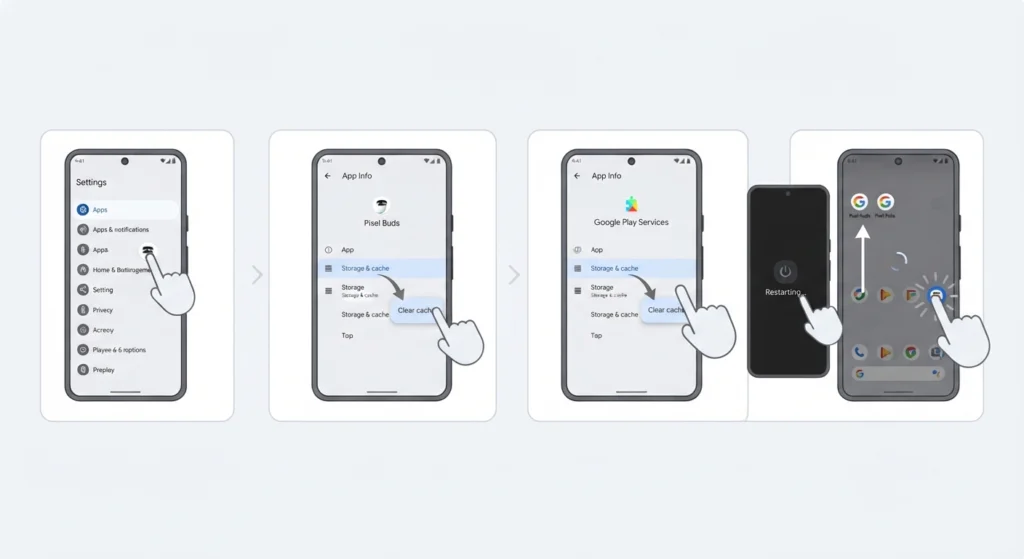
A build-up of cached data can quietly break the connection between the app and the earbuds. Clearing it forces the app to rebuild its device list from scratch.
- Step 1: Go to Settings, then Apps, then select the Pixel Buds app.
- Step 2: Tap Storage, then Clear Cache.
- Step 3: Repeat the same process for Google Play Services.
- Step 4: Restart the phone and reopen the Pixel Buds app.
Method 6: Factory Reset the Pixel Buds Pro 2
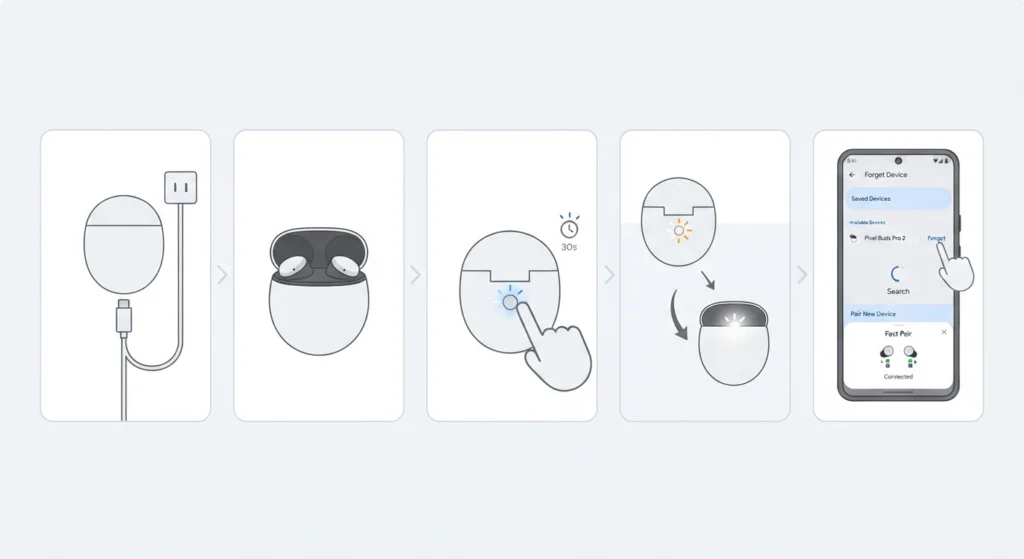
When none of the earlier methods work, resetting the earbuds themselves usually resolves the issue, since it clears any internal fault that is preventing the earbuds from broadcasting properly.
- Step 1: Plug the charging case into a power source using a USB-C cable.
- Step 2: Place both earbuds inside the case and leave the lid open.
- Step 3: Press and hold the pairing button on the back of the case for 30 seconds.
- Step 4: Release once the status light blinks white and orange, then wait for it to bounce white steadily.
- Step 5: Go back to Bluetooth settings on the phone, forget any old entry, and pair the earbuds again from scratch.
Pro-Tip: Always keep the case lid open and the earbuds seated inside during the reset and re-pair process. Closing the lid too early interrupts the pairing signal and forces a restart of the entire process.
Tips to Keep Pixel Buds Pro 2 Connected to the App
- Keep automatic app updates turned on in the Play Store so firmware compatibility issues do not build up over time.
- Charge the earbuds and case regularly, since a low battery can cause the app to lose the connection unexpectedly.
- Avoid connecting the earbuds to more than one device at a time, since Bluetooth conflicts can prevent the app from detecting them properly.
- Restart the phone once a week if the earbuds are used daily, as this clears minor Bluetooth stack issues before they cause bigger problems.
Common Problems and Troubleshooting
The app opens but shows a blank screen
This usually points to a permissions issue rather than a Bluetooth one. Double-check that Location and Nearby Devices are both enabled, then force close and reopen the app.
Earbuds connect for audio but the app still does not detect them
Audio playback and app detection use separate Bluetooth profiles. Forgetting the device and re-pairing it from scratch, as covered in Method 2, resolves this mismatch in most cases.
The app crashes immediately after opening
Clearing the app cache and data, followed by a restart of the phone, typically fixes crash-on-launch issues. If the app was recently updated, checking the Play Store for a newer patch is also worth doing.
Pro-Tip: When the earbuds also connect to a Windows PC for meetings or media, checking that audio settings are reset correctly on Windows 11 prevents similar detection issues from showing up on the desktop side too.
Frequently Asked Questions
Why does the Pixel Buds app not detect the Pixel Buds Pro 2?
This usually happens due to an outdated app version, a broken Bluetooth pairing, or missing location and nearby device permissions on the phone.
Does turning Bluetooth off and on fix the detection issue?
Yes, in many cases a simple Bluetooth toggle refreshes the connection and allows the app to detect the earbuds again.
Is a factory reset safe for the Pixel Buds Pro 2?
Yes, resetting the earbuds does not damage them. It simply clears the internal pairing memory so they can be set up again from scratch.
Why do the earbuds play audio but still not appear in the app?
Audio connection and app detection rely on different Bluetooth profiles. A forget-and-repair cycle usually brings both back in sync.
Do location permissions really affect Bluetooth detection?
Yes, Android requires location or nearby device permissions for apps to scan for Bluetooth accessories, including the Pixel Buds Pro 2.
What should be checked first before resetting the earbuds?
Confirming the app is updated, permissions are enabled, and the earbuds are charged should always come before attempting a full reset.
Can an outdated phone software version cause this issue?
Yes, older Android versions sometimes lack the Bluetooth stack updates needed for the Pixel Buds Pro 2 to communicate properly with the app.
How long does the reset process take for Pixel Buds Pro 2?
The reset itself takes about 30 seconds, and the full re-pairing process afterward usually takes another two to three minutes.
Does clearing the app cache delete saved settings?
Clearing the cache does not delete saved settings, but clearing app data will reset preferences and require signing in again.
What if the earbuds still do not show up after trying every method?
At that point, checking for a hardware fault through official Google support channels is the next step, since the issue may not be software related.