
Nothing Ear 2 not connecting to Android is one of the most common frustrations users run into after the initial honeymoon phase with these earbuds. The good news is that most connection problems come down to a handful of fixable causes – stale Bluetooth pairing data, firmware glitches, or app conflicts. This guide walks through every proven fix in the right order so the problem gets resolved as quickly as possible.
Quick Summary: Key Takeaways Before You Start
- Most Nothing Ear 2 connection issues on Android are caused by corrupted Bluetooth cache or outdated pairing data
- Forgetting the device and re-pairing from scratch solves the problem in the majority of cases
- Resetting the earbuds themselves clears firmware-level glitches that Android cannot fix on its own
- The Nothing X app can conflict with Bluetooth – disabling battery optimization for the app helps
- Android Bluetooth cache should be cleared whenever standard re-pairing does not work
- Keeping Nothing Ear 2 firmware updated through the Nothing X app prevents many recurring issues
How to Fix Nothing Ear 2 Not Connecting to Android
Fix 1: Turn Bluetooth Off and Back On
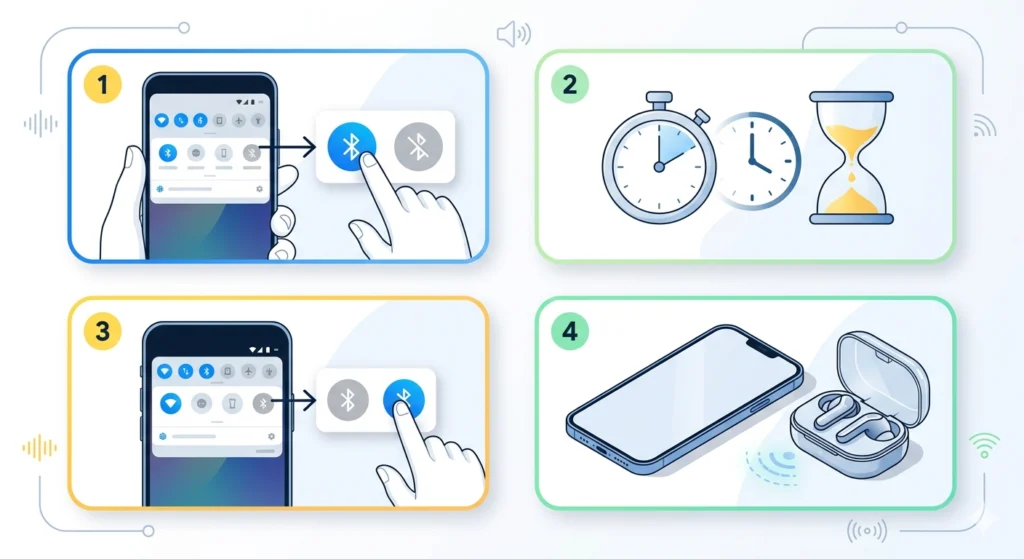
This sounds too simple, but it genuinely resolves temporary Bluetooth stack errors on Android. The Bluetooth radio occasionally enters a stuck state where it cannot complete a handshake with previously paired devices.
- Step 1: Pull down the notification shade on the Android device and tap the Bluetooth tile to turn it off
- Step 2: Wait a full 10 seconds – not just 2 or 3
- Step 3: Tap the Bluetooth tile again to turn it back on
- Step 4: Open the Nothing Ear 2 case near the phone and wait for an automatic reconnection attempt
If the earbuds do not reconnect automatically within 15 seconds, open the Bluetooth settings and tap the Nothing Ear 2 entry to connect manually.
Fix 2: Forget the Device and Re-Pair From Scratch
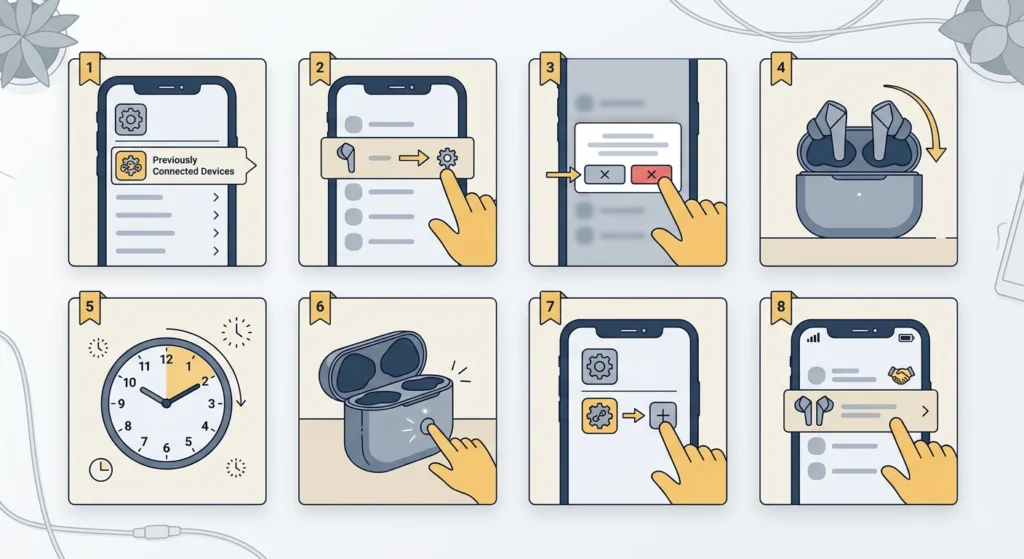
Stale pairing data is the number one cause of Android devices refusing to reconnect to Nothing Ear 2. Forgetting the device wipes that corrupted data and lets Android build a clean connection profile.
- Step 1: Go to Settings, then Connected Devices, then Previously Connected Devices on the Android phone
- Step 2: Find ‘Nothing Ear (2)’ in the list and tap the gear icon next to it
- Step 3: Tap ‘Forget’ and confirm the action
- Step 4: Place both earbuds back in the charging case and close the lid
- Step 5: Wait 10 seconds, then open the case
- Step 6: Press and hold the button on the back of the case for 3 seconds until the LED flashes white, indicating pairing mode
- Step 7: On the Android phone, go to Settings, then Connected Devices, then Pair New Device
- Step 8: Select ‘Nothing Ear (2)’ from the discovered devices list and confirm pairing
This works best when the Android device is within 1 meter of the earbuds during the pairing process. Distance and interference from other Bluetooth devices can interrupt a fresh pairing attempt.
Fix 3: Reset the Nothing Ear 2 Earbuds
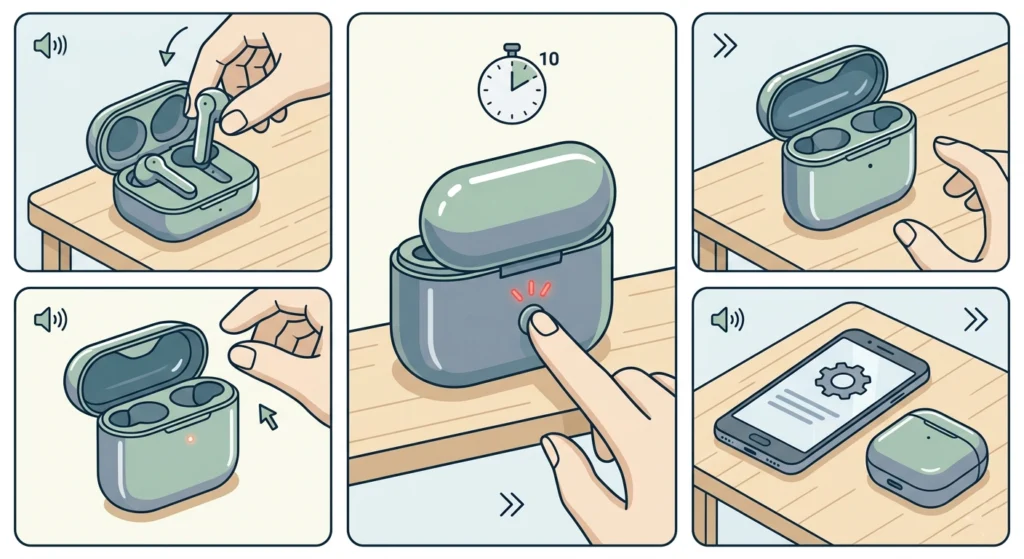
A factory reset on the earbuds clears all stored pairing data from the earbuds’ side, not just the phone’s side. This is the right move when re-pairing alone does not fix the connection problem.
- Step 1: Place both earbuds in the charging case
- Step 2: Keep the case lid open
- Step 3: Press and hold the button on the back of the case for 10 seconds until the LED flashes red three times
- Step 4: Release the button – the earbuds are now reset to factory defaults
- Step 5: Go back to Fix 2 and complete the full re-pairing process on the Android phone
Pro-Tip: After a factory reset, the Nothing Ear 2 will no longer remember any previously paired devices – including phones, tablets, and laptops. Make sure to re-pair every device that regularly uses these earbuds. The Nothing X app will also need to re-detect the earbuds before any equalizer or ANC settings can be adjusted again.
Fix 4: Clear Android Bluetooth Cache and Data
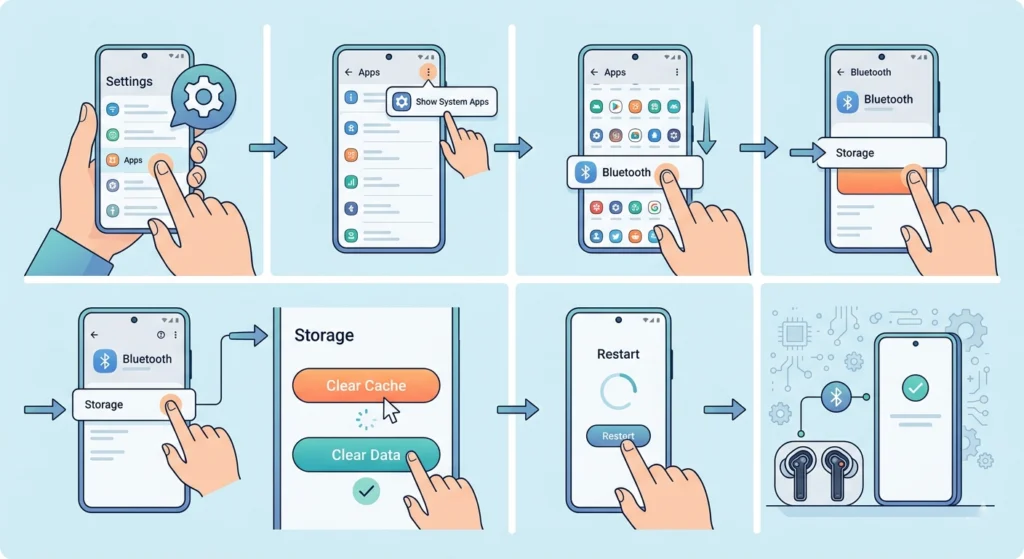
Android stores Bluetooth configuration data in a system app called ‘Bluetooth’ or ‘com.android.bluetooth’. Over time, this cache can become corrupted – especially after Android OS updates. Clearing it forces Android to rebuild its Bluetooth database from scratch.
- Step 1: Open Settings on the Android phone
- Step 2: Go to Apps (or Application Manager on some Android versions)
- Step 3: Tap the three-dot menu in the top-right corner and select ‘Show System Apps’
- Step 4: Scroll down and tap ‘Bluetooth’ from the list
- Step 5: Tap ‘Storage’ then tap ‘Clear Cache’
- Step 6: Tap ‘Clear Data’ as well – this step is safe and will not break Bluetooth permanently
- Step 7: Restart the Android phone
- Step 8: Re-pair the Nothing Ear 2 using the steps in Fix 2
Most people find that this fix resolves persistent connection drops that survive normal re-pairing attempts. It is particularly effective on phones running Android 12 or later where the Bluetooth stack was significantly updated.
Fix 5: Disable Battery Optimization for the Nothing X App
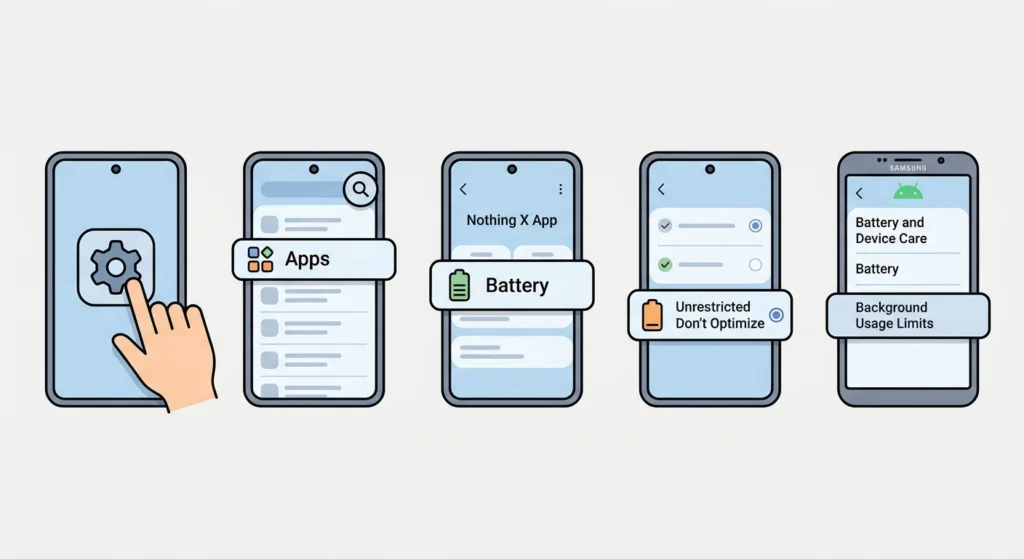
Android’s battery optimization aggressively kills background apps to preserve battery life. When the Nothing X app gets killed in the background, it can interrupt the Bluetooth connection management between the phone and the earbuds. Whitelisting the app from battery optimization keeps the connection stable.
- Step 1: Open Settings on the Android phone
- Step 2: Go to Apps and find ‘Nothing X’
- Step 3: Tap ‘Battery’ or ‘Battery Usage’
- Step 4: Select ‘Unrestricted’ or ‘Don’t Optimize’ – the exact wording varies by Android version and manufacturer
- Step 5: On Samsung phones, this setting is found under Settings, then Battery and Device Care, then Battery, then Background Usage Limits
Samsung Galaxy users running One UI should also check that Nothing X is not listed under ‘Sleeping Apps’ or ‘Deep Sleeping Apps’. If it is, remove it from those lists.
Fix 6: Update Nothing Ear 2 Firmware
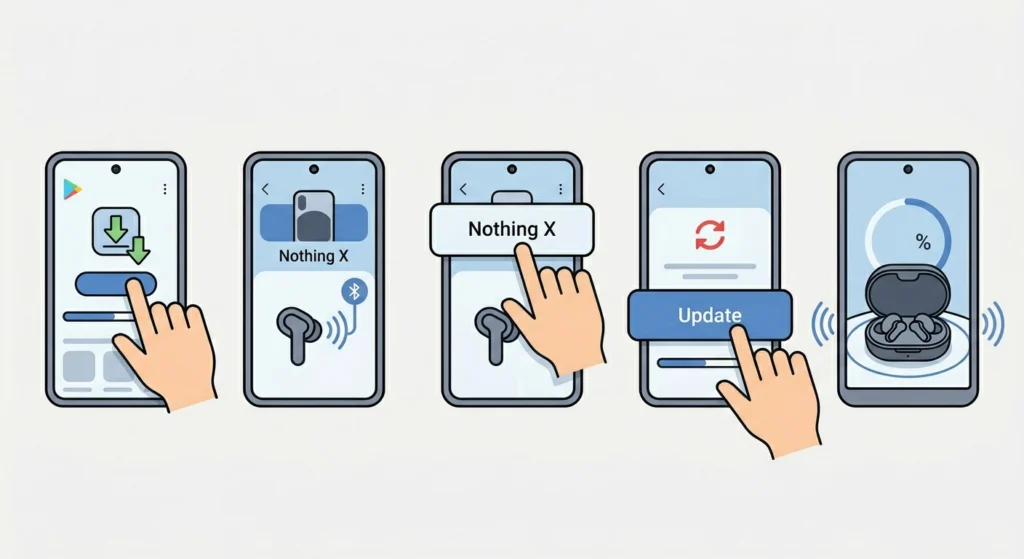
Nothing regularly releases firmware updates for the Ear 2 that address Bluetooth stability issues. Running outdated firmware is a known cause of random disconnections and failed reconnection attempts on Android.
- Step 1: Download or update the Nothing X app from the Google Play Store
- Step 2: Open the app and ensure the Nothing Ear 2 is connected
- Step 3: Tap the device name at the top of the screen
- Step 4: Look for a firmware update notification – if one is available, tap ‘Update Now’
- Step 5: Keep the earbuds in the case and stay within range of the phone during the update – it typically takes 2 to 4 minutes
The key is to not close the Nothing X app or lock the phone during a firmware update. Interrupting the update can brick the earbuds and require a warranty replacement.
Fix 7: Check for Android OS or Bluetooth Driver Conflicts
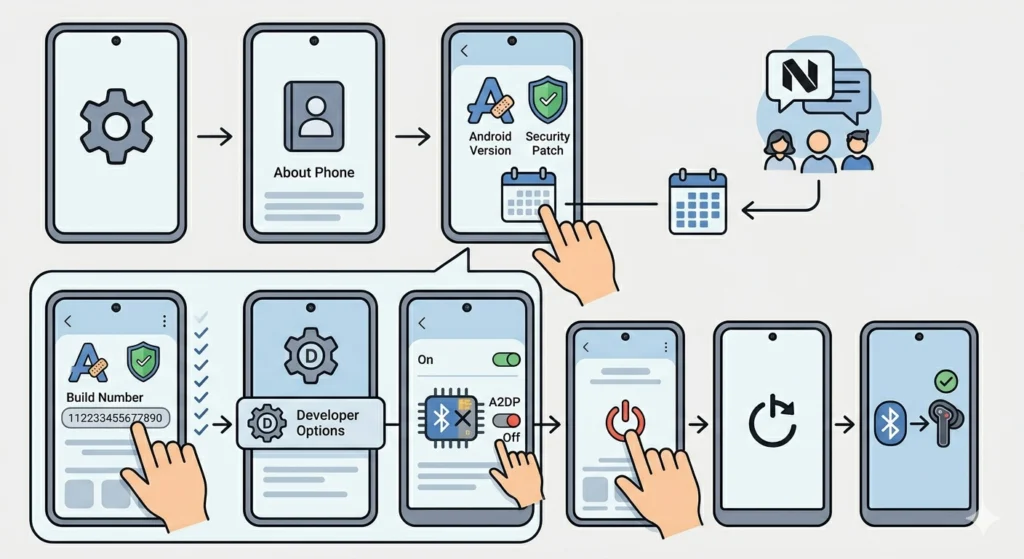
Certain Android updates introduce Bluetooth stack changes that temporarily break compatibility with specific earbuds. This is more common on phones that receive frequent manufacturer UI updates like Samsung One UI, MIUI, or ColorOS.
- Step 1: Go to Settings, then About Phone, then check the current Android version and security patch date
- Step 2: If a new system update was installed shortly before the Nothing Ear 2 stopped connecting, check the Nothing community forums for reports of compatibility issues with that specific update
- Step 3: If no fix is available yet, try enabling ‘Disable Bluetooth A2DP hardware offload’ by going to Settings, then Developer Options (enable Developer Options first by tapping ‘Build Number’ seven times in About Phone), then scroll to find the A2DP hardware offload toggle and disable it
- Step 4: Restart the phone and attempt to connect the Nothing Ear 2 again
Tips for Keeping Nothing Ear 2 Connected to Android
- Always keep the Nothing X app updated – updates often include bug fixes that improve Bluetooth stability
- Store the earbuds in the case when not in use to preserve battery and prevent the earbuds from trying to reconnect to multiple devices at once
- Limit the number of devices the Nothing Ear 2 is paired to – the earbuds support multipoint connection for 2 devices, but being paired to many devices in total can cause reconnection confusion
- Avoid using the earbuds near environments with heavy 2.4GHz wireless traffic like busy office spaces with many Wi-Fi routers – Bluetooth operates on the same frequency band and interference is real
- If the Android phone has a dual-SIM card installed, try toggling ‘Bluetooth Scanning’ off under Settings, then Location, then Scanning – this background scanning feature can occasionally conflict with active Bluetooth connections
Pro-Tip: The Nothing Ear 2 supports Bluetooth multipoint, meaning it can stay paired to two devices simultaneously. If the earbuds seem to connect and immediately disconnect on Android, they may be reconnecting to a secondary paired device like a laptop or tablet nearby. Turning off Bluetooth on those other devices temporarily can confirm if multipoint switching is the culprit.
Common Problems and What Causes Them
Nothing Ear 2 Shows as Connected but No Audio Plays
This happens when Android connects the earbuds for phone calls (HFP profile) but fails to switch the audio output to the A2DP stereo profile. Go to Settings, then Connected Devices, tap the gear icon next to Nothing Ear 2, and make sure ‘Media Audio’ is toggled on. If it is already on, toggle it off and back on. On some Android phones, adjusting audio output settings manually resolves this profile mismatch.
Nothing Ear 2 Keeps Disconnecting Every Few Minutes
Frequent disconnections after a successful initial connection usually point to battery optimization killing the Nothing X app, Wi-Fi interference on the 2.4GHz band, or the earbuds trying to switch to another paired device. Follow Fix 5 first, then check nearby devices.
Only One Earbud Connects to Android
When only the left or right earbud connects, the sync between the two earbuds has likely broken. Place both earbuds in the case, close the lid, wait 30 seconds, then open the case. If that does not restore the stereo pair, perform a factory reset using Fix 3. This restores the internal earbud-to-earbud Bluetooth sync.
Nothing Ear 2 Does Not Appear in Android Bluetooth Scan
If the earbuds do not even show up during a Bluetooth scan, they are either not in pairing mode or the Android phone’s Bluetooth discovery is limited by range. Make sure the earbuds are in pairing mode (LED flashing white), bring the phone within 30cm of the case, and scan again. Also disable Airplane Mode if it was recently used, as it sometimes disables Bluetooth even after being turned off on certain Android versions.
Frequently Asked Questions
Why does Nothing Ear 2 keep disconnecting from my Android phone?
The most common reasons are battery optimization killing the Nothing X app in the background, corrupted Bluetooth cache on the Android phone, or multipoint switching where the earbuds try to reconnect to another paired device. Follow Fix 4 to clear the Bluetooth cache and Fix 5 to disable battery optimization for the Nothing X app.
How do I put Nothing Ear 2 into pairing mode?
Place both earbuds in the case, leave the lid open, and press and hold the button on the back of the charging case for 3 seconds. The LED will flash white to indicate pairing mode. The earbuds are now discoverable and can be found through the Android Bluetooth settings under ‘Pair New Device’.
Will resetting Nothing Ear 2 delete my equalizer settings?
Yes. A factory reset clears all settings stored in the earbuds including EQ presets, ANC preferences, and touch control configurations. After re-pairing through the Nothing X app, all preferences will need to be set again.
Does Nothing Ear 2 work without the Nothing X app on Android?
Yes, the Nothing Ear 2 pairs and works as a standard Bluetooth device without the Nothing X app. However, features like active noise cancellation controls, equalizer settings, touch customization, and firmware updates require the Nothing X app to be installed.
Why does only one earbud connect to my Android phone?
Single earbud connection usually means the left-right sync between the two earbuds has been lost. Placing both earbuds in the case for 30 seconds and reopening restores the sync in most cases. A factory reset using Fix 3 resolves the issue when the case reset does not work.
How long does Nothing Ear 2 take to reconnect to Android after taking it out of the case?
Under normal conditions, the Nothing Ear 2 reconnects to the last connected Android device within 2 to 5 seconds of opening the case. If reconnection takes longer than 15 seconds consistently, the pairing data is likely corrupted and should be refreshed using Fix 2.
Can Nothing Ear 2 connect to two Android phones at the same time?
The Nothing Ear 2 supports Bluetooth multipoint, which allows simultaneous connection to two devices at once. However, this means audio will switch between devices when one starts playing. If two Android phones are being used and connection seems unstable, turning off multipoint from the Nothing X app limits the earbuds to one active connection at a time.
Does the Android version affect Nothing Ear 2 connectivity?
Yes. Android 12 and later versions introduced Bluetooth stack changes that occasionally conflict with Nothing Ear 2 firmware. Keeping both the Android OS and the Nothing Ear 2 firmware updated minimizes compatibility issues. Disabling Bluetooth A2DP hardware offload in Developer Options (Fix 7) is a known workaround for Android version-related connection problems.
Is there a maximum Bluetooth range for Nothing Ear 2 with Android?
The Nothing Ear 2 uses Bluetooth 5.3 with a rated range of approximately 10 meters in open space. Real-world range is shorter due to walls, interference, and body blocking the signal. Staying within 5 to 8 meters of the Android phone ensures stable audio without dropouts.
What should be done if none of the fixes resolve the connection issue?
If every fix in this guide has been attempted and the Nothing Ear 2 still will not connect to Android, the issue may be a hardware defect in either the earbuds or the phone’s Bluetooth module. Testing the earbuds with a different Android phone confirms whether the problem is device-specific. If the earbuds also fail on another phone, contacting Nothing Support for a warranty claim is the appropriate next step.