
When the JLab Epic Lab Edition is not charging in the case, the cause is usually something small, like a case with no power, a leftover sticker, or an earbud that is not seated properly. The steps below go through each cause in the order that saves the most time.
Key Takeaways
- Blinking white light on the case means the case itself is charging.
- A blue light means the earbuds are charging inside the case.
- JLab recommends a computer port or a USB output of 5V 1A or less for the case.
- Stickers left on the earbuds, dirty contacts, and poor seating are the most common reasons the earbuds do not charge.
- If no lights appear at all, JLab support is the next stop.
Step-by-Step Guide to Fix JLab Epic Lab Edition Not Charging in the Case
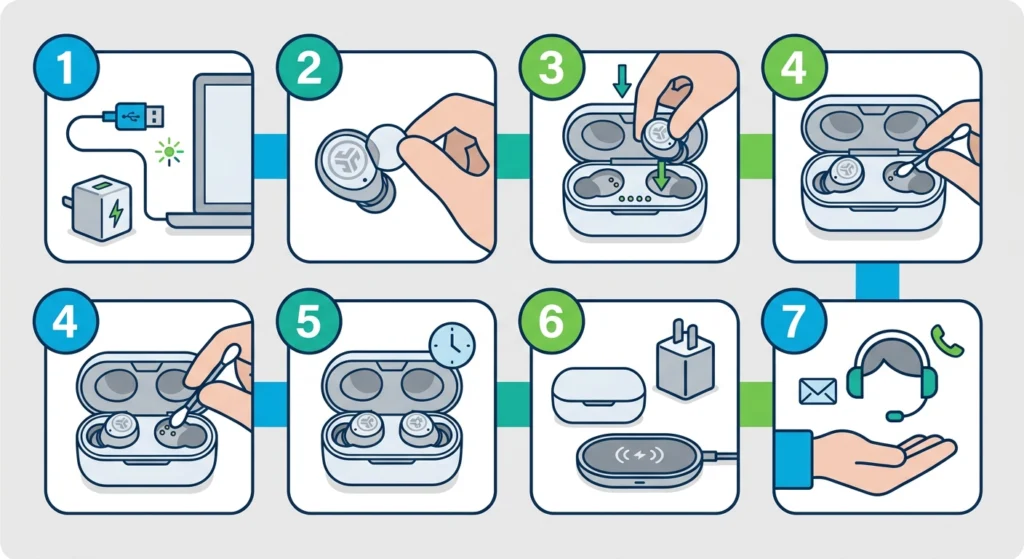
Work through these in order. Most people find that the problem is solved by the third or fourth step.
- Step 1: Plug the case into a computer USB port or a USB power source rated at 5V 1A or less, using the USB-C cable. Look at the case lights. Blinking white means the case is receiving power. The earbuds cannot charge from a case that has no power of its own.
- Step 2: Remove any stickers from the earbuds. JLab includes this step in the first-time setup, and a sticker left on the earbuds is an easy thing to miss on a new pair.
- Step 3: Place both earbuds back into the case and press each one gently into its slot. Close the lid, then open it again. A blue light shows that the earbuds are charging.
- Step 4: If there is no blue light, take the earbuds out and wipe the metal contacts on both the earbuds and the case slots with a dry, soft cotton swab. Dust and lint can quietly block the connection, much like a speck of dirt under a doorbell button.
- Step 5: Put the earbuds back and give the case time to work. The listed charging time for the Epic Lab Edition is about 120 minutes, so a short wait does not mean it has failed.
- Step 6: Try a different power source. Switch to another USB port or another low-output adapter. The case also supports wireless charging, so placing it on a wireless charging pad is a quick way to tell whether the USB-C port is the problem.
- Step 7: If the lights still do not appear, contact JLab at support@jlab.com. The Epic Lab Edition comes with a 2 year limited warranty, and JLab states that warranty claims are subject to authorization.
Pro-Tip: The case lights are the fastest way to find the problem. If the case shows blinking white but the earbuds show no blue light, the issue is between the earbuds and the case slots. If the case shows nothing at all, the issue is with the power source or the case itself.
Common Problems and Fixes
Fix 1: The Case Shows No Lights
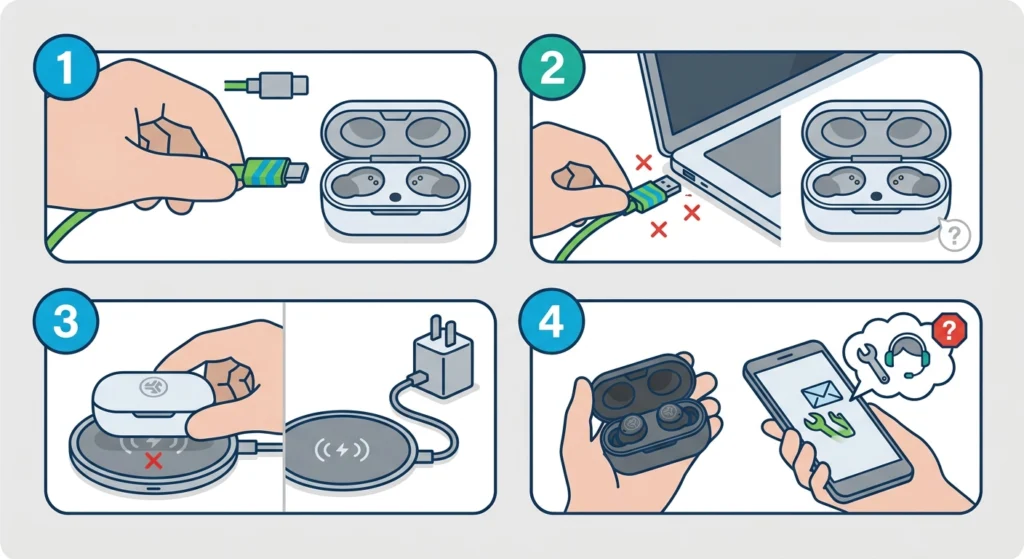
Try a different cable, a different USB port, and a wireless charging pad. If the case still shows no light after all three, the case may need to be checked by JLab support.
Fix 2: The Case Charges but the Earbuds Show No Blue Light
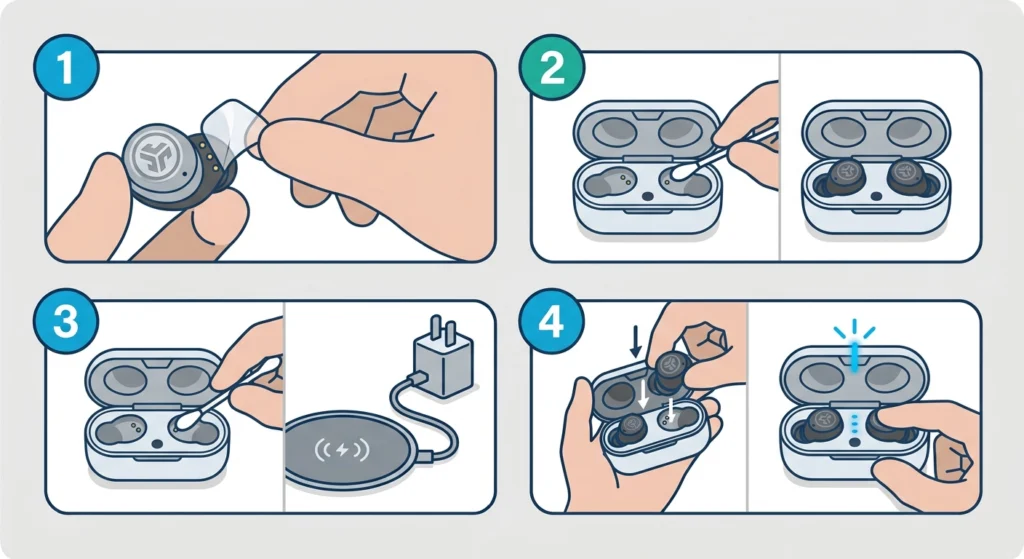
Remove any stickers, clean the contacts with a dry cotton swab, and reseat the earbuds firmly. This combination solves most cases where the case has power but the earbuds do not respond.
Fix 3: Only One Earbud Charges
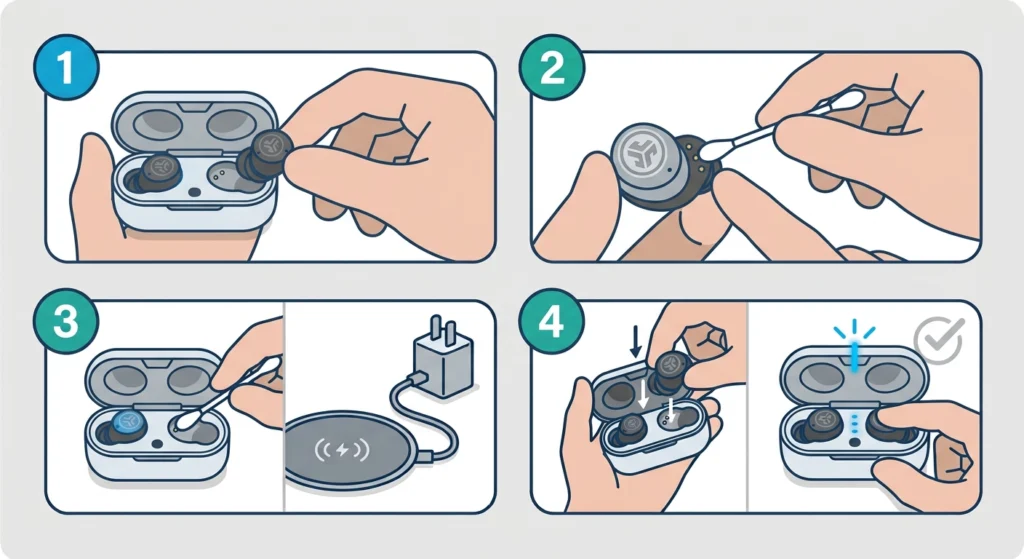
Take out the earbud that is not charging and check its contacts and its slot for dust or debris. Place it back in and press it gently into position. If it still shows no blue light, JLab support can advise on a replacement under warranty.
Tips to Keep the Case and Earbuds Charging Properly
- Use the USB-C cable that came in the box, and keep the power source at 5V 1A or less as JLab recommends.
- The listing states that the Epic Lab Edition does not support PD fast charging, so a standard low-output charger is the right choice.
- Give the earbuds a quick wipe every few weeks so dust does not build up on the contacts.
- Earbuds turn on and connect automatically when removed from the case, so there is no need to power them on manually after a full charge.
- After charging, if the earbuds connect to a Windows 11 PC but sound comes out of the wrong place, adjusting audio output settings usually sorts it out.
- If only one earbud plays sound after charging, it may help to re-pair the earbuds for stereo sound on Windows.
Pro-Tip: Wait for the blinking white light on the case before judging the earbuds. A case that is not receiving power will never charge them, no matter how many times they are reseated.
Frequently Asked Questions
Why is my JLab Epic Lab Edition not charging in the case?
The most common reasons are a case with no power, stickers left on the earbuds, dirty contacts, or earbuds that are not fully seated in their slots.
What does the blinking white light on the case mean?
Blinking white means the case is charging. This appears when the case is connected to a computer, a USB power source, or a wireless charging pad.
What does the blue light mean?
A blue light means the earbuds are charging while placed in the case.
What power source should be used to charge the case?
JLab recommends connecting the case to a computer or a USB 5V 1A output device, or less. A wireless charging pad also works.
Does the Epic Lab Edition support fast charging?
No. The product listing states that it does not support PD fast charging, so a standard low-output charger is the better option.
How long does it take to charge the Epic Lab Edition?
The listed charging time is about 120 minutes, so allow a couple of hours for a full charge.
Can the case be charged wirelessly?
Yes. The Epic Lab Edition case can be placed on a wireless charging pad, and blinking white confirms that it is charging.
Do the earbuds turn on automatically after charging?
Yes. According to JLab, the earbuds auto power on and connect when they are removed from the case.
How much playtime does a full charge give?
The product listing states 56 plus hours of total playtime, with 13 plus hours from each earbud.
Who should be contacted if the earbuds still will not charge?
JLab support can be reached at support@jlab.com. The Epic Lab Edition includes a 2 year limited warranty, and claims are subject to JLab authorization.