
Having the JBL Live 660NC one side not working is one of the most frustrating audio problems any headphone user can run into. One ear goes completely silent, and suddenly the whole listening experience falls apart. The good news? This is almost always fixable without sending the headphones in for repair. Most cases come down to a simple software, connection, or settings issue that can be resolved in just a few minutes.
Key Takeaways
- A full reset of the JBL Live 660NC resolves most one-sided audio issues instantly
- Audio balance settings on the connected device are a hidden but common cause
- Re-pairing the headphones clears corrupted Bluetooth connection data
- Dirty or damaged headphone jack pins cause one-ear issues in wired mode
- Mono audio settings on the source device can make only one side play
- The JBL Headphones app lets you check firmware and reset settings remotely
How to Fix JBL Live 660NC One Side Not Working
Fix 1: Reset the JBL Live 660NC
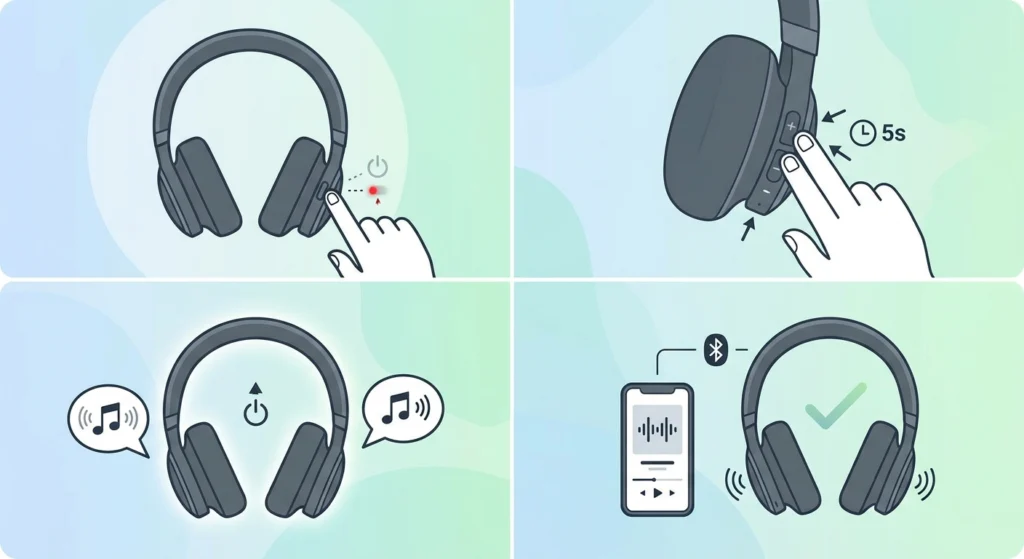
This is the first thing to try. A factory reset clears any internal glitches, corrupted pairing data, or audio channel bugs that could be causing one side to cut out. Most users find this alone solves the problem.
- Step 1: Power off the headphones completely by holding the power button until the LED turns off.
- Step 2: Press and hold the Volume Up and Volume Down buttons simultaneously for about 5 seconds.
- Step 3: The headphones will power on automatically and announce a reset confirmation.
- Step 4: Re-pair the headphones to the device and test audio on both sides.
After the reset, both ears should receive equal audio. If one side is still silent, continue to the next fix.
Fix 2: Check the Audio Balance on the Connected Device
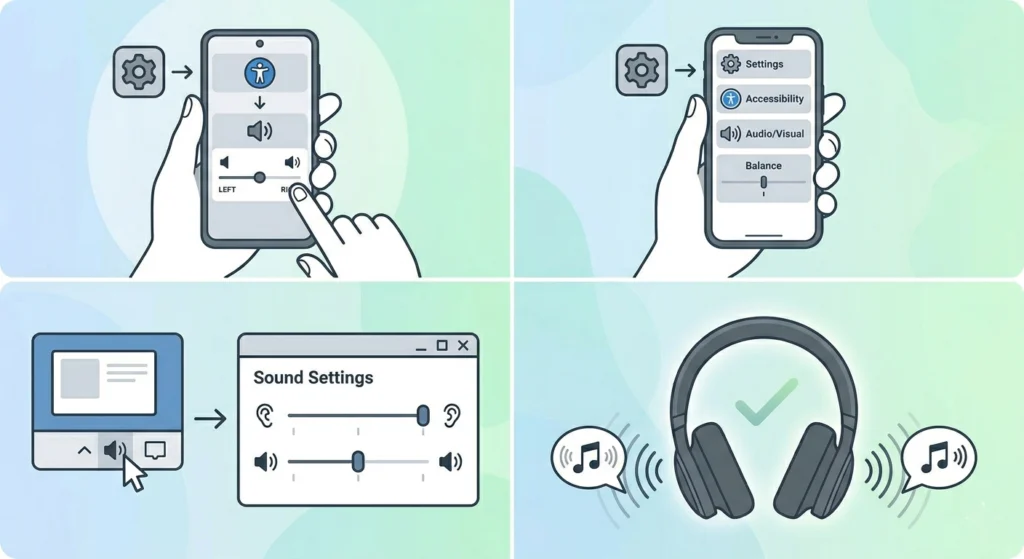
This is one of the most overlooked causes. If the audio balance on the phone, tablet, or computer is shifted all the way to one side, the other ear will produce little to no sound. It has nothing to do with the headphones themselves.
- Step 1: On Android, go to Settings, then Accessibility, and look for ‘Audio Balance’ or ‘Sound Balance’. Make sure the slider is centered.
- Step 2: On iPhone or iPad, go to Settings, then Accessibility, then Audio/Visual. Check the ‘Balance’ slider and center it if it has shifted.
- Step 3: On Windows 11, right-click the speaker icon in the taskbar, open Sound Settings, then go to the device properties for the headphones. Check the Left and Right channel balance levels under audio output settings and ensure both are set equally.
- Step 4: Play a stereo test track and confirm both sides now produce sound.
Pro-Tip: Even a slight nudge of the balance slider in your pocket or during accessibility setup can silently kill one ear. Always check this before assuming the headphones are broken.
Fix 3: Re-Pair the JBL Live 660NC via Bluetooth
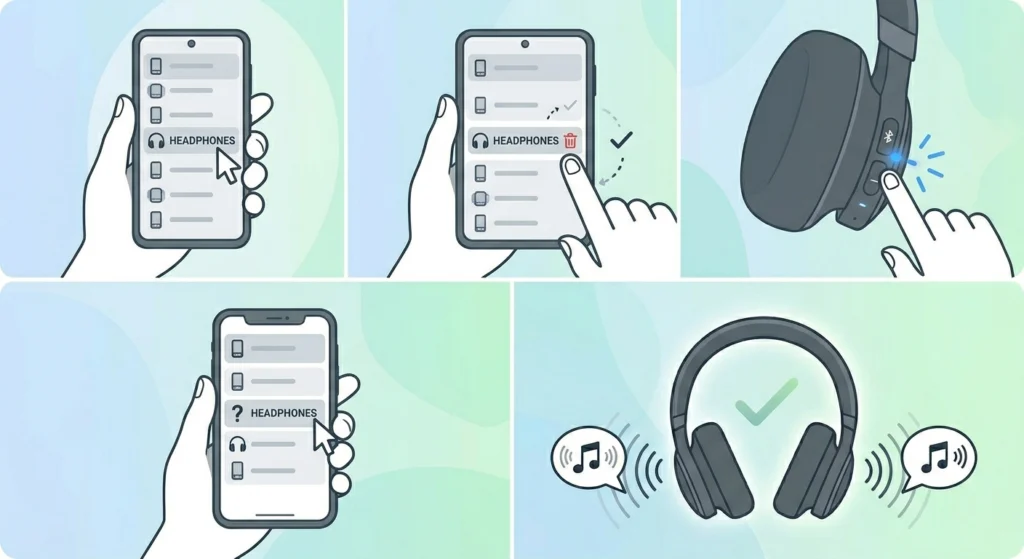
Corrupted Bluetooth pairing data can cause uneven audio where only one driver receives the signal. Removing the device from the paired list and starting fresh often resolves this completely.
- Step 1: On the source device, open Bluetooth settings and find the JBL Live 660NC in the list of paired devices.
- Step 2: Tap ‘Forget’ or ‘Unpair’ to remove it completely.
- Step 3: Put the headphones into pairing mode by holding the Bluetooth button until the LED flashes rapidly.
- Step 4: Search for the headphones on the device and pair them again from scratch.
- Step 5: Play audio and check if both sides are working.
For Windows users, getting the Bluetooth re-pairing process right for stereo sound is especially important since Windows sometimes defaults to a mono hands-free profile instead of the stereo one.
Fix 4: Disable Mono Audio Settings
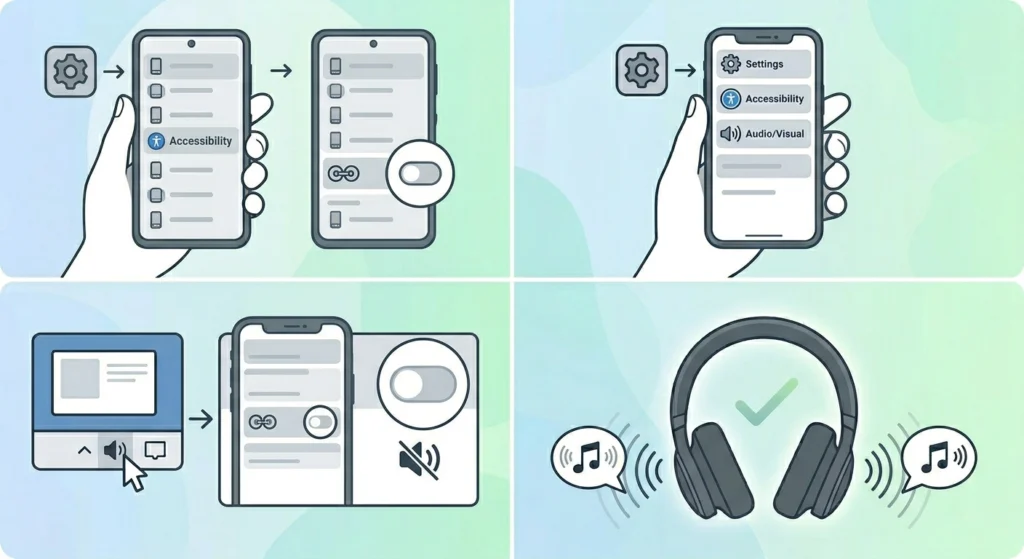
Both Android and iOS have a Mono Audio accessibility feature that combines stereo channels into one. When this is turned on, the audio can appear to only come from one side of certain headphones, depending on how the signal is routed.
- Step 1: On Android, go to Settings, then Accessibility, and look for ‘Mono Audio’. Make sure it is turned off.
- Step 2: On iPhone, go to Settings, then Accessibility, then Audio/Visual, and ensure ‘Mono Audio’ is toggled off.
- Step 3: Reconnect the headphones if needed and test playback again.
Fix 5: Clean or Inspect the 3.5mm Headphone Jack (Wired Mode)
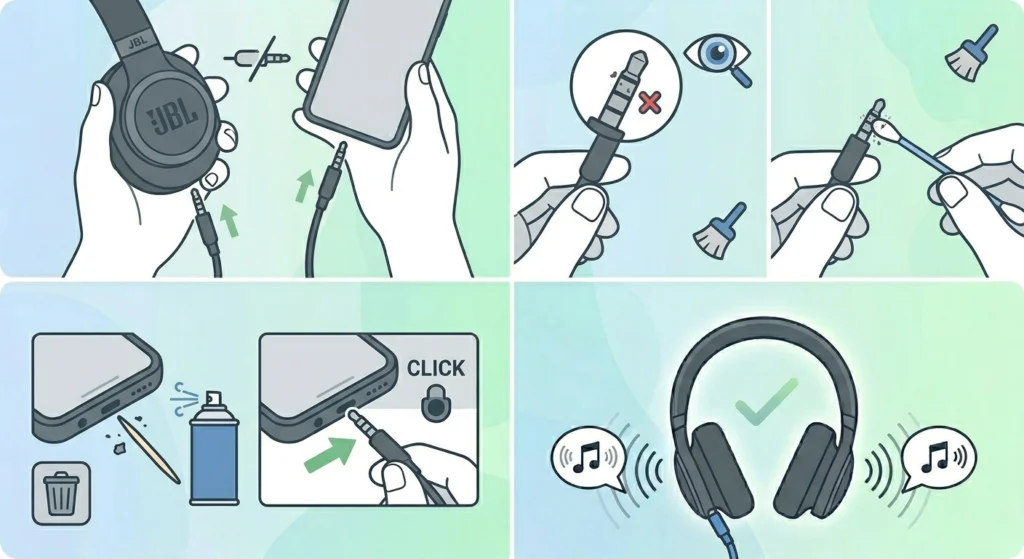
When using the JBL Live 660NC in wired mode and only one side plays, the issue is often physical. A dirty or slightly bent headphone jack prevents full contact with the audio socket, cutting off the signal to one driver.
- Step 1: Unplug the audio cable from both the headphones and the source device.
- Step 2: Inspect the 3.5mm plug tip for any debris, lint, or corrosion.
- Step 3: Use a dry cotton swab or a soft cloth to gently clean the plug. For the jack on the device, use a toothpick or compressed air to remove any lint buildup.
- Step 4: Plug the cable back in firmly – make sure it clicks or seats completely into the port.
- Step 5: Test with a different cable to rule out a faulty wire.
Pro-Tip: A partially inserted 3.5mm jack is one of the most common reasons for audio in only one ear. Always push the cable in until it stops moving and the plug is fully seated.
Fix 6: Update Firmware via the JBL Headphones App
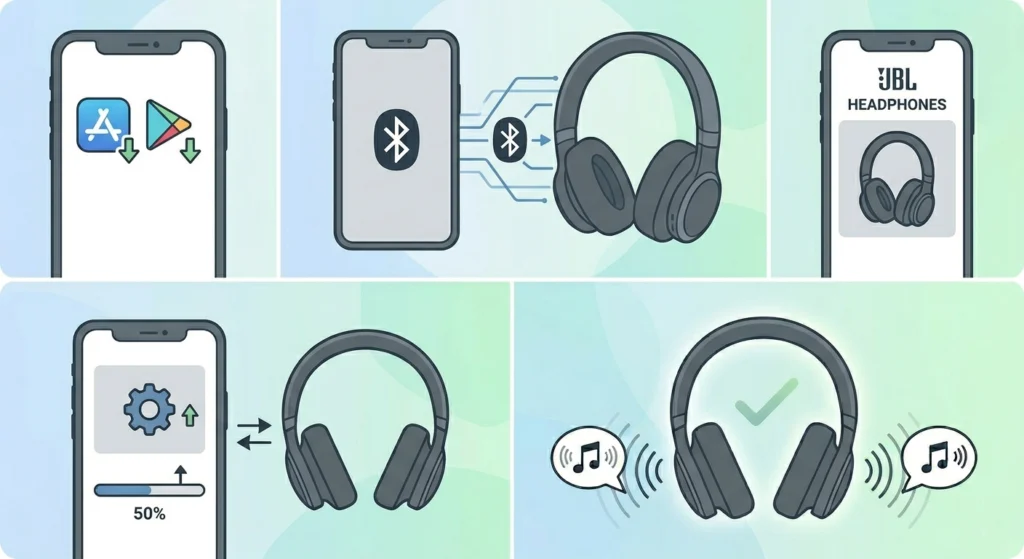
Outdated firmware can cause all kinds of audio problems, including one-sided sound. JBL regularly releases updates that fix bugs reported by users.
- Step 1: Download the JBL Headphones app from the Google Play Store or Apple App Store if not already installed.
- Step 2: Connect the JBL Live 660NC to the phone via Bluetooth.
- Step 3: Open the app and select the headphones from the device list.
- Step 4: If a firmware update is available, a notification will appear. Tap ‘Update’ and wait for it to complete without turning off the headphones.
- Step 5: After the update, restart the headphones and test both ears.
Fix 7: Check the EQ and Sound Settings in the JBL App
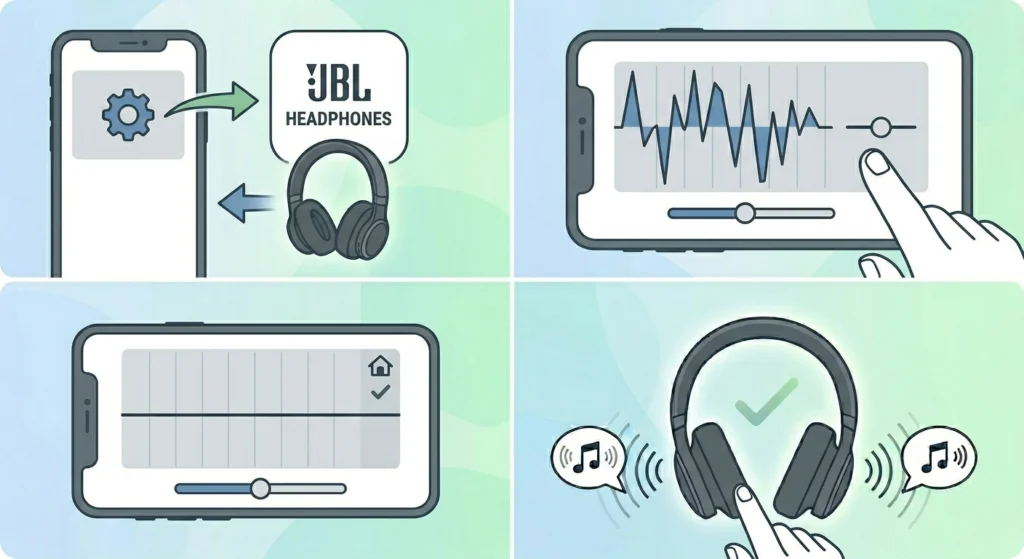
The JBL Headphones app includes an equalizer and sound customization settings. If the EQ has been set to an extreme preset or a custom profile that boosts or cuts specific frequencies unevenly, it can affect how audio is perceived in each ear.
- Step 1: Open the JBL Headphones app and connect to the Live 660NC.
- Step 2: Navigate to the EQ or Sound section within the app.
- Step 3: Reset the EQ to the flat or default setting.
- Step 4: Play audio and confirm both sides sound balanced and equal.
Tips for Keeping Both Sides Working Properly
- Store the headphones in the included case when not in use to prevent physical damage to the drivers or cable connections.
- Avoid yanking the audio cable from either end – always grip and pull from the plug itself.
- Regularly check for firmware updates in the JBL app, as these fix known bugs and improve audio performance.
- Keep the headphone jack and 3.5mm port free of lint by storing them properly.
- Reset audio balance settings on any new device before assuming the headphones are at fault.
- Do not use the headphones at maximum volume for extended periods, as this can stress the drivers over time.
Common Problems and Quick Fixes
One side cuts in and out intermittently
This usually points to a loose internal connection or a flaky Bluetooth link. Re-pairing the headphones and doing a reset typically stops the intermittent dropout. If the issue only happens in wired mode, replace the audio cable first since the cable is the most likely fault point.
Left ear works but right ear is completely silent
Check the audio balance settings on the device first. If the balance is fine, reset the headphones and re-pair. If only one specific ear is always silent, the driver may have failed and a warranty claim or professional repair would be the next step.
Both ears work individually but stereo does not sound right
This often means the device is outputting in mono mode or using a Bluetooth hands-free profile instead of A2DP stereo. On Windows, this is a common issue that requires adjusting the audio output settings to force the stereo high-quality audio profile.
One side works in Bluetooth but not in wired mode
This narrows the issue down to the physical cable or 3.5mm jack. Try a different cable and clean the audio ports on both the headphones and the source device. The headphone drivers themselves are likely fine.
Reset did not fix the one-side issue
If a full factory reset does not resolve the problem, the fault is likely hardware-related – either a failed driver, a damaged internal cable, or a broken solder joint. At this point, contacting JBL support or using the warranty is the most practical path forward.
Frequently Asked Questions
Why is only one side of my JBL Live 660NC working?
The most common causes are an audio balance setting shifted on the connected device, corrupted Bluetooth pairing data, a software glitch in the headphones, or a mono audio accessibility setting being turned on. In rare cases, a hardware fault in the driver itself can also cause this.
Will resetting the JBL Live 660NC delete my paired devices?
Yes, a factory reset will erase all previously paired Bluetooth devices from the headphones memory. After the reset, the headphones will need to be paired again with each device.
How do I put the JBL Live 660NC into pairing mode after a reset?
After a reset, the headphones will automatically enter pairing mode. The Bluetooth LED will flash rapidly. On the source device, open Bluetooth settings and select the JBL Live 660NC from the available devices list to complete pairing.
Can a faulty audio cable cause only one side to work?
Yes, absolutely. A damaged or broken internal wire inside the 3.5mm cable is a very common reason for one-sided audio in wired mode. Testing with a different cable is one of the fastest ways to confirm if the cable is the problem.
Does the JBL Live 660NC support firmware updates?
Yes, the JBL Live 660NC receives firmware updates through the JBL Headphones app, available on both Android and iOS. Keeping the firmware up to date is important for fixing known bugs including audio channel issues.
How do I check the audio balance on an iPhone?
Go to Settings, then tap Accessibility, then Audio/Visual. Look for the Balance slider near the bottom of the page. The slider should be positioned in the center. If it has shifted left or right, drag it back to the middle and test the headphones again.
How do I check the audio balance on Android?
Go to Settings, then Accessibility. Look for ‘Sound Balance’ or ‘Audio Balance’ depending on the Android version and device brand. The slider should be centered. Adjust it to the middle if it has drifted to one side.
What should I do if the JBL Live 660NC is still under warranty?
If all software fixes have been tried and one side still does not work, the issue is likely hardware-related. Contact JBL customer support directly and provide proof of purchase. JBL typically offers a one-year limited warranty on the Live 660NC.
Can Noise Cancellation settings affect one-sided audio on the JBL Live 660NC?
In rare cases, a software glitch in the ANC processing can cause uneven audio or affect one ear differently. Turning ANC off and testing the headphones in standard mode can help determine whether ANC is contributing to the problem. A firmware update usually fixes ANC-related audio bugs.
Is it possible to fix a blown driver at home?
Replacing a blown headphone driver at home is technically possible but not recommended for most users. It requires disassembling the ear cup, sourcing the correct replacement driver, and soldering. For headphones under warranty, it is always better to contact JBL for a replacement or repair instead.