
Conversation Awareness on AirPods Pro 2 is one of the most practical features Apple has built into its earbuds. The moment someone starts talking to you, the AirPods Pro 2 automatically lowers the audio, reduces background noise, and amplifies the voices in front of you – all without touching a single button. It is seamless, fast, and genuinely useful in everyday situations like answering a cashier, chatting with a colleague, or catching what a family member just said from across the room.
Quick Summary: Key Takeaways
- Conversation Awareness is a feature exclusive to AirPods Pro 2 (2nd generation) running iOS 16 or later.
- It automatically detects when the wearer starts speaking and lowers audio volume while boosting nearby voices.
- It can be enabled or disabled in iPhone Settings under Accessibility or directly in Control Center.
- It works in Active Noise Cancellation and Transparency modes.
- The feature returns audio to normal levels once the conversation ends.
How to Enable Conversation Awareness on AirPods Pro 2
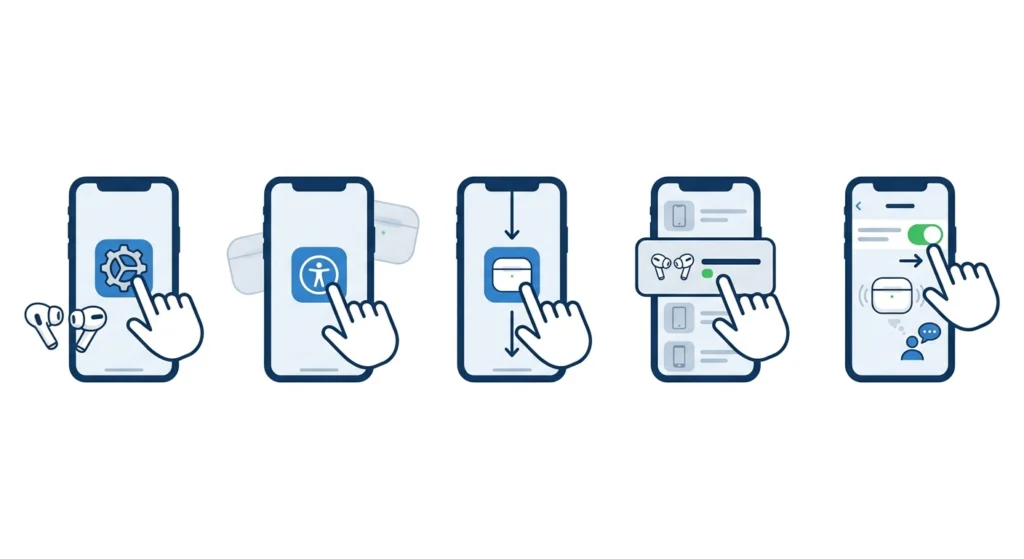
Before anything else, make sure the AirPods Pro 2 are connected to an iPhone running iOS 16 or later. Conversation Awareness is turned off by default on some devices, so enabling it manually takes just a few seconds.
- Step 1: Open the Settings app on the connected iPhone.
- Step 2: Tap Accessibility.
- Step 3: Scroll down and tap AirPods.
- Step 4: Select the AirPods Pro 2 from the list if prompted.
- Step 5: Toggle Conversation Awareness to the ON position (green).
That is all it takes. Once enabled, the feature works automatically whenever the AirPods Pro 2 are in the ears and audio is playing.
How to Turn On Conversation Awareness via AirPods Settings
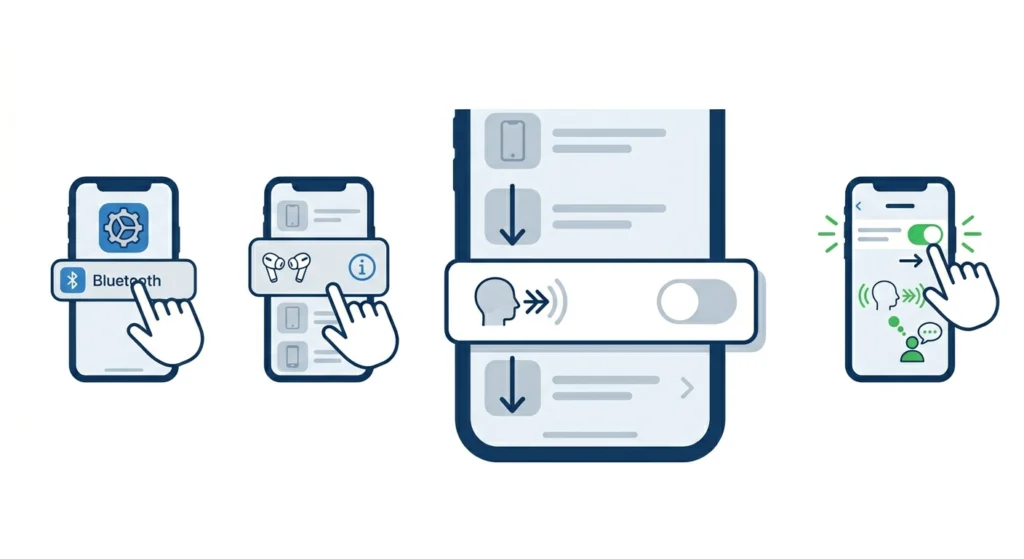
There is also a second route through the Bluetooth settings, which some users find quicker to access.
- Step 1: Go to Settings and tap Bluetooth.
- Step 2: Tap the info icon (i) next to the AirPods Pro 2 name.
- Step 3: Scroll until the Conversation Awareness toggle appears.
- Step 4: Switch it on.
Both paths lead to the same setting. Use whichever feels more natural.
How Conversation Awareness Works in Practice
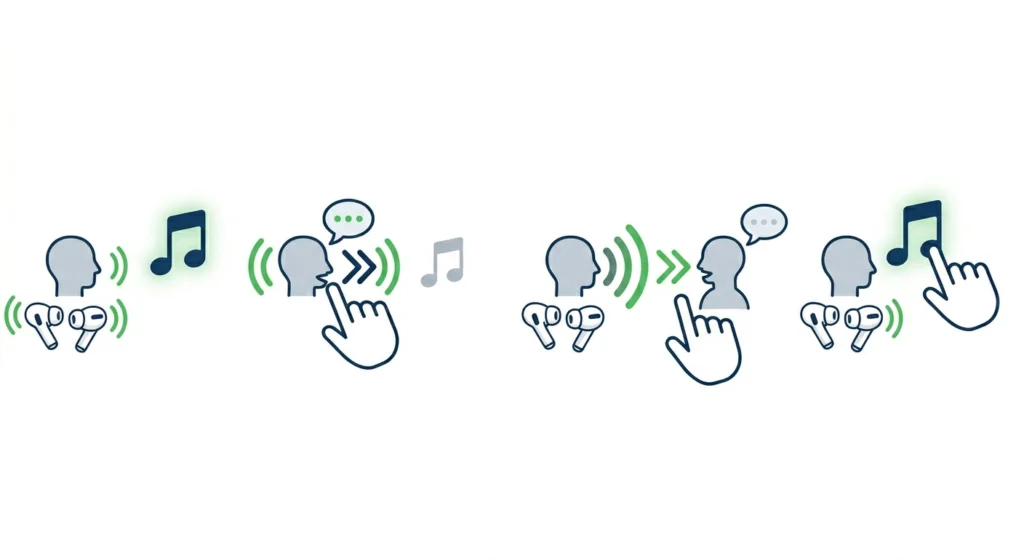
Once the feature is active, the AirPods Pro 2 use the built-in microphones to constantly monitor for the wearer’s voice. The key is to simply start talking out loud – there is no tap gesture, no wake word, and no delay needed.
The moment speech is detected from the wearer, three things happen almost simultaneously:
- Music, podcasts, or any audio playing through the AirPods drops in volume.
- Active Noise Cancellation reduces, letting ambient sound through.
- The microphones focus on and amplify the voices of people nearby, making it easier to hear the other person clearly.
Once the conversation naturally ends and the wearer stops talking, the audio gradually returns to its previous volume. The whole cycle takes just a second or two, and it happens without any manual input.
Most people find that the transition feels natural after the first few times. It is the kind of feature that quickly becomes something taken for granted – in the best way possible.
Pro-Tip
Conversation Awareness responds to the wearer’s voice, not the other person’s. To trigger it, the wearer needs to actually speak out loud. Simply listening to someone else talk will not activate it – the AirPods Pro 2 specifically look for sound originating from the person wearing them.
Adjusting Conversation Awareness Audio Volume Reduction
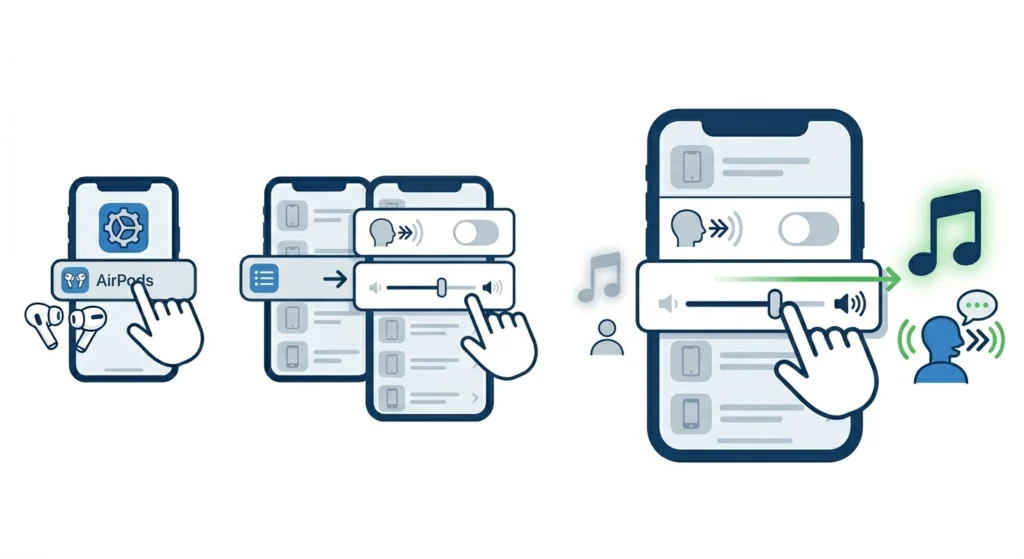
Apple also gives some control over how aggressively the audio lowers when a conversation is detected. This is useful for people who want a subtle dip versus a near-complete mute.
- Step 1: Go to Settings > Accessibility > AirPods.
- Step 2: Under Conversation Awareness, look for the volume reduction slider.
- Step 3: Drag it left for a smaller dip or right for a more dramatic volume drop during conversations.
This works best when the normal listening volume is already fairly high – a louder baseline means the contrast during conversations will be more noticeable and helpful.
Using Conversation Awareness with Different Listening Modes
Conversation Awareness works across both Active Noise Cancellation (ANC) and Transparency mode. The behavior differs slightly between the two.
With Active Noise Cancellation
When ANC is on and a conversation begins, the AirPods Pro 2 temporarily reduce the noise cancellation to allow external voices through. This is the most dramatic shift since the background was being actively suppressed. The result is a clear window into the surrounding environment just for the duration of the chat.
With Transparency Mode
In Transparency mode, the environment is already audible. Conversation Awareness still lowers the media volume and sharpens focus on nearby voices, but the shift feels a bit more subtle since ambient sound was already coming through.
Pro-Tip
For those who spend a lot of time in loud environments like open offices, commutes, or busy cafes, keeping ANC on with Conversation Awareness enabled is the most effective combination. The AirPods handle the noise, and Conversation Awareness handles the people.
Tips for Getting the Most Out of Conversation Awareness
- Make sure both AirPods are in the ears for the feature to work reliably. Using only one earbud may affect detection accuracy.
- Keep the AirPods Pro 2 firmware updated. Apple regularly improves Conversation Awareness through firmware updates that install automatically when the case is charging near a connected iPhone.
- In very quiet environments, the feature may trigger more easily. Adjusting the volume reduction slider to a lower setting prevents the audio from dipping too much during casual low-voice conversations.
- Conversation Awareness pairs extremely well with Adaptive Audio, Apple’s intelligent listening mode that blends ANC and Transparency dynamically based on environment.
- If audio output behavior seems unusual after enabling the feature, a quick check of the audio output settings on the connected device can help rule out any software conflicts.
Common Problems with Conversation Awareness
Fix 1: Conversation Awareness Is Not Triggering
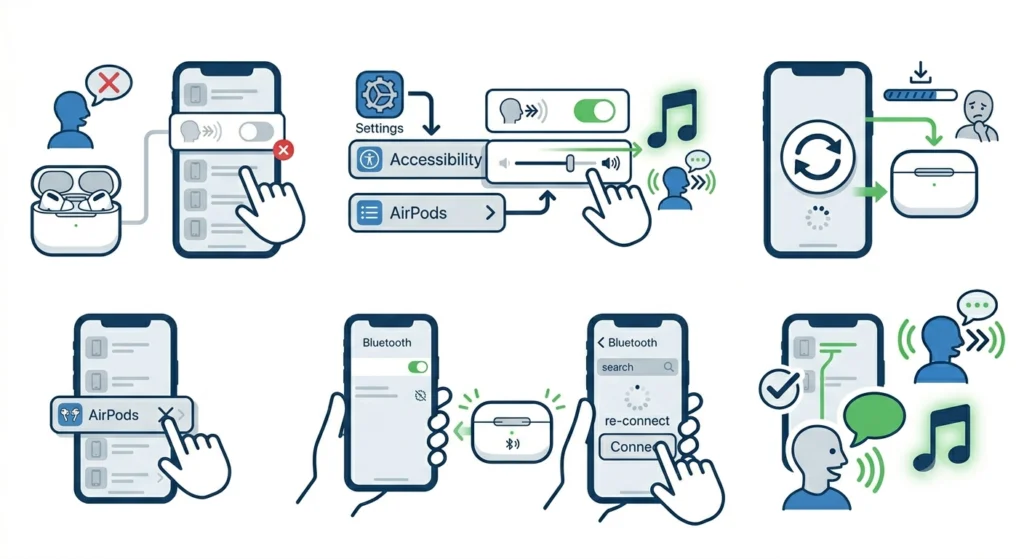
If speaking out loud does not activate the feature, first confirm the toggle is switched on in Settings > Accessibility > AirPods. Also check that the AirPods Pro 2 firmware is up to date by placing them in the case near the paired iPhone and waiting for any pending updates to install. A simple re-pair can also help – check this guide on how to re-pair Bluetooth earbuds if needed.
Fix 2: Audio Does Not Return After the Conversation
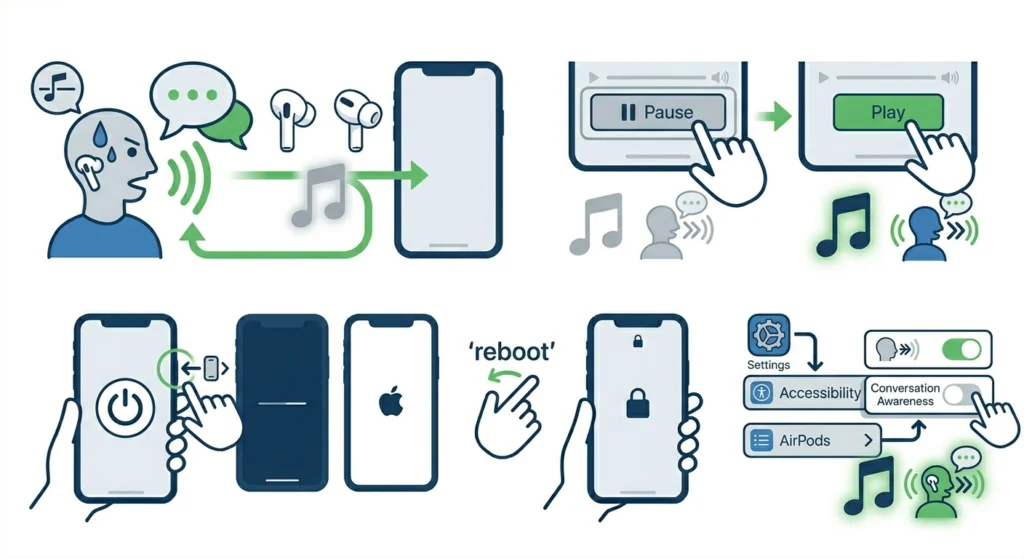
This usually happens if the AirPods think the wearer is still speaking. Pausing and resuming playback manually resets the state. If it happens frequently, restarting the connected iPhone and re-enabling the toggle tends to resolve it.
Fix 3: Feature Option Is Greyed Out
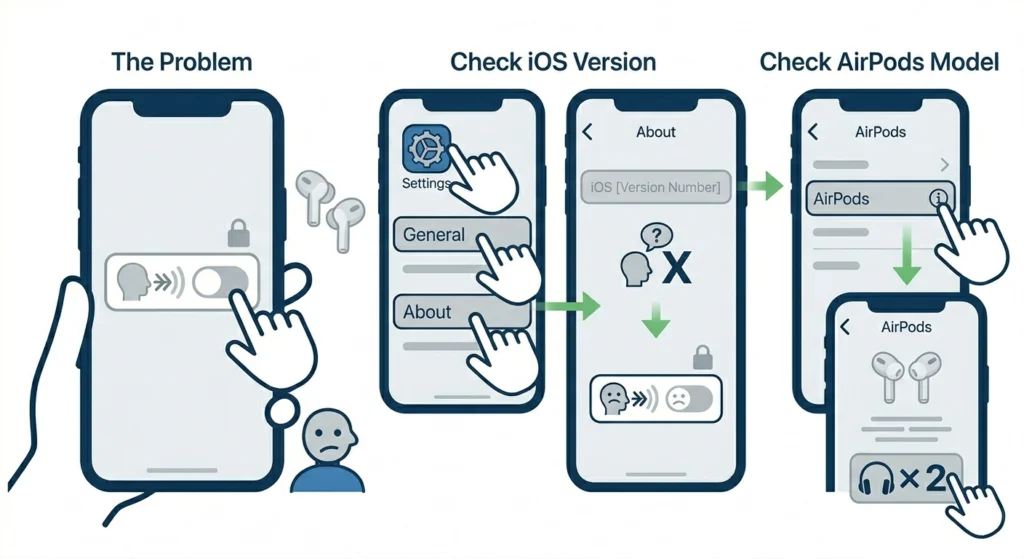
A greyed-out toggle almost always means the iPhone is running an iOS version older than 16, or the AirPods connected are not the second-generation Pro model. Check under Settings > General > About to confirm the iOS version and the AirPods model.
Fix 4: Conversation Awareness Activates Too Easily
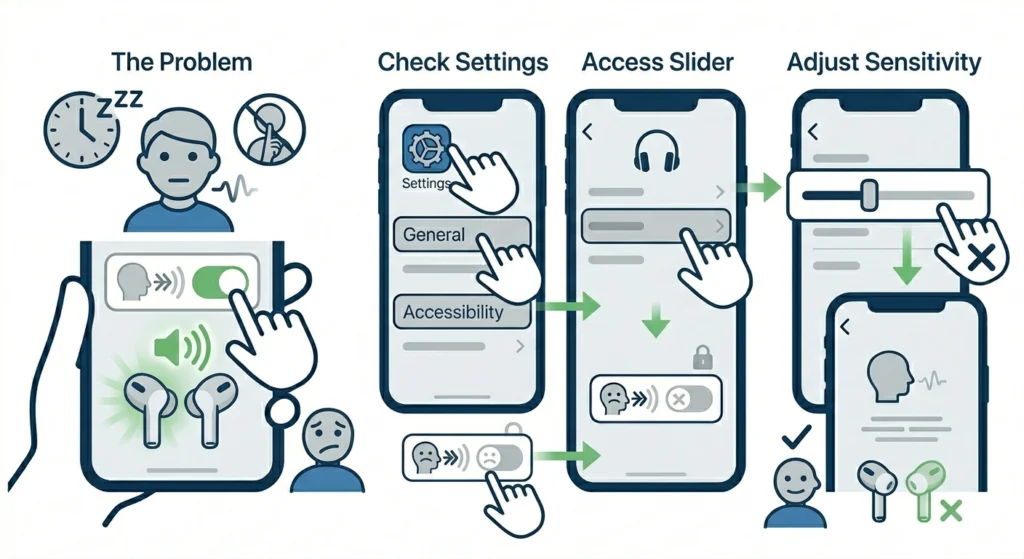
In very quiet environments, even a small sound from the wearer can trigger it. Lowering the sensitivity by adjusting the volume reduction slider to a smaller value helps reduce accidental triggers. Alternatively, disabling the feature in quiet settings and re-enabling it in louder environments gives more control.
Frequently Asked Questions
Does Conversation Awareness work with Android phones?
No. Conversation Awareness is an Apple-exclusive feature and requires an iPhone running iOS 16 or later. It does not activate when the AirPods Pro 2 are connected to Android devices or Windows computers.
Can Conversation Awareness be toggled quickly without going into Settings?
Yes. Adding the Hearing controls to Control Center allows quick access. Go to Settings > Control Center and add ‘Hearing’. From there, the toggle is accessible with a swipe and a tap.
Does it work with videos and phone calls, not just music?
Yes. Conversation Awareness works across all audio – music, video, podcasts, and phone calls. During a phone call, it will still lower the call audio if the wearer starts speaking naturally to someone else nearby.
Does the feature drain the battery faster?
Conversation Awareness uses the microphones and onboard processing chip, which does draw some additional power. In practice, Apple has optimized the H2 chip in AirPods Pro 2 to handle this efficiently, and most users will not notice a significant battery difference in typical daily use.
Is there a way to see when Conversation Awareness is active?
There is no dedicated on-screen indicator during activation, but the sudden dip in audio volume and the audible shift in ambient sound serve as clear real-time feedback that the feature has kicked in.
Does Conversation Awareness work in only one ear?
The feature is designed to work optimally with both AirPods in the ears. Using only one earbud may reduce detection accuracy, and in some cases the feature may not activate at all.
What is the difference between Conversation Awareness and Transparency Mode?
Transparency Mode is a passive mode that lets environmental sound pass through the earbuds at all times. Conversation Awareness is an active, trigger-based feature – it reacts specifically when the wearer starts speaking, lowering media volume and amplifying nearby voices on demand.
Can Conversation Awareness be set to activate automatically based on location?
Not directly. Apple does not offer location-based Conversation Awareness automation natively. However, using the Shortcuts app, it is possible to create automations that toggle Accessibility settings based on location or time, though this requires a few extra steps to set up.
Does Conversation Awareness work with third-party apps?
Yes. Because the feature works at the system level through iOS and the H2 chip, it functions regardless of which app is playing audio – whether that is Spotify, YouTube, Apple Music, or any other app.
Will the AirPods Pro 2 reconnect automatically after a Conversation Awareness session?
Yes. The feature only adjusts volume and microphone behavior temporarily. It does not disconnect or pair again – audio simply resumes at its previous level once the conversation ends.