
Setting up the Sony WF-1000XM5 earbuds is straightforward once you know the right steps. These flagship earbuds deliver some of the best active noise cancellation available today, but getting them properly configured makes all the difference. Whether connecting to a phone, tablet, or PC, this guide walks through every step to get the WF-1000XM5 up and running quickly.
Quick Summary Table
- Charge the earbuds fully before first use (case charges earbuds in about 3 hours)
- Download Sony Headphones Connect app for full feature access
- Activate pairing mode by holding the touchpad on both earbuds for 7 seconds
- Connect via Bluetooth on phone, tablet, or PC
- Configure ANC, EQ, and touch controls inside the Sony app
- Multipoint pairing allows connection to two devices at once
How to Set Up Sony WF-1000XM5 Earbuds Step by Step
Step 1: Charge the Earbuds Before First Use
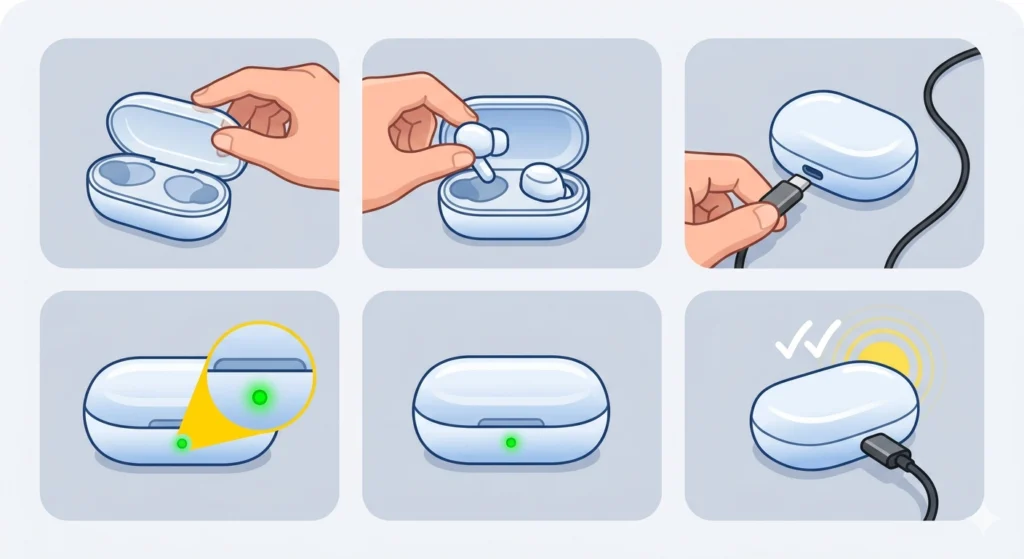
Before anything else, charge the earbuds and the case. Place the earbuds into the charging case and connect the case to a power source using the included USB-C cable. The LED indicator on the case shows the charging status. A full charge on the earbuds alone takes about 3 hours and provides up to 8 hours of playback with ANC on.
- Step 1: Open the charging case lid
- Step 2: Place both earbuds into their slots – they snap in magnetically
- Step 3: Connect the USB-C cable to the case and plug it into a power source
- Step 4: Wait for the LED to confirm charging has started
- Step 5: Allow the earbuds to charge fully before pairing
Step 2: Download the Sony Headphones Connect App
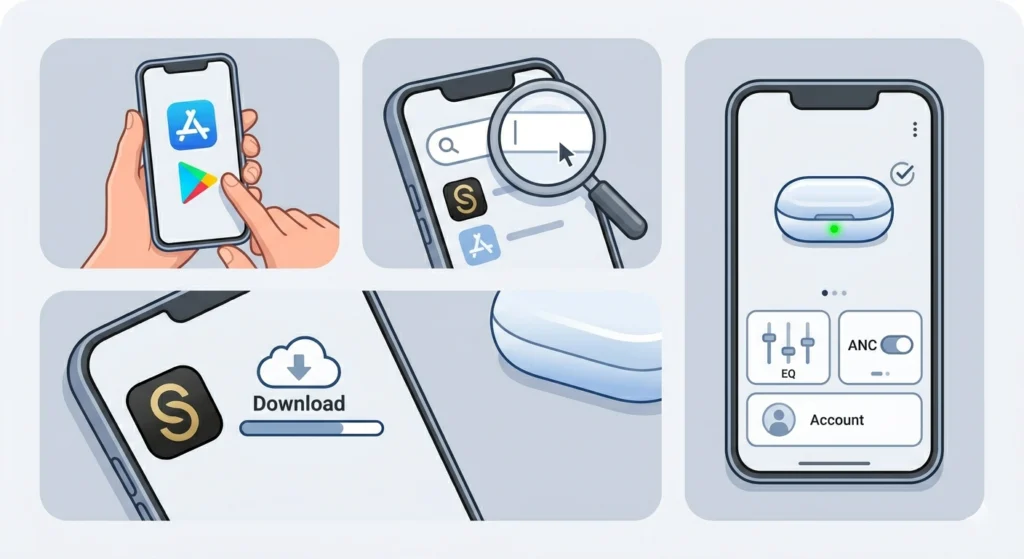
The Sony Headphones Connect app unlocks the full potential of the WF-1000XM5. Without it, the earbuds still work, but essential features like custom EQ, ANC strength adjustment, and Speak-to-Chat are only accessible through the app.
- Step 1: Open the App Store (iOS) or Google Play Store (Android)
- Step 2: Search for ‘Sony Headphones Connect’
- Step 3: Download and install the app
- Step 4: Open the app and create or sign in to a Sony account
The app is available for both Android and iOS. Once the earbuds are paired, the app automatically detects them and displays all available settings.
Step 3: Put the WF-1000XM5 Into Pairing Mode
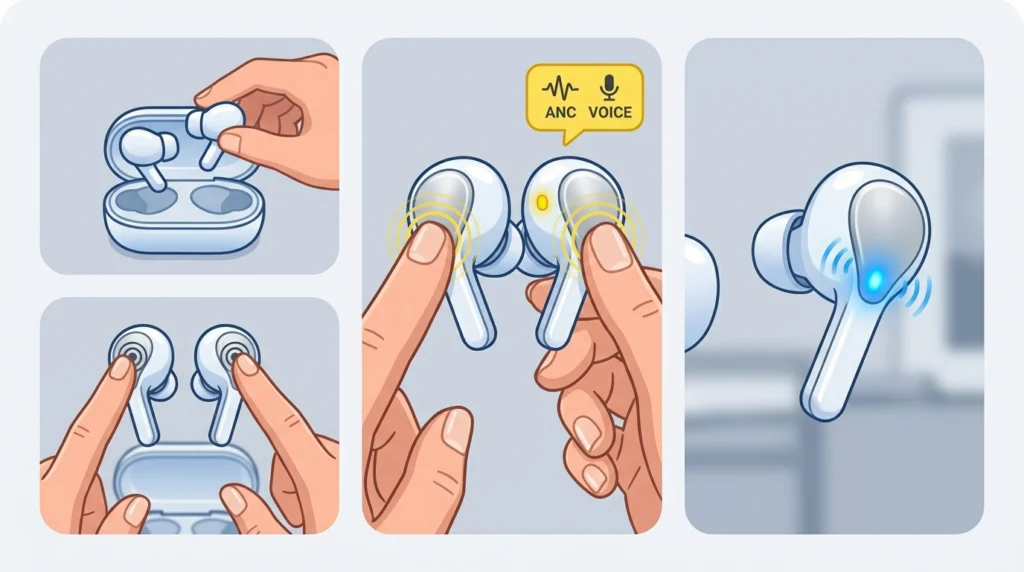
The earbuds need to be in pairing mode so the target device can find them. On first use, the WF-1000XM5 enters pairing mode automatically when removed from the case. For subsequent pairings, the process is manual.
- Step 1: Remove both earbuds from the charging case
- Step 2: Press and hold the touchpad on both earbuds simultaneously for about 7 seconds
- Step 3: Wait for the voice prompt to say ‘Bluetooth pairing’ – this confirms pairing mode is active
- Step 4: The indicator light flashes blue rapidly to show the earbuds are discoverable
The key is to hold both touchpads at the same time. Holding only one side will not activate pairing mode.
Pro-Tip: If the earbuds were previously connected to another device, pairing mode will not activate on its own. Always manually trigger it using the touchpad hold method above. This avoids the common frustration of earbuds reconnecting to an old device instead of the new one.
Step 4: Pair the Earbuds to a Smartphone
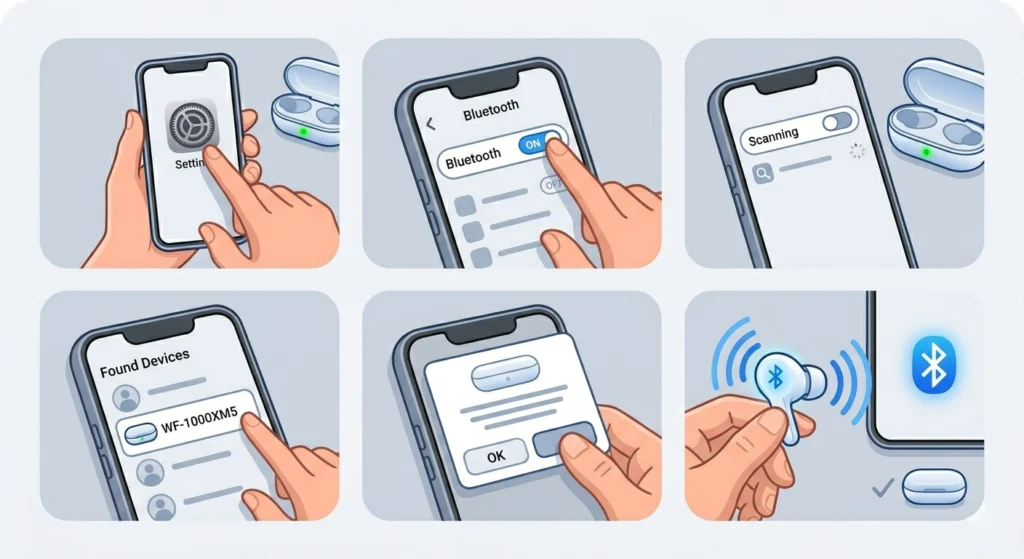
Once pairing mode is active, connecting to a phone takes just a few taps. This works the same way on both Android and iPhone.
- Step 1: Open the Bluetooth settings on the phone
- Step 2: Make sure Bluetooth is turned on
- Step 3: Tap ‘Scan’ or wait for the list of available devices to populate
- Step 4: Look for ‘WF-1000XM5’ in the device list and tap it
- Step 5: Accept any pairing prompts that appear on screen
- Step 6: Wait for the voice prompt in the earbuds to confirm the connection
Once connected, the indicator light stops flashing and the earbuds announce ‘Bluetooth connected.’ The Sony Headphones Connect app will also detect the earbuds automatically at this point.
Step 5: Pair the WF-1000XM5 to a Windows PC
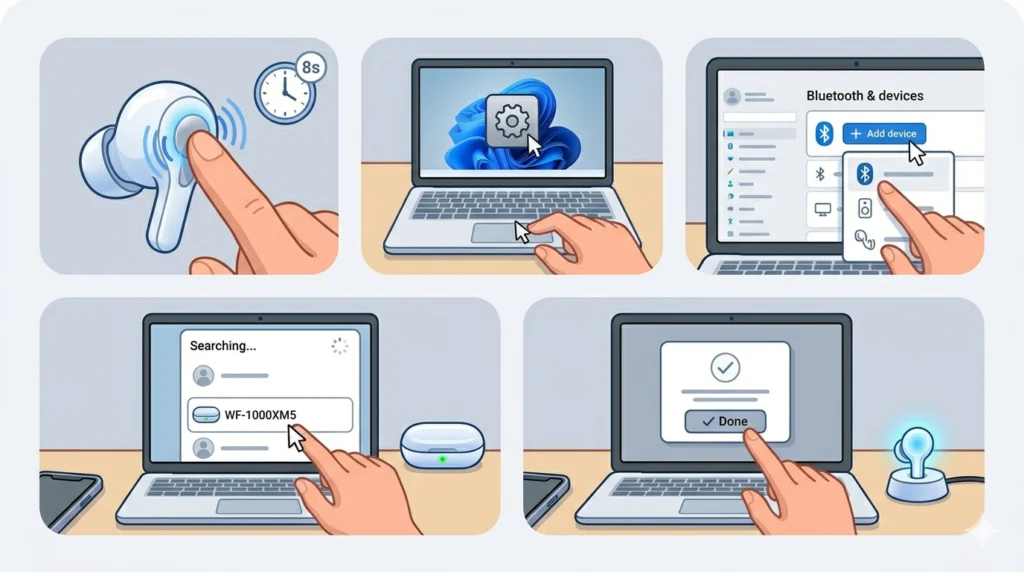
Connecting to a Windows PC follows the same Bluetooth pairing principle, though the menu location differs slightly depending on Windows 10 or Windows 11.
- Step 1: Put the earbuds into pairing mode (touchpad hold for 7 seconds)
- Step 2: On the PC, open Settings and go to Bluetooth and Devices
- Step 3: Click ‘Add device’ and then select ‘Bluetooth’
- Step 4: Wait for ‘WF-1000XM5’ to appear and click it
- Step 5: Click ‘Done’ once the connection is confirmed
If the earbuds show as connected in Windows but no sound comes through, check the audio output settings in Windows 11 to make sure the WF-1000XM5 is set as the default playback device.
For users who have connected these earbuds to another device before and want to set them up fresh on a PC, it helps to re-pair Bluetooth earbuds for stereo sound on Windows to ensure proper stereo output instead of the lower-quality hands-free mode.
Step 6: Configure Settings in the Sony Headphones Connect App
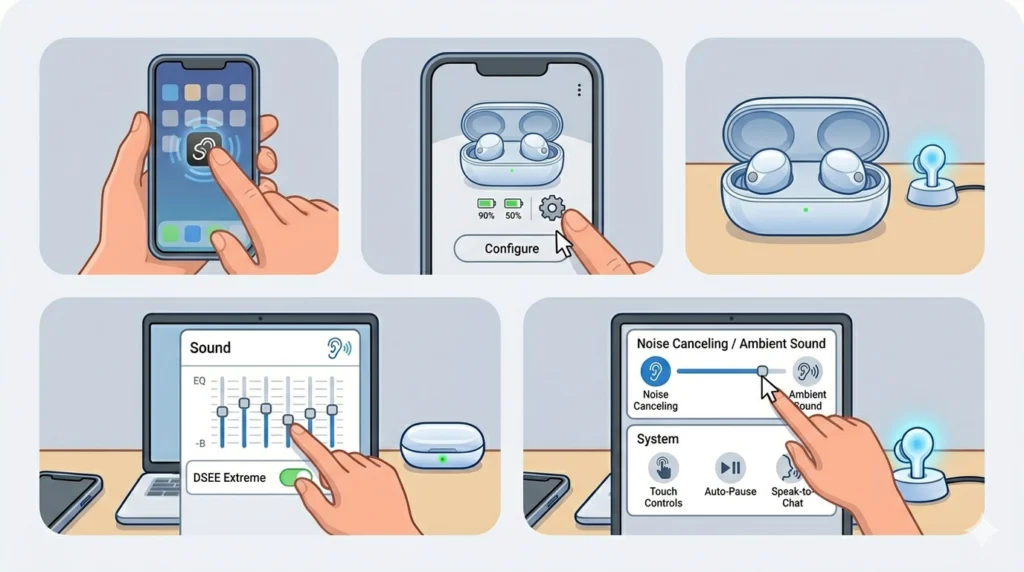
With the earbuds paired, open the Sony Headphones Connect app to fine-tune the listening experience. This is where most of the WF-1000XM5’s advanced features live.
- Step 1: Open the Sony Headphones Connect app on the phone
- Step 2: The app should auto-detect the earbuds – if not, tap the device icon at the top
- Step 3: Go to ‘Sound’ to access the EQ and DSEE Extreme settings
- Step 4: Go to ‘Noise Canceling / Ambient Sound’ to adjust ANC strength
- Step 5: Go to ‘System’ to customize touch controls, auto-pause, and Speak-to-Chat settings
Pro-Tip: Use the ‘Adaptive Sound Control’ feature in the app. It automatically detects activity – like walking, running, or sitting – and adjusts the ANC or ambient sound mode accordingly. Most people find this one of the most useful everyday features on the WF-1000XM5.
Step 7: Enable Multipoint Connection (Optional)
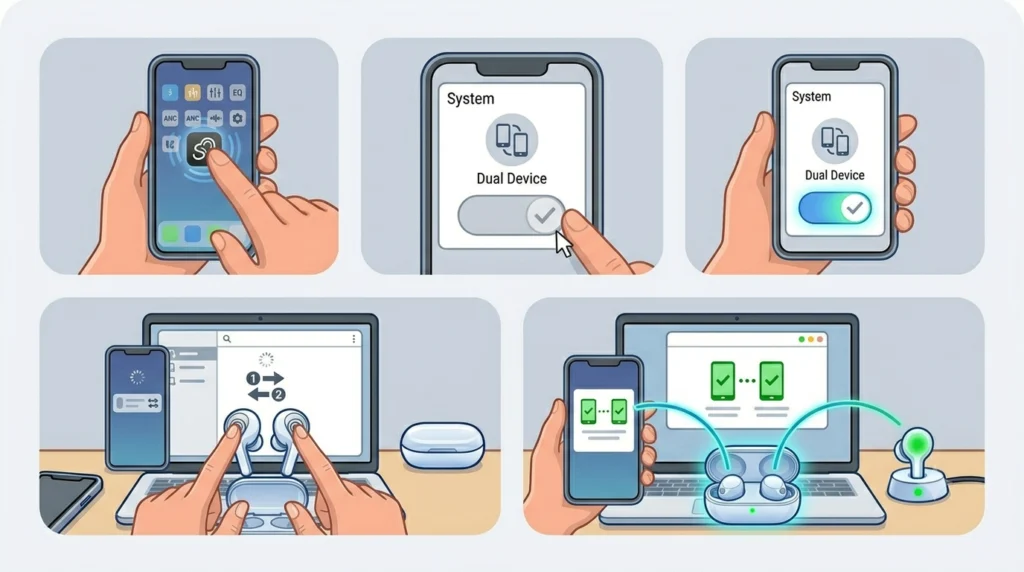
The WF-1000XM5 supports multipoint Bluetooth, which means they can stay connected to two devices at the same time – useful for switching between a phone and a laptop without re-pairing.
- Step 1: Open the Sony Headphones Connect app
- Step 2: Go to System and find the ‘Multipoint Connection’ toggle
- Step 3: Enable it
- Step 4: Pair the earbuds to the second device using the standard pairing steps
- Step 5: Both devices are now connected simultaneously
Note that multipoint is not compatible with Sony’s LDAC codec. The earbuds will use SBC when multipoint is active. For highest audio quality, keep multipoint off and use LDAC with a single device.
Tips for Getting the Best Experience
- Use LDAC codec on Android for the highest audio quality – enable it under Bluetooth settings in the phone’s developer options
- Wear the earbuds for a few minutes before running Sony’s ear tip fit test in the app – the fit affects both ANC effectiveness and bass response
- Update the firmware through the Sony Headphones Connect app right after setup to get the latest improvements
- The touch controls are fully customizable – assign your most-used functions to single tap, double tap, and triple tap
- Speak-to-Chat pauses music automatically when the wearer starts talking, which works well in cafes or brief conversations
Common Problems and Fixes
Fix 1: Earbuds Not Showing Up in Bluetooth List
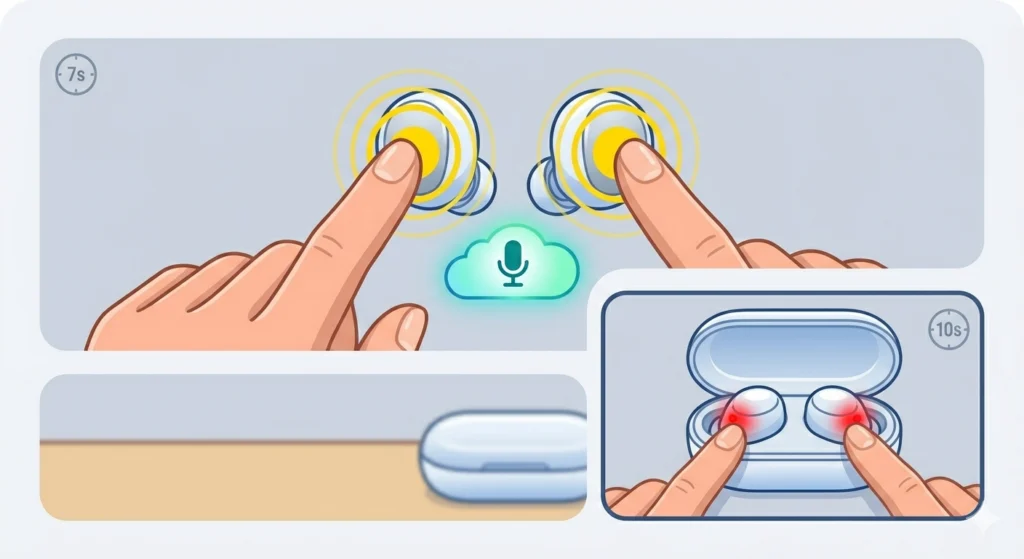
Make sure the earbuds are actually in pairing mode – both touchpads must be held for 7 seconds until the voice prompt plays. If the earbuds show a previous connection, factory reset them by holding both touchpads for 10 seconds until the indicator flashes red.
Fix 2: Only One Earbud Connecting
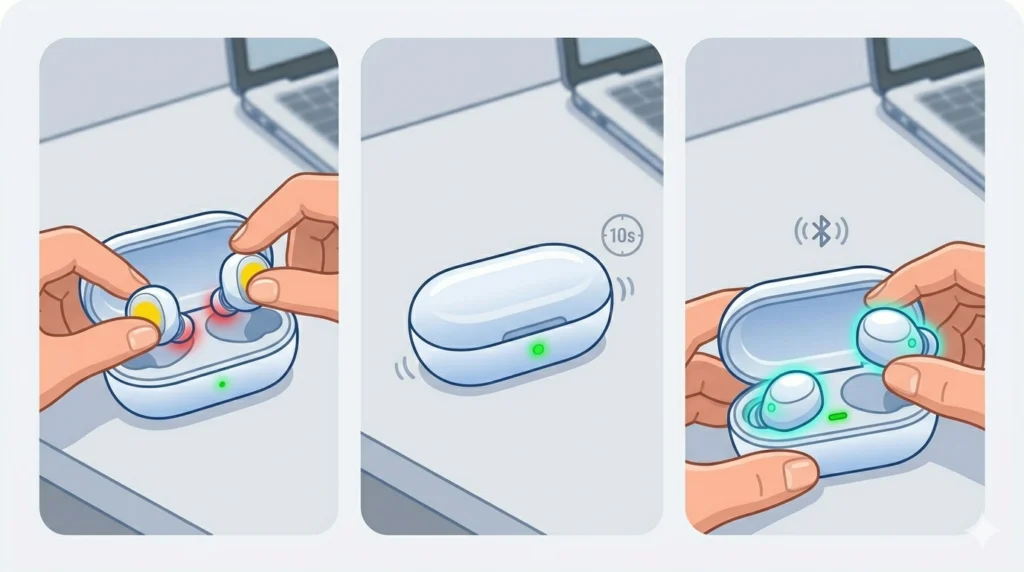
Place both earbuds back into the case, close the lid, wait 10 seconds, then remove them again. The left and right earbuds sync with each other through the case. If the issue persists, reset the earbuds and re-pair from scratch.
Fix 3: No Sound on PC After Pairing
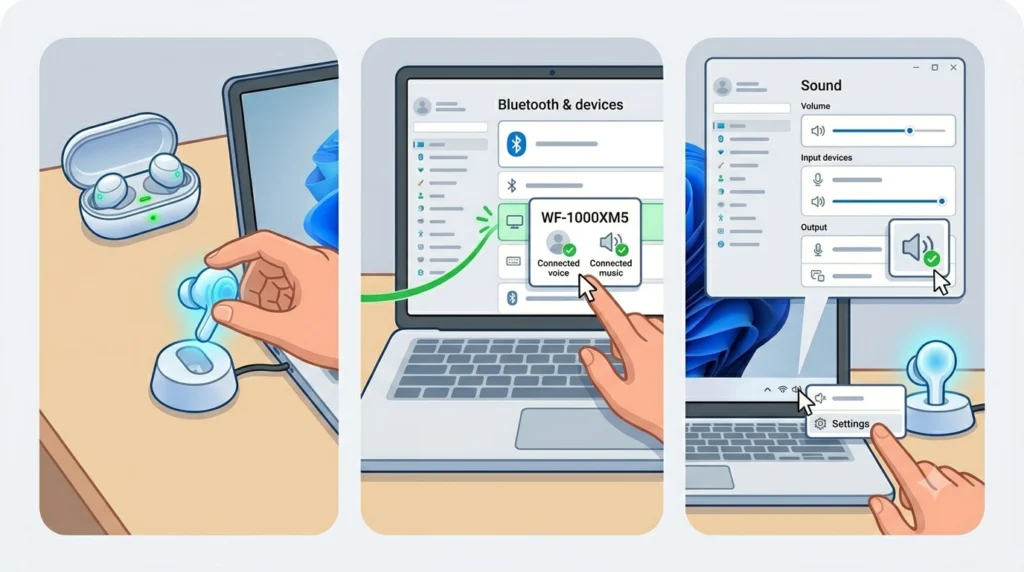
Windows sometimes defaults to a different output device. Right-click the speaker icon in the taskbar, select ‘Sound settings,’ and set the WF-1000XM5 as the default output device. Also check that the earbuds show as ‘Connected voice, music’ and not just ‘Connected voice’ – the latter means only the microphone is active.
Fix 4: Sony App Not Detecting the Earbuds
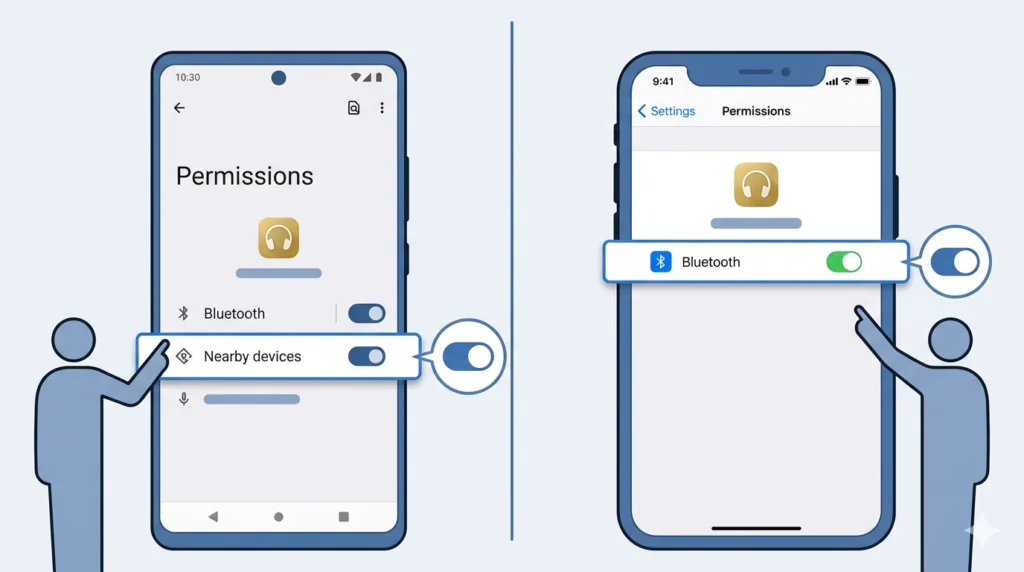
The app requires Bluetooth permission on both Android and iOS. Go to the phone’s app permissions and confirm the Sony Headphones Connect app has Bluetooth access enabled. On Android 12 and later, ‘Nearby devices’ permission is also required.
Frequently Asked Questions
How do you put Sony WF-1000XM5 into pairing mode?
Press and hold the touchpad on both earbuds simultaneously for about 7 seconds until the voice prompt says ‘Bluetooth pairing.’ The indicator lights will flash blue rapidly to show the earbuds are now discoverable.
Do the WF-1000XM5 connect automatically after the first pairing?
Yes. After the initial setup, the earbuds automatically reconnect to the last paired device when removed from the case. If multipoint is enabled, they reconnect to both saved devices.
How many devices can the Sony WF-1000XM5 remember?
The WF-1000XM5 can store up to 10 paired devices in its memory. It can actively connect to two devices simultaneously when multipoint is enabled.
Do the WF-1000XM5 work without the Sony app?
Yes, the earbuds function as standard Bluetooth earbuds without the app. However, features like custom EQ, ANC strength control, Speak-to-Chat settings, touch control customization, and firmware updates all require the Sony Headphones Connect app.
How do you reset the Sony WF-1000XM5?
To factory reset, place the earbuds in the case and leave the lid open. Press and hold the touchpad on both earbuds for about 10 seconds until the indicators flash red. The earbuds will restart and all pairing data will be erased.
Can the WF-1000XM5 connect to a laptop?
Yes. They connect to any Bluetooth-enabled laptop running Windows, macOS, or Chrome OS. On Windows, use the Bluetooth and Devices settings to add the earbuds as a new device while they are in pairing mode.
What Bluetooth codec do the WF-1000XM5 support?
The WF-1000XM5 support SBC, AAC, and LDAC. LDAC offers the highest audio quality and is available on Android devices. Apple devices use AAC. LDAC is not available when multipoint mode is active.
How long does it take to charge the WF-1000XM5?
The earbuds take approximately 3 hours to fully charge inside the case. A quick 5-minute charge provides around 60 minutes of playback. The case itself holds additional charges and takes about 3.5 hours to fully charge via USB-C.
Why is the ANC not working well after setup?
ANC performance depends heavily on the ear tip fit. Run the ear tip fit test inside the Sony Headphones Connect app to confirm the current ear tips are creating a proper seal. If the seal is poor, try the next size up. Also make sure the firmware is updated to the latest version.
Can the WF-1000XM5 be used with two phones at the same time?
Yes, multipoint connection allows the earbuds to stay connected to two Bluetooth devices at once. Enable this feature in the Sony Headphones Connect app under System settings. Audio will automatically switch to whichever device starts playing.