
Setting up AirPods Pro 2 for the first time is one of the smoothest pairing experiences in the wireless audio world. Whether it is a brand-new pair straight from the box or a gift, the process takes just a few minutes. This guide walks through everything needed to get AirPods Pro 2 fully connected and ready to use – no guesswork required.
Key Takeaways
- AirPods Pro 2 pair automatically when opened near an unlocked iPhone signed into iCloud
- The setup works seamlessly across iPhone, iPad, Mac, and Apple Watch
- Active Noise Cancellation and Transparency Mode activate right after pairing
- Ear tip fit test should be done during initial setup for best audio and ANC performance
- Android and Windows devices can connect via standard Bluetooth pairing
How to Set Up AirPods Pro 2 with iPhone or iPad
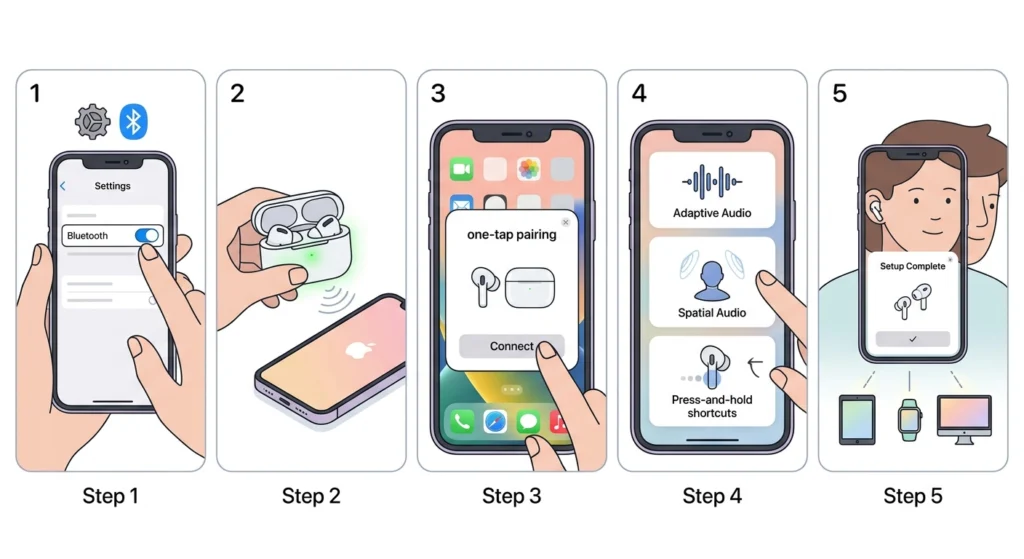
The fastest and most seamless way to set up AirPods Pro 2 is with an iPhone or iPad. Apple uses a one-tap pairing system that handles nearly everything automatically.
- Step 1: Make sure the iPhone or iPad is unlocked and Bluetooth is turned on. Go to Settings, then Bluetooth, and confirm it is enabled.
- Step 2: Open the AirPods Pro 2 charging case while holding it close to the iPhone – within a few inches works best.
- Step 3: A setup card will automatically appear on the iPhone screen showing the AirPods. Tap ‘Connect.’
- Step 4: Follow the on-screen prompts. This includes reviewing features like Adaptive Audio, Personalized Spatial Audio, and press-and-hold shortcuts.
- Step 5: Tap ‘Done’ when the setup is complete. The AirPods are now paired and will automatically connect to any Apple device signed into the same Apple ID.
The key is to keep the case open and close to the device throughout the process. Most people find the entire setup takes under 60 seconds.
Pro-Tip: After connecting, run the Ear Tip Fit Test immediately. Go to Settings, then Bluetooth, tap the info icon next to AirPods Pro 2, and select ‘Ear Tip Fit Test.’ Getting the right seal makes a massive difference in bass response and noise cancellation effectiveness.
How to Set Up AirPods Pro 2 with a Mac
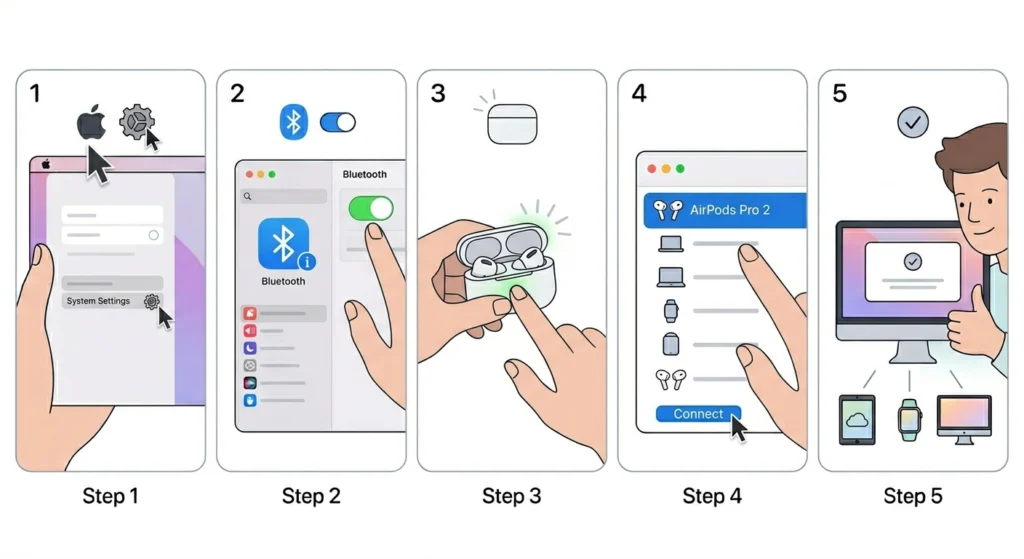
Once AirPods Pro 2 are paired with an iPhone using the same Apple ID, they automatically appear on a Mac as well. But for a fresh Mac setup or manual pairing, here is how to do it.
- Step 1: On the Mac, click the Apple menu and go to System Settings (or System Preferences on older macOS).
- Step 2: Select ‘Bluetooth’ and make sure Bluetooth is turned on.
- Step 3: Open the AirPods Pro 2 case lid. Press and hold the small setup button on the back of the case until the status light flashes white.
- Step 4: The AirPods Pro 2 will appear in the list of available devices. Click ‘Connect.’
- Step 5: The Mac will confirm the connection. The AirPods are now ready to use with the Mac.
How to Pair AirPods Pro 2 with Android
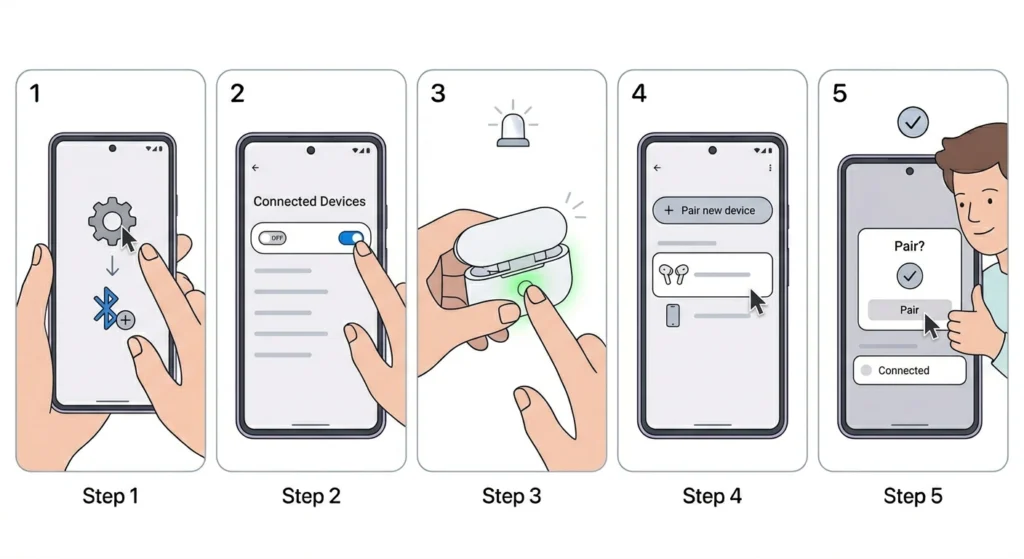
AirPods Pro 2 work with Android devices through standard Bluetooth. The experience is straightforward even without Apple-specific features like automatic ear detection on non-Apple devices.
- Step 1: On the Android device, open Settings and go to ‘Connected Devices’ or ‘Bluetooth.’
- Step 2: Enable Bluetooth if it is not already on.
- Step 3: Open the AirPods Pro 2 case and press and hold the setup button on the back until the LED flashes white.
- Step 4: On the Android device, tap ‘Pair new device’ and select ‘AirPods Pro’ from the list.
- Step 5: Confirm the pairing request if prompted. The AirPods are now connected.
This works best when the AirPods are in pairing mode – the white blinking light confirms that. If the AirPods were previously paired to another device, resetting them first makes the Android pairing process much smoother. For general tips on re-pairing Bluetooth earbuds for stereo sound on Windows, that guide covers the Bluetooth fundamentals that also apply here.
How to Set Up AirPods Pro 2 with Windows PC
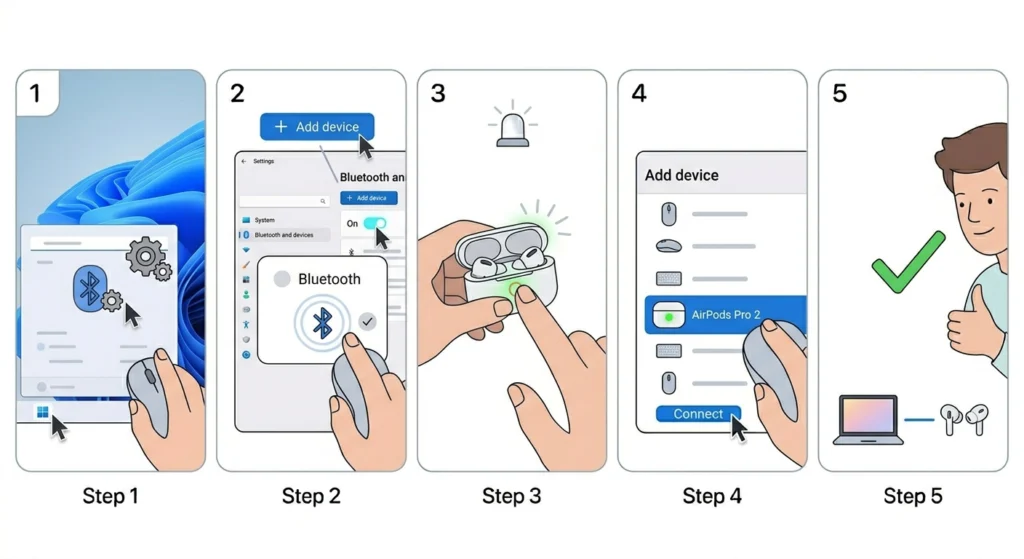
Connecting AirPods Pro 2 to a Windows PC uses the same Bluetooth pairing method as Android. The steps are simple and take under two minutes.
- Step 1: On Windows 11, open the Start menu and go to Settings, then ‘Bluetooth and devices.’
- Step 2: Toggle Bluetooth on and click ‘Add device.’
- Step 3: Select ‘Bluetooth’ from the device type menu.
- Step 4: Put the AirPods Pro 2 into pairing mode by pressing and holding the setup button on the case until the light blinks white.
- Step 5: Select ‘AirPods Pro’ from the list and click ‘Connect.’ Windows will confirm once paired.
If audio issues come up after pairing on Windows 11, checking the audio output settings on Windows 11 can resolve most playback problems quickly.
Pro-Tip: On Windows, setting AirPods Pro 2 as the default audio output device under Sound Settings ensures audio automatically routes through them whenever they are connected – no manual switching needed each session.
Tips for Getting the Best Experience
- Use the correct ear tip size – Apple includes XS, S, M, and L tips in the box. A proper seal is critical for both sound quality and noise cancellation.
- Enable Personalized Spatial Audio on iPhone for an immersive, head-tracked listening experience during video and music playback.
- Customize press-and-hold gestures through the Bluetooth settings to control Active Noise Cancellation, Transparency Mode, or volume.
- Keep the firmware updated – AirPods Pro 2 firmware updates install automatically when placed in the case near a connected iPhone.
- Use Adaptive Audio mode for everyday environments – it blends ANC and Transparency automatically based on surroundings.
Common Problems and Fixes
Fix 1: AirPods Pro 2 Not Showing the Setup Card on iPhone
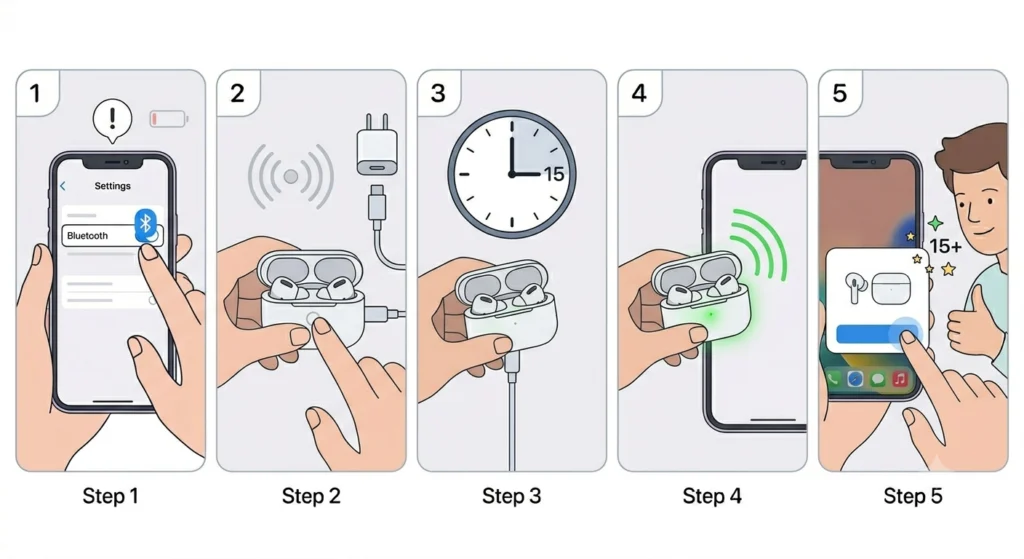
This usually happens when the case battery is too low or Bluetooth was not enabled before opening the case. Charge the case for at least 15 minutes, then try again with Bluetooth confirmed on.
Fix 2: AirPods Pro 2 Not Connecting to Mac
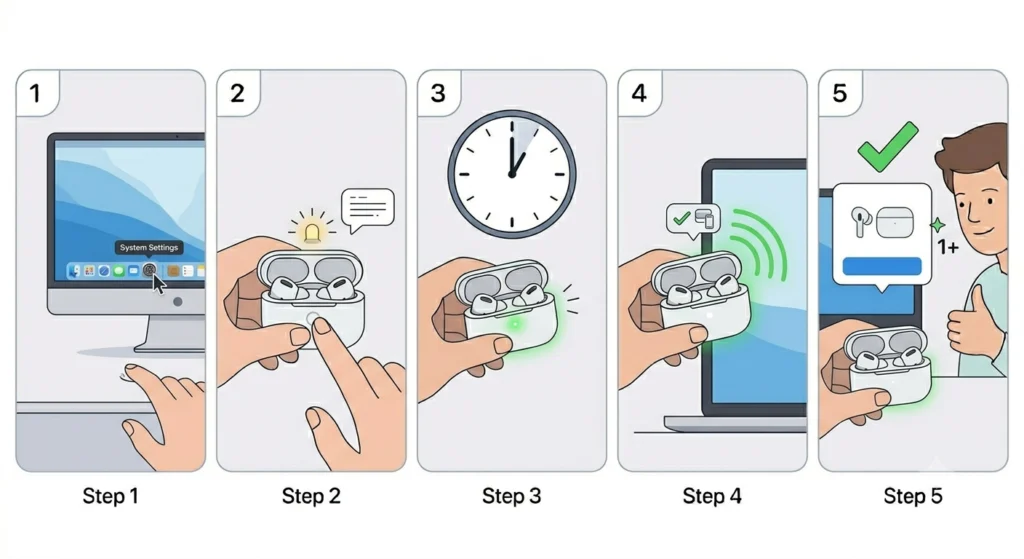
If the AirPods do not appear in the Mac Bluetooth list, manually trigger pairing mode by holding the case button until the light flashes white. The Mac should detect them within seconds.
Fix 3: Only One AirPod Playing Audio
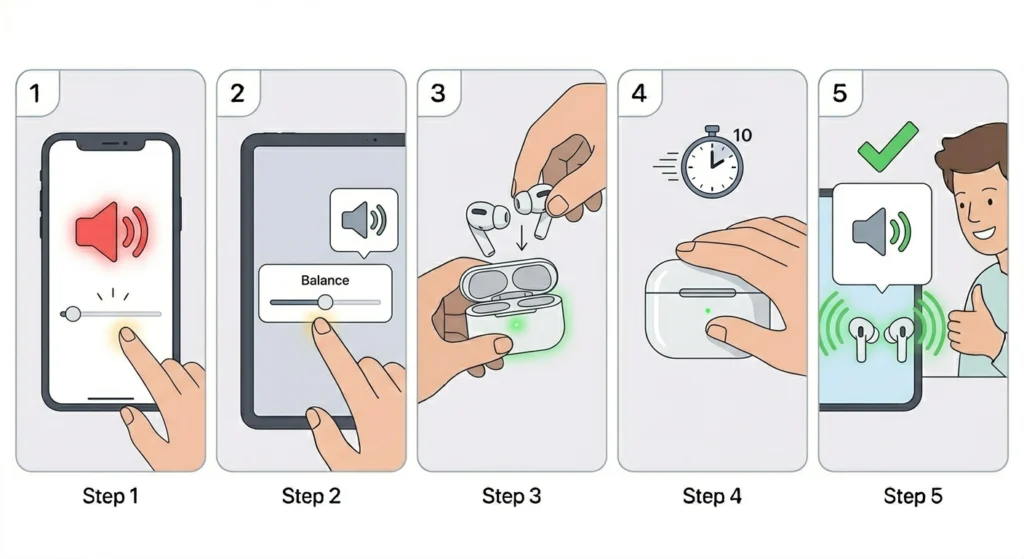
This is often a balance or mono audio setting issue on the connected device. Check the audio balance settings and make sure both ears are set to equal levels. Also try placing both AirPods back in the case, closing the lid for 10 seconds, and reconnecting.
Fix 4: AirPods Pro 2 Connected but No Sound on Windows
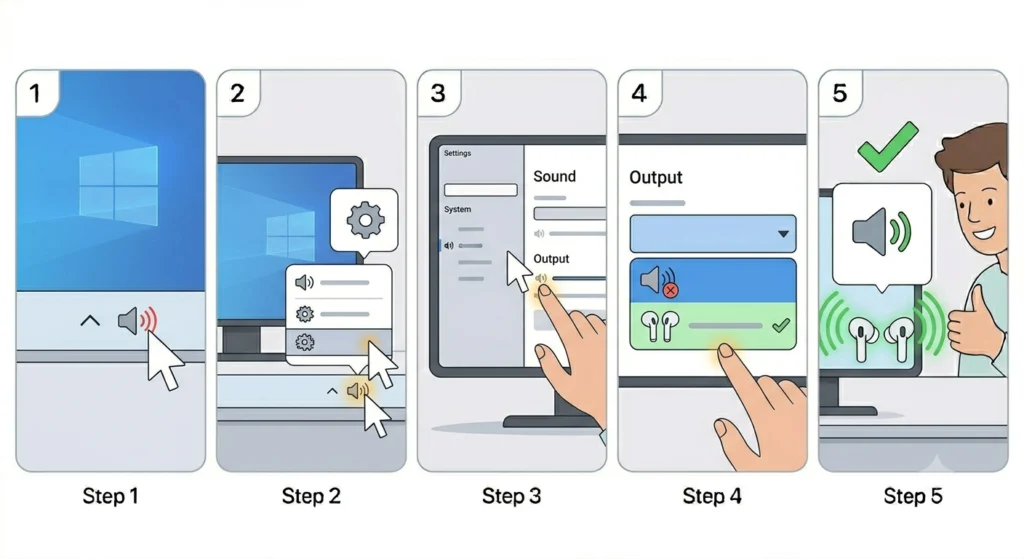
Windows sometimes defaults audio to the wrong output device. Right-click the speaker icon in the taskbar, select ‘Open Sound Settings,’ and manually set AirPods Pro 2 as the output device.
Fix 5: Need to Reset and Re-Pair AirPods Pro 2
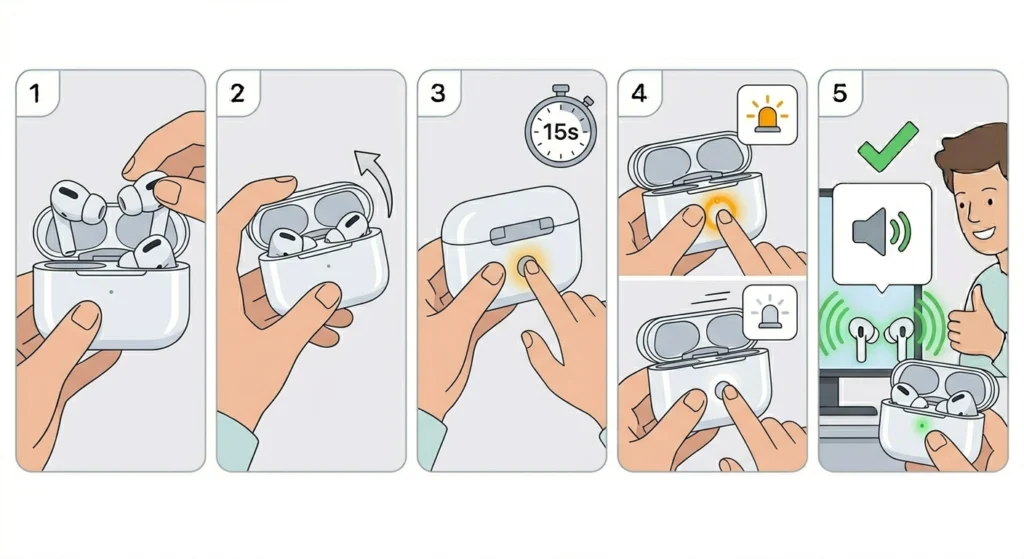
To factory reset, place both AirPods in the case, open the lid, and press and hold the setup button for about 15 seconds until the light flashes amber then white. After that, they are in pairing mode for a fresh setup.
Frequently Asked Questions
Do AirPods Pro 2 work with non-Apple devices?
Yes. AirPods Pro 2 connect to any Bluetooth-enabled device including Android phones, Windows PCs, and tablets. Features like automatic ear detection and Siri integration require Apple devices, but core audio and noise cancellation work universally.
How do AirPods Pro 2 pair with multiple Apple devices?
Once paired with one Apple device signed into an iCloud account, AirPods Pro 2 automatically appear on all other Apple devices using the same Apple ID – including iPhone, iPad, Mac, and Apple Watch. Switching between devices happens automatically or manually through the audio output menu.
What is the setup button on the AirPods Pro 2 case?
The small oval button on the back of the MagSafe charging case is the setup button. Pressing and holding it for a few seconds puts the AirPods into pairing mode for connecting to non-Apple devices or performing a factory reset.
Why did the AirPods Pro 2 setup card not appear on the iPhone?
The setup card requires Bluetooth to be enabled and the iPhone to be unlocked. It also requires the AirPods to not already be paired to another Apple ID account. If none of those apply, restarting Bluetooth on the iPhone and reopening the case usually resolves it.
Can AirPods Pro 2 be set up without an iPhone?
Yes. The standard Bluetooth pairing method works without an iPhone. Just put the AirPods into pairing mode using the setup button and connect from any device’s Bluetooth settings menu.
How long does the AirPods Pro 2 first-time setup take?
With an iPhone, setup takes under a minute. Manual Bluetooth pairing on Android or Windows takes about two minutes. The ear tip fit test adds another 30 seconds but is worth doing.
Does Active Noise Cancellation work right after setup?
Yes. ANC activates immediately after pairing. By default, AirPods Pro 2 use Adaptive Audio, which automatically adjusts between ANC and Transparency Mode. This can be customized by pressing and holding the AirPod stem or through Bluetooth settings on iPhone.
How do AirPods Pro 2 switch between devices automatically?
Automatic switching uses iCloud to detect which Apple device is actively in use. If audio starts playing on an iPad while the AirPods are connected to an iPhone, they switch automatically. This feature works only between Apple devices on the same Apple ID.
What should be done if the AirPods Pro 2 are stuck connected to an old device?
Go to the old device’s Bluetooth settings and select ‘Forget This Device.’ Then re-pair on the new device. Alternatively, perform a factory reset using the setup button to clear all paired devices at once.
Are there any settings to configure after the initial setup?
A few settings are worth checking. The ear tip fit test, Personalized Spatial Audio setup, press-and-hold shortcut customization, and enabling ‘Announce Notifications’ are all found in the AirPods section under Bluetooth settings on iPhone. These can significantly improve the everyday experience.