
Knowing how to reset Jabra Elite 10 to factory settings is one of the most useful things to have in your back pocket when these earbuds start acting up. Whether the connection has become unstable, the sound is off, or the earbuds simply need a fresh start before selling or gifting them, a factory reset clears everything out and brings them back to the state they were in right out of the box.
Quick Summary: What to Know Before You Reset
- Both earbuds must be placed inside the charging case – resetting only one is not possible.
- The charging case lid must stay open during the button press.
- Hold both earbud buttons simultaneously for 10 seconds until the LED flashes pink.
- Close the lid for 5 seconds to complete the reset.
- All paired devices and custom settings will be erased after the reset.
- Re-pairing with any device is required after the reset is done.
How to Reset Jabra Elite 10 to Factory Settings (Step-by-Step)
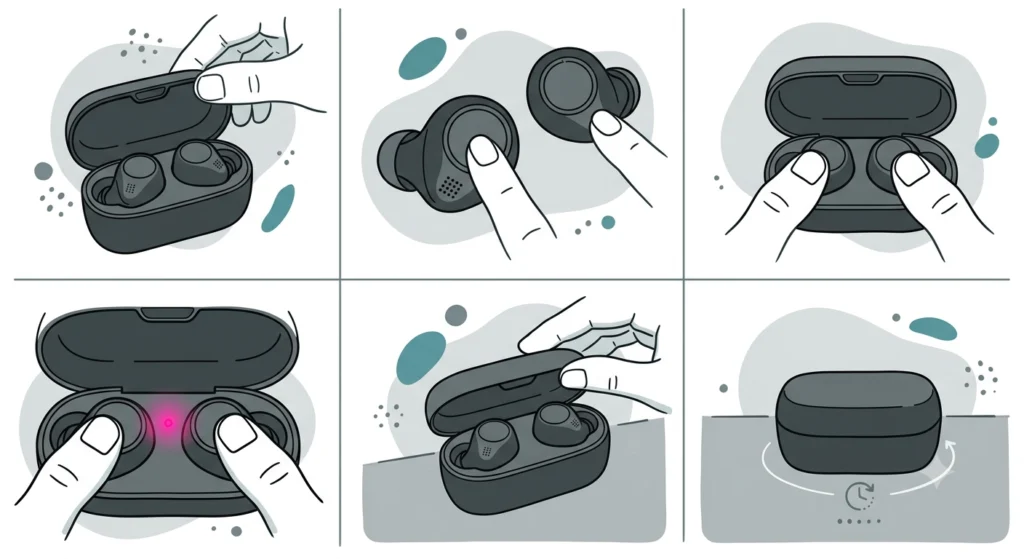
This is the official method confirmed by Jabra support. It works for both the standard Jabra Elite 10 and the Jabra Elite 10 Gen 2. The key is to have both earbuds in the case with the lid open before starting – skipping this step is the most common reason the reset does not trigger properly.
- Step 1: Place both earbuds into the charging case and leave the lid open. Do not close the lid yet.
- Step 2: Locate the physical button on each earbud – there is one on the left earbud and one on the right earbud.
- Step 3: Press and hold both the left and right earbud buttons at the same time. Hold them down for 10 full seconds without releasing.
- Step 4: Watch for the LED light inside the charging case to flash pink. This pink flash confirms the reset has been triggered successfully.
- Step 5: Once the LED flashes pink, close the lid of the charging case and keep it closed for at least 5 seconds. This finalizes the factory reset process.
- Step 6: After 5 seconds, open the lid. The Jabra Elite 10 earbuds are now fully reset to factory settings.
The earbuds will enter pairing mode automatically once removed from the case after the reset. From there, they are ready to connect to any device as if brand new.
Pro Tip: Before starting the reset, go into the Bluetooth settings on every device that was previously paired to the Jabra Elite 10 and select ‘Forget’ or ‘Remove’ the earbuds. If this step is skipped, old pairings can interfere when trying to reconnect after the reset, especially on Android and Windows devices. This is a quick step that saves a lot of headaches later.
What Happens After the Factory Reset
Once the reset is complete, the Jabra Elite 10 returns to its original out-of-the-box state. Here is what that means in practice:
- All previously paired Bluetooth devices are removed from the earbuds memory.
- Custom EQ settings, ANC preferences, and HearThrough configurations set through the Jabra Sound+ app are cleared.
- MyControls personalizations (button functions) are reverted to defaults.
- The earbuds will need to be re-paired with a phone, tablet, laptop, or any other device before use.
Re-pairing is straightforward. Simply open the charging case after the reset, and the earbuds will enter pairing mode automatically – the LED in the case will flash blue. Open Bluetooth on the target device, look for ‘Jabra Elite 10’ in the list, and tap to connect. If there are any issues re-pairing Bluetooth earbuds for stereo sound on Windows, that guide covers the process in detail.
Tips for a Successful Reset
- Make sure the charging case has enough battery before starting. A dead case can prevent the LED from responding during the reset sequence.
- Press both earbud buttons at exactly the same time. Pressing one slightly before the other can cause the reset to fail silently – meaning no LED flash occurs.
- Count the full 10 seconds before looking for the pink flash. Releasing too early is the number one reason people report the reset ‘not working.’
- After closing the lid, keep it shut for the full 5 seconds. Opening it too early interrupts the finalization step.
- If the earbuds do not seem to respond after reconnecting, check that the Sound+ app is not auto-reconnecting to old settings from a cached profile. Reinstalling or clearing the app cache can help.
Common Problems When Resetting the Jabra Elite 10
Fix 1: LED Does Not Flash Pink
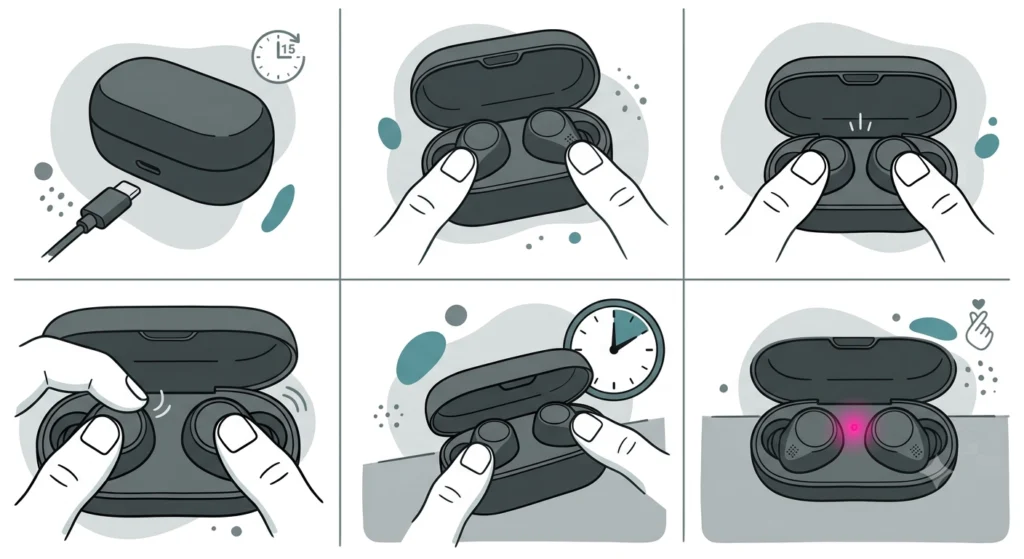
This is the most frequently reported issue. It almost always comes down to one of three things: the buttons were not pressed at exactly the same time, the full 10 seconds were not held, or the charging case battery is too low. Charge the case for 15-20 minutes, then try again – pressing both buttons simultaneously with a firm, steady hold for the entire 10 seconds.
Fix 2: Earbuds Do Not Enter Pairing Mode After Reset
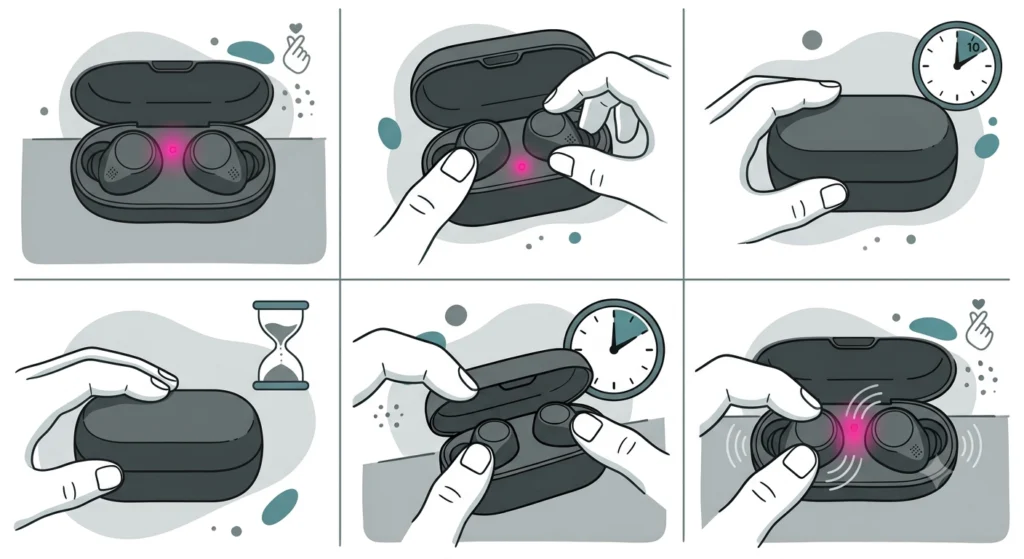
After the reset is complete, the earbuds should enter pairing mode when removed from the case. If they do not, place them back in the case, close the lid for 10 seconds, then open it again. This forces the earbuds to re-initialize. If the problem persists on a Windows device, checking the audio settings reset steps for Windows 11 can help rule out a system-side issue.
Fix 3: Old Device Still Shows as Connected
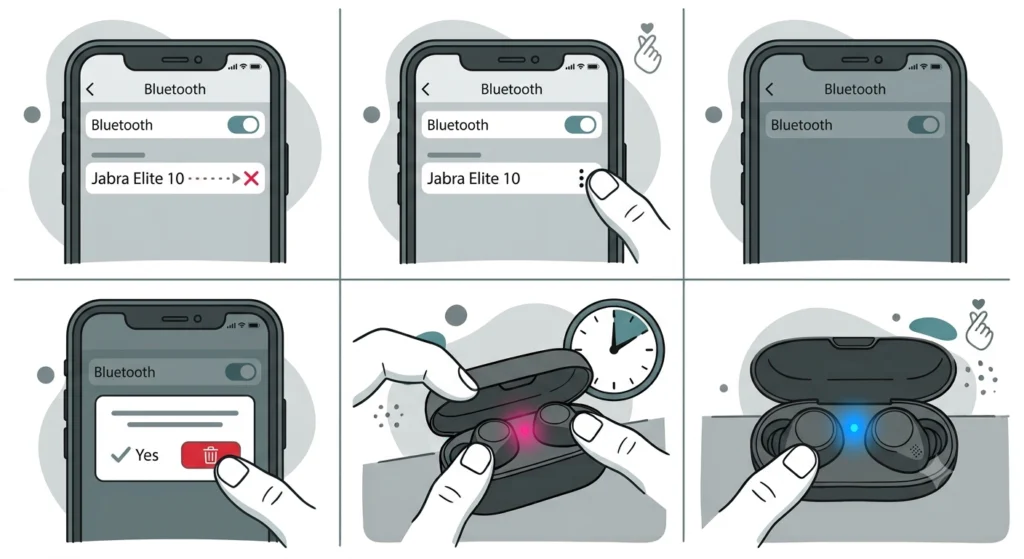
If a previously paired device keeps trying to reconnect automatically, it means the Bluetooth pairing was not removed from the device side. Go to the Bluetooth settings on the old device, find ‘Jabra Elite 10’ in the paired list, and choose ‘Forget Device.’ This is a device-level step that the reset on the earbuds alone cannot perform.
Fix 4: Sound+ App Still Shows Old Settings
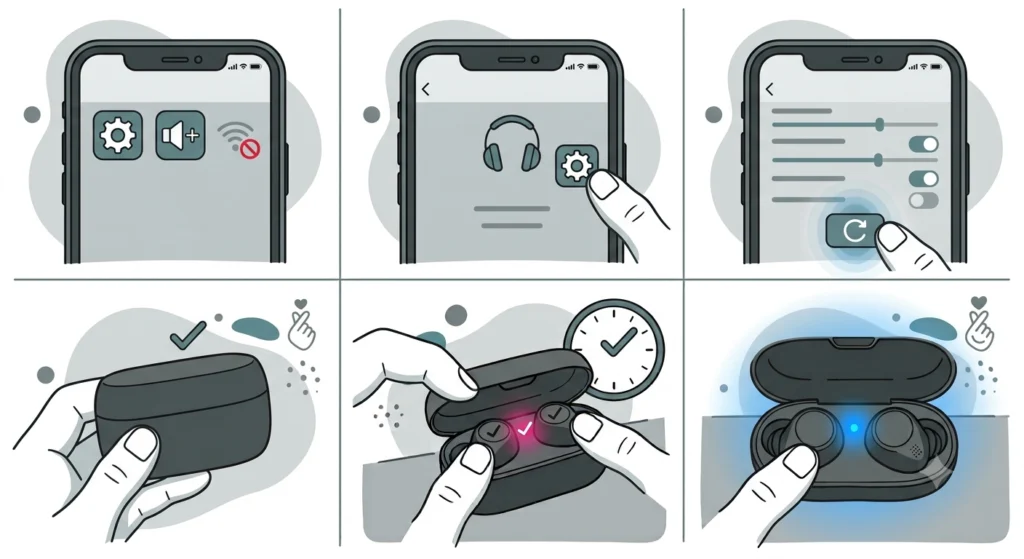
The Jabra Sound+ app stores some settings on the phone, not just on the earbuds. After a factory reset, open the Sound+ app, go to the headset settings, and look for an option to restore defaults within the app as well. This ensures both the earbuds and the app profile are aligned.
Frequently Asked Questions
Does factory resetting the Jabra Elite 10 delete all paired devices?
Yes. A factory reset wipes the entire paired device list from the earbuds. Every device that was previously connected will need to be paired again from scratch. This is one of the main reasons people perform a reset – to clear out old pairings and start fresh.
Can the Jabra Elite 10 be reset using only one earbud?
No. Jabra explicitly states that resetting only one earbud is not possible. Both earbuds must be placed in the charging case and both buttons must be pressed simultaneously for the reset to work. Attempting a single-earbud reset will not trigger the pink LED flash.
How long does the Jabra Elite 10 factory reset take?
The actual reset sequence takes about 15 seconds total – 10 seconds of holding the buttons until the pink LED flashes, then 5 seconds with the lid closed to finalize. The entire process from start to finish is typically under a minute.
Will a factory reset fix Jabra Elite 10 connection issues?
In many cases, yes. Connection drops, failure to auto-connect, and pairing conflicts are often caused by corrupted pairing data. A factory reset clears this data entirely, which resolves most Bluetooth-related problems. If connection issues continue after the reset, the issue may be on the device side rather than the earbuds.
Do the Jabra Elite 10 need to be charged before a factory reset?
The earbuds themselves do not need to be fully charged, but the charging case needs enough power to display the LED indicator. If the case is completely dead, the pink LED flash will not appear during the reset. It is best to have the case at least partially charged before attempting a reset.
Will a factory reset update the firmware on the Jabra Elite 10?
No. A factory reset restores default settings and clears paired devices, but it does not update or roll back firmware. To update the firmware, the Jabra Sound+ app must be used while the earbuds are connected. Firmware updates and factory resets are two separate processes.
Do custom EQ settings get deleted after a Jabra Elite 10 reset?
Yes. Any custom sound profiles, EQ adjustments, ANC settings, or HearThrough preferences configured through the Jabra Sound+ app are cleared when a factory reset is performed. These settings will need to be set up again after re-pairing the earbuds and reconnecting them to the app.
Is the reset process the same for the Jabra Elite 10 Gen 2?
Yes. The factory reset steps for the Jabra Elite 10 Gen 2 are identical to the original Jabra Elite 10. Both earbuds in the open case, press and hold both buttons for 10 seconds until the LED flashes pink, then close the lid for 5 seconds. The process does not differ between the two generations.
What does the pink LED flash mean on the Jabra Elite 10?
The pink LED flash from inside the charging case is the confirmation signal that the factory reset process has been triggered successfully. If the LED does not flash pink after holding the buttons for 10 seconds, the reset was not initiated and the steps should be repeated.
After resetting, can the Jabra Elite 10 be paired with multiple devices again?
Yes. The Jabra Elite 10 supports multipoint connection, meaning it can be paired with up to 8 devices and actively connected to 2 at the same time. After the factory reset, simply pair it with each device one at a time through the Bluetooth settings on those devices.