
Learning how to fix headphones that are too loud at the lowest setting is easier than it sounds, because the cause is usually coarse volume steps rather than broken hardware. Sensitive drivers turn a tiny bit of power into a big sound, so a single notch on the volume bar can jump from ‘barely there’ to ‘ouch’. The fixes below add finer control or cut the signal level before it reaches the ears.
Key Takeaways
- Lower the app volume and the system volume separately to get finer control on Windows 11.
- Hold Shift and Option while pressing the volume keys on a Mac, and use the Control Center slider on iPhone.
- Turn off absolute volume on Android or Windows so headphone volume and device volume work independently.
- Apply a negative preamp in an equalizer to reduce the maximum output.
- Use an in-line attenuator with wired headphones as the simple hardware fix.
Step-by-Step Guide to Make Headphones Quieter at the Lowest Volume
Pick the method that matches the device in use. Each one is short, and several can be combined for extra reduction.
Method 1: Set App Volume and System Volume Separately on Windows 11

The final loudness is the system volume combined with the volume of the app playing the audio. Lowering the app slider lets the main volume sit at a higher, more precise position.
- Step 1: Open Settings, then select System, then Sound.
- Step 2: Scroll down and open Volume mixer.
- Step 3: Drag the slider for the music player or browser down to about 30.
- Step 4: Adjust the main system volume slider until the sound is comfortable.
Output device selection and related options are also covered in this guide to adjusting audio output settings on Windows 11.
Pro-Tip: Set the app volume first, then move the system slider. Most people find that this order gives the widest usable range between silent and too loud.
Method 2: Use Quarter-Step Volume Keys on a Mac
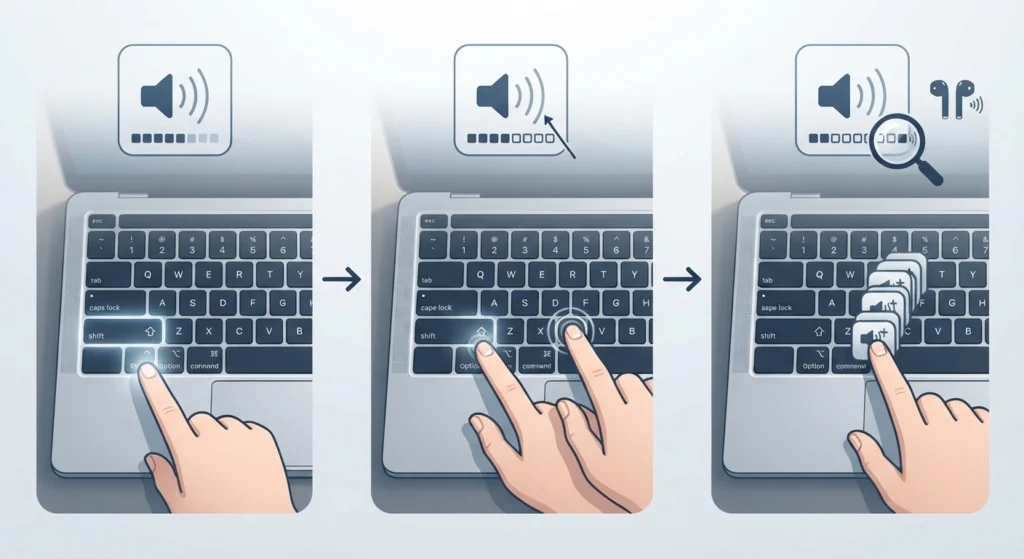
A Mac normally changes volume in 16 blocks, which can be too big a jump for sensitive earbuds. A keyboard shortcut splits each block into four smaller parts.
- Step 1: Hold down the Shift and Option keys together.
- Step 2: Press the volume up or volume down key.
- Step 3: Repeat until the level feels right. Each press moves the volume by a quarter of a block.
Method 3: Use the Control Center Slider on iPhone
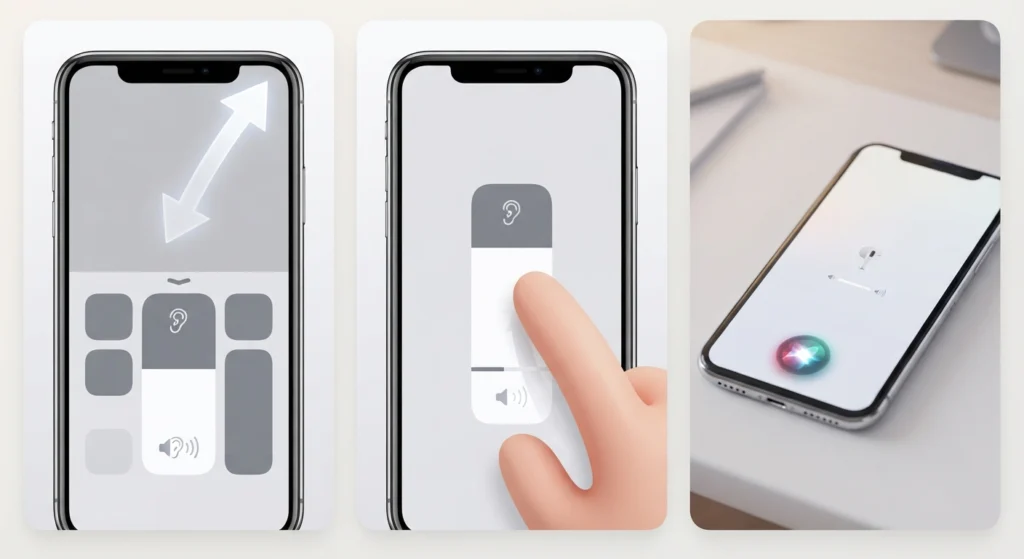
The side buttons on an iPhone move volume in fixed steps, while the on-screen slider moves smoothly.
- Step 1: Open Control Center by swiping down from the top-right corner, or swiping up from the bottom on models with a Home button.
- Step 2: Touch the volume slider and drag it slowly to a very low position.
- Step 3: Alternatively, say ‘Hey Siri, set the volume to 10 percent’ and adjust the number up or down from there.
Method 4: Turn Off Absolute Volume on Android
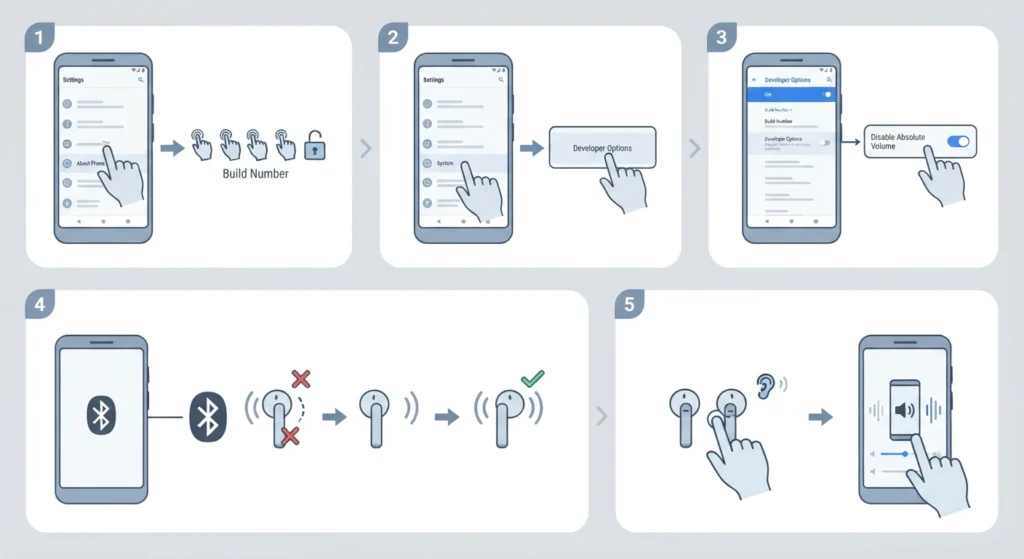
With Bluetooth headphones, Android normally links the phone volume to the headphone volume. Turning off absolute volume separates the two, which changes how the volume steps behave. Menu names can vary slightly between brands.
- Step 1: Open Settings, then About phone, and tap Build number seven times to unlock Developer options.
- Step 2: Go back to Settings, then System, then Developer options.
- Step 3: Find Disable absolute volume and switch it on.
- Step 4: Disconnect and reconnect the Bluetooth headphones.
- Step 5: Lower the volume on the headphones first, then fine-tune with the phone volume.
Pro-Tip: After absolute volume is turned off, the phone and the headphones each have their own volume level, and the two stack together. Setting the headphone volume to a low level first and then adjusting the phone usually gives the smoothest control.
Method 5: Disable Bluetooth Absolute Volume on Windows
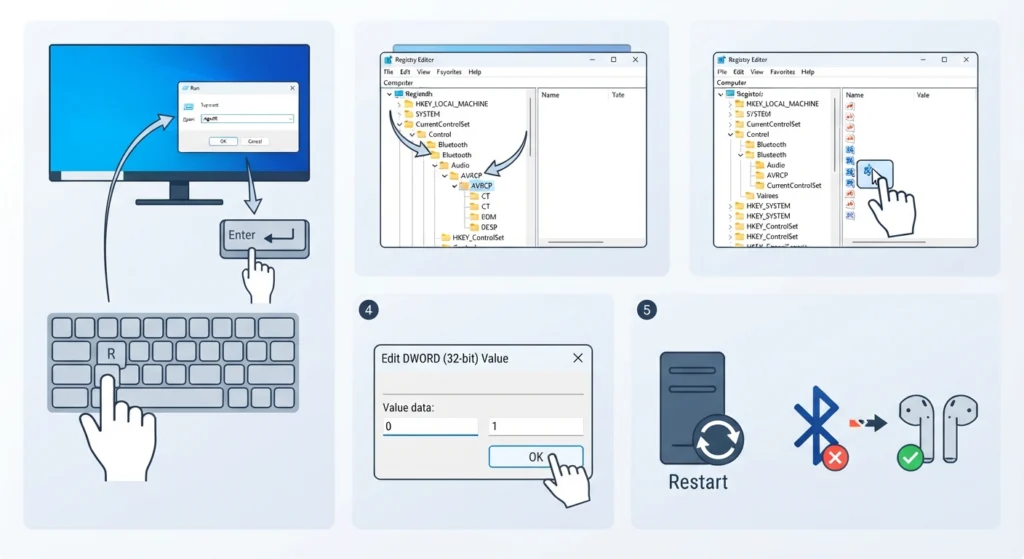
The same idea works on Windows 10 and Windows 11. A registry change stops Windows from syncing its volume with Bluetooth headphones. Registry edits affect the whole system, so this method should be followed exactly.
- Step 1: Press Windows key + R, type regedit, and press Enter.
- Step 2: Go to HKEY_LOCAL_MACHINE\SYSTEM\CurrentControlSet\Control\Bluetooth\Audio\AVRCP\CT
- Step 3: Double-click the DisableAbsoluteVolume value. If it is missing, right-click in the right pane, choose New, then DWORD (32-bit) Value, and name it DisableAbsoluteVolume.
- Step 4: Set the value data to 1 and click OK.
- Step 5: Restart the PC, then reconnect the headphones.
Method 6: Cut the Signal With a Negative Preamp

A preamp cut lowers the loudest point of the sound, so every volume step becomes quieter. On Windows, a free equalizer called Equalizer APO can do this system-wide.
- Step 1: Install Equalizer APO from its official project page.
- Step 2: In the Configurator that opens, tick the headphones under Playback devices and finish the setup.
- Step 3: Restart the PC, then open the config.txt file in the Equalizer APO config folder.
- Step 4: Add the line Preamp: -10 dB at the top and save the file.
- Step 5: Play some audio and change the number, for example to -6 dB or -15 dB, until the level feels right.
On a phone, music apps and equalizer apps that include a preamp or gain control work the same way.
Method 7: Add an In-Line Attenuator to Wired Headphones
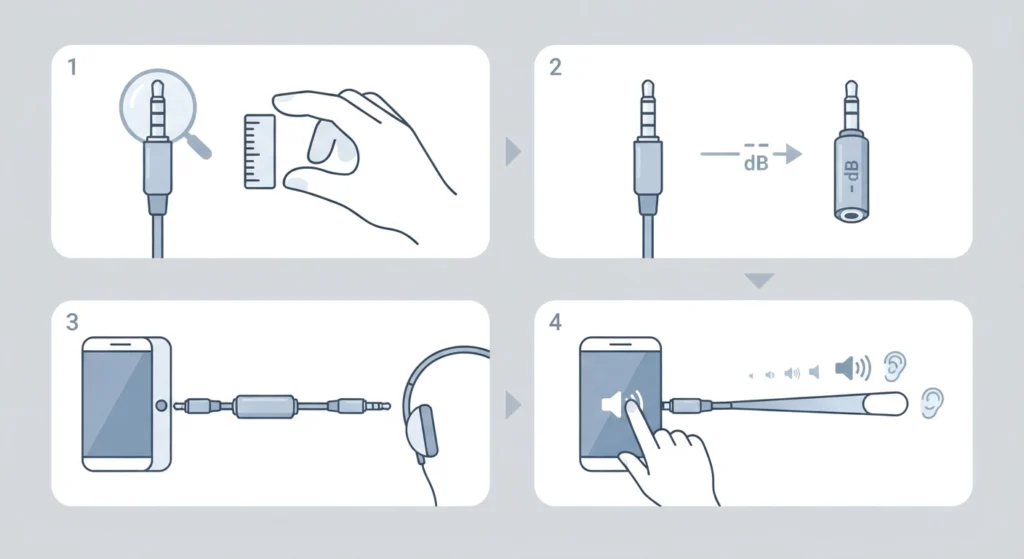
Wired earbuds and in-ear monitors are the most common culprits, and a small passive attenuator is the most direct fix for them. It sits between the device and the headphones and reduces the signal by a fixed amount.
- Step 1: Check the plug type on the headphones. Most use a 3.5 mm plug.
- Step 2: Choose an in-line attenuator that lists its reduction in dB and matches that plug.
- Step 3: Plug the attenuator into the device, then plug the headphones into the attenuator.
- Step 4: Raise the volume slowly. There are now more usable steps before the sound gets uncomfortable.
Tips for Keeping Headphone Volume Comfortable
- Combine methods when one is not enough. A -6 dB preamp cut plus finer volume control often works better than a single big change.
- Keep listening levels moderate. The National Institute for Occupational Safety and Health recommends an average of 85 dBA or lower over an eight-hour period, and safe listening time drops by half for every 3 dB increase.
- On iPhone, the Health app shows Headphone Audio Levels, which makes it easy to see whether listening habits are staying in a comfortable range.
- In Spotify, the Volume level option under Playback settings can be switched to Quiet for a lower overall output.
- Reconnect the headphones after changing Bluetooth or audio settings so the new behavior applies.
Common Problems After Lowering the Volume
The Volume Is Still Too High After Every Change
Stack the fixes. Apply a preamp cut of -10 dB and add an in-line attenuator for wired headphones. Together they lower the output far more than any single setting.
Volume Buttons Feel Different After Turning Off Absolute Volume
This is expected, because the headphones and the device now have separate volume levels. Adjust both, starting with the headphones. To undo the change on Windows, set DisableAbsoluteVolume back to 0 and restart. On Android, switch Disable absolute volume off again.
Windows Audio Behaves Oddly After Several Tweaks
If the sliders stop matching what is heard, follow this guide to resetting audio settings on Windows 11 and then repeat the methods above one at a time.
Frequently Asked Questions
Why are headphones too loud even at the lowest volume?
Headphones with high sensitivity or low impedance produce high sound levels from very little power, and the first volume steps on many devices are too large. Finer volume control or a lower signal level solves it.
Is it normal for headphones to be loud at minimum volume?
Yes. It is common with sensitive earbuds and in-ear monitors, and it does not mean the headphones are defective.
Can loud headphones damage hearing?
Yes, long exposure to loud sound can. The National Institute for Occupational Safety and Health recommends an average of 85 dBA or lower over eight hours, and the safe time is cut in half for every 3 dB increase.
Does an in-line attenuator harm headphones?
No. A passive attenuator only reduces the signal reaching the headphones, so it does not damage them.
What does Disable absolute volume do on Android?
It separates the phone volume from the Bluetooth headphone volume, so the two levels work independently and the volume steps behave differently.
How can volume steps be made smaller on a Mac?
Hold Shift and Option while pressing the volume keys. Each press then changes the volume by a quarter of a normal step.
Does Reduce Loud Audio make an iPhone quieter at the lowest volume?
No. That setting limits the maximum headphone volume and does not change how quiet the lowest levels are. The Control Center slider is the better choice for finer control at low volume.
Does a negative preamp lower audio quality?
Not in any meaningful way for normal listening. The sound is simply quieter, and moderate cuts such as -6 dB to -10 dB are a good starting point.