
Knowing how to fix headphones that announce battery level too often can save a lot of irritation, especially when a calm playlist gets interrupted by the same voice every few minutes. The good news is that this behavior is almost always controlled by a setting, not a defect, and it can usually be changed in under five minutes.
Quick Summary
- Cause: voice prompts or low-battery warnings that repeat while the headphones are on.
- Fastest fix: turn off or reduce voice guidance in the companion app.
- Second fix: update the firmware, since newer versions can add or change prompt options.
- Third fix: charge the headphones, because low-battery warnings repeat until power is restored.
- Last resort: reset the headphones, then pair them again.
- Time needed: about 5 minutes for most models.
Step-by-Step Guide to Stop Repeated Battery Announcements
Most headphones from major brands include a companion app, and that app is where the announcement behavior is usually controlled. Menu names differ between brands and models, so look for labels such as Voice Guidance, Voice Prompts, Voice Notifications, or Notification Sounds.
Method 1: Turn Off or Reduce Voice Prompts in the Companion App
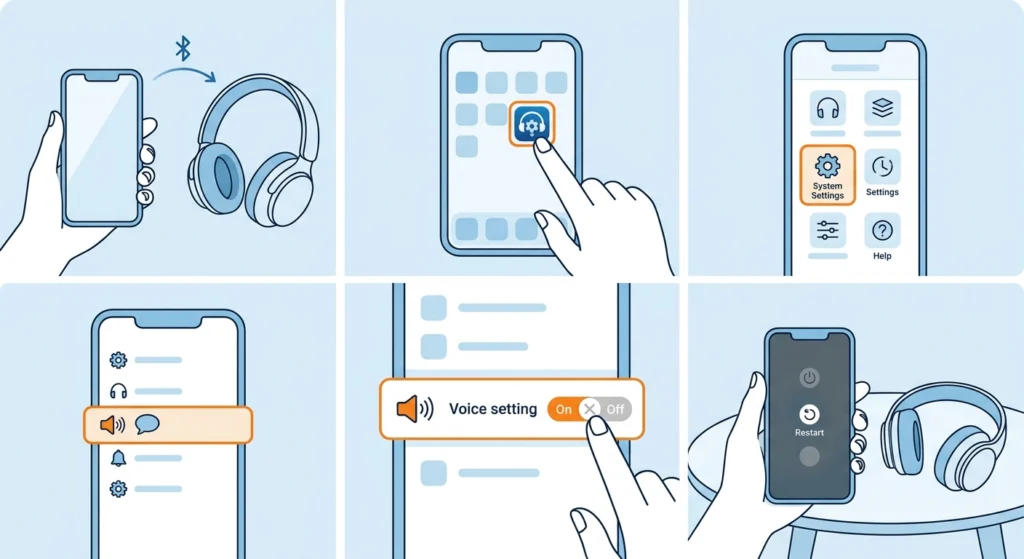
This works best when the headphones have an official app installed on a phone. Sony headphones, for example, are managed through the Sony Sound Connect app (previously called Sony Headphones Connect), where voice guidance can be adjusted in the system settings.
- Step 1: Turn on the headphones and connect them to the phone through Bluetooth.
- Step 2: Open the companion app made by the headphone brand.
- Step 3: Open the settings or system section of the app.
- Step 4: Find the option named Voice Guidance, Voice Prompts, or something similar.
- Step 5: Switch it off, or lower its volume if the app offers a separate slider.
- Step 6: Turn the headphones off and on again to confirm the change took effect.
Pro-Tip: Some models treat battery announcements and low-battery warnings as separate alerts. Switching off general voice guidance may silence the routine spoken updates, while a low-battery warning can still sound when charge runs low. Keeping the headphones topped up is the simplest way to avoid those.
Method 2: Update the Headphone Firmware
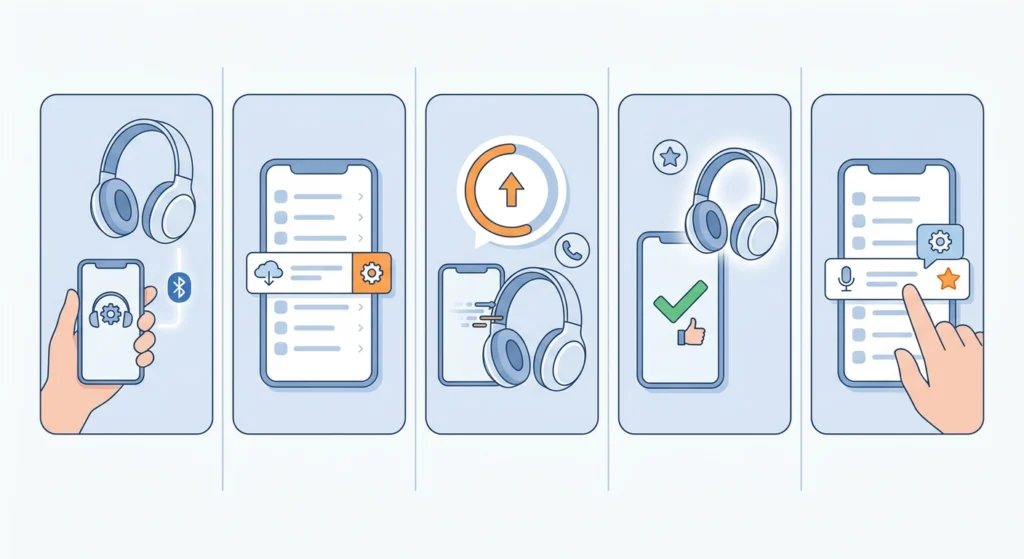
Firmware controls how the headphones behave internally. A newer version can add a prompt setting that an older version lacked, or change how often alerts play.
- Step 1: Open the companion app while the headphones are connected.
- Step 2: Look for a Firmware, Software Update, or Device Information option in the settings.
- Step 3: If an update is available, start it and keep the headphones close to the phone.
- Step 4: Wait until the app confirms the update is finished before using the headphones.
- Step 5: Return to the voice prompt settings and check whether new options appeared.
Method 3: Charge the Headphones Fully
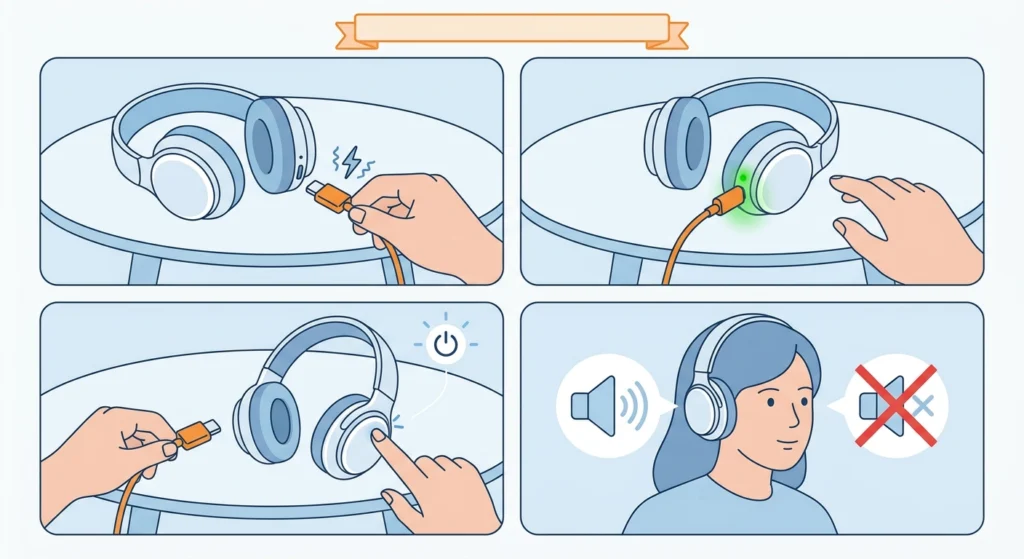
Many headphones repeat a low-battery warning at intervals once charge drops below a certain level. Think of it like a car’s fuel light that keeps chiming until the tank is refilled. In that case, the announcements stop because the cause is gone.
- Step 1: Connect the headphones to a charger using the original or a compatible USB cable.
- Step 2: Wait until the indicator light shows a full charge.
- Step 3: Disconnect the cable and turn the headphones on.
- Step 4: Listen for a few minutes to confirm the warnings no longer repeat.
Method 4: Reset the Headphones and Pair Them Again
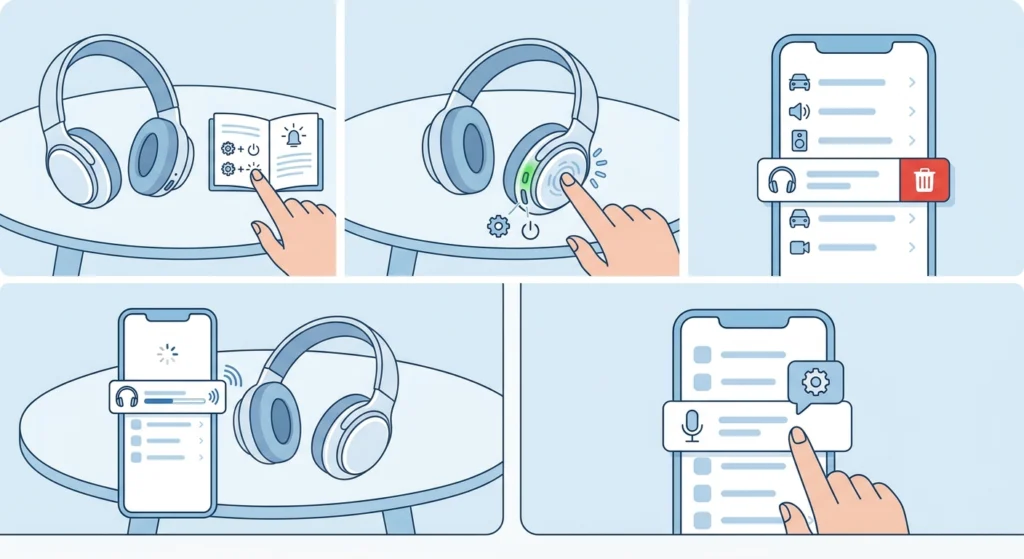
A reset clears stored settings and can remove a stuck configuration. Since a reset returns the headphones to factory defaults, prompts may be switched on again afterward, so the app setting from Method 1 should be applied once more.
- Step 1: Check the user manual for the reset button combination, because it differs from model to model.
- Step 2: Perform the reset and wait for the indicator light or sound that confirms it.
- Step 3: Remove the old headphone entry from the Bluetooth list on the phone or computer.
- Step 4: Pair the headphones again. On a computer, this guide on how to re-pair Bluetooth earbuds for stereo sound on Windows covers the process.
- Step 5: Open the companion app and turn off voice prompts again.
Tips to Keep Battery Announcements Under Control
- Charge the headphones before the battery gets very low, so warnings never have a reason to play.
- Check the app after every firmware update, since settings can occasionally return to their defaults.
- Lower the prompt volume instead of switching prompts off if an occasional spoken alert is still useful.
- When the headphones are used with a Windows 11 computer, a quick look at the audio output settings helps make sure the right device is selected and that sound levels are balanced.
- Keep the companion app updated on the phone, because older app versions may hide newer settings.
Pro-Tip: A battery announcement that plays each time the headphones power on is normal behavior on many models. Repeated announcements during listening are the ones worth adjusting.
Common Problems After Changing Prompt Settings
The Setting Is Missing From the App
Not every model offers a switch for voice prompts. Updating the firmware and the app is the first thing to try, since options can be added in later versions.
Announcements Return After Turning the Headphones Off
Some models do not save the setting until the app confirms the change. Make sure the headphones stay connected while changing the option, then restart them to verify.
Only Low-Battery Warnings Still Play
These alerts are often built in as a safety reminder. Charging the headphones is the reliable way to stop them.
Frequently Asked Questions
Why do my headphones keep announcing the battery level?
Most often, voice prompts are switched on, or the battery is low and the headphones repeat a warning until they are charged.
Can voice prompts be turned off without an app?
On some models, yes, through a button combination listed in the manual. Many headphones only allow it through the companion app.
Will turning off voice guidance affect sound quality?
No. Voice guidance only controls the spoken alerts and has no effect on audio playback or noise cancellation.
Does updating firmware remove battery announcements?
Not always. An update can add or adjust prompt options, so the settings should be checked after updating.
Is a battery announcement a sign that the headphones are faulty?
Usually not. It is a designed feature, and frequent repetition normally points to a setting or low charge instead of damage.
Can the announcement volume be lowered instead of turned off?
Some apps include a separate volume control for voice guidance. If one is available, it is a good middle option.
Will a factory reset stop the announcements?
Not by itself. A reset restores defaults, so prompts may be enabled again and need to be switched off in the app afterward.
Do announcements drain the battery faster?
The effect is very small. Spoken prompts use little power compared with playback, wireless connection, and noise cancellation.
Why do announcements play each time the headphones connect?
Many models announce the connection status and sometimes the battery level at power-on. This is normal and can often be changed through voice prompt settings.
How often should headphones be charged to avoid warnings?
Charging before the battery gets very low is the best habit. Exact warning levels vary by brand and model.