
Learning how to fix headphones after an Android system update usually takes only a few minutes, because most problems come from stale Bluetooth data or reset audio settings rather than broken hardware. A phone that was working perfectly yesterday can suddenly refuse to connect, play sound, or route audio correctly, and the steps below restore it in a logical order.
Quick Summary
- Best first move: restart the phone and the headphones, then toggle Bluetooth.
- Most reliable fix: forget the headphones on the phone and pair them again.
- If Bluetooth still acts up: clear the Bluetooth cache or reset network settings.
- Wired headphones: check the audio output selection and the port or adapter.
- Time needed: about 5 to 15 minutes.
Step-by-Step Guide to Fix Headphones After an Android Update
Fix 1: Restart the Phone and the Headphones
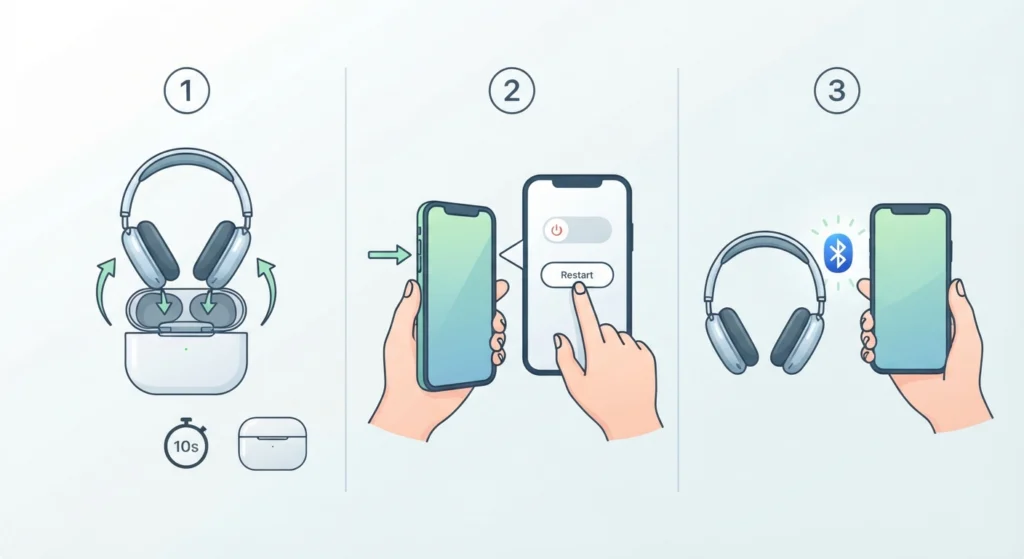
A system update changes background services, and a quick restart lets them load cleanly. This simple reboot solves a surprising number of cases.
- Step 1: Turn off the headphones or earbuds completely, or place wireless earbuds in their charging case for 10 seconds.
- Step 2: Restart the phone by holding the power button and tapping Restart.
- Step 3: Once the phone is back on, turn the headphones on and check whether they connect automatically.
Fix 2: Turn Bluetooth Off and On
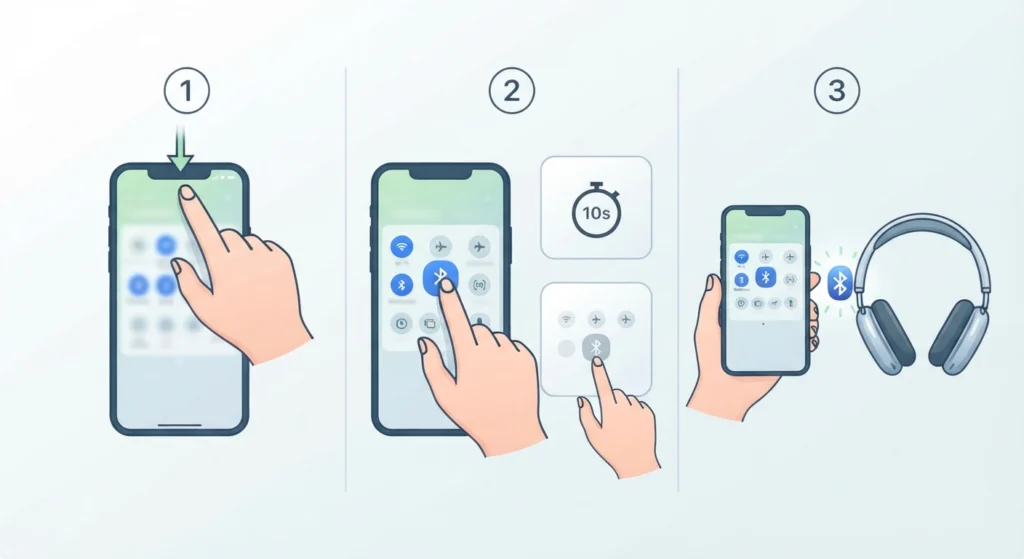
Think of this as refreshing a web page. The Bluetooth connection gets rebuilt without touching any saved settings.
- Step 1: Swipe down from the top of the screen to open Quick Settings.
- Step 2: Tap the Bluetooth icon to turn it off, wait about 10 seconds, then tap it again to turn it on.
- Step 3: Turn the headphones on and wait for them to reconnect.
Fix 3: Forget the Headphones and Pair Them Again
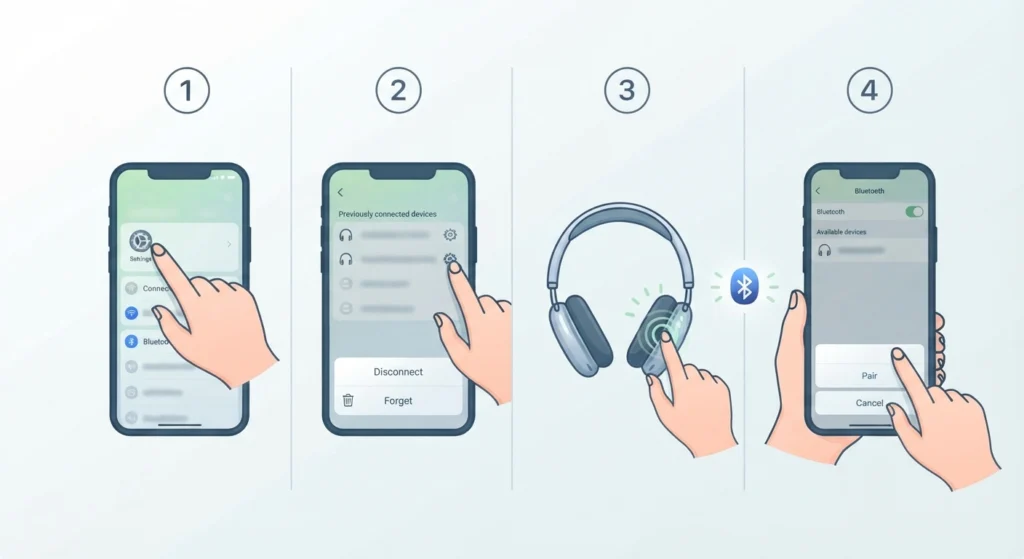
Updates can leave the old pairing record in a broken state. Removing it and starting fresh is the most dependable fix for Bluetooth headphones.
- Step 1: Open Settings and go to Connected devices, then tap Previously connected devices or the Bluetooth section. Menu names vary slightly between phone brands.
- Step 2: Tap the gear icon next to the headphones and choose Forget or Unpair.
- Step 3: Put the headphones into pairing mode. This usually means holding the power or Bluetooth button until a light blinks or a voice prompt plays.
- Step 4: Tap Pair new device on the phone, select the headphones from the list, and confirm.
Pro-Tip: Many headphones keep a memory of previously paired devices. If pairing fails, remove the phone from the headphones’ own list too, or use the headphones’ reset method described in the manual, so both sides start clean.
Fix 4: Check the Media Audio Setting for the Headphones
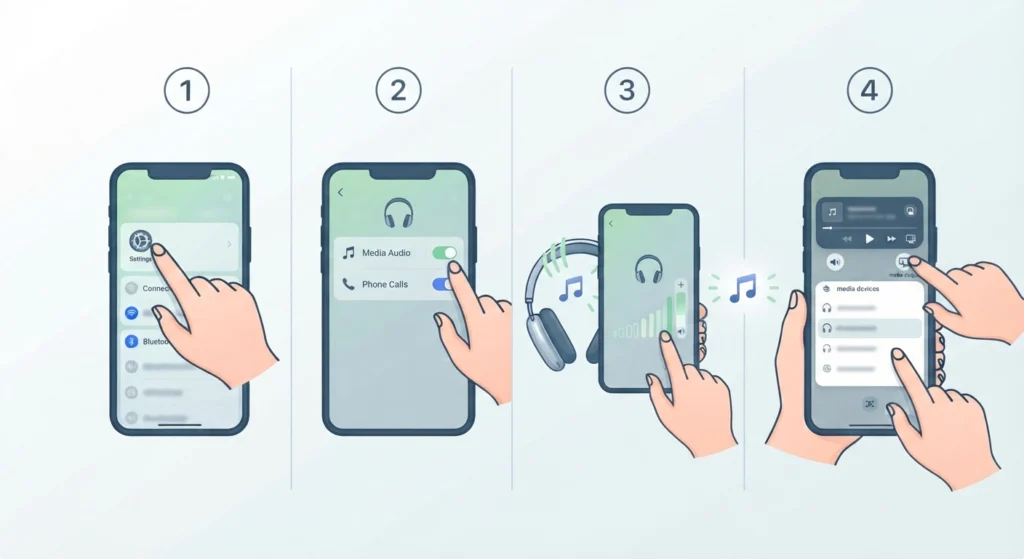
Sometimes the headphones connect but stay silent because audio permissions inside the pairing profile switched off during the update.
- Step 1: Open Settings, go to Connected devices, and tap the gear icon next to the connected headphones.
- Step 2: Make sure Media audio (and Phone calls, if available) is switched on.
- Step 3: Play a song or video, then raise the media volume using the volume buttons.
- Step 4: Tap the media output icon in the volume panel and confirm that the headphones are selected as the output.
Fix 5: Clear the Bluetooth Cache
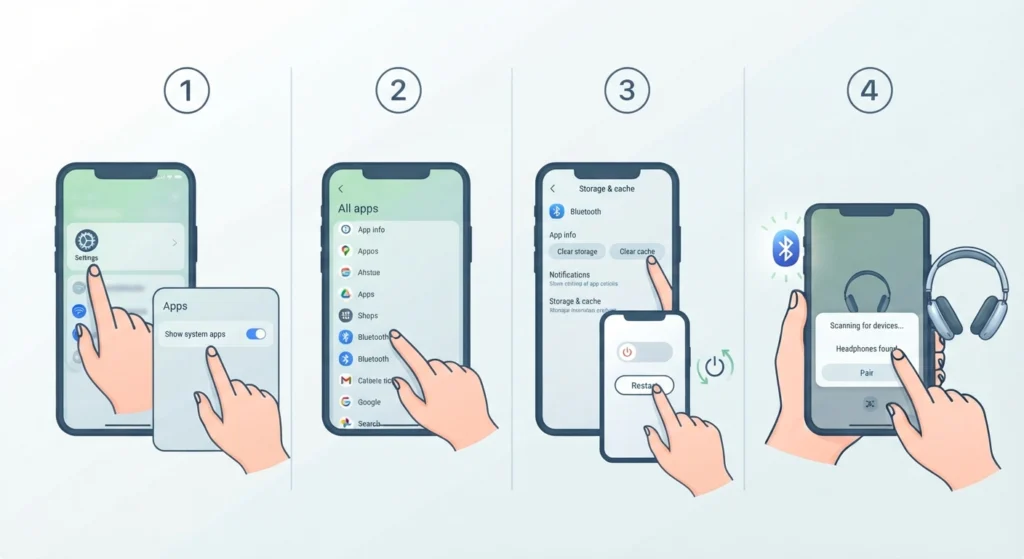
Old cached Bluetooth data can clash with the new system version. Clearing it forces Android to rebuild that data.
- Step 1: Open Settings, go to Apps, and choose the option to show system apps.
- Step 2: Find Bluetooth in the list and tap Storage and cache.
- Step 3: Tap Clear cache, then restart the phone.
- Step 4: Reconnect the headphones.
Some phones hide the Bluetooth system app. If it does not appear in the list, move on to the next fix.
Fix 6: Reset Wi-Fi, Mobile, and Bluetooth Settings
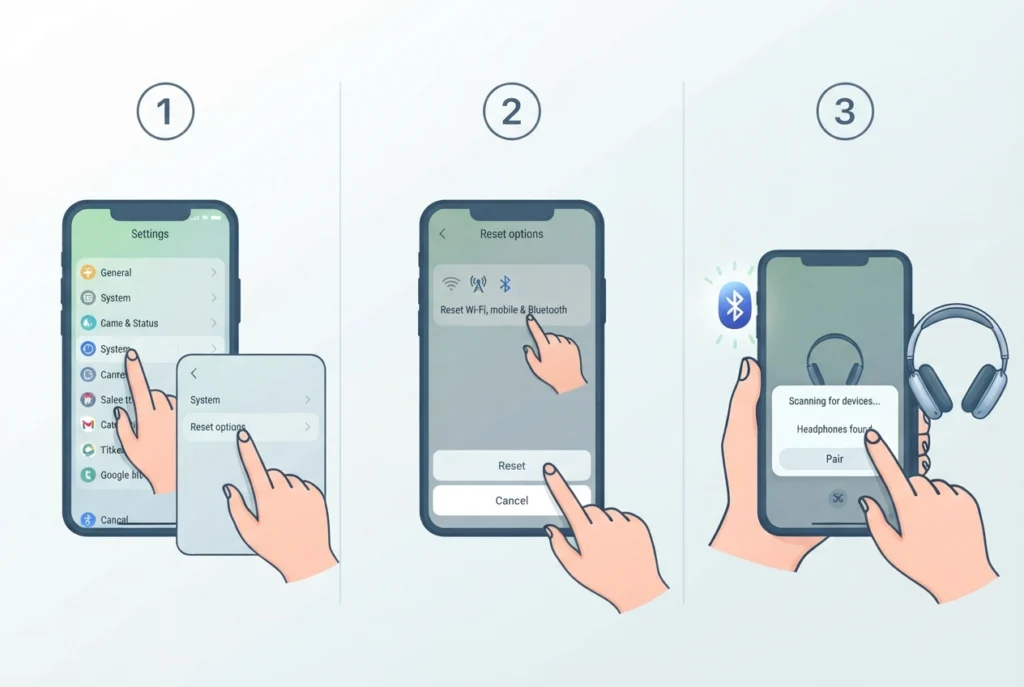
This step clears all saved Bluetooth pairings and network data, so it works best after the earlier fixes have not helped.
- Step 1: Open Settings and go to System, then Reset options.
- Step 2: Tap Reset Wi-Fi, mobile and Bluetooth, then confirm.
- Step 3: After the reset, pair the headphones again as shown in Fix 3.
Pro-Tip: This reset also erases saved Wi-Fi networks and passwords. Make sure the Wi-Fi password is on hand before starting. Personal files, photos, and apps stay untouched.
Fix 7: Update the Headphone Firmware
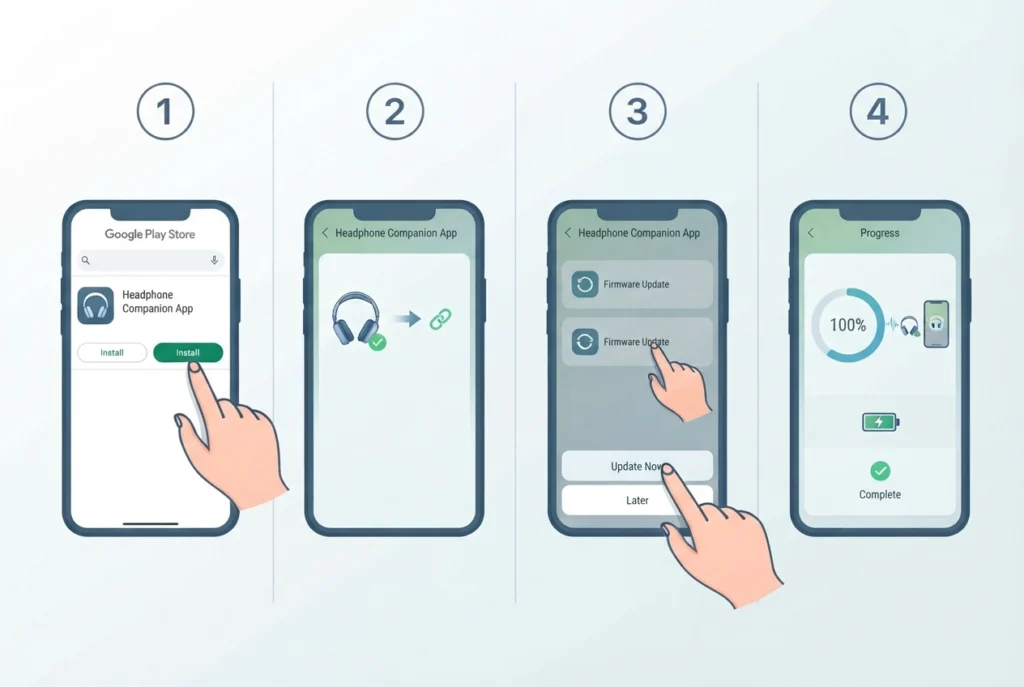
A new Android version can work better with the latest headphone firmware. Many brands offer a companion app for this.
- Step 1: Install the official app from the headphone maker on Google Play.
- Step 2: Connect the headphones inside the app.
- Step 3: Look for a firmware or software update option and follow the on-screen prompts.
- Step 4: Keep the headphones charged and close to the phone until the update finishes.
Fix 8: Fix Wired Headphones After the Update
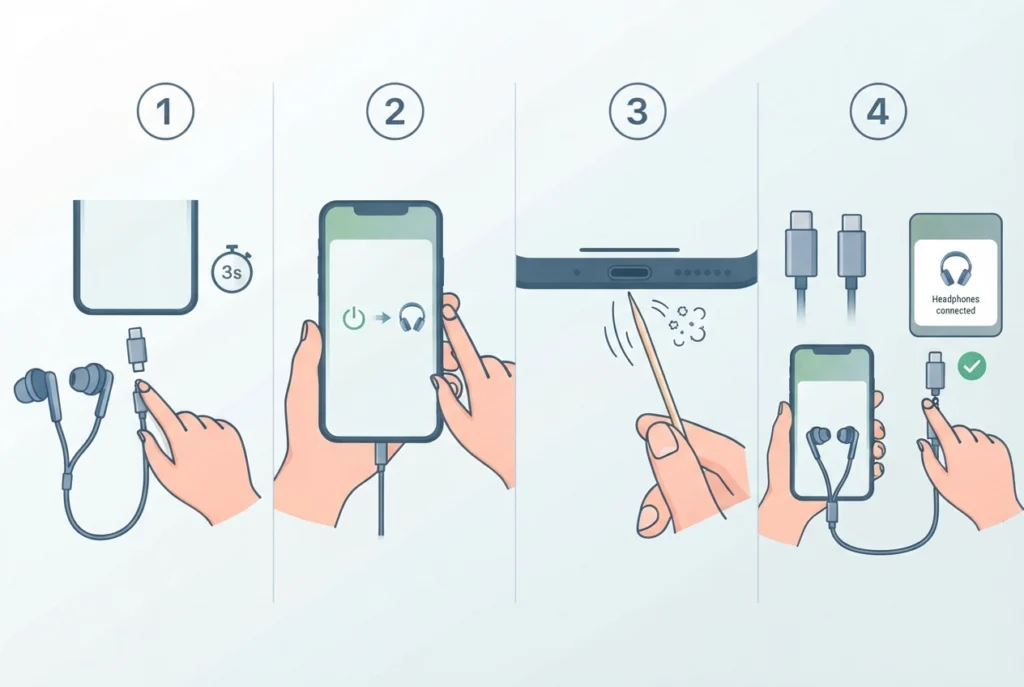
Wired headphones and USB-C models rely on the phone’s audio routing, which can reset after an update.
- Step 1: Unplug the headphones, wait a few seconds, and plug them back in firmly.
- Step 2: Restart the phone with the headphones plugged in.
- Step 3: Check the port for lint or dust and gently clear it with a dry wooden toothpick.
- Step 4: If a USB-C to 3.5 mm adapter is being used, try the headphones with a different adapter to rule out the adapter itself.
Helpful Tips for Keeping Headphones Working After Updates
- Restart the phone once after any major update, since fresh boots often prevent audio glitches before they start.
- Keep the headphone app and firmware current so it stays compatible with new Android versions.
- Avoid pairing the same headphones with too many devices at once, because switching between several can confuse the connection.
- If the same headphones are also used with a computer and sound acts up there, the guide on re-pairing Bluetooth earbuds for stereo sound on Windows walks through a similar clean pairing process.
- For a Windows 11 PC that shows the wrong playback device, adjusting audio output settings helps route sound to the right headphones.
Common Problems After an Android Update
- Headphones connect but no sound plays: check Media audio in the device settings and select the headphones as the media output (Fix 4).
- Headphones will not appear in the pairing list: put them back into pairing mode and toggle Bluetooth (Fix 2).
- Audio keeps cutting out: forget the headphones and pair them again (Fix 3).
- Microphone works poorly on calls: confirm Phone calls is enabled for the headphones in Bluetooth settings (Fix 4).
- Wired headphones are not detected: reseat the plug and clean the port (Fix 8).
Frequently Asked Questions
Why do headphones stop working after an Android update?
Updates can change Bluetooth services, permissions, and saved pairing data. When the old data no longer matches the new system, the connection or audio routing can fail.
Do headphones need to be replaced after a system update?
No. In most cases the headphones are fine, and the issue is fixed by re-pairing, clearing the Bluetooth cache, or updating firmware.
What is the fastest way to fix Bluetooth headphones after an update?
Restart the phone, toggle Bluetooth, and then forget and re-pair the headphones. These three actions cover the majority of cases.
Will resetting network settings delete files?
No. Resetting Wi-Fi, mobile, and Bluetooth only removes saved networks, paired Bluetooth devices, and related settings. Photos, apps, and files stay on the phone.
Where is the Bluetooth cache setting on Android?
It is usually found in Settings under Apps, after enabling the option to show system apps. Select Bluetooth, tap Storage and cache, and then tap Clear cache.
Why is there no sound even though the headphones are connected?
The media audio option may be turned off for that device, or the phone may be sending sound to another output. Check both the device settings and the media output selector in the volume panel.
Can a firmware update help headphones work better with Android?
Yes. Firmware updates from the headphone maker often improve compatibility and connection stability, and they are typically installed through the brand’s official app.
How can the problem be avoided after the next update?
Keep the headphone firmware updated, restart the phone after big system updates, and re-pair the headphones right away if any glitch appears.
Do wired headphones also get affected by Android updates?
Occasionally. Audio routing can reset, so unplugging and reconnecting the headphones and restarting the phone usually restores sound.
Is it safe to update Android again if the headphones stop working?
Yes. Installing the next available update is safe, and it may include improvements for Bluetooth and audio behavior.