
Learning how to fix Beats Fit Pro not showing up in the app usually takes just a few minutes, because the cause is almost always a pairing order, permission, or app-version issue rather than broken hardware. The steps below go from the quickest fix to the most thorough one.
Quick Summary
- The Beats app is made for Android phones. iPhone users manage Beats Fit Pro from the Settings app, so no separate Beats app is needed.
- Pairing the earbuds through Bluetooth settings first, then opening the app, fixes most cases.
- The Beats app needs Bluetooth and Nearby devices permission to detect the earbuds.
- A forget, reset, and re-pair cycle clears stubborn pairing records.
- The official reset: both earbuds in the case, lid open, hold the system button for 15 seconds until the light flashes red and white.
Step-by-Step Guide to Get Beats Fit Pro Showing in the App
Work through these fixes in order. Test the app after each one, because the earbuds often show up before the last step is reached.
Fix 1: Pair Through Bluetooth Settings First
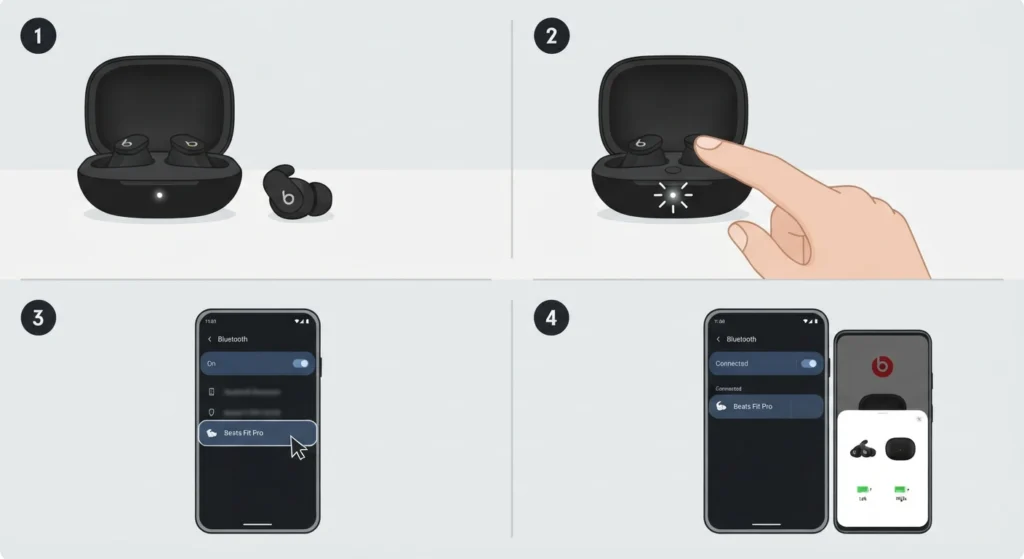
Many people open the app first and wait for it to find the earbuds. When the app cannot see them, it simply points to the Bluetooth menu. Doing that part manually first skips the loop.
- Step 1: Place both earbuds in the charging case and keep the lid open.
- Step 2: Press and hold the system button on the case until the light flashes white.
- Step 3: Open the Bluetooth settings on the Android phone and select Beats Fit Pro from the list of available devices.
- Step 4: Wait for the connected status to appear, then open the Beats app.
Fix 2: Allow the Right Permissions for the Beats App
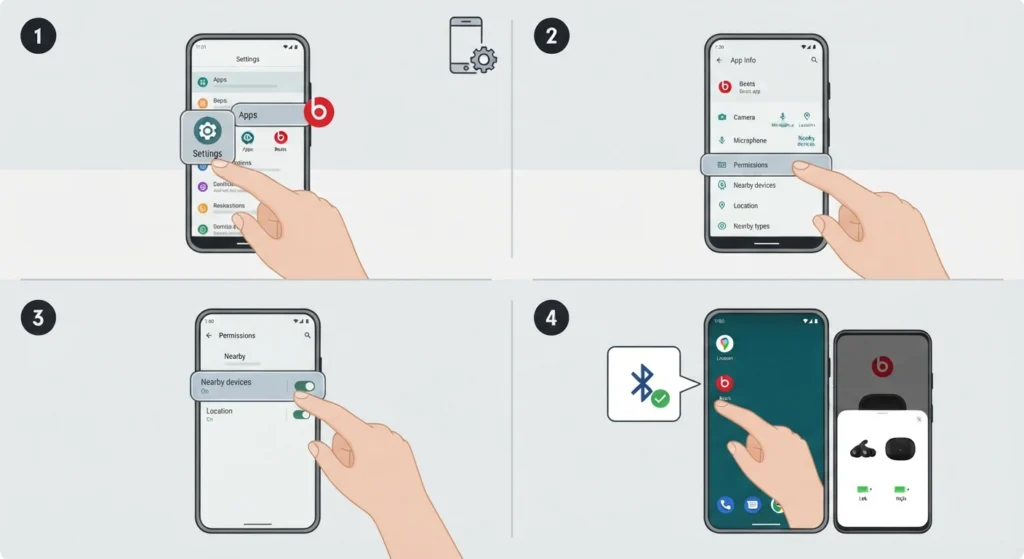
Without permission to scan for nearby devices, the app behaves as if the earbuds do not exist. This is one of the most overlooked causes.
- Step 1: Open Settings on the Android phone and go to Apps, then select Beats.
- Step 2: Tap Permissions.
- Step 3: Allow Nearby devices. On older Android versions, allow Location as well, since Bluetooth scanning depends on it there.
- Step 4: Make sure Bluetooth is switched on, then reopen the app.
Pro-Tip: Keep the earbuds connected in Bluetooth settings while changing permissions. The app can then detect the connection the moment it reopens, with no extra pairing round needed.
Fix 3: Update the Beats App and Android
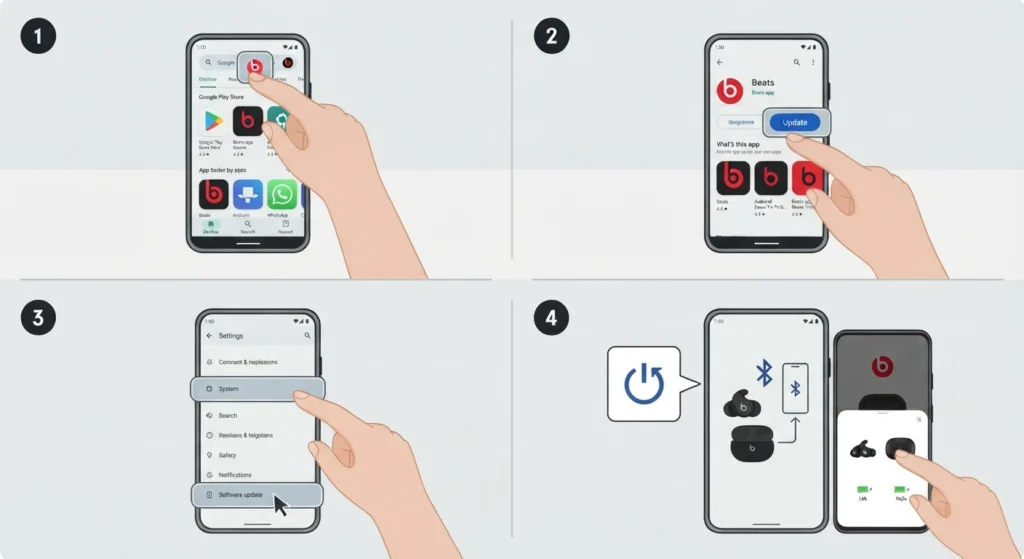
An outdated app or phone system can fail to recognize the earbuds, even when the audio plays fine.
- Step 1: Open the Google Play Store and search for Beats.
- Step 2: Tap Update if the button appears.
- Step 3: Go to Settings, then System, then Software update, and install any pending update.
- Step 4: Restart the phone, reconnect the earbuds, and open the app.
Fix 4: Forget, Reset, and Re-Pair the Earbuds
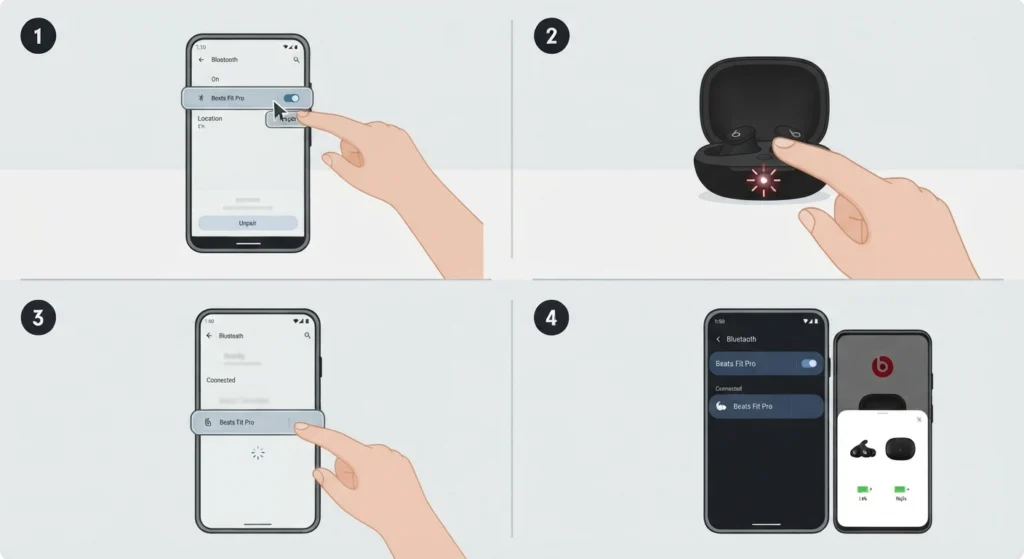
Think of the pairing record like a saved Wi-Fi password that has gone stale. Removing it on both sides and starting clean usually solves it.
- Step 1: Open Bluetooth settings on the phone, tap the settings icon beside Beats Fit Pro, and choose Forget or Unpair.
- Step 2: Place both earbuds in the charging case and leave the lid open.
- Step 3: Press and hold the system button for 15 seconds, until the light flashes red and white, then release.
- Step 4: Pair the earbuds again through Bluetooth settings, as shown in Fix 1.
- Step 5: Open the Beats app and check that the earbuds appear.
Fix 5: Clear the App Data or Reinstall the App
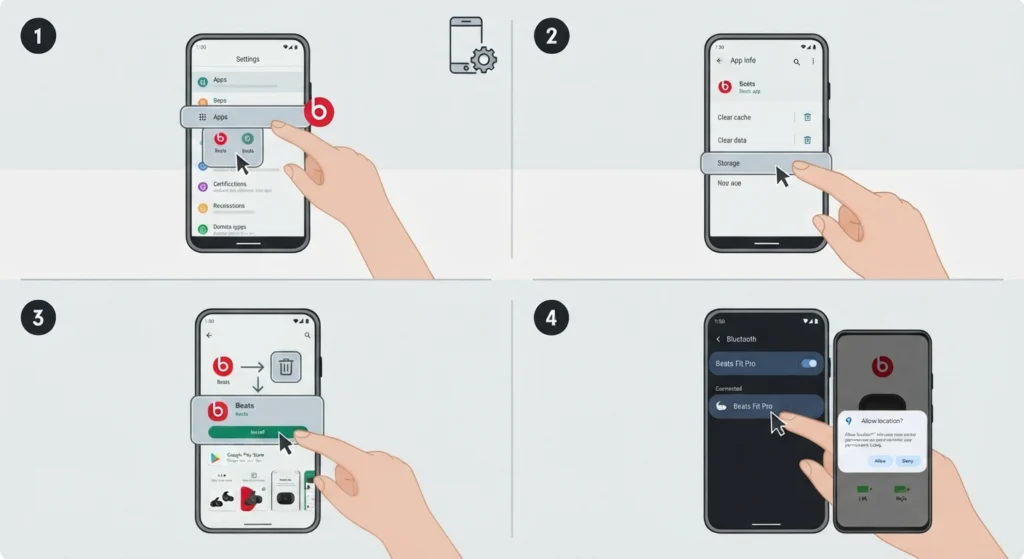
A corrupted app cache can hide connected earbuds. Clearing it gives the app a fresh start.
- Step 1: Go to Settings, then Apps, then Beats, and tap Storage.
- Step 2: Tap Clear cache, then Clear data.
- Step 3: Uninstall the Beats app and install it again from the Google Play Store.
- Step 4: Connect the earbuds in Bluetooth settings first, then open the app and grant the permissions when asked.
iPhone Users: Where the Beats Fit Pro Settings Are
On an iPhone, there is no separate Beats app to open. Once the earbuds are connected, a Beats Fit Pro entry appears near the top of the Settings app, where noise control and other options can be changed. Opening the case near an unlocked iPhone brings up the pairing card, and tapping Connect completes the setup.
Tips to Keep Beats Fit Pro Visible in the App
- Keep the earbuds within a few feet of the phone while the app is searching.
- Charge the earbuds and case before troubleshooting, since a very low battery can cause odd behavior.
- Always pair through Bluetooth settings before opening the app on Android.
- Leave the Beats app permissions switched on after setup.
- Do not reset the earbuds repeatedly in a row. One clean reset followed by one clean pairing works better than several back-to-back attempts.
The same earbuds sometimes need a fresh connection on a laptop too. A guide on how to re-pair Bluetooth earbuds on Windows covers that process, and a walkthrough on adjusting audio output settings in Windows 11 helps when the sound comes from the wrong device.
Common Problems After Following These Fixes
The Earbuds Play Audio but the App Still Shows Nothing
Repeat Fix 2 and Fix 4 in that order. Permissions and a stale pairing record cause the majority of these cases.
The App Finds the Earbuds Once, Then Forgets Them
This points to a pairing record that did not save properly. Forget the earbuds, reset them with the lid open, and pair again through Bluetooth settings before opening the app.
The Reset Light Does Not Flash Red and White
Charge the earbuds and case for about an hour, then repeat the 15 second hold with both earbuds seated in the open case.
Only One Earbud Connects
Return both earbuds to the case, run the reset, and pair again. Both earbuds should be in the case during the reset.
Frequently Asked Questions
Why is my Beats Fit Pro not showing up in the Beats app?
The most common reasons are missing app permissions, an outdated app, or a corrupted pairing record. Connecting through Bluetooth settings first and then opening the app resolves many cases.
Is there a Beats app for iPhone?
No separate Beats app is needed on iPhone. Beats Fit Pro settings appear in the Settings app once the earbuds are connected.
Do Beats Fit Pro work without the app?
Yes. The earbuds play audio over standard Bluetooth. The app on Android adds features such as firmware updates and settings.
How do I reset Beats Fit Pro?
Place both earbuds in the charging case, leave the lid open, and hold the system button for 15 seconds until the light flashes red and white.
Which permissions does the Beats app need on Android?
Bluetooth must be on, and the app needs the Nearby devices permission. Older Android versions also require Location access for Bluetooth scanning.
Will resetting Beats Fit Pro delete my music or files?
No. The earbuds store no music or files. A reset only clears the pairing information and returns the earbuds to a ready-to-pair state.
Do I need to forget the earbuds before resetting them?
Forgetting the earbuds in Bluetooth settings before the reset helps remove the old pairing record from the phone, which keeps the new pairing clean.
Why does the app work once and then stop recognizing the earbuds?
This usually means the pairing record did not save correctly. Forget the device, reset the earbuds, and pair again through Bluetooth settings.
Do Beats Fit Pro need to be charged before pairing?
A reasonable charge on both the earbuds and the case helps the reset and pairing steps go smoothly, so charging first is a good habit.
Can Beats Fit Pro connect to a Windows PC?
Yes. They connect as a standard Bluetooth device through the Bluetooth and devices page in Windows settings.