
Learning how to connect Bluetooth headphones to a Nintendo 3DS or older console takes one small gadget and about two minutes. These handhelds were built in the wired-headphone era, so the console itself cannot talk to wireless headphones. A Bluetooth transmitter fixes that by acting as a tiny translator between the console and the headphones.
Key Takeaways
- The Nintendo 3DS and most older handhelds have no built-in Bluetooth audio, so a Bluetooth transmitter is required.
- The transmitter plugs into the 3.5mm headphone jack on the console.
- The headphones pair with the transmitter, not with the console.
- Setup is a one-time job, and many transmitters reconnect to the same headphones automatically afterward.
Method 1: Connect Bluetooth Headphones With a Bluetooth Transmitter
This works best with a transmitter that has a 3.5mm plug and a transmit mode. Think of it like a mini radio station: the transmitter broadcasts the game audio, and the headphones tune in. Once the steps below are done, the console treats the transmitter like any wired pair of headphones.
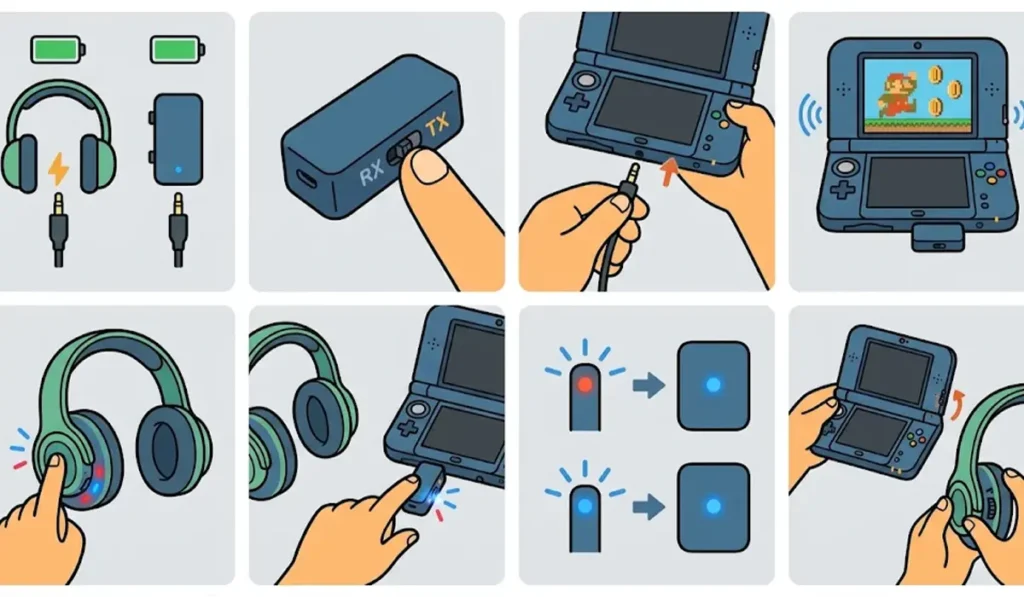
- Step 1: Charge the Bluetooth transmitter and the headphones fully. Most transmitters charge over USB.
- Step 2: If the transmitter has a mode switch, set it to transmit mode, often labeled TX. Receive mode is meant for the opposite job, so it will not work here.
- Step 3: Push the transmitter plug firmly into the 3.5mm headphone jack on the bottom edge of the Nintendo 3DS or the headphone jack of the older console.
- Step 4: Turn on the console and start a game or music so there is audio to send.
- Step 5: Put the headphones into pairing mode. This usually means holding the power button until the indicator light flashes.
- Step 6: Turn on the transmitter and start its pairing mode, usually by holding its button until the light flashes quickly. Keep the headphones within a few inches of it.
- Step 7: Wait for both lights to settle into a steady or slow-blink pattern. That signals the connection is made.
- Step 8: Adjust the volume on the console and on the headphones until the sound feels comfortable.
Pro-Tip: Rhythm and action games reveal any audio delay right away. A transmitter and a pair of headphones that both support the aptX Low Latency codec keep that delay as small as Bluetooth allows. If only one side supports it, the connection falls back to a standard codec with more lag.
Which Older Consoles Work With This Method
The rule is simple: if the console has a 3.5mm headphone jack, a transmitter can plug into it. That covers the following handhelds.
- Nintendo 3DS, 3DS XL, New 3DS and the 2DS family
- Nintendo DS Lite and Nintendo DSi
- Sony PSP models with a headphone jack
Consoles without a headphone jack cannot use this method.
Tips for Better Sound and a Smoother Connection
A few small habits make wireless gaming noticeably better.
- Keep the transmitter and headphones close together. Pocketing the console on one side and wearing the headphones is fine, but thick bags can weaken the signal.
- Turn off Bluetooth on nearby phones and tablets while pairing so the headphones do not grab the wrong device.
- Start with the console volume at a medium level, then fine-tune on the headphones.
- Pick a compact transmitter. A bulky one hanging off the jack can feel awkward during long sessions.
Pro-Tip: Charge the transmitter and headphones before a long trip or gaming session. A transmitter that runs out of battery mid-game cuts the sound just like unplugging a wired pair.
Common Problems and Fixes
Fix 1: No Sound After Pairing
Check that the transmitter is in transmit mode and pushed all the way into the jack. A plug that is slightly loose is a common cause. Then raise the volume on the console and the headphones.
Fix 2: Headphones Connect to Another Device
Headphones often reconnect to the last device they were used with. Turn off Bluetooth on that device first. If the headphones were last used with a Windows PC, this guide on troubleshooting headphone detection explains how to stop the PC from claiming them.
Fix 3: Start Fresh With a New Pairing
If the transmitter and headphones refuse to connect, remove the headphones from the other devices they were paired with and pair again from scratch. For earbuds that were set up on a Windows PC, this walkthrough on how to re-pair Bluetooth earbuds covers the reset.
Frequently Asked Questions
Does the Nintendo 3DS support Bluetooth headphones?
No. The Nintendo 3DS does not have built-in Bluetooth audio, so wireless headphones need a Bluetooth transmitter plugged into the 3.5mm headphone jack.
Can Bluetooth headphones connect to a 3DS without a transmitter?
No. Without a transmitter, the console has no way to send audio to Bluetooth headphones.
Does this work on the 2DS and New 3DS?
Yes. Those models have a 3.5mm headphone jack, so a Bluetooth transmitter plugs in the same way.
Will AirPods work with a Bluetooth transmitter?
Most Bluetooth transmitters can pair with AirPods and other wireless earbuds, since the transmitter simply sends standard Bluetooth audio. Check the transmitter’s product page to confirm compatibility.
Is there audio delay when using Bluetooth headphones on a 3DS?
A small delay is normal with Bluetooth. A transmitter and headphones that both support the aptX Low Latency codec keep it to a minimum.
Does the Bluetooth transmitter need to be charged?
Many models have a built-in rechargeable battery that charges over USB. Charge it before each longer gaming session.
Do the headphones need to be paired every time?
Not usually. Many transmitters remember the last paired headphones and reconnect automatically when both are switched on.
Does the transmitter work with the Nintendo DS Lite and PSP?
Yes, as long as the console has a 3.5mm headphone jack. The setup steps are the same.
Does the Nintendo Switch need a transmitter too?
Not anymore. The Nintendo Switch added Bluetooth audio support with system update 13.0.0, so supported headphones can pair directly with it.