
Learning how to connect Bluetooth headphones to a Nintendo Switch 2 takes less than a minute, and no dongle or adapter is needed. The console supports Bluetooth audio directly, so late-night gaming sessions can stay quiet without a single cable getting in the way.
Key Takeaways
- Pairing happens in System Settings under Bluetooth Audio.
- Headphones must be in pairing mode before they show up on the console.
- Only one Bluetooth audio device can be connected at a time, though up to 10 can be saved.
- Bluetooth microphones cannot be used on the Switch 2.
Step-by-Step Guide to Pair Bluetooth Headphones With a Nintendo Switch 2
Before starting, make sure the headphones are charged and sitting close to the console. A nearly empty battery is one of the most common reasons a pairing attempt stalls halfway through.
- Step 1: Open System Settings from the HOME Menu on the Nintendo Switch 2.
- Step 2: Select Bluetooth Audio.
- Step 3: Select Add Device. The console starts searching for nearby Bluetooth audio devices.
- Step 4: Put the headphones into pairing mode. This usually means holding the power button or a dedicated Bluetooth button until a light starts flashing. The exact method differs between brands, so the manual that came with the headphones is the best reference.
- Step 5: Select the name of the headphones when it appears in the list on the screen.
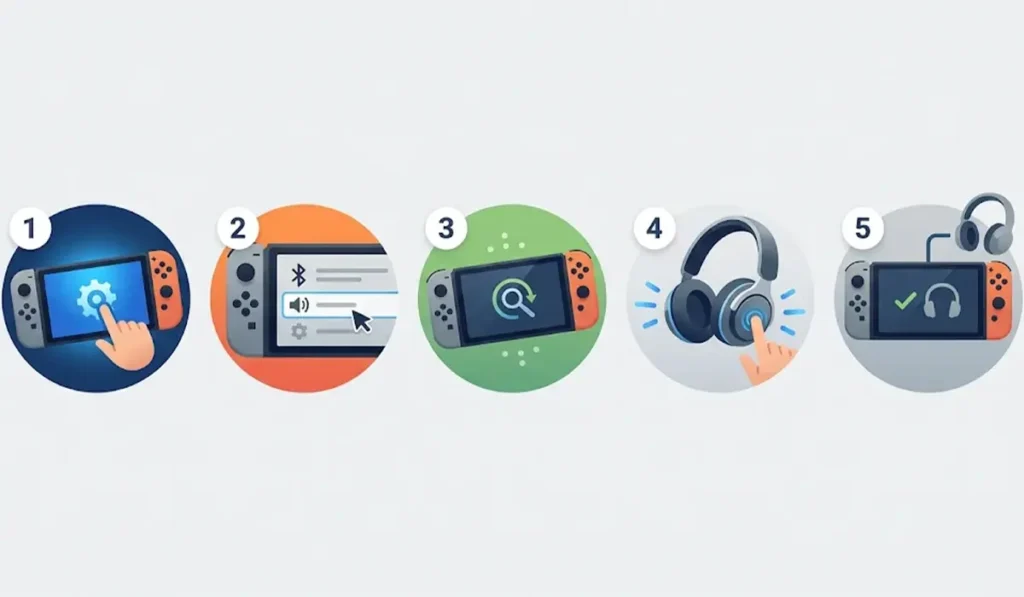
Once connected, game audio plays through the headphones instead of the console speakers. Most people find that this works best when the headphones are within a couple of meters of the console during the first pairing.
Pro-Tip: Pairing mode and normal power-on are two different things. If the headphones are simply switched on and not in pairing mode, they will not appear in the Add Device list. A flashing indicator light is the usual sign that pairing mode is active.
What Happens After the First Pairing
The first pairing is the only time the full setup is needed. After that, the headphones can reconnect automatically when they are turned on and within range of the console, so no menus need to be opened.
Disconnecting is just as simple. Turning off the headphones disconnects them instantly. The connection can also be managed from the Bluetooth Audio section in System Settings.
Tips for a Better Experience With Bluetooth Headphones on Switch 2
- Hold the Home button on a Joy-Con or other controller to open the shortcut menu, which makes it easy to adjust the volume while playing.
- Keep in mind that the console saves up to 10 Bluetooth audio devices, but only one can play audio at a time. Switching between a pair of earbuds and a headset means disconnecting one first.
- While a Bluetooth audio device is in use, only two controllers can be connected wirelessly. Disconnecting the headphones frees up room for more controllers.
- Some audio delay can show up depending on the headphones. Fast-paced games feel the difference more than slower, story-driven ones.
- Volume levels can shift when the same headphones are shared across several devices. Anyone who also uses the same pair with a computer may find the guide on re-pairing Bluetooth earbuds for stereo sound on Windows handy for keeping that side tidy.
Pro-Tip: Bluetooth microphones are not supported on the Switch 2. Headphones with a built-in mic will still deliver sound, but voice chat will need another solution.
Common Problems and Quick Fixes
Fix 1: Headphones Do Not Appear in the List
Confirm that the headphones are charged and in pairing mode, then try Add Device again. Updating the console to the latest system version and restarting it often clears up a stubborn pairing attempt.
Fix 2: A Saved Pair Will Not Reconnect
Turn the headphones off and back on, make sure the battery is charged, and restart the console. If the connection still refuses to work, remove the saved device from the Bluetooth Audio section and pair it again from scratch.
Fix 3: Headphones Work on the Switch 2 but Not on a Windows PC
Since Bluetooth headphones can only be actively connected to one device at a time in most cases, a PC may fail to detect them while they are linked to the console. Disconnect them from the Switch 2 first, then follow the guide on troubleshooting headphone detection on Windows if the PC still does not see them.
Frequently Asked Questions
Does the Nintendo Switch 2 support Bluetooth headphones?
Yes. The console connects to Bluetooth headphones and earbuds directly through the Bluetooth Audio section in System Settings.
Is an adapter or dongle needed for Bluetooth headphones on the Switch 2?
No. The Switch 2 has built-in Bluetooth, so headphones connect straight to the console.
Can AirPods be connected to a Nintendo Switch 2?
Yes. AirPods pair the same way as any other Bluetooth headphones, through the Bluetooth Audio menu in System Settings.
Can a Bluetooth microphone be used on the Switch 2?
No. Bluetooth microphones are not supported, so Bluetooth headphones work for audio output only.
How many Bluetooth audio devices can be connected at once?
Only one device can be connected at a time. The console can save up to 10 Bluetooth audio devices for later use.
Do headphones reconnect automatically after the first pairing?
They can. A saved pair may reconnect on its own when it is turned on and within range of the console.
How can Bluetooth headphones be disconnected from the Switch 2?
Turning off the headphones disconnects them right away. The connection can also be managed from the Bluetooth Audio section in System Settings.
Can controllers still be used wirelessly while Bluetooth headphones are connected?
Yes, but only up to two controllers can be connected wirelessly while a Bluetooth audio device is in use. Disconnecting the headphones allows more controllers.
Why is there a delay between the game and the sound?
Audio latency can occur depending on the Bluetooth headphones being used. The delay varies from one model to another.
How is the volume adjusted while wearing Bluetooth headphones?
Holding the Home button on a Joy-Con or another controller opens a shortcut menu where the volume can be changed.