
Knowing how to check AirPods battery life on iPhone is one of those small things that makes a big difference in daily use. Running out of charge mid-call or during a workout is frustrating – especially when it catches you off guard. The good news is that iPhone gives several quick and reliable ways to keep tabs on battery levels for both the AirPods and the charging case.
Quick Summary
- Open the AirPods case near an unlocked iPhone to get an instant battery pop-up
- Add the Batteries Widget to the Home or Today View for an always-visible battery level
- Ask Siri ‘What is my AirPods battery?’ for a hands-free check
- Use Control Center’s Bluetooth panel to view connected device battery percentages
- Battery levels show for Left AirPod, Right AirPod, and the Case separately
How to Check AirPods Battery Life on iPhone: Step-by-Step Methods
Method 1: Open the AirPods Case Near the iPhone
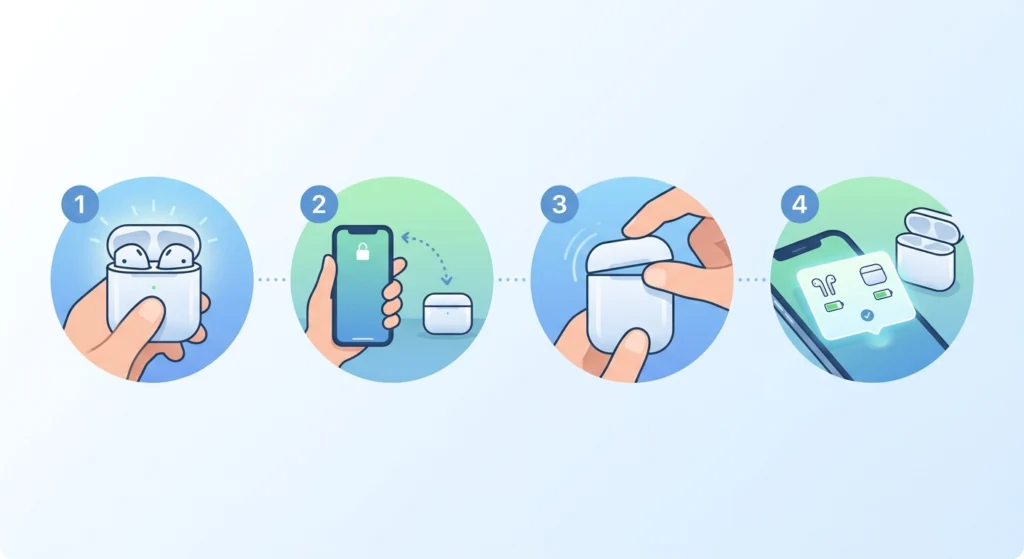
This is the fastest and most straightforward method. It works every time the AirPods are paired and the iPhone is unlocked.
- Step 1: Make sure the AirPods are inside the charging case.
- Step 2: Unlock the iPhone and keep it nearby – within a few inches works best.
- Step 3: Open the AirPods case lid.
- Step 4: A pop-up will appear on the iPhone screen showing the battery percentage for each AirPod and the case itself.
This works best when the iPhone is on the Home Screen or any unlocked screen. The pop-up appears almost instantly and disappears after a few seconds.
Pro-Tip: If the pop-up does not appear, make sure Bluetooth is enabled and the AirPods are connected to that specific iPhone. Sometimes toggling Bluetooth off and on resolves the issue quickly.
Method 2: Use the Batteries Widget on the Home Screen
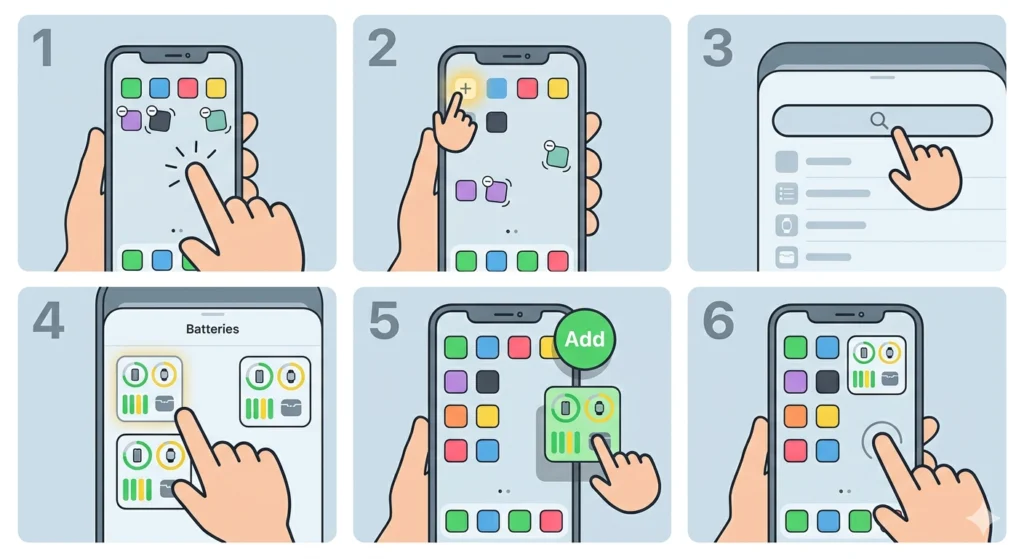
The Batteries Widget is one of the most practical options for people who want a constant battery overview without any extra steps. Once added, it shows all connected Apple devices including AirPods directly on the Home Screen or Today View.
- Step 1: Long-press on an empty area of the iPhone Home Screen until the icons start to jiggle.
- Step 2: Tap the ‘+’ button in the top-left corner.
- Step 3: Search for ‘Batteries’ in the widget search bar.
- Step 4: Select the Batteries widget and choose a size (small, medium, or large).
- Step 5: Tap ‘Add Widget’ and place it on the Home Screen.
- Step 6: Press the Home Screen to save the layout.
Once set up, the widget automatically updates and displays the AirPods battery percentage whenever they are connected. Most people find the medium-sized widget ideal since it shows all three battery levels – left, right, and case – in a clean layout.
Method 3: Check Battery via Siri
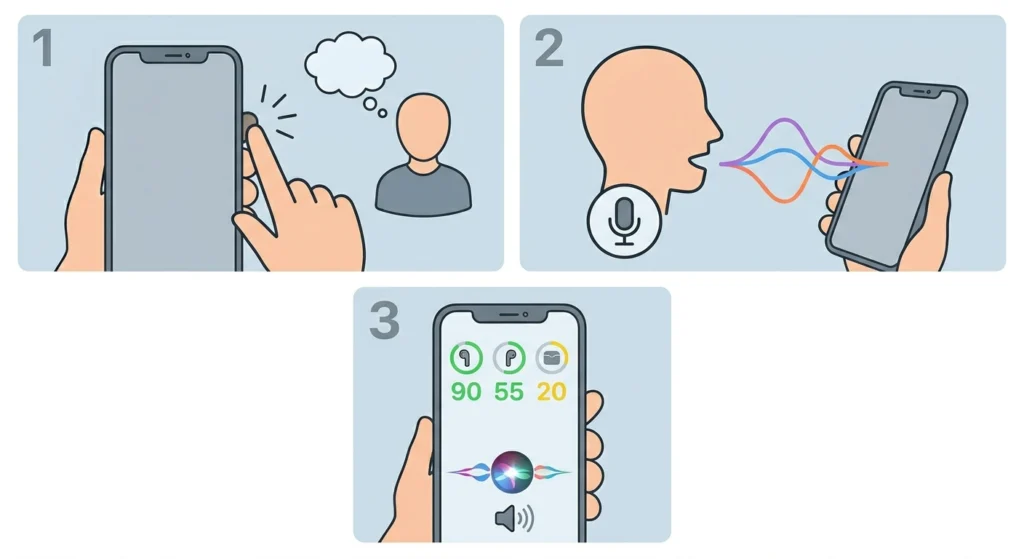
Siri makes this incredibly easy, especially when the hands are occupied. This method is great during cooking, exercise, or anytime reaching for the phone is not convenient.
- Step 1: Activate Siri by saying ‘Hey Siri’ or pressing and holding the Side button.
- Step 2: Ask: ‘What is my AirPods battery level?’ or ‘How much battery do my AirPods have?’
- Step 3: Siri will read out the current battery percentage for each earbud and the case.
This works even when the AirPods are in use – no need to remove them or look at the screen.
Method 4: Check via Bluetooth Settings
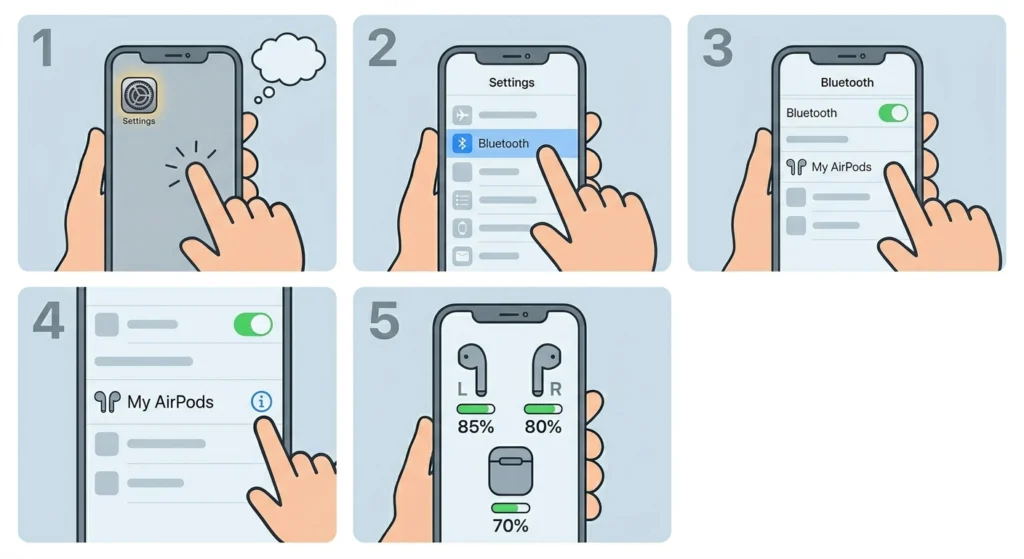
This method provides a reliable battery reading directly inside the iPhone settings, with no widgets or voice commands needed.
- Step 1: Open the ‘Settings’ app on the iPhone.
- Step 2: Tap ‘Bluetooth’.
- Step 3: Find the AirPods in the list of connected devices.
- Step 4: Tap the ‘i’ icon next to the AirPods name.
- Step 5: The battery percentage for each AirPod and the case will appear at the top of the detail screen.
This is particularly useful when diagnosing connection issues. If one earbud is draining faster than the other, this screen will reveal the imbalance clearly. For broader audio troubleshooting on other devices, understanding how audio input devices behave can also help identify patterns.
Method 5: Listen to the Battery Announcement in AirPods
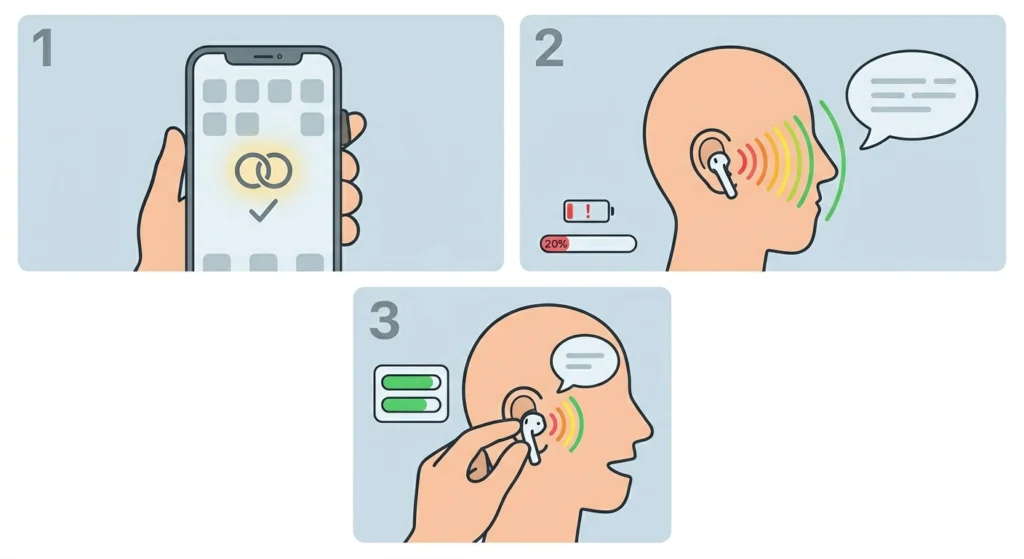
AirPods can announce the battery status directly into the ears without needing to check the iPhone at all. This feature is built into iOS and works automatically at low battery thresholds.
- Step 1: Put the AirPods in and connect them to the iPhone.
- Step 2: The AirPods will chime and announce ‘Low battery’ when the charge drops to around 20% and again at 10%.
- Step 3: To manually hear battery status, remove one AirPod from the ear (if Auto-Ear Detection is on) and reinsert it – the battery level will announce automatically.
Pro-Tip: Enable ‘Announce Notifications’ in the AirPods settings to get timely audio alerts rather than relying only on visual cues. Go to Settings – Bluetooth – tap the ‘i’ next to AirPods – and explore the notification and announcement options.
Tips for Managing AirPods Battery Life
- Always store AirPods in the case when not in use – the case charges them automatically and extends overall listening time significantly.
- Check both AirPod battery levels regularly since one side can drain faster if used more often or if there is an imbalance in charge cycles.
- Use the Batteries Widget as a habit – glancing at it before long trips or meetings helps avoid getting caught with dead AirPods.
- Avoid exposing AirPods to extreme heat or cold, as this degrades battery health over time.
- If the AirPods case itself shows low battery, charge it with a Lightning or USB-C cable (depending on the AirPods model) before worrying about the earbuds.
- Keeping firmware updated ensures the battery reporting is accurate. Connect AirPods to the iPhone while charging to allow firmware updates to install automatically.
Common AirPods Battery Issues
Fix 1: Battery Level Not Showing on iPhone
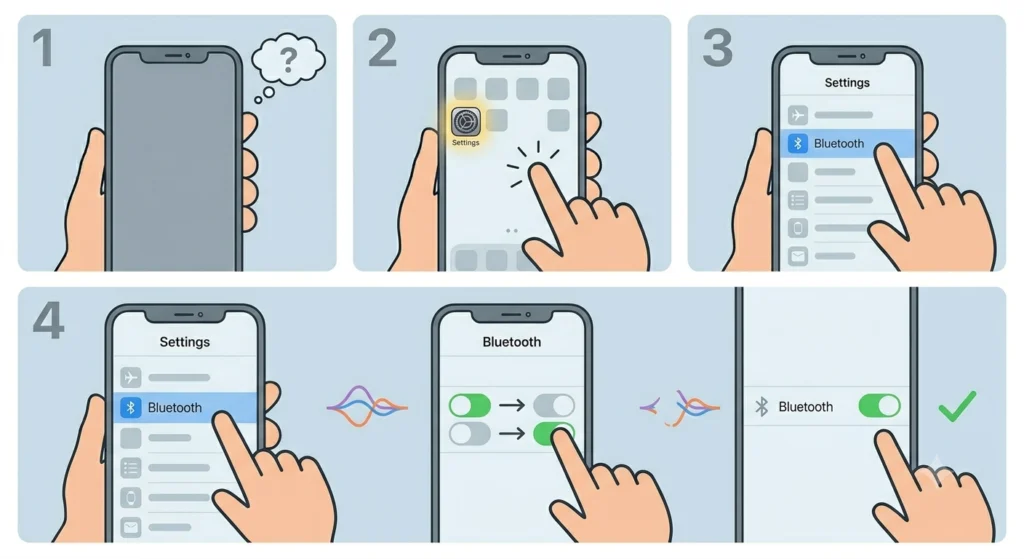
If the battery percentage is not appearing via any method, the most common cause is a Bluetooth connectivity issue. Toggle Bluetooth off and back on in Settings. If that does not help, forget the AirPods in Bluetooth settings and re-pair them by opening the case next to the iPhone and following the on-screen prompts. A similar approach applies when re-pairing Bluetooth earbuds for stereo sound on other platforms.
Fix 2: One AirPod Shows Lower Battery Than the Other
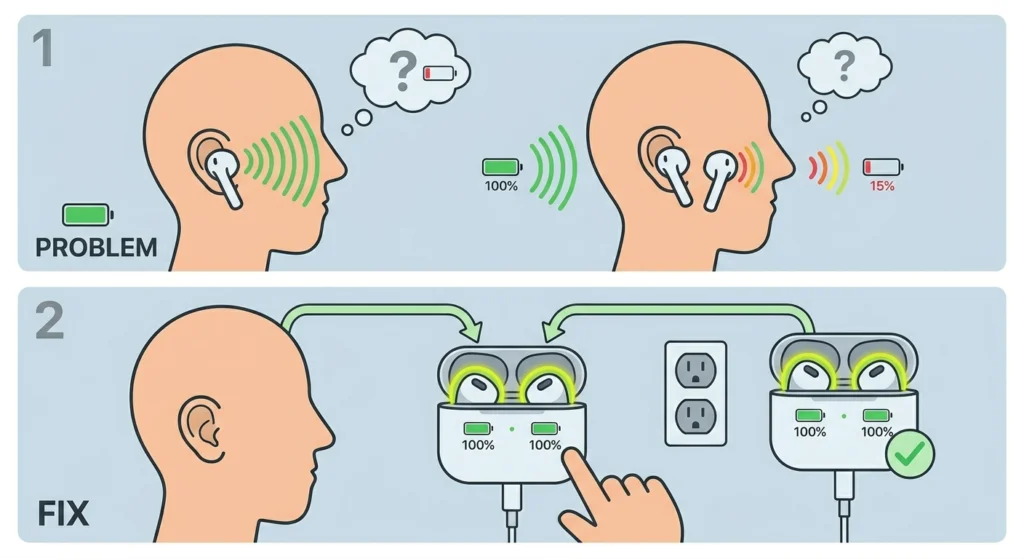
This is common and usually happens due to uneven usage or charge cycles. Place both AirPods back in the case and charge until both reach 100%. Avoid taking one out more than the other during daily use to maintain balanced drain.
Fix 3: Batteries Widget Not Updating
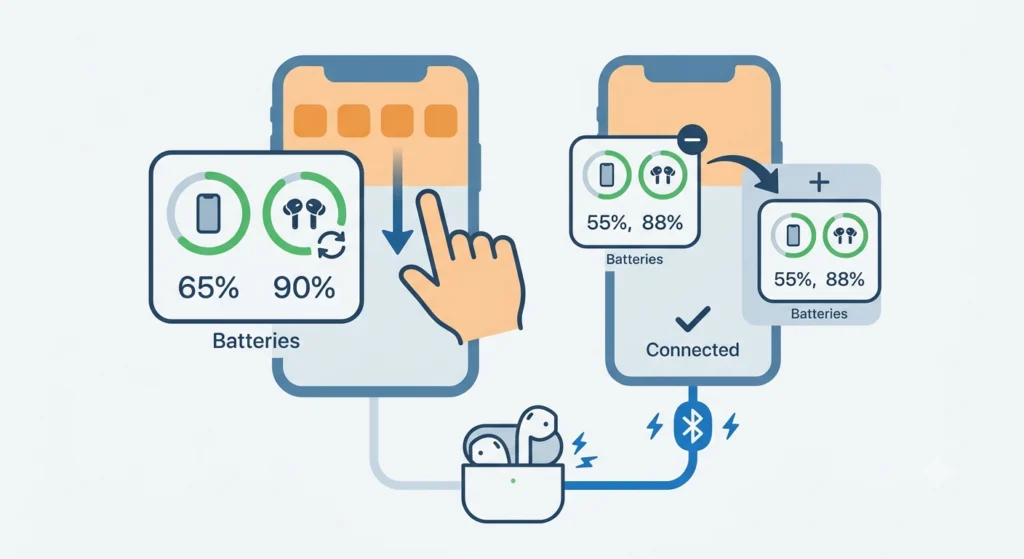
If the widget is stuck on an old battery reading, swipe down to refresh the Home Screen or remove and re-add the widget. Also verify that the AirPods are actively connected to the iPhone – a disconnected device will not update the widget in real time.
Fix 4: AirPods Battery Draining Faster Than Usual
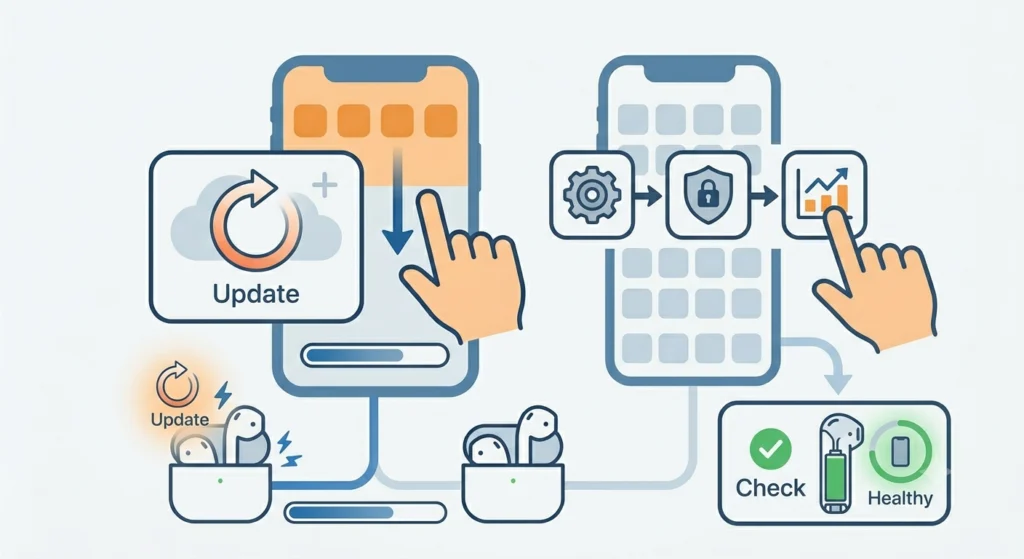
A sudden drop in battery life often points to a software bug or a worn battery. Update iOS and AirPods firmware first. If the drain continues, check Apple’s Battery Health tool in Settings – Privacy and Security – Analytics and Improvements – Analytics Data for any AirPods-related logs. Older AirPods with degraded batteries may need to be serviced or replaced.
Frequently Asked Questions
How do you check AirPods battery on iPhone without opening the case?
The quickest way is to ask Siri ‘How much battery do my AirPods have?’ or check the Batteries Widget on the Home Screen. Both methods work even when the AirPods are in the ears or stored in the case.
Can you see the AirPods case battery level separately from the earbuds?
Yes. When using the case lid method, the Batteries Widget, or Bluetooth Settings, the iPhone displays three separate battery readings – one for the left AirPod, one for the right AirPod, and one for the charging case.
Why does my AirPods battery not show on iPhone?
This usually happens due to a Bluetooth connection issue. Toggle Bluetooth off and on, or forget and re-pair the AirPods in Settings. Make sure the iPhone is unlocked and Bluetooth is enabled for the pop-up method to work.
Does the Batteries Widget work for all AirPods models?
Yes, the Batteries Widget supports all AirPods models that are compatible with the paired iPhone, including AirPods (all generations), AirPods Pro, and AirPods Max.
How accurate is the AirPods battery percentage on iPhone?
The battery percentage shown is generally accurate to within a few percentage points. Readings can occasionally lag slightly if the AirPods have not synced with the iPhone recently, but they update quickly once connected.
Why does one AirPod always show a lower battery than the other?
This can happen if one earbud is used more often or if there is a difference in charge cycles between the two. Placing both in the case and doing a full charge typically brings them back to the same level.
Can Siri tell the battery level of the AirPods case too?
Siri typically reports the battery level of the AirPods themselves. For the case battery specifically, the most reliable method is the case lid pop-up on the iPhone screen or the Batteries Widget.
Do AirPods announce low battery automatically?
Yes. AirPods will play a chime and announce ‘Low battery’ at around 20% and again at 10%. This happens directly in the ears so there is no need to check the iPhone manually.
How do you add the Batteries Widget to the iPhone Lock Screen?
On iPhone with iOS 16 or later, long-press the Lock Screen, tap ‘Customize’, select ‘Lock Screen’, and add a widget from the widget gallery. The Batteries widget is available there and will display AirPods charge level at a glance without unlocking the device.
Is it possible to check AirPods battery on iPhone without Siri or widgets?
Yes. Opening the AirPods case near an unlocked iPhone triggers an automatic pop-up with battery details. Alternatively, go to Settings – Bluetooth – tap the ‘i’ next to the AirPods name to see all battery levels in the device detail screen.