
Having only one Google Pixel Buds Pro earbud producing sound is more common than most people think – and the good news is that it is almost always fixable without a trip to a repair shop. Whether the left or right earbud has gone silent, this guide walks through every proven fix so the audio can get back to working in stereo.
Quick Summary Table
- Most common cause: Unbalanced audio settings or a failed Bluetooth pairing
- Fastest fix: Place both earbuds in the case, close the lid for 30 seconds, then reconnect
- Next best fix: Factory reset both earbuds through the Pixel Buds app
- Check first: Audio balance slider in phone accessibility settings
- Time to fix: Most solutions take under 5 minutes
- When to contact support: If one earbud stays silent after all fixes below
Fix 1: Check the Audio Balance Setting on the Phone
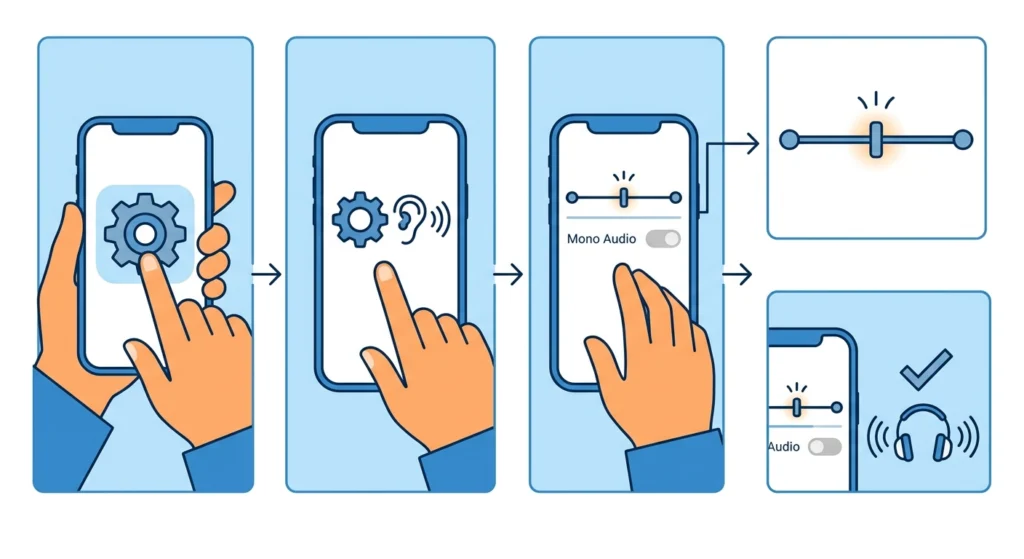
This is the most overlooked cause. A phone’s audio balance slider – found in accessibility settings – can shift sound entirely to one side without any warning. It happens easily when someone accidentally drags the slider in their pocket.
- Step 1: Open the phone’s Settings app
- Step 2: Go to Accessibility, then tap Audio and On-Screen Text (on Android) or Hearing (on iPhone)
- Step 3: Find the Audio Balance or Mono Audio slider
- Step 4: Make sure the slider is centered perfectly between L and R
- Step 5: Also turn off Mono Audio if it is enabled, as this can sometimes cause imbalanced output with certain earbuds
This works best when the issue appeared suddenly without any physical incident to the earbuds.
Fix 2: Put Both Earbuds Back in the Case and Reconnect
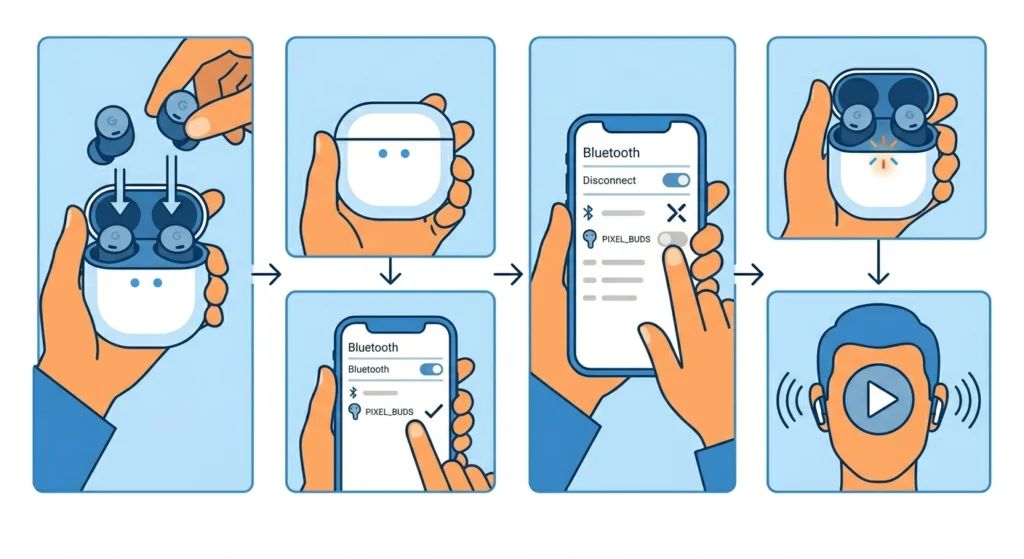
A simple reset of the Bluetooth session clears most connection glitches where one bud stops receiving audio. The charging case acts as a reset chamber – this trick works surprisingly often.
- Step 1: Place both Google Pixel Buds Pro earbuds into the charging case
- Step 2: Close the lid firmly and wait at least 30 seconds
- Step 3: On the connected phone or device, go to Bluetooth settings and disconnect the Pixel Buds Pro
- Step 4: Open the case lid and wait for the earbuds to enter pairing mode
- Step 5: Reconnect the Pixel Buds Pro from the Bluetooth menu on the phone
- Step 6: Play audio and test both ears
The key is to actually disconnect from the device side rather than simply opening the case. This forces a fresh handshake between the earbuds and the phone.
Fix 3: Clean the Earbuds and Charging Contacts
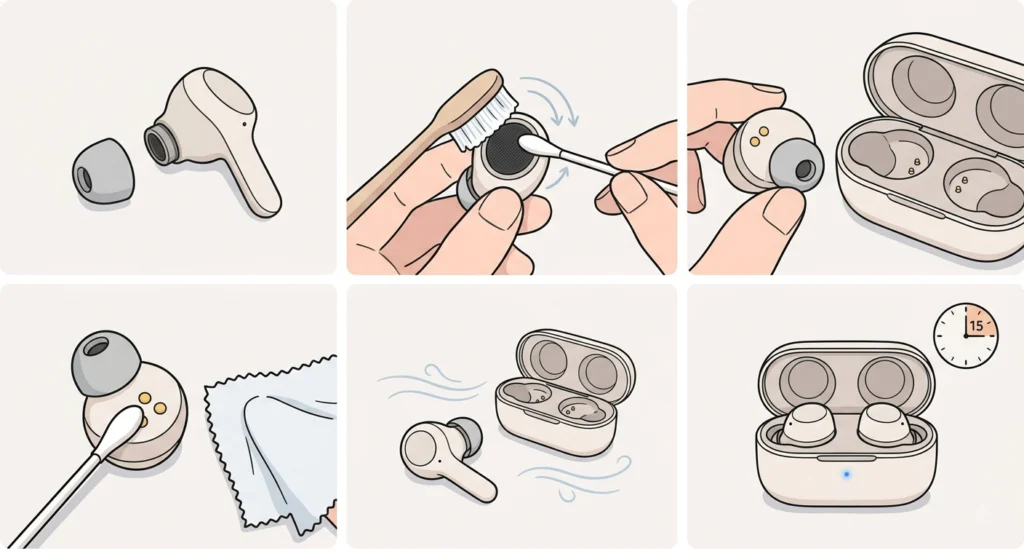
Earwax, dust, or debris blocking the speaker mesh or charging contacts on one earbud can cause it to undercharge, misbehave, or go completely silent. Most people find that a quick cleaning solves the problem when one earbud is quieter rather than totally silent.
- Step 1: Remove the ear tip from the affected earbud
- Step 2: Use a soft, dry toothbrush or a clean, dry cotton swab to gently brush the speaker mesh in circular motions – never press hard
- Step 3: Inspect the gold charging contacts on both the earbud and inside the case for any residue or corrosion
- Step 4: Wipe the contacts gently with a dry cotton swab or a slightly damp (not wet) microfiber cloth
- Step 5: Let everything air dry completely before placing the earbuds back in the case
- Step 6: Charge for at least 15 minutes, then test audio again
Pro-Tip: Never use water, isopropyl alcohol in excess, or sharp tools near the speaker mesh. Even a small amount of moisture forced into the speaker can cause permanent damage to the driver inside.
Fix 4: Forget and Re-Pair the Pixel Buds Pro
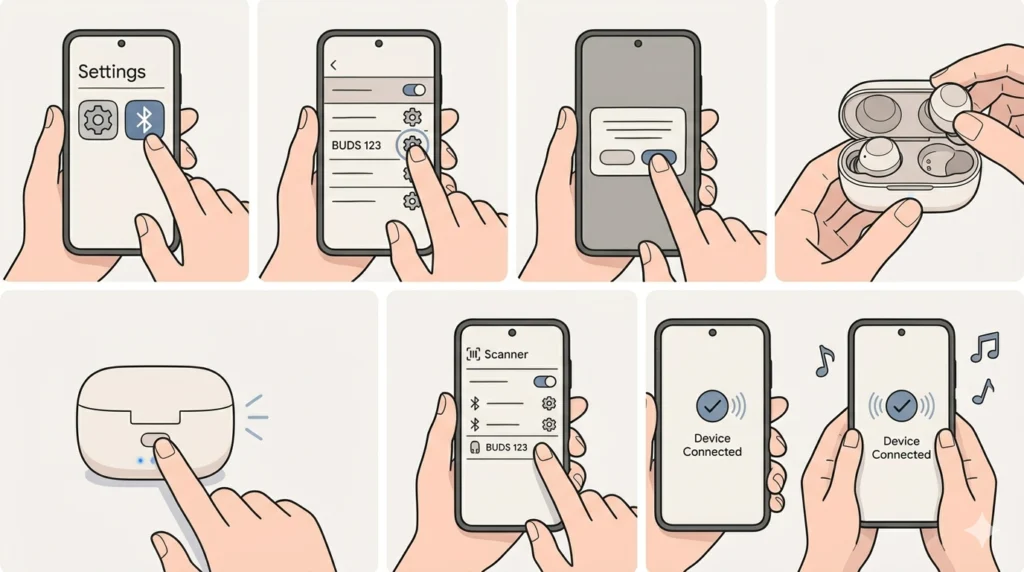
When a Bluetooth pairing becomes corrupted – which happens after software updates or frequent device switching – one earbud can drop out of sync. Removing the device entirely from Bluetooth memory and re-pairing from scratch often restores stereo audio. If unfamiliar with this process, the full re-pairing guide for Bluetooth earbuds to get stereo sound covers the process in detail for various setups.
- Step 1: Go to the phone’s Bluetooth settings
- Step 2: Find Pixel Buds Pro in the paired devices list and tap the gear icon or info button next to it
- Step 3: Select Forget or Unpair – confirm if prompted
- Step 4: Place both earbuds in the case, close it, wait 30 seconds, then open the lid
- Step 5: Press and hold the button on the back of the charging case until the LED flashes
- Step 6: On the phone, scan for new Bluetooth devices and select Pixel Buds Pro when it appears
- Step 7: Follow any on-screen pairing prompts and test audio
Fix 5: Factory Reset the Google Pixel Buds Pro
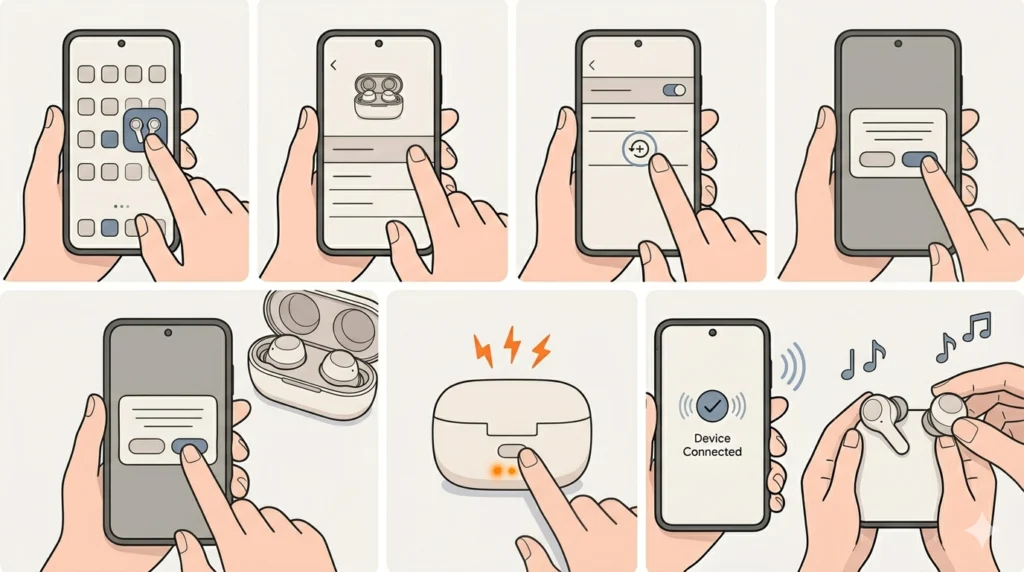
A factory reset wipes all stored connection data and restores the earbuds to their default state. This is the go-to solution when all the simpler fixes above have not worked. It takes about two minutes and does not cause any permanent data loss on the phone.
- Step 1: Open the Pixel Buds app on the connected Android phone (download it from the Play Store if not installed)
- Step 2: Tap on the connected Pixel Buds Pro device
- Step 3: Scroll down and select Factory Reset
- Step 4: Confirm the reset – both earbuds will reset together
- Step 5: Alternatively, do a manual reset: place both earbuds in the open case, then press and hold the case button for about 30 seconds until the LED flashes orange three times
- Step 6: Re-pair the earbuds to the phone and test both sides
Pro-Tip: After a factory reset, avoid reconnecting to multiple devices at once right away. Pair with one device, confirm both earbuds work correctly in stereo, then add other devices afterward. Jumping between multiple pairings too quickly after a reset can recreate the same sync issue.
Fix 6: Update the Pixel Buds Pro Firmware
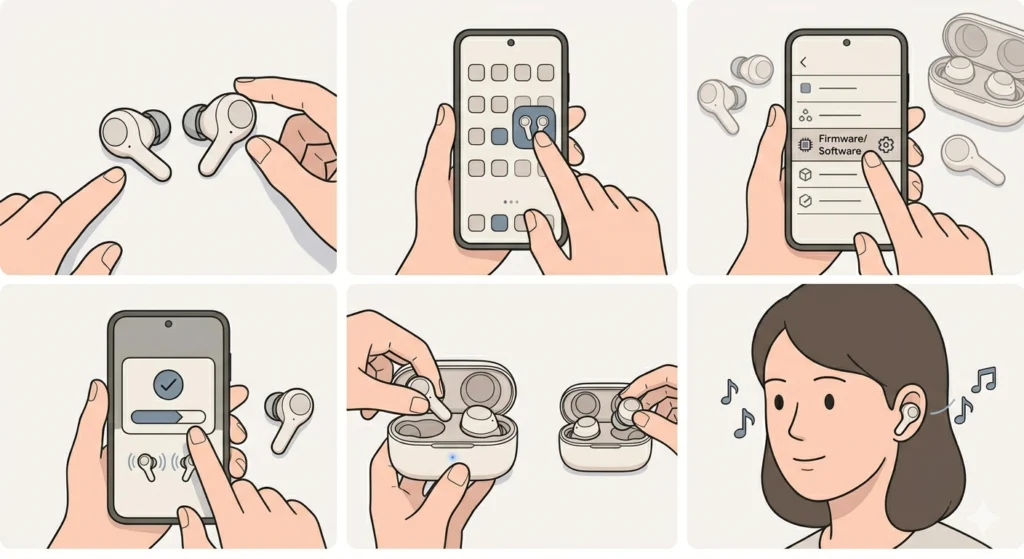
Outdated firmware has caused one-earbud audio issues on Pixel Buds Pro across several reported user cases. Google regularly pushes firmware patches that fix exactly these kinds of connectivity and audio sync bugs.
- Step 1: Make sure the Pixel Buds Pro are connected to the phone and both earbuds are out of the case
- Step 2: Open the Pixel Buds app
- Step 3: Tap on the device name and look for a Firmware Update or Software Update option
- Step 4: If an update is available, tap Update and keep the earbuds close to the phone during the process
- Step 5: After updating, restart the earbuds by putting them in the case and taking them out again
- Step 6: Test audio playback on both sides
Firmware updates install automatically when the earbuds are in the case and connected to a phone with an internet connection. If there is no update prompt, the firmware is likely already current.
Fix 7: Test With a Different Audio Source or App
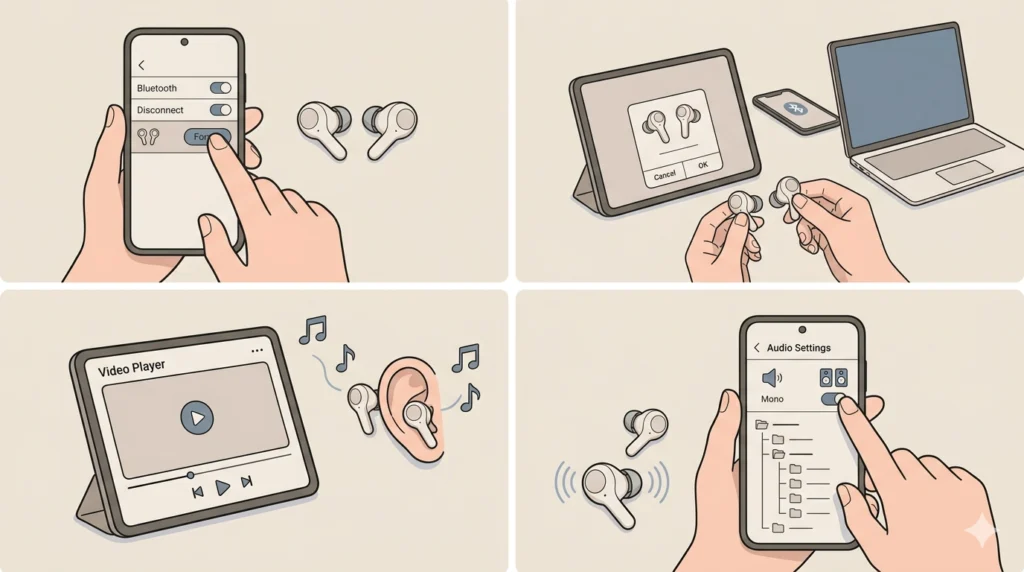
Sometimes the problem is not the earbuds at all – it is the audio source or a specific app sending mono or single-channel output. This is easy to rule out quickly.
- Step 1: Disconnect the Pixel Buds Pro from the current phone and connect them to a completely different device – a tablet, laptop, or second phone works fine
- Step 2: Play audio from a different app than the one used when the problem occurred
- Step 3: If both earbuds work on the second device, the issue is with the original device’s audio output settings or the specific app
- Step 4: On the original device, check that the problematic app has not had its audio channel settings changed – some media and podcast apps have mono output options buried in settings
This is a quick diagnostic step that saves a lot of time before going deeper into resets or hardware checks.
Common Problems and Troubleshooting
Here are the most frequent scenarios people run into with one Google Pixel Buds Pro earbud not working, along with what actually causes them.
- One earbud is completely silent: Usually a lost Bluetooth sync between the two buds. Fix 2 or Fix 5 (case reset or factory reset) resolves this most of the time.
- One earbud is much quieter than the other: Almost always the audio balance slider on the phone. Check Fix 1 first before anything else.
- One earbud keeps cutting out or disconnecting: Interference or a weak charge on that specific bud. Check the charging contacts on both the earbud and case as shown in Fix 3.
- Problem started after a phone update: Firmware or Bluetooth stack changes from the update can break pairing. Forget and re-pair as shown in Fix 4.
- Only one earbud charges: Dirty or misaligned charging contacts. Clean them per Fix 3 and make sure the earbud sits securely in the case slot.
- One earbud works only when close to phone: Bluetooth range degradation on a single bud is a hardware fault. Contact Google Support if all software fixes fail.
Tips for Keeping Both Pixel Buds Pro Working Reliably
- Always store both earbuds in the case when not in use – leaving one out while the other charges creates charge imbalance that leads to sync issues over time
- Clean the ear tips and speaker mesh monthly to prevent buildup from blocking audio or interfering with sensors
- Keep the Pixel Buds app updated so firmware updates install automatically
- Avoid exposing the earbuds to heavy sweat without wiping them down afterward – the Pixel Buds Pro are sweat resistant but not sweat proof
- When switching between multiple Bluetooth devices frequently, use the proper re-pairing process for stereo sound rather than simply connecting and disconnecting, to prevent pairing corruption
- If the earbuds are used with a Windows PC and microphone issues come up alongside audio problems, separate microphone detection issues on Windows may be involved – those can be resolved following a dedicated guide for resolving microphone detection problems
Frequently Asked Questions
Why is only one of Google Pixel Buds Pro working?
The most common reasons are a shifted audio balance setting on the phone, a lost Bluetooth sync between the two earbuds, or a dirty charging contact causing one earbud to have less battery than the other. Start by checking the audio balance slider in the phone’s accessibility settings, then try placing both earbuds in the case to reset the connection.
How do I reset one Google Pixel Buds Pro earbud?
Individual earbud resets are not supported on the Pixel Buds Pro – both earbuds reset together. To reset, place both in the open case and press and hold the case button for about 30 seconds until the LED flashes orange three times. Alternatively, use the Factory Reset option in the Pixel Buds app.
Can a dead battery in one earbud cause it to stop working?
Yes. If one earbud has a significantly lower charge than the other – often caused by a dirty charging contact – it may cut out mid-use or refuse to connect. Clean the charging pins on both the earbud and the case, then allow both to fully charge before testing.
Will a factory reset delete any saved settings on Pixel Buds Pro?
A factory reset clears all paired device connections and returns the earbuds to default settings. Any customizations made through the Pixel Buds app – such as touch controls or EQ preferences – will need to be set up again after re-pairing. No data is lost from the phone itself.
How do I know if one Pixel Buds Pro earbud is defective?
If one earbud stays silent or malfunctions after completing all the fixes in this guide – including a factory reset, cleaning, firmware update, and testing with a different device – there is likely a hardware defect. Contact Google Support or check if the device is still within its warranty period.
Why does one Pixel Buds Pro earbud keep disconnecting?
Repeated disconnection of one earbud is usually caused by a weak or intermittent Bluetooth signal, a low battery on that specific earbud, or a faulty pairing. Try forgetting the device and re-pairing from scratch. If the issue continues on multiple devices, a hardware fault may be the cause.
Does the audio balance setting affect Pixel Buds Pro?
Yes, absolutely. The audio balance slider in the phone’s accessibility settings controls the left and right channel levels for all Bluetooth audio output, including the Pixel Buds Pro. Even a slight offset to one side can make one earbud sound noticeably quieter or completely silent. Always check this setting first when audio seems one-sided.
Can I use only one Google Pixel Buds Pro earbud at a time?
Yes. The Pixel Buds Pro support single-earbud use. Removing one earbud from the case while leaving the other inside will connect just the one bud. Keep in mind that the inactive earbud needs to be stored in the case to maintain its charge while using single-bud mode.
Why did one earbud stop working after a phone update?
System updates sometimes change Bluetooth stack behavior or audio routing, which can cause previously stable pairings to break. The fix is to forget the Pixel Buds Pro from Bluetooth settings entirely and re-pair them fresh. This re-establishes the connection using the updated Bluetooth protocols on the phone.
How long does it take to fix a Pixel Buds Pro earbud that is not working?
Most fixes in this guide take between 2 and 5 minutes. Checking the audio balance slider takes under a minute. A case reset takes about 1 to 2 minutes. A factory reset and re-pair takes around 3 to 5 minutes. Charging-related fixes may require a 15 to 30 minute wait to confirm both earbuds are fully charged before testing.