
Learning how to fix headphones that only work after restarting your phone saves a lot of daily frustration. The headphones are rarely the problem. In most cases, the phone’s audio or Bluetooth service gets stuck, and a restart simply clears it. The steps below fix the cause so a restart is no longer needed.
Quick Summary
- Works for wired and Bluetooth headphones on Android and iPhone.
- Start with the fastest fix (Airplane Mode toggle) and move down the list only if needed.
- Most cases are solved by re-pairing, cleaning the port, or resetting network settings.
- Estimated time: 5 to 15 minutes.
Step-by-Step Guide to Fix Headphones That Only Work After Restarting Your Phone
Fix 1: Toggle Airplane Mode Instead of Restarting
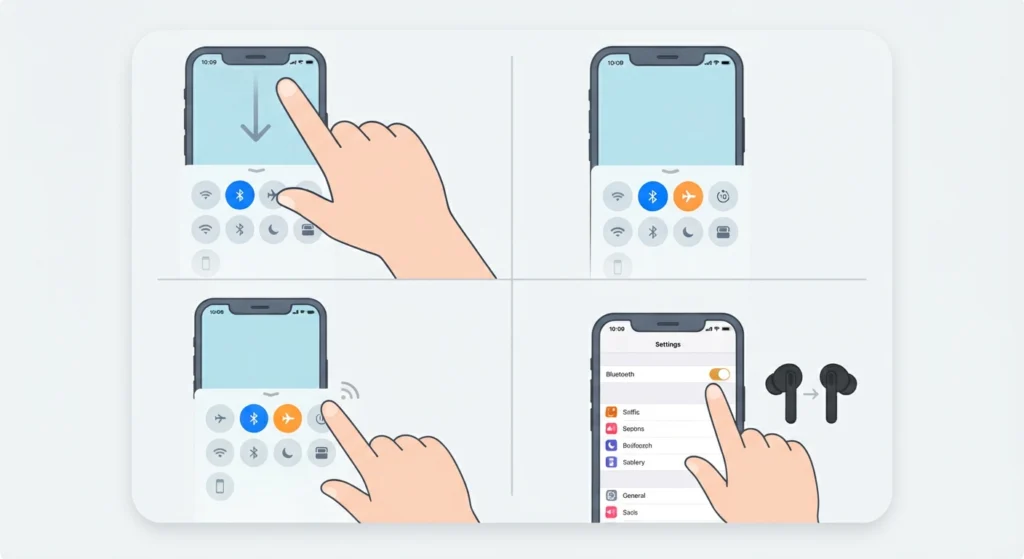
This works best for Bluetooth headphones. Airplane Mode restarts the wireless radios in seconds, which is often all a restart was doing.
- Step 1: Swipe down to open the Control Center (iPhone) or Quick Settings (Android).
- Step 2: Tap the Airplane Mode icon to turn it on and wait about 10 seconds.
- Step 3: Tap it again to turn it off.
- Step 4: Turn Bluetooth back on if it stays off, then reconnect the headphones.
If sound returns, the problem is a temporary Bluetooth glitch, and the next fixes will stop it from repeating.
Fix 2: Forget the Headphones and Pair Them Again
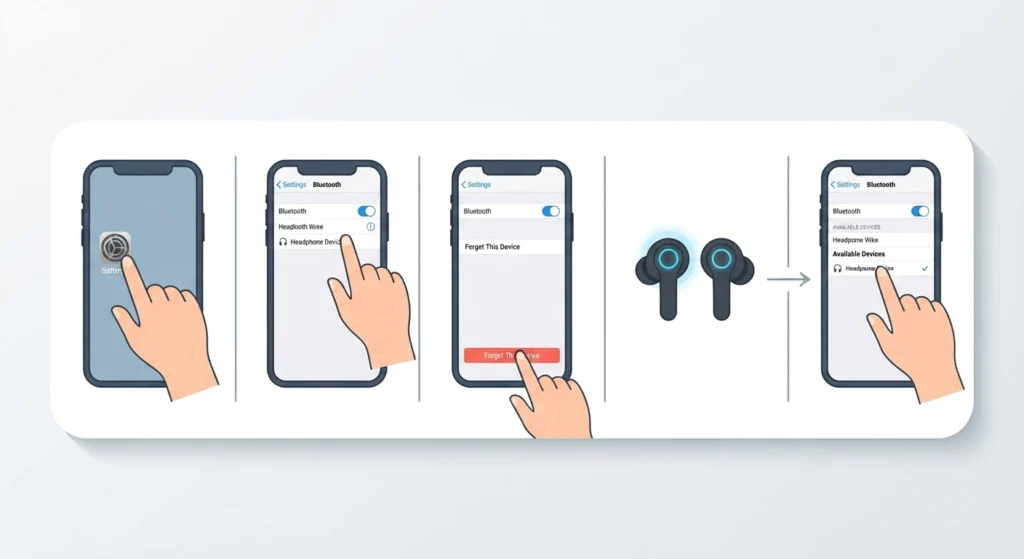
A saved pairing can become corrupted over time. Deleting it and starting fresh gives the phone a clean connection profile.
- Step 1: Open Settings and go to Bluetooth.
- Step 2: Tap the info icon (iPhone) or the gear icon (Android) next to the headphones.
- Step 3: Choose Forget This Device (iPhone) or Unpair (Android).
- Step 4: Put the headphones in pairing mode, usually by holding the power or pairing button until the light flashes.
- Step 5: Select the headphones from the list and confirm the pairing.
Pro-Tip: Also delete the old entry from the headphones’ side if they support multiple devices. Many earbuds remember several phones, and a stale entry can cause the connection to fail until a restart.
Fix 3: Clean the Headphone Port and Reseat the Plug
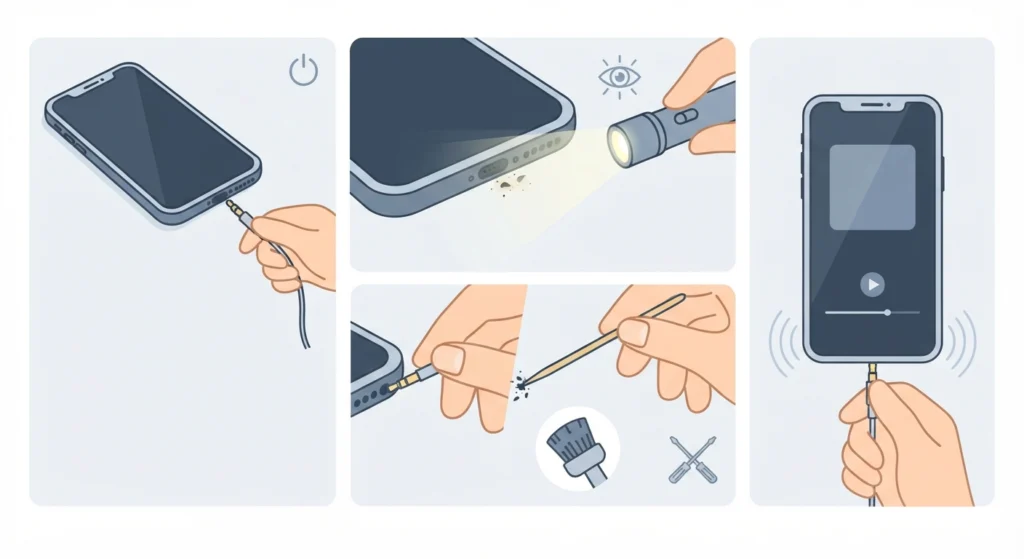
For wired headphones, the usual culprit is lint or dust packed into the jack, Lightning port, or USB-C port. A plug that does not seat fully may not be detected until the phone restarts.
- Step 1: Turn off the phone and unplug the headphones.
- Step 2: Shine a light into the port and look for lint or debris.
- Step 3: Gently remove debris with a clean, dry, soft-bristled brush or a wooden toothpick. Avoid metal tools, which can damage the contacts.
- Step 4: Turn the phone on and push the plug in firmly until it is fully seated.
- Step 5: Play audio to confirm the phone detects the headphones.
Fix 4: Clear the Bluetooth Cache on Android
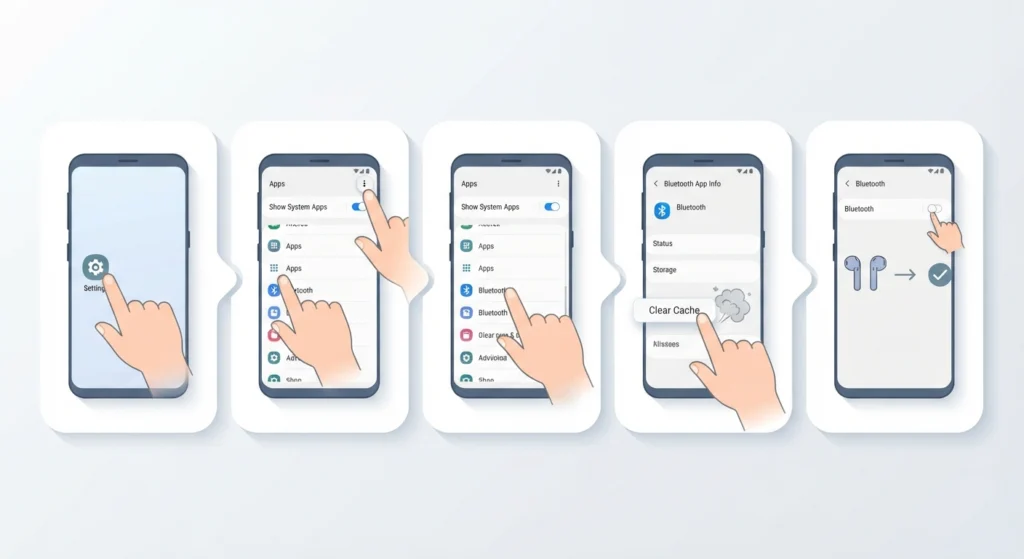
Android stores temporary Bluetooth data that can become outdated. Clearing it removes saved pairings, so the headphones will need to be paired again afterward. The exact menu names vary by brand.
- Step 1: Open Settings and go to Apps.
- Step 2: Open the menu and turn on Show System Apps.
- Step 3: Find and open Bluetooth.
- Step 4: Tap Storage, then tap Clear Cache.
- Step 5: Restart Bluetooth and pair the headphones again.
iPhone does not offer a Bluetooth cache option, so iPhone users should move on to Fix 5.
Fix 5: Reset Network Settings
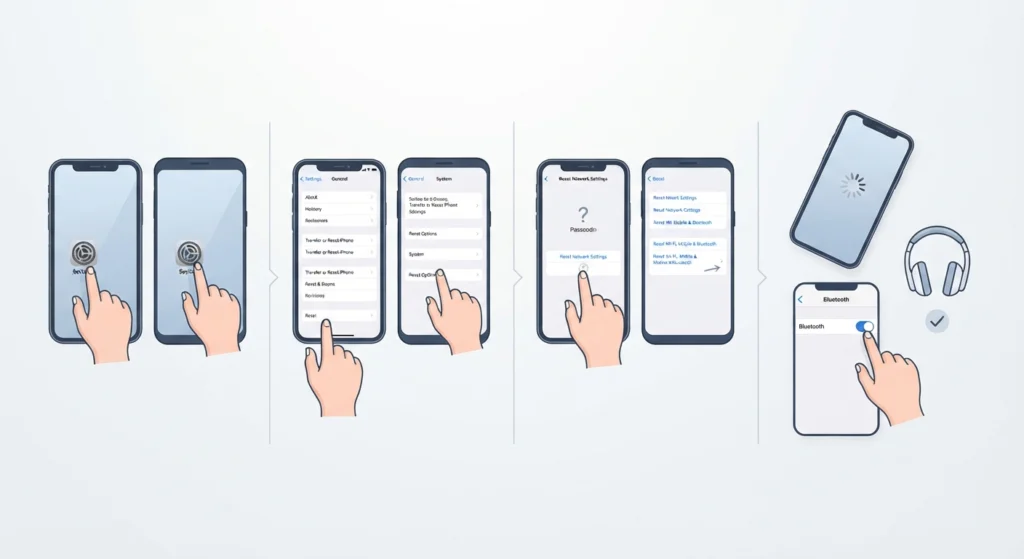
This resets the Bluetooth and wireless stack to default values without touching photos, apps, or messages. Saved Wi-Fi networks and paired Bluetooth devices will be removed.
- Step 1: On iPhone, open Settings, then General, then Transfer or Reset iPhone, then Reset, and choose Reset Network Settings.
- Step 2: On Android, open Settings, then System, then Reset Options, and choose Reset Wi-Fi, Mobile and Bluetooth. Menu names differ slightly between brands.
- Step 3: Enter the passcode if asked and confirm the reset.
- Step 4: After the phone restarts, pair the headphones again.
Fix 6: Update the Phone and the Headphone Firmware
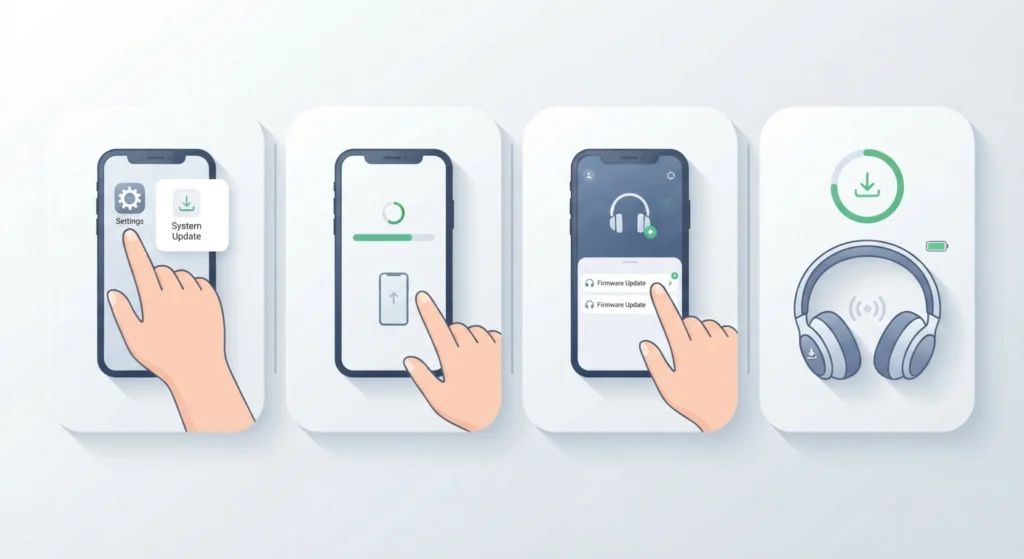
Bugs in audio or Bluetooth handling are often patched in software updates. Headphone makers also release firmware updates that improve connection stability.
- Step 1: Open Settings and check for a system update (Software Update on iPhone, System Update on Android).
- Step 2: Install any available update and let the phone restart.
- Step 3: Open the headphone brand’s companion app and check for a firmware update.
- Step 4: Keep the headphones close to the phone and charged while the update installs.
Fix 7: Reset the Headphones Themselves
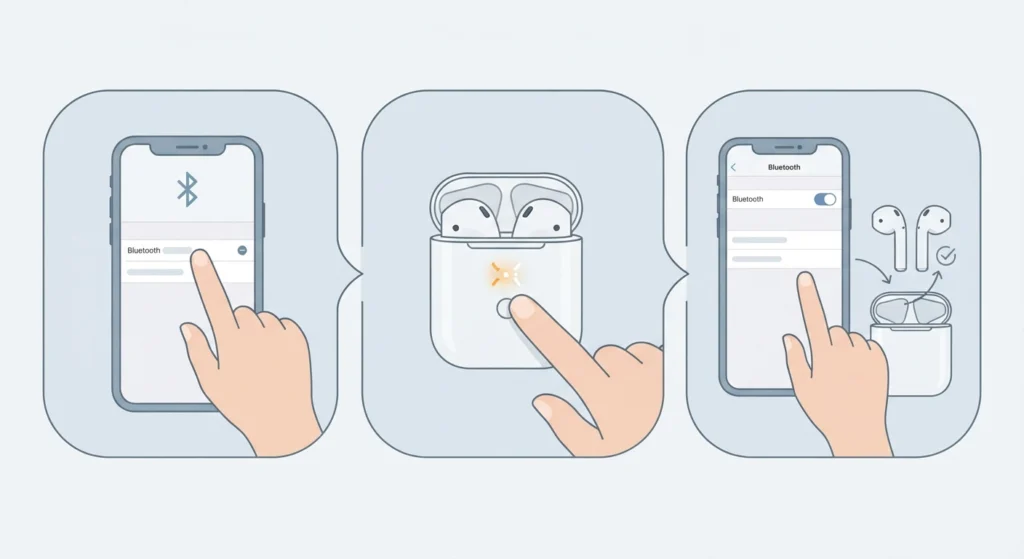
If the phone-side fixes did not help, the headphones’ own memory may hold a faulty pairing. A factory reset clears it. The method depends on the model, so the manufacturer’s instructions should be followed. For AirPods, place both in the case, keep the lid open, and hold the setup button on the back for about 15 seconds until the status light flashes amber and then white.
- Step 1: Forget the headphones in the phone’s Bluetooth settings.
- Step 2: Perform the reset using the manufacturer’s method.
- Step 3: Pair the headphones with the phone as new.
Helpful Tips to Keep Headphones Working Without Restarts
- Keep the phone and headphones updated, since most connection bugs are fixed through updates.
- Store wired headphones with the plug protected, and avoid pocket lint around the port.
- Disconnect Bluetooth headphones properly by placing them back in the case when finished.
- Test the headphones on another device. If they work there, the issue is on the phone side.
- Bluetooth earbuds that misbehave on a computer as well may benefit from this guide on how to re-pair Bluetooth earbuds for stereo sound on Windows.
- If sound routes to the wrong output on a Windows 11 PC, the steps for adjusting audio output settings can help.
Pro-Tip: Make the fixes one at a time and test after each one. This shows exactly which step solved the problem, so the same fix can be repeated quickly if it ever returns.
Common Problems and Quick Solutions
- Sound plays through the phone speaker instead of the headphones: Disconnect and reconnect the headphones, then confirm they are selected as the audio output.
- Headphones show as connected but no sound plays: Toggle Airplane Mode, then raise the media volume, since media and call volumes are separate.
- Only one earbud works: Place both earbuds in the case, close the lid, and reconnect. Reset the earbuds if it continues.
- Wired headphones are not detected: Clean the port and reseat the plug firmly.
- Problem returns after a few days: Complete Fix 5 and Fix 6, then reset the headphones as in Fix 7.
Frequently Asked Questions
Why do headphones only work after restarting the phone?
A restart clears temporary glitches in the phone’s audio routing or Bluetooth service. When those services get stuck, the phone may not send sound to the headphones until they reload.
Does this problem affect both wired and Bluetooth headphones?
Yes. Wired headphones can fail because of port detection issues, while Bluetooth headphones can fail because of connection or pairing errors.
Does it mean the headphones are broken?
Not usually. If the headphones work normally on another phone or computer, the cause is on the phone’s side and the fixes above should help.
Can Airplane Mode replace a restart?
For Bluetooth headphones, it often can. Airplane Mode resets the wireless radios quickly, which clears many short-term connection glitches.
Will resetting network settings delete photos or apps?
No. It removes saved Wi-Fi networks, paired Bluetooth devices, and cellular settings, but photos, apps, and messages stay untouched.
How can the Bluetooth cache be cleared on an iPhone?
iPhone does not have a Bluetooth cache option. Resetting network settings is the closest equivalent and refreshes the Bluetooth connection data.
Can a software update fix this issue?
It can when the cause is a known bug. Updating both the phone and the headphone firmware is a simple step that often improves stability.
How should the headphone port be cleaned safely?
Turn the phone off, then use a dry, soft brush or a wooden toothpick to lift out lint. Metal objects and liquids should be avoided because they can damage the contacts.
Why does the problem come back after working for a while?
A recurring issue usually points to an outdated pairing, a pending update, or debris in the port. Re-pairing the headphones and updating software typically prevents it from returning.
Is it worth testing the headphones on another device?
Yes. It is the fastest way to tell whether the headphones or the phone needs attention, and it saves time before trying any reset.