
Headphones that worked perfectly yesterday can suddenly drop out, sound muffled, or refuse to connect once a new software version lands. Here is how to fix headphones after an iOS update using a short, proven sequence that starts with the quickest fixes. The key takeaways are below, followed by the full walkthrough.
- Start with a restart of both the iPhone and the headphones, since it clears most temporary glitches.
- Forgetting the headphones and pairing them again fixes most connection problems after an update.
- Updating the headphone firmware helps the headphones stay compatible with the new iOS version.
- Resetting network settings is a stronger fix that also clears saved Bluetooth pairings.
- Wired headphones usually need only a cleaned port or a different adapter.
Step-by-Step Fixes for Headphones That Stopped Working After an iOS Update
Fix 1: Restart the iPhone and the Headphones
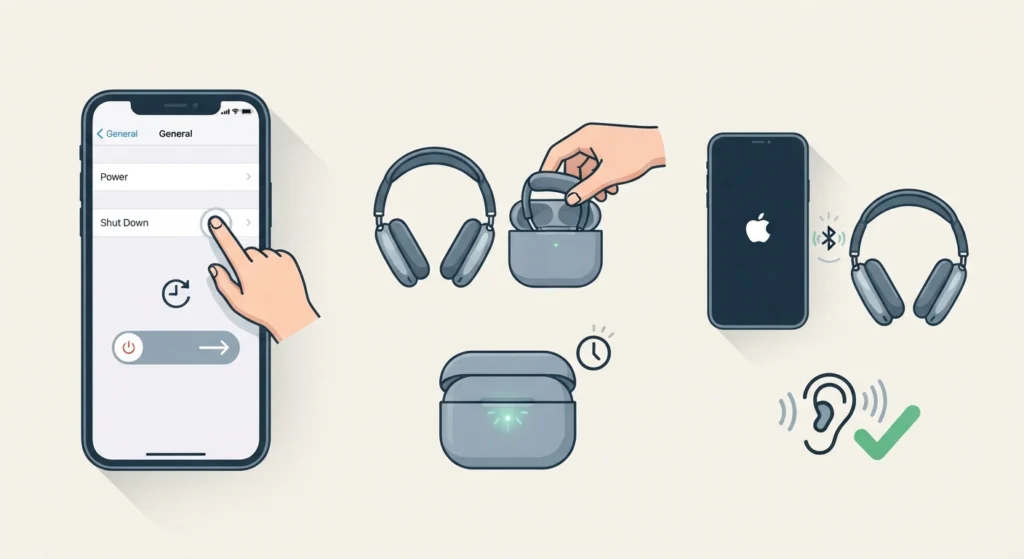
A restart sounds too simple to matter, but an update leaves plenty of background processes half-finished. Restarting both devices forces a clean handshake. Most people find that this alone solves the problem.
- Step 1: Open Settings, tap General, scroll to the bottom, and tap Shut Down. Drag the slider and wait about 30 seconds.
- Step 2: Turn off the headphones. For earbuds with a charging case, place them in the case and close the lid for around 10 seconds.
- Step 3: Turn the iPhone back on, then power the headphones on again and check the sound.
Fix 2: Turn Bluetooth Off and On, Then Choose the Right Audio Output
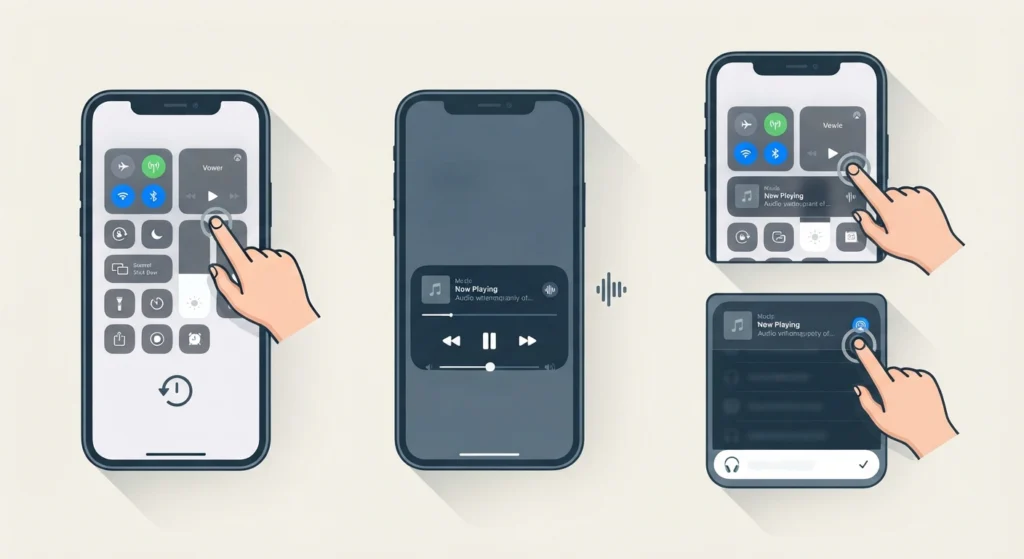
Sometimes the headphones are connected but the iPhone is still sending audio to the speaker. Refreshing Bluetooth and selecting the output by hand takes less than a minute.
- Step 1: Swipe down from the top-right corner to open Control Center and tap the Bluetooth icon to turn it off. Wait a few seconds, then tap it again.
- Step 2: Start playing music or a video.
- Step 3: Press and hold the audio card in Control Center, tap the AirPlay icon in its corner, and select the headphones from the list.
Fix 3: Forget the Headphones and Pair Them Again
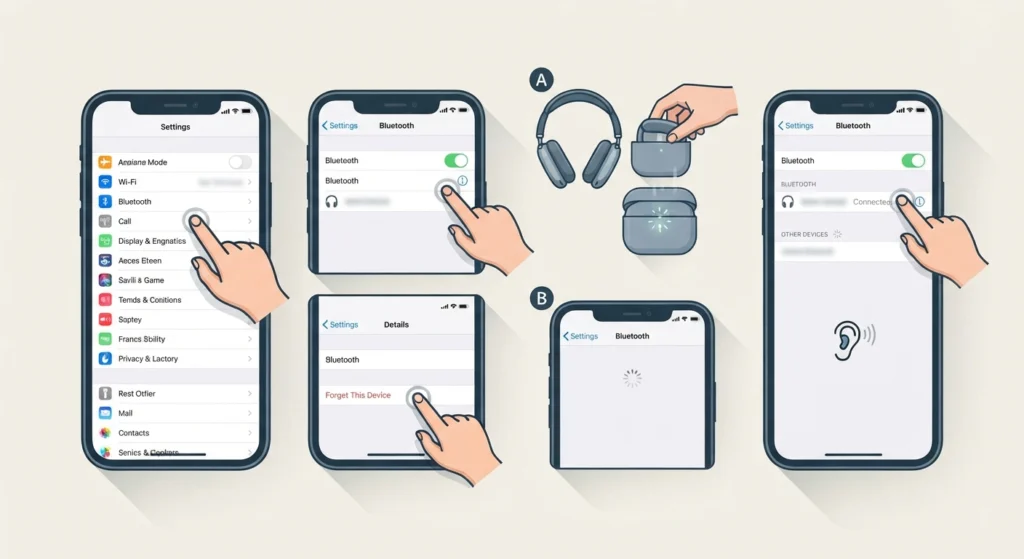
Think of this as introducing two people who already know each other, but with a fresh start. An update can leave the saved pairing information out of sync, and removing it usually clears the problem.
- Step 1: Open Settings and tap Bluetooth.
- Step 2: Tap the small ‘i’ icon next to the headphones, then tap Forget This Device and confirm.
- Step 3: Put the headphones into pairing mode. For AirPods, place them in the case, open the lid, and hold the setup button on the back of the case until the status light flashes white. Other brands usually need the power or Bluetooth button held for a few seconds.
- Step 4: Wait for the headphones to appear under Other Devices in the Bluetooth menu, tap them, and follow the prompts.
Pro-Tip: Before pairing again, make sure the headphones are not still connected to another nearby phone, tablet, or laptop. A headphone that reconnects to a different device automatically can look like a broken pairing when it is simply busy elsewhere.
Fix 4: Update the Headphone Firmware
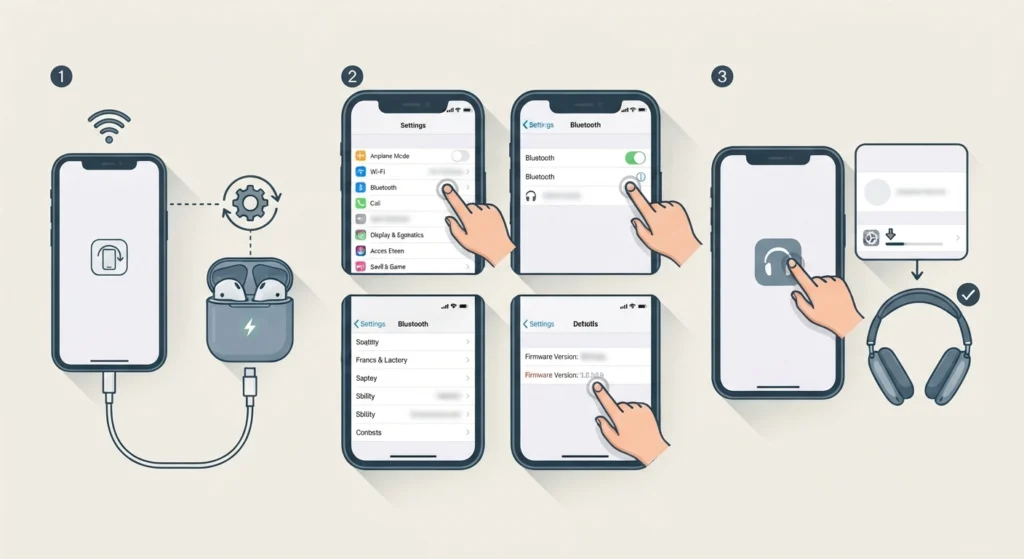
A new iOS version can expect newer behavior from Bluetooth accessories. If the headphones run older firmware, small compatibility gaps can show up as stuttering, delays, or dropped connections.
- Step 1: For AirPods, connect them to the iPhone, place them in the case with the lid open, and keep the case charging near the iPhone while it is on Wi-Fi. AirPods update on their own under these conditions.
- Step 2: To check the version, open Settings, tap Bluetooth, tap the ‘i’ icon next to the AirPods, and look at the firmware or version entry.
- Step 3: For other brands, open the manufacturer’s companion app, look for a firmware or software update option, and install it while the headphones are charged.
Fix 5: Reset Network Settings
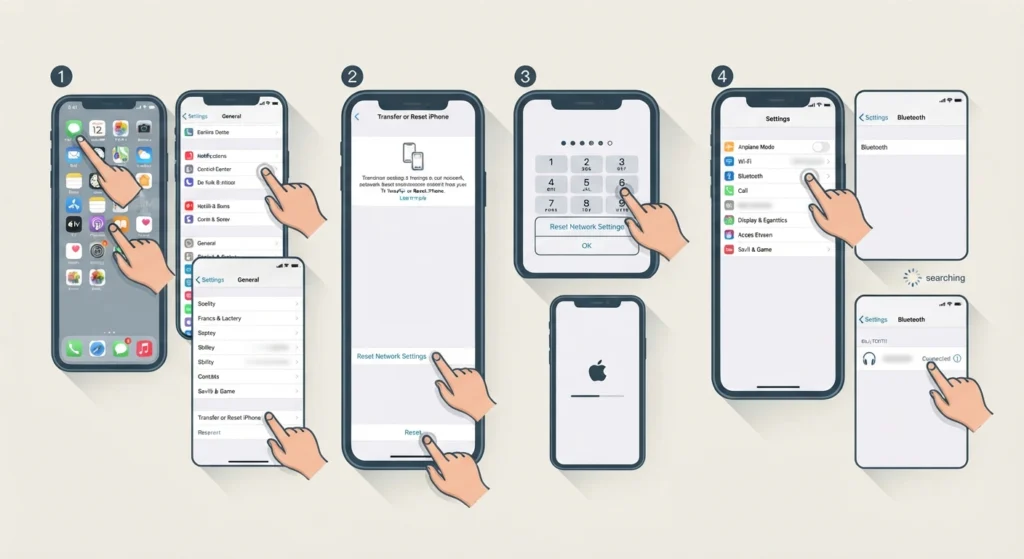
This is the stronger option when the earlier fixes do not help. Bluetooth connection data is stored alongside network settings, so resetting them clears any corrupted pairing records left behind by the update.
- Step 1: Open Settings, tap General, then tap Transfer or Reset iPhone.
- Step 2: Tap Reset, then choose Reset Network Settings.
- Step 3: Enter the passcode and confirm. The iPhone restarts.
- Step 4: Pair the headphones again through Settings and Bluetooth.
Pro-Tip: This reset also removes saved Wi-Fi passwords, VPN settings, and cellular settings, so keep the Wi-Fi password handy before starting.
Fix 6: Check Volume, Balance, and Headphone Safety Settings
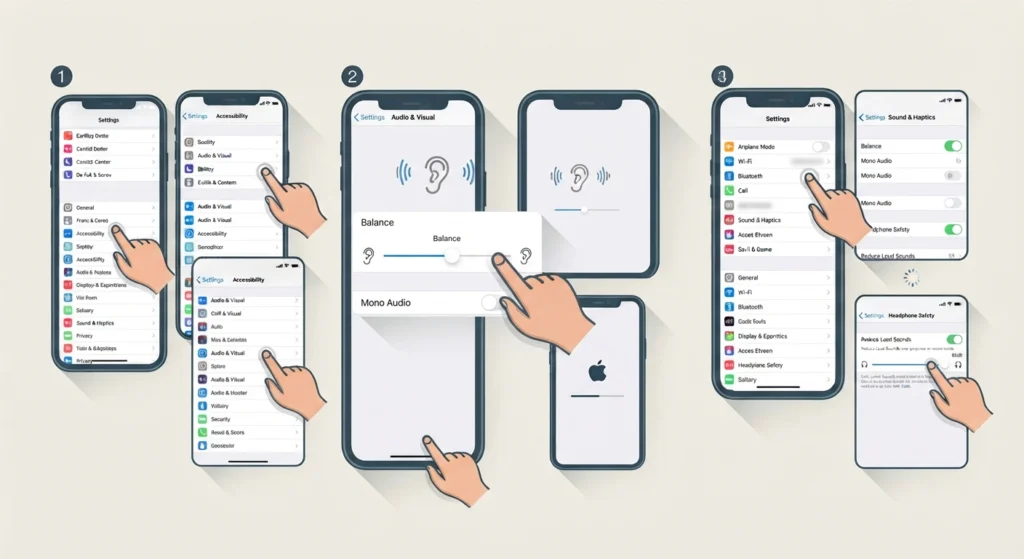
If the headphones connect but sound quiet or seem to play on one side only, a setting may have shifted during the update.
- Step 1: Open Settings, tap Accessibility, then tap Audio & Visual.
- Step 2: Make sure the Balance slider sits in the center and that Mono Audio is off, unless it is needed on purpose.
- Step 3: Go back to Settings, tap Sound & Haptics, then tap Headphone Safety. Check that Reduce Loud Sounds is not set lower than intended.
Fix 7: Fix Wired Headphones
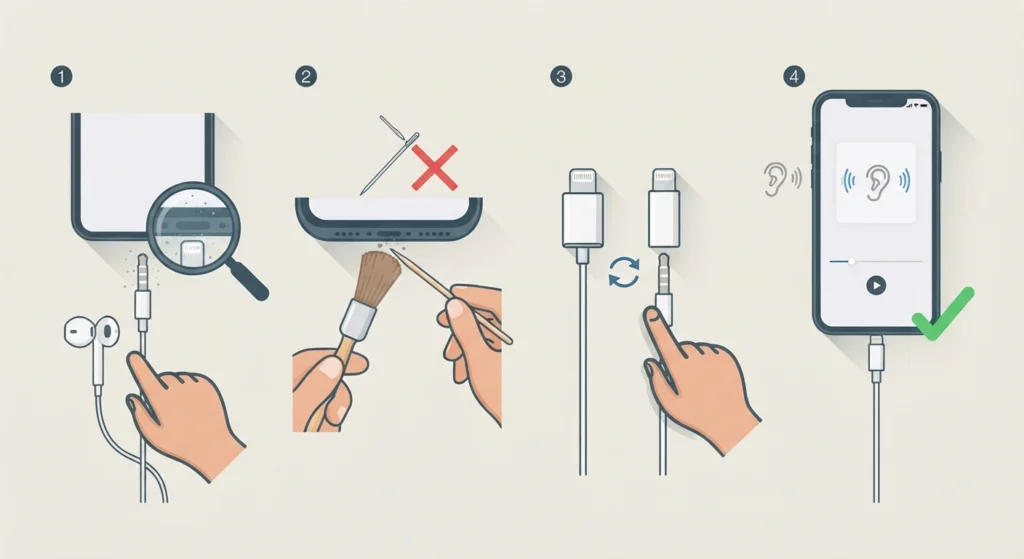
Wired headphones rarely have software trouble, but the update may coincide with a loose or dirty connection.
- Step 1: Unplug the headphones and inspect the connector and the iPhone port for lint or debris.
- Step 2: Gently clear the port with a dry, soft brush or a wooden toothpick. Avoid metal tools.
- Step 3: If an adapter is used, try a different one, since adapters wear out faster than the headphones themselves.
- Step 4: Plug the headphones back in firmly and test with music.
Tips to Keep Headphones Working Smoothly
- Charge the headphones before installing a major update, because low battery makes connections less stable.
- Check for headphone firmware updates right after installing a new iOS version.
- Keep headphones connected to one main device when possible to avoid pairing confusion.
- Clean earbud charging contacts and wired connectors occasionally with a dry cloth.
If the same headphones also misbehave on a computer, the guide on re-pairing Bluetooth earbuds for stereo sound on Windows walks through the pairing process there, and the guide on resetting audio settings on Windows 11 helps when the sound problem follows the headphones to a PC.
Common Problems After an iOS Update
Only One Earbud Plays Sound
Put both earbuds back in the case, close the lid for about 15 seconds, and reconnect. If that does not help, check the Balance slider in Accessibility and repeat the forget-and-pair steps from Fix 3.
Headphones Connect but Produce No Sound
The iPhone may be sending audio to another output. Open Control Center, press and hold the audio card, tap the AirPlay icon, and select the headphones manually.
Sound Is Muffled or Too Quiet
Clean the earbud mesh gently with a dry, soft brush, then check the Headphone Safety and volume settings described in Fix 6.
Headphones Keep Disconnecting
Update the headphone firmware from Fix 4 and reset network settings from Fix 5. Keeping the iPhone close to the headphones and away from crowded wireless areas also helps.
Frequently Asked Questions
Why do headphones stop working after an iOS update?
Updates can change how the iPhone handles Bluetooth and audio. Old pairing data or outdated headphone firmware may no longer match, which causes dropouts, missing sound, or failed connections.
Will forgetting the headphones delete anything from the device?
No. Forgetting a device only removes the saved pairing on the iPhone. The headphones keep their settings and can be paired again at any time.
How do I know if the AirPods firmware is up to date?
Connect the AirPods, open Settings, tap Bluetooth, tap the ‘i’ icon next to them, and check the version entry. Apple updates the firmware automatically when the AirPods are in the case, charging, and near a Wi-Fi connected iPhone.
Does resetting network settings erase photos or apps?
No. It removes saved Wi-Fi networks and passwords, Bluetooth pairings, VPN settings, and cellular settings. Photos, apps, and personal data stay untouched.
Can a case or cover interfere with Bluetooth after an update?
A thick metal-backed case can weaken the signal in some situations, but it is rarely tied to an update. Testing without the case takes only a moment.
Do third-party headphones need firmware updates too?
Many brands release firmware updates through a companion app. Checking that app after a new iOS version is a good habit, since updates often improve compatibility.
Why does only the microphone stop working on calls?
Restart the iPhone, forget and re-pair the headphones, and check that microphone access is allowed for the calling app under Settings and Privacy & Security. Cleaning the microphone opening on the headphones can also help.
Is it safe to keep the headphones connected while the iPhone updates?
Yes, but keeping them disconnected during the update is cleaner. Reconnect them once the iPhone finishes restarting.
How long should a restart fix take?
Most restarts take under two minutes in total. If the headphones still fail afterward, moving on to the pairing fix is the next logical step.