
Enabling LDAC on the Sony WF-1000XM5 is one of the best upgrades any audio enthusiast can make right out of the box. LDAC transmits roughly three times more data than standard Bluetooth, which translates directly into richer, more detailed sound. The WF-1000XM5 fully supports LDAC, but it does not activate automatically on every device. This guide walks through exactly how to turn it on and get the most out of it.
Quick Summary
- LDAC is a Sony high-resolution audio codec that runs over Bluetooth
- The Sony WF-1000XM5 supports LDAC but it must be enabled manually
- An Android device running Android 8.0 or later is required
- LDAC is enabled through Developer Options in Android Settings
- The Sony Headphones Connect app lets you fine-tune the connection quality
- iOS devices do not support LDAC
Steps to Enable LDAC on Sony WF-1000XM5
Enable Developer Options on Android
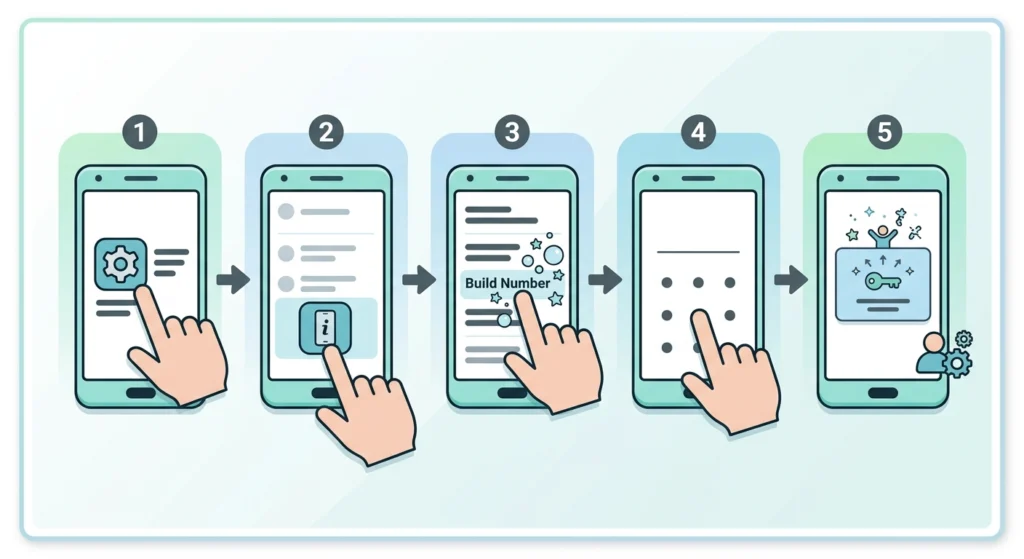
Before changing the Bluetooth codec, Developer Options must be unlocked. This is a one-time step and takes about 30 seconds.
- Step 1: Open the Settings app on the Android device
- Step 2: Scroll down and tap ‘About phone’
- Step 3: Find ‘Build number’ and tap it seven times in a row
- Step 4: Enter the device PIN or password if prompted
- Step 5: A message will appear confirming ‘You are now a developer’
Connect the Sony WF-1000XM5 via Bluetooth
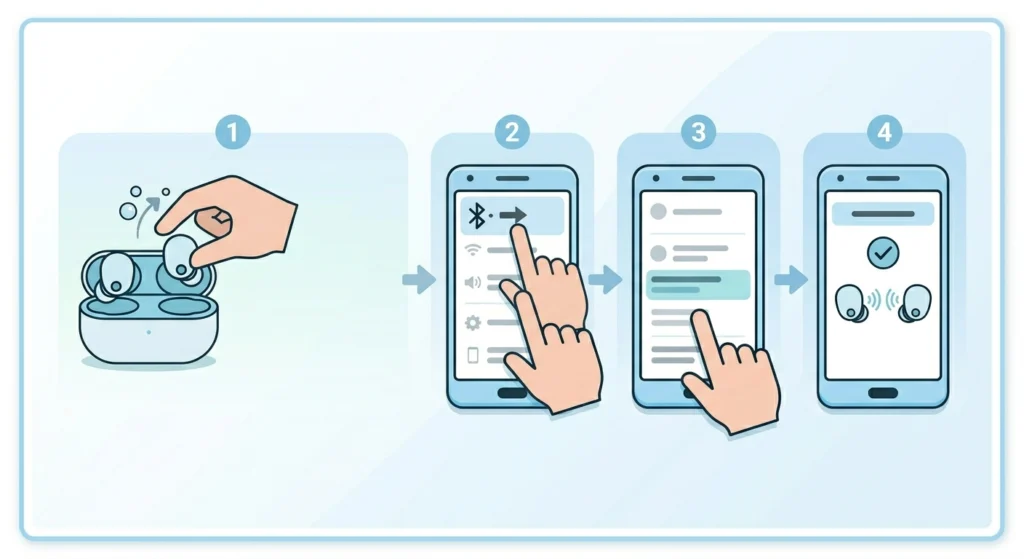
The earbuds need to be actively connected before changing the codec. Make sure they are paired and connected before moving to the next section.
- Step 1: Open the case lid and remove both earbuds
- Step 2: Open Settings and go to ‘Connected devices’ or ‘Bluetooth’
- Step 3: Select ‘Sony WF-1000XM5’ from the paired devices list
- Step 4: Confirm they show as ‘Connected’
Select LDAC as the Bluetooth Audio Codec
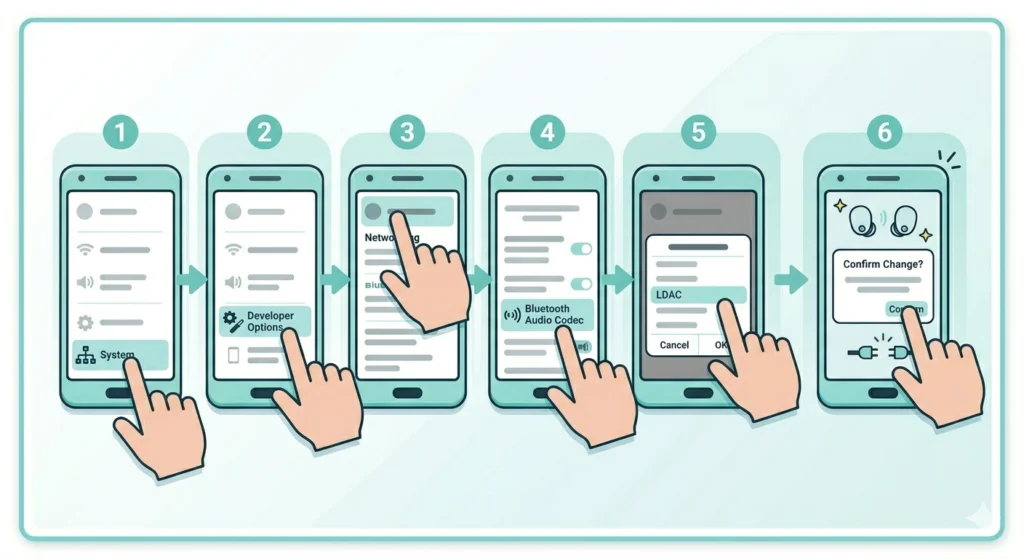
This is the core step. With Developer Options unlocked and the earbuds connected, the codec can now be changed.
- Step 1: Go to Settings and scroll down to ‘System’
- Step 2: Tap ‘Developer options’
- Step 3: Scroll down to the ‘Networking’ or ‘Bluetooth’ section
- Step 4: Tap ‘Bluetooth Audio Codec’
- Step 5: Select ‘LDAC’ from the list
- Step 6: Confirm the change when prompted – the earbuds may briefly disconnect and reconnect
Once reconnected, the device is now streaming audio to the WF-1000XM5 over LDAC. The difference in audio clarity – especially with high-resolution tracks – is noticeable immediately on well-recorded music.
Pro Tip: After selecting LDAC, also check the ‘Bluetooth Audio Sample Rate’ and ‘Bluetooth Audio Bits Per Sample’ options in Developer Options. Set the sample rate to 96kHz and bit depth to 32 bits for the highest possible quality when the connection environment is clean (indoors, short range).
Optimize LDAC Quality Using the Sony Headphones Connect App
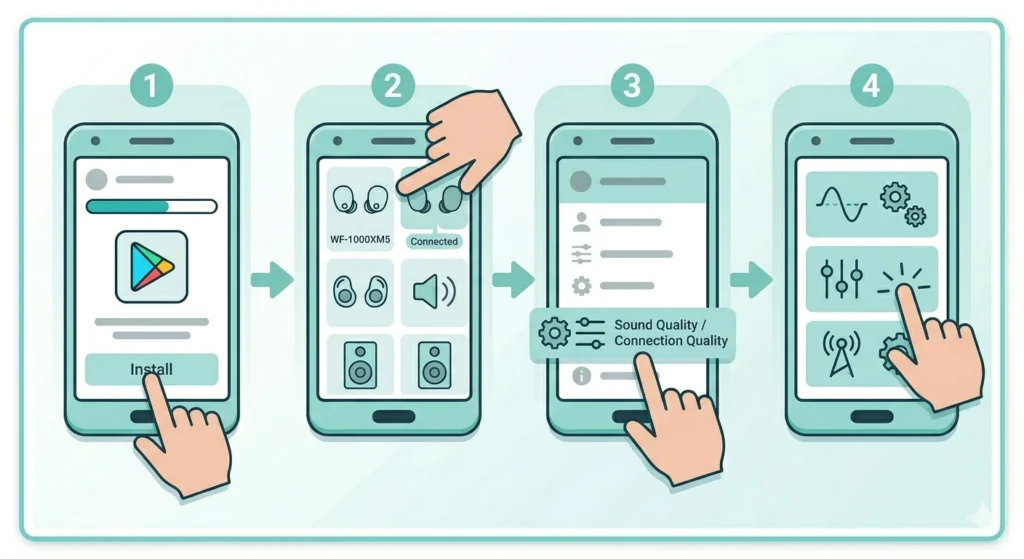
Sony’s Headphones Connect app gives direct control over how LDAC performs. There are three quality modes to choose from, and picking the right one depends on the environment.
- Step 1: Download ‘Sony Headphones Connect’ from the Google Play Store
- Step 2: Open the app and select the WF-1000XM5 from the device list
- Step 3: Tap the ‘Sound Quality’ or ‘Connection Quality’ option
- Step 4: Choose from the three available modes
The three modes work as follows. ‘Sound Quality Priority’ runs at 990kbps and delivers the best audio but needs a strong, stable Bluetooth signal. ‘Normal Mode’ balances quality and stability at 660kbps. ‘Connection Stability Priority’ drops to 330kbps but rarely stutters, even in crowded areas. Most people find that Sound Quality Priority works perfectly at home or in a quiet office.
Pro Tip: If the audio stutters or cuts out while LDAC is active, switch to ‘Normal Mode’ inside the Sony Headphones Connect app rather than disabling LDAC entirely. This keeps the hi-res codec active while improving reliability.
Tips for the Best LDAC Experience
- Keep the phone within 1-2 metres of the earbuds when using Sound Quality Priority mode – distance degrades the LDAC signal faster than with SBC or AAC
- Use a high-resolution audio streaming service such as Tidal, Amazon Music HD, or Deezer HiFi to actually benefit from LDAC – standard 320kbps streams will show less difference
- Avoid crowded Bluetooth environments like gyms or busy offices when using LDAC at 990kbps, as interference from other devices can cause dropouts
- Make sure the WF-1000XM5 firmware is updated through the Sony Headphones Connect app – firmware updates sometimes improve LDAC stability
- If using Windows 11 and noticing audio output settings behaving unexpectedly after switching codecs on Android, the two are separate – LDAC is an Android Bluetooth codec and does not apply to PC connections
Common Problems and Fixes
Fix 1: LDAC Option Is Greyed Out or Missing
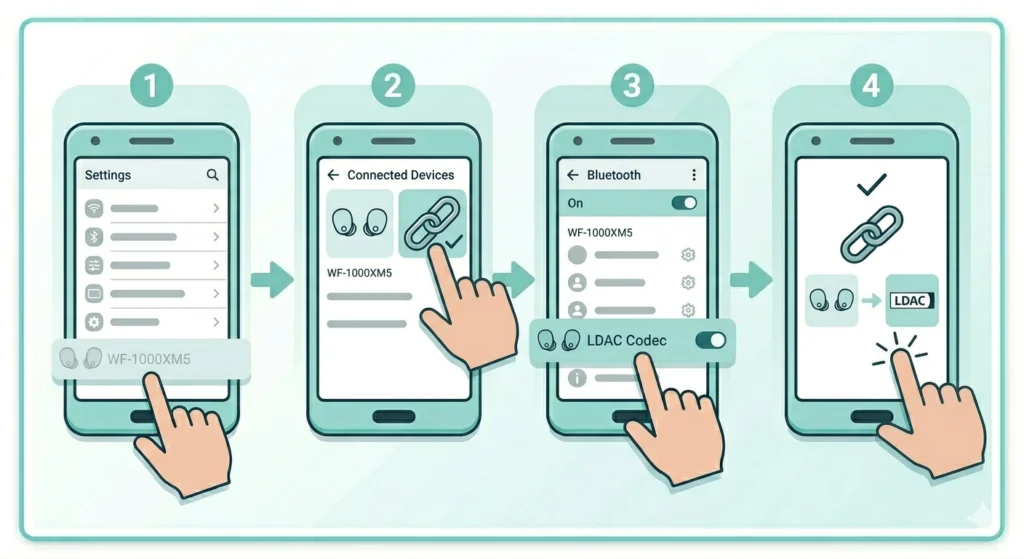
This usually happens when the earbuds are not actively connected at the moment of changing the codec. Go back to the Bluetooth settings, confirm the WF-1000XM5 shows as ‘Connected’ (not just ‘Paired’), and then return to Developer Options. The LDAC option becomes selectable only when a compatible device is live and connected.
Fix 2: Audio Cuts Out or Stutters After Enabling LDAC
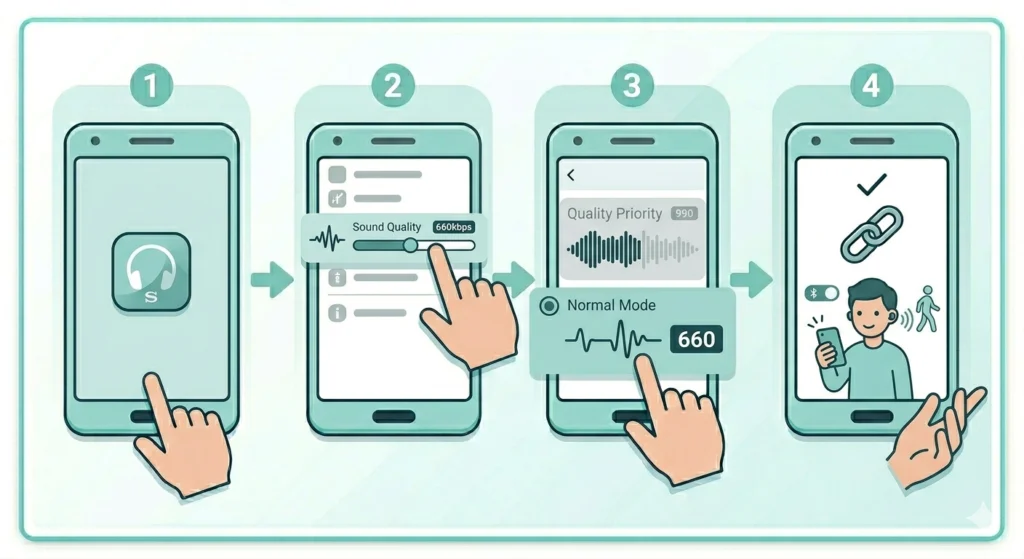
LDAC at 990kbps is demanding on the Bluetooth connection. Open the Sony Headphones Connect app and drop the quality mode to ‘Normal Mode’ (660kbps). If stuttering continues, move closer to the phone or reduce the number of active Bluetooth devices nearby. In some cases, simply toggling Bluetooth off and back on and reconnecting the earbuds resolves temporary instability.
Fix 3: LDAC Resets to SBC After Restarting the Phone
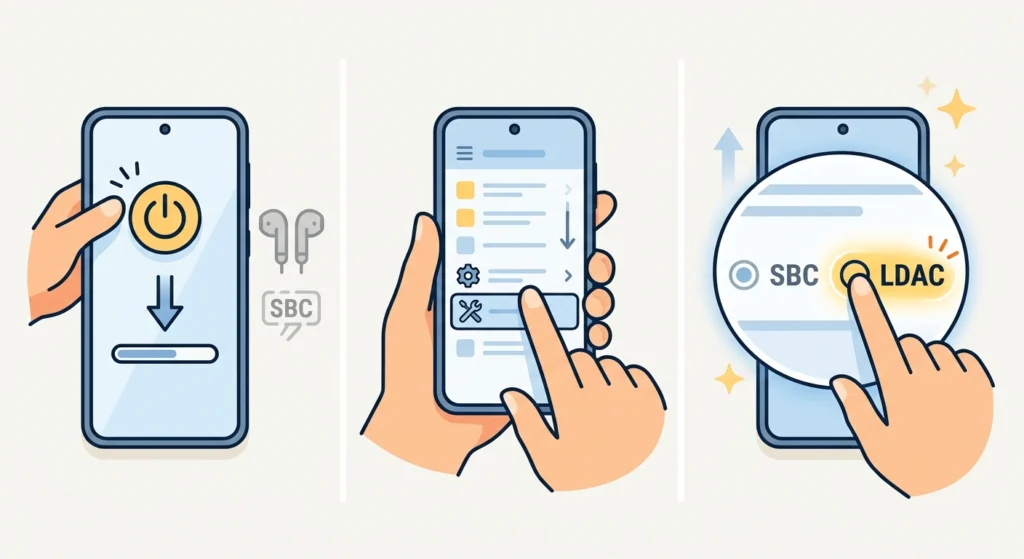
Some Android versions do not remember the codec selection after a reboot. After restarting, go back to Developer Options and re-select LDAC. This is a known Android behavior and not a fault with the earbuds. Checking if a software update is available for the phone may also resolve this, as some manufacturers have patched codec persistence in later Android builds.
Fix 4: LDAC Is Not Available on iPhone
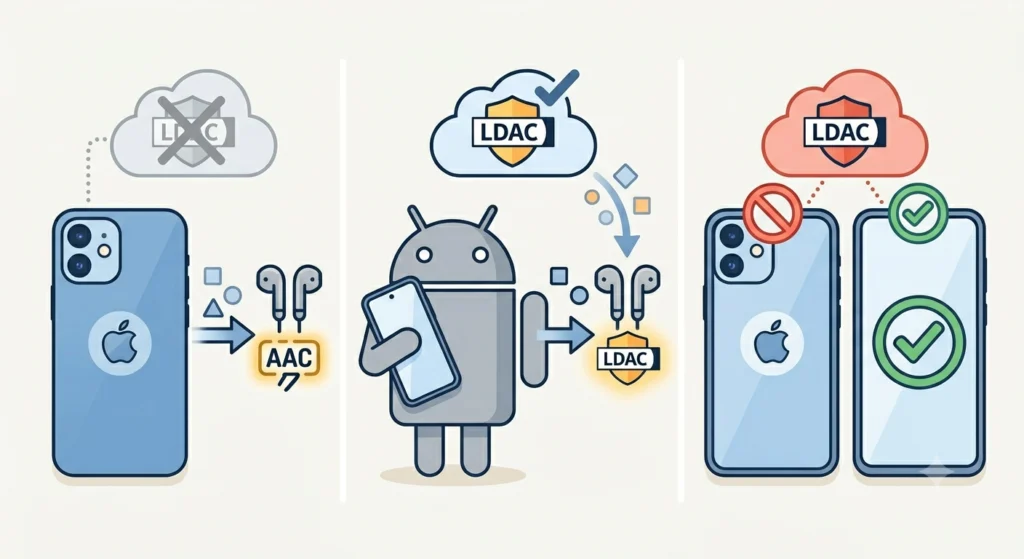
Apple devices use AAC as their highest quality Bluetooth codec. LDAC is a Sony and Android-supported codec and is not compatible with iOS. For iPhone users, the WF-1000XM5 will still deliver excellent audio via AAC, which Apple has optimised well on its devices. There is no workaround for enabling LDAC on iOS. If sound output on any connected system is behaving strangely, checking the audio input device settings can sometimes reveal conflicts causing the issue.
Frequently Asked Questions
Does the Sony WF-1000XM5 support LDAC?
Yes, the Sony WF-1000XM5 fully supports LDAC. It is one of the few truly wireless earbuds with this hi-res audio codec built in. LDAC must be manually activated through Android Developer Options.
Can LDAC be used with an iPhone?
No. LDAC is not supported on iOS or iPadOS. Apple devices connect to the WF-1000XM5 using AAC, which is the best available codec on iPhone. There is no way to enable LDAC on an Apple device.
What Android version is needed for LDAC?
Android 8.0 (Oreo) or later is required for LDAC support. Most modern Android phones running Android 10 or above support it without any issues. The option appears in Developer Options under Bluetooth Audio Codec.
Does LDAC drain battery faster on the WF-1000XM5?
LDAC can have a minor impact on battery life compared to SBC, as it processes more audio data per second. In real-world use, the difference is small – typically 30 minutes to 1 hour less playback time. Sony’s official battery ratings for the WF-1000XM5 are based on standard SBC playback.
What is the difference between LDAC and AAC on the WF-1000XM5?
LDAC transmits up to 990kbps of audio data, while AAC is capped at around 250kbps. This means LDAC carries significantly more audio information, which results in more detail, better instrument separation, and a wider soundstage – especially on high-resolution source files. For compressed streaming at 320kbps or lower, the difference is less dramatic.
Why does the audio codec reset to SBC after restarting?
Some Android builds do not save the codec preference persistently across reboots. This is a software limitation on certain devices. The fix is to re-select LDAC in Developer Options each time. Checking for a phone system update may resolve this, as some OEMs have addressed codec persistence in later firmware.
Can LDAC and ANC (Active Noise Cancellation) work at the same time?
Yes. LDAC controls the Bluetooth audio codec and ANC controls the microphone-based noise cancellation hardware. The two are independent systems and can run simultaneously without issues on the WF-1000XM5.
Is LDAC better than SBC or AAC for music?
For high-resolution audio files and lossless streaming services, LDAC is meaningfully better. It preserves more of the original recording’s detail. For standard Spotify or YouTube playback at 256-320kbps, the audible difference is smaller since the source material itself is compressed. The key is to pair LDAC with a high-quality audio source.
Does enabling Developer Options affect the phone in any negative way?
Enabling Developer Options itself does not harm the phone or void any warranty. It simply unlocks advanced settings. Avoid changing other options inside Developer Options unless familiar with what they do, as some settings can affect performance, battery life, or app behavior. Leaving all other options at their defaults is perfectly safe.
What streaming services support hi-res audio for LDAC?
Tidal (HiFi Plus), Amazon Music HD, Deezer HiFi, Qobuz, and Apple Music (on Android via AAC only) offer high-resolution or lossless audio. For LDAC to deliver its full benefit, the streaming quality should be set to the highest available tier within the app’s settings. Standard plans on these services may stream at lower bitrates that limit LDAC’s advantage.