
Quick Takeaways
- A firmware update that freezes is usually caused by low battery, a weak Bluetooth connection, or an interrupted app session.
- Keeping the headphones plugged in via USB-C during the update prevents most stalls.
- Force restarting the W820NB Plus and reopening the Edifier Connect app resolves the majority of stuck updates.
- Reinstalling the app clears corrupted update files that can cause repeated freezing.
- A factory reset is the last resort if the headphones remain unresponsive after other fixes.
An Edifier W820NB Plus stuck on a firmware update is a common hiccup, especially when the update happens over Bluetooth instead of a wired connection. The headphones might show a blinking light that never changes, or the Edifier Connect app might sit on a loading screen with no progress. This is rarely a sign of permanent damage. The fix below walks through the exact steps that get the update moving again without risking the hardware.
Step-by-Step Guide to Fix Edifier W820NB Plus Stuck on Firmware Update
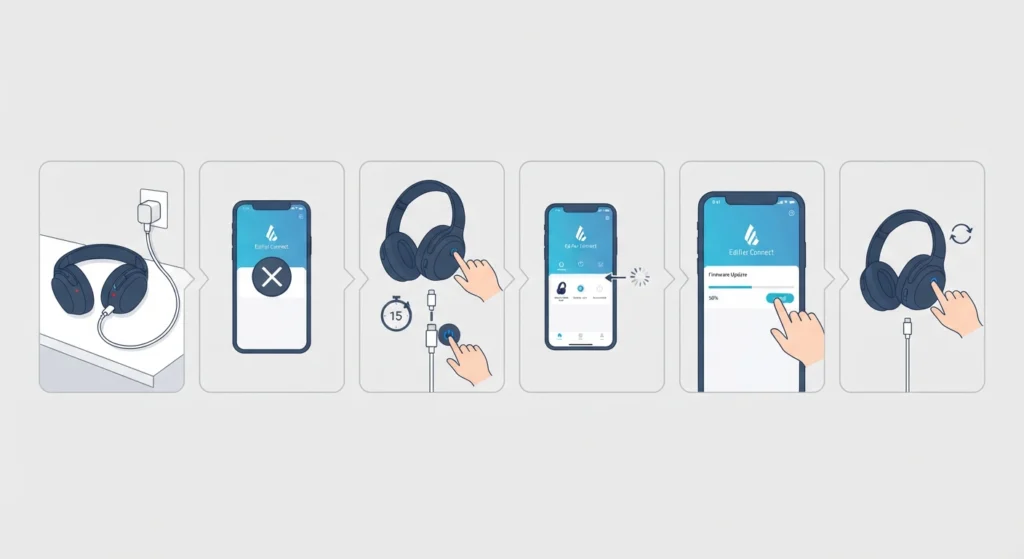
- Step 1: Connect the W820NB Plus to power using the included USB-C cable and let it charge for at least ten minutes before touching anything else.
- Step 2: Close the Edifier Connect app completely, not just minimize it, then remove it from recent apps on the phone or tablet.
- Step 3: Turn the headphones off using the power button, wait about fifteen seconds, then power them back on while still connected to the charger.
- Step 4: Reopen the Edifier Connect app and let it reconnect to the headphones before opening the firmware section again.
- Step 5: If a firmware update is still listed as pending, tap install again and leave the phone screen on and nearby until the progress bar completes.
- Step 6: Once the update finishes, restart the headphones one more time so the new firmware fully loads.
Pro-Tip: Never disconnect the headphones from power or walk out of Bluetooth range while an update is running. A firmware flash that gets interrupted midway is the single biggest reason these headphones end up unresponsive afterward.
Fix 2: Reinstall the Edifier Connect App
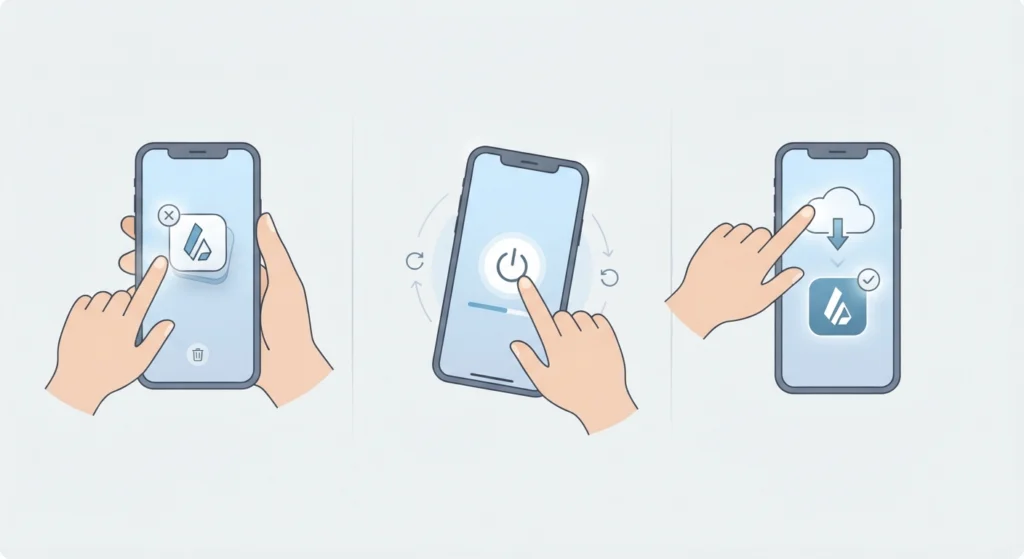
If the update is still frozen after the steps above, the app itself may be holding onto a corrupted download. Uninstall the Edifier Connect app entirely, restart the phone, then download it fresh from the App Store or Google Play. This clears any cached firmware files that failed partway through and forces the app to pull a clean copy of the latest update. Most people find that this second attempt completes without any further issues, since the stalled file is no longer sitting in the background.
Tips to Avoid Firmware Update Problems on the W820NB Plus
- Keep the phone’s Bluetooth turned on and stay within a few feet of the headphones during the entire update.
- Charge the headphones to at least 50 percent before starting any update, since low battery is one of the most frequent causes of a stalled flash.
- Close other Bluetooth-connected apps or devices that might compete for the connection while updating.
- Update one earcup fully before assuming the process is complete, since the app sometimes needs a moment to sync both sides.
Pro-Tip: Running the update on a strong Wi-Fi connection, rather than mobile data, helps the app download the firmware file faster and reduces the chance of a timeout mid-transfer.
Common Problems During the Firmware Update Process
A few issues tend to show up again and again with this model. The app sometimes reports that an update is available but never shows a progress bar, which usually points to a Bluetooth handshake issue rather than a real firmware problem. Other times, the headphones appear to finish updating but then will not reconnect for stereo sound afterward, which is fixed by removing the device from the phone’s Bluetooth list and pairing it again from scratch. On Windows machines, the headphones can also vanish from the list of playback devices right after an update, and adjusting the settings through the audio input device manager usually brings them back into view.
Frequently Asked Questions
Why does the Edifier W820NB Plus get stuck during a firmware update?
The most common causes are a low battery, a Bluetooth connection that drops mid-transfer, or a corrupted download inside the Edifier Connect app. All three are fixable without any tools.
Is it safe to force restart the W820NB Plus during a stuck update?
Yes, a power-button restart is safe once the update has clearly frozen with no progress for several minutes. It does not erase the firmware already installed on the headphones.
How long should a firmware update normally take?
Most updates finish within two to five minutes. If the progress bar has not moved in over ten minutes, treat it as stuck and follow the fix steps above.
Can a firmware update stall because of low battery?
Yes, this is one of the leading causes. Keeping the headphones plugged into USB-C power throughout the update prevents this from happening.
Does reinstalling the Edifier Connect app delete saved settings?
Reinstalling the app does not change the equalizer or ANC settings stored on the headphones themselves, since those live on the device, not inside the app.
What happens if the headphones will not turn on after a failed update?
Plug them into a charger for at least thirty minutes, since a drained battery during an interrupted update can temporarily make the headphones appear unresponsive.
Do the headphones need to be close to the phone during an update?
Yes, staying within a few feet keeps the Bluetooth connection stable, which lowers the chance of the update stalling partway through.
Will a factory reset fix a stuck firmware update?
A factory reset can help if other steps fail, since it clears stored pairing and connection data that might be interfering with the update process.
Can outdated phone software cause the update to freeze?
Yes, an outdated operating system on the phone can cause compatibility issues with the Edifier Connect app. Updating the phone’s software before retrying often resolves this.
Is it normal for the app to show no update available right after a stuck update?
Yes, once an update installs successfully, the app will no longer list it as pending. This confirms the firmware update actually completed.