
When the Edifier W820NB Plus produces no sound in wired mode, the cause is usually a cable, volume, or output setting rather than a faulty pair of headphones. This guide walks through the quickest checks in the right order, so audio can be back in a couple of minutes.
Key Takeaways
- Use the cable that came in the box. Edifier’s manual warns that other cables may have compatibility issues.
- Plug the small end into the USB-C port on the headphones, then connect the other end to the audio source.
- Wired listening switches Bluetooth off automatically, so audio only travels through the cable.
- On a Windows PC, the headphones must be selected as the active output device.
- Check the volume on both the headphones and the device.
Step-by-Step Guide to Restore Sound in Wired Mode
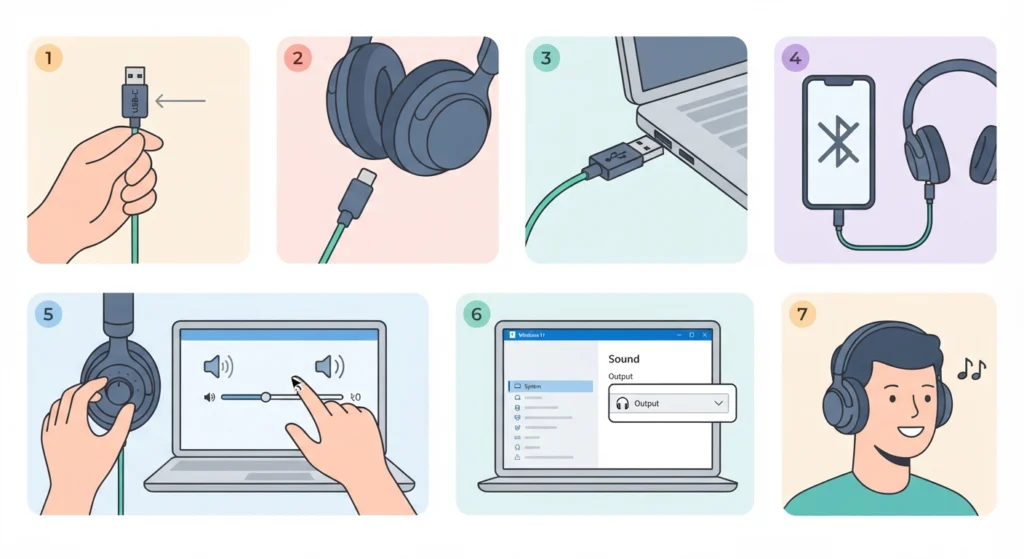
- Step 1: Grab the audio cable that shipped with the headphones. Third-party cables can look identical but may not work properly with this model.
- Step 2: Push the small end firmly into the USB-C port on the headphones. A loose connection is one of the most common reasons for silence.
- Step 3: Connect the other end to the USB-A port on the PC or other audio source, as described in the manual for connecting to a PC as wired headphones.
- Step 4: Remember that Bluetooth is disabled automatically once wired listening starts. If the headphones were still connected to a phone or laptop over Bluetooth, that device will no longer be sending audio to them.
- Step 5: Raise the volume on the headphones and on the PC. A volume slider sitting at zero looks exactly like a hardware fault.
- Step 6: On Windows 11, open Settings, then System, then Sound, and choose the headphones under Output. The guide on adjusting audio output settings shows where to find this menu.
- Step 7: Play a song or video and confirm that sound now comes through the ear cups.
Pro-Tip: Windows often keeps sending audio to the speakers or a previously used Bluetooth device even after a cable is plugged in. Always confirm the output device in Sound settings instead of assuming the PC switched automatically.
Common Problems and Quick Fixes
Fix 1: Try a Different USB Port
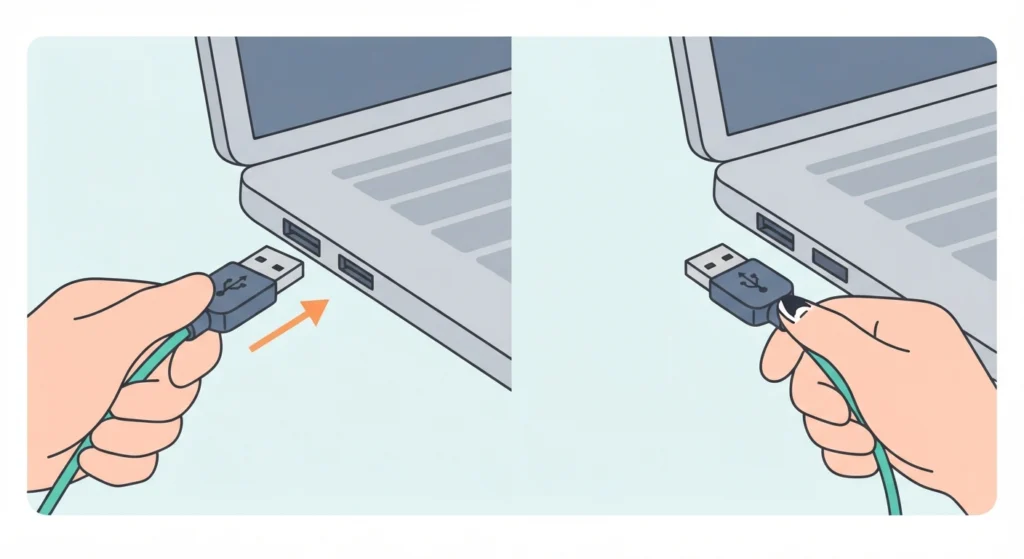
Move the cable to another USB-A port on the computer. This quickly rules out a faulty or underpowered port, especially on front-panel ports of desktop PCs.
Fix 2: Reset Windows Audio Settings
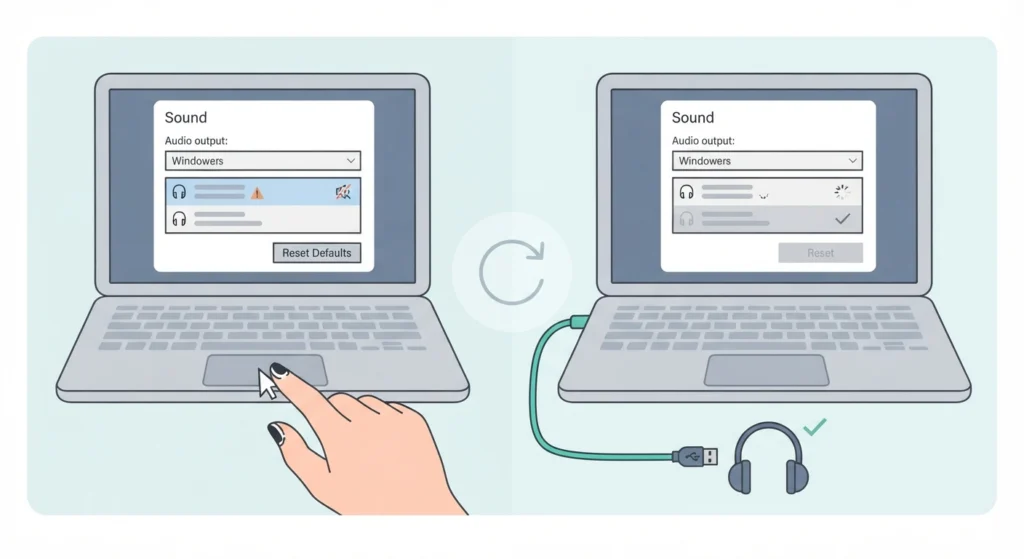
If the headphones appear in the list but stay silent, corrupted audio preferences can be the culprit. The walkthrough on resetting audio settings restores the defaults, after which the headphones can be selected again as the output.
Fix 3: Make Sure the Headphones Have Battery
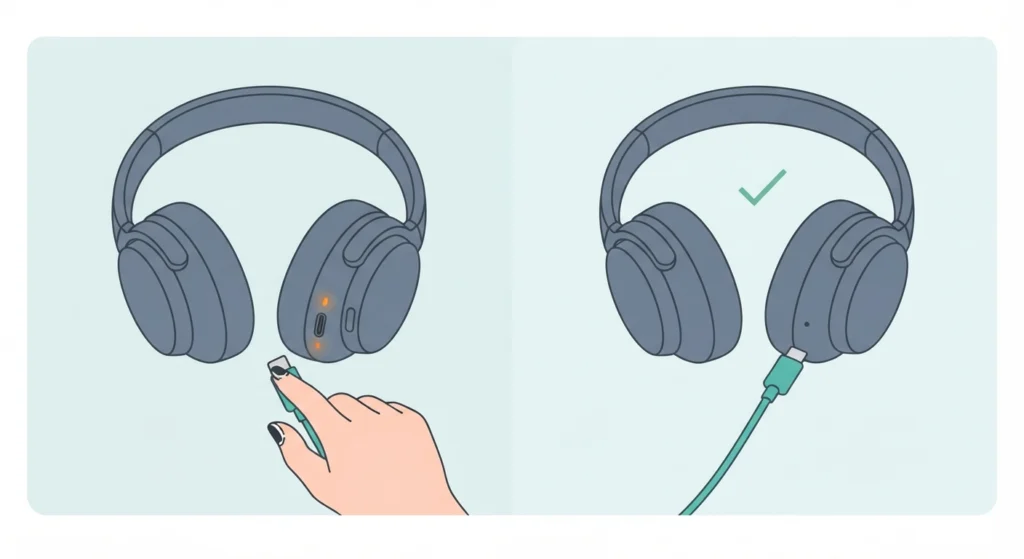
Edifier lists a drained battery as a common reason for no response. Charge the headphones with the included USB-C cable. The LED stays orange while charging and turns off when the battery is full.
Fix 4: Test with Another Device
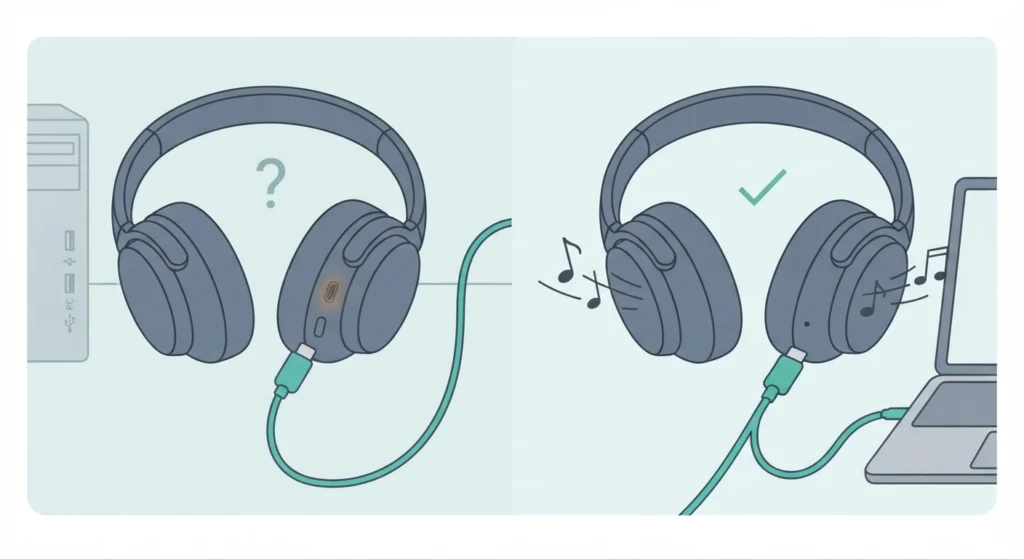
Connect the same cable and headphones to a different computer. If sound works there, the original device settings are the problem. If the silence continues, the cable is the next thing to swap out.
Tips to Avoid Wired Mode Problems
- Keep the original cable in the carry pouch so it does not get replaced by a random cable from a drawer.
- Make sure the USB-C port stays clean and dry. Edifier advises against connecting power when moisture or sweat is inside the port.
- Unplug and reconnect the cable after changing audio devices on the PC, so Windows registers the headphones again.
Pro-Tip: After plugging in, check the volume on the headphones first. Many people only raise the PC volume and never notice that the headphones themselves are turned down.
Frequently Asked Questions
Why is there no sound from the Edifier W820NB Plus when using the cable?
The most common reasons are a loose connection, a non-original cable, low volume, or the wrong output device selected on the PC. Working through the steps above in order covers all of these.
Does wired mode turn off Bluetooth on the W820NB Plus?
Yes. According to Edifier’s manual, wired listening disables Bluetooth mode automatically.
Which cable should be used for wired listening?
The cable included in the box. The manual recommends it because other cables may have compatibility issues that stop them from working properly.
Which port on the headphones does the cable connect to?
The USB-C port on the headphones. The other end connects to the audio source, and the manual shows a USB-A port on the PC.
Why does Windows 11 show the headphones but play no sound?
Windows may still be sending audio to a different output device. Open Sound settings and set the headphones as the active output, then check that the volume is not muted.
Does the battery need to be charged for wired listening?
A depleted battery is listed among common issues, so charging the headphones first is a sensible check. Use the included USB-C cable and wait until the orange LED turns off.
Can another USB port fix the silence?
It can. Switching to a different USB-A port helps rule out a port-specific problem on the computer.
What if the sound works on another device but not on the PC?
That points to a Windows audio setting rather than the headphones. Reset the audio settings and select the headphones as the output device again.
Should the headphones be disconnected from other Bluetooth devices first?
It is not required, since Bluetooth is disabled automatically in wired mode. Still, keeping nearby devices from interfering makes it easier to confirm that sound is coming through the cable.
Where can the volume be adjusted on Windows 11?
Use the speaker icon in the taskbar or open Settings, then System, then Sound. The volume slider for the selected output device is right there.