
Edifier NeoBuds Pro 2 not showing up in the app is a common hiccup that catches many new owners off guard, especially right after unboxing. The earbuds pair with a phone through Bluetooth just fine, yet the Edifier Connect app refuses to detect them, leaving the equalizer, ANC controls, and firmware options out of reach. This guide breaks down the exact fixes that resolve the issue, in the order that works best for most setups.
- Update the Edifier Connect app before doing anything else, since outdated versions often fail to detect newer earbud models.
- Android devices need Bluetooth and Location permissions turned on for the app to scan and find the earbuds.
- A manual reset of the NeoBuds Pro 2 clears old pairing records and solves detection issues in most cases.
- Removing the earbuds from the phone’s Bluetooth list and re-pairing them fixes conflicts left behind by a previous connection.
- Restarting Bluetooth or reinstalling the app resolves the problem when nothing else does.
Step-by-Step Guide to Fix Edifier NeoBuds Pro 2 Not Showing Up in the App
The steps below follow a logical order, starting with the simplest fix and moving toward deeper resets. Most people find that the earbuds show up in the app after the first two or three methods, so there is no need to jump straight to a full reset unless the earlier steps do not work.
Method 1: Update the Edifier Connect App and Check Compatibility
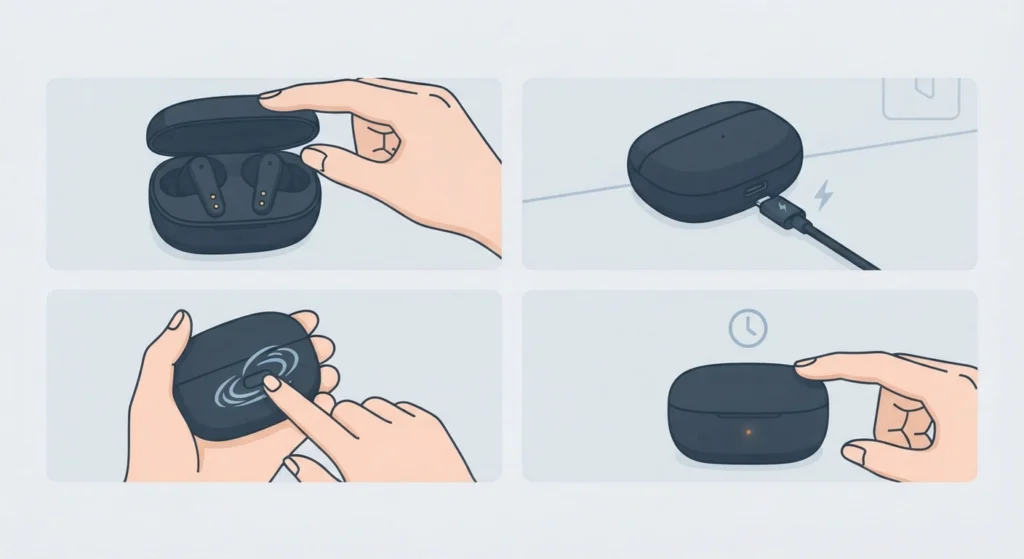
An outdated app version is the single most common reason the NeoBuds Pro 2 fails to appear. Edifier regularly pushes updates to add support for newer earbud models, and a version that predates the Pro 2 release simply will not recognize the device.
- Step 1: Open the App Store on iPhone or the Google Play Store on Android.
- Step 2: Search for ‘Edifier Connect’ and check if an update button appears.
- Step 3: Install the latest version and fully close the app before reopening it.
- Step 4: Launch the app again and check if the earbuds now appear on the home screen.
Pro-Tip: Always confirm the app being used is the official ‘Edifier Connect’ app and not an older, discontinued Edifier app still sitting on the phone from a previous product. Having two similar apps installed at once is a frequent cause of confusion and failed detection.
Method 2: Grant Bluetooth and Location Permissions
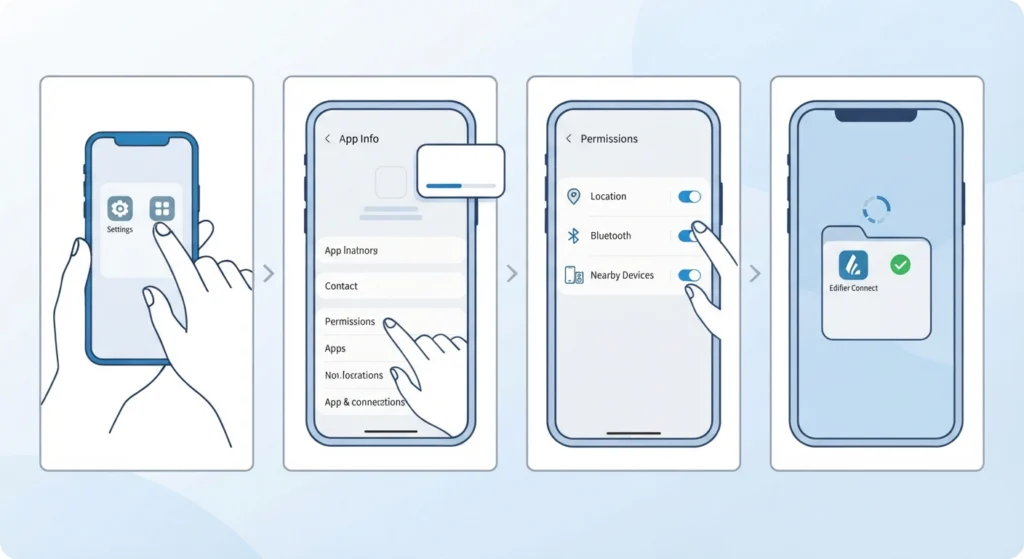
Android relies on Bluetooth Low Energy scanning to detect nearby accessories, and that scanning requires Location permission to be enabled for the app. This is a system-level requirement from Android itself, not something specific to Edifier, so skipping this step leaves the app blind to the earbuds even when Bluetooth is technically connected.
- Step 1: Open the phone’s Settings app and go to Apps, then select Edifier Connect.
- Step 2: Tap Permissions and make sure Location is set to ‘Allow’ or ‘While using the app’.
- Step 3: Confirm Bluetooth and Nearby Devices permissions are also switched on.
- Step 4: Reopen Edifier Connect and give it a few seconds to scan for the earbuds.
On iPhone, this step usually is not required, since Apple handles Bluetooth permissions differently. iOS users who are still stuck should move on to the reset method below.
Method 3: Perform a Manual Reset on the NeoBuds Pro 2
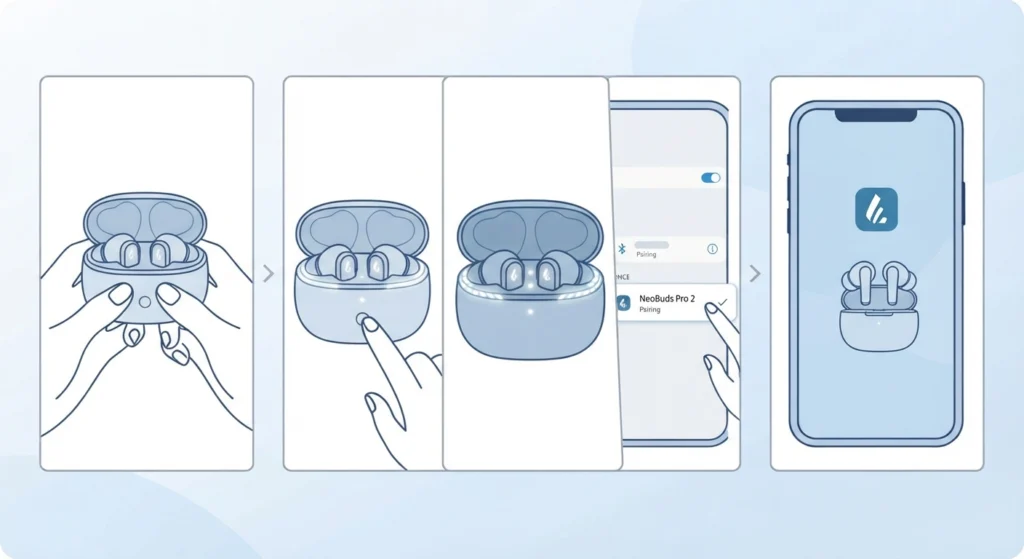
A reset clears any corrupted pairing data stored on the earbuds themselves, which is often the actual root cause when the app sees nothing at all. This works best when the earbuds have already been connected to another device before, such as a laptop, since leftover pairing records tend to confuse the app.
- Step 1: Place both earbuds in the charging case and keep the case lid open.
- Step 2: Press the button on the case three times in a row.
- Step 3: Watch for the LEDs to light up one by one from the sides toward the center, then blink twice, which confirms the reset finished successfully.
- Step 4: Go to the phone’s Bluetooth settings, select ‘EDIFIER NeoBuds Pro 2’ from the list, and reconnect.
- Step 5: Open Edifier Connect and check whether the earbuds now show up.
Method 4: Remove the Device and Re-Pair From Scratch
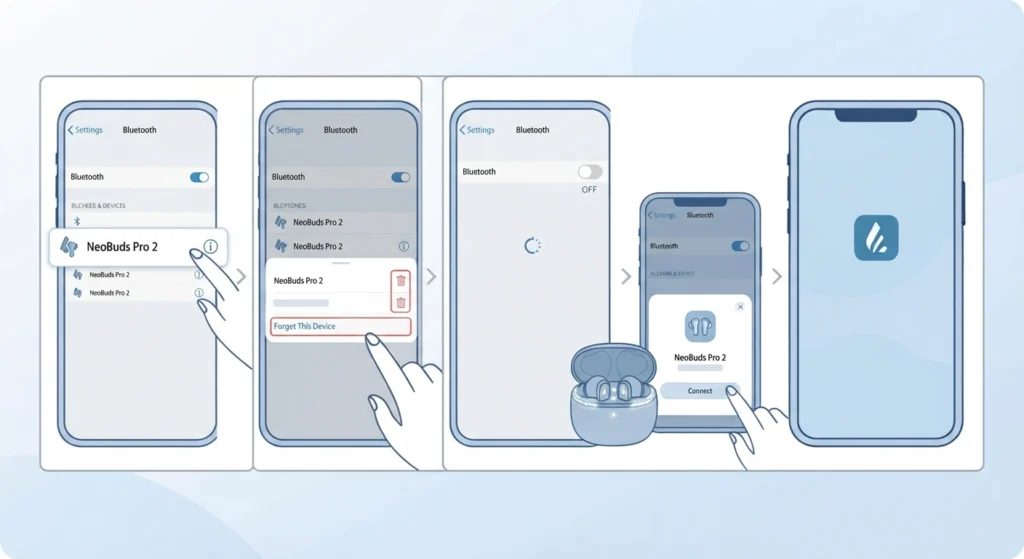
Sometimes the phone holds onto a broken Bluetooth profile even after a reset on the earbud side. Removing the saved connection and starting fresh clears that out completely.
- Step 1: Open Bluetooth settings on the phone and find ‘EDIFIER NeoBuds Pro 2’ in the paired devices list.
- Step 2: Tap the device and select ‘Forget This Device’ or ‘Unpair’.
- Step 3: Turn Bluetooth off, wait about ten seconds, then turn it back on.
- Step 4: With the earbuds in the open case next to the phone, wait for the pairing pop-up and tap to connect.
- Step 5: Open Edifier Connect once the connection is confirmed in Bluetooth settings.
Anyone who regularly switches these earbuds between a phone and a laptop should also look into how to re-pair Bluetooth earbuds for stereo sound on Windows, since a broken profile on one device can sometimes carry over quirks that affect pairing on another.
Method 5: Restart Bluetooth Services or Reinstall the App
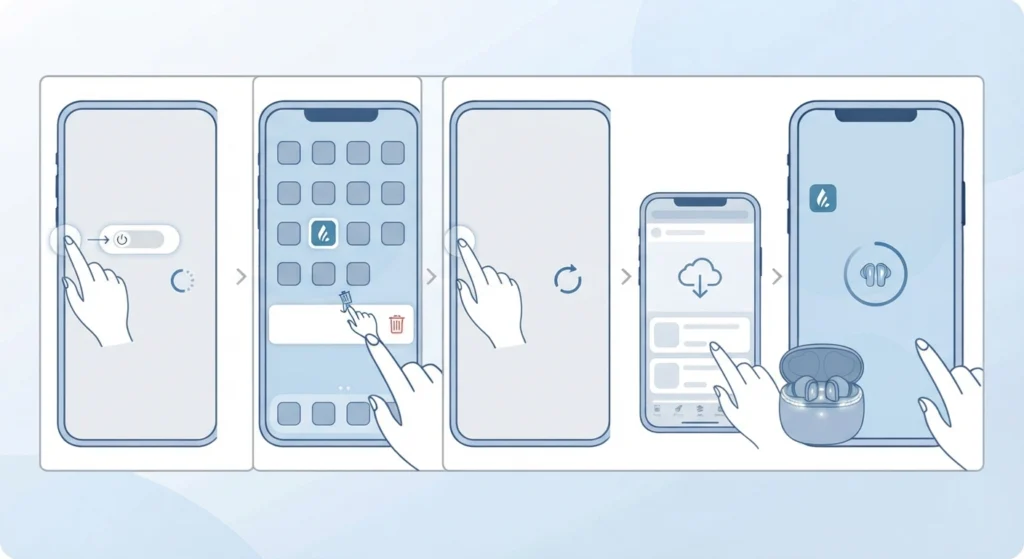
When none of the earlier methods work, the issue is usually sitting at the software level rather than the hardware. A full restart of the phone’s Bluetooth stack, or a clean reinstall of the app, tends to clear whatever cache or background process is blocking detection.
- Step 1: Restart the phone completely, not just the Bluetooth toggle.
- Step 2: Uninstall the Edifier Connect app.
- Step 3: Restart the phone a second time after uninstalling.
- Step 4: Reinstall Edifier Connect from the App Store or Play Store and open it fresh.
- Step 5: Place the earbuds in the open case near the phone and let the app scan again.
Tips to Keep the NeoBuds Pro 2 Connected to the App
A few small habits go a long way toward avoiding this problem altogether after the first fix.
- Keep the Edifier Connect app updated automatically through the App Store or Play Store settings.
- Charge the case regularly, since a low battery on the case can interfere with how reliably the earbuds broadcast their Bluetooth signal.
- Avoid connecting the earbuds to more than one device at the same time unless multipoint is intentionally being used, as this can create the exact pairing conflicts that block app detection.
- Keep the phone’s Bluetooth and Location permissions enabled for the app rather than toggling them off between uses.
Pro-Tip: On Windows 11 laptops, similar detection issues are usually tied to driver or permission settings rather than the earbuds themselves. A quick look at managing audio input devices on Windows 11 can clear up related connection quirks when using the NeoBuds Pro 2 as a desktop headset.
Common Problems When Fixing App Detection
A few related issues tend to show up alongside the main problem, and each has a straightforward explanation.
- Only one earbud is detected by the app: this usually points to a left-right sync issue, which the reset in Method 3 resolves by clearing the pairing records for both earbuds at once.
- The app opens but stays stuck on a loading screen: this is typically a permissions issue on Android, so revisiting Method 2 usually clears it.
- The earbuds connect for audio but the app still shows ‘no device found’: this points to the Bluetooth profile being separate from the app’s own scanning process, which Method 4 addresses directly.
- The app crashes immediately after opening: this is almost always tied to a corrupted install, which the reinstall in Method 5 fixes.
Frequently Asked Questions
Why does the Edifier Connect app not detect the NeoBuds Pro 2 even after pairing works?
The app relies on a separate Bluetooth Low Energy scan on top of the standard audio connection. Even when music plays normally, the app-level scan can fail if permissions are missing or the app version is outdated.
Does the NeoBuds Pro 2 need a specific app, or does any Edifier app work?
The NeoBuds Pro 2 works exclusively with the Edifier Connect app. Older Edifier apps built for previous earbud models do not support this device.
Is the Edifier Connect app available on both iPhone and Android?
Yes, Edifier Connect is available on both the App Store for iPhone and the Google Play Store for Android.
How long does it take to reset the NeoBuds Pro 2?
The reset process itself takes under a minute. Holding the case button for three presses and watching the LED pattern confirm the reset is the entire process.
Why does Android specifically ask for Location permission just to find earbuds?
Android ties Bluetooth Low Energy scanning to Location permission at the operating system level. This applies to nearly all Bluetooth accessory apps, not just Edifier Connect, and is not something Edifier controls.
What if the earbuds show up in phone Bluetooth settings but not in the app?
This means the audio connection is working but the app’s own device scan is not completing. Re-checking app permissions or forgetting and re-pairing the device typically resolves it.
Can old firmware cause the app detection issue?
Outdated firmware on the earbuds themselves is less common as a cause compared to app or permission issues, but keeping firmware updated through the app once detection is restored helps prevent future connection problems.
Will resetting the earbuds delete the equalizer settings saved in the app?
Resetting the earbuds clears the Bluetooth pairing records only. Equalizer presets and other settings saved within the Edifier Connect app profile are not affected by an earbud-side reset.
Does using the NeoBuds Pro 2 with a laptop affect app detection on the phone?
Switching between devices can occasionally leave a stale connection profile behind, which sometimes affects how quickly the app detects the earbuds on the next device. Following the re-pairing steps clears this in most cases.
What should be tried first if the app was working before but suddenly stopped detecting the earbuds?
Start by checking for a pending app update first, then move on to clearing any pairing conflict that built up over time. This order resolves the issue for most people without needing a full earbud reset.