
Dyson Zone headphones not turning on is one of the most frustrating issues users run into – especially when the headphones are fully charged or were working just fine the day before. The good news is that most of the time, the fix is straightforward. This guide covers the exact steps to get the Dyson Zone powered back up, from the simplest quick wins to the more thorough reset methods.
Quick Summary
- Check and reseat the USB-C charging cable before anything else
- Charge for at least 30 minutes using the official Dyson cable and adapter
- Perform a soft reset by holding the power button for 10 seconds
- Try a full factory reset using the button combination on the headphones
- Inspect the charging port for debris or damage
- Update firmware via the MyDyson app once the headphones power on
- Contact Dyson support if none of the above resolves the issue
Step-by-Step: How to Fix Dyson Zone Headphones Not Turning On
Fix 1: Charge the Headphones Properly Before Anything Else
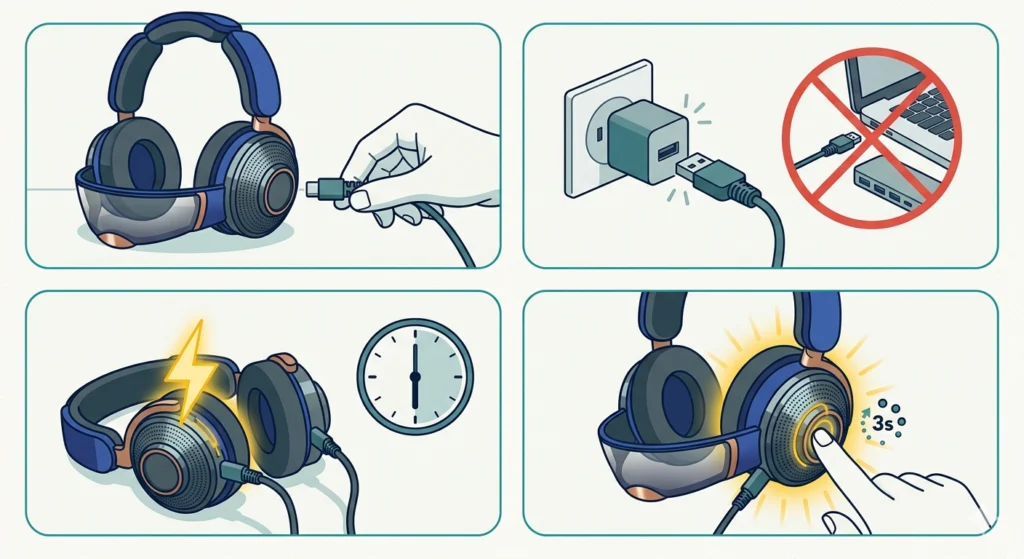
Before jumping to complex fixes, always start with charging. A deeply discharged battery can make the Dyson Zone appear completely dead even when nothing is actually wrong with the headphones.
- Step 1: Connect the Dyson Zone to a power source using the original USB-C cable that came in the box.
- Step 2: Plug the other end into a wall adapter – not a laptop USB port or a low-power hub. The Dyson Zone requires a reliable power source to charge properly.
- Step 3: Leave the headphones to charge for a minimum of 30 minutes without interruption.
- Step 4: After 30 minutes, press and hold the power button for 3 seconds to attempt turning them on.
This works best when the cable is fully seated in both the headphone port and the adapter. A loose connection is more common than most people expect and can silently prevent charging.
Fix 2: Inspect the Charging Port and Cable
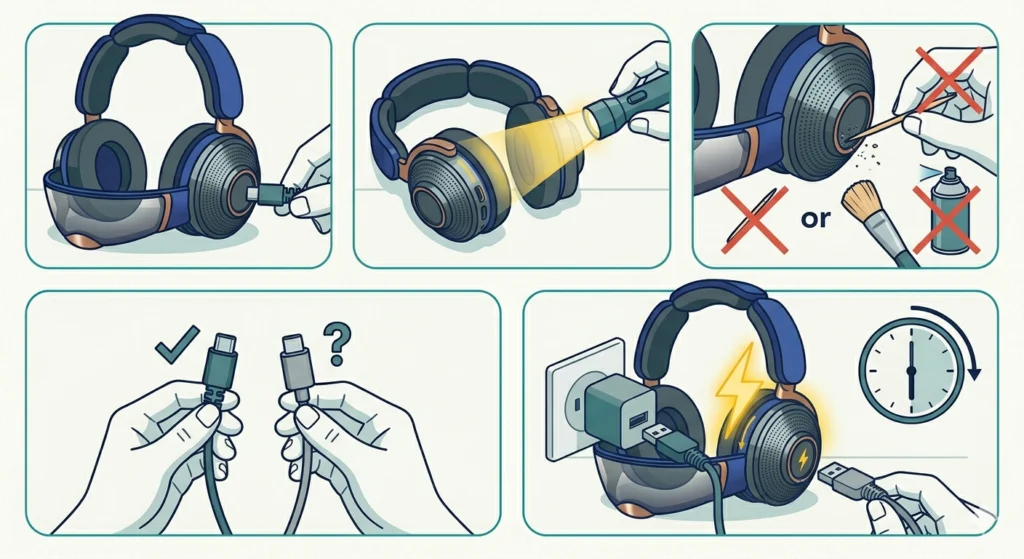
Debris or a damaged USB-C port can block charging entirely. The key is to do a quick visual inspection before assuming there is a deeper problem.
- Step 1: Remove the USB-C cable from the Dyson Zone.
- Step 2: Use a flashlight to look inside the charging port on the headphones. Look for lint, dust, or any foreign object sitting in the port.
- Step 3: If there is debris, use a dry toothpick or a soft brush to gently remove it. Never use metal objects or compressed air directly into the port.
- Step 4: Try a different USB-C cable that is known to work with another device to rule out a faulty cable.
- Step 5: Reconnect and attempt charging again for at least 30 minutes.
Most people find that a clogged port is the silent culprit in many ‘dead’ headphone situations. It takes less than a minute to check and can save a lot of time.
Fix 3: Perform a Soft Reset on the Dyson Zone
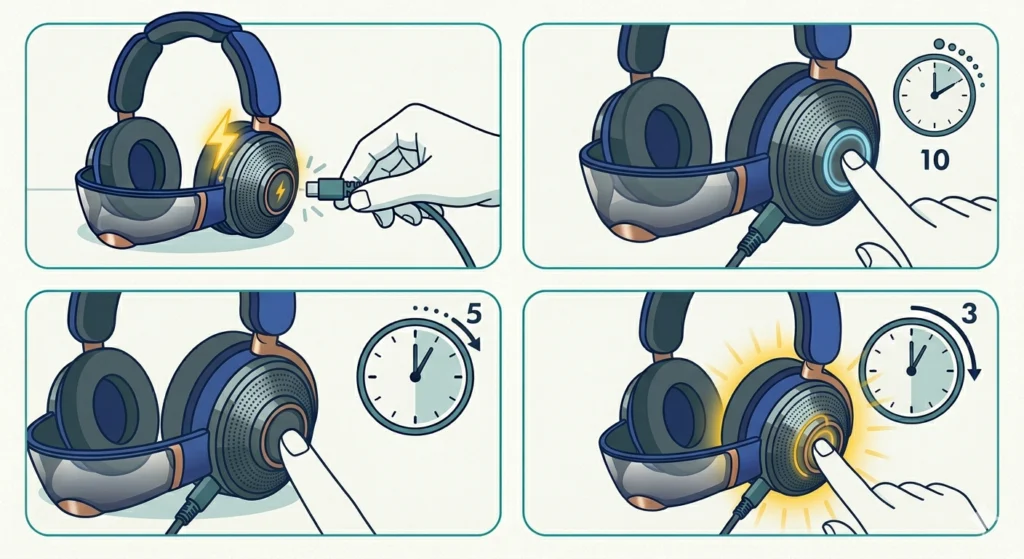
If the Dyson Zone still will not power on after charging, a soft reset is the next logical step. This clears any temporary firmware hang that could be preventing the power button from responding.
- Step 1: Make sure the headphones are connected to a charging cable during this process.
- Step 2: Press and hold the power button on the right ear cup for at least 10 seconds.
- Step 3: Release the button and wait 5 seconds.
- Step 4: Press the power button again normally (3 seconds) to try turning the headphones on.
A soft reset does not erase any pairing or settings – it simply restarts the internal processor. Think of it like a forced restart on a frozen phone.
Pro-Tip: Always keep the headphones plugged in during a soft reset. If the battery is critically low, the reset will not complete successfully without a power source.
Fix 4: Perform a Factory Reset on the Dyson Zone
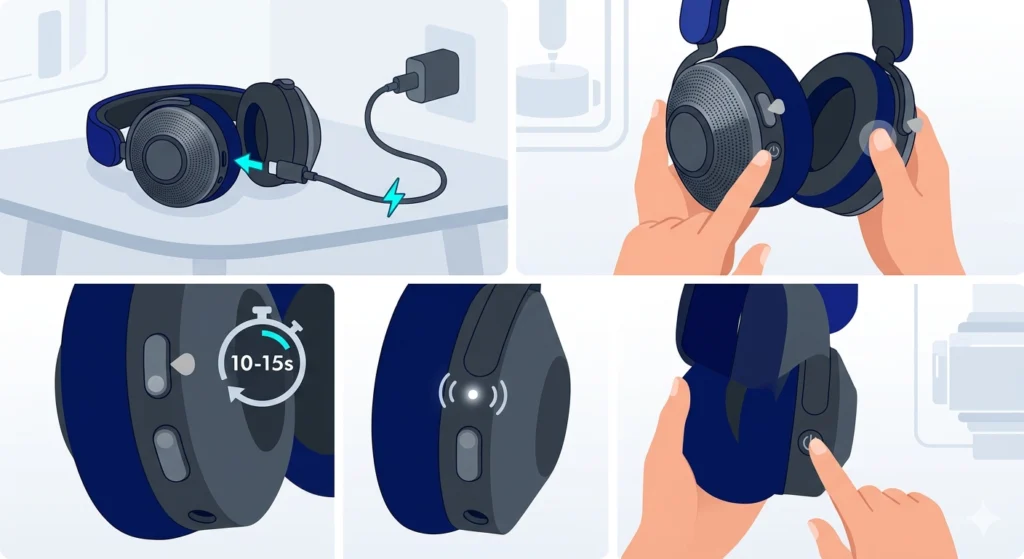
A factory reset is more thorough than a soft reset. It wipes all saved settings and Bluetooth pairings, restoring the headphones to their original out-of-box state. This resolves deeper firmware issues that a soft reset cannot address.
- Step 1: Plug the Dyson Zone into a charger.
- Step 2: Simultaneously press and hold the power button and the noise cancellation button together.
- Step 3: Hold both buttons for approximately 10 to 15 seconds.
- Step 4: Release both buttons when the LED indicator light changes color or blinks – this signals the reset is complete.
- Step 5: Wait a few seconds, then press the power button to turn the headphones on.
After a factory reset, the Dyson Zone will need to be paired with devices again from scratch. This is normal and expected behavior.
Fix 5: Update the Dyson Zone Firmware
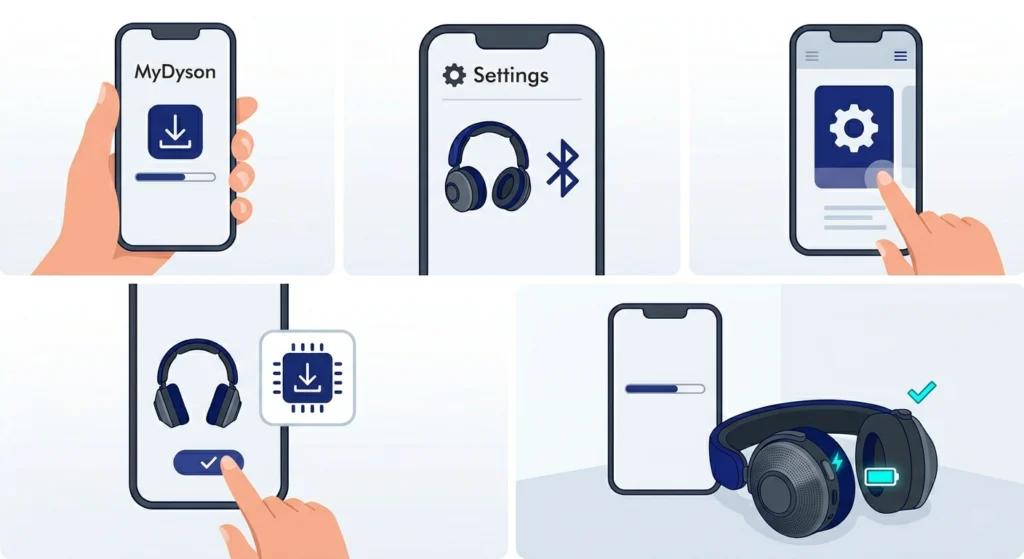
Outdated firmware can cause the Dyson Zone to behave erratically or fail to power on consistently. Once the headphones are powered on using any of the steps above, updating the firmware should be a priority to prevent the issue from returning.
- Step 1: Download and open the MyDyson app on a smartphone.
- Step 2: Connect the Dyson Zone to the phone via Bluetooth.
- Step 3: Navigate to the device settings within the app.
- Step 4: If a firmware update is available, follow the on-screen prompts to install it.
- Step 5: Keep the headphones charged and near the phone throughout the update process.
Firmware updates usually take only a few minutes. Do not power off the headphones or disconnect Bluetooth during the update.
Pro-Tip: After updating the firmware, restart the headphones once more by holding the power button for 3 seconds to ensure the update is fully applied.
Fix 6: Check for Physical Damage
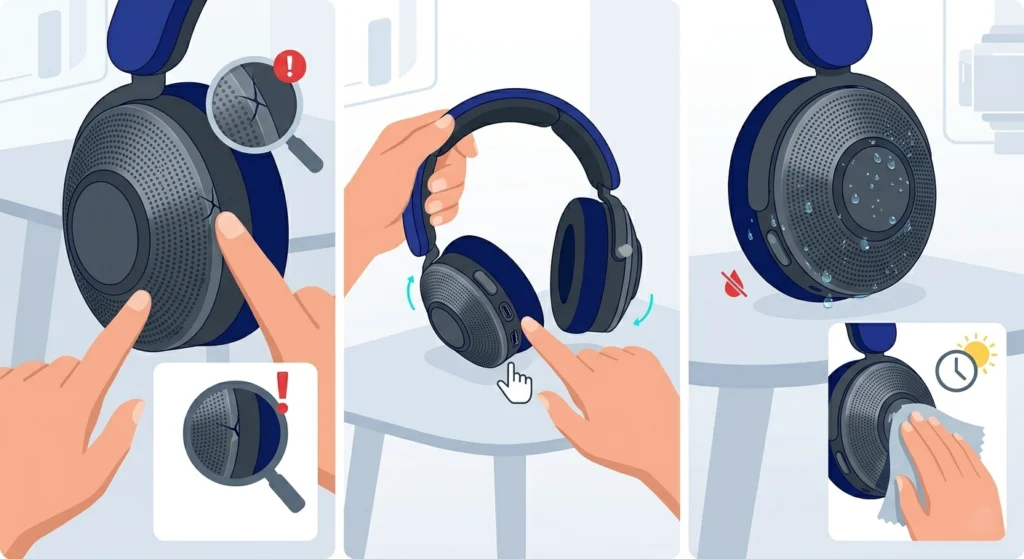
Physical damage to the headphones – such as a cracked battery compartment, water damage from moisture exposure, or a bent charging port – can permanently prevent the Dyson Zone from powering on. Carefully inspect the exterior of both ear cups and the headband for any visible cracks or impact damage.
If the headphones were exposed to heavy rain, sweat, or any form of liquid, let them sit in a dry, well-ventilated area for 24 to 48 hours before attempting to turn them on again. The Dyson Zone is not rated for heavy water resistance, so moisture ingress is a real risk.
Fix 7: Contact Dyson Support or Request a Warranty Check
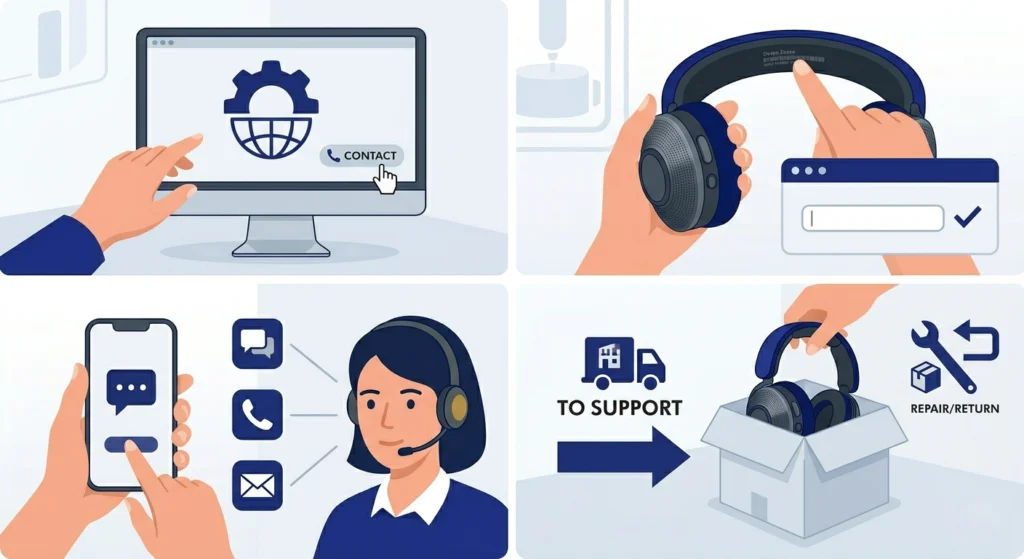
If all the steps above have been completed and the Dyson Zone still refuses to power on, the issue is likely hardware-related. Dyson offers a manufacturer warranty on the Zone, and the support team can run diagnostics or arrange a repair or replacement if the unit is defective.
- Step 1: Visit the official Dyson website and navigate to the support section.
- Step 2: Enter the serial number of the Dyson Zone to check warranty status.
- Step 3: Contact support via live chat, phone, or email to describe the issue and steps already taken.
- Step 4: Follow the return or repair process as directed by the support team.
Tips for Keeping Dyson Zone Headphones Working Properly
- Always store the Dyson Zone in the provided case when not in use to prevent physical damage.
- Charge the headphones at least once every 30 days if they are going into long-term storage – lithium batteries degrade faster when left fully depleted.
- Use only the original Dyson USB-C cable or a high-quality replacement with the correct wattage rating.
- Keep the MyDyson app updated alongside the headphone firmware to maintain compatibility.
- Avoid exposing the Dyson Zone to extreme temperatures – both high heat and freezing cold can affect battery performance and cause startup failures.
- If Bluetooth pairing issues appear after getting the headphones back on, this guide on re-pairing Bluetooth headphones for stereo sound on Windows is a helpful reference.
Common Problems Related to Dyson Zone Not Turning On
Dyson Zone Turns On but Has No Sound
If the headphones power on but produce no audio, the issue is likely a Bluetooth connection problem or an incorrect audio output setting on the connected device. On Windows 11, checking and adjusting audio output settings is a quick way to rule out a software-side issue before assuming the headphones are at fault.
Dyson Zone LED Blinks But Won’t Turn On Fully
A blinking LED without the headphones fully booting usually points to critically low battery. Charge for at least 45 minutes before retrying. If the LED blinks in a specific pattern (for example, red flashes), refer to the Dyson Zone manual for error code interpretations.
Dyson Zone Powers On Then Immediately Shuts Off
This is typically a battery health issue or a firmware bug. Perform a factory reset first. If the problem persists after the reset and a firmware update, the battery may need professional replacement. Dyson support can advise on service options for this scenario.
Dyson Zone Not Detected After Powering On
If the headphones power on but no device can detect them via Bluetooth, a factory reset usually resolves it. After the reset, put the headphones into pairing mode by holding the power button until the LED flashes white.
Frequently Asked Questions
Why won’t my Dyson Zone headphones turn on even when charged?
A deeply discharged battery can prevent the Dyson Zone from responding even after a short charging session. Try charging for at least 30 to 45 minutes with the official cable plugged into a wall adapter, then attempt a soft reset by holding the power button for 10 seconds. If it still does not respond, a factory reset is the next step.
How do you force restart Dyson Zone headphones?
Hold the power button on the right ear cup for 10 full seconds without releasing it. After releasing, wait 5 seconds and then press the power button again normally for 3 seconds to turn the headphones back on. This acts as a forced restart and clears temporary software hangs.
How long does it take to charge Dyson Zone headphones from completely dead?
From a completely dead state, the Dyson Zone typically takes around 3 hours to reach a full charge. A minimum of 30 minutes is needed before the headphones will have enough power to attempt a startup. Always use the provided USB-C cable and a proper wall adapter for the best charging speed.
Will a factory reset fix Dyson Zone not turning on?
In many cases, yes. A factory reset clears firmware errors and software-level issues that can prevent the headphones from powering on. However, if the problem is physical – such as a damaged battery or a faulty charging port – a reset will not resolve it and professional servicing will be required.
Can water damage cause Dyson Zone headphones not to turn on?
Yes. The Dyson Zone is not fully waterproof, and exposure to heavy moisture can damage the internal components, including the battery management system. If the headphones got wet, let them dry naturally in a well-ventilated area for 24 to 48 hours before attempting to power them on.
How do you reset Dyson Zone headphones without turning them on?
Press and hold the power button and the noise cancellation button at the same time for 10 to 15 seconds while the headphones are connected to a charger. The LED indicator will change or blink to confirm the reset. This process does not require the headphones to be on beforehand.
What does it mean when the Dyson Zone LED blinks red?
A red blinking LED typically indicates a critically low battery level. Connect the headphones to a charger immediately and wait at least 30 minutes before trying to power them on. If the red blinking continues even after extended charging, there may be a battery fault that requires Dyson support assistance.
Is there a warranty for Dyson Zone headphones that won’t power on?
Yes. Dyson provides a manufacturer warranty on the Zone headphones. If the headphones will not turn on and none of the troubleshooting steps resolve the issue, contact Dyson support with the serial number to check warranty eligibility and arrange a repair or replacement.
Does using a third-party USB-C cable affect Dyson Zone charging?
It can. The Dyson Zone is designed to charge optimally with the included cable and a suitable USB-C power adapter. Some third-party cables with lower wattage ratings or poor build quality may charge the headphones very slowly or not at all. Always use a quality cable rated for the correct wattage when the original is unavailable.
Why does the Dyson Zone turn on and then immediately shut off?
This usually happens due to either a firmware bug or a deteriorating battery that can no longer hold a stable charge. Start with a factory reset and firmware update via the MyDyson app. If the issue continues after that, the battery may need to be professionally serviced or replaced by Dyson.