
Customizing Bose QuietComfort Ultra earbud controls takes only a few minutes inside the Bose app, and the payoff is a listening experience that finally matches personal habits instead of fighting against them. Anyone who has paused a podcast by accident while adjusting an earbud, or skipped a song while reaching into a pocket, knows exactly why this matters. The good news is that Bose built real flexibility into these earbuds, and getting that flexibility set up correctly is straightforward once the right menu is in view.
Quick Summary Table
- Tool needed: Bose app (formerly Bose Music app), updated to the latest version
- Where to customize: Settings, then Product Control, then Shortcut
- What can change: single tap, double tap, triple tap, and touch-and-hold actions per earbud
- Typical setup time: under 5 minutes
- Works on: Bluetooth-connected QuietComfort Ultra Earbuds paired with a phone or tablet
- Common use case: assigning touch-and-hold to a voice assistant or noise control toggle
Method 1: Customize Touch Controls Through the Bose App
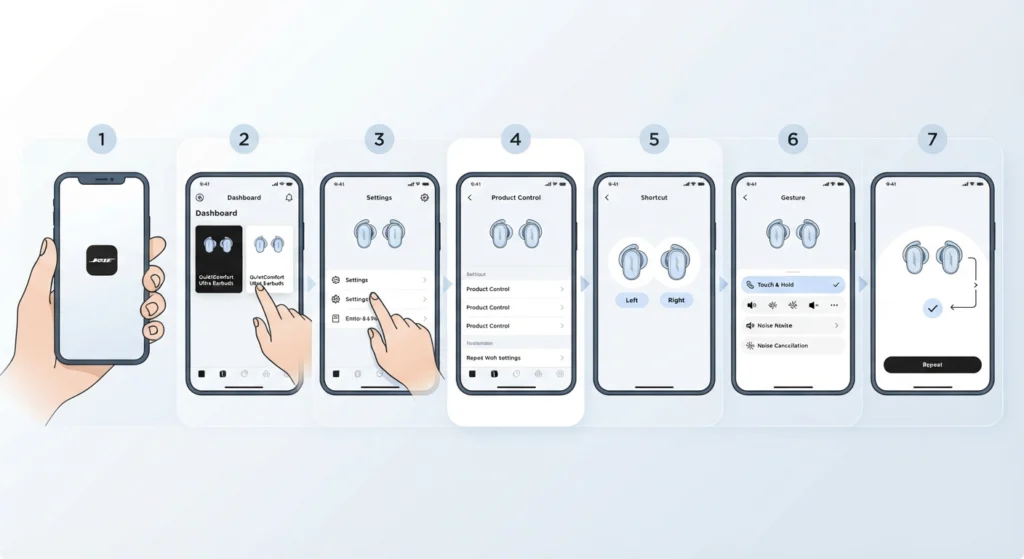
This is the main route, and it works the same way whether the earbuds are brand new or have been in daily use for months. Most people find that once they see this menu, the rest of the customization process feels obvious.
- Step 1: Open the Bose app on a paired phone or tablet, with the QuietComfort Ultra Earbuds connected over Bluetooth.
- Step 2: Tap the earbuds tile on the main screen to bring up the device dashboard.
- Step 3: Select Settings, then tap Product Control.
- Step 4: Tap Shortcut to open the touch control assignment screen.
- Step 5: Choose the left or right earbud, since each one can be set up independently.
- Step 6: Select the gesture to change, such as touch-and-hold, then pick the new action from the list provided.
- Step 7: Confirm the choice and repeat for the other earbud if a different action is preferred on that side.
A small detail worth noting: changes apply instantly, so there is no need to restart the earbuds or re-pair them through Bluetooth settings on a connected computer for the change to take effect on mobile playback.
Method 2: Set Up a Voice Assistant Shortcut
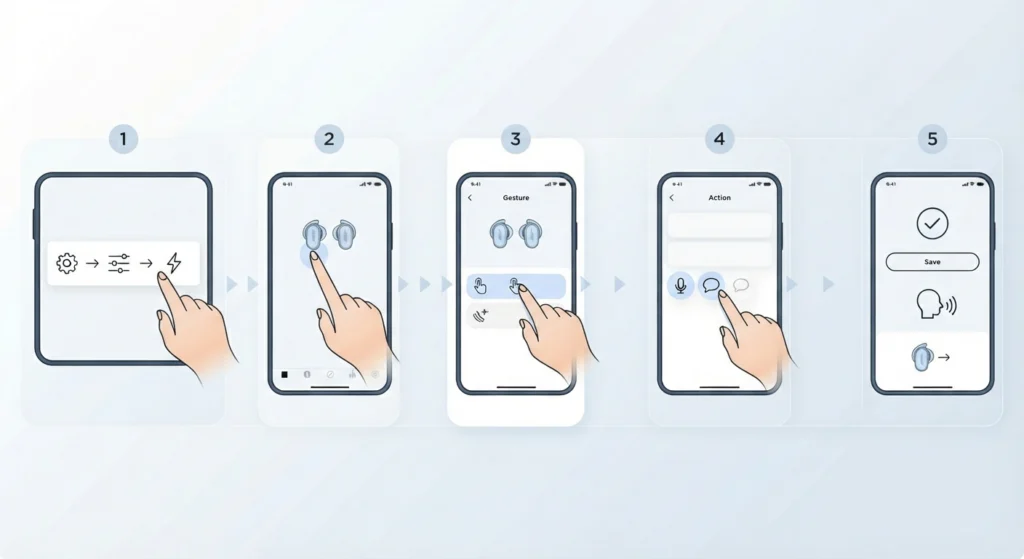
This works best when touch-and-hold is the gesture being customized, since that input is the one Bose designates for shortcut actions like launching a phone’s voice assistant.
- Step 1: In the Bose app, go to Settings, then Product Control, then Shortcut.
- Step 2: Pick an earbud, left or right.
- Step 3: Select touch-and-hold as the gesture to assign.
- Step 4: Choose the voice assistant option from the action list.
- Step 5: Save the setting, then test it by touching and holding the assigned earbud to confirm the phone’s assistant responds.
One thing to keep in mind: voice control will not activate during an active phone call, which is expected behavior rather than a malfunction.
Pro-Tip: Assign touch-and-hold on one earbud to the voice assistant and leave the other earbud’s touch-and-hold on noise control mode switching. This split setup means one quick gesture handles voice commands while the other handles the shift between Quiet and Aware modes, so neither function gets buried under the other.
Method 3: Adjust or Reduce Sensitive Gestures
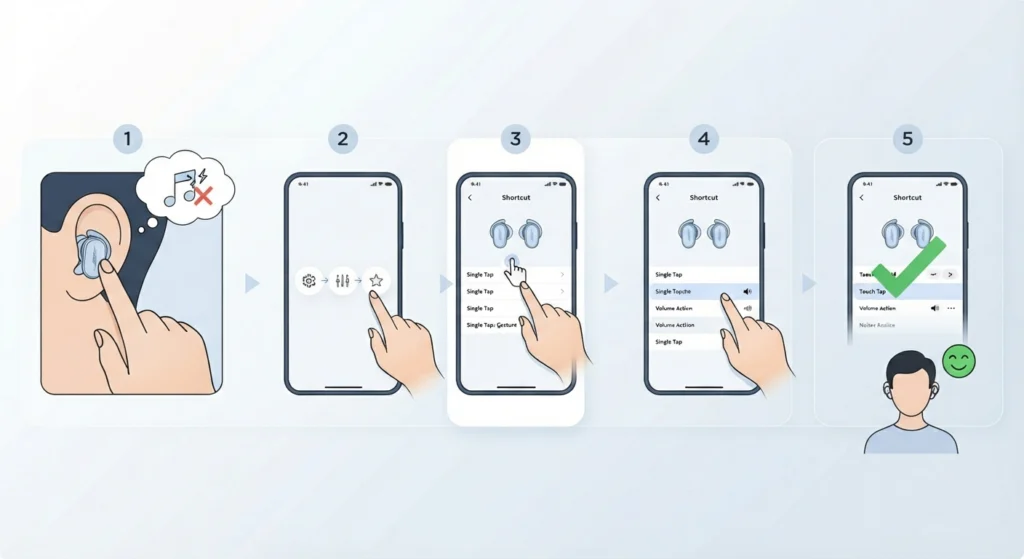
Some gestures get triggered more easily than others, and knowing which ones to watch for makes a real difference day to day.
- Step 1: Identify which gesture causes the most accidental triggers, such as single tap pausing music while adjusting fit.
- Step 2: Open Settings, then Product Control, then Shortcut in the Bose app.
- Step 3: Select the earbud and gesture in question.
- Step 4: Reassign it to a less disruptive action, or choose None if that option appears for the gesture.
- Step 5: Save the change and wear the earbuds for a short period to confirm the new setting feels right.
This kind of fine-tuning matters most during workouts or commutes, when hats, hoods, and hair are constantly brushing against the touch surface.
Adjusting Volume and Swipe Controls
Volume control on the QuietComfort Ultra Earbuds responds to touch-and-hold by default, with the right earbud raising volume and the left lowering it. Turning on Auto Volume inside the Bose app removes the need for manual adjustment altogether, since the earbuds adapt sound levels to the surrounding environment, such as boosting volume when a train pulls into a noisy station and easing it back once things quiet down.
Tips for a Smoother Control Setup
- Update the Bose app and earbud firmware before making changes, since newer firmware versions sometimes unlock additional customization options.
- Test one gesture change at a time rather than reassigning everything at once, so it is easier to notice what works.
- Keep touch-and-hold reserved for functions that are used less often, since it is the gesture least likely to trigger by accident.
- Charge the earbuds before adjusting settings, since a mid-process disconnect can interrupt saving the new configuration.
Common Problems and How to Fix Them
Fix 1: Gesture Changes Are Not Saving
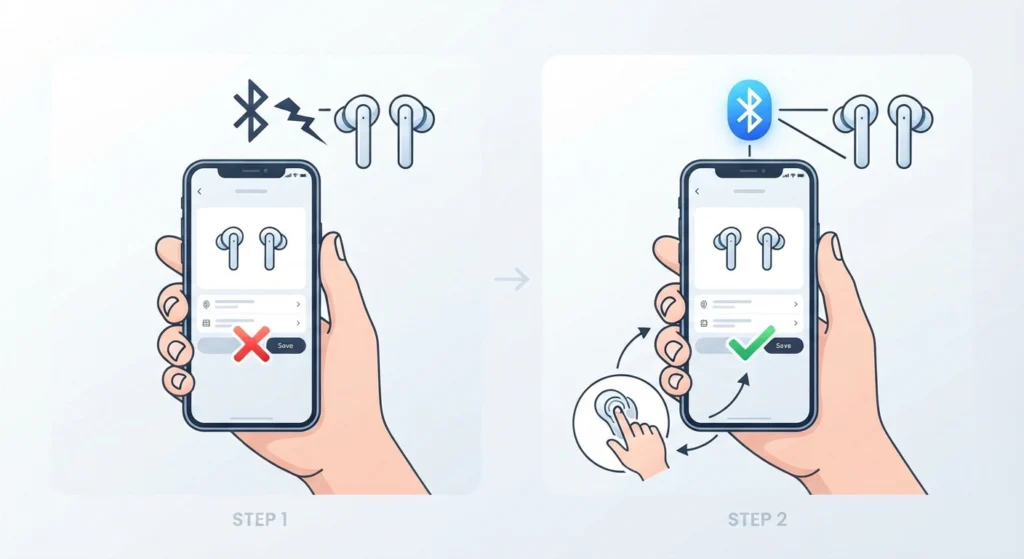
This usually points to a connection issue between the earbuds and the app rather than a setting problem. Make sure Bluetooth stays active and the earbuds remain connected throughout the entire process; closing the app mid-change before confirmation is the most common cause. On a connected Windows computer, this often overlaps with broader Bluetooth pairing hiccups, and re-pairing the earbuds for proper stereo sound can resolve the same underlying connection drop.
Fix 2: A Gesture Stops Responding After Customization
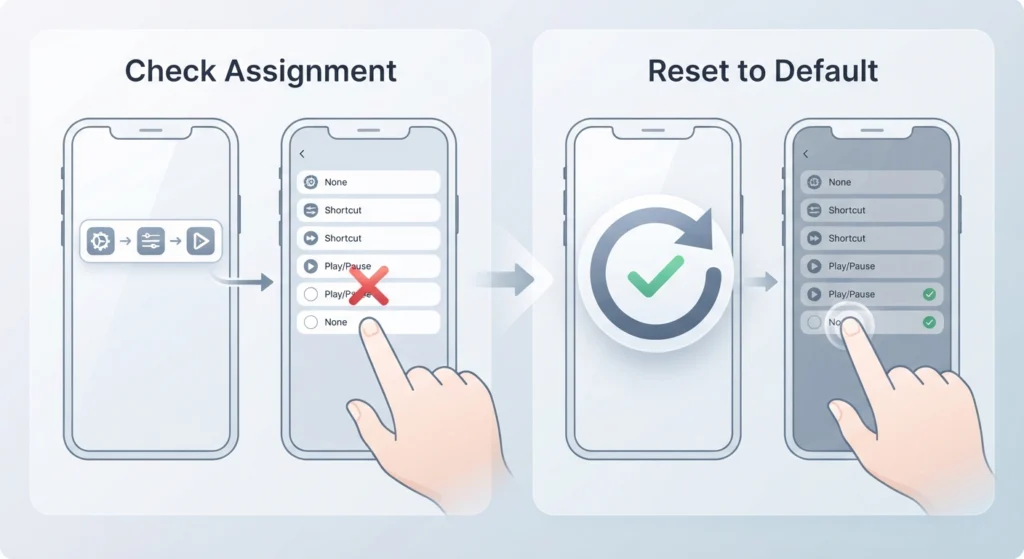
Double-check that the gesture was not accidentally set to None instead of an active action. Reopening Settings, then Product Control, then Shortcut will confirm the current assignment. If the gesture still does nothing, a quick reset to default settings inside the app typically clears the issue.
Fix 3: Touch-and-Hold Triggers the Wrong Function
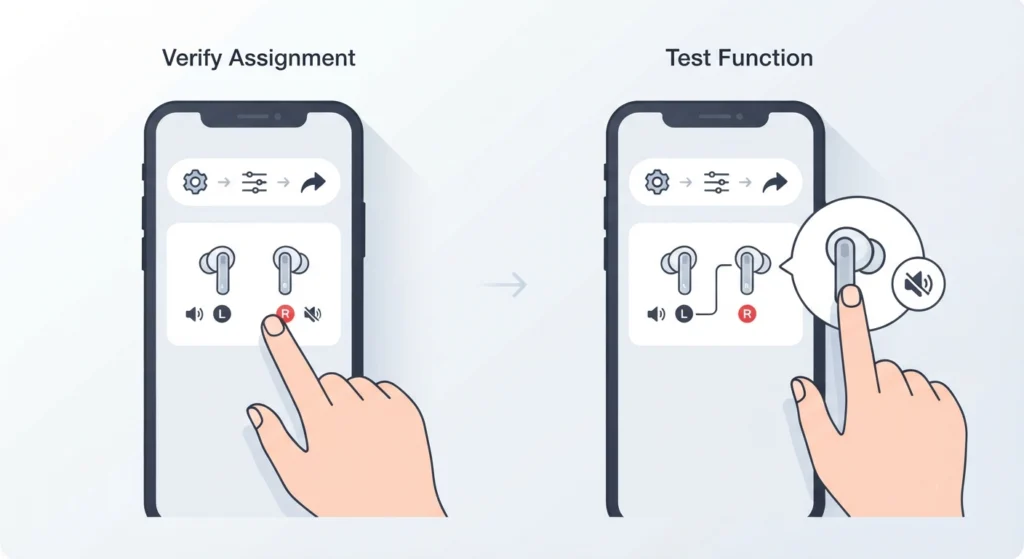
This often happens when both earbuds were set to different actions and the wrong one was tested. Open the Shortcut menu again and verify which earbud has which assignment, since left and right can hold completely different functions.
Fix 4: Microphone or Call Function Feels Off After a Change
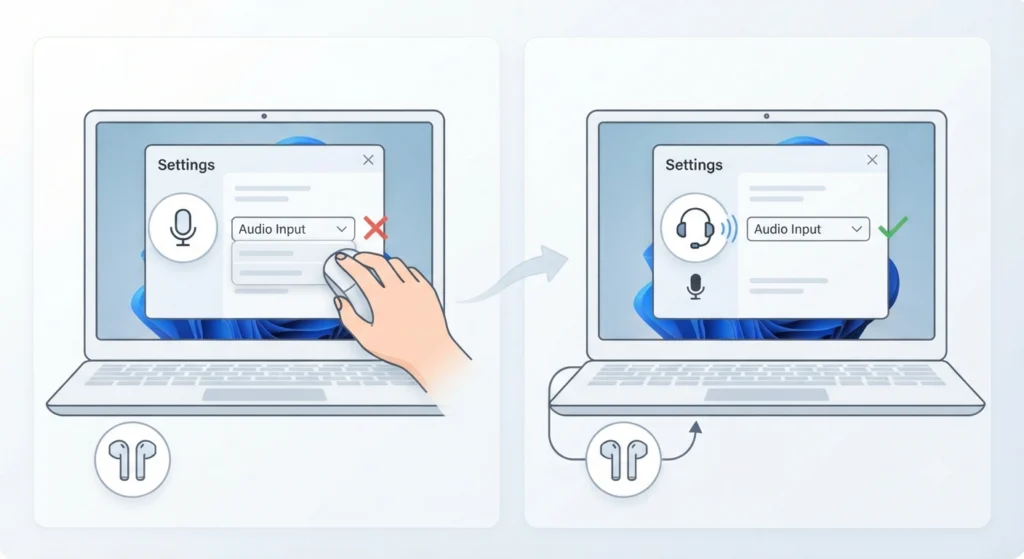
If call-related gestures feel inconsistent after customizing tap actions, the issue is sometimes unrelated to the earbud settings and tied instead to the connected device’s audio input setup. On Windows 11, resolving microphone detection problems covers this scenario in detail.
Frequently Asked Questions
Can each earbud have a different customized control?
Yes. The left and right earbuds are configured independently in the Bose app, so different gestures can trigger different actions on each side.
Does customizing controls require a firmware update first?
Not always, but keeping firmware current is recommended, since Bose periodically expands the available actions for each gesture through updates.
Can touch controls be turned off completely on these earbuds?
Touch controls can be reassigned or set to a less disruptive action on most gestures, though full removal of every gesture is not guaranteed on every generation of the earbuds, so checking the current options in the Shortcut menu is the most reliable way to confirm what is available.
What is the difference between single tap, double tap, and triple tap?
Single tap typically handles play and pause, double tap skips forward or manages calls, and triple tap usually skips backward. All three can be reassigned through the same Shortcut menu.
Why does touch-and-hold work differently from tapping?
Touch-and-hold is treated as a shortcut gesture, separate from the tap-based playback controls, which is why Bose reserves it for functions like voice assistant access or noise control switching.
Does Auto Volume replace the need for manual volume gestures?
Auto Volume adjusts sound automatically based on the surrounding environment, but the manual touch-and-hold volume gesture still works alongside it for moments that need a personal adjustment.
Why did a custom gesture stop working after reconnecting to a different device?
Gesture assignments are tied to the earbuds themselves, not the connected device, so they should carry over. If a gesture seems inactive after switching devices, checking the Bluetooth connection list and confirming the correct earbuds are connected usually resolves it.
Can voice control be used while on a call?
No. Voice control through the touch-and-hold shortcut is disabled during active calls, which is expected and not a sign of a setting error.
Is it possible to reset all custom gestures back to default?
Yes. The Bose app includes a reset option that restores default gesture assignments, which is useful after experimenting with several configurations.
Do customized controls affect audio quality or connection stability?
No. Adjusting tap and hold assignments only changes what each gesture triggers; it has no effect on audio quality or Bluetooth connection stability.