
Custom EQ on Nothing Ear 2 lets anyone shape sound to match their exact taste, whether that means deeper bass for workouts or crisper vocals for podcasts. The Nothing X app makes this adjustment simple, and this guide walks through exactly how it works, step by step.
Key Takeaways
- Custom EQ is available in the Nothing X app under the Sound section for Ear (2)
- An 8-band equalizer allows precise control over bass, mids, and treble
- Changes apply instantly and save automatically to the connected earbuds
- Presets like Balanced, More Bass, More Treble, and Voice are available alongside the custom option
- Firmware should be updated before adjusting EQ for the best results
Step-by-Step Guide to Using Custom EQ on Nothing Ear 2
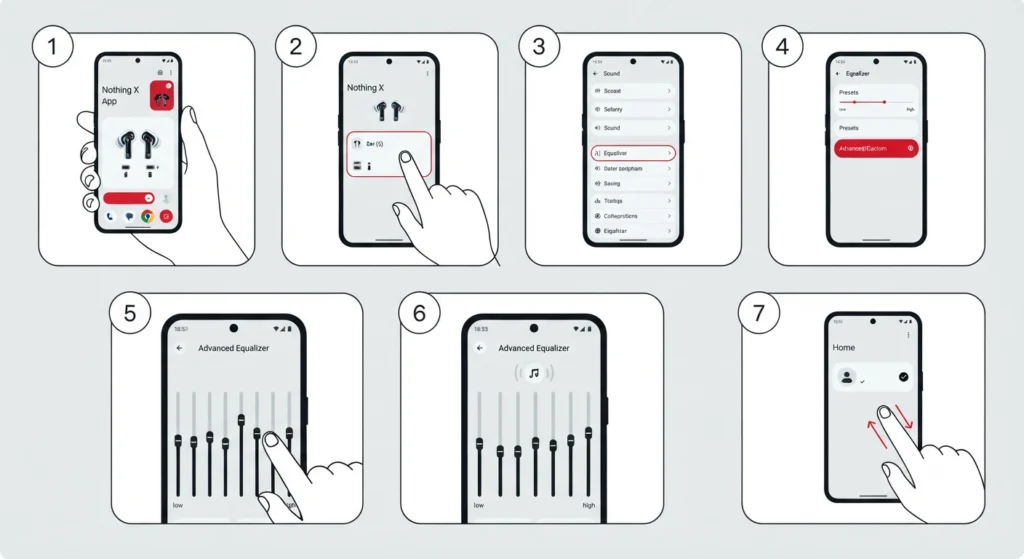
Setting a personalized sound profile takes just a couple of minutes once the earbuds are connected. Here’s exactly how to get there.
- Step 1: Open the Nothing X app on the paired smartphone and make sure the Ear (2) buds show as connected on the home screen.
- Step 2: Tap on the Ear (2) device card to open the main control panel.
- Step 3: Scroll to the Sound section and select Equalizer.
- Step 4: Choose Advanced (sometimes labeled Custom) instead of one of the fixed presets.
- Step 5: Adjust each of the 8 frequency bands by dragging the sliders up for a boost or down to reduce that range.
- Step 6: Play a familiar track while adjusting so the changes can be heard in real time.
- Step 7: Exit the Equalizer screen once satisfied; the app saves the profile automatically without a separate save button.
Pro-Tip: Start with small adjustments of just 1-2 units per band rather than dragging sliders to the extremes. Most people find that subtle changes sound more natural over long listening sessions than dramatic boosts, which can introduce distortion at higher volumes.
Understanding the 8-Band Equalizer Layout
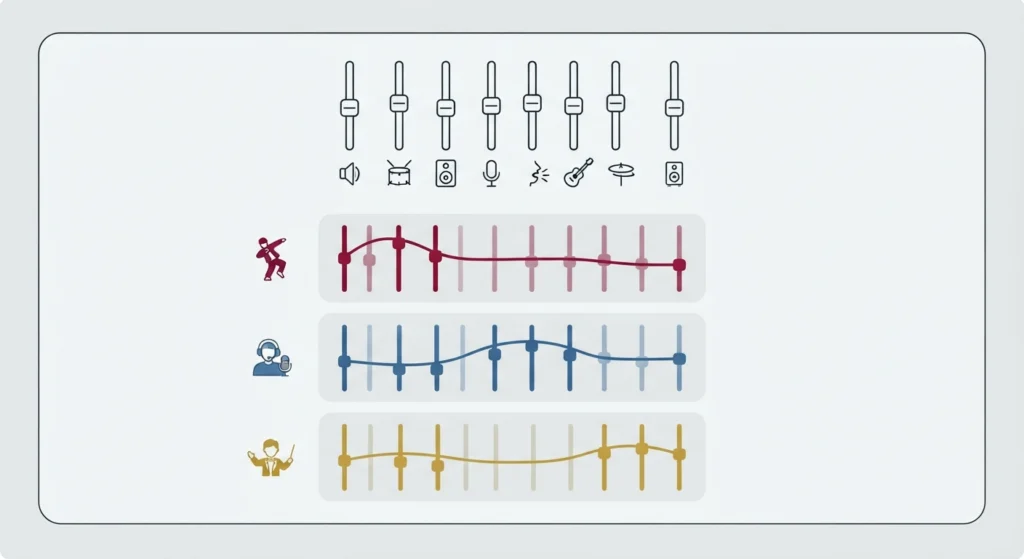
The custom equalizer in Nothing X is split across eight frequency points, moving from low bass on the left to high treble on the right. The lower bands control bass punch and warmth, the middle bands shape vocal clarity, and the higher bands affect brightness and detail. This works best when adjustments are made in relation to genre – bass-heavy tracks like hip-hop respond well to a boosted low end, while podcasts and audiobooks often sound clearer with a slight mid-range lift.
Switching Between Presets and Custom Profiles
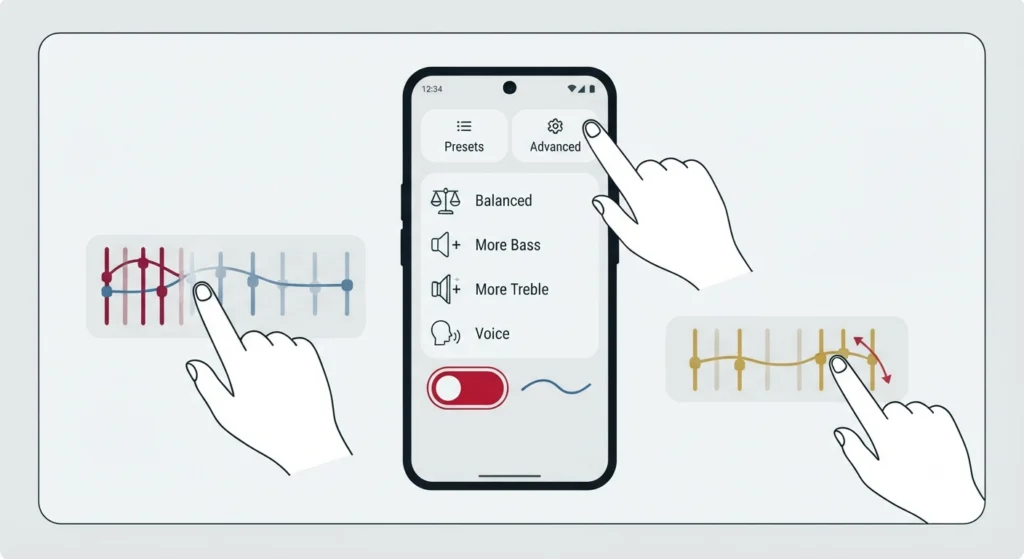
Nothing X keeps the built-in presets – Balanced, More Bass, More Treble, and Voice – just one tap away from the custom profile. Anyone unsure where to start can sample each preset first to get a feel for how the bands are typically arranged, then switch to Advanced and fine-tune from there. This approach saves time compared to building a profile completely from scratch.
Tips for Getting the Best Sound with Custom EQ
- Update the earbuds’ firmware through Nothing X before making EQ changes, since older firmware versions sometimes limit equalizer responsiveness
- Test custom profiles with more than one song genre before settling on a final setup
- Keep media volume at a moderate level while testing, since very high volume can mask subtle EQ differences
- Re-check the profile after a firmware update, as updates occasionally reset sound settings to default
Pro-Tip: If the Ear (2) is also used for calls or media on a Windows laptop alongside the phone, keeping the Bluetooth connection stable matters just as much as the EQ setup. A guide on how to re-pair Bluetooth earbuds for proper stereo sound can help avoid audio dropping to mono or single-earbud playback on desktop.
Common Problems When Using Custom EQ
Occasionally, the equalizer screen may not reflect changes right away, or the custom profile might seem to reset after disconnecting the earbuds. This usually happens for one of a few reasons: outdated firmware, a Bluetooth connection that dropped mid-adjustment, or the app running in the background without a proper refresh. Reopening the Nothing X app and reconnecting the earbuds typically resolves the issue. If the earbuds are frequently switched between a phone and a Windows PC, double-checking the correct output device is selected matters too, since sound can default to the wrong device after switching. The guide on adjusting audio output settings on Windows 11 covers this in detail for anyone splitting time between devices.
Frequently Asked Questions
What is custom EQ on Nothing Ear 2?
Custom EQ is an 8-band equalizer feature inside the Nothing X app that allows manual adjustment of bass, mid, and treble frequencies for the Ear (2) earbuds, rather than relying on a fixed preset.
Is the Nothing X app required to use custom EQ?
Yes. The equalizer settings live entirely within the Nothing X app, and there is no way to adjust custom EQ directly from the earbuds or the phone’s system settings alone.
Does custom EQ work on both Android and iOS?
Yes, the Nothing X app supports both Android and iOS, and the custom equalizer feature functions the same way across both platforms.
Will changing the EQ reduce battery life on the Ear 2?
No noticeable difference in battery life occurs from EQ adjustments, since the processing happens through the app and earbud firmware rather than requiring extra continuous power draw.
Can custom EQ settings be saved as multiple profiles?
The Nothing X app currently applies one active custom profile at a time alongside the built-in presets, so switching between different custom setups means re-adjusting the sliders each time.
Why does the custom EQ option not appear in the app?
This usually points to outdated firmware or an outdated version of the Nothing X app. Updating both through the app’s settings menu typically brings back the Advanced equalizer option.
Does custom EQ affect call quality or only music?
Custom EQ adjustments apply to media playback, including music and videos. Call audio typically uses a separate voice processing path and is not affected by the equalizer bands.
Can the equalizer be reset to default after making custom changes?
Yes, switching back to the Balanced preset restores the default sound profile without needing to manually move each slider back to its original position.
Do firmware updates erase custom EQ settings?
Occasionally, a firmware update resets sound settings to default, so it’s worth checking the equalizer screen after any update and reapplying a preferred custom profile if needed.
Is there a difference between Ear 2’s custom EQ and the presets in terms of sound quality?
Custom EQ offers more precise control since it adjusts eight individual bands, while presets apply a fixed, pre-tuned curve. Neither is inherently better – the right choice depends on personal listening preference.