
The Jabra Elite 8 Active supports Bluetooth Multipoint – a feature that lets the earbuds stay connected to two devices simultaneously. Whether it is a smartphone and a laptop, or a tablet and a work phone, the earbuds can handle both without needing to manually switch every time. This guide walks through exactly how to get that set up, step by step.
Quick Summary
- The Jabra Elite 8 Active supports Bluetooth Multipoint (two devices at once).
- Multipoint must be enabled through the Jabra Sound+ app before pairing a second device.
- The earbuds will auto-switch audio between the two connected devices based on which one is playing.
- Both devices need to be paired first, then Multipoint is activated via the app.
- No extra hardware or settings needed on the device side – it is all managed from the earbuds and the app.
How to Connect Jabra Elite 8 Active to Two Devices
The process has two main parts: pairing both devices to the earbuds, then enabling Multipoint in the Jabra Sound+ app. Follow these steps in order for the smoothest experience.
Part 1: Pair the First Device
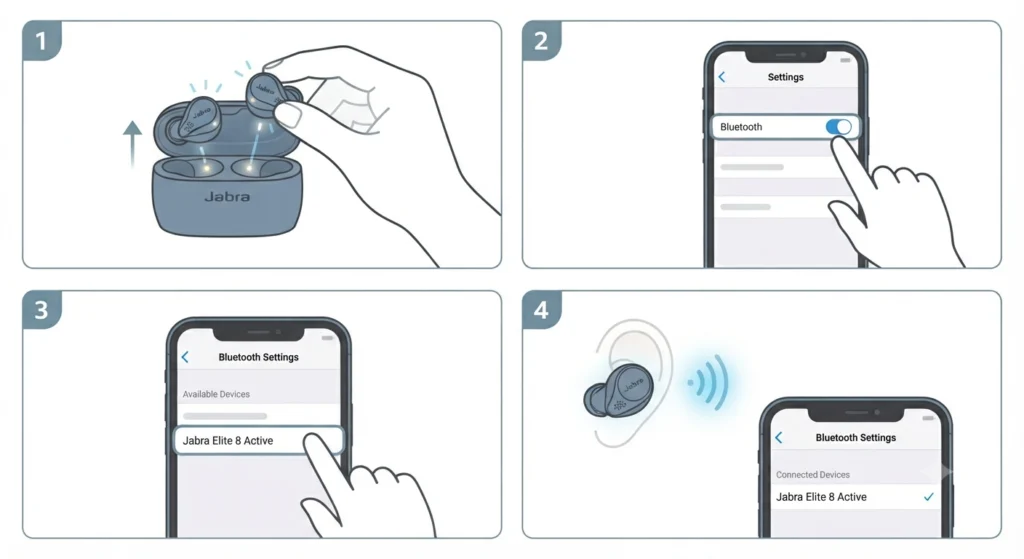
- Step 1: Take the Jabra Elite 8 Active out of the case. The earbuds will automatically enter pairing mode the first time they are removed if no device has been connected before.
- Step 2: On the first device (for example, a smartphone), go to Settings, then Bluetooth, and make sure Bluetooth is turned on.
- Step 3: Look for ‘Jabra Elite 8 Active’ in the list of available devices and tap it to pair.
- Step 4: Once connected, a voice prompt from the earbuds will confirm the connection.
Part 2: Pair the Second Device
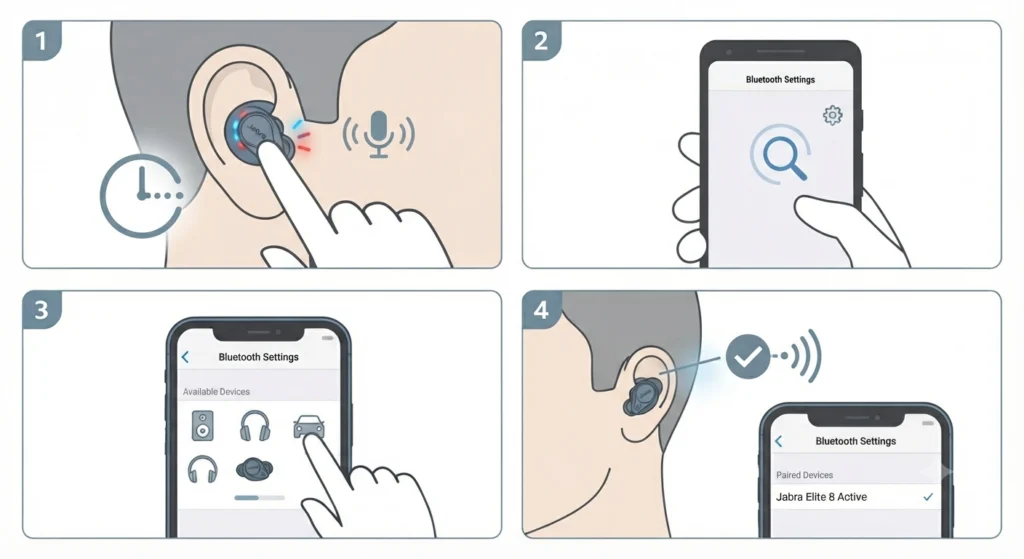
- Step 1: With the earbuds still in the ears and connected to the first device, manually put the earbuds into pairing mode. Press and hold the right earbud’s button for about 3 seconds until the LED flashes and a voice says ‘Pairing’.
- Step 2: On the second device, open Bluetooth settings and scan for nearby devices.
- Step 3: Select ‘Jabra Elite 8 Active’ from the list and complete the pairing.
- Step 4: The earbuds will confirm the second connection with a voice prompt.
At this point, both devices are paired to the earbuds – but Multipoint (simultaneous connection) still needs to be turned on through the app.
Part 3: Enable Multipoint in the Jabra Sound+ App
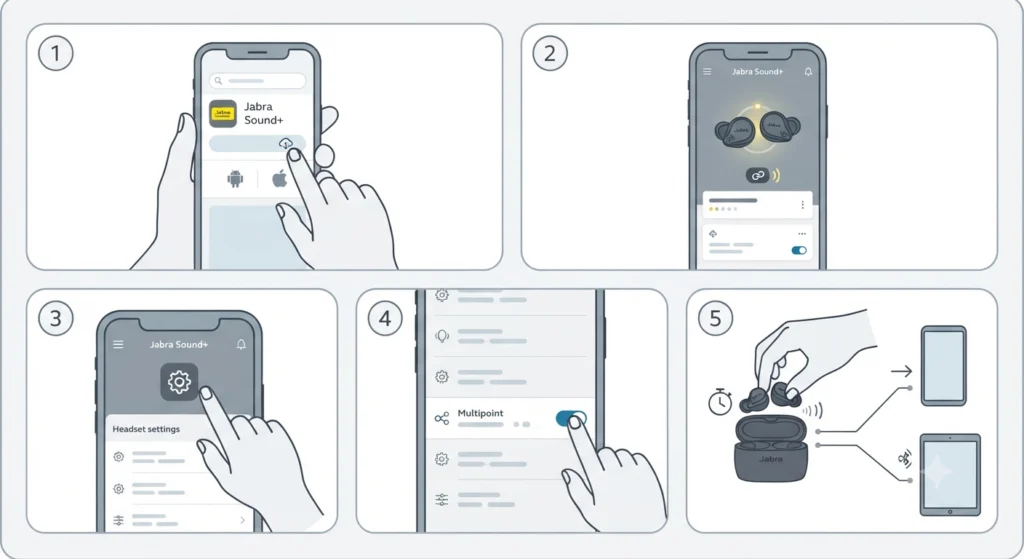
- Step 1: Download and install the Jabra Sound+ app on either device. It is available for both Android and iOS.
- Step 2: Open the app and make sure the Jabra Elite 8 Active is connected and showing as the active headset.
- Step 3: Tap on ‘Headset settings’ or the settings icon next to the earbuds.
- Step 4: Look for ‘Multipoint’ or ‘Connect 2 devices’ and toggle it on.
- Step 5: Place the earbuds back in the case, wait a few seconds, then take them out again. They will now reconnect to both devices at the same time automatically.
Pro Tip: After enabling Multipoint and placing the earbuds back in the case, make sure both devices have Bluetooth on and are nearby. The earbuds reconnect to the two most recently paired devices automatically – no manual connection step needed each time.
How Multipoint Works on the Jabra Elite 8 Active
Once Multipoint is active, the earbuds listen to both connected devices at the same time. When audio starts playing on one device, the earbuds prioritize that stream. If a call comes in on the other device while music is playing, the earbuds will pause the music and switch to the call automatically.
This works best when both devices are within a reasonable Bluetooth range – typically within 10 meters without major obstructions. The key is that the earbuds are not truly mixing two audio streams at once; instead, they intelligently switch based on activity, giving priority to calls over media playback.
Most people find that the auto-switching is seamless once it is set up properly. There is no need to touch the earbuds or the device settings to switch between a laptop call and a phone notification sound.
Pro Tip: If the earbuds seem to stay connected to only one device after enabling Multipoint, check that the second device still has the earbuds listed under ‘Paired Devices’ in Bluetooth settings. Sometimes a re-pair on the second device is needed after the Multipoint toggle is activated.
Tips for Using Jabra Elite 8 Active with Two Devices
- Keep the Jabra Sound+ app installed on at least one of the connected devices to make quick setting changes without needing to re-pair.
- If audio from both devices plays at the same time and sounds mixed or garbled, pause playback on one device manually. The earbuds will then lock onto the active stream.
- When switching from a laptop to a phone call, the earbuds handle the transition within a second or two – there is a brief moment of silence before the call audio comes through.
- For users connecting to a Windows 11 laptop, it helps to check the audio output settings on Windows 11 to confirm the Jabra earbuds are set as the default playback device.
- If the microphone is not being detected on one of the connected devices, reviewing the guide on resolving microphone detection problems on Windows 11 can help sort that out quickly.
- Avoid pairing more than two devices at once unless intentionally cycling through the pairing list. The earbuds will always reconnect to the two most recently used devices.
Common Problems and Fixes
Fix 1: Earbuds Only Connect to One Device After Enabling Multipoint
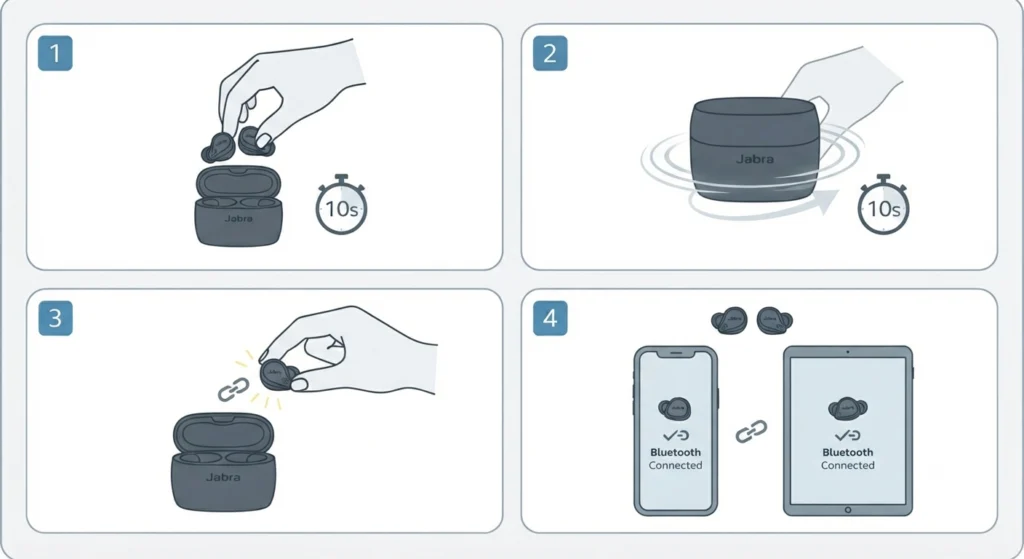
This is the most common issue. After turning on Multipoint, place the earbuds in the case and close the lid. Wait at least 10 seconds, then take them out. Both devices should reconnect within a few moments. If one device does not reconnect, open Bluetooth settings on that device and tap the Jabra earbuds from the paired list to manually reconnect.
Fix 2: Audio Is Only Coming from One Device
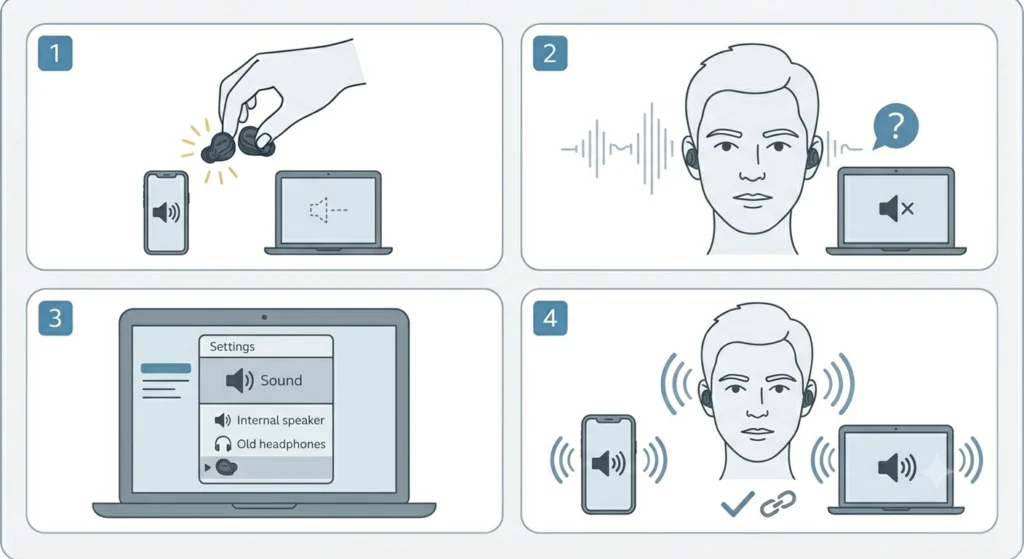
Multipoint does not mix audio – it switches based on which device is active. If audio from the second device is not coming through, make sure that device is set to use the Jabra earbuds as its audio output. On a phone, this usually happens automatically. On a laptop or computer, it may need to be selected manually in the system sound settings.
Fix 3: Multipoint Toggle Is Missing in the App
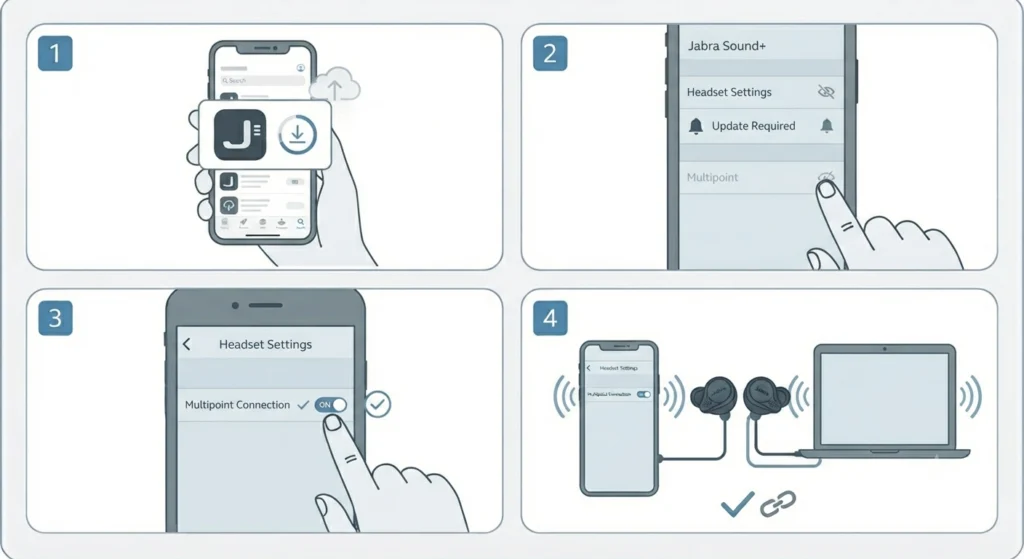
Make sure the Jabra Sound+ app is updated to its latest version. Older versions of the app may not show the Multipoint option for the Elite 8 Active. Also confirm the earbuds firmware is up to date – the app will show a notification if a firmware update is available.
Fix 4: Earbuds Keep Disconnecting from the Second Device
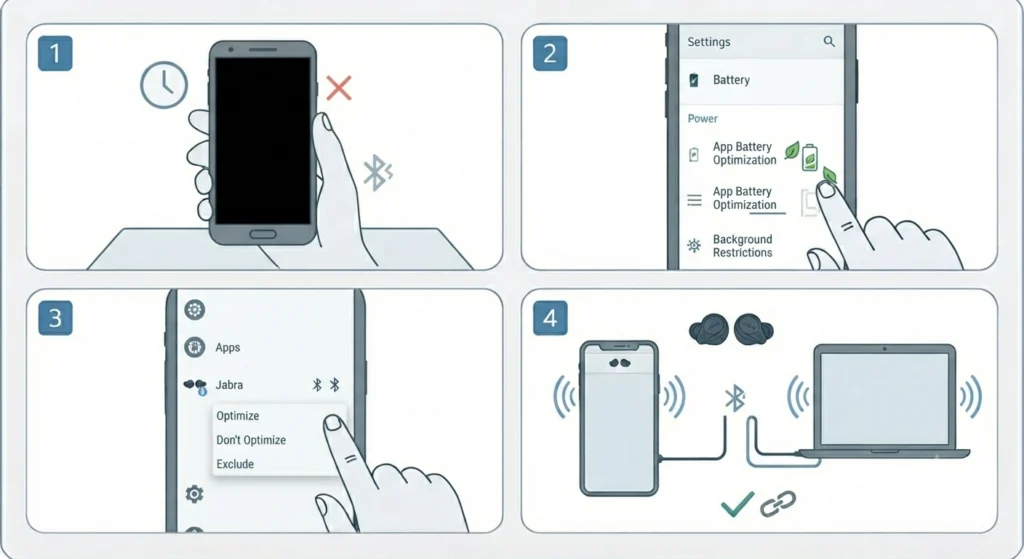
This can happen if the second device has battery-saving features that disable Bluetooth when the screen is off. On Android devices, find the Bluetooth connection for the Jabra earbuds and make sure it is excluded from any battery optimization that could kill background Bluetooth connections.
Frequently Asked Questions
Can the Jabra Elite 8 Active connect to two devices at the same time?
Yes. The Jabra Elite 8 Active supports Bluetooth Multipoint, which allows simultaneous connection to two devices. This feature needs to be enabled through the Jabra Sound+ app before it works.
Do both devices need to support a specific Bluetooth version for Multipoint to work?
No specific Bluetooth version is required on the connected devices beyond basic Bluetooth compatibility. Any device with Bluetooth that can pair with the earbuds will work with Multipoint.
Can the Jabra Elite 8 Active connect to more than two devices at once?
No. The Jabra Elite 8 Active supports Multipoint for up to two simultaneous connections. It can store multiple paired devices in memory, but only two can be actively connected at the same time.
Does enabling Multipoint reduce audio quality?
In most everyday listening situations, the difference is not noticeable. However, some users report that the audio codec may step down slightly when Multipoint is active, depending on the device and codec support. For critical listening, connecting to a single device at a time gives the best result.
Do both devices need to have the Jabra Sound+ app installed?
No. The Jabra Sound+ app only needs to be on one device to enable Multipoint. Once it is turned on, the setting is saved to the earbuds and both devices can connect without the app being active.
Will the earbuds automatically switch between devices during a call?
Yes. If a call comes in on one device while audio is playing from the other, the earbuds prioritize the incoming call. The media audio pauses and the call takes over automatically.
What happens to the Multipoint setting when the earbuds are reset?
A factory reset will clear all paired devices and settings, including the Multipoint toggle. After a reset, both devices will need to be re-paired and Multipoint will need to be re-enabled in the Jabra Sound+ app.
Can the Jabra Elite 8 Active connect to a laptop and a phone at the same time?
Yes, this is one of the most popular use cases for Multipoint. The earbuds can stay connected to a laptop for calls and a smartphone for personal audio without needing to disconnect and reconnect each time.
Is Multipoint available without the Jabra Sound+ app?
The Multipoint feature must be enabled through the Jabra Sound+ app at least once. After it is turned on, the setting stays on the earbuds even if the app is uninstalled. But to toggle it on in the first place, the app is required.
What should be done if the earbuds are not showing up on the second device during pairing?
Make sure the earbuds are in pairing mode by holding the right earbud button for 3 seconds until the LED flashes. Also confirm the second device has Bluetooth on and is actively scanning. If needed, remove the earbuds from the paired device list on the second device and try pairing fresh.