
Key Takeaways
Connecting Bluetooth headphones to iPhone is a quick process that takes less than a minute once the headphones are in pairing mode. Here is a fast overview before diving into the full guide.
- Bluetooth headphones pair with iPhone through the Settings app or Control Center.
- Most headphones need to be placed in pairing mode before they show up on the list.
- Once paired, the iPhone remembers the headphones for future automatic reconnection.
- Low battery, outdated iOS, or Bluetooth interference are the most common pairing issues.
- Forgetting and re-pairing the device usually solves stubborn connection problems.
Pairing Bluetooth headphones with an iPhone is one of those small tech tasks that feels tricky the first time and effortless after that. Most people find that once the steps are known, connecting new headphones takes only a few taps. This guide covers the direct, no-fuss method to get headphones connected and ready to use right away.
Steps to Connect Bluetooth Headphones to iPhone
There are two simple ways to pair headphones with an iPhone: through the Settings app or through Control Center. Both methods work the same way behind the scenes, so pick whichever feels more convenient.
Method 1: Pairing Through the Settings App
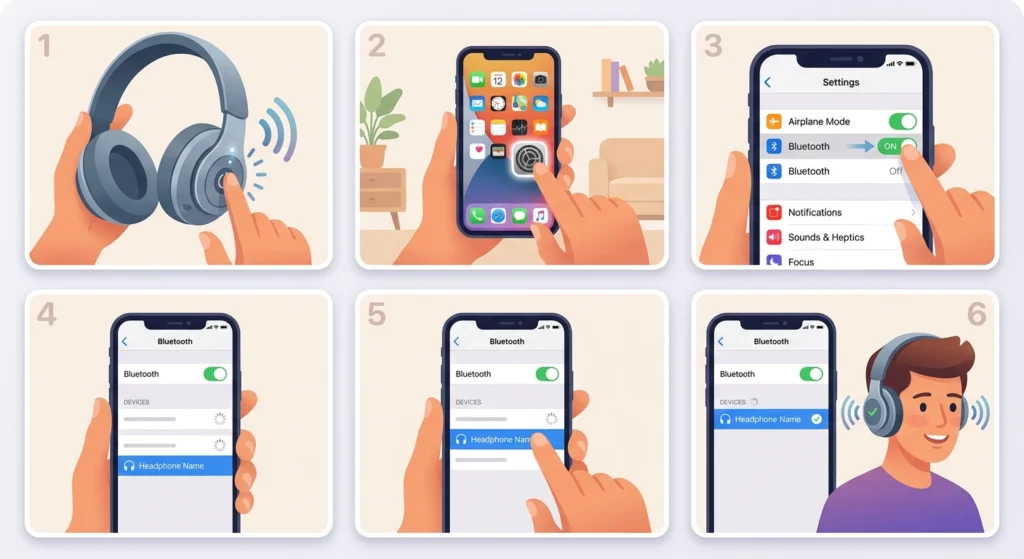
- Step 1: Turn on the Bluetooth headphones and place them into pairing mode. This is usually done by holding the power button for a few seconds until a light starts blinking.
- Step 2: On the iPhone, open the Settings app and tap on Bluetooth.
- Step 3: Toggle Bluetooth on if it is not already active.
- Step 4: Wait for the headphones to appear under ‘Other Devices’ or ‘My Devices’.
- Step 5: Tap the headphone name once it appears on the list.
- Step 6: Wait a few seconds for the status to change to ‘Connected’.
Method 2: Pairing Through Control Center
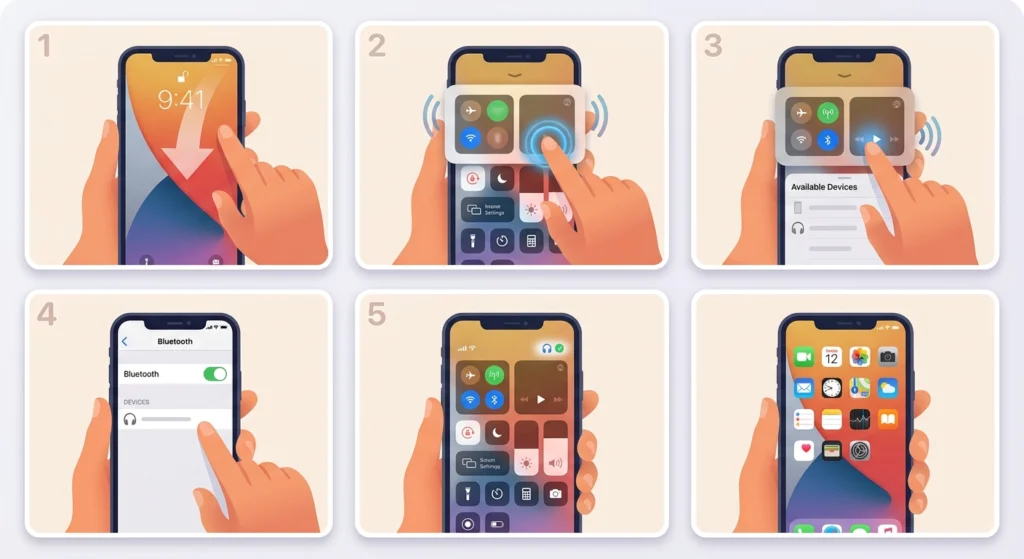
- Step 1: Swipe down from the top-right corner of the screen (or up from the bottom on older models) to open Control Center.
- Step 2: Press and hold the network settings card in the top-left corner.
- Step 3: Tap the Bluetooth icon to expand the device list.
- Step 4: Select the headphones once their name shows up.
- Step 5: Confirm the connection status shows as active before closing Control Center.
A small tip that makes a real difference here: keep the headphones within a meter of the iPhone during the first pairing attempt. Bluetooth signals are strongest at close range, and this shortens the time it takes for the two devices to detect each other.
Pro-Tip
Pro-Tip: After successfully connecting for the first time, the iPhone stores the headphones as a known device. This means future connections happen automatically the moment the headphones are powered on and within range, without needing to repeat the pairing steps.
Tips for a Smooth Bluetooth Connection
- Keep the iPhone updated to the latest iOS version, since Bluetooth stability improvements are often included in software updates.
- Charge the headphones fully before the first pairing attempt, since low battery can interrupt the connection process.
- Disconnect the headphones from any other paired device first, as some models only support one active connection at a time.
- Turn Bluetooth off and back on if the headphones do not appear within 30 seconds.
- Those who also switch between a phone and a computer often find it useful to check how to re-pair Bluetooth earbuds for stereo sound and adjust audio output settings when using the same headphones on a Windows 11 laptop.
Common Bluetooth Connection Problems and Fixes
Fix 1: Headphones Not Showing Up in the List
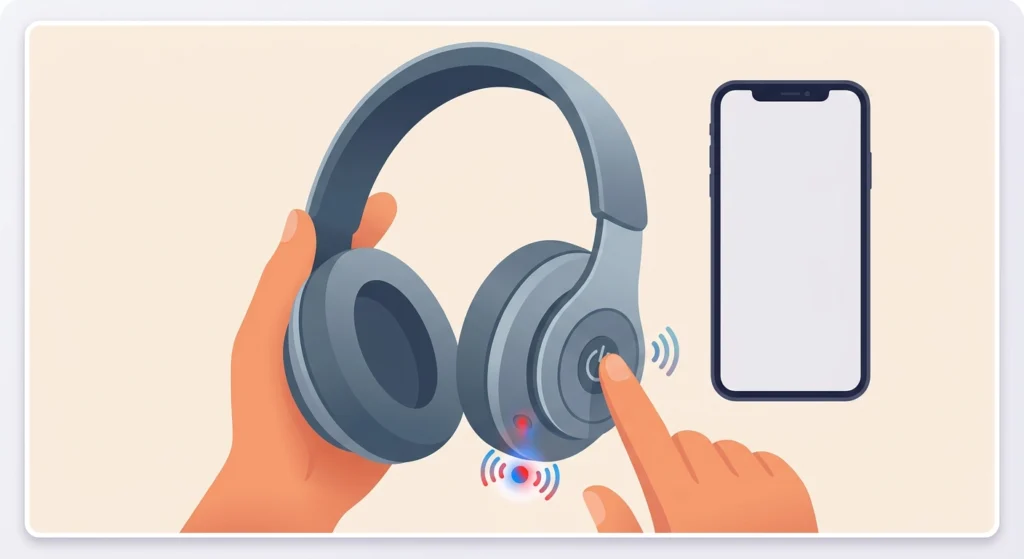
This usually happens when the headphones are not in pairing mode or are already connected to another device. Turn the headphones off and back on, and hold the pairing button until the indicator light starts flashing.
Fix 2: Headphones Connect but No Sound Plays
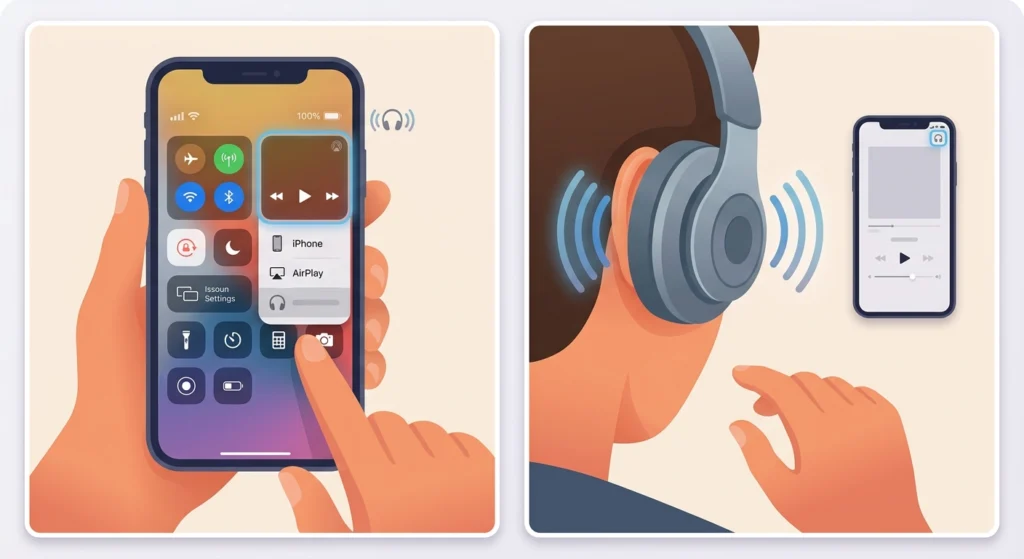
Check that the audio output is actually set to the headphones and not the iPhone speaker. This can be confirmed in Control Center by tapping the audio card and selecting the correct output device.
Fix 3: Frequent Disconnections
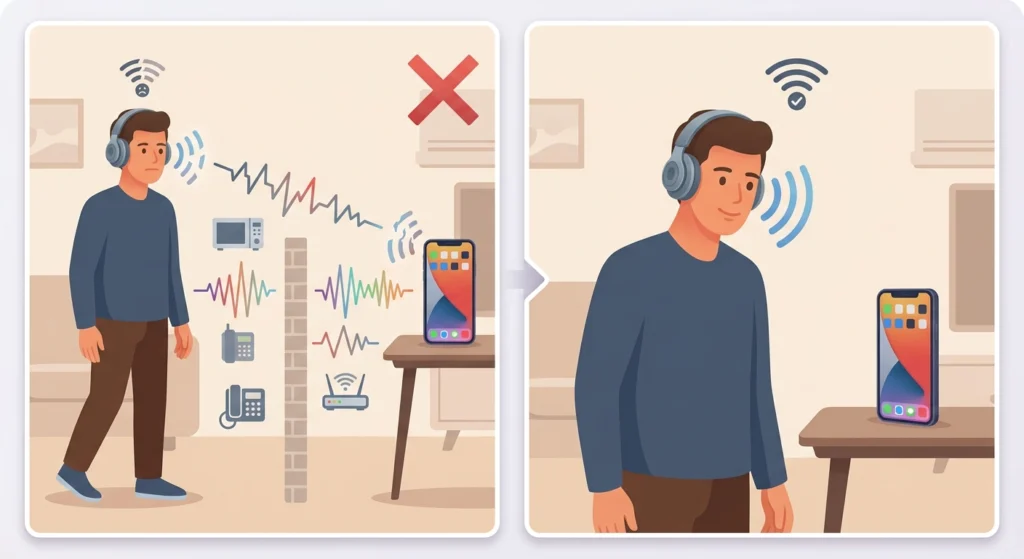
Interference from other wireless devices or physical obstacles between the iPhone and headphones can cause drops in connection. Moving closer to the iPhone or removing nearby electronic devices often resolves this.
Fix 4: Headphones Were Previously Paired but Will Not Reconnect
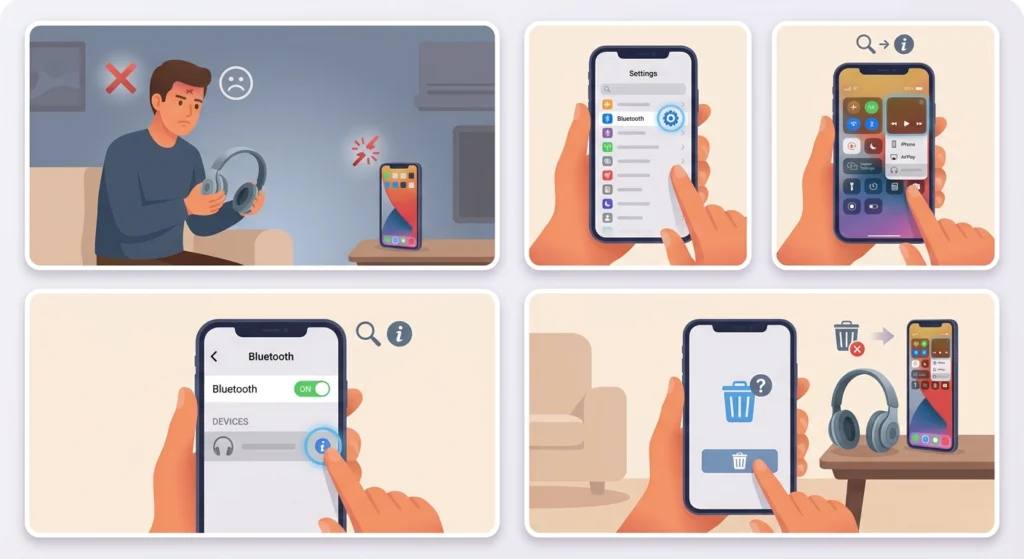
Forgetting the device and pairing it again from scratch usually fixes this. Go to Settings, tap Bluetooth, select the headphones, tap the information icon, and choose ‘Forget This Device’ before repeating the pairing steps.
Frequently Asked Questions
Can any Bluetooth headphones connect to an iPhone?
Yes, as long as the headphones support standard Bluetooth audio profiles, they will work with any iPhone model that has Bluetooth capability.
Do Bluetooth headphones need to be charged before pairing?
A partial charge is usually enough, but a full charge is recommended to avoid the connection dropping midway through the pairing process.
Why does an iPhone fail to detect Bluetooth headphones?
This is often caused by the headphones not being in pairing mode, being too far from the iPhone, or already being connected to a different device.
How many Bluetooth devices can an iPhone remember at once?
An iPhone can store multiple paired devices in its Bluetooth list, though it can only actively connect to one audio device at a time unless it supports audio switching features.
Is a Wi-Fi connection needed to pair Bluetooth headphones?
No, Bluetooth pairing works independently of Wi-Fi and only requires Bluetooth to be turned on for both devices.
What should be done if the headphones connect but sound is choppy?
Moving closer to the iPhone and removing physical obstructions between the two devices usually improves audio stability.
Can Bluetooth headphones be used with an iPhone during a phone call?
Yes, once paired, Bluetooth headphones can be used for calls as long as they include a built-in microphone.
Why do headphones disconnect automatically after some time?
This can happen due to low battery on the headphones, moving out of Bluetooth range, or automatic switching to another paired device.
Does updating iOS affect Bluetooth headphone connections?
Software updates often include Bluetooth stability improvements, so keeping the iPhone updated generally results in a more reliable connection.
How can it be confirmed that headphones are properly connected?
The Bluetooth settings page will show ‘Connected’ under the headphone name, and the audio icon in Control Center will reflect the headphones as the active output device.