
Key Takeaways
- Bluetooth headphones connect to an iPad through the Settings app in under two minutes.
- AirPods pair almost instantly, while other Bluetooth headphones need manual pairing mode.
- The iPad and headphones must stay within about 30 feet of each other during setup.
- Once paired, the iPad remembers the headphones for automatic reconnection later.
- Battery level, software updates, and Bluetooth range are the most common causes of pairing issues.
Wireless headphones have become the default way most people listen to music, take calls, or watch a show on an iPad without disturbing everyone else in the room. Connect Bluetooth headphones to iPad in just a few taps, and the pairing process stays consistent across nearly every model on the market, from AirPods to third-party brands like Sony, Bose, or JBL. The steps below walk through the exact process from start to finish.
Step-by-Step Guide to Connect Bluetooth Headphones to iPad
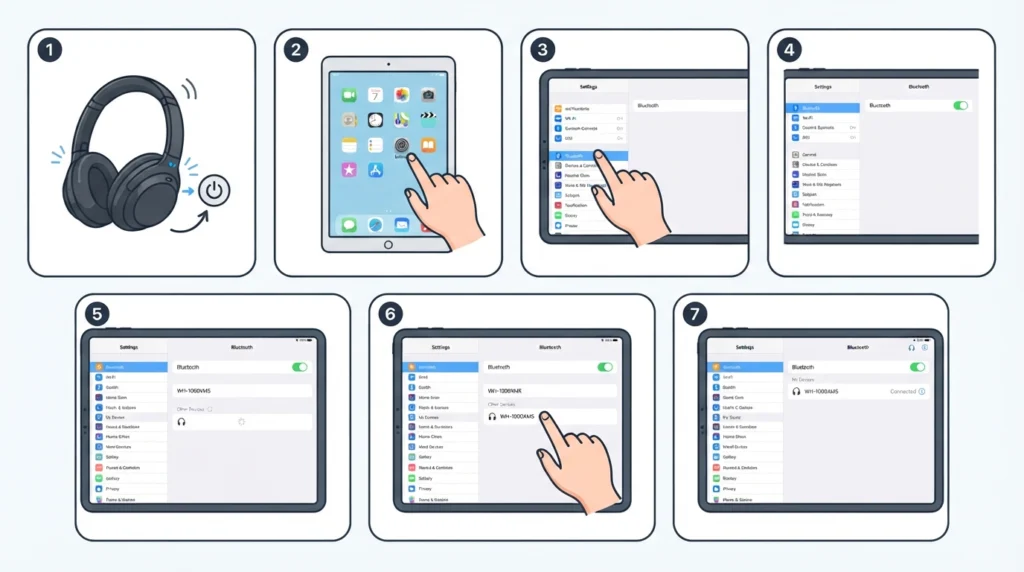
This method works for the vast majority of Bluetooth headphones and earbuds, regardless of brand. The process only takes a minute once the headphones are ready to pair.
- Step 1: Turn on the Bluetooth headphones and switch them into pairing mode. Most headphones enter this mode automatically when powered on for the first time, or by holding down the power button for a few seconds until an indicator light starts blinking.
- Step 2: On the iPad, open the Settings app from the Home Screen.
- Step 3: Tap Bluetooth from the left-hand menu.
- Step 4: Make sure the Bluetooth toggle is switched on, shown in green.
- Step 5: Wait for the headphones to appear under ‘Other Devices’. This usually takes just a few seconds.
- Step 6: Tap the headphone name once it appears on the list.
- Step 7: Wait for the status to change to ‘Connected’. A short confirmation tone often plays through the headphones at this point.
Pro-Tip: Keep the headphones fully charged before pairing for the first time. Low battery levels can cause a device to disconnect mid-pairing, which sometimes forces the whole process to start over.
Method 2: Connecting AirPods to iPad
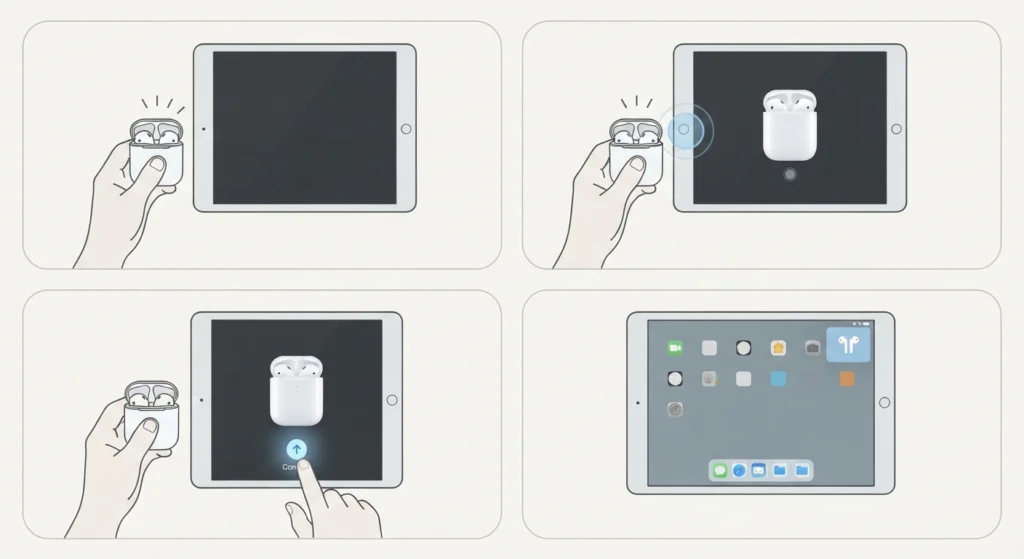
AirPods use a slightly different, faster process since Apple designed them to work seamlessly with iPadOS.
- Step 1: Open the AirPods charging case near the iPad, keeping the lid open.
- Step 2: A pairing animation typically pops up on the iPad screen automatically.
- Step 3: Tap Connect on the pop-up window.
- Step 4: Wait a moment while the iPad finishes syncing the AirPods.
If the automatic pop-up does not appear, follow the same manual steps used for regular Bluetooth headphones by heading into Settings and selecting Bluetooth.
Tips for a Better Bluetooth Connection
- Stay within 30 feet of the iPad during pairing and regular use, since walls and other electronics can weaken the signal.
- Update iPadOS to the latest version before pairing, as older software occasionally struggles to detect newer Bluetooth headphones.
- Forget the device from the Bluetooth list and re-pair it if audio quality feels inconsistent after a software update.
- Keep only one Bluetooth device active at a time when troubleshooting, since multiple connected devices can sometimes compete for the same audio output.
Pro-Tip: Most people find that turning Bluetooth off and back on before pairing clears out any leftover connection data, which makes the iPad detect new headphones faster and more reliably.
Common Problems and Fixes
Fix 1: Headphones Not Showing Up in the Bluetooth List
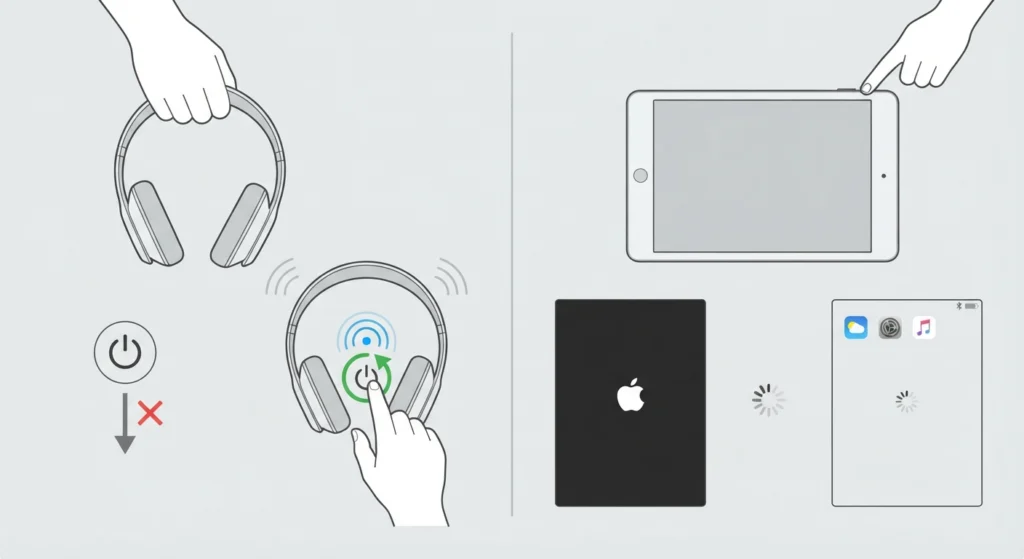
This usually means the headphones are not actually in pairing mode. Power them off completely, then hold the power button again until the pairing light blinks. Restarting the iPad also helps refresh the Bluetooth scanner when a device seems stuck searching.
Fix 2: Headphones Connect but No Sound Plays
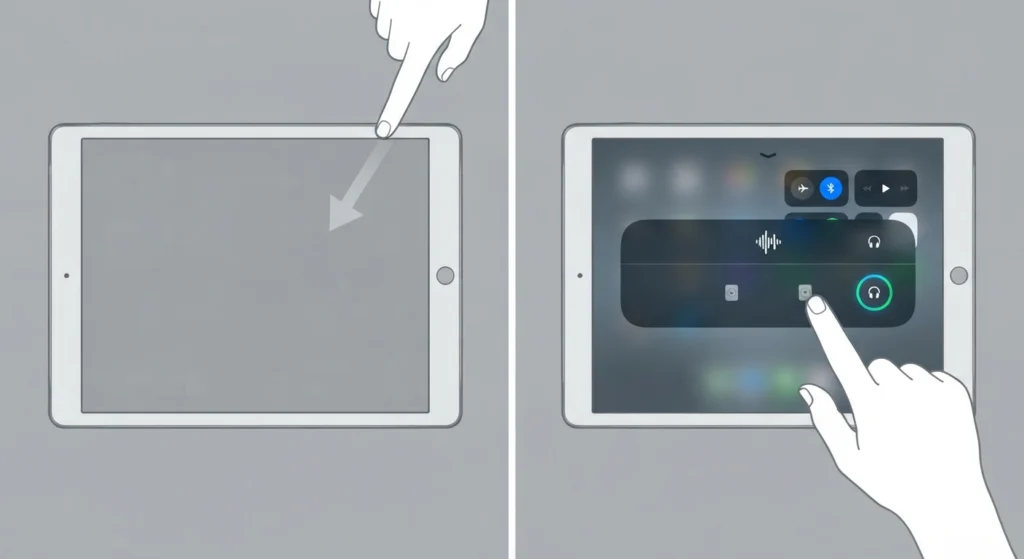
Check the audio output source directly on the iPad. Swipe down from the top-right corner to open Control Center, tap the audio card, and confirm the headphones are selected as the active output rather than the iPad speakers.
Fix 3: Sound Cuts Out or Skips
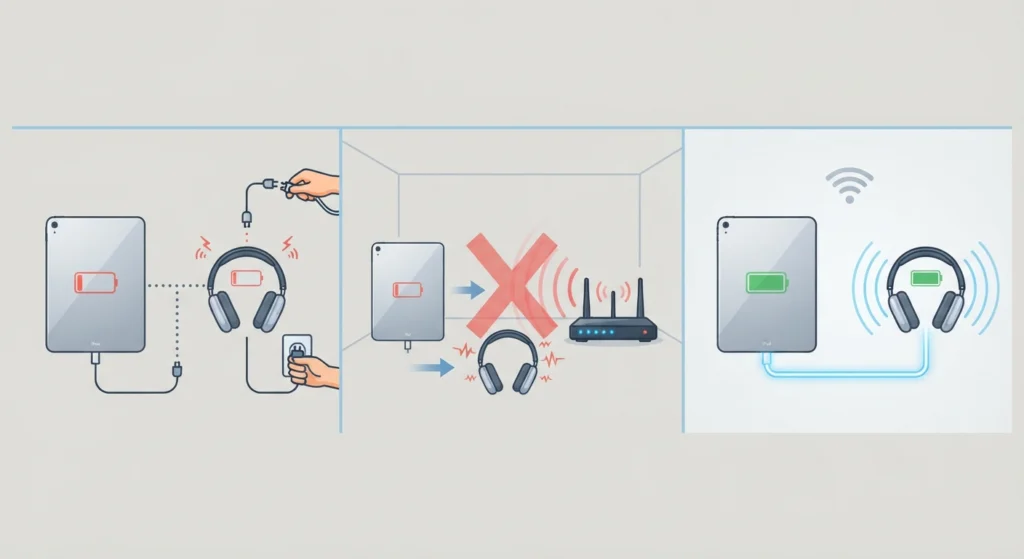
Interference from other wireless devices is the most common cause. Moving away from routers, microwaves, or other Bluetooth accessories often resolves the issue immediately. A low battery on either the iPad or the headphones can also cause intermittent skipping.
Fix 4: Headphones Keep Disconnecting
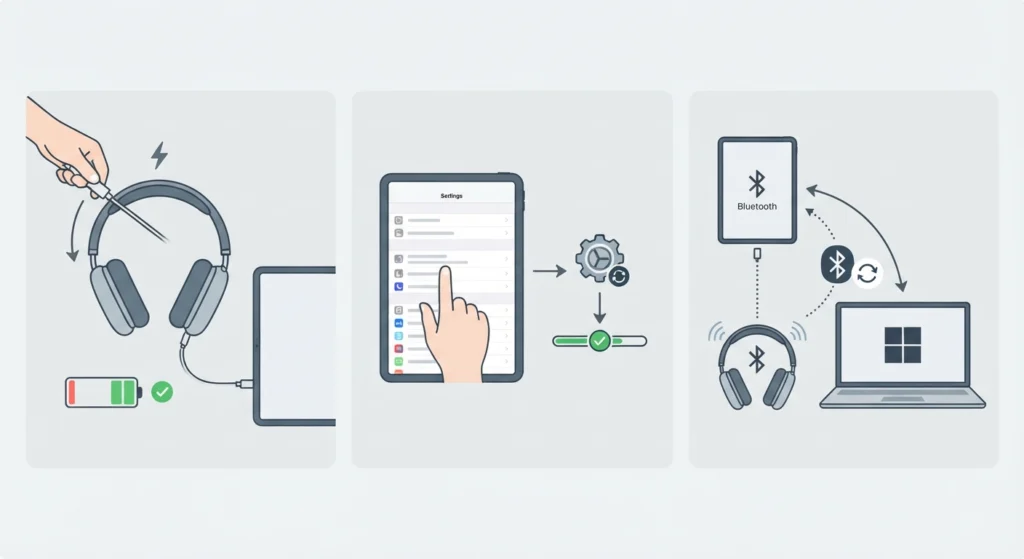
This is often tied to outdated software or a weak battery. Charging the headphones fully and checking for an iPadOS update usually clears this up. Those who regularly switch headphones between an iPad and a Windows 11 laptop may also find it useful to review guidance on resetting audio settings, since a similar reset approach applies across most operating systems.
Fix 5: Microphone Not Working During Calls
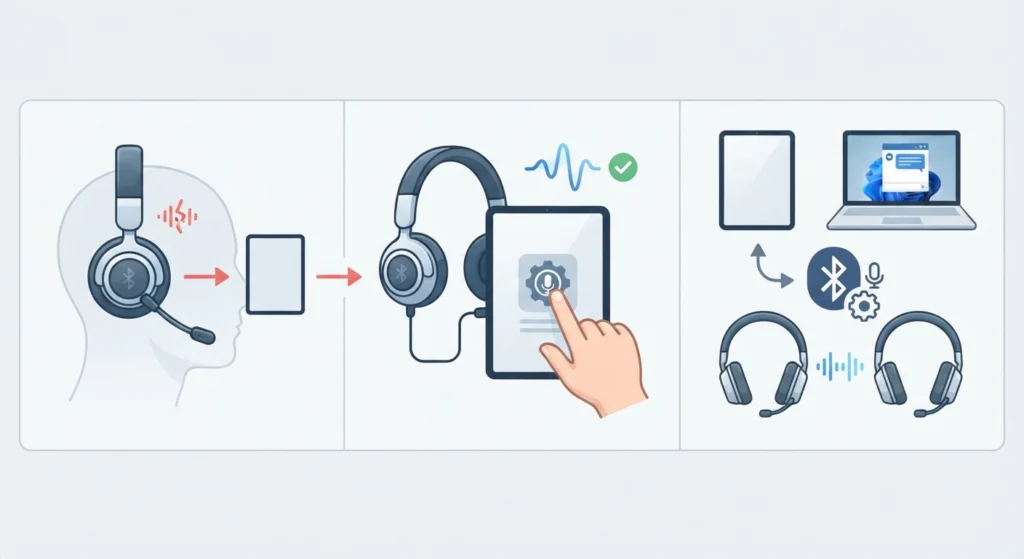
Some Bluetooth headphones default to a lower-quality audio profile when the microphone is active, which can affect call clarity. This is a well-known cross-platform issue, and users managing the same headphones on a Windows 11 machine can find more detail in the guide on resolving microphone detection problems.
Frequently Asked Questions
Can any Bluetooth headphones connect to an iPad?
Yes, any headphones supporting standard Bluetooth audio profiles work with an iPad, regardless of brand.
Why won’t the iPad find the Bluetooth headphones?
The headphones are likely not in pairing mode, or Bluetooth is turned off on the iPad. Confirm both before trying again.
Do AirPods pair differently than other headphones?
AirPods pair automatically through a pop-up window when the case is opened near the iPad, while most other headphones require manual selection through Settings.
How many Bluetooth headphones can connect to an iPad at once?
An iPad can pair with multiple Bluetooth devices, but audio typically plays through only one connected headphone set at a time.
Why does the sound keep cutting out after connecting?
This is generally caused by distance from the iPad, low battery, or interference from nearby electronics.
Is a special app needed to connect Bluetooth headphones to iPad?
No app is required. The built-in Settings app handles the entire pairing process.
How to disconnect Bluetooth headphones from an iPad?
Open Settings, tap Bluetooth, select the connected headphones, then tap Disconnect.
Why does the iPad keep connecting to old headphones automatically?
The iPad remembers every previously paired device and reconnects to the most recently used one automatically when it’s within range and powered on.
Can Bluetooth headphones be used while charging the iPad?
Yes, charging the iPad does not interfere with a Bluetooth connection in any way.
Do Bluetooth headphones affect iPad battery life?
Bluetooth uses a small amount of battery while active, though the effect on overall iPad battery life is minor for most users.