
How to connect Bluetooth headphones to Android is one of those tasks that sounds simple until the pairing screen refuses to cooperate. This guide walks through the exact steps needed to get any pair of Bluetooth headphones talking to an Android phone or tablet, without wasting time on unrelated setup topics.
Key Takeaways
- Bluetooth headphones connect to Android through the Settings app under Connected Devices.
- Headphones must be placed in pairing mode before Android can detect them.
- Most modern Android phones remember paired headphones for automatic reconnection later.
- Connection issues are usually solved by restarting Bluetooth or forgetting and re-pairing the device.
Steps to Connect Bluetooth Headphones to Android
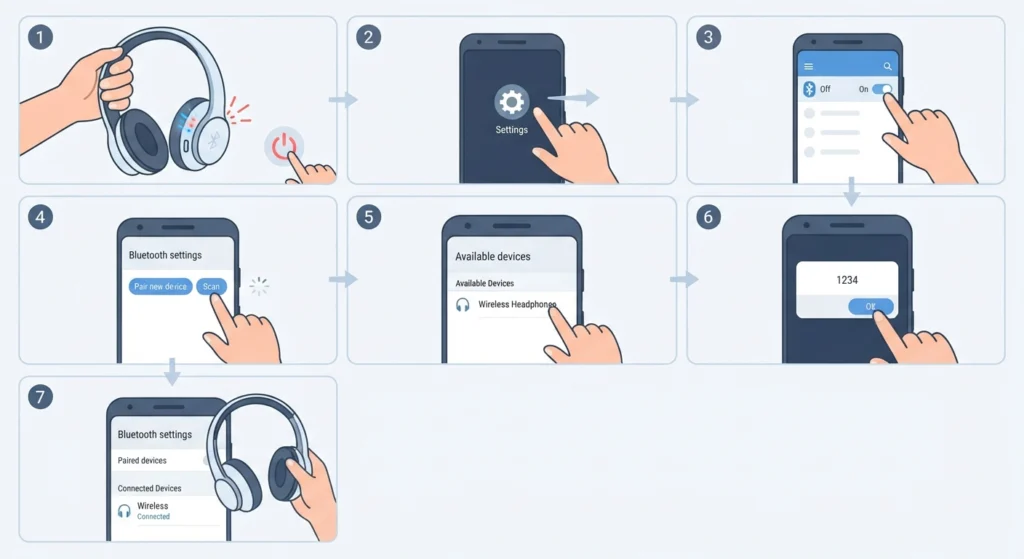
The process below works across nearly all Android versions, including Samsung, Pixel, and other major brands. Minor menu wording may differ slightly depending on the phone manufacturer, but the overall flow stays the same.
- Step 1: Turn on the Bluetooth headphones and hold the power or pairing button until the LED light starts blinking, which signals pairing mode.
- Step 2: On the Android device, open Settings and tap on Connected Devices or Bluetooth, depending on the phone model.
- Step 3: Toggle Bluetooth on if it is not already active.
- Step 4: Tap Pair New Device to start scanning for nearby Bluetooth accessories.
- Step 5: Select the headphones’ name from the list of available devices once it appears.
- Step 6: Confirm any on-screen pairing code if prompted, though most headphones pair automatically without one.
- Step 7: Wait for the phone to display ‘Connected’ under the headphones’ name, then test the audio by playing any sound or video.
Pro-Tip: Keep the headphones within three feet of the phone during the first pairing attempt. A weak signal during the initial handshake is one of the most common reasons pairing fails on the first try.
Tips for a Smoother Bluetooth Connection
A few small habits make Bluetooth headphones far more reliable once they are paired. Most people find that a little routine maintenance prevents the annoying drops and lag that show up after weeks of daily use.
- Keep the headphones charged above 20 percent, since low battery often causes weak or choppy signal strength.
- Avoid pairing more than one Bluetooth device at a time unless the headphones support multipoint connection.
- Update the Android system software regularly, as Bluetooth stability improvements are often included in routine updates.
- Clear old, unused Bluetooth devices from the paired list to prevent the phone from trying to reconnect to the wrong accessory.
Pro-Tip: If audio still sounds unbalanced after connecting, checking the output routing settings can resolve most of it. Desktop users switching between devices often run into a similar situation, and the process for adjusting audio output settings follows the same basic logic across platforms.
Common Problems and How to Fix Them
Fix 1: Headphones Not Showing Up in the List
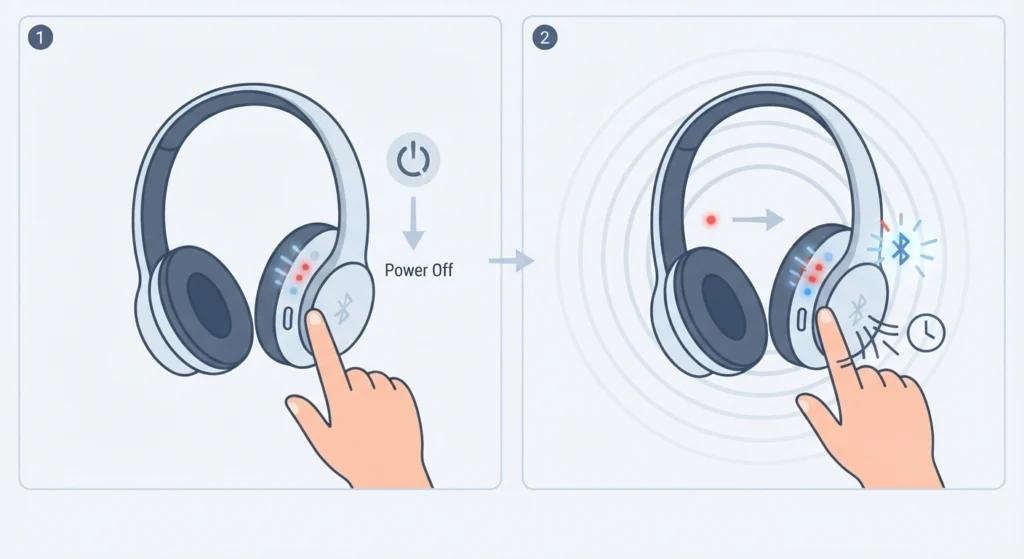
This usually happens when the headphones are not actually in pairing mode. Turning the headphones off completely, then holding the pairing button for a few extra seconds, typically forces them back into discoverable mode so Android can detect them.
Fix 2: Headphones Connect but No Sound Plays
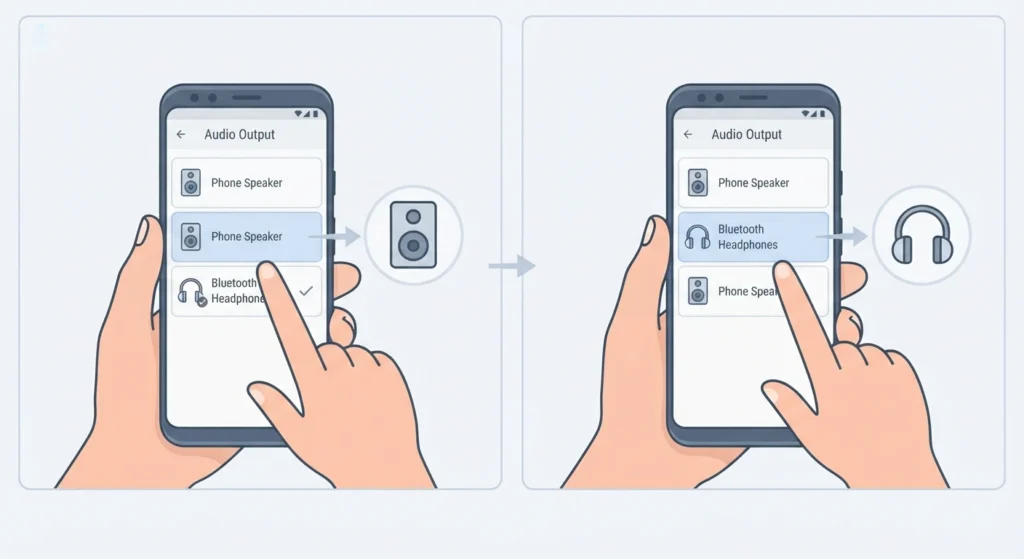
This is often a media routing issue rather than a Bluetooth problem. Checking that the Android device has not accidentally routed audio to a different output source solves this in most cases. Anyone who also switches between a phone and a Windows laptop may recognize this pattern, since re-pairing Bluetooth earbuds for stereo sound on a computer involves the exact same routing check.
Fix 3: Headphones Keep Disconnecting
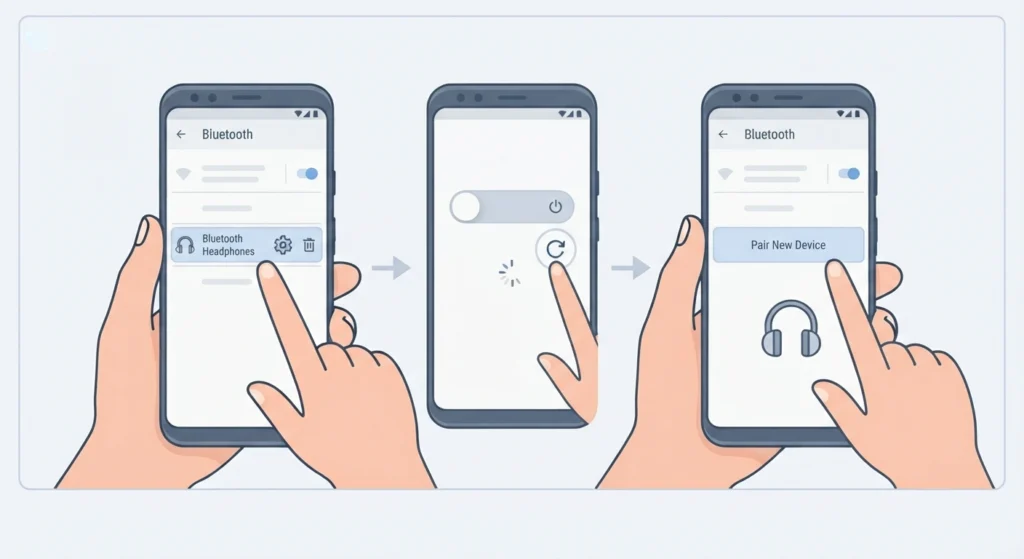
Frequent disconnects are commonly tied to interference from other wireless devices or an outdated Bluetooth driver on the phone. Removing the headphones from the paired devices list, restarting the phone, then pairing again from scratch usually clears this up.
Fix 4: Phone Won’t Reconnect Automatically
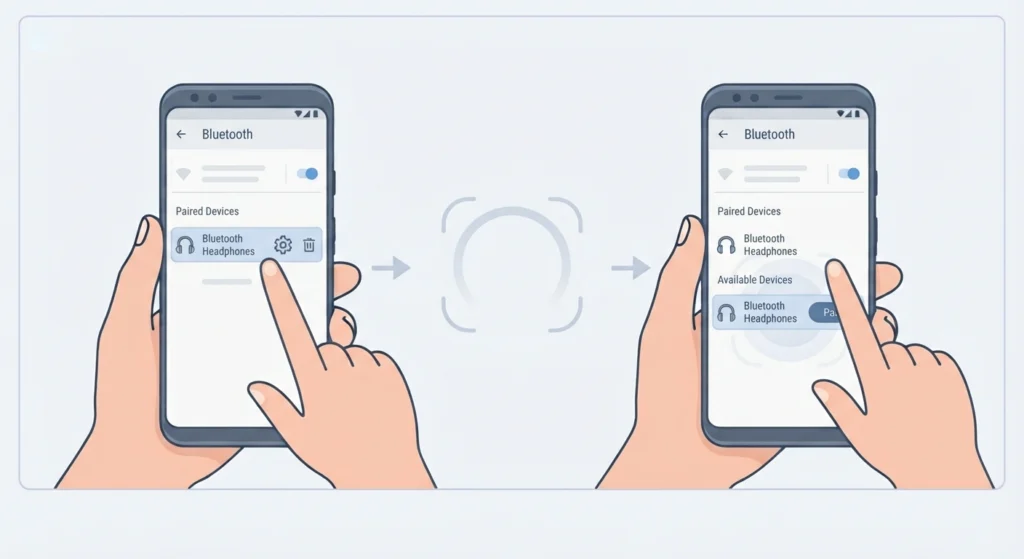
Android typically reconnects to known headphones automatically once both devices are within range. If this stops working, forgetting the device in Bluetooth settings and pairing it as new resets the connection profile and fixes the issue.
Frequently Asked Questions
Why won’t Bluetooth headphones connect to an Android phone?
This usually happens because the headphones are not in pairing mode, Bluetooth is turned off on the phone, or the headphones are already connected to another device nearby.
Do all Android phones support Bluetooth headphones?
Yes, virtually every Android phone released in the last decade supports Bluetooth audio devices, including headphones, earbuds, and speakers.
How long does it take to pair Bluetooth headphones with Android?
Pairing usually takes under thirty seconds once the headphones are in pairing mode and Bluetooth is active on the phone.
Can Bluetooth headphones connect to two Android devices at once?
Only if the headphones support multipoint connection. Without that feature, headphones can stay paired with multiple devices but only actively connect to one at a time.
Why does the phone show ‘Paired’ but no sound plays?
This typically means the phone has routed audio to a different output. Checking the media output selector in the notification shade usually solves this instantly.
Is a PIN code required to pair Bluetooth headphones?
Most modern headphones pair automatically without requiring a PIN. Older Bluetooth accessories sometimes require a default code such as 0000, which is usually listed in the headphones’ manual.
Why do Bluetooth headphones keep disconnecting from Android?
This is often caused by wireless interference, low battery on the headphones, or an outdated pairing profile that needs to be removed and re-added.
Can Bluetooth headphones drain an Android phone’s battery faster?
Bluetooth uses a small amount of battery while active, but the impact is minor compared to screen brightness or streaming data usage.
What is the maximum range for Bluetooth headphones on Android?
Most consumer Bluetooth headphones maintain a stable connection up to about thirty feet, though walls and obstacles can reduce that range.
How can old or unused Bluetooth devices be removed from Android?
Inside Bluetooth settings, tapping the gear icon next to a listed device and selecting Forget removes it permanently from the paired devices list.