
Learning how to change the Bluetooth codec in Android Developer Options takes about a minute, and it can noticeably improve how music sounds on wireless earbuds and headphones. A codec is the format that squeezes audio before it travels from the phone to the headset, so picking a better one often means clearer detail and fewer dropouts.
Key Takeaways:
- The codec menu lives in Developer Options under the name Bluetooth Audio Codec.
- The headphones must be connected first, or the codec menu stays unavailable.
- Both the phone and the headphones must support a codec before it can be selected.
- Common choices are SBC, AAC, aptX, aptX HD, and LDAC, depending on the device.
- Menu names can differ slightly between Pixel, Samsung, Xiaomi, and other brands.
Method 1: Turn On Developer Options
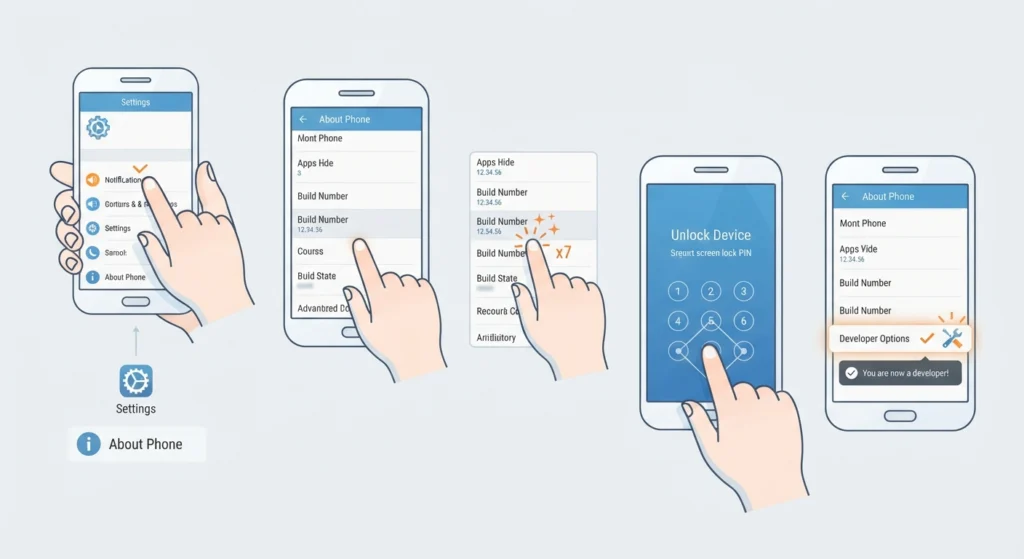
Developer Options is hidden by default, so it needs to be unlocked once. This only has to be done one time per phone.
- Step 1: Open the Settings app and scroll down to About phone.
- Step 2: Find Build number. On some Samsung phones, it sits under Software information. On some other brands, it appears under Version.
- Step 3: Tap Build number 7 times in a row.
- Step 4: Enter the screen lock PIN, pattern, or password if prompted.
- Step 5: A message confirms that Developer Options is now enabled.
Method 2: Change the Bluetooth Codec
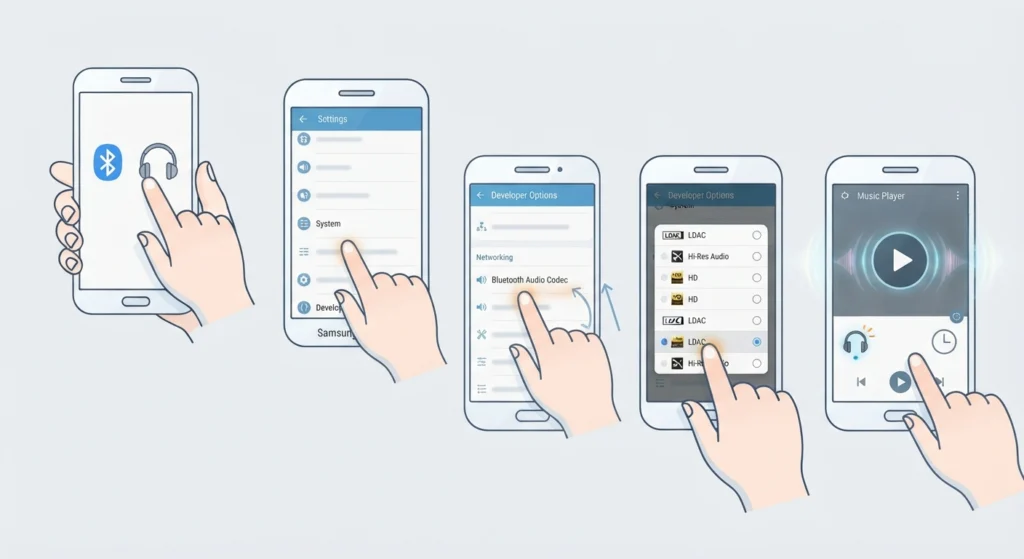
With Developer Options unlocked, the codec switch is only a few taps away. Connect the earbuds or headphones before starting, because the codec menu depends on an active Bluetooth connection.
- Step 1: Turn on the headphones and connect them to the phone through Bluetooth.
- Step 2: Open Settings and go to System, then tap Developer options. On Samsung phones, Developer options usually appears at the very bottom of the main Settings screen.
- Step 3: Scroll down to the Networking section and tap Bluetooth Audio Codec.
- Step 4: Pick the codec that suits the headphones, such as LDAC, aptX HD, aptX, AAC, or SBC.
- Step 5: Play a song and listen for a few minutes to confirm the connection stays stable.
Pro-Tip: Only codecs supported by both the phone and the headphones show up as usable. For example, Apple AirPods work with SBC and AAC only, so choosing LDAC will not apply to them. Check the headphone manual or product page to see which codecs are supported before choosing.
Method 3: Adjust Sample Rate and Bit Depth (Optional)
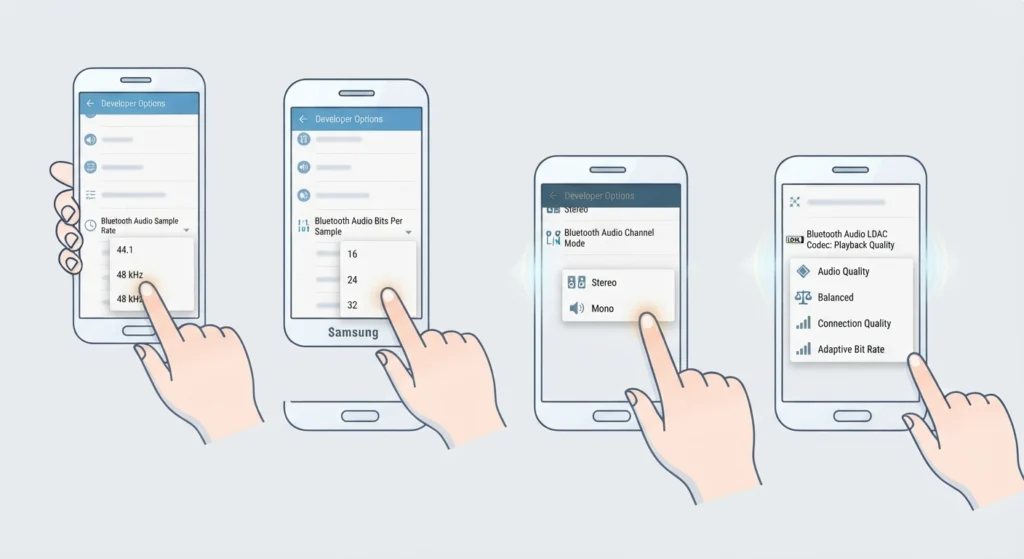
Right below the codec option, Android offers extra controls that fine-tune audio quality. These settings are optional, and the default values work well for most listeners.
- Step 1: In Developer options, tap Bluetooth Audio Sample Rate and choose a value such as 44.1 kHz or 48.0 kHz. Higher values may appear for codecs that support them.
- Step 2: Tap Bluetooth Audio Bits Per Sample and choose 16, 24, or 32 bits if the options are available.
- Step 3: Tap Bluetooth Audio Channel Mode and keep it on Stereo for normal music listening.
- Step 4: If LDAC is selected, tap Bluetooth Audio LDAC Codec: Playback Quality to choose between audio quality, balanced, connection quality, or adaptive bit rate.
Which Bluetooth Codec Should Be Chosen?
SBC
SBC is the default codec that every Bluetooth audio device supports. It works everywhere and is a safe fallback, though the sound quality is usually the most basic of the group.
AAC
AAC delivers solid quality at a modest bit rate. It is the main high-quality codec for Apple headphones and a good pick for any headset that lists it.
aptX and aptX HD
These codecs are common on Android-friendly headphones. aptX HD supports higher audio resolution than standard aptX, but only when both devices support it.
LDAC
LDAC can send much more audio data than SBC, which makes it a favorite for people who want the best wireless quality on compatible Sony and other supported headphones. It works best when the phone stays close to the headphones.
Tips for Better Bluetooth Audio on Android
- Keep the phone and headphones within a few meters, with minimal obstacles between them, especially when using LDAC.
- Choose a lower-bandwidth codec in crowded places such as trains or busy offices, where wireless interference is common.
- Change the codec while music is playing so any difference in sound is easy to hear right away.
- Higher-quality codecs may use slightly more battery on both devices, so pick based on the listening situation.
- Streaming services and music files vary in quality, so a better codec helps most with high-quality sources.
- Listening on a computer as well? Reviewing audio output settings on Windows 11 helps the same headphones sound their best there too.
Common Problems and Quick Fixes
Fix 1: Bluetooth Audio Codec Is Greyed Out
The headphones need to be connected and powered on first. If the option stays unavailable, disconnect and reconnect the headphones, then reopen Developer options.
Fix 2: Audio Cuts Out After Choosing a High-Quality Codec
Switch to a lower-bandwidth option such as AAC or SBC, or lower the LDAC playback quality setting to a connection-focused mode.
Fix 3: The Selected Codec Does Not Seem to Apply
Turn the headphones off and on again, then reconnect. If the issue continues, removing the headphones from the phone and re-pairing the earbuds often refreshes the connection settings.
Frequently Asked Questions
What is a Bluetooth codec?
A Bluetooth codec is the method used to compress and decompress audio as it travels wirelessly from a phone to headphones. Different codecs balance sound quality, stability, and delay in different ways.
Where is the Bluetooth Audio Codec setting on Android?
It is inside Developer Options, in the Networking section. The exact path is usually Settings, then System, then Developer options, then Bluetooth Audio Codec.
Why is the Bluetooth Audio Codec option not clickable?
The option typically stays unavailable until a Bluetooth audio device is connected. Connecting the headphones first makes the menu active.
Is it safe to use Developer Options on Android?
Developer Options is safe for changing the codec as long as unrelated settings are left alone. Only the Bluetooth audio settings need to be touched for this task.
Which Bluetooth codec has the best sound quality?
LDAC and aptX HD are generally considered the highest-quality options, but they only work when both the phone and headphones support them. In real use, a stable connection matters as much as the codec itself.
Can any Bluetooth headphones use LDAC?
No. LDAC works only when both the phone and the headphones support it. Headphones that lack LDAC will fall back to another codec they support.
Do AirPods support LDAC or aptX on Android?
No. AirPods support SBC and AAC, so those are the only codecs available when they are connected to an Android phone.
Does changing the codec affect battery life?
Higher-quality codecs can use a bit more power on the phone and the headphones. The difference is usually small, but it can be noticeable over long listening sessions.
How can the active codec be checked?
The Bluetooth Audio Codec menu in Developer options shows the codec currently selected. Some headphone companion apps also display the codec in use.
Does the codec reset after disconnecting the headphones?
The phone may renegotiate the codec when the headphones reconnect. If the sound seems different after reconnecting, reopen Developer options and confirm the selected codec.