
Beoplay H100 noise cancelling not working can turn a quiet commute into a noisy one in a hurry. The good news is that the cause is usually a small thing, like a dial nudged out of place, a palm resting on the glass, or a connection that needs a fresh start. This guide walks through each fix in the order that saves the most time.
Key Takeaways
- The button on either earcup switches between maximum ANC and maximum TrueTransparency, and the left dial fine-tunes the level.
- Resting a palm on the glass surface triggers quick listen, which lets outside sound in.
- A hardware reboot (30 seconds) keeps all settings, while a factory reset (10 seconds, both earcups) erases them.
- The Bang & Olufsen app handles Listening Modes, customised controls, and software updates.
Step-by-Step Fixes for Beoplay H100 Noise Cancelling Not Working
Fix 1: Check the ANC Button and Left Dial
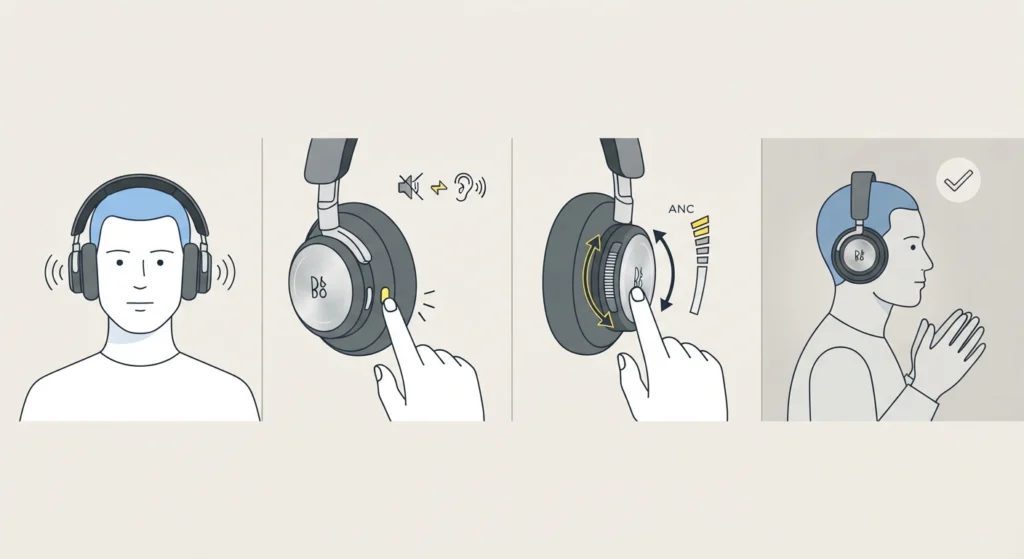
Before opening any app, it helps to rule out the simplest cause. The Beoplay H100 blends noise cancelling and TrueTransparency on one scale, so a small turn of the dial can change how much of the outside world gets through.
- Step 1: Put the headphones on and start playing any audio.
- Step 2: Press the button on either earcup once. This jumps between maximum Active Noise Cancellation and maximum TrueTransparency.
- Step 3: Rotate the dial on the left earcup slowly until the surrounding noise drops to the level you want.
- Step 4: Keep your hands away from the glass surfaces for a few seconds and listen again.
Pro-Tip: Placing a palm on the glass surface is the quick listen gesture, and it lets the surroundings in on purpose. Adjusting the headphones or brushing a hand across the earcup can trigger it by accident, which feels exactly like noise cancelling has stopped working.
Fix 2: Review the Listening Mode and Controls in the Bang & Olufsen App
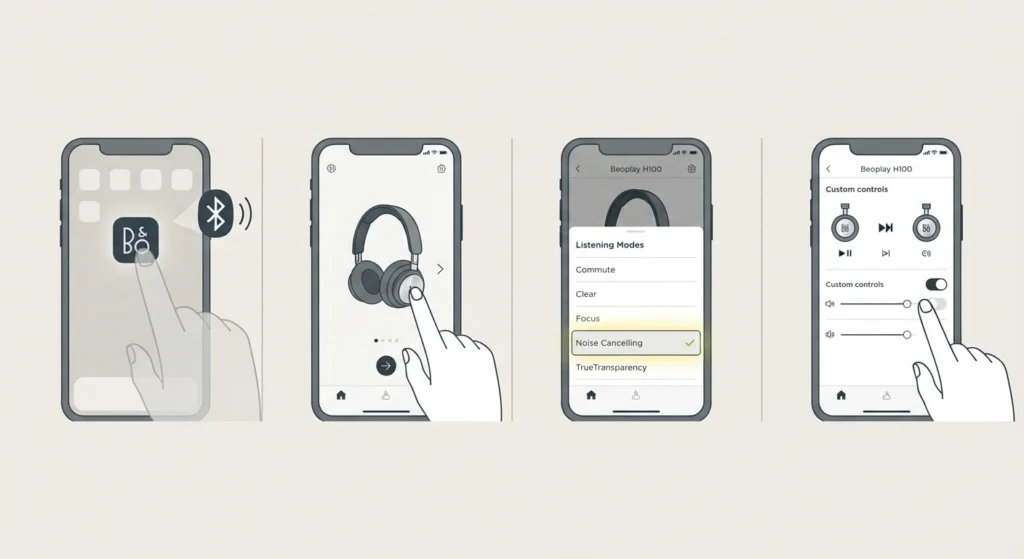
Listening Modes can be selected and customised on the Beoplay H100 product page in the app. Since software update 1.1.1, controls can also be customised, so a setting may not be what it was when the headphones were new.
- Step 1: Open the Bang & Olufsen app and make sure Bluetooth is turned on for the phone.
- Step 2: Select Beoplay H100 to open its product page.
- Step 3: Check the active Listening Mode and confirm that noise cancelling is selected instead of TrueTransparency.
- Step 4: Look through the customisable controls and confirm the earcup buttons still do what is expected.
Fix 3: Improve the Fit and Seal of the Ear Cushions
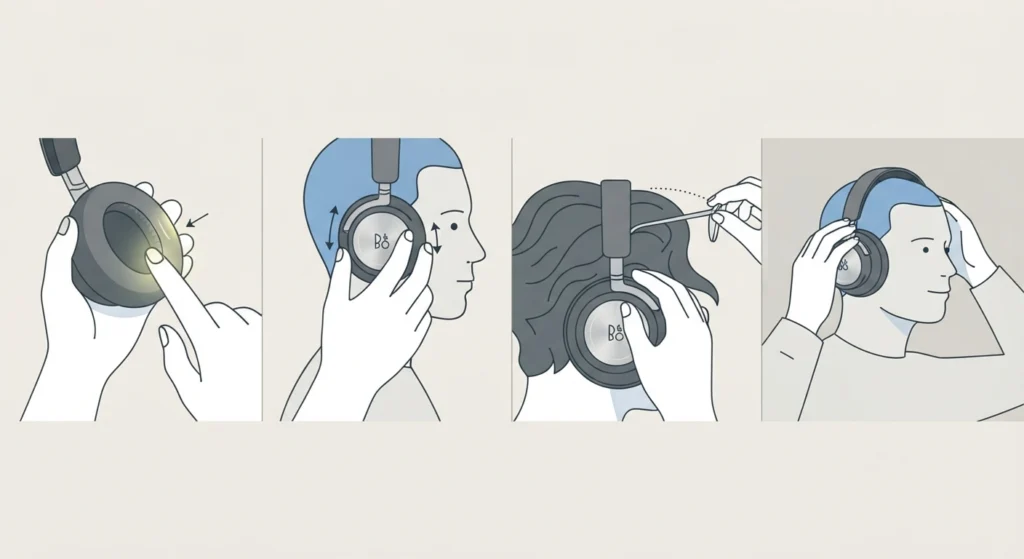
Noise cancelling works best when the ear cushions sit flat against the head. Think of it like a door with a gap underneath – the draft gets in no matter how good the door is. Glasses arms, thick hair, or a headband sitting crooked can all leave small gaps.
- Step 1: Take the headphones off and check both ear cushions for dents, tears, or flattening.
- Step 2: Put them back on and center each earcup over the ear so the cushion rests evenly all the way around.
- Step 3: Move any hair, hat brims, or glasses arms out of the seal area.
- Step 4: Adjust the headband until both sides feel equally snug, then listen again.
The ear cushions on the Beoplay H100 are replaceable, so worn-out ones can be swapped instead of living with a weak seal.
Fix 4: Update the Headphone Software

Bang & Olufsen releases updates through its app, and these can bring improvements to performance and controls. Running older software is a common reason a feature behaves differently than expected.
- Step 1: Charge the headphones so the battery is not low.
- Step 2: Connect the headphones to the phone and open the Bang & Olufsen app.
- Step 3: Open the Beoplay H100 product page and look for an available software update.
- Step 4: Start the update and keep the headphones close to the phone until it finishes.
Fix 5: Run a Hardware Reboot
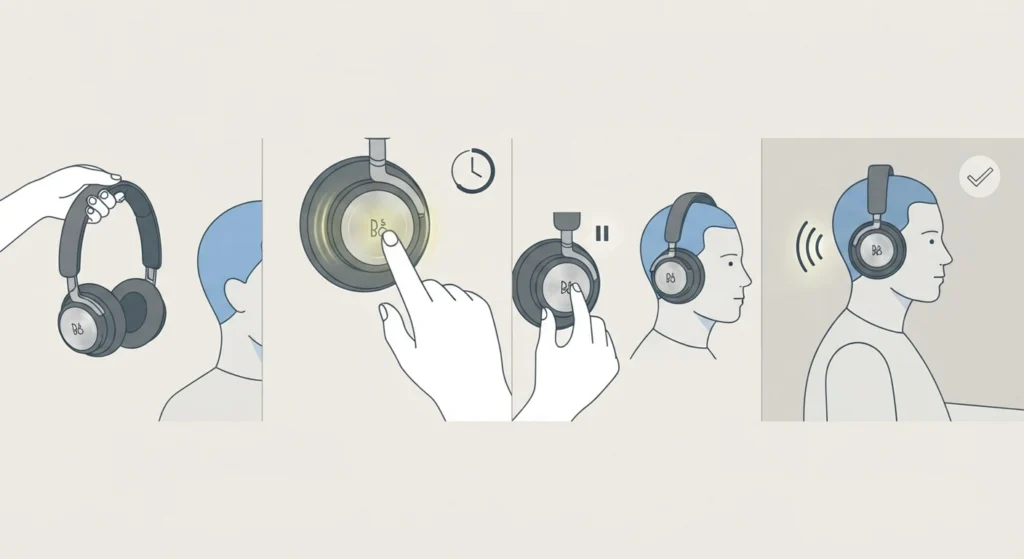
A hardware reboot works like restarting a phone. It clears minor glitches without touching any saved settings or paired devices, so it is the safest reset to try first.
- Step 1: Take the headphones off.
- Step 2: Press and hold the buttons on one earcup for 30 seconds.
- Step 3: Release the buttons, wait a moment, then put the headphones back on.
- Step 4: Play some audio and test noise cancelling again.
Pro-Tip: Try the hardware reboot before a factory reset. It keeps every setting and pairing intact, and it often solves the problem on its own.
Fix 6: Forget and Re-Pair the Headphones
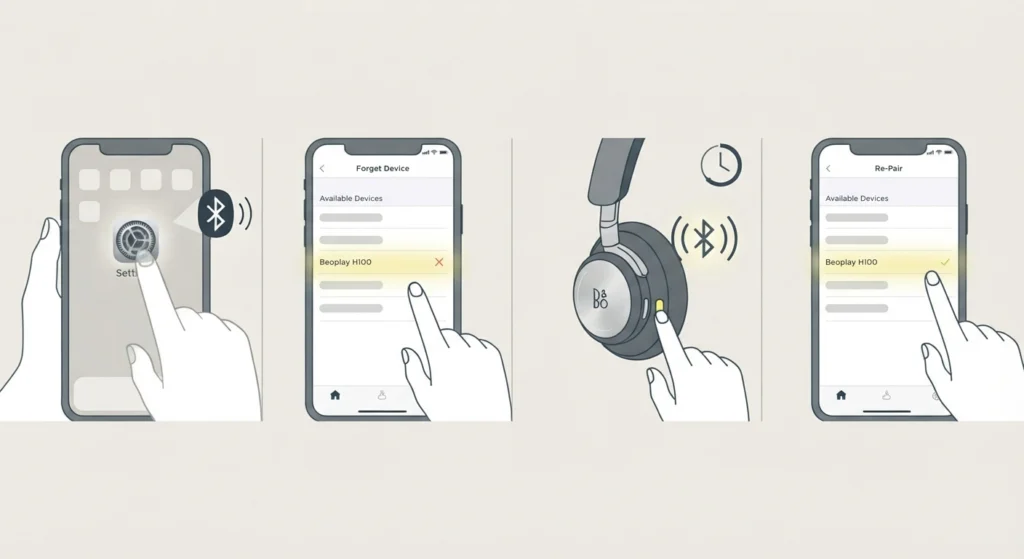
A stale Bluetooth connection can cause odd behavior. Removing the headphones from the device and pairing them again gives both sides a clean start.
- Step 1: Open the Bluetooth settings on the phone, tablet, or computer.
- Step 2: Select Beoplay H100 and choose Forget This Device.
- Step 3: Press and hold the button on the headphones for 5 seconds to start Bluetooth pairing.
- Step 4: Select Beoplay H100 from the list of available devices and finish pairing.
On a computer, this guide to re-pairing Bluetooth audio devices on Windows covers the process in detail. If sound still comes from the wrong place afterward, adjusting the audio output settings in Windows 11 makes sure the headphones are the selected output.
Fix 7: Factory Reset the Beoplay H100
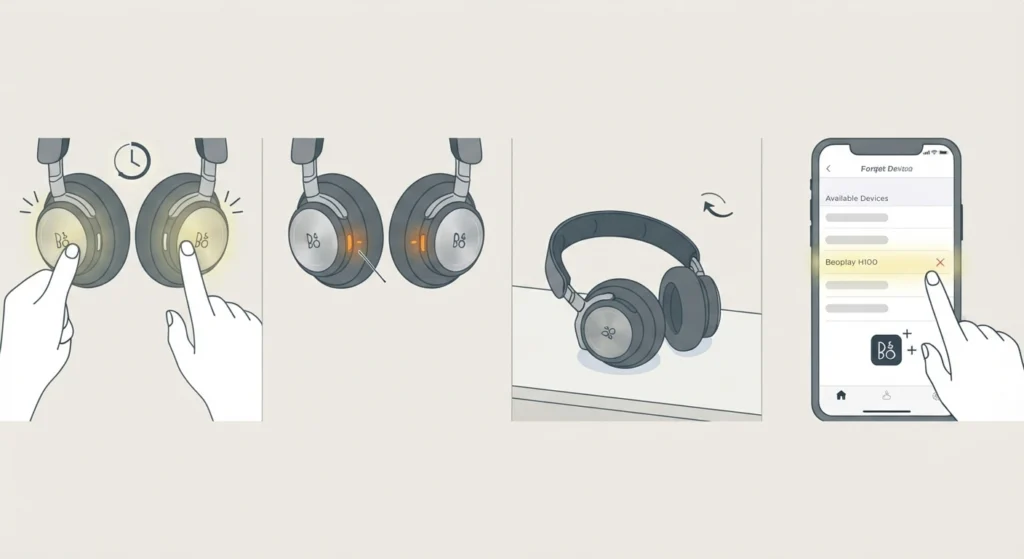
When nothing else works, a factory reset returns the headphones to their first-time setup state. This erases settings and connections, so it works best as the last step.
- Step 1: Press and hold the buttons on the left and right earcups at the same time for 10 seconds.
- Step 2: Release when the light indicator turns solid orange.
- Step 3: Wait a few seconds for the reset to finish.
- Step 4: Remove Beoplay H100 from the Bluetooth list on every device with Forget This Device.
- Step 5: Pair the headphones again and set them up in the Bang & Olufsen app.
Tips to Keep Noise Cancelling Working Well
- Keep the headphones updated through the Bang & Olufsen app so the latest improvements are always installed.
- Be mindful of the glass surfaces when taking the headphones on and off, since a palm touch activates quick listen.
- Enable Wind Protection in the app for outdoor use. It combines a physical filter with a wind detection algorithm to reduce wind-induced distortion.
- Check the ear cushions every few months and replace them once they look worn or flattened.
- Try a hardware reboot whenever the headphones act strangely, before moving on to bigger resets.
Common Problems and Quick Answers
Outside Sounds Suddenly Get Louder
This usually means the left dial moved toward TrueTransparency or the quick listen gesture was triggered. Press the earcup button to return to maximum ANC, then keep a palm off the glass.
Noise Cancelling Sounds Weaker Outdoors in Wind
Wind can distort what the microphones pick up. Turn on Wind Protection in the Bang & Olufsen app for the listening mode being used outdoors.
Earcup Buttons Do Not Behave as Expected
Controls can be customised in the app since software update 1.1.1. Open the product page, review the customised controls, and adjust them as needed.
Frequently Asked Questions
Where are the noise cancelling controls on the Beoplay H100?
The button on either earcup toggles between maximum ANC and maximum TrueTransparency, and the dial on the left earcup fine-tunes the level in between.
What does the palm gesture do on the glass surface?
Placing a palm on the glass surface activates quick listen, which lets the surroundings in so a conversation can be heard without removing the headphones.
Does a hardware reboot delete my settings?
No. Holding the buttons on one earcup for 30 seconds reboots the hardware without deleting settings or connections.
How do I factory reset the Beoplay H100?
Press and hold the buttons on both earcups at the same time for 10 seconds until the light indicator turns solid orange. Then forget the headphones on each device and pair them again.
How do I put the Beoplay H100 into pairing mode?
Press and hold the button for 5 seconds to start Bluetooth pairing, then select the headphones from the Bluetooth menu or the Bang & Olufsen app.
How do I update the Beoplay H100?
Software updates are delivered through the Bang & Olufsen app. Connect the headphones, open the product page, and follow the update prompt.
How many microphones does the Beoplay H100 use for noise cancelling?
The headphones use ten microphones in total, which handle noise cancelling and voice pickup for calls.
How long does the battery last with noise cancelling on?
Bang & Olufsen lists up to 32 hours of playback with Active Noise Cancellation switched on.
Can the Beoplay H100 connect to two devices at once?
Yes. The headphones support multipoint, so they can stay actively connected to two devices at the same time.
Can the ear cushions be replaced on the Beoplay H100?
Yes. The ear cushions are replaceable, which helps restore a good seal when the originals wear out.