
Beats Fit Pro touch controls not working can be incredibly frustrating, especially when the earbuds seem perfectly connected but won’t respond to taps or holds. This step-by-step guide covers the most direct fixes to get those controls back in action quickly.
Quick Summary: Key Takeaways
- Most touch control issues on Beats Fit Pro are caused by software glitches, incorrect settings, or earwax buildup on the sensor area.
- A firmware update or force restart resolves the majority of cases.
- Customized touch controls in the Beats app can override expected behavior – always check app settings first.
- Resetting the earbuds to factory settings is a reliable last resort that does not damage the device.
- If nothing works after a reset, a hardware sensor issue may require Beats support or warranty service.
Step-by-Step Fixes for Beats Fit Pro Touch Controls Not Working
Fix 1: Clean the Touch Sensor Area
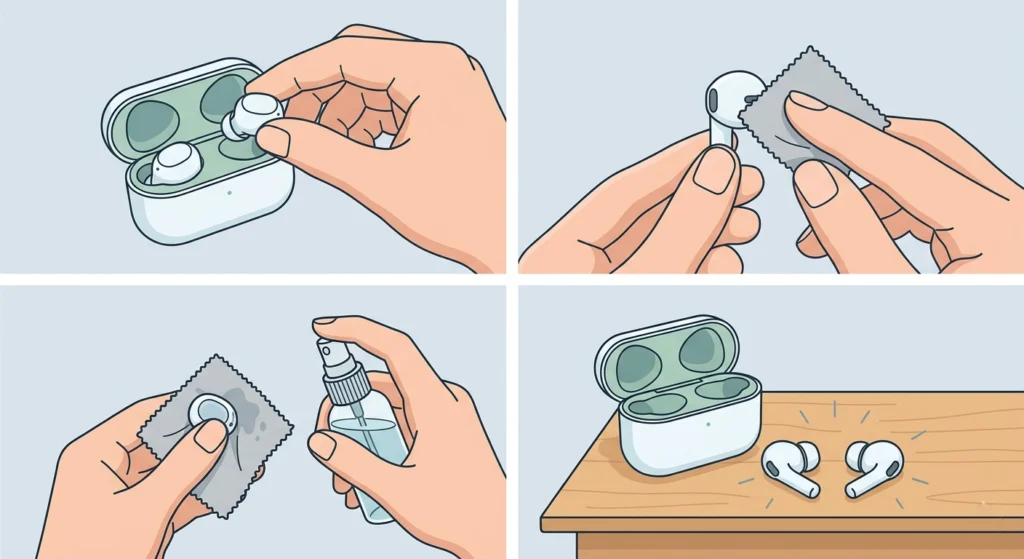
Before diving into software fixes, check the physical surface of each earbud. The touch-sensitive area on the Beats Fit Pro is located on the flat outer panel of each bud. Skin oil, earwax, or moisture buildup can completely block sensor responsiveness – and this is more common than most people expect.
- Step 1: Remove both earbuds from the ears and power them off by placing them in the case.
- Step 2: Use a dry, lint-free microfiber cloth to gently wipe the outer surface of each earbud.
- Step 3: For stubborn residue, lightly dampen the cloth with isopropyl alcohol (70%) – do not apply liquid directly to the earbud.
- Step 4: Let them dry completely for 1-2 minutes before taking them out of the case and testing again.
This works best when done regularly as part of earbud maintenance. Most people find that cleaning alone resolves the issue after workouts or extended wear sessions.
Fix 2: Force Restart the Beats Fit Pro
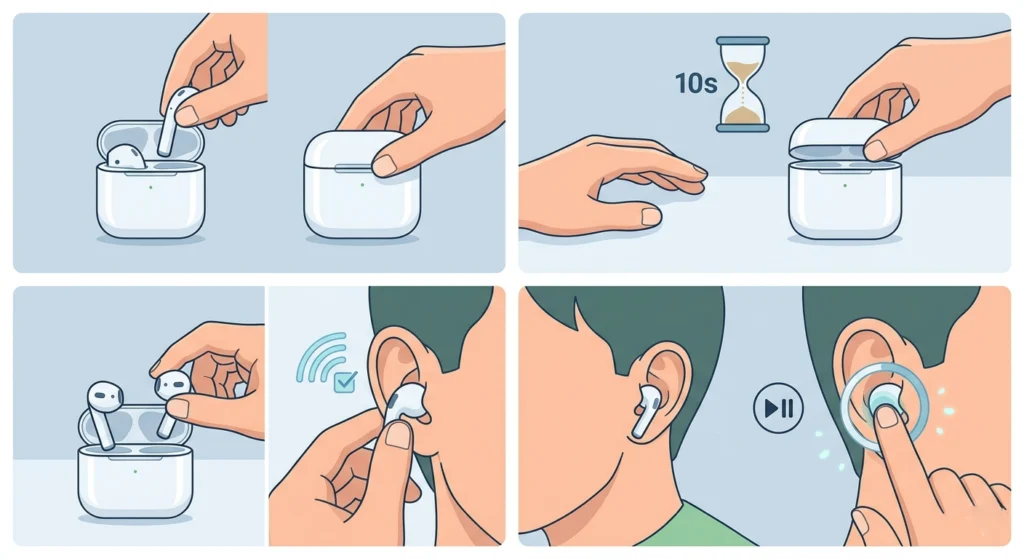
A simple restart clears temporary firmware glitches that can cause the touch controls to freeze or stop registering input. This is the fastest software fix available.
- Step 1: Place both earbuds into the charging case and close the lid.
- Step 2: Wait 10 seconds, then open the lid.
- Step 3: Remove the earbuds and wear them – they will automatically power on and reconnect to the last paired device.
- Step 4: Test the touch controls by pressing the earbud stem area for play/pause or holding for other functions.
The key is giving the earbuds enough time in the case to fully power cycle. A quick 2-second dip back in the case is usually not enough.
Fix 3: Check and Reset Touch Control Settings in the Beats App
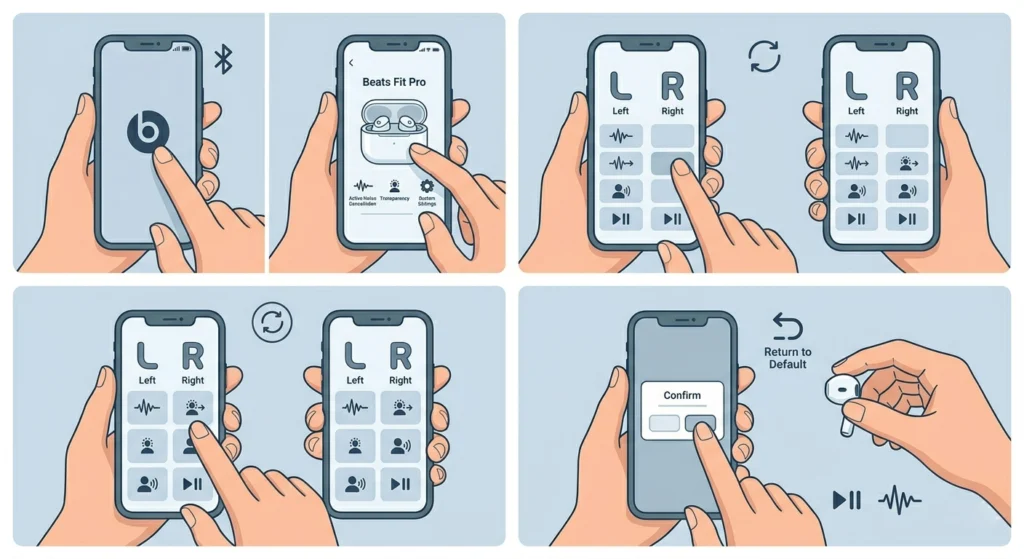
The Beats app (available for iOS and Android) allows custom touch control assignments for each earbud. If the controls feel like they are doing the wrong thing – or nothing at all – the settings may have been changed accidentally.
- Step 1: Open the Beats app on the paired phone and make sure the Fit Pro is connected.
- Step 2: Tap on the Beats Fit Pro device from the home screen.
- Step 3: Select ‘Press and Hold Function’ for each earbud (left and right).
- Step 4: Confirm that each function is assigned correctly – ANC, Transparency Mode, Siri, or Playback Control based on preference.
- Step 5: If anything looks misconfigured, reset to default assignments and test again.
Pro-Tip: Some users accidentally assign ‘Off’ to the press-and-hold function, which makes the earbud appear broken when it is simply disabled in the app. Always verify both earbuds have active assignments.
Fix 4: Disconnect and Re-Pair the Earbuds
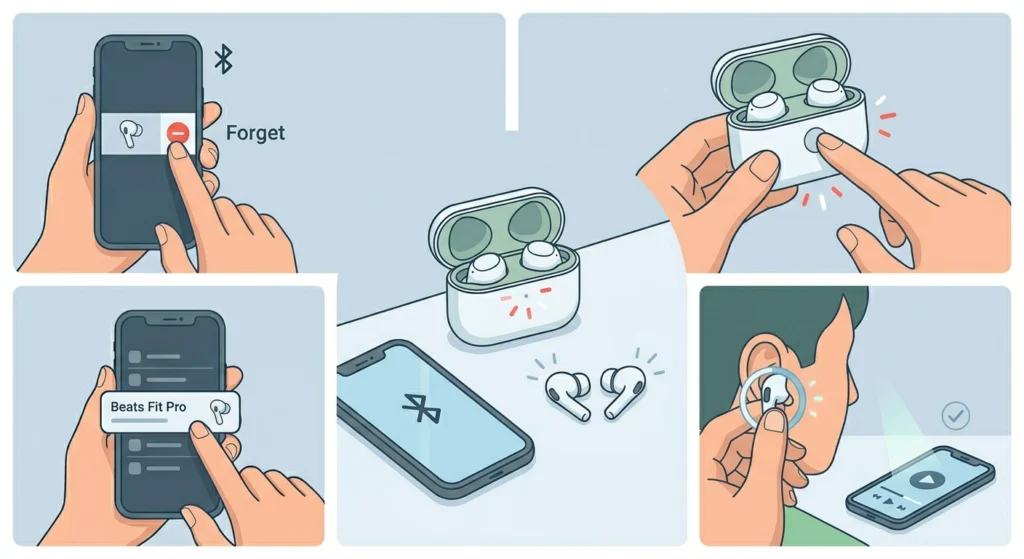
A corrupted Bluetooth pairing can sometimes cause erratic or non-functional touch controls. Re-pairing forces a clean connection between the earbuds and the device. For those on Windows, it helps to understand how to re-pair Bluetooth earbuds for stereo sound on Windows to avoid stereo issues during the process.
- Step 1: On the phone or device currently paired, go to Bluetooth settings and forget or unpair the Beats Fit Pro.
- Step 2: Place the earbuds in the case and leave the lid open.
- Step 3: Press and hold the system button on the case (the button on the back) for about 15 seconds until the LED flashes red and white – this puts the earbuds in pairing mode.
- Step 4: On the phone, scan for Bluetooth devices and select ‘Beats Fit Pro’ from the list.
- Step 5: Once connected, test the touch controls.
Fix 5: Update the Firmware
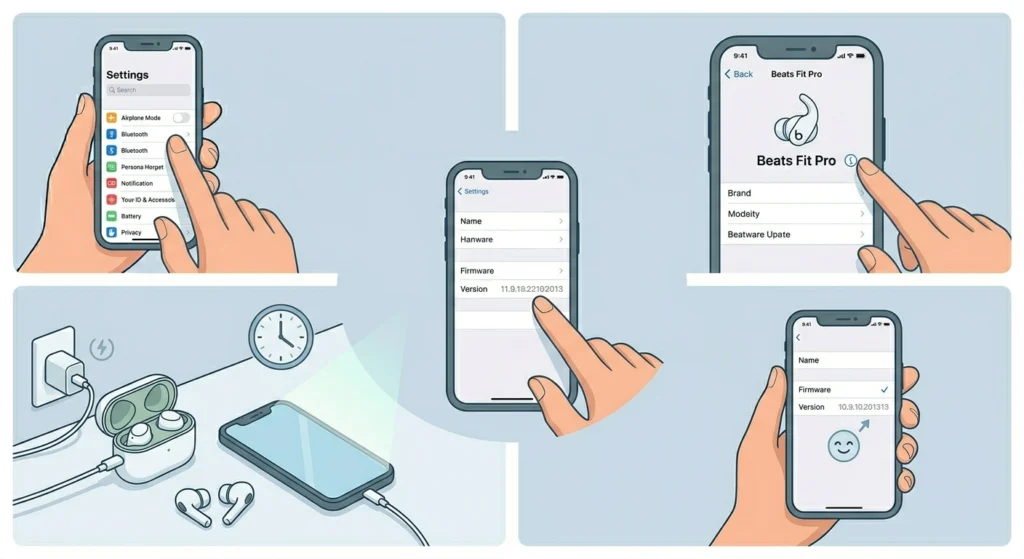
Outdated firmware is a known cause of touch control issues on the Beats Fit Pro. Apple regularly pushes bug fixes through firmware updates that address sensor responsiveness problems specifically.
- Step 1: Connect the Beats Fit Pro to an iPhone or iPad via Bluetooth.
- Step 2: Open the Settings app, tap ‘Bluetooth’, and tap the info icon next to Beats Fit Pro.
- Step 3: Scroll down to see the firmware version listed.
- Step 4: To trigger an update, keep the earbuds connected to the iPhone with both devices plugged into a power source, and leave them idle for 20-30 minutes. iOS pushes firmware updates automatically in this state.
- Step 5: Check the firmware version again after and confirm it has updated.
Android users can check firmware status via the Beats app under device settings. Android firmware updates also push automatically when connected and charging nearby.
Fix 6: Factory Reset the Beats Fit Pro
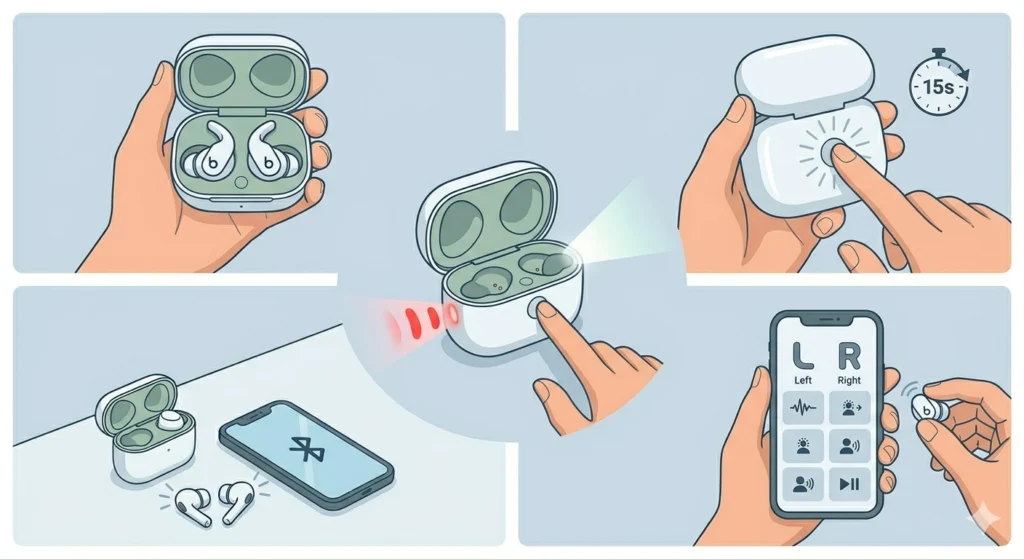
When all other steps fail, a factory reset returns the earbuds to their original state and clears any deep software corruption affecting the touch controls.
- Step 1: Place both earbuds in the charging case and open the lid.
- Step 2: Press and hold the system button on the case for 15 seconds.
- Step 3: The LED will flash red 3 times then white – release the button at this point.
- Step 4: The earbuds are now reset and in pairing mode. Pair them again with the phone.
- Step 5: Open the Beats app to reconfigure any preferred settings and test the touch controls.
Pro-Tip: After a factory reset, avoid restoring settings from a backup right away. Test the touch controls fresh first – restoring a backup can sometimes reimport the same corrupted preferences that caused the issue.
Tips for Keeping Beats Fit Pro Touch Controls Working Properly
- Wipe down the outer earbud panels after every workout – sweat is one of the leading causes of sensor degradation.
- Avoid applying sunscreen or lotion near the ears before wearing the Fit Pro, as residue transfers easily onto the touch surface.
- Keep firmware updated. iOS users benefit from automatic pushes, but it is worth manually checking every few weeks.
- Do not press the touch panel with excessive force. The sensors are capacitive, meaning light, deliberate contact works better than hard pressing.
- Store the earbuds in the case when not in use to prevent dust from settling on the sensor area.
Common Problems and Quick Fixes
Only One Earbud Touch Control Is Not Working
This usually points to a sensor blockage on that specific bud or an uneven firmware state between the two earbuds. Clean that earbud first, then try a factory reset. If one earbud consistently fails after resetting, it may have a hardware defect eligible for warranty replacement.
Touch Controls Work Inconsistently
Inconsistent response often means the earbud fit is slightly off. The Beats Fit Pro uses a pressure-based fit to maintain sensor contact. If the earbud feels loose or shifts during movement, the sensor may not register properly. Try a different size ear tip or ear wing for a more secure fit.
Controls Stop Working After a Phone Update
Phone OS updates occasionally affect Bluetooth behavior. If touch controls stopped working right after a phone update, try unpairing and re-pairing the earbuds. Also check if the Beats app needs an update from the App Store or Google Play – compatibility patches are usually released alongside major OS versions. Windows users experiencing Bluetooth audio issues after an update should also look into resolving microphone detection problems on Windows 11 as the root cause can overlap.
Touch Controls Do Not Respond When Using Siri or Google Assistant
If the press-and-hold function is assigned to a voice assistant but it is not activating, make sure the voice assistant is enabled on the phone and that microphone permissions are granted to the relevant app. Also confirm the function is set to ‘Voice Assistant’ in the Beats app rather than ‘Off’.
Frequently Asked Questions
Why are the touch controls on Beats Fit Pro not working at all?
The most common reasons are sensor buildup from sweat or oil, a software glitch requiring a restart, or an incorrect setting in the Beats app. Start with cleaning the outer panel, then force restart the earbuds. Most users resolve the issue within these first two steps.
Can a firmware update fix Beats Fit Pro touch control issues?
Yes. Apple and Beats regularly push firmware updates specifically addressing touch sensitivity and responsiveness bugs. Connecting the earbuds to an iPhone while both are charging typically triggers a pending update automatically within 20-30 minutes.
How do you reset Beats Fit Pro touch controls to default settings?
Open the Beats app, select the Fit Pro device, and navigate to ‘Press and Hold Function’ for each earbud. From there, restore the default assignments. If the app settings appear correct but controls still misbehave, proceed to a full factory reset using the system button on the charging case.
Does resetting Beats Fit Pro delete all settings?
Yes. A factory reset wipes all paired devices and custom app configurations. After the reset, the earbuds need to be re-paired with all devices and any custom press-and-hold functions need to be set up again in the Beats app.
Why does only one Beats Fit Pro earbud respond to touch?
Single-earbud touch failure usually points to dirt or moisture on that specific sensor, an asymmetric firmware state, or a developing hardware issue. Clean the affected earbud thoroughly and perform a factory reset. If only one side continues to fail, contact Beats support for warranty service.
Can sweat damage the Beats Fit Pro touch sensors permanently?
The Beats Fit Pro carries an IPX4 water resistance rating, which protects against sweat and light splashes. However, repeated exposure without cleaning can leave mineral deposits that reduce sensor sensitivity over time. Regular cleaning after workouts prevents long-term degradation.
How do I know if the Beats Fit Pro touch sensor is physically damaged?
If the touch controls remain completely unresponsive after cleaning, re-pairing, firmware update, and factory reset, a hardware sensor failure is likely. Physical damage is also indicated if the earbud was dropped or exposed to submersion beyond IPX4 levels. In these cases, Beats support or an Apple Store inspection is the recommended next step.
Are Beats Fit Pro touch controls the same on both earbuds?
The left and right earbuds can be independently customized through the Beats app. By default, both support single press for play/pause and skip, but the press-and-hold function is individually assignable. The right earbud defaults to ANC/Transparency toggle while the left can be set to a different function or vice versa depending on preference.
What is the system button on Beats Fit Pro used for?
The system button is located on the back of the charging case, not on the earbuds themselves. It is used to enter pairing mode and to perform a factory reset. Holding it for 15 seconds while the earbuds are in the open case initiates the reset process, indicated by the LED flashing red and white.
Do Beats Fit Pro touch controls work with non-Apple devices?
Yes. Core touch functions like play/pause, track skipping, and volume adjustment work with any Bluetooth device. However, Siri-specific functions only work with Apple devices. Android users can assign Google Assistant to the press-and-hold function via the Beats app. Some advanced features may have limited functionality on non-Apple platforms.