
SoundPEATS Air 4 not pairing to a phone is one of the most common frustrations users run into, especially right out of the box or after switching devices. The good news is that this issue is almost always fixable in just a few steps. This guide walks through the exact fixes that work, in order of simplicity – no guesswork, no filler.
Quick Summary – Key Takeaways
- Always reset the SoundPEATS Air 4 before attempting any new pairing
- Remove old Bluetooth entries from the phone before reconnecting
- Both earbuds must be in the case before starting pairing mode
- Keep the phone within 1 meter of the earbuds during initial pairing
- Toggling Bluetooth off and on clears many temporary connection glitches
- Firmware issues can sometimes cause persistent pairing failures
Steps to Fix SoundPEATS Air 4 Not Pairing to Phone
Fix 1: Reset the SoundPEATS Air 4
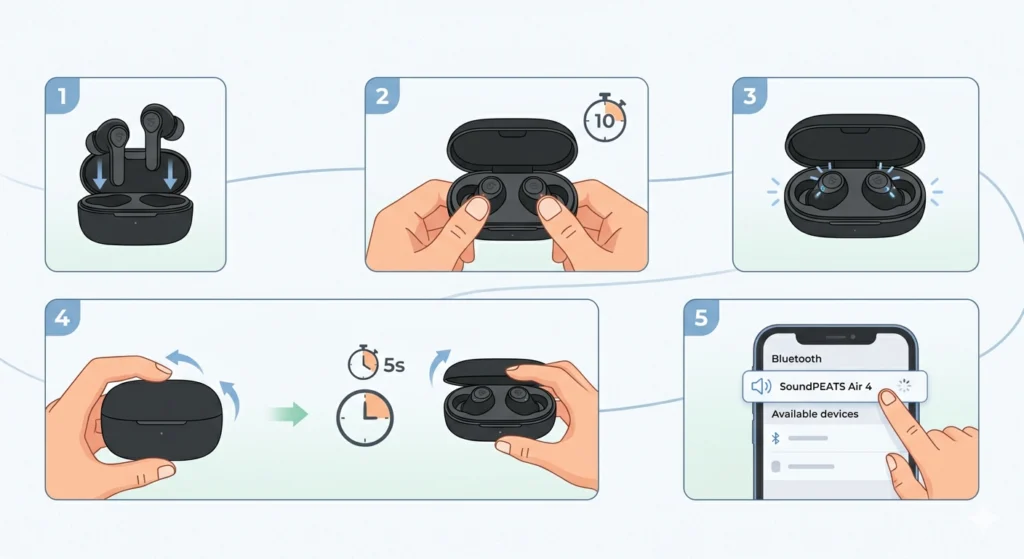
The most effective starting point when the SoundPEATS Air 4 is not pairing is a full reset. This clears all previously saved device memory and puts the earbuds back into a clean pairing state.
- Step 1: Place both earbuds inside the charging case and leave the lid open.
- Step 2: Press and hold the button on both earbuds simultaneously for about 10 seconds.
- Step 3: The LED indicators will flash, signaling the reset is complete.
- Step 4: Close the case, wait 5 seconds, then open it again to trigger pairing mode.
- Step 5: Go to the phone’s Bluetooth settings and look for ‘SoundPEATS Air 4’ in the available devices list.
This works best when the earbuds have been previously connected to multiple devices and the pairing data has become cluttered.
Fix 2: Delete the Old Bluetooth Pairing Entry on the Phone
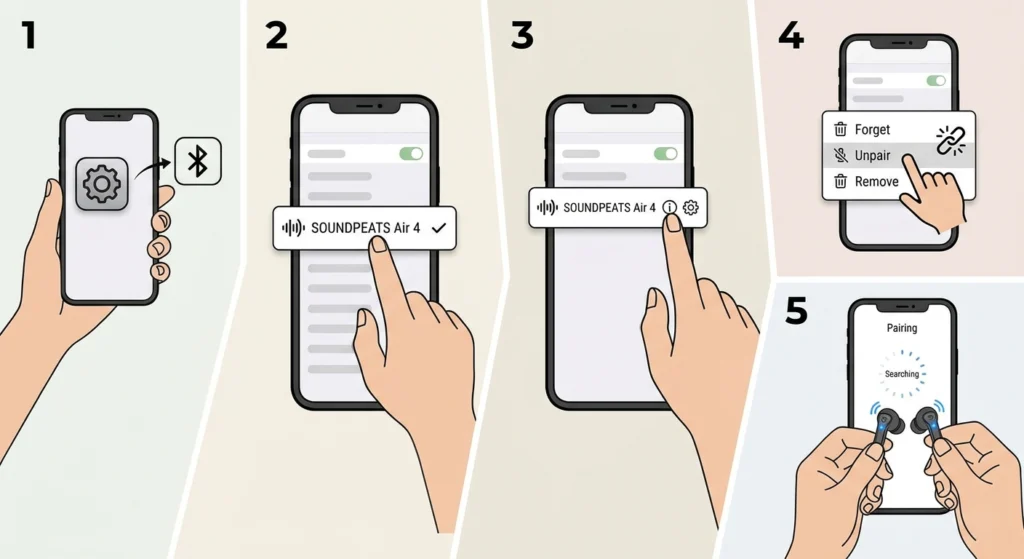
A stale or corrupted Bluetooth entry on the phone is a surprisingly common reason the SoundPEATS Air 4 refuses to connect. The phone thinks it already knows the device, but the handshake fails silently.
- Step 1: Open the phone’s Settings app and navigate to Bluetooth.
- Step 2: Find ‘SoundPEATS Air 4’ in the paired devices list.
- Step 3: Tap the info icon (or gear icon) next to the device name.
- Step 4: Select ‘Forget’, ‘Unpair’, or ‘Remove device’ depending on the phone’s OS.
- Step 5: Put the earbuds back into pairing mode and reconnect fresh from the Bluetooth menu.
Most people find that simply forgetting the device and reconnecting solves the pairing problem immediately. It is a quick step that is easy to overlook.
Fix 3: Toggle Bluetooth Off and Back On
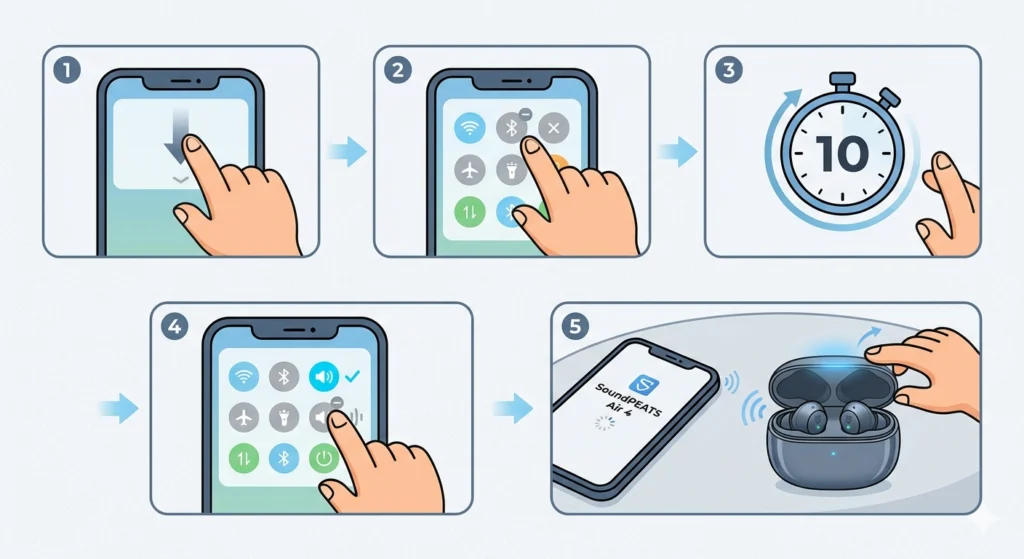
Bluetooth adapters on phones can get stuck in odd states, especially after switching between multiple devices. A quick toggle resets the adapter without rebooting the whole phone.
- Step 1: Swipe down to open the quick settings panel on the phone.
- Step 2: Tap the Bluetooth icon to turn it off.
- Step 3: Wait 10 full seconds – rushing this step reduces effectiveness.
- Step 4: Tap Bluetooth again to turn it back on.
- Step 5: Open the charging case with both earbuds inside and attempt pairing again.
Pro-Tip: If toggling Bluetooth does not immediately help, go into Settings and toggle it there rather than the quick panel. Some Android phones handle the full reset differently from the quick settings shortcut.
Fix 4: Restart the Phone
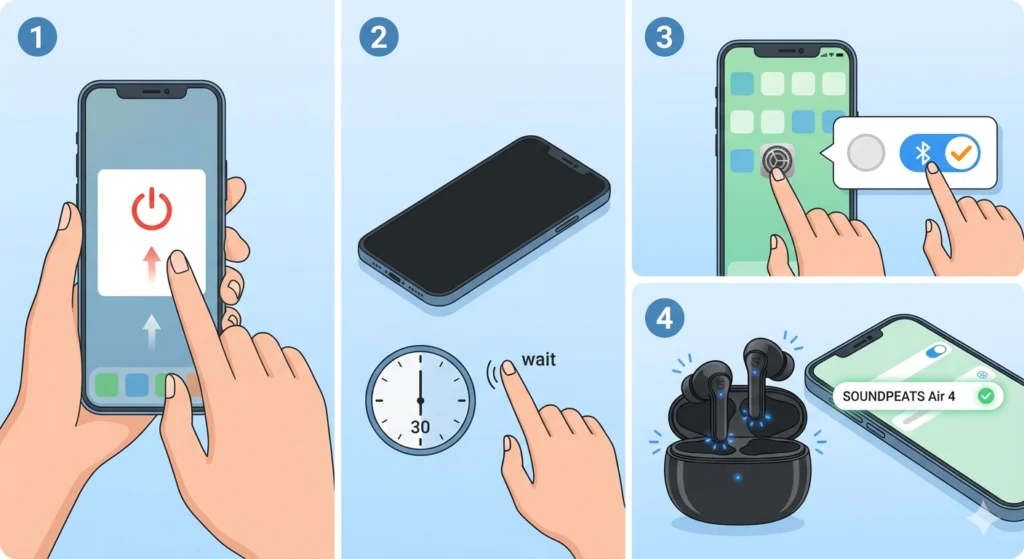
A phone restart clears background processes that may be interfering with Bluetooth discovery. It is a simple fix that resolves a surprising number of connection issues without any other changes needed.
- Step 1: Power off the phone completely using the power button menu.
- Step 2: Wait at least 30 seconds before turning it back on.
- Step 3: Once the phone is fully booted, enable Bluetooth.
- Step 4: Open the SoundPEATS Air 4 case to activate pairing mode and connect.
Fix 5: Make Sure Both Earbuds Are in Pairing Mode Correctly
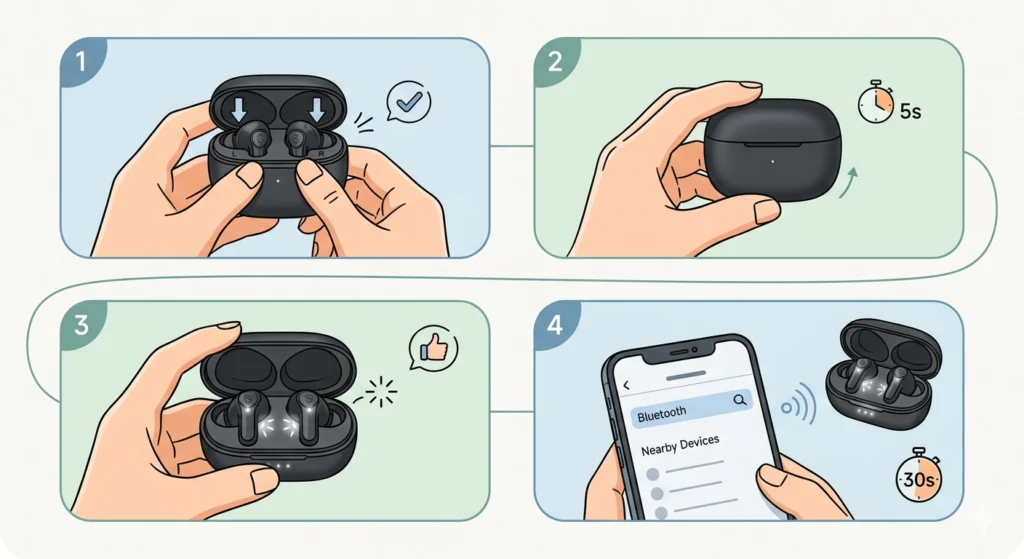
The SoundPEATS Air 4 will not enter pairing mode properly unless both earbuds are seated correctly in the case. One earbud sitting slightly out of contact with the charging pins is enough to cause the pairing sequence to fail.
- Step 1: Place both earbuds firmly in the case – listen or feel for the click or snug fit.
- Step 2: Close the case lid and wait for about 5 seconds.
- Step 3: Open the lid – the LED on the earbuds should flash white, indicating pairing mode.
- Step 4: On the phone, scan for Bluetooth devices within 30 seconds while the earbuds are still in the case with lid open.
The key is to keep the phone within 1 meter of the earbuds during this process. Walls, other electronics, or distance beyond that range can interfere with initial discovery.
Fix 6: Clear Bluetooth Cache on Android
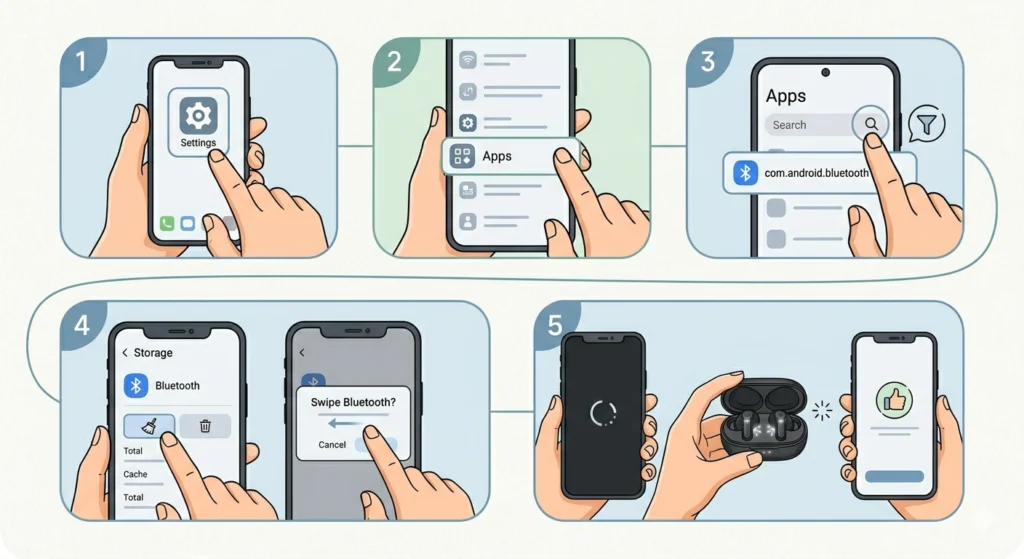
Android phones store Bluetooth connection data in a cache. When that cache gets corrupted, it can block new connections entirely – even when everything else seems fine. This fix applies specifically to Android users.
- Step 1: Go to Settings on the Android phone.
- Step 2: Navigate to Apps (or Application Manager), then tap ‘See all apps’.
- Step 3: Find the app named ‘Bluetooth’ or search for ‘com.android.bluetooth’.
- Step 4: Tap ‘Storage’, then select ‘Clear Cache’.
- Step 5: Restart the phone, then attempt to pair the SoundPEATS Air 4 again.
This step is often the fix for users who have already tried resetting the earbuds multiple times with no success. If pairing issues also appear on Windows, re-pairing Bluetooth earbuds for stereo sound on Windows follows a different process worth checking separately.
Fix 7: Check for Interference From Other Devices
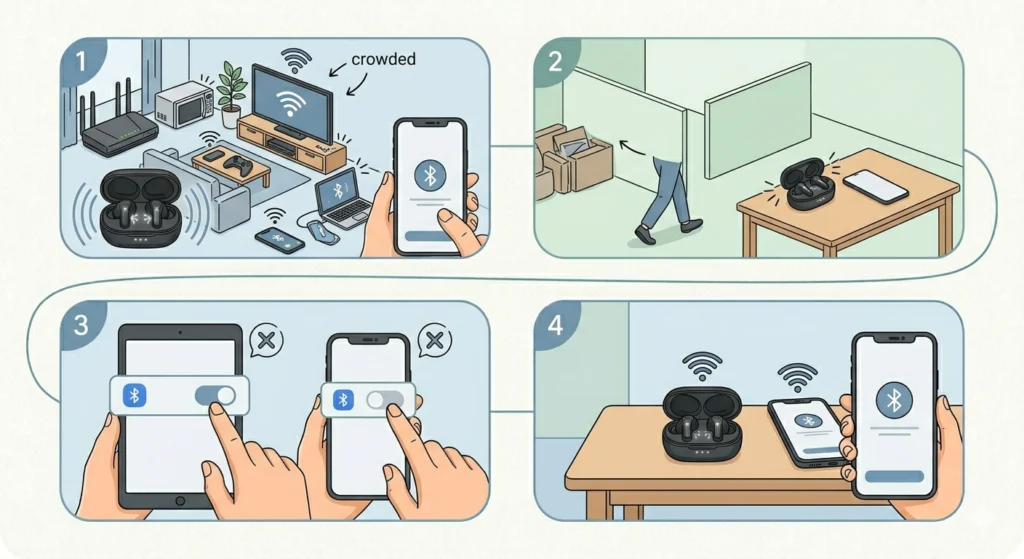
Bluetooth operates on the 2.4GHz band, the same frequency used by Wi-Fi routers, microwaves, and other wireless gadgets. When several of these are active nearby, interference can prevent the SoundPEATS Air 4 from pairing successfully.
- Step 1: Move away from Wi-Fi routers, smart TVs, or other Bluetooth devices.
- Step 2: Try pairing in a different room or an open space with fewer devices around.
- Step 3: Turn off Bluetooth on nearby phones or tablets that are not needed.
- Step 4: Attempt the pairing again in this cleaner environment.
Fix 8: Update the Phone’s Bluetooth or System Software
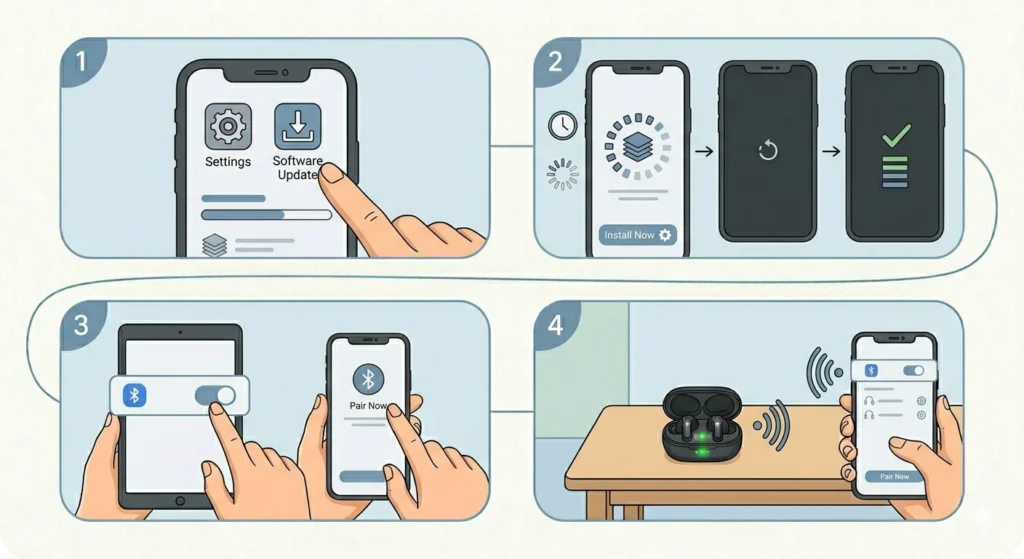
Outdated system software can introduce compatibility issues with newer Bluetooth devices. The SoundPEATS Air 4 supports Bluetooth 5.3, and some older phone firmware versions may struggle to handle the handshake correctly.
- Step 1: Go to Settings on the phone and navigate to ‘Software Update’ or ‘System Update’.
- Step 2: Download and install any pending updates.
- Step 3: After the update completes and the phone restarts, attempt to pair the earbuds again.
Pro-Tip: On iPhone, go to Settings – General – Software Update. On Android, go to Settings – About Phone – Software Update. Keeping the OS updated also improves overall Bluetooth stability, not just for the SoundPEATS Air 4 but for all connected audio devices.
Tips for a Stable SoundPEATS Air 4 Connection
- Always keep the earbuds charged above 20% before pairing – low battery can disrupt the pairing handshake
- Only pair one device at a time to avoid connection conflicts
- Store the earbuds in the case when not in use to maintain clean pairing memory
- Avoid pairing near active microwave ovens or crowded Wi-Fi environments
- If switching between phone and laptop frequently, learn the correct process for pairing Bluetooth earbuds on Windows to avoid manual re-pairing issues
- Reset the earbuds whenever switching to a new primary device for the cleanest connection
Common Problems With SoundPEATS Air 4 Pairing
Only One Earbud Connects
This usually happens when the two earbuds lose their sync with each other. Place both earbuds back in the case, close the lid for 10 seconds, then open it. The left earbud will sync to the right first, then the pair will appear on the phone together.
SoundPEATS Air 4 Keeps Disconnecting After Pairing
Frequent disconnects after pairing often point to the phone’s battery optimization settings cutting off Bluetooth in the background. On Android, go to Settings – Battery – Battery Optimization and set Bluetooth to ‘Unrestricted’ or ‘Not Optimized’.
Earbuds Not Showing Up in Bluetooth Scan
If the SoundPEATS Air 4 does not appear in the list at all, the earbuds may not be in pairing mode. Confirm the LED on the earbuds is flashing white rapidly. If it is solid or not lit, try the reset process again. Also try refreshing the Bluetooth scan on the phone rather than relying on auto-discovery.
Already Connected But No Audio Playing
Sometimes the phone shows the earbuds as connected but does not route audio to them. Go to the phone’s sound settings and manually select ‘SoundPEATS Air 4’ as the active output device. On iPhone, open Control Center and tap the audio output icon.
Pairing Fails After Phone OS Update
A phone OS update can reset Bluetooth settings or introduce temporary bugs. After a major update, forget the SoundPEATS Air 4 from the Bluetooth list, reset the earbuds, and pair fresh. This resolves the issue in most cases without additional steps.
Frequently Asked Questions
How do I put SoundPEATS Air 4 in pairing mode?
Place both earbuds in the charging case with the lid open. The earbuds will automatically enter pairing mode, indicated by a rapidly flashing white LED. The phone should detect ‘SoundPEATS Air 4’ in the Bluetooth device list within 30 seconds.
Why won’t my SoundPEATS Air 4 connect to my phone?
The most common reasons are a stale Bluetooth pairing entry on the phone, the earbuds not being in proper pairing mode, or Bluetooth cache issues on Android. Start by forgetting the device on the phone and performing a factory reset on the earbuds, then pair fresh.
How do I reset SoundPEATS Air 4?
Place both earbuds in the open charging case and press and hold the touch area on both earbuds simultaneously for about 10 seconds until the LEDs flash. This clears all paired device memory and restores factory pairing mode.
Can SoundPEATS Air 4 connect to two devices at the same time?
The SoundPEATS Air 4 does not support simultaneous multi-point connection to two devices at the same time. It can remember multiple paired devices but connects actively to only one at a time. Switching between devices requires disconnecting from one and connecting to the other.
Why is only one SoundPEATS Air 4 earbud connecting?
This happens when the left and right earbuds lose sync with each other. Place both back in the case, close the lid for 10 seconds, then reopen. The earbuds will re-sync automatically and should appear as a single unit in the Bluetooth menu.
How far does SoundPEATS Air 4 Bluetooth reach?
The SoundPEATS Air 4 supports Bluetooth 5.3 with a typical range of up to 10 meters in open space. Walls, interference from other devices, and crowded wireless environments can reduce this range significantly during pairing and playback.
Will a factory reset delete all my SoundPEATS Air 4 paired devices?
Yes. A factory reset on the SoundPEATS Air 4 clears the entire pairing list stored on the earbuds. After a reset, the earbuds will need to be paired again with all devices, including the phone, laptop, or tablet previously connected.
Why does SoundPEATS Air 4 keep disconnecting from my phone?
Frequent disconnections are often caused by the phone’s battery saver or Bluetooth optimization settings cutting the connection in the background. Disabling battery optimization for Bluetooth on Android or keeping the phone’s screen on during pairing can help stabilize the connection.
Do I need an app to pair SoundPEATS Air 4?
No app is required to pair the SoundPEATS Air 4. Standard Bluetooth pairing works directly through the phone’s Bluetooth settings. However, the SoundPEATS app is available optionally for features like EQ customization and firmware updates.
What should I do if SoundPEATS Air 4 still won’t pair after all these steps?
If none of the steps resolve the issue, try pairing the earbuds with a completely different phone or device to determine if the problem is with the earbuds or the original phone. If they pair successfully with another device, the issue is phone-specific. If they fail with all devices, contact SoundPEATS customer support for a warranty replacement.