

The Sony WF-1000XM5 left earbud not working is one of the most commonly reported issues with these earbuds – and the good news is, it is almost always fixable without needing a repair center. Whether the left earbud has no sound, keeps cutting out, or simply will not connect, the fixes below are straightforward and proven to work.
Quick Summary
- Main Cause: Low charge, firmware glitch, pairing conflict, or dirty charging contacts
- Top Fix: Factory reset using the case button or Sony Headphones Connect app
- Time Required: 5 to 15 minutes for most fixes
- Tools Needed: Charging case, smartphone with Sony Headphones Connect app (optional), soft dry cloth
- Works On: Sony WF-1000XM5 earbuds on iOS and Android
Fix the Sony WF-1000XM5 Left Earbud Step by Step
Fix 1: Charge Both Earbuds Fully First
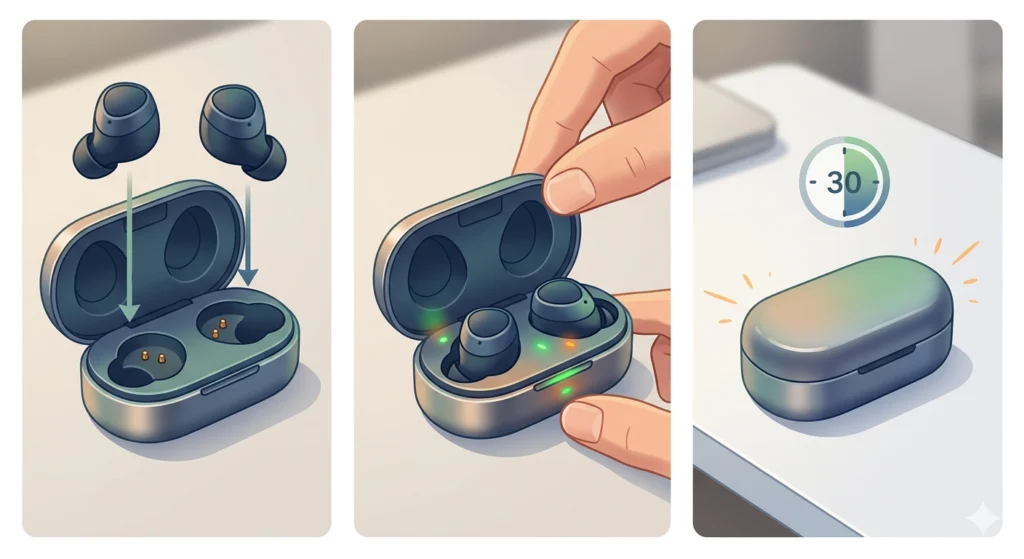
Before anything else, make sure both earbuds are properly charged. A depleted left earbud will behave as if it is broken – no audio, no connection, nothing. Place both earbuds in the case and check that the charging indicator lights up for each one.
- Step 1: Place both earbuds inside the charging case.
- Step 2: Check that the LED light on the case lights up, and that the left earbud indicator also activates. If the left earbud light does not come on, the charging contacts may be dirty.
- Step 3: Leave them to charge for at least 30 minutes before testing again.
Pro-Tip: Use a dry cotton swab to gently clean the gold charging pins inside the case and on the earbud itself. Dirt or oxidation on these contacts is a surprisingly common reason the left earbud fails to charge and then appears ‘dead.’
Fix 2: Reset the WF-1000XM5 to Factory Settings
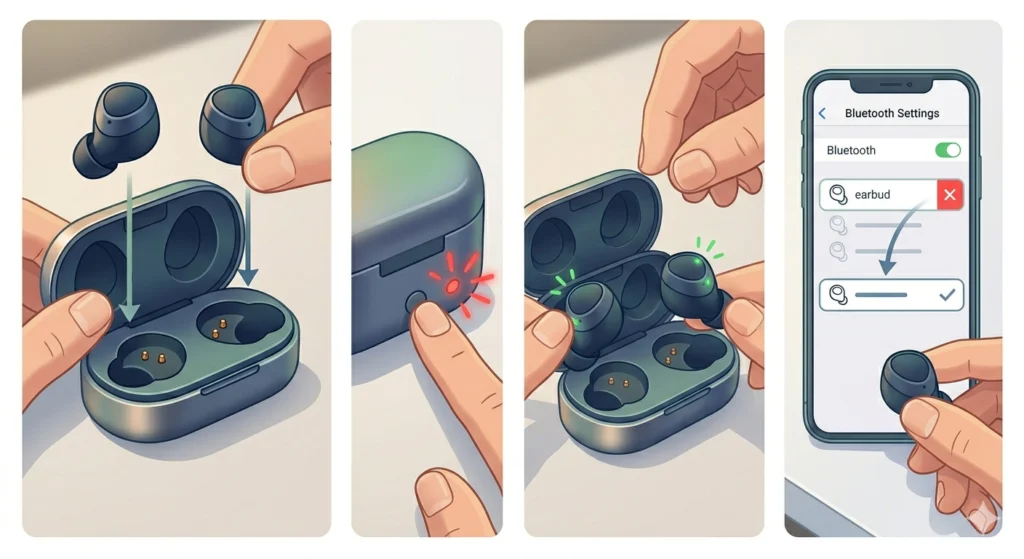
A factory reset clears any firmware glitch or pairing conflict causing the left earbud to stop working. This is the most effective fix and solves the issue in the majority of cases.
- Step 1: Place both earbuds in the charging case and keep the lid open.
- Step 2: Press and hold the button on the back of the charging case for about 10 seconds until the LED flashes red three times and then turns off.
- Step 3: Wait a few seconds, then remove both earbuds from the case. They will automatically power on.
- Step 4: Re-pair the earbuds to the phone or device. Go to Bluetooth settings on the device, forget the WF-1000XM5, then reconnect as a new device.
If the device is Windows 11, it helps to also check the re-pairing process for Bluetooth earbuds on Windows to make sure both channels come through correctly after the reset.
Fix 3: Re-Pair the Earbuds Through the Sony Headphones Connect App
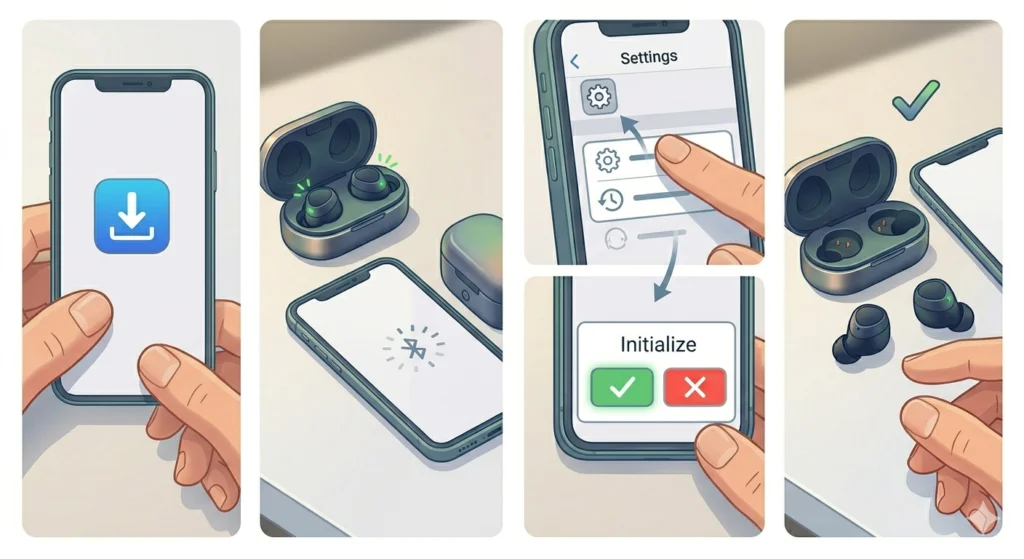
Sometimes the left earbud loses sync with the right earbud internally – not just with the phone. The Sony Headphones Connect app has a built-in option to re-establish the earbud-to-earbud connection.
- Step 1: Download and open the Sony Headphones Connect app on the phone.
- Step 2: Connect the WF-1000XM5 to the app.
- Step 3: Tap on ‘System’ and look for the ‘Initialize’ or ‘Reset’ option within the app menu.
- Step 4: Confirm the reset and wait for the earbuds to restart.
- Step 5: Re-pair the earbuds to the phone and test both sides.
Fix 4: Check and Adjust the Mono Audio or Balance Settings
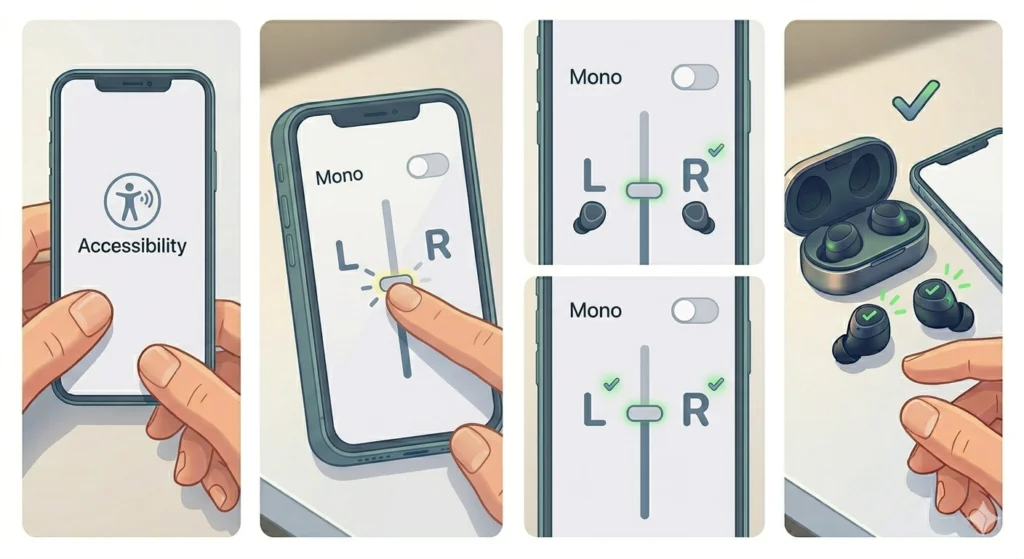
This is a commonly overlooked cause. If the audio balance on the phone or connected device is shifted entirely to the right, the left earbud will produce no sound – making it seem like it is not working at all.
- Step 1: On Android, go to Settings, then Accessibility, and look for ‘Audio Balance’ or ‘Mono Audio.’ Make sure the slider is centered.
- Step 2: On iOS, go to Settings, Accessibility, Audio and Visual, and check the Balance slider is set to center.
- Step 3: Also check if Mono Audio is enabled. If it is, disable it and retest both earbuds.
For Windows 11 users, reviewing the audio output settings on Windows 11 can also reveal if the balance has been misconfigured at the system level.
Fix 5: Update the Firmware on the WF-1000XM5
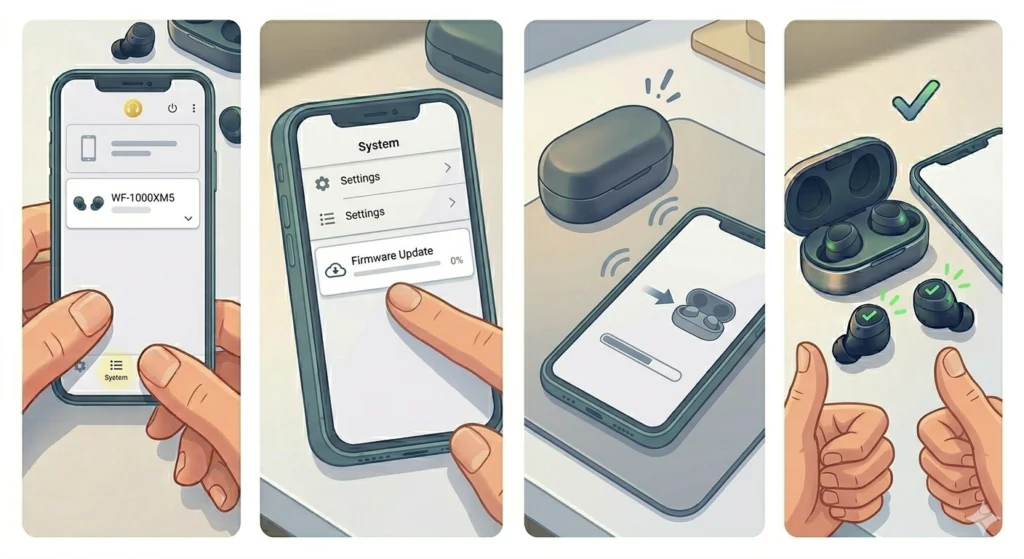
Outdated firmware is a known trigger for one-earbud audio failures on the WF-1000XM5. Sony regularly releases updates to address exactly these kinds of bugs.
- Step 1: Open the Sony Headphones Connect app with the earbuds connected.
- Step 2: Tap on ‘System’ and select ‘Firmware Update.’
- Step 3: If an update is available, follow the on-screen instructions. Keep the earbuds in the case and the case near the phone during the update.
- Step 4: After the update completes, test both earbuds.
Pro-Tip: Never interrupt a firmware update – doing so can cause more serious issues with one or both earbuds. Make sure the phone battery is above 50% and the earbuds are fully charged before starting the update.
Fix 6: Test with a Different Device
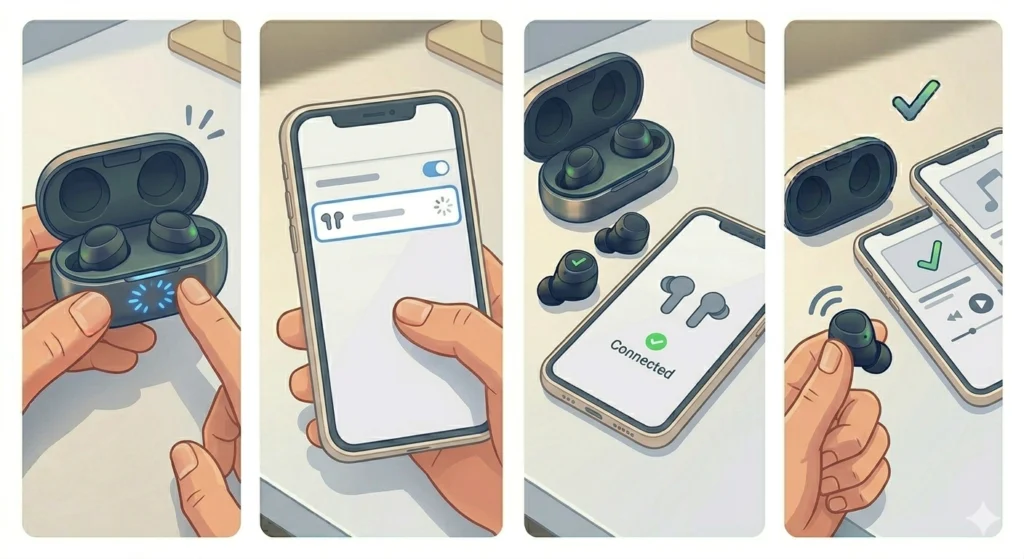
Connecting the WF-1000XM5 to a second phone or tablet helps identify whether the problem is with the earbuds themselves or with the original device’s Bluetooth or audio settings.
- Step 1: Put the earbuds into pairing mode by holding the button on the case until the LED flashes blue.
- Step 2: Connect to a different smartphone or tablet.
- Step 3: Play audio and check if the left earbud works on this second device.
If the left earbud works fine on the second device, the issue is with the original device’s Bluetooth or audio configuration – not the earbuds.
Tips for Keeping the WF-1000XM5 Left Earbud Working Properly
- Always store both earbuds in the charging case when not in use to avoid one earbud draining faster than the other.
- Clean the charging contacts with a dry cotton swab every few weeks to prevent charging failures.
- Keep the Sony Headphones Connect app updated alongside the firmware to ensure compatibility.
- Avoid exposing the earbuds to excessive sweat or moisture beyond their IPX4 rating, as liquid damage can cause one-sided audio failure.
- When connecting to a new device, always forget the earbuds from the old device first to prevent pairing conflicts.
Common Problems and What They Usually Mean
Left Earbud Produces No Sound at All
This is most often a charging issue or a pairing sync problem between the two earbuds. Start with Fix 1 (charging) and then Fix 2 (factory reset) for the best results.
Left Earbud Keeps Cutting In and Out
Intermittent audio usually points to a Bluetooth interference issue or a low battery on the left earbud specifically. Try moving closer to the connected device and check the charge level in the Sony Headphones Connect app.
Left Earbud Connects But Has Very Low Volume
Check the audio balance setting on the connected device first. A balance shifted toward the right will make the left earbud sound faint or nearly silent even when technically working.
Left Earbud Does Not Turn On
If the left earbud shows no sign of life even after charging, clean the charging contacts first. If that does not work, attempt a factory reset using the case button. If it still does not power on after a full charge cycle, it may need a warranty replacement from Sony.
Left Earbud Works Alone But Not When Both Are In
This is a classic earbud-to-earbud sync failure. The Sony Headphones Connect app reset (Fix 3) or a full factory reset (Fix 2) will re-establish the internal connection between the two earbuds.
Frequently Asked Questions
Why is only the left earbud of the Sony WF-1000XM5 not working?
The most common reasons are a depleted battery on the left earbud, a corrupted Bluetooth pairing, dirty charging contacts, or a firmware glitch. In most cases, a factory reset and re-charge resolves the issue without any hardware repair needed.
How do you reset the Sony WF-1000XM5 when the left earbud is not working?
Place both earbuds in the open charging case and press the case button for about 10 seconds until the LED flashes red three times. The reset clears pairing data and restores the earbuds to factory state. Then re-pair to the device.
Does resetting the WF-1000XM5 delete all saved settings?
Yes, a factory reset removes all saved Bluetooth pairings and returns all settings to default. The firmware version is not affected. Settings can be reconfigured through the Sony Headphones Connect app after re-pairing.
Can dirty charging contacts cause the WF-1000XM5 left earbud to stop working?
Absolutely. If the gold pins on the earbud or inside the case are dirty or corroded, the left earbud may not charge properly and will eventually stop functioning. Cleaning with a dry cotton swab often brings it back to life immediately.
How do you check the battery level of each earbud separately?
Open the Sony Headphones Connect app with the earbuds connected. The app displays individual battery levels for the left earbud, right earbud, and charging case separately, making it easy to spot if the left side is the one draining faster.
Is the Sony WF-1000XM5 left earbud covered under warranty if it stops working?
Sony offers a standard one-year warranty on the WF-1000XM5. If the left earbud fails due to a manufacturing defect and the earbuds have not been physically damaged or exposed to excessive moisture, the issue should be covered. Contact Sony Support with proof of purchase to initiate a warranty claim.
What does it mean if the left earbud works on one device but not another?
This means the earbud hardware is functional but there is a pairing or audio configuration issue on the original device. Forget the earbuds from the affected device, reset audio settings, and re-pair from scratch to resolve it.
Why does the left earbud sometimes cut out only in certain locations?
This is typically Bluetooth interference from other wireless devices, Wi-Fi routers, or physical obstructions like walls. Moving closer to the connected device or switching the phone to a less congested Bluetooth channel can help.
How often should the WF-1000XM5 firmware be updated?
Sony releases firmware updates periodically – typically a few times a year. Checking every one to two months through the Sony Headphones Connect app ensures the earbuds stay compatible with the latest devices and bug fixes are applied before they cause noticeable issues.
What should be done if none of the fixes resolve the left earbud issue?
If all steps have been attempted – including a full charge, factory reset, firmware update, and testing on multiple devices – and the left earbud still does not work, contact Sony Support directly. The unit may have a hardware fault that requires a professional inspection or replacement under warranty.