
Galaxy Buds 2 Pro left earbud not working is one of the most frustrating issues Samsung earbuds users run into. One side goes silent, and suddenly the whole listening experience falls apart. The good news? Most of the time, this problem has a straightforward fix that takes just a few minutes. This guide walks through every proven solution – from the simplest resets to deeper fixes – so the left earbud gets back to working properly
Quick Summary Table
- Problem: Galaxy Buds 2 Pro left earbud has no sound, low volume, or won’t connect
- Most Common Cause: Software glitch, dirty charging contacts, or Bluetooth pairing issue
- Fastest Fix: Reset the earbuds through the Galaxy Wearable app
- Time to Fix: 5 to 15 minutes for most solutions
- Tools Needed: Galaxy Wearable app, charging case, soft dry cloth
- When to Contact Samsung: If the left earbud has physical damage or none of these fixes work
Fix 1: Place Both Earbuds Back in the Charging Case
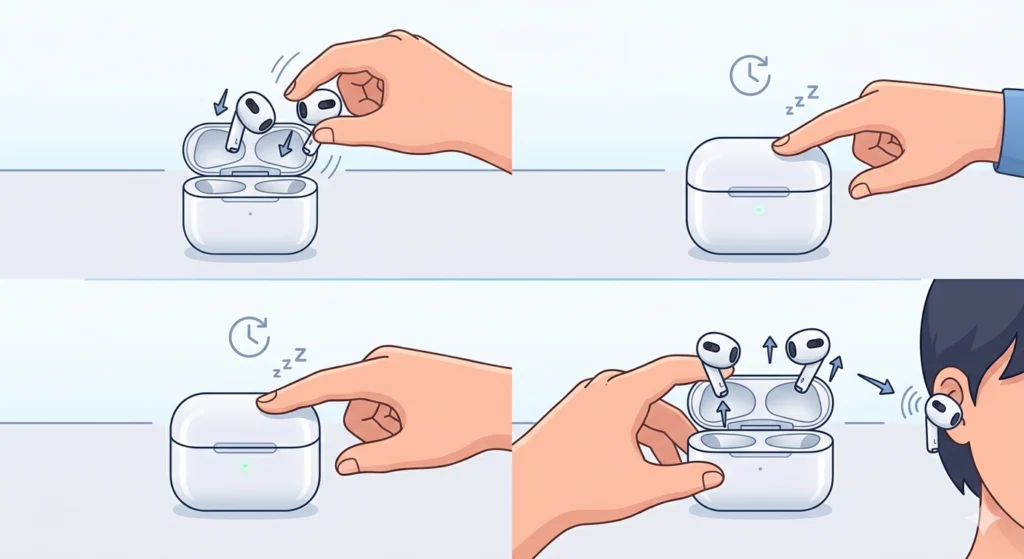
Before jumping into complex steps, start with this simple reset. Sometimes the left earbud loses sync with the right one during use, and placing both back in the case re-establishes the connection.
- Step 1: Remove both earbuds from the ears and place them firmly into the charging case.
- Step 2: Close the case lid and wait for at least 10 to 15 seconds.
- Step 3: Open the case and take both earbuds out at the same time.
- Step 4: Put them back in the ears and check if the left earbud is producing sound.
This works best when the issue just started and the earbuds were working fine earlier. Most people find that a simple re-seat inside the case clears minor sync glitches instantly.
Fix 2: Clean the Charging Contacts on the Left Earbud
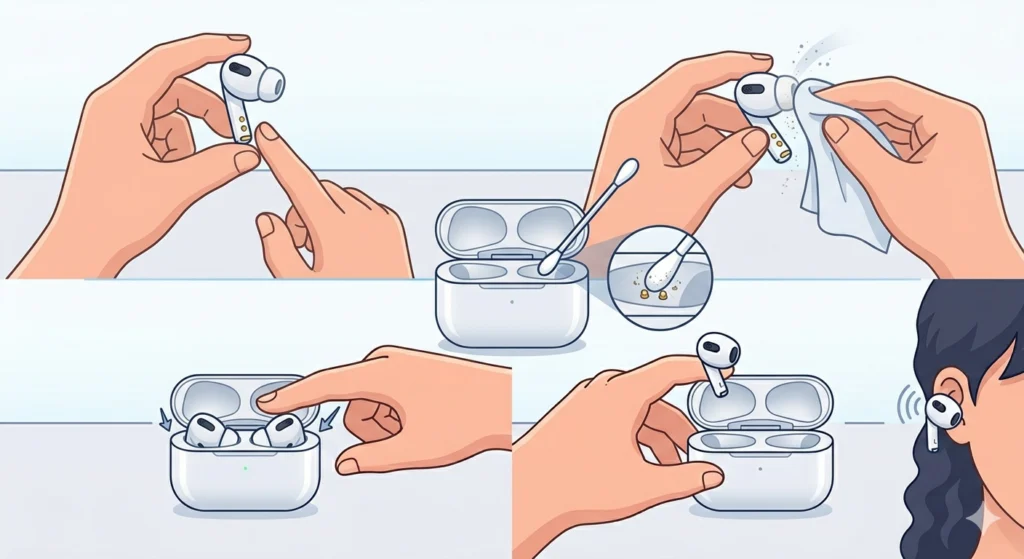
Dirty or blocked charging contacts are one of the top reasons the left earbud stops functioning. Earwax, dust, or moisture can build up on the gold pins inside the case and on the earbud itself, disrupting the charge and communication between the two.
- Step 1: Remove the left earbud from the case and inspect the charging contacts at the bottom of the earbud.
- Step 2: Use a dry, lint-free cloth or a cotton swab to gently wipe the gold contacts on the earbud.
- Step 3: Clean the corresponding pins inside the charging case slot as well.
- Step 4: Make sure no moisture remains, then place the earbud back in the case for a few seconds.
- Step 5: Take it out and test again.
Pro-Tip: Never use wet wipes or rubbing alcohol directly on the contacts. A dry cloth is all that is needed. Moisture near the charging contacts can cause more damage than the original dirt buildup.
Fix 3: Reconnect the Galaxy Buds 2 Pro via Bluetooth
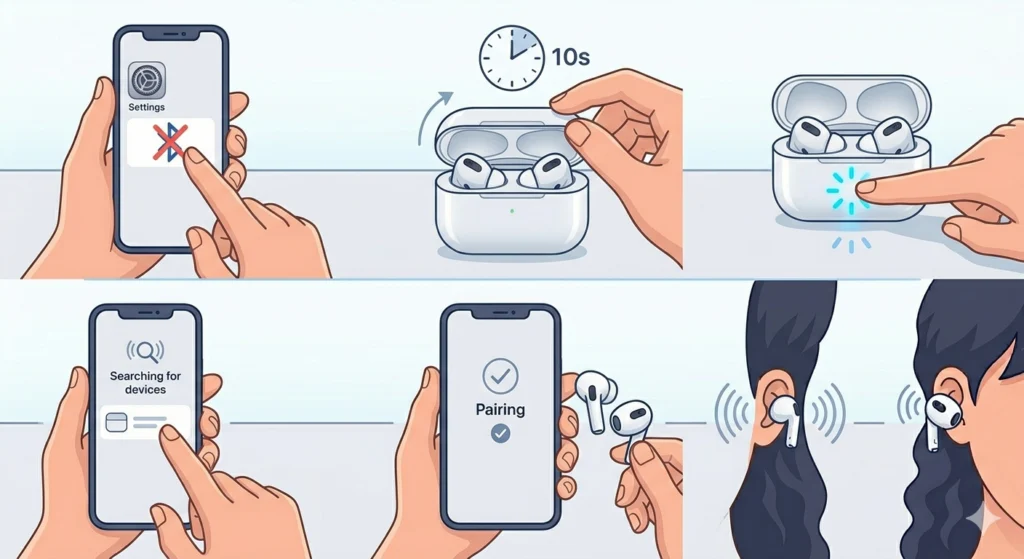
A corrupted or unstable Bluetooth connection often causes one earbud to drop out. Removing the pairing entirely and reconnecting fresh gives the connection a clean start. If using Windows and running into re-pairing issues, this guide on re-pairing Bluetooth earbuds for stereo sound on Windows covers that specific scenario in detail.
- Step 1: On the connected device (phone, tablet, or PC), go to Bluetooth settings.
- Step 2: Find the Galaxy Buds 2 Pro listing and tap ‘Forget’ or ‘Unpair’ to remove the device.
- Step 3: Place both earbuds into the charging case and close it for 10 seconds.
- Step 4: Open the case – the earbuds will enter pairing mode automatically.
- Step 5: On the device, scan for Bluetooth devices and select ‘Galaxy Buds2 Pro’ from the list.
- Step 6: Confirm the connection and test both earbuds.
Fix 4: Reset the Galaxy Buds 2 Pro Through the Galaxy Wearable App
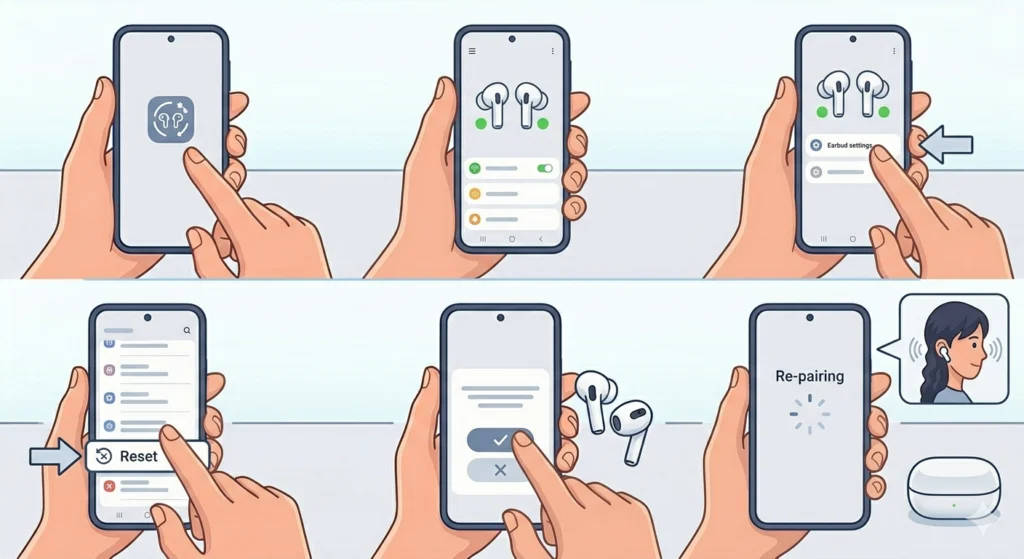
A factory reset through the Galaxy Wearable app is one of the most effective solutions. It clears any firmware or software issues that could be causing the left earbud to malfunction. This does not delete any music or files – it just resets the earbuds’ internal settings.
- Step 1: Open the Galaxy Wearable app on the connected Samsung phone or Android device.
- Step 2: Make sure the Galaxy Buds 2 Pro are connected and visible in the app.
- Step 3: Tap on ‘Earbud settings’ or the earbud name at the top.
- Step 4: Scroll down and tap ‘Reset earbuds’.
- Step 5: Confirm the reset when prompted.
- Step 6: The earbuds will restart. Re-pair them with the device and test both sides.
The key is to make sure both earbuds are charged before attempting a reset. A reset on a low battery earbud can sometimes fail mid-process.
Fix 5: Manually Reset the Galaxy Buds 2 Pro Without the App
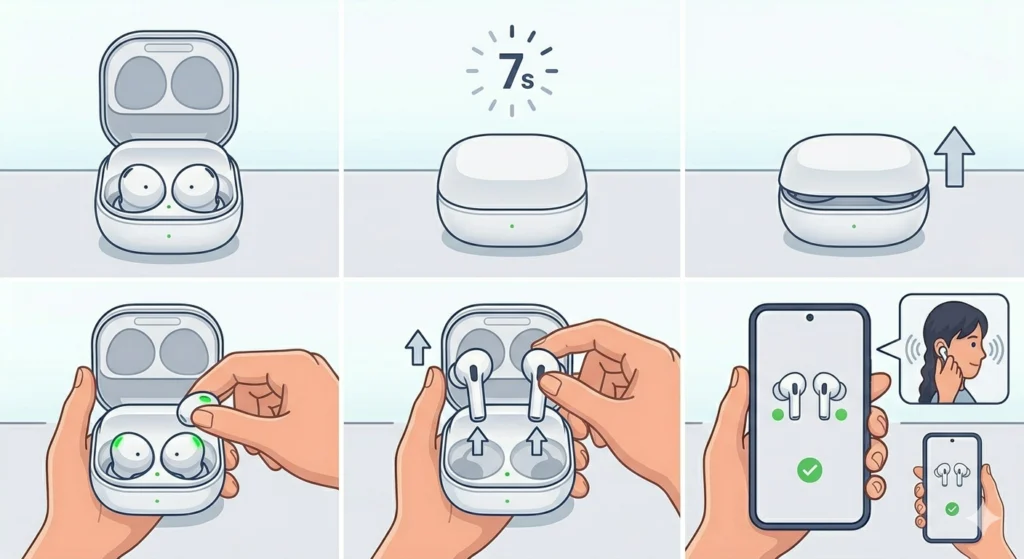
If the Galaxy Wearable app is not available or the app won’t connect to the left earbud, there is a way to reset the earbuds directly from the case.
- Step 1: Place both Galaxy Buds 2 Pro into the charging case.
- Step 2: Close the case lid and keep it closed for at least 7 seconds.
- Step 3: Open the lid. The earbuds will be in a reset-ready state.
- Step 4: Remove both earbuds simultaneously and place them in the ears.
- Step 5: Re-pair with the Bluetooth device and check if both earbuds produce sound.
For a deeper manual reset: with the buds in the case and the lid open, press and hold the button on the inside of the case lid for about 5 to 7 seconds until the indicator light flashes red.
Fix 6: Check and Adjust the Equalizer and Balance Settings
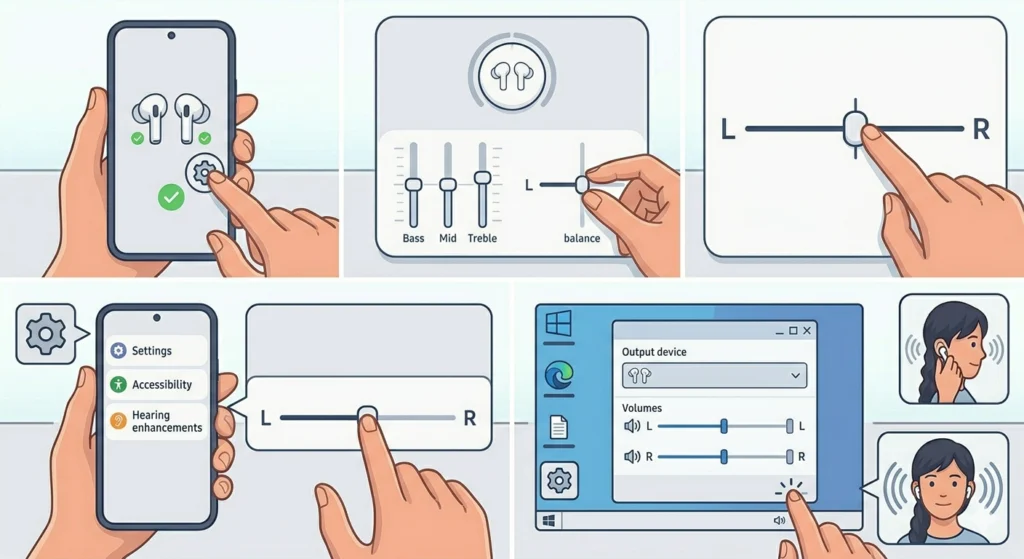
This one gets overlooked often. If audio balance settings are set incorrectly on the connected device or within the Galaxy Wearable app, the left earbud might sound completely silent even though it is technically working fine.
- Step 1: Open the Galaxy Wearable app and go to ‘Earbud settings’.
- Step 2: Tap ‘Equalizer’ and make sure the balance is centered.
- Step 3: On the connected Android phone, go to Settings > Accessibility > Hearing enhancements.
- Step 4: Check the ‘Left/Right sound balance’ slider and make sure it is in the center position.
- Step 5: If using a Windows PC, check the audio output settings on Windows 11 to make sure the left channel is not muted or lowered.
Pro-Tip: On Samsung phones running One UI, audio balance settings are easy to accidentally nudge during accessibility feature updates. Always double-check this setting if the left earbud seems quieter than usual rather than completely silent.
Fix 7: Update the Galaxy Buds 2 Pro Firmwar
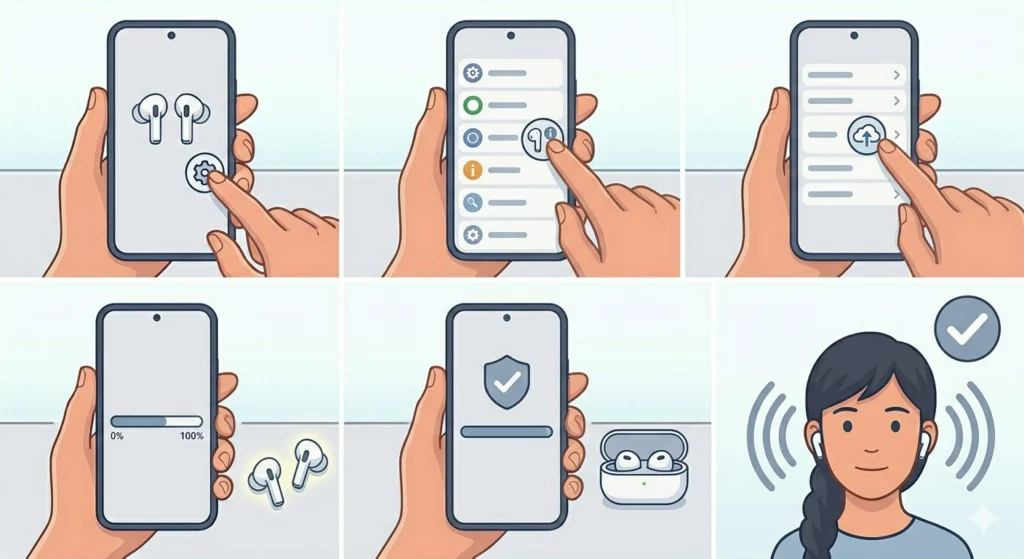
Outdated firmware is a known cause of one-sided audio failure on the Galaxy Buds 2 Pro. Samsung regularly releases firmware patches that fix Bluetooth and audio bugs.
- Step 1: Open the Galaxy Wearable app with both earbuds connected.
- Step 2: Tap on the earbuds at the top of the screen.
- Step 3: Go to ‘Earbud settings’ > ‘About earbuds’.
- Step 4: Tap ‘Update earbud software’ and follow the on-screen instructions.
- Step 5: Keep the earbuds in the ears or close to the phone during the update.
- Step 6: Once the update completes, test both earbuds.
Tips for Keeping Both Galaxy Buds 2 Pro Working
- Always place both earbuds back in the case at the same time to keep them synced.
- Clean the charging contacts with a dry cloth at least once a week if used daily.
- Keep the Galaxy Wearable app updated alongside the earbud firmware.
- Avoid exposing the earbuds to water beyond their rated IPX7 limit, especially near the contact points.
- Store the earbuds in the case when not in use – leaving one earbud out for extended periods can drain the battery unevenly and cause connection issues.
- Restart the connected Bluetooth device periodically to clear any stale audio routing cache.
Common Problems and What Causes Them
- Left earbud completely silent: Usually caused by a Bluetooth sync failure, dirty contacts, or a firmware bug. Start with Fix 1 and Fix 2.
- Left earbud much quieter than the right: Almost always an audio balance setting issue. Check Fix 6 first.
- Left earbud not charging: Blocked or corroded charging contacts. Clean them with a dry cloth and make sure the earbud sits properly in the slot.
- Left earbud not pairing: Reset the earbuds manually (Fix 5) and then re-pair fresh.
- Left earbud cutting in and out: Bluetooth interference or signal range issue. Move closer to the device and disconnect nearby interfering Bluetooth devices.
- Left earbud works alone but not when both are in use: Indicates a stereo sync issue. A full reset via the Galaxy Wearable app (Fix 4) is the best approach here.
Frequently Asked Questions
Why is only the left Galaxy Buds 2 Pro earbud not working?
This usually happens due to a Bluetooth synchronization glitch, dirty charging contacts, or an audio balance setting that is shifted to the right. In some cases, a firmware bug can also cause one earbud to drop audio. Running through a reset and a contact cleaning solves the issue for most users.
How do I reset just the left Galaxy Buds 2 Pro earbud?
There is no way to reset only one earbud on the Galaxy Buds 2 Pro. The reset process always applies to both earbuds together, either through the Galaxy Wearable app or by holding the button inside the charging case. Both earbuds need to be in the case for the reset to work properly.
Will resetting the Galaxy Buds 2 Pro delete my settings?
Yes, a factory reset will clear custom equalizer settings, touch controls, and any personalized configurations saved on the earbuds. It will not delete music files or app data on the connected phone. The earbuds will return to their default factory state and will need to be re-paired.
Can dirty contacts really cause the left earbud to stop working?
Absolutely. The Galaxy Buds 2 Pro charge and communicate through small gold contact pins. If those contacts are coated in earwax, dust, or moisture, the earbud might not charge properly or might not sync with the right earbud. This is one of the most common and easily overlooked causes of one-sided audio failure.
Why does the left earbud work fine on its own but not when both are in use?
This is a stereo pairing or sync issue. When both earbuds are in use, the right earbud typically acts as the primary unit and the left as the secondary. If the sync between them breaks, the secondary (left) drops out while the right continues to work. A full reset through the Galaxy Wearable app usually resolves this.
Is there a way to check if the left earbud is charging?
Yes. Place the left earbud in the charging case and leave the lid open. A solid or blinking green light above the left earbud slot indicates it is charging or charged. If no light appears, the contacts may need cleaning or the earbud itself may have a hardware issue.
What if none of the fixes work for the left earbud?
If the left earbud still does not work after trying all the fixes above – including a full factory reset, contact cleaning, firmware update, and fresh Bluetooth pairing – the earbud likely has a hardware fault. Contact Samsung Support or visit a Samsung Service Centre. If the earbuds are still within warranty, Samsung will typically replace the faulty unit.
Can a Windows PC cause the left earbud to not work?
Yes, Windows audio settings can sometimes route audio to only one channel. If the Galaxy Buds 2 Pro left earbud is not working specifically on a Windows device but works fine on a phone, check the audio input and output device settings. This guide on managing audio input devices on Windows 11 walks through how to check and fix those settings.
How long does a Galaxy Buds 2 Pro reset take?
The actual reset through the Galaxy Wearable app takes about 30 to 60 seconds. After the reset, re-pairing the earbuds takes another 1 to 2 minutes. The full process from start to finish is typically done in under 5 minutes.
Does sweat or water damage cause the left earbud to stop working?
It can, even though the Galaxy Buds 2 Pro have an IPX7 water resistance rating. That rating covers submersion in fresh water, but heavy sweat buildup around the charging contacts over time can lead to corrosion or signal issues. Wiping down the earbuds after workouts and keeping the charging contacts dry significantly reduces this risk.