
Samsung Galaxy Buds 2 Pro not charging in case is one of the most frustrating issues users run into – especially when the buds look perfectly seated but the battery just refuses to go up. The good news is that most charging problems come down to a handful of fixable causes: dirty charging contacts, software glitches, or a quick reset. This guide walks through every proven fix in a clear, step-by-step order so the issue gets resolved as fast as possible.
Key Takeaways
- Dirty charging contacts on the buds or case are the most common cause of this issue
- A soft reset of the buds often resolves charging detection failures instantly
- The case itself needs adequate battery charge to charge the buds
- Firmware bugs can interfere with charging – keeping the Galaxy Wearable app updated helps
- If physical damage or swelling is visible on the case battery, stop using it and contact Samsung
How to Fix Samsung Galaxy Buds 2 Pro Not Charging in Case
Fix 1: Clean the Charging Contacts
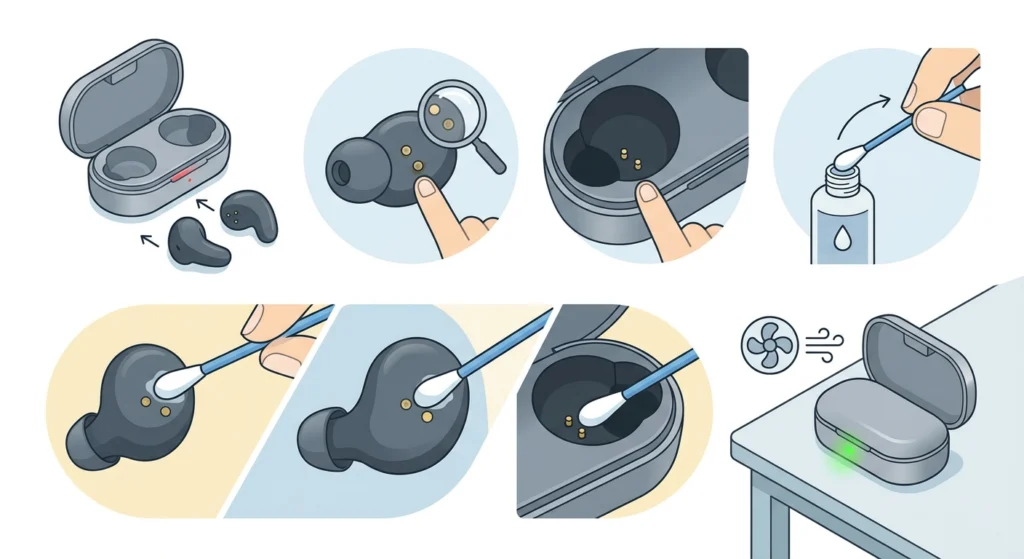
This is the number one reason the Galaxy Buds 2 Pro stop charging in the case. Earwax, dust, skin oils, and lint build up on the small gold charging pins on both the buds and inside the case, breaking the electrical connection. The key is to clean both sets of contacts – not just one.
- Step 1: Take the buds out of the case and inspect the small gold dots on the bottom of each earbud.
- Step 2: Look inside the case and check the matching gold pins at the bottom of each earbud slot.
- Step 3: Lightly dampen a cotton swab with isopropyl alcohol (70% or higher works best).
- Step 4: Gently rub the cotton swab over all the gold contacts on both the buds and the case slots.
- Step 5: Let everything air dry completely for about 60 seconds before placing the buds back in the case.
- Step 6: Reinsert the buds and check if the charging indicator lights up.
Most people find that this single step solves the problem. Even if the contacts look clean to the naked eye, there can be invisible residue that breaks the connection.
Fix 2: Reseat the Buds Correctly in the Case
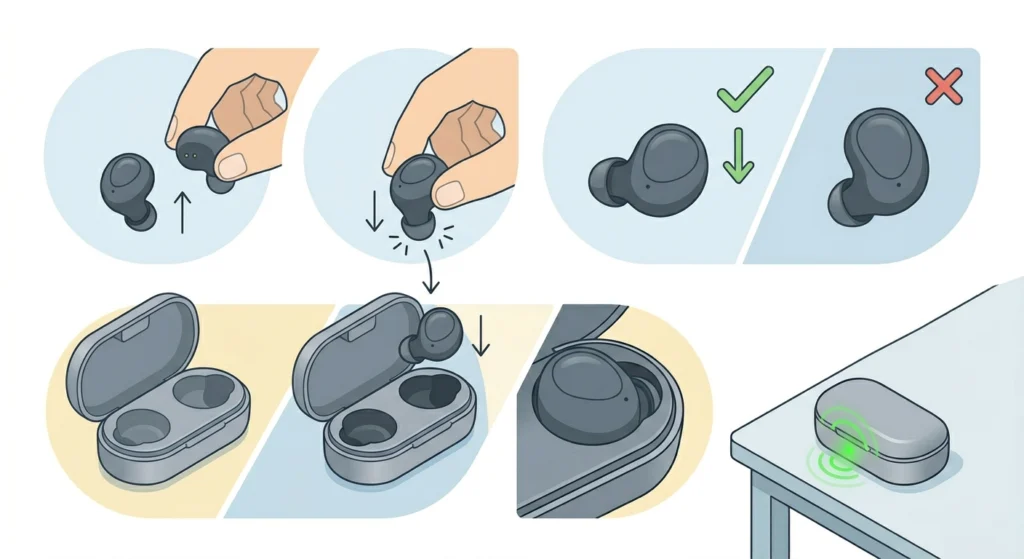
The Galaxy Buds 2 Pro will not charge if they are not sitting flush in the charging slots. They need to click into place and align with the contacts precisely.
- Step 1: Remove both buds from the case completely.
- Step 2: Hold the case flat and insert one bud at a time, pressing down gently until a soft click is felt or heard.
- Step 3: Make sure the earbud is not tilted or sitting at an angle – it should sit flat and fully recessed in the slot.
- Step 4: Check the LED indicator on the case. A steady or pulsing light confirms charging has started.
This works best when the case is placed on a flat surface while inserting the buds, as it helps apply even pressure without accidentally misaligning them.
Fix 3: Charge the Case Itself
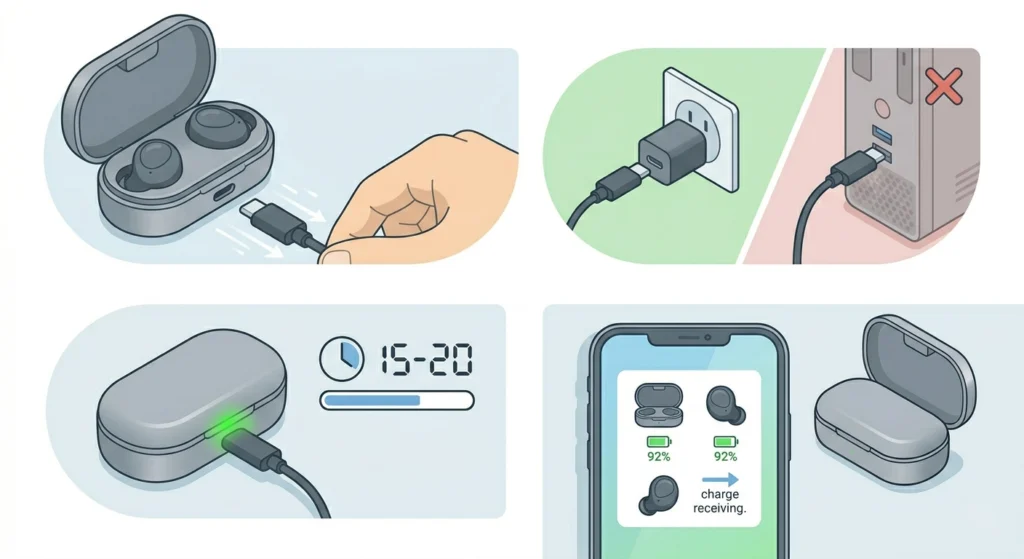
The charging case needs its own battery to charge the buds. If the case battery is dead or critically low, it will not pass charge to the earbuds at all – even if everything else is working fine.
- Step 1: Connect the case to a charger using the USB-C cable that came with it.
- Step 2: Use a wall adapter (5V/1A minimum) rather than a computer USB port for more reliable charging.
- Step 3: Let the case charge for at least 15-20 minutes with the buds inside.
- Step 4: After 20 minutes, check whether the buds have started receiving charge by opening the Galaxy Wearable app.
Pro-Tip: The Galaxy Buds 2 Pro case also supports Qi wireless charging. If the USB-C cable or port is the problem, try placing the case on a compatible wireless charging pad instead. This is a quick way to rule out a faulty cable or charging port on the case.
Fix 4: Reset the Samsung Galaxy Buds 2 Pro
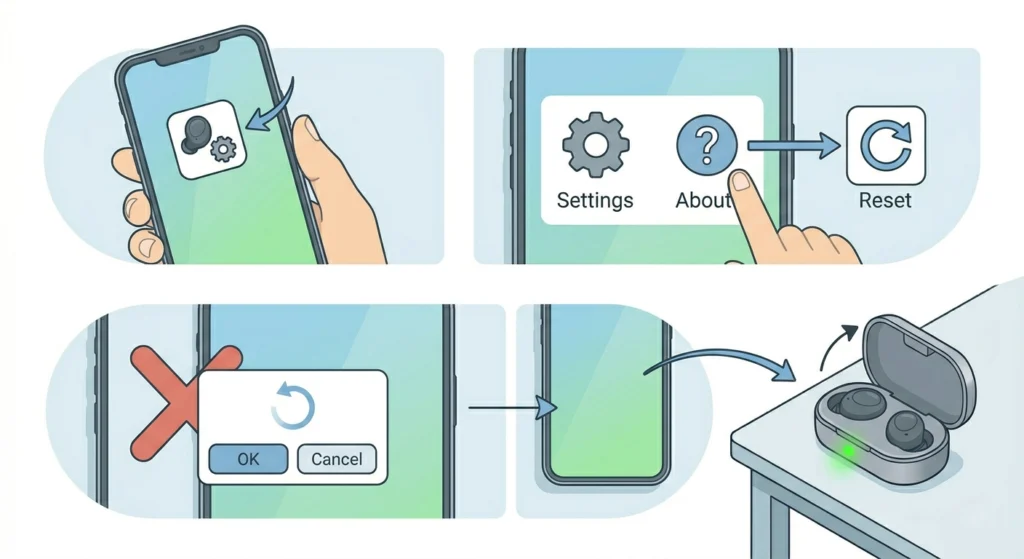
A soft reset clears minor firmware and connection glitches that can prevent the buds from entering charging mode properly. This is a well-known fix and takes under two minutes.
- Step 1: Open the Galaxy Wearable app on the connected phone.
- Step 2: Tap ‘Buds settings’ then navigate to ‘About earbuds’.
- Step 3: Tap ‘Reset’ and confirm when prompted.
- Step 4: Place the buds in the case after the reset completes and check if charging begins.
Alternatively, a manual reset can be done without the app: place both buds in the case, keep the lid open, and press and hold the touchpad on both buds simultaneously for about 7 seconds until the LED flashes red.
Fix 5: Update Galaxy Buds 2 Pro Firmware
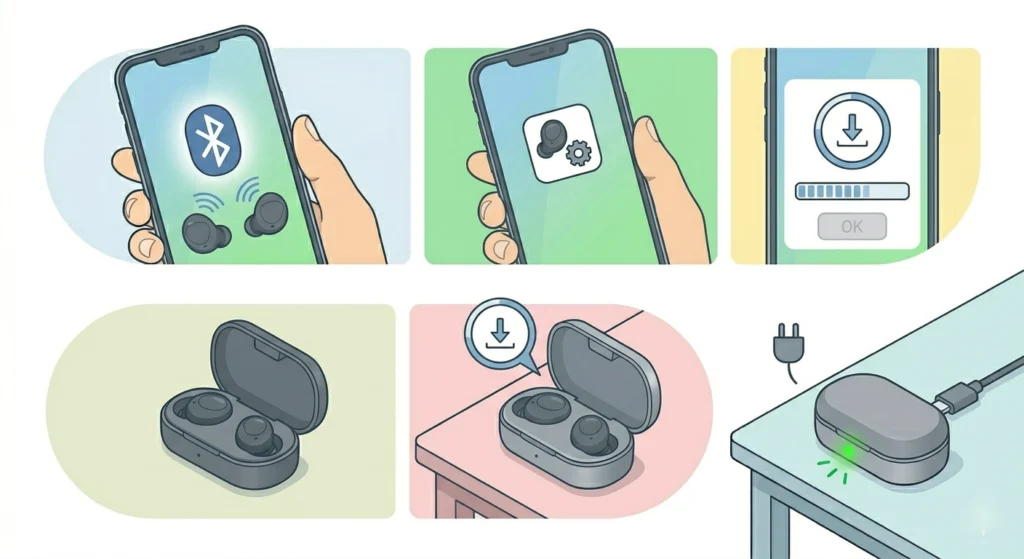
Samsung has released firmware updates specifically addressing charging issues on the Buds 2 Pro. Running outdated firmware can cause the buds to fail at communicating with the case properly.
- Step 1: Make sure the Galaxy Buds 2 Pro are connected to the phone via Bluetooth.
- Step 2: Open the Galaxy Wearable app.
- Step 3: Go to ‘Earbuds software update’ and tap ‘Download and install’ if an update is available.
- Step 4: Keep the buds in the case with the lid open during the update process.
- Step 5: Once updated, restart the buds and test charging again.
Fix 6: Try a Different Charging Cable and Adapter
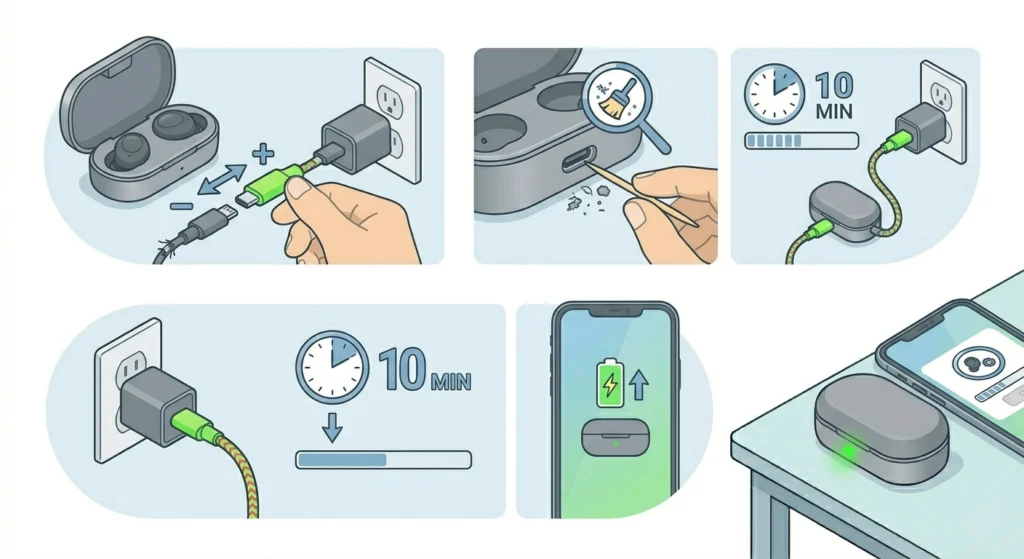
A faulty USB-C cable or a weak power adapter can result in the case not charging properly, which then means the buds inside are not getting any power either. This is easy to rule out quickly.
- Step 1: Swap the current USB-C cable for a different, known-working one.
- Step 2: Plug the case into a wall adapter rather than a laptop or PC USB port – USB ports on computers often deliver less consistent power.
- Step 3: Check the USB-C port on the case for debris or lint and gently clear it with a dry toothpick if needed.
- Step 4: Try charging for 10 minutes and check if the case and buds respond.
Fix 7: Factory Reset the Buds
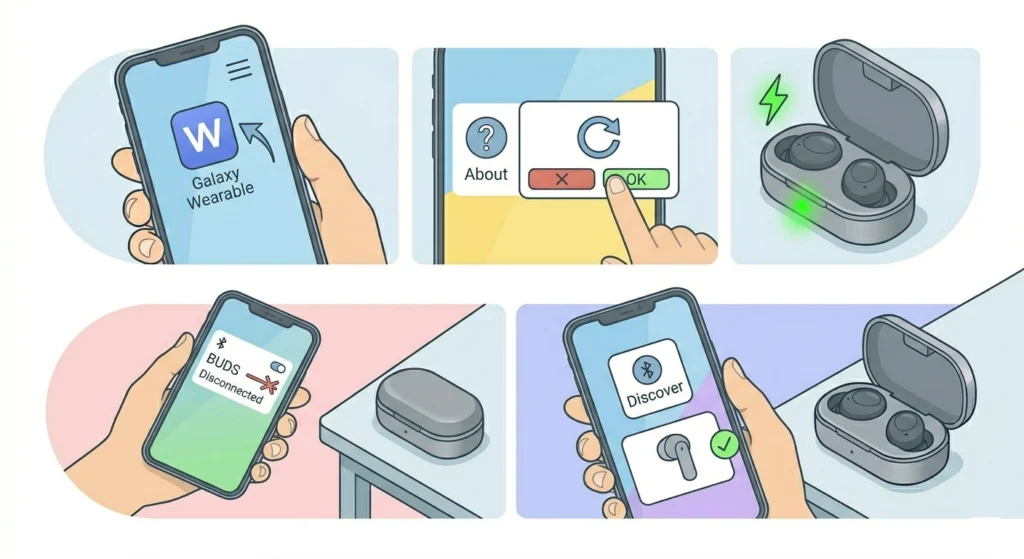
If none of the above fixes have worked, a full factory reset removes all saved settings and forces the buds back to a clean software state. This resolves deeper firmware-related charging failures.
- Step 1: Open the Galaxy Wearable app.
- Step 2: Go to ‘About earbuds’ then tap ‘Reset’.
- Step 3: Confirm the reset. The buds will disconnect from the phone.
- Step 4: Place the buds in the case with the lid open and watch for the charging LED.
- Step 5: Re-pair the buds to the phone via Bluetooth once confirmed they are charging.
Pro-Tip: After a factory reset, avoid re-pairing the buds to the phone immediately. Give the case 10 minutes to charge the buds to at least 10% before reconnecting. This ensures the firmware initializes cleanly during the first charge cycle post-reset.
Tips for Keeping Galaxy Buds 2 Pro Charging Reliably
- Clean the charging contacts at least once a week if the buds are used daily
- Avoid storing the case in dusty pockets or bags without a protective pouch
- Use only Samsung-approved or certified USB-C cables and adapters
- Keep the Galaxy Wearable app updated to the latest version at all times
- Do not leave the buds or case in extremely hot or cold environments, as temperature extremes affect battery performance
- If using wireless charging, ensure the case is centered on the pad and not placed at the edge
Common Problems and Troubleshooting
Case LED Does Not Light Up When Buds Are Inserted
This usually means either the case battery is completely dead or the contacts are not making a good connection. Charge the case for 20 minutes first, then clean all contacts before reinserting the buds.
One Bud Charges But the Other Does Not
This points to a contact alignment issue with the non-charging bud. Remove it, clean the contacts specifically on that bud and its slot, then reseat it firmly. If the problem persists, try the factory reset.
Buds Show Charging in App But Battery Does Not Increase
This is a known firmware display bug on some units. Fully drain the buds, let them sit in the case connected to a charger overnight, then check the battery level. Updating the firmware almost always resolves this behavior.
Case Battery Drains Faster Than Normal
A degraded case battery may appear to be a charging issue for the buds. If the case loses charge quickly, the buds may not receive enough charge time. Contact Samsung support if the case is under warranty, as the battery may need replacement.
Buds Were Recently Wet and Now Do Not Charge
Even though the Galaxy Buds 2 Pro are IPX7 rated, moisture can temporarily affect the charging contacts. Let the buds and case air dry in a room-temperature environment for at least 4-6 hours before attempting to charge again. Do not use heat to dry them.
Bluetooth or Pairing Issues After Charging Fixes
If charging is resolved but Bluetooth connectivity seems unstable afterward, the issue may be related to how the device is registered on the system. For Windows users managing audio device connections, re-pairing Bluetooth earbuds for stereo sound on Windows can help restore a stable audio connection after a reset.
Frequently Asked Questions
Why are my Samsung Galaxy Buds 2 Pro not charging in the case?
The most common reasons include dirty or corroded charging contacts, the case having a low or dead battery, incorrect seating of the buds in the case, or a firmware bug. Cleaning the contacts and reseating the buds resolves the majority of cases.
How do I know if my Galaxy Buds 2 Pro are charging in the case?
When the buds are correctly seated and the case has battery, the LED indicator on the front of the case will light up. Inside the Galaxy Wearable app, the battery status for each bud will show a charging icon. The LED on each earbud may also glow briefly when inserted.
Can I charge the Galaxy Buds 2 Pro case wirelessly?
Yes. The Galaxy Buds 2 Pro case supports Qi wireless charging. Simply place the case with the USB-C port facing down on a compatible wireless charging pad. This is a useful alternative if the USB-C cable or port is suspected to be faulty.
How long does it take for the Galaxy Buds 2 Pro to fully charge in the case?
The Galaxy Buds 2 Pro take approximately 1 hour to fully charge inside the case. The case itself takes around 1 to 1.5 hours to fully charge via USB-C. A 5-minute charge in the case provides up to 1 hour of listening time.
Will resetting the Galaxy Buds 2 Pro fix the charging problem?
In many cases, yes. A reset clears software glitches and re-initializes the charging communication between the buds and the case. It is one of the most effective fixes for charging issues that are not caused by physical damage or dirty contacts.
What should I do if the charging case itself is not charging?
First, try a different USB-C cable and wall adapter. Check the USB-C port on the case for debris. If the case still does not respond, try wireless charging. If none of these work, the case battery may be damaged and Samsung support should be contacted.
Can extreme temperatures affect the Galaxy Buds 2 Pro charging?
Yes. Lithium-ion batteries in both the buds and the case perform poorly in extreme heat or cold. If the buds have been in a hot car or cold environment, bring them to room temperature before attempting to charge. The battery management system may also temporarily block charging at extreme temperatures to prevent damage.
Is it safe to use third-party chargers for the Galaxy Buds 2 Pro case?
While the USB-C port accepts standard cables, it is best to use Samsung-certified or reputable third-party chargers. Low-quality adapters can deliver inconsistent voltage, which may cause unreliable charging behavior or, over time, degrade the case battery faster.
How do I update the firmware on Galaxy Buds 2 Pro?
Open the Galaxy Wearable app, go to ‘Earbuds software update’, and tap ‘Download and install’ if an update is available. The buds need to be connected via Bluetooth and placed in the open case during the update. Keeping firmware current prevents known bugs including charging-related issues.
What if my Galaxy Buds 2 Pro still do not charge after trying all the fixes?
If all the above steps have been tried and the buds still do not charge, the issue may be hardware-related – either a faulty case battery, damaged charging pins, or an internal component failure. At this point, contacting Samsung Support or visiting an authorized service center is the right next step, especially if the device is still under warranty. For users managing audio devices on Windows and experiencing separate detection issues, resources on managing audio input devices on Windows 11 may also be helpful.