
Samsung Galaxy Buds 2 Pro not connecting to phone is one of the most frustrating issues users run into – especially when everything looks fine on the surface. The buds are charged, Bluetooth is on, but nothing happens. The good news is that this problem is almost always fixable with a few straightforward steps. This guide walks through each solution clearly, so the connection gets restored as quickly as possible.
Quick Summary: Key Fixes at a Glance
- Turn Bluetooth off and back on to refresh the connection
- Forget the Buds 2 Pro on the phone and re-pair them fresh
- Reset the earbuds using the Galaxy Wearable app or manually
- Make sure the Galaxy Wearable app is updated to the latest version
- Check that the buds are not connected to another device at the same time
- Update the firmware of the Buds 2 Pro through the Galaxy Wearable app
- Restart both the phone and the buds to clear temporary glitches
How to Fix Samsung Galaxy Buds 2 Pro Not Connecting to Phone
Fix 1: Toggle Bluetooth Off and On
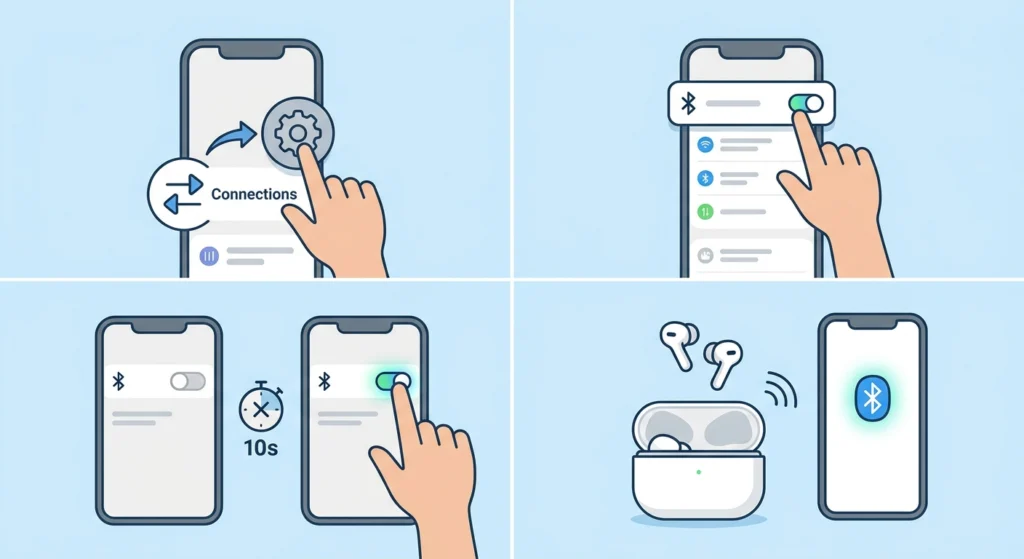
This is the simplest fix and works more often than expected. A quick Bluetooth reset clears minor connection glitches without losing any settings.
- Step 1: Open the phone’s Settings app.
- Step 2: Tap ‘Connections’ then ‘Bluetooth’.
- Step 3: Toggle Bluetooth off, wait 10 seconds, then toggle it back on.
- Step 4: Open the charging case and take out the buds – they should attempt to reconnect automatically.
Fix 2: Forget and Re-Pair the Galaxy Buds 2 Pro
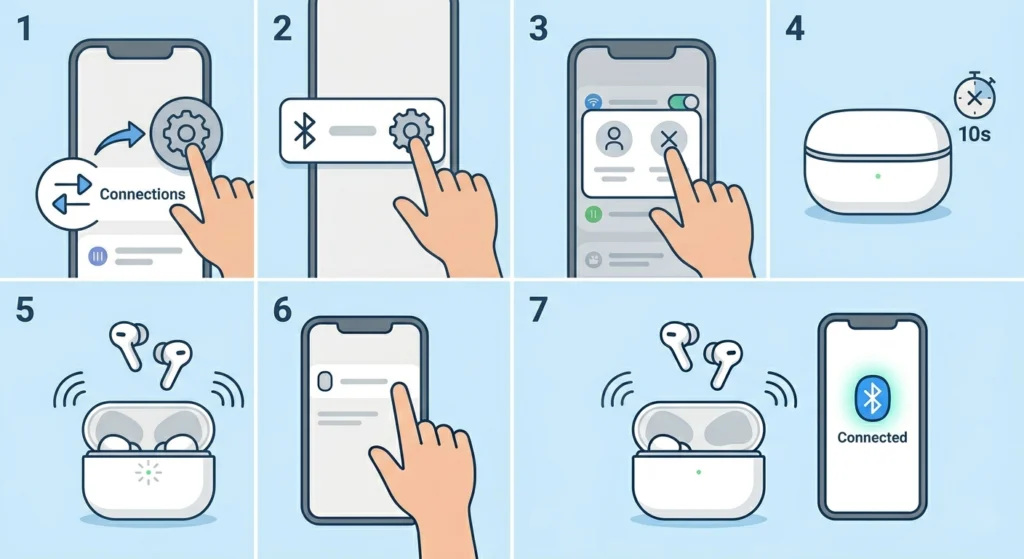
If the connection is stuck or corrupted, removing the device from the Bluetooth list and pairing again from scratch usually solves it. This is one of the most reliable fixes for persistent pairing failures.
- Step 1: Go to Settings > Connections > Bluetooth.
- Step 2: Find ‘Galaxy Buds2 Pro’ in the paired devices list.
- Step 3: Tap the gear icon next to the buds name.
- Step 4: Select ‘Unpair’ or ‘Forget’ to remove the device.
- Step 5: Put the buds back in the case and close the lid for 10 seconds.
- Step 6: Open the case – the buds will enter pairing mode automatically.
- Step 7: On the phone, tap ‘Galaxy Buds2 Pro’ when it appears in the available devices list.
For users who have also paired the buds to a Windows PC before, check out this guide on how to re-pair Bluetooth earbuds for stereo sound on Windows to make sure the PC connection does not interfere.
Pro Tip: If the buds do not show up after opening the case, press and hold both earbud touch areas for about 7 seconds while they are outside the case. The LED will flash and this puts them into manual pairing mode.
Fix 3: Disconnect the Buds From Other Devices
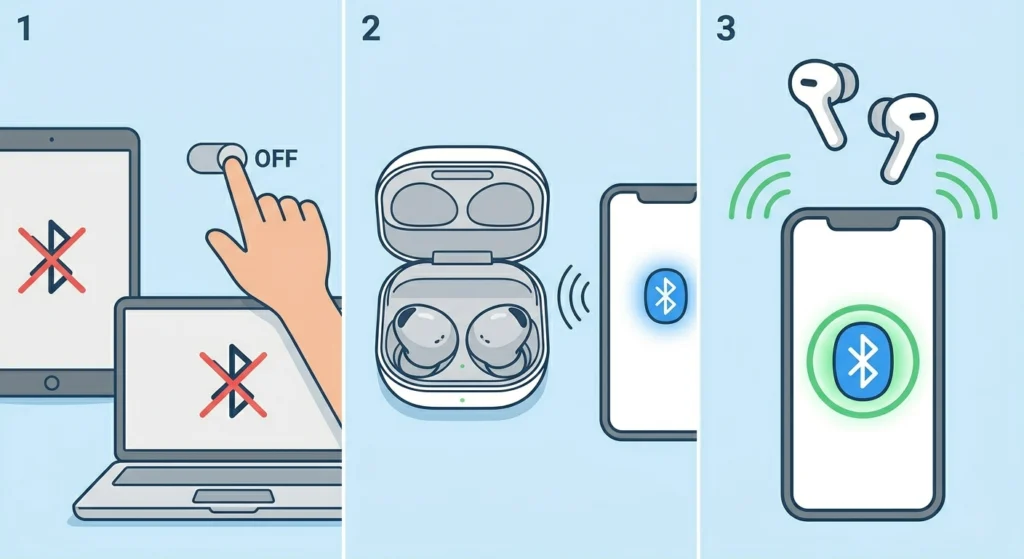
Galaxy Buds 2 Pro can remember multiple devices, but they can only be actively connected to one at a time. If the buds last connected to a tablet, laptop, or another phone, they may be trying to reconnect to that device instead.
- Step 1: Turn off Bluetooth on any other device that has been paired with the buds before.
- Step 2: Take the buds out of the case near the intended phone.
- Step 3: The buds should now prioritize and connect to the closest active device.
This works best when all other paired devices have Bluetooth disabled or are out of range before taking the buds out of the case.
Fix 4: Restart Both the Phone and the Buds
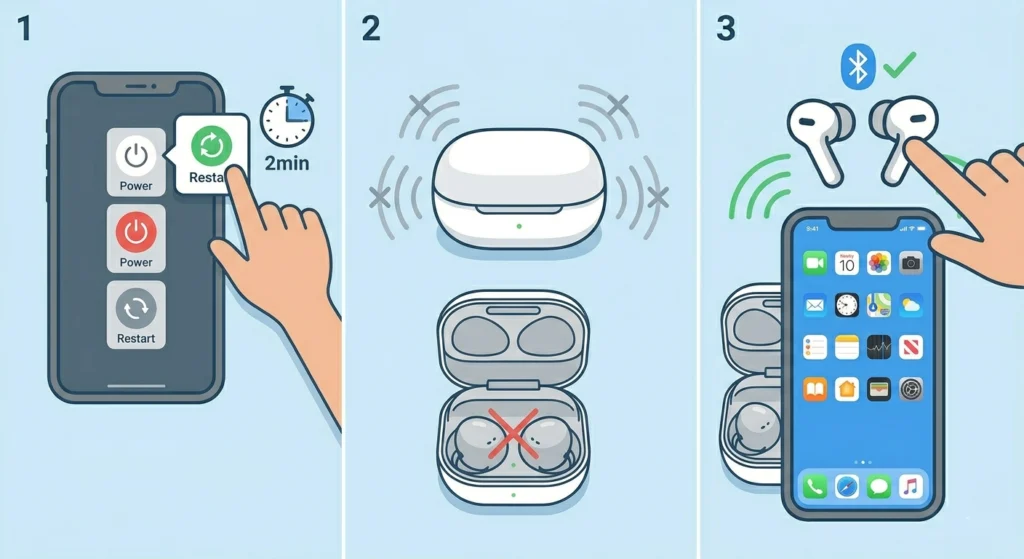
A full restart clears background processes that may be interfering with Bluetooth. This takes less than two minutes and often resolves stubborn connection issues.
- Step 1: Restart the phone normally (hold power button > Restart).
- Step 2: Place the buds in the charging case and close the lid to power them off.
- Step 3: After the phone restarts, open the case and let the buds try to reconnect.
Fix 5: Reset the Galaxy Buds 2 Pro
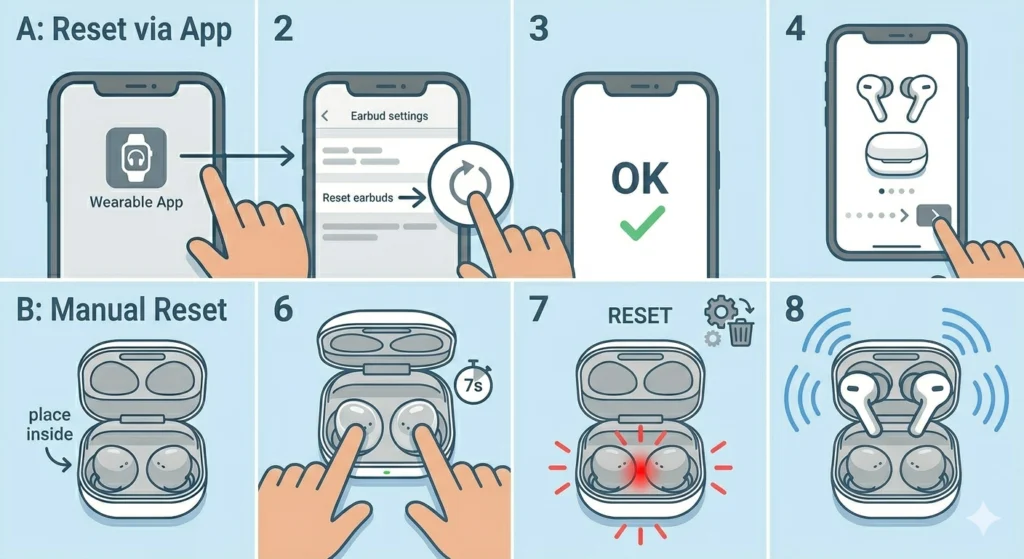
A factory reset on the buds themselves clears all stored pairing data and restores them to a clean state. This is one of the most effective fixes when none of the above have worked.
Resetting via Galaxy Wearable app:
- Step 1: Open the Galaxy Wearable app on the phone.
- Step 2: Tap ‘Earbud settings’ then scroll down to ‘Reset earbuds’.
- Step 3: Confirm the reset – the buds will restart and enter pairing mode.
- Step 4: Follow the on-screen steps to reconnect.
Resetting manually (if the app is unavailable):
- Step 1: Place both earbuds in the case and leave the lid open.
- Step 2: Press and hold the touchpad on both earbuds at the same time for about 7 seconds.
- Step 3: The LED lights will flash red then the buds will reset and enter pairing mode.
Pro Tip: After resetting, make sure to forget the buds from the phone’s Bluetooth settings before re-pairing. Skipping this step sometimes causes the connection to fail right away.
Fix 6: Update the Galaxy Wearable App and Buds Firmware
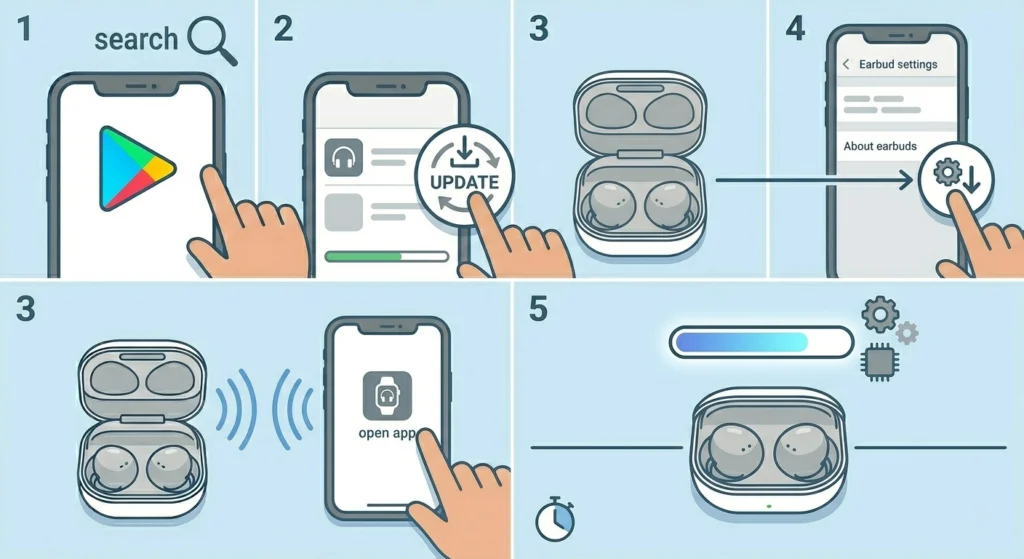
Outdated firmware or app versions are a common reason for connection instability. Samsung regularly pushes updates that fix known Bluetooth bugs.
- Step 1: Open the Google Play Store and search for ‘Galaxy Wearable’.
- Step 2: If an update is available, tap ‘Update’ and wait for it to finish.
- Step 3: Connect the buds to the phone and open the Galaxy Wearable app.
- Step 4: Go to ‘Earbud settings’ > ‘About earbuds’ > ‘Update earbuds’.
- Step 5: If a firmware update is available, install it – keep the buds in the case while updating.
Fix 7: Check the Phone’s Bluetooth Cache
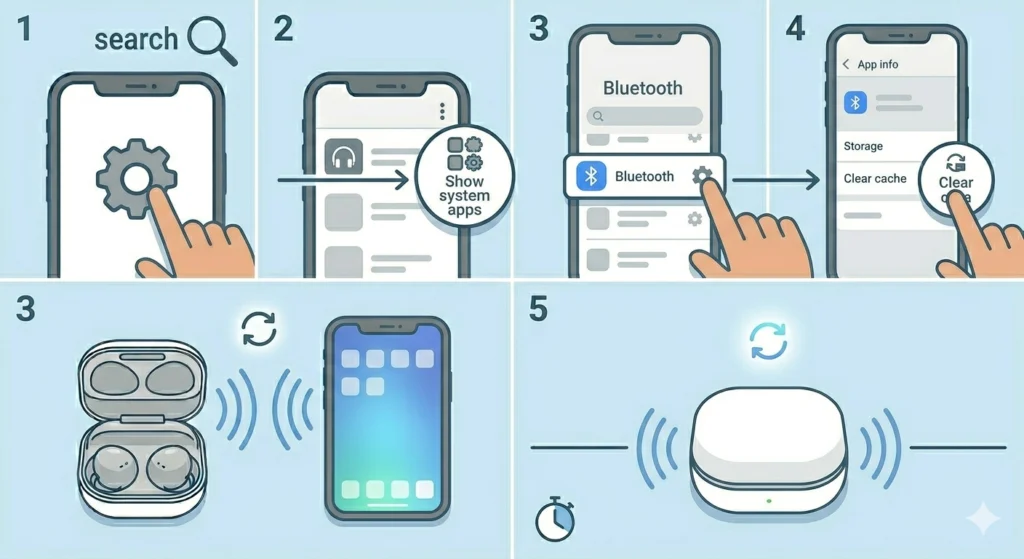
Android phones store Bluetooth cache data that can sometimes become corrupt and cause pairing failures. Clearing this cache does not delete paired devices – it just removes temporary files.
- Step 1: Go to Settings > Apps (or Application Manager).
- Step 2: Tap the three-dot menu and select ‘Show system apps’.
- Step 3: Find ‘Bluetooth’ in the list and tap it.
- Step 4: Select ‘Storage’ then tap ‘Clear cache’.
- Step 5: Restart the phone and try connecting the buds again.
Fix 8: Check for Phone Software Updates
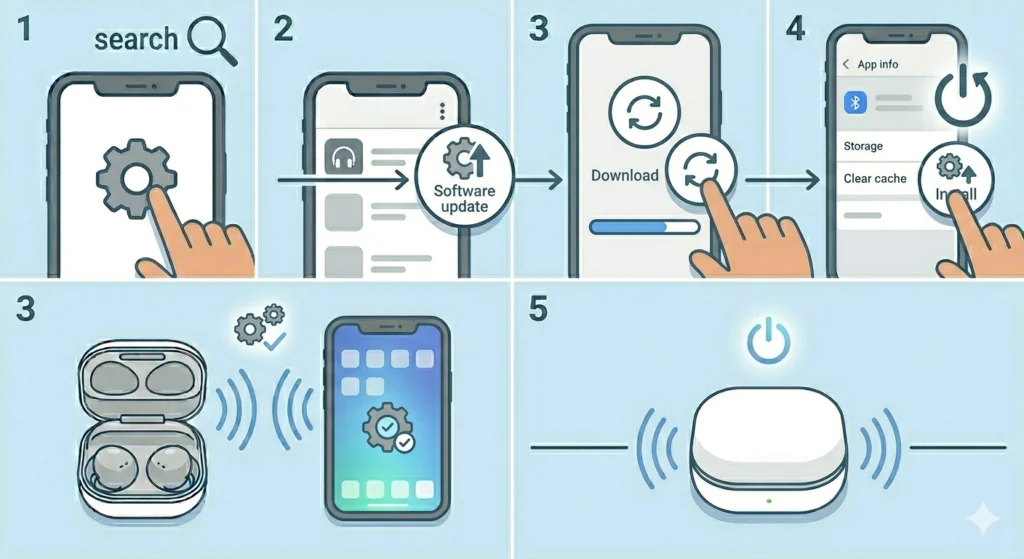
Sometimes the issue is not with the buds at all – it is a bug in the phone’s operating system. Keeping Android up to date ensures full compatibility with Samsung accessories.
- Step 1: Open Settings > Software update (or General management > Software update).
- Step 2: Tap ‘Download and install’ to check for updates.
- Step 3: Install any available update and restart the phone.
- Step 4: Try reconnecting the Buds 2 Pro after the update.
Tips for Keeping Galaxy Buds 2 Pro Connected Reliably
- Always keep the Galaxy Wearable app installed and updated – it handles the connection in the background.
- Store the buds in the case when not in use to prevent accidental pairing with other devices.
- If using the buds across multiple devices, use the Galaxy Wearable app to manually switch connections instead of relying on automatic switching.
- Avoid areas with heavy Bluetooth or Wi-Fi interference like crowded offices or public transit when first pairing.
- Keep the buds and charging case contacts clean – dirty contacts can cause power issues that mimic connection problems.
- If the phone uses a battery saver or Bluetooth restriction in the background apps setting, make sure the Galaxy Wearable app is excluded from those restrictions.
Common Problems and What Causes Them
Buds show as paired but no audio plays
This usually happens when the phone has connected the buds but set the audio output to a different device or the phone’s speaker. Go to the Bluetooth settings, tap the buds name, and check that ‘Media audio’ is enabled. Also check the audio output selector in the notification bar.
Buds connect then immediately disconnect
This is often a firmware bug or a corrupt pairing entry. The most effective fix is to reset the buds, forget them from the phone, and re-pair. Updating the firmware through the Galaxy Wearable app before re-pairing helps prevent this from happening again.
Only one earbud connects
Place both buds back in the case for 30 seconds, then remove them at the same time. If one earbud still refuses to connect, reset the earbuds using the manual method described in Fix 5 above. This resyncs both buds together before they connect to the phone. Users troubleshooting microphone detection problems on a connected Windows 11 device may also find that a single-earbud connection causes the mic to stop working.
Buds not visible in the Bluetooth scan list
The buds need to be in pairing mode to appear in the scan. Open the case and wait 5 seconds – if they do not appear, manually activate pairing mode by holding both earbud touch areas for 7 seconds until the LED flashes. Make sure the phone’s Bluetooth is actively scanning and not filtered to only show paired devices.
Galaxy Wearable app does not recognize the buds after connecting
This is usually an app cache issue. Force stop the Galaxy Wearable app, clear its cache from the app settings, then reopen it with the buds connected. If the app still does not recognize them, uninstall and reinstall the app from the Play Store.
Frequently Asked Questions
Why won’t my Samsung Galaxy Buds 2 Pro connect to my phone?
The most common reasons are a stale Bluetooth connection, the buds being connected to another device, outdated firmware, or a corrupted pairing entry on the phone. Starting with a Bluetooth toggle and re-pairing solves most cases.
How do I put Galaxy Buds 2 Pro into pairing mode?
Take the buds out of the case – they automatically enter pairing mode if no previously paired device is nearby. If they do not appear in the scan list, press and hold both earbud touchpads for about 7 seconds while they are out of the case until the LED flashes to enter manual pairing mode.
Does resetting the Galaxy Buds 2 Pro delete all settings?
Yes, a factory reset removes all stored pairing data and returns the buds to default settings. Equalizer settings, touch control customizations, and ambient sound preferences will all need to be set up again through the Galaxy Wearable app after re-pairing.
Can Galaxy Buds 2 Pro connect to non-Samsung Android phones?
Yes, the Buds 2 Pro connect to any Android phone via standard Bluetooth. However, some features like automatic switching, voice detect, and advanced equalizer settings require the Galaxy Wearable app, which works on both Samsung and non-Samsung Android devices.
Why do my Galaxy Buds 2 Pro keep disconnecting randomly?
Random disconnections are usually caused by weak Bluetooth signal, interference from other wireless devices, low battery in the buds, or a firmware bug. Updating the firmware through the Galaxy Wearable app and keeping the phone within 5-10 meters of the buds resolves most disconnection issues.
How long does it take to re-pair the Galaxy Buds 2 Pro?
The full re-pairing process – forgetting the buds, resetting them, and reconnecting – takes about 2 to 3 minutes. The actual Bluetooth pairing step itself usually takes under 30 seconds once the buds are in pairing mode.
Do Galaxy Buds 2 Pro support multipoint connection (two devices at once)?
Galaxy Buds 2 Pro do not support true simultaneous multipoint Bluetooth like some other earbuds. They use Samsung’s automatic device switching, which connects to one device at a time but can switch between paired Samsung devices when audio starts playing on another device.
What should I do if the Galaxy Wearable app cannot find my buds?
First make sure the buds are connected to the phone via Bluetooth. If they are connected but the app cannot detect them, force stop the Galaxy Wearable app, clear its cache, then reopen it. If the issue continues, uninstall and reinstall the app from the Google Play Store.
Can a phone case or cover interfere with Buds 2 Pro Bluetooth?
In most cases no, but very thick or metal-backed phone cases can reduce Bluetooth signal range. If connection seems weak or unstable, try using the buds without the phone case to see if that improves the connection quality.
Is there a difference in fixing this issue on a Samsung vs non-Samsung phone?
The core Bluetooth pairing steps are the same on any Android phone. The main difference is that Samsung phones have deeper integration through the Galaxy Wearable app and may offer automatic reconnection features that non-Samsung phones do not. On non-Samsung phones, manual re-pairing may be needed more often after phone restarts.