
Beats Studio Buds+ not connecting to iPhone is one of the most frustrating issues any earbuds owner can run into – especially when everything seemed to work just fine before. The good news is that most connection problems come down to a handful of fixable causes: stale Bluetooth pairing data, outdated firmware, or simple software glitches that a reset can clear out in seconds. This step-by-step guide covers every proven fix, starting with the quickest ones first.
Quick Summary
- Main Cause: Corrupted Bluetooth pairing data, outdated firmware, or a software glitch on the iPhone or buds
- Fastest Fix: Toggle Bluetooth off and on, then reconnect from Settings
- Most Reliable Fix: Remove the device from Bluetooth settings and re-pair from scratch
- Last Resort: Factory reset the Beats Studio Buds+ to wipe all pairing history
- Time Required: Most fixes take under 3 minutes
How to Fix Beats Studio Buds+ Not Connecting to iPhone
Fix 1: Toggle Bluetooth Off and Back On
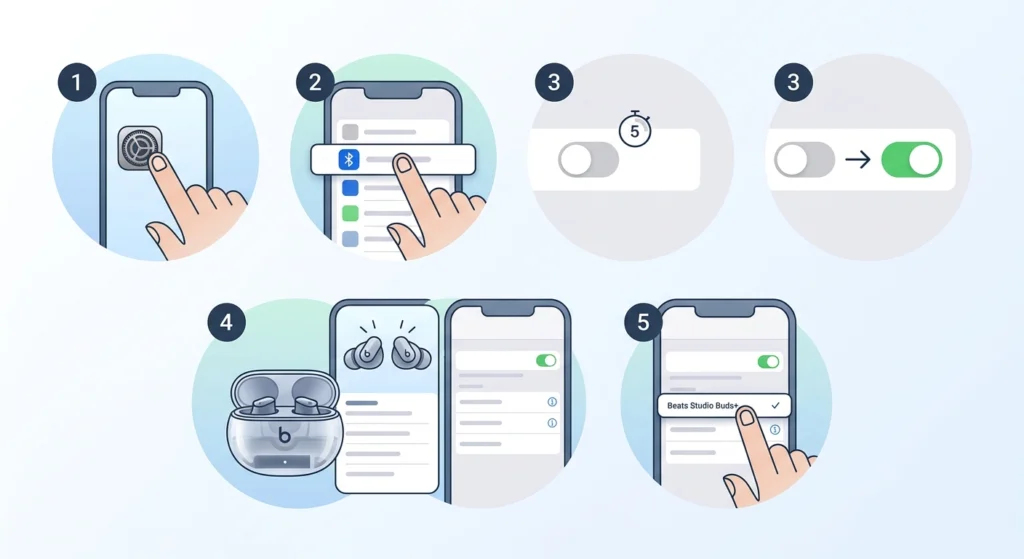
Before anything else, give the iPhone Bluetooth radio a quick restart. This clears minor connection errors without touching any settings.
- Step 1: Open the iPhone Settings app.
- Step 2: Tap Bluetooth.
- Step 3: Toggle the switch off, wait 5 seconds, then toggle it back on.
- Step 4: Open the Beats Studio Buds+ case lid and wait for the buds to appear in the device list.
- Step 5: Tap the device name to connect.
Fix 2: Place Buds Back in the Case and Reopen
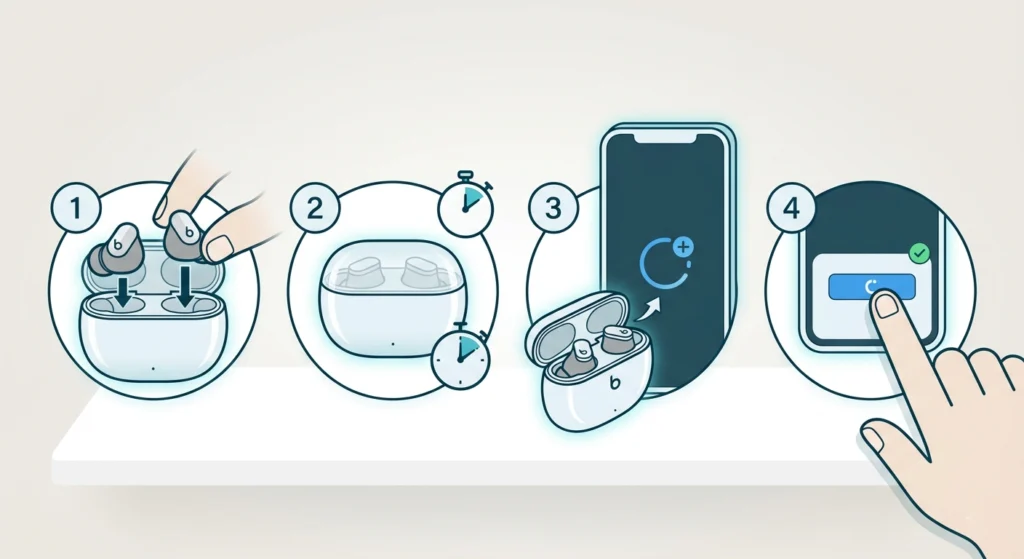
The Beats Studio Buds+ re-enters pairing mode automatically when taken out of the case after a few seconds. A quick reset of this cycle often re-establishes the connection.
- Step 1: Put both earbuds back into the charging case.
- Step 2: Close the lid and wait 10 seconds.
- Step 3: Open the lid near the iPhone. The connection popup should appear on screen.
- Step 4: Tap Connect when prompted.
Fix 3: Forget the Device and Re-Pair
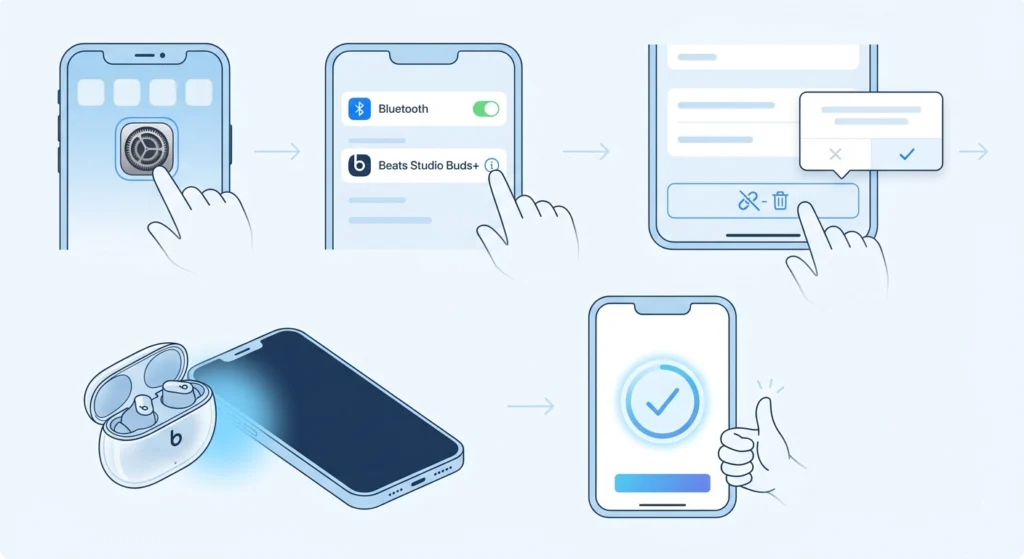
If the buds show up in the Bluetooth list but fail to connect, the saved pairing data has likely gone stale. Removing and re-adding the device is the cleanest solution.
- Step 1: Go to Settings > Bluetooth on the iPhone.
- Step 2: Find ‘Beats Studio Buds+’ in the list. Tap the (i) icon next to it.
- Step 3: Tap Forget This Device, then confirm.
- Step 4: Place the buds in the case, open the lid near the iPhone.
- Step 5: Follow the on-screen pairing prompt to reconnect.
This process is similar in concept to what you would do when you need to re-pair Bluetooth earbuds to restore a clean connection on other platforms – a fresh start almost always solves persistent pairing failures.
Fix 4: Restart the iPhone
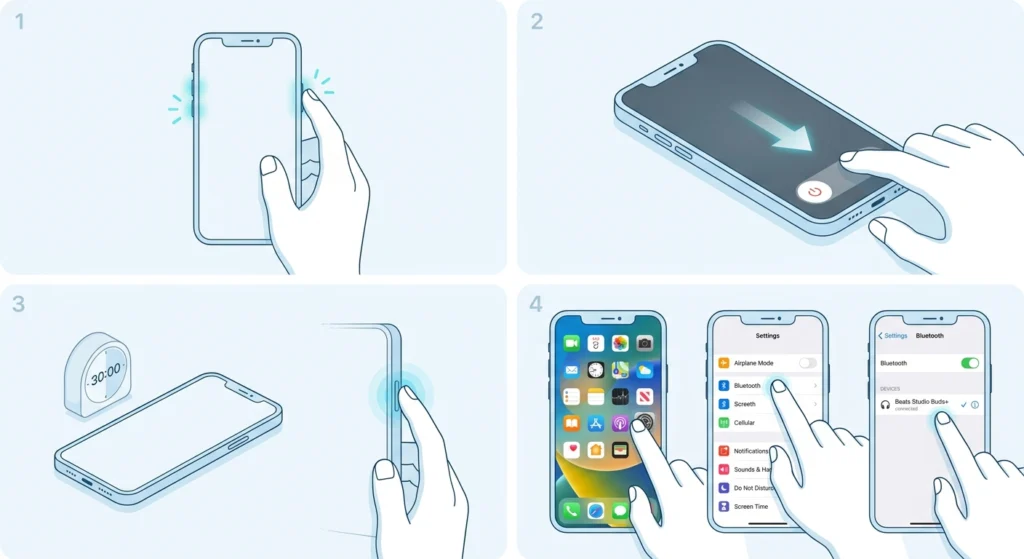
A standard iPhone restart clears background processes that can interfere with Bluetooth stack operations. This is worth doing before moving to more involved fixes.
- Step 1: Press and hold the Side button and either Volume button simultaneously.
- Step 2: Drag the ‘slide to power off’ slider.
- Step 3: Wait 30 seconds, then press the Side button to turn the iPhone back on.
- Step 4: Go to Settings > Bluetooth and tap the Beats Studio Buds+ to reconnect.
Fix 5: Check and Update iPhone Software
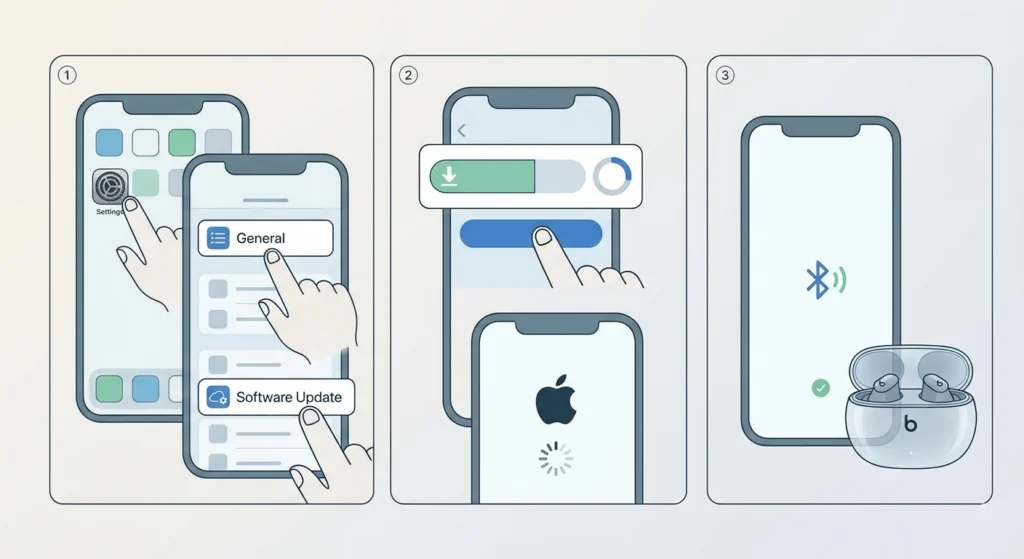
Apple regularly releases iOS updates that include Bluetooth stability improvements. Running an outdated version can cause compatibility issues with newer Beats firmware.
- Step 1: Open Settings > General > Software Update.
- Step 2: If an update is available, tap Download and Install.
- Step 3: After updating, reconnect the Beats Studio Buds+.
Fix 6: Update Beats Firmware via the Beats App
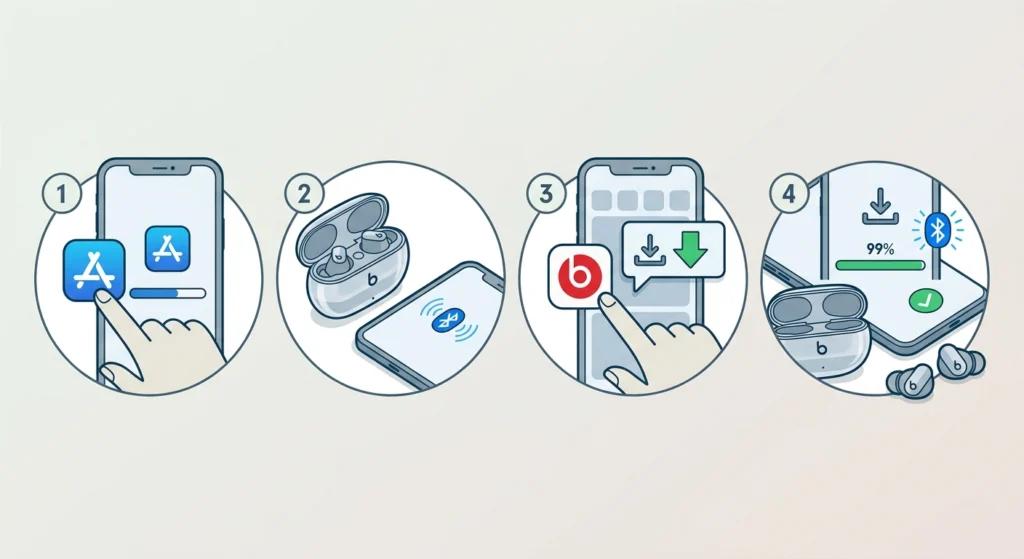
Outdated firmware on the buds themselves can cause connection drops and pairing failures. The Beats app handles firmware updates automatically when the buds are connected and charging.
- Step 1: Download the Beats app from the App Store if it is not already installed.
- Step 2: Connect the Beats Studio Buds+ to the iPhone temporarily via a different device or through a manual reset pairing.
- Step 3: Open the Beats app. If a firmware update is available, it will appear as a notification or banner.
- Step 4: Follow the in-app instructions to install the update. Keep the buds in range during this process.
Pro Tip: Firmware updates install automatically when the Beats Studio Buds+ are in the case, charging, and within Bluetooth range of a connected iPhone. Leaving the case plugged in overnight while the iPhone is nearby is the easiest way to make sure the buds always stay up to date.
Fix 7: Reset Network Settings on iPhone
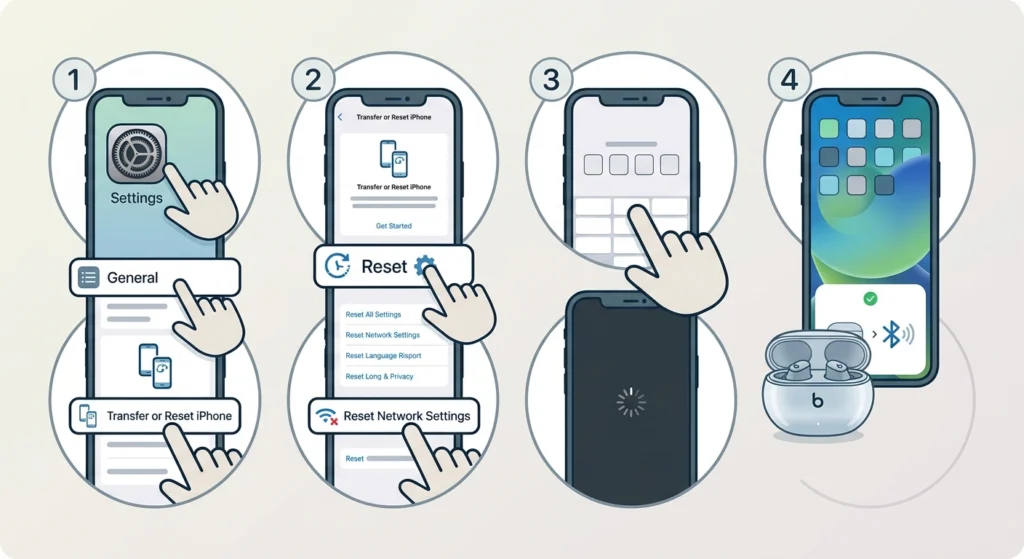
If nothing has worked so far, deeper Bluetooth configuration issues stored on the iPhone may be the culprit. Resetting network settings wipes all saved Wi-Fi passwords, Bluetooth pairings, and VPN configurations – so use this only when other fixes have failed.
- Step 1: Go to Settings > General > Transfer or Reset iPhone.
- Step 2: Tap Reset, then Reset Network Settings.
- Step 3: Enter the iPhone passcode if prompted.
- Step 4: After the reset completes, go to Settings > Bluetooth and re-pair the Beats Studio Buds+.
Fix 8: Factory Reset the Beats Studio Buds+
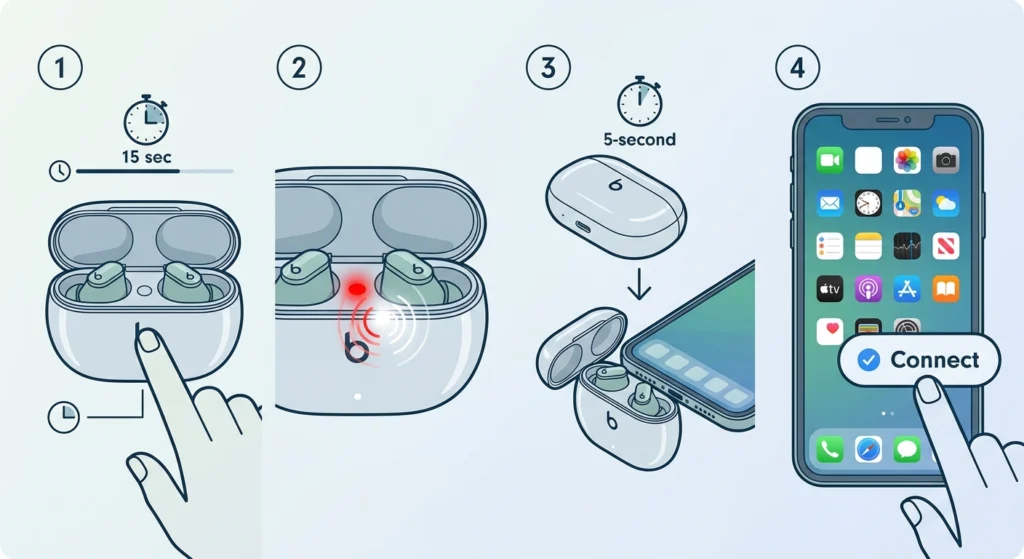
A factory reset wipes all paired device data stored inside the buds themselves. This is the most thorough fix available and works especially well when the buds struggle to connect to any device, not just the iPhone.
- Step 1: Place both earbuds in the charging case and leave the lid open.
- Step 2: Press and hold the system button (located on the case) for 15 seconds.
- Step 3: Release when the LED flashes red, then white. This confirms the reset is complete.
- Step 4: Close the case lid, wait 5 seconds, then open it near the iPhone.
- Step 5: Tap Connect when the pairing popup appears on the iPhone screen.
Pro Tip: After a factory reset, the Beats Studio Buds+ behaves like a brand-new device. Hold the case near the unlocked iPhone and the pairing card should appear automatically within a few seconds thanks to Apple’s H1 chip fast-pair feature. No need to dig through the Bluetooth settings menu.
Tips for Keeping Beats Studio Buds+ Connected to iPhone
- Always keep iOS and Beats firmware up to date – most pairing bugs get resolved in updates.
- Avoid having too many saved Bluetooth devices active at once. Unpair old devices that are no longer in use to reduce connection conflicts.
- Keep the charging case clean. Debris in the earbud contacts can cause the buds to lose their paired state unexpectedly.
- When switching between an iPhone and another device, always disconnect manually from one device before connecting to the other. This avoids conflicts where the buds appear busy to the iPhone.
- If the buds keep disconnecting during calls, check for iPhone battery optimization settings that might be throttling Bluetooth performance in the background.
Common Problems and What Causes Them
Beats Studio Buds+ show ‘Not Connected’ but are already paired
This usually means the Bluetooth handshake failed during a reconnection attempt. Toggle Bluetooth off and on, or open and close the case lid to trigger a fresh connection attempt. If it keeps happening, forget the device and re-pair from scratch.
Only one earbud connects to the iPhone
This points to a sync issue between the two buds rather than a problem with the iPhone. Place both earbuds in the case, close the lid for 10 seconds, then remove them together. If the problem persists, a factory reset usually resolves it by resynchronizing the two units.
Beats Studio Buds+ keeps disconnecting mid-use
Frequent dropouts are often caused by Bluetooth interference from nearby routers, microwaves, or other wireless devices. Try moving to a different area. Also check that no other device – like a MacBook or iPad – is pulling the Beats connection away automatically.
iPhone cannot find the Beats Studio Buds+ at all
If the buds do not appear in the Bluetooth scan list, they are either not in pairing mode or the battery is critically low. Charge the case for at least 15 minutes, then try again with the case lid open. If they still do not appear, perform a factory reset as described in Fix 8.
Beats app does not recognize the buds after re-pairing
Close and reopen the Beats app. If the buds still do not show up, delete the app, reinstall it from the App Store, and then open it with the buds connected via Bluetooth settings.
Frequently Asked Questions
Why won’t my Beats Studio Buds+ connect to my iPhone?
The most common reasons are stale Bluetooth pairing data, a software glitch on the iPhone or buds, outdated firmware, or low battery. Start by toggling Bluetooth off and on. If that does not help, forget the device in Bluetooth settings and re-pair. A factory reset on the buds resolves the issue in most stubborn cases.
How do I put Beats Studio Buds+ into pairing mode?
Place both buds in the charging case and leave the lid open. Press and hold the system button on the case for about 3 seconds until the LED flashes white. The buds are now in pairing mode and ready to connect to a new device.
Does resetting Beats Studio Buds+ delete all pairings?
Yes. A factory reset removes all saved device pairings stored in the buds. After the reset, the buds need to be paired again with every device – iPhone, Android, Mac, or otherwise.
How long does it take to factory reset Beats Studio Buds+?
The process takes about 30 to 60 seconds. Hold the system button for 15 seconds, wait for the LED flash confirmation, then the reset is complete. Re-pairing with an iPhone takes another 10 to 15 seconds.
Can low battery prevent Beats Studio Buds+ from connecting?
Yes. When the battery drops critically low, the buds may not have enough power to complete the Bluetooth handshake. Charge the case and buds for at least 15 minutes before attempting to connect again.
Why do my Beats Studio Buds+ keep disconnecting from my iPhone?
Repeated disconnections are usually caused by Bluetooth interference, the buds switching to another saved device automatically, or a firmware bug. Make sure only one device is actively trying to connect, reduce wireless interference, and check for firmware updates in the Beats app.
Do Beats Studio Buds+ work with all iPhone models?
Beats Studio Buds+ work with any iPhone running iOS 14 or later. The one-tap pairing feature and Find My integration require an iPhone with an Apple chip and iOS 14.5 or newer. Older iPhone models can still pair via standard Bluetooth but will miss some features.
How do I check the Beats Studio Buds+ firmware version on iPhone?
Go to Settings > Bluetooth, tap the (i) icon next to ‘Beats Studio Buds+’, and scroll down to see the firmware version listed under ‘Version’. The Beats app also displays this information on the main device screen.
Can I connect Beats Studio Buds+ to multiple devices at the same time?
Beats Studio Buds+ support multipoint connection, meaning they can store multiple pairings and switch between them. However, they only actively stream audio from one device at a time. To switch, disconnect from the current device or play audio from the other device to trigger the switch.
What should I do if none of the fixes work?
If the buds still will not connect after a factory reset, the issue may be a hardware defect. Contact Beats Support at beatsbydre.com or visit an Apple Store. Beats Studio Buds+ come with a one-year limited warranty, so a replacement may be available at no cost if the unit is found to be defective.