
Headphones stuck in pairing mode usually mean the Bluetooth chip has lost sync with its last connection, and this guide walks through the exact fixes that resolve it, starting with the fastest one first.
Quick Summary:
- Most cases are solved by a full restart of both the headphones and the connected device
- Forgetting the device from Bluetooth settings and re-pairing clears stuck connection data
- A full battery drain resets the internal Bluetooth module on stubborn units
- Outdated firmware or drivers are a common hidden cause
- Testing on a second device confirms whether the issue is hardware or software
Fix 1: Restart the Headphones and Reset Bluetooth
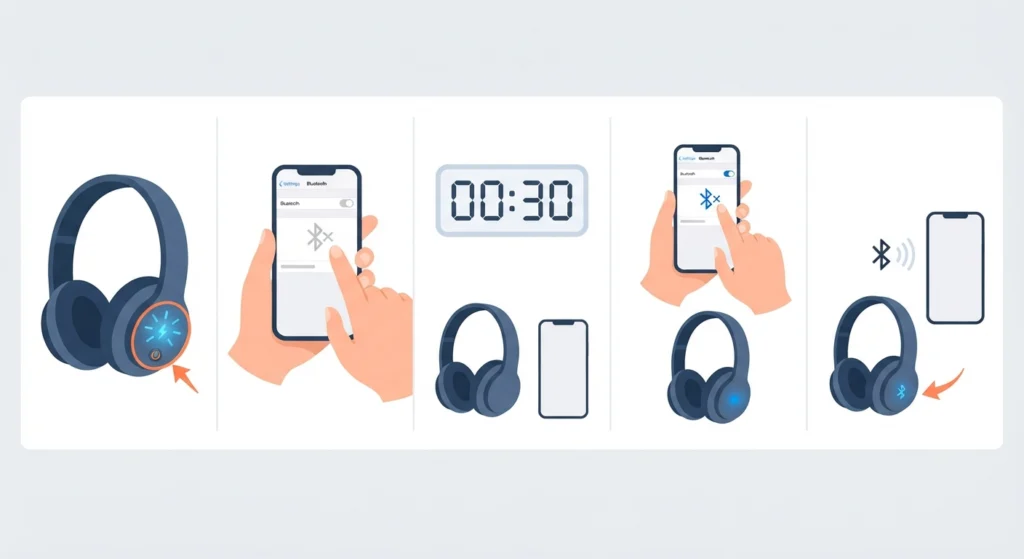
This works best when the headphones just entered pairing mode and never actually connected to anything. Powering everything off clears the temporary memory that Bluetooth chips use to hold connection attempts, which is often the whole problem.
- Step 1: Turn off the headphones completely using the power button, not just the case lid
- Step 2: Turn off Bluetooth on the phone, laptop, or tablet being used
- Step 3: Wait 30 seconds before turning either device back on
- Step 4: Turn Bluetooth back on first, then power on the headphones
- Step 5: Watch the LED indicator to confirm the headphones exit pairing mode and connect normally
Most people find that this single restart resolves the issue more often than any other fix, simply because it forces the Bluetooth radio to start a fresh handshake instead of retrying a broken one.
Fix 2: Forget the Device and Re-Pair From Scratch
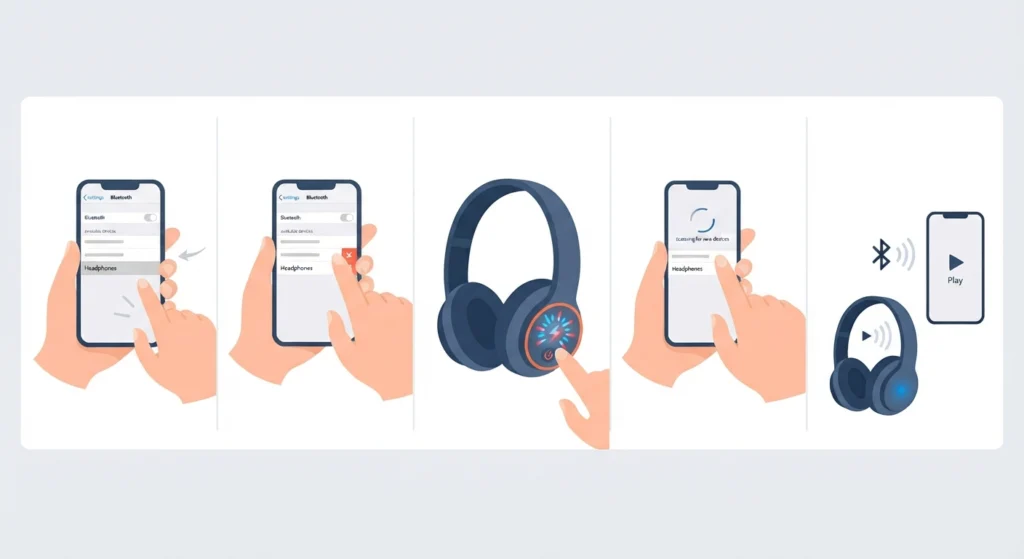
Sometimes the headphones are not actually broken, the paired connection is. Deleting the old pairing record and starting over removes any corrupted data tied to that specific device.
- Step 1: Open Bluetooth settings on the connected device
- Step 2: Locate the headphones in the device list and select forget or remove device
- Step 3: Restart the headphones and place them back into pairing mode
- Step 4: Search for new devices on the connected gadget and select the headphones when they appear
- Step 5: Confirm the pairing by playing audio for a few seconds
On Windows machines, this process sometimes needs an extra step if the earbuds default to mono sound after reconnecting. A dedicated walkthrough on how to re-pair bluetooth earbuds for stereo sound on Windows covers that exact scenario in more detail.
Fix 3: Clear the Pairing Mode by Draining the Battery
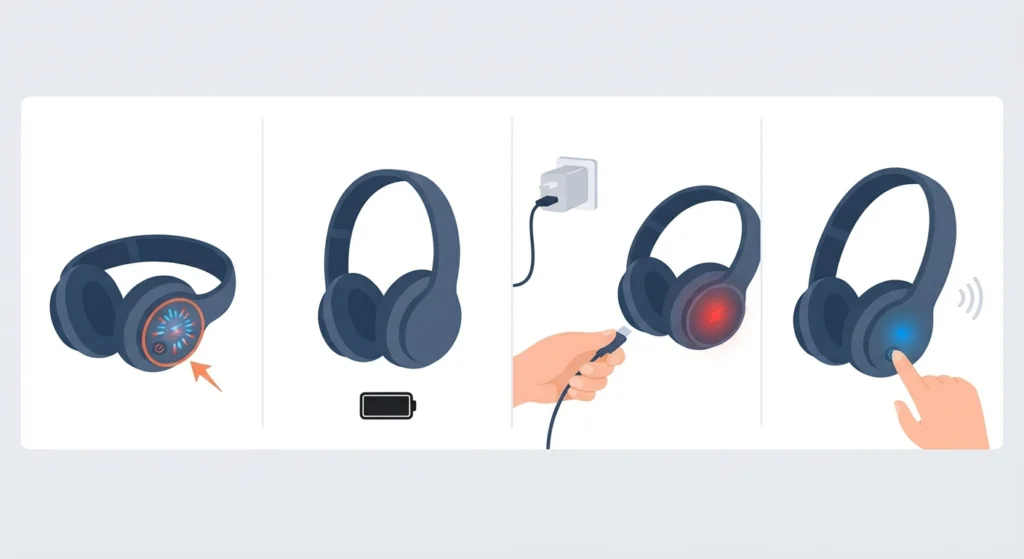
Headphones that refuse to leave pairing mode no matter what often have a Bluetooth chip that is stuck mid-cycle. Letting the battery run completely dry forces a hard reset that a normal power-off cannot achieve.
- Step 1: Leave the headphones powered on and out of the charging case until the battery fully depletes
- Step 2: Once they shut off on their own, plug them in to charge for at least 15 minutes
- Step 3: Power the headphones back on and check if pairing mode behaves normally
- Step 4: Attempt to connect to a device as usual
Pro-Tip: A battery drain reset clears far more residual memory than a standard restart, which is why it fixes cases where Fix 1 alone did not work. Save this method for when the headphones are genuinely frozen in pairing mode rather than using it as the first attempt, since it takes longer to complete.
Fix 4: Update Headphone Firmware and Device Drivers
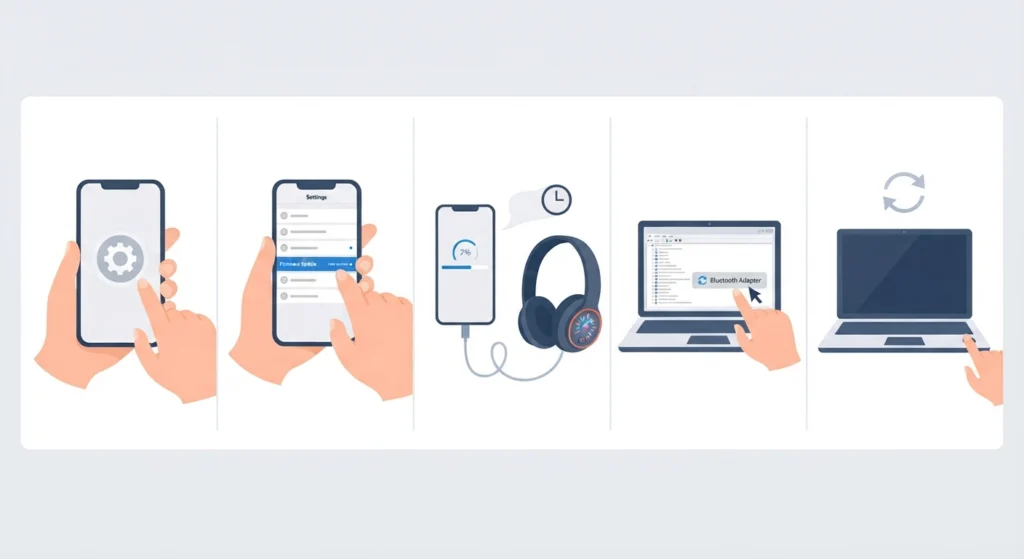
An outdated firmware version is a quiet but common reason headphones loop endlessly in pairing mode. Manufacturers release updates specifically to patch Bluetooth connection bugs, so skipping them leaves the issue unresolved even after multiple resets.
- Step 1: Open the manufacturer’s companion app if one exists for the headphones
- Step 2: Check for a firmware update under the device settings menu
- Step 3: Install any available update and keep the headphones near the phone until it finishes
- Step 4: On the computer side, update Bluetooth drivers through Device Manager or the manufacturer’s website
- Step 5: Restart the computer after the driver update completes
If the audio settings on Windows 11 seem off after a driver update, resetting audio settings back to default usually clears any leftover configuration conflicts before attempting to pair again.
Fix 5: Pair With a Different Device to Confirm Hardware Function

The key is to isolate whether the headphones themselves are faulty or if the problem lives with the original device. This step takes two minutes and saves a lot of guesswork.
- Step 1: Put the headphones into pairing mode as usual
- Step 2: Search for them on a completely different phone, tablet, or laptop
- Step 3: If they pair successfully on the second device, the issue lies with the first device’s Bluetooth settings
- Step 4: If they still fail to pair anywhere, the headphones likely need a factory reset or service
Tips to Prevent Headphones From Getting Stuck in Pairing Mode Again
A few habits go a long way toward avoiding this problem in the future, and none of them take more than a minute.
- Keep only one device connected at a time where possible, since juggling multiple paired devices confuses the Bluetooth queue
- Charge the headphones fully before long trips or extended use, since a low battery interrupts the pairing handshake
- Install firmware updates as soon as they appear instead of postponing them
- Store the headphones back in their case when not in use so they exit pairing mode on their own
- Avoid pairing near routers or other Bluetooth devices, since signal interference can cause pairing to hang
Common Problems When Headphones Stay in Pairing Mode
A handful of specific situations tend to repeat across different headphone brands, and recognizing them speeds up the fix considerably.
- The LED blinks continuously without ever connecting, which usually points back to Fix 2 or Fix 3
- The headphones appear in the device list but fail every connection attempt, which is often resolved by adjusting audio output settings on Windows 11
- One earbud connects while the other stays in pairing mode, which typically means the two buds lost sync with each other and need to be reset as a pair inside their case
- The headphones connect but no sound plays, which is a separate issue tied to output device selection rather than pairing itself
Frequently Asked Questions
Why do headphones get stuck in pairing mode in the first place?
This typically happens when the Bluetooth chip loses track of its last successful connection, often after a low battery event, a software update, or an interrupted pairing attempt.
How long should headphones stay in pairing mode before connecting?
Most headphones connect within 10 to 30 seconds of entering pairing mode. If more than a minute passes without a connection, one of the fixes above should be applied.
Does resetting headphones delete saved pairing history?
Yes, a factory reset clears all previously paired devices, so each one needs to be re-added afterward.
Can old Bluetooth drivers cause headphones to get stuck in pairing mode?
Yes, outdated drivers on a computer are a frequent cause, which is why updating them is included as a dedicated fix in this guide.
Why does only one earbud stay in pairing mode while the other connects fine?
This usually means the two earbuds are out of sync with each other rather than with the connected device. Placing both back in the charging case together for a few seconds typically restores the sync.
Is it safe to let headphones fully drain to fix a pairing issue?
Yes, a full battery drain is a standard reset method for Bluetooth devices and does not damage the battery when done occasionally.
Why do headphones disconnect immediately after successfully pairing?
This points to an audio input or output conflict rather than a pairing problem. Managing audio input devices in Windows 11 settings often resolves this once the headphones are already paired.
Do all headphone brands use the same pairing mode process?
The general steps are similar across brands, though the button combination or LED pattern used to enter pairing mode varies by manufacturer, so checking the specific model’s manual helps confirm the exact method.
Can a microphone issue be mistaken for a pairing problem?
Yes, if the headphones connect but the microphone is not detected, that is a separate issue. Resolving microphone detection problems on Windows 11 covers that scenario specifically.
When should headphones be considered faulty rather than just stuck?
If the headphones fail to pair with more than one device after trying every fix above, including a full battery drain and firmware update, the hardware itself likely needs servicing or replacement.