
Key Takeaways
- Shure AONIC 50 Gen 2 setup starts with a full charge and a press-and-hold of the power button for 2 seconds.
- The headphones enter pairing mode automatically on first power-on, or manually with a 5-second button hold.
- Multipoint pairing lets the headphones stay connected to two devices at the same time.
- The ShurePlus PLAY app unlocks EQ, Active Noise Cancellation, and Environment Mode customization.
- The USB-C Bluetooth adapter (UC model) comes pre-paired, so plugging it into a computer connects instantly.
Getting a Shure AONIC 50 Gen 2 setup right from the start makes a real difference in sound quality and daily convenience. These headphones are built for serious listeners, remote workers, and anyone who wants studio-grade audio without a tangle of wires, but the pairing process still needs to be done correctly to avoid connection drops or muffled calls later on.
Step-by-Step Guide to Setting Up Shure AONIC 50 Gen 2
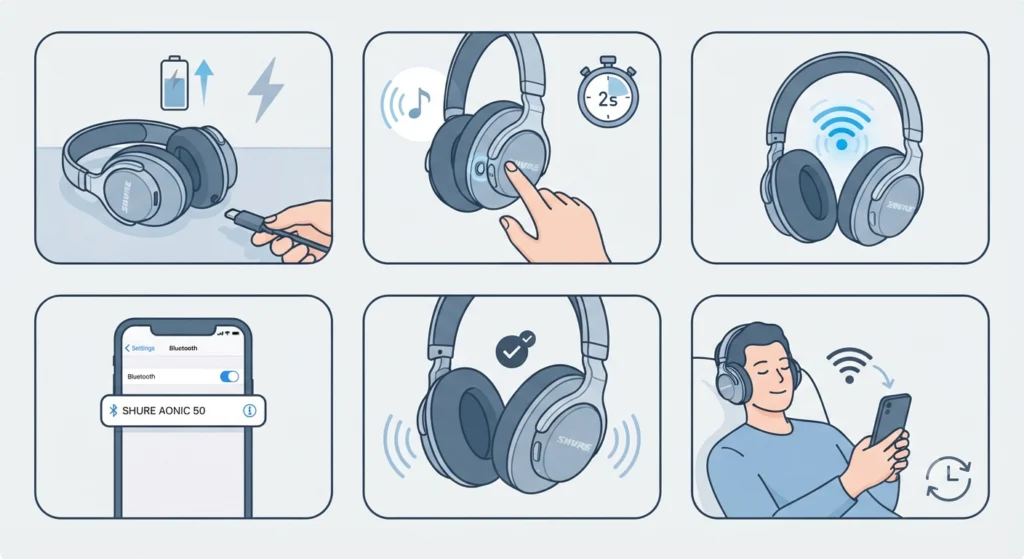
This section covers the exact sequence needed to get the headphones paired and playing audio. Most people find that the entire process takes less than two minutes once the device is charged.
- Step 1: Charge the headphones fully before the first use by connecting the included USB-C cable. A full charge supports up to 45 hours of listening time.
- Step 2: Power on the headphones by pressing and holding the power button for 2 seconds until a tone or voice prompt is heard.
- Step 3: Wait for the headphones to enter pairing mode automatically. This happens by default the first time they are powered on or whenever they have not been paired with a source before.
- Step 4: On the phone, tablet, or computer, open Bluetooth settings and select ‘Shure AONIC 50’ from the list of available devices.
- Step 5: Listen for the ‘Connected’ voice prompt, which confirms the pairing was successful.
- Step 6: For future use, simply power the headphones on again. They reconnect automatically to the last paired device within a few seconds.
Pairing Shure AONIC 50 Gen 2 With a Windows 11 Computer
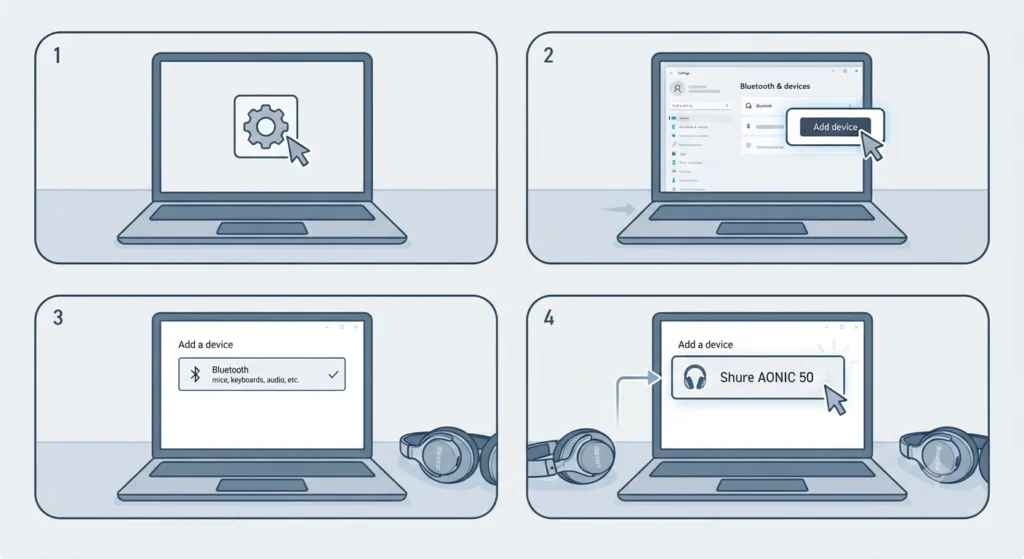
Pairing with a laptop or desktop follows the same core steps, with a slightly different menu path. Open Settings, then go to Bluetooth & devices, select Add device, choose Bluetooth, and pick ‘Shure AONIC 50’ once it appears in the list. If the headphones were previously connected to another gadget and refuse to show up, it often helps to re-pair the Bluetooth connection from scratch rather than trying to force a reconnect.
Pro-Tip: Keep the headphones within one meter of the computer during the very first pairing attempt. Bluetooth handshake signals are weaker during initial setup than during normal playback, and distance is one of the most common reasons pairing fails on the first try.
Setting Up the ShurePlus PLAY App
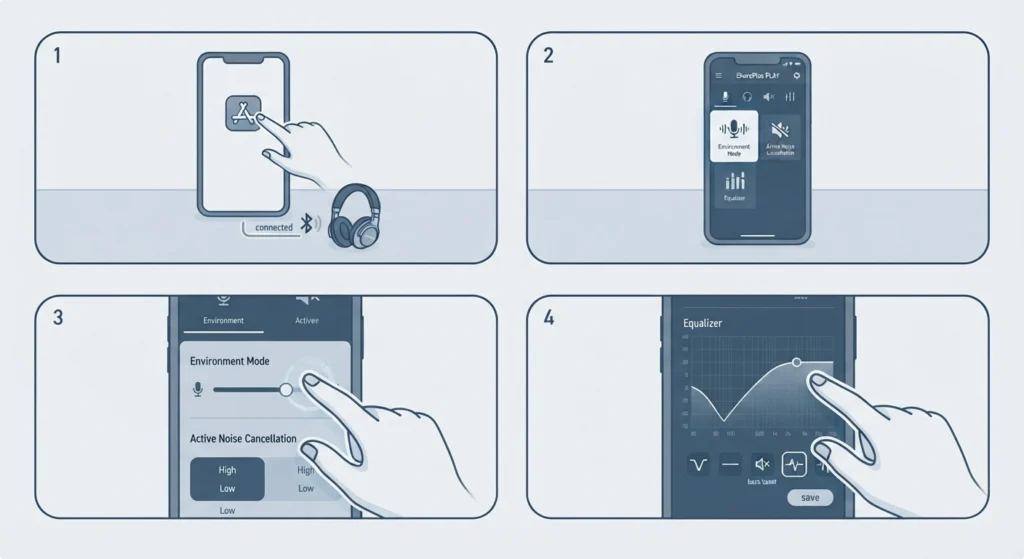
The ShurePlus PLAY app is not required just to play music, but it unlocks the full personality of the AONIC 50 Gen 2. After the headphones are paired with a phone, download the app from the App Store or Google Play, open it, and allow it to connect automatically. From there, the Device tab gives access to Environment Mode intensity, Active Noise Cancellation levels, and a parametric EQ that can be saved as custom presets.
Environment Mode is switched on by pushing the small vertical switch on the back of the right earcup upward, which lets ambient sound in. Pushing that same switch downward activates Active Noise Cancellation instead, which is especially useful on flights or in busy offices.
Connecting the USB-C Bluetooth Adapter (UC Model)
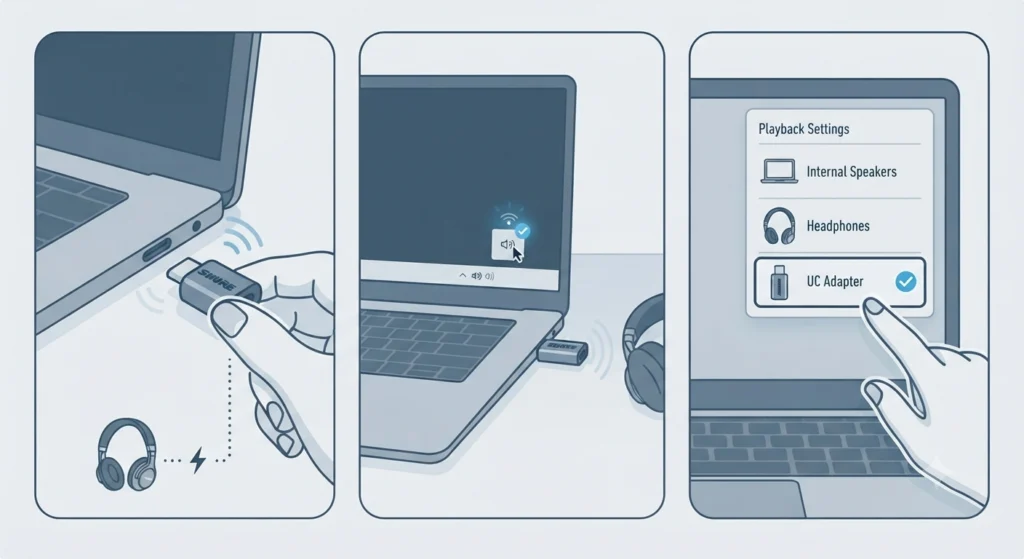
The AONIC 50 Gen 2 UC edition ships with a USB-C Bluetooth adapter designed for laptops and desktops used in calls and meetings. This adapter comes pre-paired to the headphones out of the box, so plugging it into a free USB-C port connects both devices without any extra steps. If audio still routes through the wrong device after plugging in the adapter, check the playback settings menu and confirm the correct output is selected, following the same logic covered in this guide on adjusting audio output settings.
Using a Wired Connection
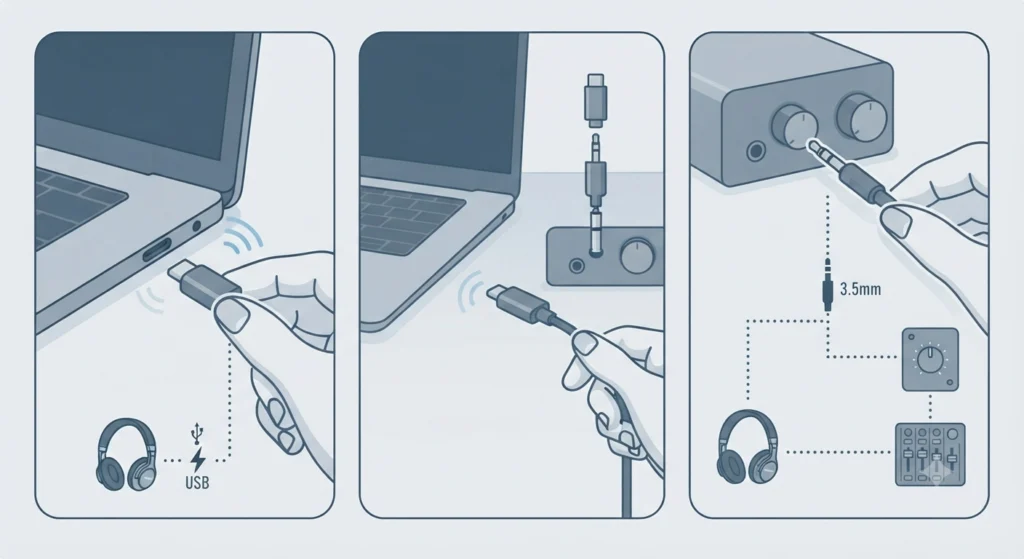
For situations where Bluetooth is not an option, the AONIC 50 Gen 2 accepts a standard 3.5mm analog cable for universal compatibility with mixers, in-flight entertainment systems, or audio interfaces. A USB-C digital connection is also available, supporting high-resolution streaming up to 32-bit/384kHz for listeners who care about lossless detail.
Tips for Getting the Most Out of Shure AONIC 50 Gen 2
- Use multipoint pairing to stay connected to a laptop and a phone simultaneously, so calls and music never require a manual switch.
- Check for firmware updates inside the ShurePlus PLAY app every few weeks, since Shure regularly refines ANC performance and battery efficiency through updates.
- Store the headphones in the included case when not in use. This protects the earcup hinges and keeps the noise-cancelling microphones free of dust.
- Avoid charging the headphones below freezing temperatures or above 45°C, since extreme conditions can shorten battery lifespan over time.
Pro-Tip: When switching between a work laptop and a personal phone throughout the day, set multipoint pairing to ‘Dynamic’ mode inside the PLAY app. This way, the audio connection automatically follows whichever device starts playing sound most recently, cutting down on manual reconnecting.
Common Setup Problems and How to Fix Them
Fix 1: Headphones Not Entering Pairing Mode
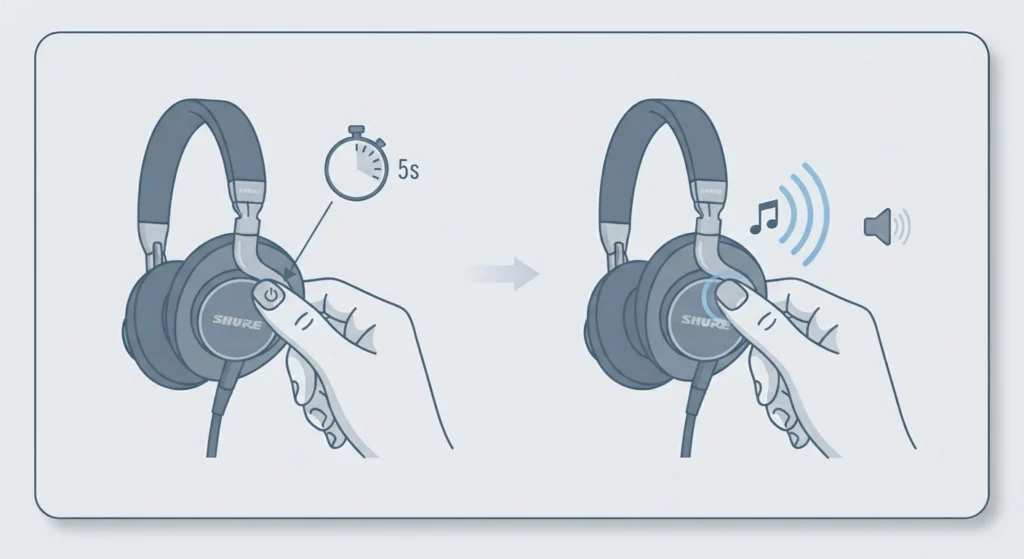
Power the headphones off completely, then press and hold the power button for 5 seconds until the pairing tone is heard. This forces a manual pairing mode even if the automatic trigger was missed.
Fix 2: Device Not Appearing in the Bluetooth List
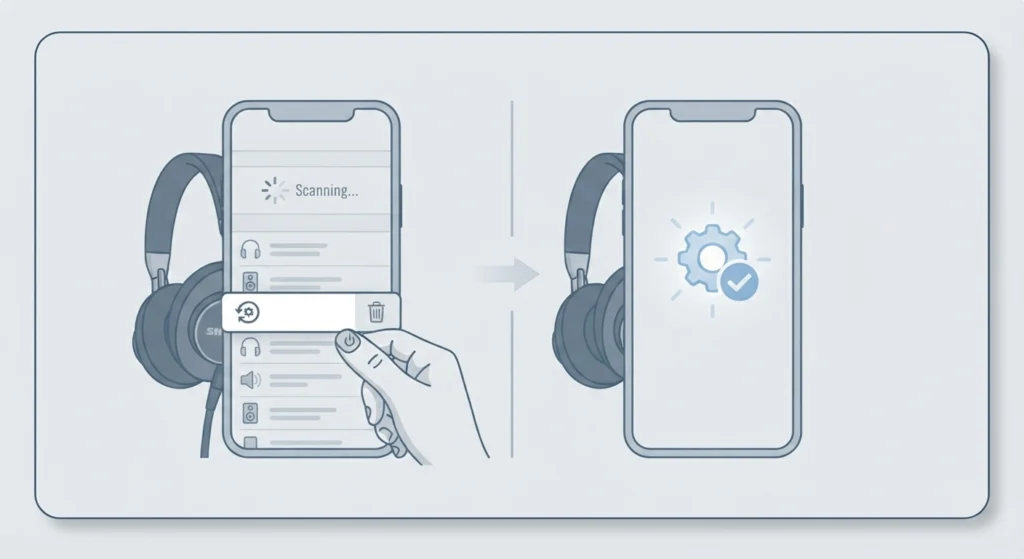
This usually points to a caching issue on the source device rather than the headphones themselves. Clearing out old Bluetooth data and starting fresh, as outlined in this guide on resetting audio settings, resolves the majority of these cases.
Fix 3: No Sound After a Successful Pairing
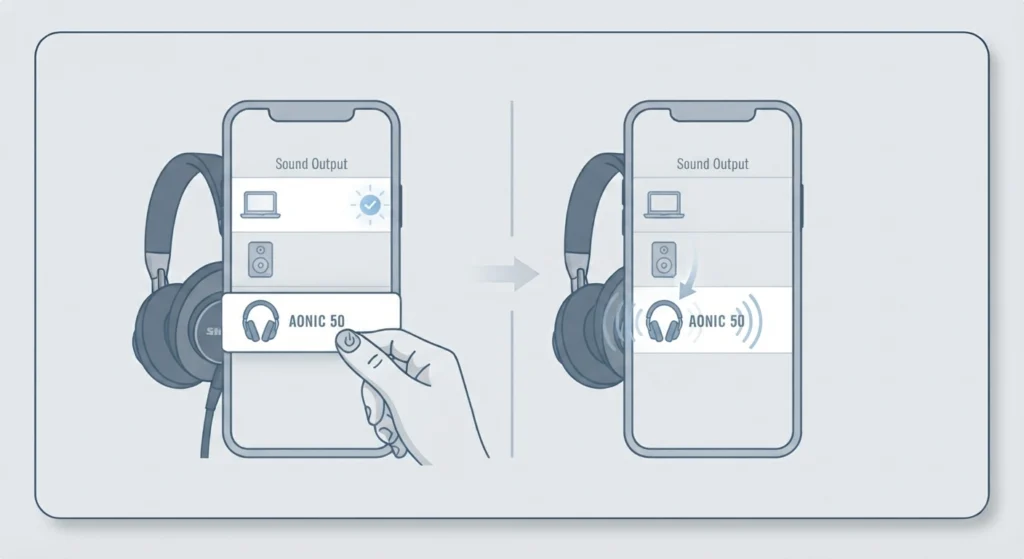
A ‘Connected’ prompt does not always mean the system has selected the headphones as the active output. Head into the sound settings menu and manually confirm ‘Shure AONIC 50’ is chosen as the playback device.
Fix 4: Microphone Not Picking Up Voice During Calls
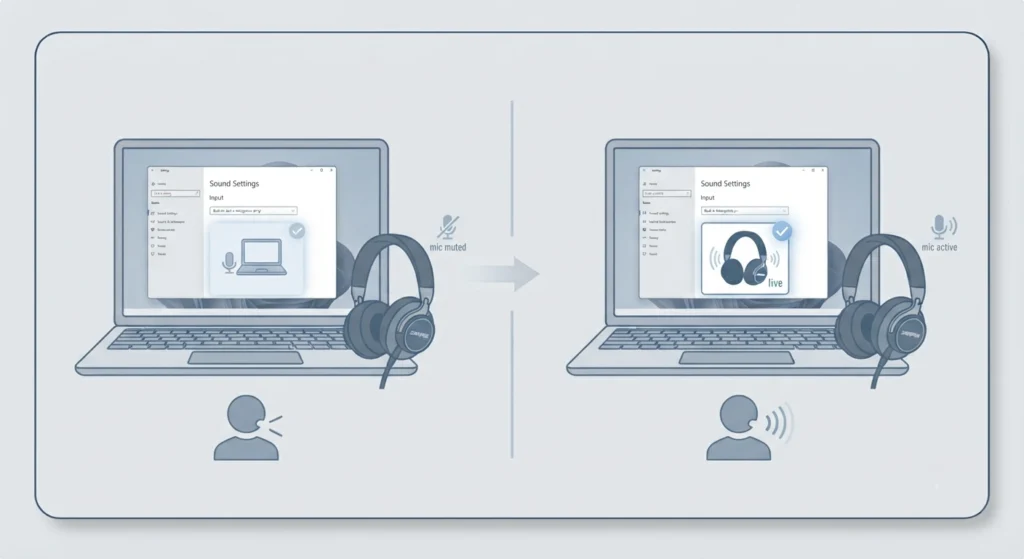
If the headphones connect fine for music but calls sound silent on the other end, the microphone may be assigned to the wrong input source. This guide on resolving microphone detection problems walks through the correction on Windows 11.
Fix 5: Conflicts When Multiple Devices Are Paired
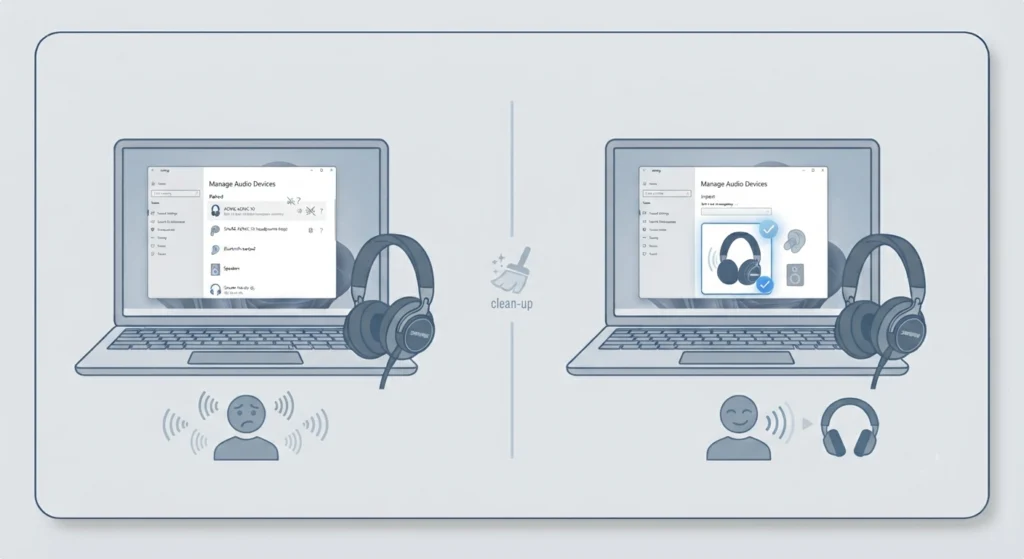
Having several Bluetooth headsets or microphones registered on one computer at once can cause the AONIC 50 Gen 2 to lose priority. Reviewing and cleaning up the list of active audio devices, as covered in this walkthrough on managing audio input devices, usually clears this up.
Frequently Asked Questions
Does Shure AONIC 50 Gen 2 pair automatically the first time it powers on?
Yes. The headphones enter pairing mode on their own the very first time they are switched on, or any time they have not been paired with the current audio source before.
How many devices can be paired to Shure AONIC 50 Gen 2 at once?
The headphones support Bluetooth multipoint pairing, which allows two devices to stay connected simultaneously and receive audio inputs alternately.
Is the ShurePlus PLAY app required to use the headphones?
No, the headphones play audio through standard Bluetooth pairing without the app. The app is only needed to customize EQ, ANC levels, and Environment Mode settings.
How long does the battery last on a full charge?
Shure AONIC 50 Gen 2 offers up to 45 hours of battery life on a single charge, depending on volume level and whether ANC is active.
Can Shure AONIC 50 Gen 2 be used with a wired connection?
Yes, the headphones accept both a 3.5mm analog cable and a USB-C digital cable, with the latter supporting high-resolution audio up to 32-bit/384kHz.
What is the USB-C Bluetooth adapter used for?
The USB-C adapter, included with the UC model, connects the headphones to computers for calls and meetings. It comes pre-paired, so no manual Bluetooth setup is needed for that specific adapter.
How is manual pairing mode activated if automatic pairing does not trigger?
Power the headphones off, then press and hold the power button for 5 seconds until the pairing tone is heard, which manually forces pairing mode.
What audio codecs does Shure AONIC 50 Gen 2 support?
The headphones support Qualcomm aptX, aptX HD, aptX Adaptive, AAC, SBC, and Sony LDAC, along with Snapdragon Sound technology for compatible devices.
How does Environment Mode differ from Active Noise Cancellation?
Environment Mode, activated by pushing the switch on the right earcup upward, lets ambient sound in. Pushing the same switch downward activates Active Noise Cancellation instead, reducing outside noise.
What should be done if pairing fails on the first attempt?
Repeat the pairing process from the beginning. Powering the headphones off, moving closer to the source device, and re-selecting ‘Shure AONIC 50’ from the Bluetooth list typically resolves a failed first attempt.