
Setting up the Jabra Evolve2 Buds for work calls takes only a few minutes once the right steps are followed in the right order. These earbuds are built for hybrid offices, certified for platforms like Microsoft Teams, Zoom, and Google Meet, and designed to switch between a laptop and a phone without dropping a call. Most people find that the setup process feels intimidating at first, mainly because there are two ways to connect – Bluetooth and the USB adapter – and mixing up the two is where confusion usually starts.
This guide breaks the entire process down into a clean, no-fluff walkthrough. There is no detour into unrelated features or extra troubleshooting that has nothing to do with the actual setup. Just the steps needed to get the Evolve2 Buds paired, configured, and ready for a work call.
Quick Summary Table
- Best connection for work calls: The included Jabra Link USB adapter, not native Bluetooth
- Software needed: Jabra Direct (desktop) or Jabra Sound+ (mobile)
- Pairing time: Around 2-3 minutes for first-time setup
- Multipoint support: Yes – stay connected to a laptop and a phone at the same time
- Certified platforms: Microsoft Teams, Zoom, and Google Meet
- Common mistake: Connecting through a computer’s native Bluetooth instead of the Link adapter, which limits call control buttons
Method 1: Pair the Jabra Evolve2 Buds With a Laptop or Desktop Using the Link Adapter
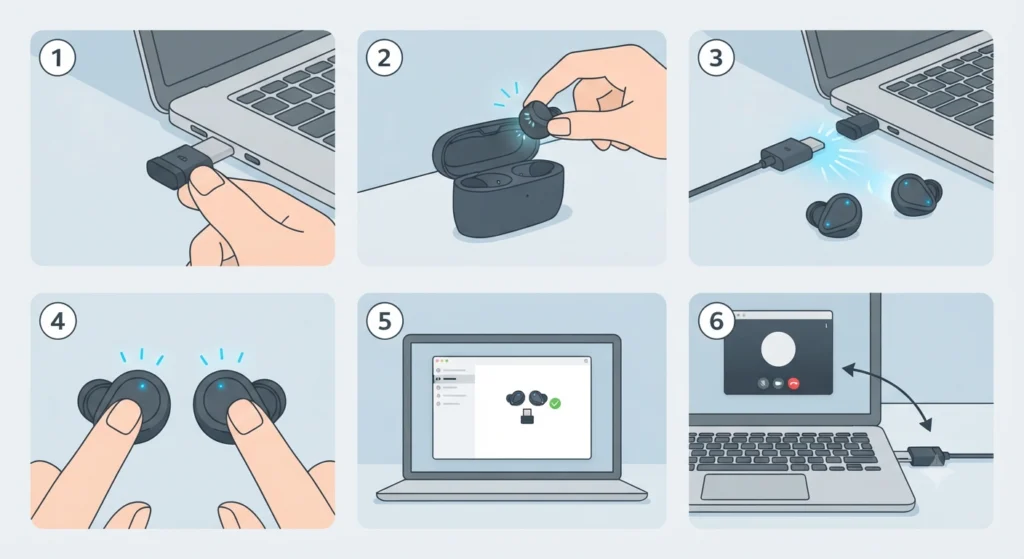
For work calls specifically, this is the method Jabra recommends, and it is the one that keeps every call control button working properly inside Teams, Zoom, or Google Meet.
- Step 1: Plug the small USB adapter (Jabra Link) into an available USB port on the laptop or desktop.
- Step 2: Remove the earbuds from the charging case. They power on automatically as soon as they are lifted out.
- Step 3: Wait a few seconds. The adapter and the earbuds usually pair automatically the very first time, since the adapter ships pre-paired to the buds.
- Step 4: If automatic pairing does not happen, press and hold the buttons on both earbuds at the same time for about three seconds until the LED indicators flash blue.
- Step 5: Download and install Jabra Direct on the computer, then open the app to confirm the earbuds appear as connected.
- Step 6: Inside the work call platform (Teams, Zoom, Google Meet), open the audio settings and select the Jabra Link adapter as both the microphone and speaker device.
This setup is the one that unlocks remote call control, meaning a call can be answered, muted, or ended right from the earbud button without touching the laptop at all.
Pro-Tip: Skipping the Link adapter and connecting straight through a computer’s built-in Bluetooth might work for music, but the call control buttons often stop responding properly in softphone apps. The adapter exists specifically to avoid that inconsistency, so it is worth using even if native Bluetooth seems like the quicker option.
Method 2: Pair the Jabra Evolve2 Buds With a Smartphone or Tablet
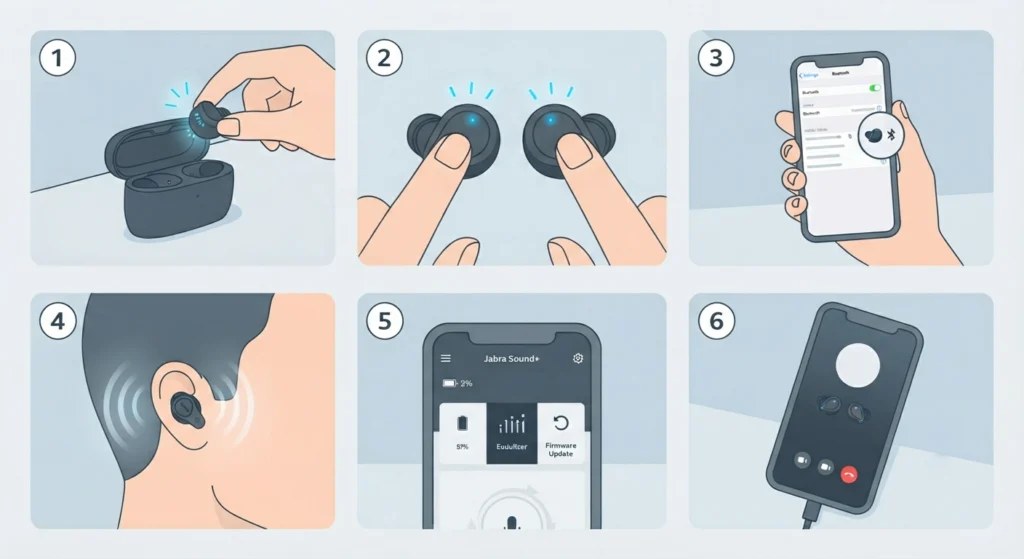
This method covers connecting the earbuds to a mobile device, which matters for anyone who takes work calls on a phone between meetings.
- Step 1: Remove both earbuds from the charging case to power them on.
- Step 2: Press and hold the Left and Right buttons together for three seconds until the LEDs flash blue, putting the earbuds into pairing mode.
- Step 3: On the phone or tablet, open Bluetooth settings and look for ‘Jabra Evolve2 Buds’ in the list of available devices.
- Step 4: Select the earbuds from the list and confirm the connection.
- Step 5: Put the earbuds on and follow the voice-guided prompts, which confirm once pairing is complete.
- Step 6: Install the Jabra Sound+ app to manage settings, check battery levels, and update firmware.
Once paired, the earbuds remember the device, so this full process only needs to happen the first time. After that, taking them out of the case reconnects automatically.
Method 3: Use Bluetooth Multipoint to Stay Connected to Both a Laptop and a Phone
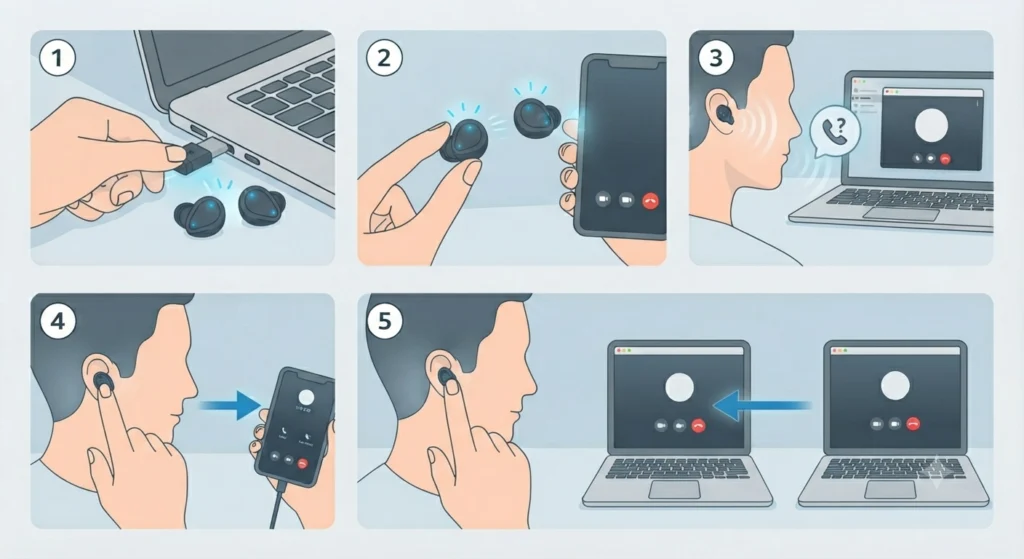
This is the feature that makes the Evolve2 Buds genuinely useful for hybrid work, since it allows the earbuds to stay linked to two devices at once.
- Step 1: Pair the earbuds with the laptop using the Link adapter, following Method 1.
- Step 2: Pair the same earbuds with a smartphone using Bluetooth, following Method 2.
- Step 3: Stay on a laptop call as usual. If a call comes through on the phone, a notification tone plays in the earbuds.
- Step 4: Answer the phone call directly through the earbud button, which automatically shifts audio focus from the laptop to the phone.
- Step 5: End the phone call the same way, and audio focus returns to the laptop without needing to reconnect anything manually.
This works best when both devices are already paired ahead of time rather than trying to pair one mid-call, since switching is instant only when both connections already exist.
Setting Up the Microphone and Audio Output Correctly
Pairing the earbuds is only half the job. The other half is making sure the operating system and the call platform actually recognize the earbuds as the active audio device, since a successful Bluetooth connection does not always mean the system picked it automatically. On a Windows 11 machine, this means opening sound settings and manually selecting the earbuds or Link adapter for both input and output, a step covered in more detail in this guide on adjusting audio output settings. It is a small step, but skipping it is one of the most common reasons people end up talking into a laptop’s built-in mic during a call without realizing it.
For anyone managing multiple audio devices across different meetings, this guide on managing audio input devices walks through how Windows prioritizes one device over another, which is useful once more than one Bluetooth headset is in regular rotation.
Tips for a Smoother Work Call Setup
- Update the firmware through Jabra Direct or Jabra Sound+ before the very first call. Older firmware occasionally causes inconsistent call control behavior.
- Keep the Link adapter plugged into the same USB port consistently. Some laptops re-detect devices differently when the port changes, which can cause a brief reconnection delay.
- Sign out of other softphone apps running in the background. Multiple apps competing for the same audio device is a frequent cause of call control buttons not responding.
- Charge the case fully before a heavy meeting day. The earbuds rely on the case for top-ups between calls, and a half-charged case runs out faster than expected.
- Test the microphone in a short solo call or voice memo before an important meeting, rather than discovering a problem once colleagues are already on the line.
Common Problems and Fixes
Fix 1: Earbuds Connect but Call Control Buttons Do Not Work
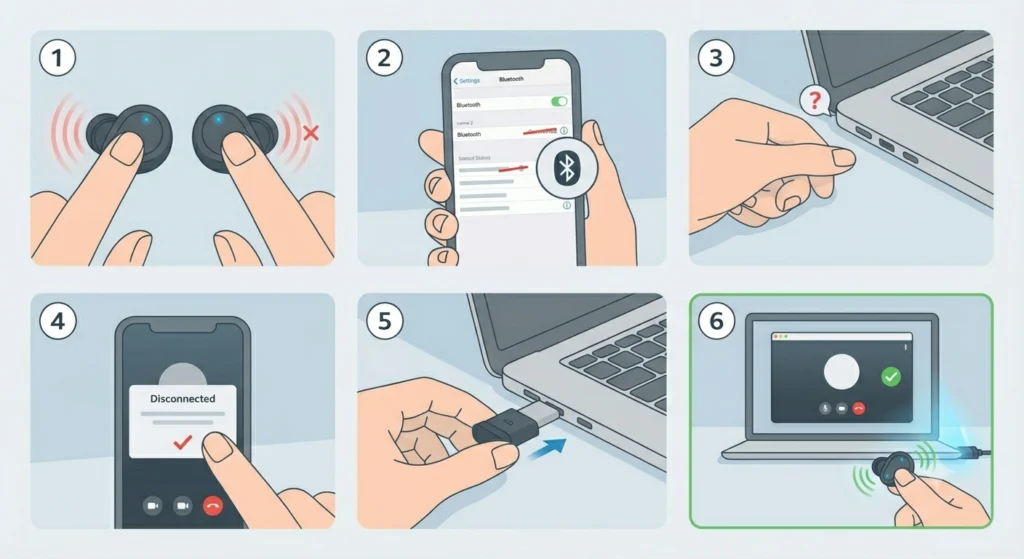
This usually points to a native Bluetooth connection instead of the Link adapter. Switching to the adapter, as outlined in Method 1, restores full call control functionality including answering, muting, and ending calls from the earbud itself.
Fix 2: Microphone Not Detected During a Call
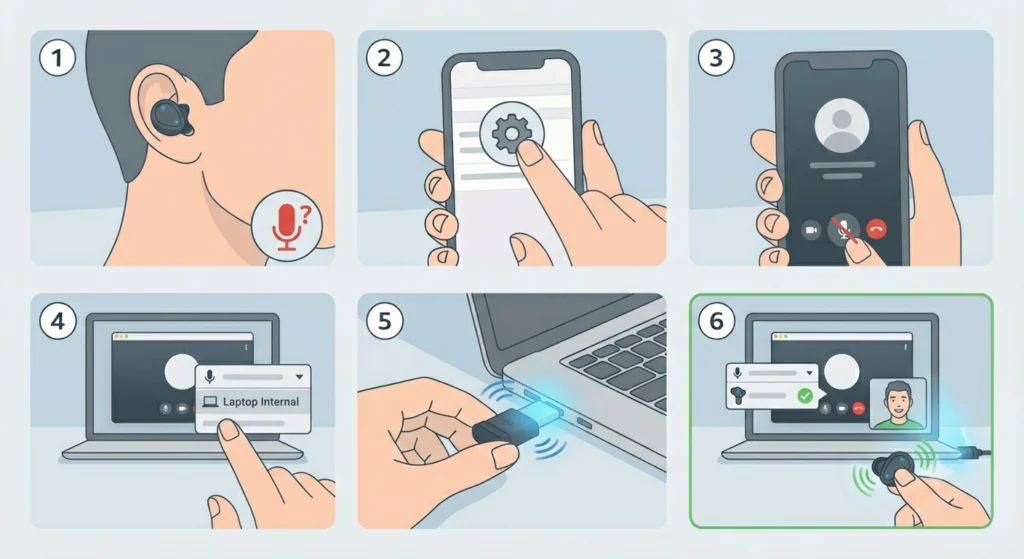
This generally means the call platform is still pointed at the laptop’s built-in microphone rather than the earbuds. Double-checking the audio settings inside the meeting app, alongside this guide on resolving microphone detection problems, usually resolves it within a couple of clicks.
Fix 3: Earbuds Pair but Audio Plays in Mono or Sounds Unbalanced
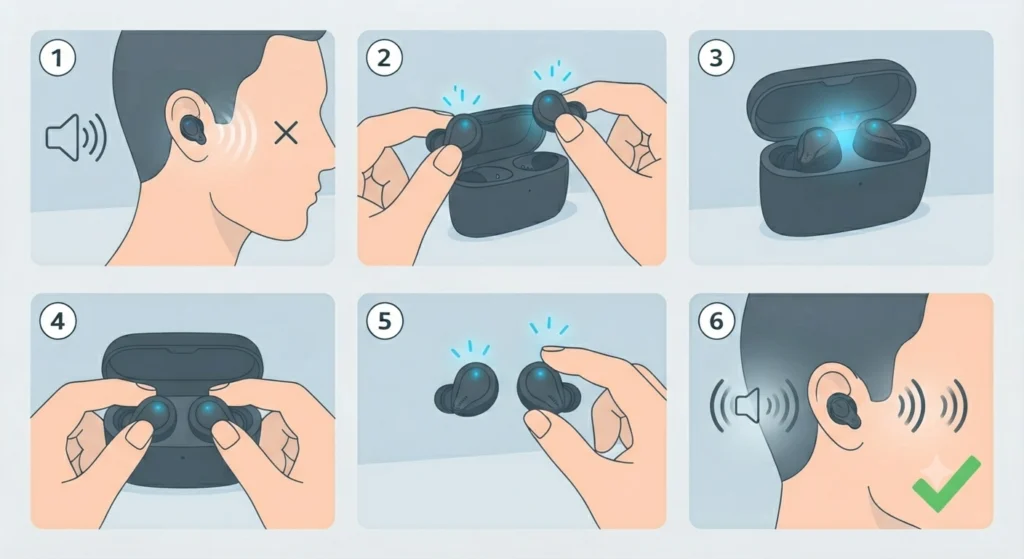
This can happen if one earbud reconnects slightly after the other. Placing both earbuds back in the case for a few seconds, then removing them together, usually fixes the imbalance. For a deeper walkthrough on this exact issue, this guide on re-pairing Bluetooth earbuds for stereo sound covers it well.
Fix 4: Settings Seem Off After a Software Update
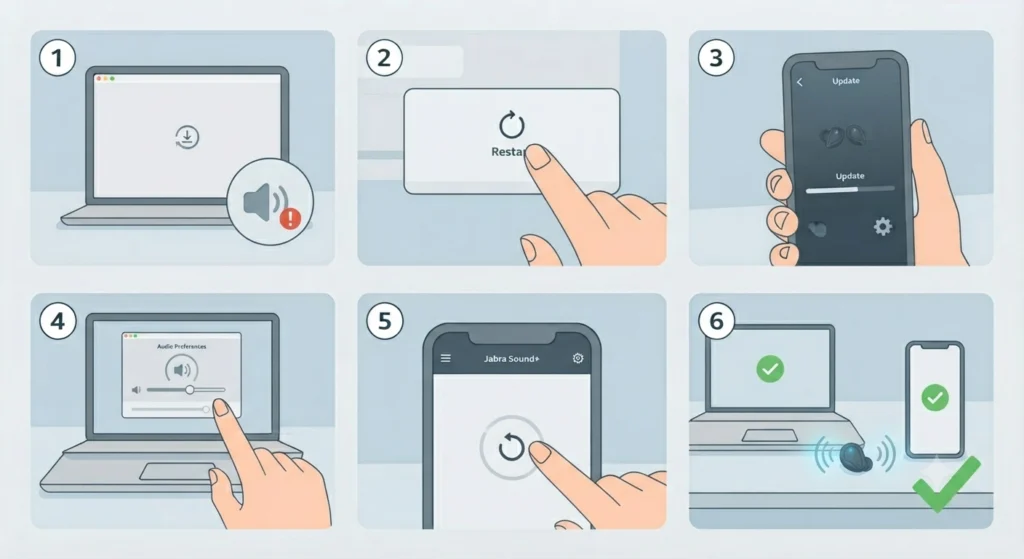
Occasionally, an operating system update resets default audio preferences. Resetting the relevant audio settings, as explained in this guide on resetting audio settings, brings things back to a working state without needing to re-pair the earbuds from scratch.
Frequently Asked Questions
Do the Jabra Evolve2 Buds need the Link adapter to work for calls?
They do not strictly need it, since they can connect through a computer’s native Bluetooth. However, the Link adapter is recommended for work calls because it preserves full call control functionality that native Bluetooth often cannot guarantee.
Can the Evolve2 Buds connect to two devices at the same time?
Yes. Bluetooth Multipoint allows the earbuds to stay connected to a laptop and a phone simultaneously, switching audio focus automatically when a call comes in on either device.
Which video call platforms are the Evolve2 Buds certified for?
The earbuds are certified for Microsoft Teams, Zoom, and Google Meet, with a specific Microsoft Teams-certified variant available for organizations standardized on that platform.
What software is needed to manage the Evolve2 Buds?
Jabra Direct works on desktop computers, while Jabra Sound+ is the mobile equivalent. Both apps handle firmware updates, settings adjustments, and battery monitoring.
Why does the microphone sometimes not get picked up during a call?
This is usually because the call platform defaulted back to the laptop’s built-in microphone instead of the connected earbuds. Manually selecting the correct input device inside the call app’s audio settings fixes this.
How long does the first-time pairing process take?
For most people, first-time pairing takes about two to three minutes, including the time to install Jabra Direct or Jabra Sound+ and confirm the connection.
Do the earbuds remember a device after the first pairing?
Yes. Once paired, removing the earbuds from the case automatically reconnects them to the last used device without needing to repeat the full pairing process.
Can the buttons on the earbuds answer and end calls directly?
Yes, when connected through the Link adapter or a certified native Bluetooth setup, the buttons support remote call control, meaning calls can be answered, muted, or ended without touching the computer or phone.
What is the most common mistake people make during setup?
The most common mistake is connecting through native Bluetooth on a computer instead of using the included Link adapter, which limits access to full call control during meetings.
Is it necessary to update firmware before using the earbuds for work calls?
It is strongly recommended. Updating firmware through Jabra Direct or Jabra Sound+ before first use helps avoid inconsistent call control behavior and ensures the latest compatibility fixes are installed.