
Immersive Audio on the Bose QuietComfort Ultra turns a flat stereo mix into something that feels like it surrounds the listener rather than sitting inside the ear canal. This feature stands out as one of the headphone’s signature upgrades, and getting it set up correctly only takes a couple of minutes once the right steps are followed in order.
Quick Summary Table
- Feature: Immersive Audio (Still and Motion modes)
- Works with: Bose QuietComfort Ultra Headphones and Earbuds
- Setup tool: Bose Music app
- Best for: Music, movies, and podcasts from any streaming source
- Battery impact: Slightly higher drain when active
- Time needed: Under 5 minutes
Method 1: Turn On Immersive Audio Using the Bose Music App
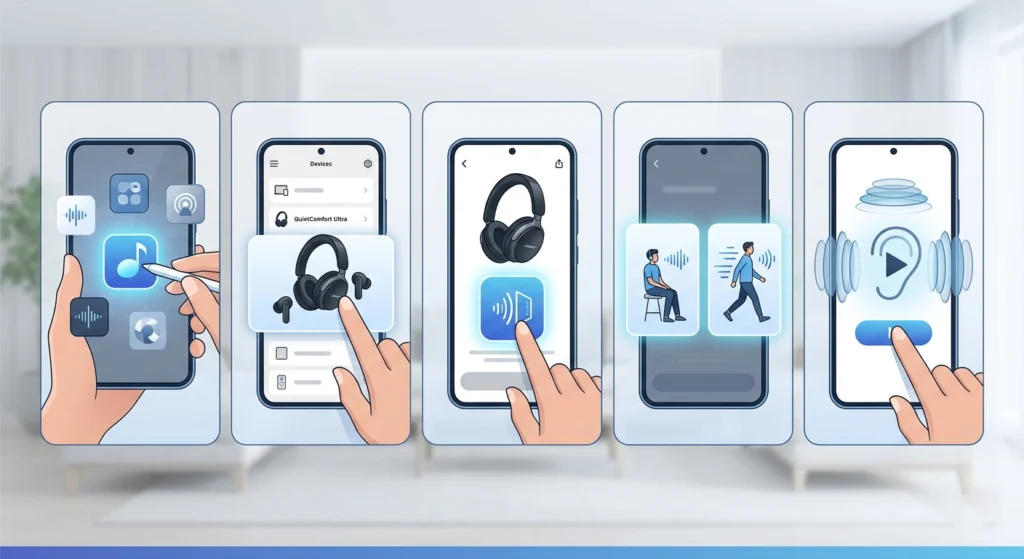
The Bose Music app is the most reliable way to switch Immersive Audio on for the first time, and it gives access to both available modes in one place.
- Step 1: Open the Bose Music app on a paired phone or tablet.
- Step 2: Select the QuietComfort Ultra headphones or earbuds from the device list.
- Step 3: Tap on Immersive Audio from the main product screen.
- Step 4: Choose Still mode for sitting or standing in one place, or Motion mode for walking and moving around.
- Step 5: Tap the Try the Demo link to hear how each mode changes the sound before committing to one.
Still mode tends to suit a quiet evening on the couch with a movie playing, since the sound field stays locked in front of the listener. Motion mode adjusts that field as the head turns, which makes it the better pick for commuting, walking, or anything that involves moving through space while listening.
Method 2: Switch Modes Directly From the Headphones or Earbuds
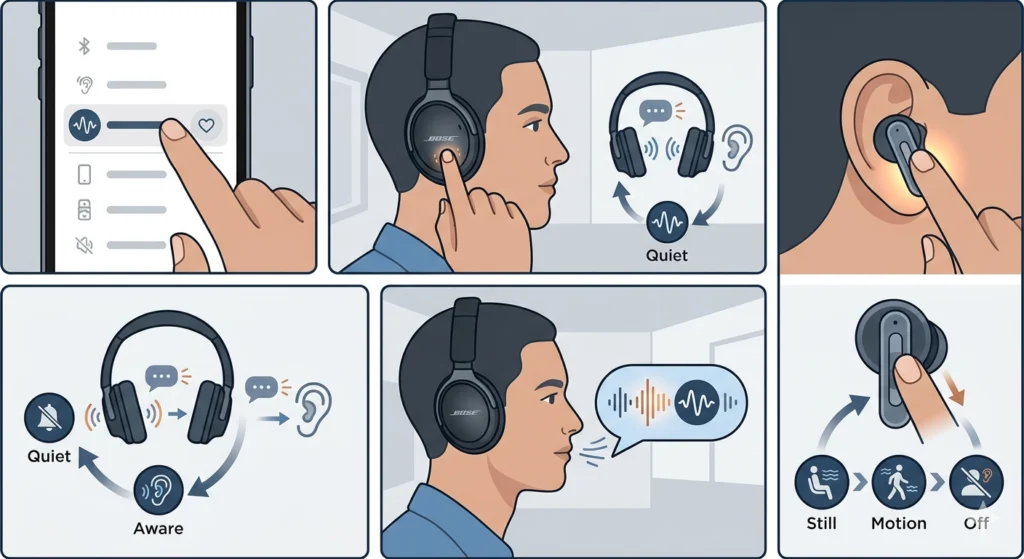
Once Immersive Audio has been set up through the app at least once, switching it on later does not always require pulling out a phone.
- Step 1: Make sure Immersive Audio has been added as a favorite mode inside the Bose app beforehand.
- Step 2: On the headphones, press and hold the multi-function button on the right earcup.
- Step 3: Listen for the voice prompt announcing each mode as the button cycles through them.
- Step 4: Release the button once Immersion is announced.
- Step 5: On earbuds with a shortcut feature enabled, press and hold the volume strip or designated control to cycle between Still, Motion, and Off.
This works best when the shortcut has already been customized in the app, since the on-ear controls only cycle through modes that were favorited ahead of time.
Pro-Tip: Battery life drops faster with Immersive Audio running compared to standard Quiet or Aware mode. On long flights or workdays, switching it on only during dedicated listening sessions rather than leaving it on all day helps stretch playback time considerably.
Method 3: Use Cinema Mode for Movies and Video Content
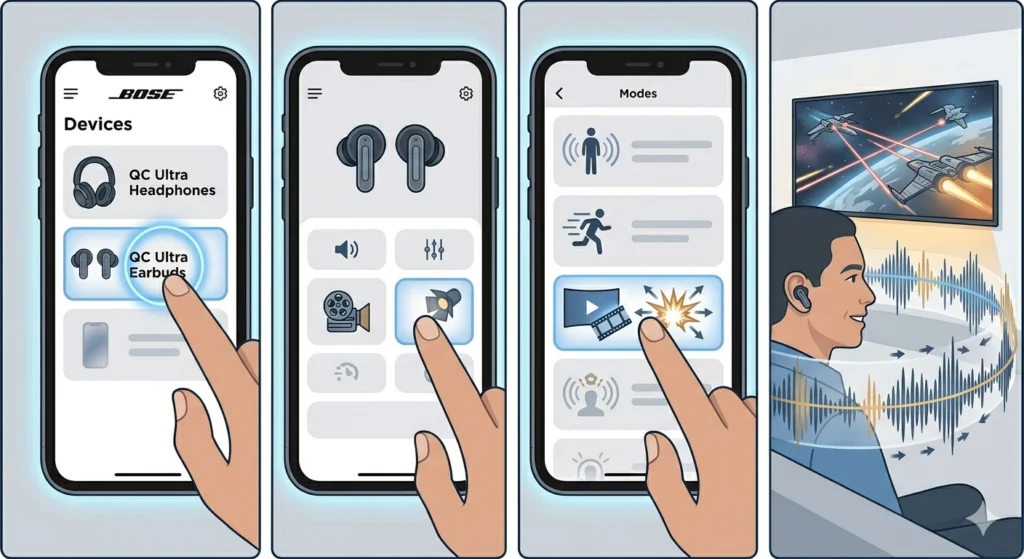
Newer QuietComfort Ultra Earbuds (2nd Gen) include Cinema Mode, a variation of Immersive Audio built specifically for video rather than music.
- Step 1: Open the Bose Music app and select the earbuds from the device menu.
- Step 2: Tap Modes from the main screen.
- Step 3: Select Cinema Mode from the available list.
- Step 4: Start playback on a streaming app or video platform to hear the wider soundstage in action.
Dialogue tends to come through clearer in this mode, and background effects spread out instead of feeling cramped inside the head, which makes a noticeable difference during dialogue-heavy shows or action scenes alike.
Setting Up Immersive Audio on a Windows 11 Laptop
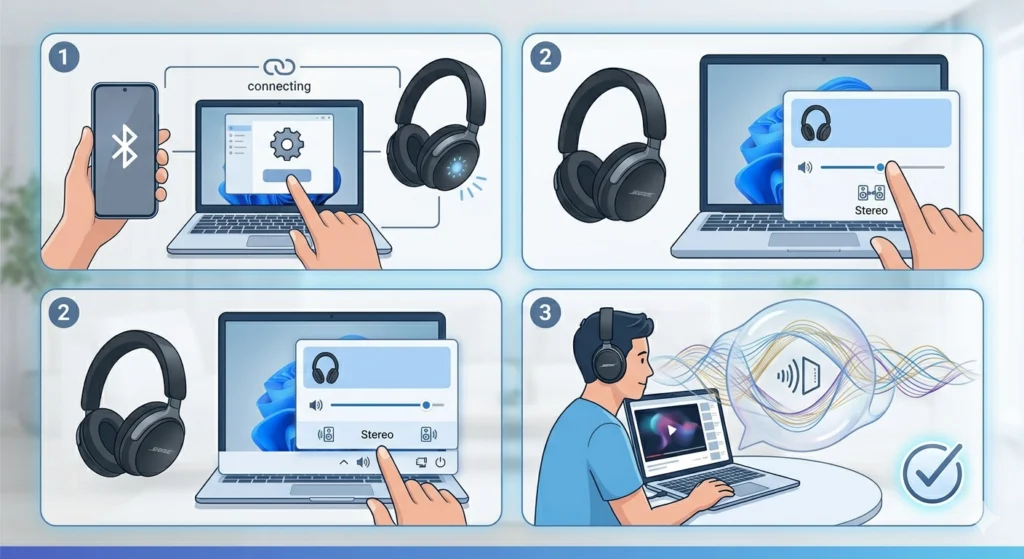
Streaming through a Windows 11 laptop adds a few extra considerations beyond the Bose app itself. Pairing correctly matters first, and anyone running into stereo sound issues after a reconnect can work through the dedicated guide on re-pairing Bluetooth earbuds for proper stereo sound before moving on to Immersive Audio itself.
Once the headphones connect cleanly, checking the playback device settings makes sure audio actually routes through the Bose hardware instead of a built-in speaker. The guide on adjusting audio output settings on Windows 11 walks through that process step by step.
Tips for Getting the Most Out of Immersive Audio
- Test both Still and Motion modes with the same song or scene to notice how each one shifts the sound placement.
- Lossy streaming sources like low-bitrate radio apps tend to sound less defined in Immersive Audio compared to higher-quality streaming services.
- Phone calls automatically pause Immersive Audio, so audio briefly switches back to standard mode during a call and returns afterward.
- Favoriting Immersive Audio in the Modes menu makes it accessible through on-ear gestures, saving the trip back to the app every time.
- Pairing the headphones over a wired USB-C connection on supported models keeps audio lossless, which pairs well with Immersive Audio for critical listening sessions.
Common Problems With Immersive Audio
Most issues with this feature trace back to a handful of common causes rather than anything wrong with the hardware itself.
- Immersive Audio appears grayed out: this usually means the headphones are connected to a Bose speaker through SimpleSync, which disables the feature entirely until that connection ends.
- Sound feels flat despite the mode being on: switching between Still and Motion sometimes resolves this, since the wrong mode for the current activity can make the effect less noticeable.
- Mode will not cycle using the earcup button: this points to Immersive Audio not being set as a favorite mode inside the app yet.
- No sound coming through one earbud while in Immersive Audio: checking the audio input and output device list on the connected computer often clears this up, and the guide on managing audio input devices on Windows 11 covers that process in detail.
- Battery draining faster than expected: this is expected behavior with Immersive Audio active, not a defect, since spatial processing requires more power than standard playback.
Frequently Asked Questions
What does Immersive Audio actually do on the Bose QuietComfort Ultra?
It repositions audio so it feels like it is coming from outside the headphones rather than directly inside the ear, creating a more spacious and life-like listening experience across music, movies, and podcasts.
What is the difference between Still and Motion mode?
Still mode keeps the simulated sound field fixed in front of the listener and works best while sitting or standing in place. Motion mode adjusts the sound field as the head moves, making it more suitable for walking or active situations.
Does Immersive Audio work with any streaming app?
Yes. Immersive Audio processes audio at the hardware level, so it works with any streaming content from any source rather than being limited to specific apps or services.
Why is Immersive Audio not available on the headphones right now?
This typically happens when the headphones are paired to a Bose speaker through SimpleSync, since that connection type disables Immersive Audio and mode switching until it ends.
Does turning on Immersive Audio drain the battery faster?
Yes. Battery life decreases compared to standard listening modes because of the extra spatial processing involved, so heavy daily use will mean more frequent charging.
Can Immersive Audio be turned on without opening the app every time?
Yes, as long as it has been favorited inside the Bose app beforehand. After that, pressing and holding the multi-function button or a customized shortcut cycles through favorited modes directly from the headphones or earbuds.
What happens to Immersive Audio during a phone call?
It temporarily switches off for the duration of the call and returns to the previously selected mode once the call ends.
Is Cinema Mode the same as Immersive Audio?
Cinema Mode is a related but separate setting found on QuietComfort Ultra Earbuds (2nd Gen), built specifically to widen and clarify sound for video content rather than general music listening.
Why does audio sound off after switching modes on a Windows 11 laptop?
This is often related to output settings rather than the headphones themselves. Resetting the audio configuration through the steps in the guide on resetting audio settings on Windows 11 typically resolves it.
Can the microphone be affected by Immersive Audio settings?
Immersive Audio is a playback feature and does not directly affect microphone input, though general connection issues can sometimes appear alongside it. The guide on resolving microphone detection problems on Windows 11 addresses that separately.