
Setting up the Bose QuietComfort Ultra Earbuds takes only a few minutes once the charging case, the Bluetooth button, and the Bose Music App are working together correctly. This guide walks through the exact setup process from unboxing to a finished connection, so the earbuds are ready for calls, music, and noise cancellation right away.
Quick Summary Table
- Charge the earbuds and case fully before first use
- Download the Bose Music App for the best setup experience
- Press and hold the Bluetooth button on the case to enter pairing mode
- Select ‘Bose QC Ultra Earbuds’ from the device Bluetooth menu
- Complete setup inside the Bose Music App for full feature access
- Adjust ANC, EQ, and touch controls once paired
Step-by-Step Guide to Setting Up Bose QuietComfort Ultra Earbuds
This section covers the full setup process in order. Each step builds on the last one, so following them in sequence avoids most of the common pairing hiccups people run into on the first try.
Method 1: Setting Up With the Bose Music App (Recommended)
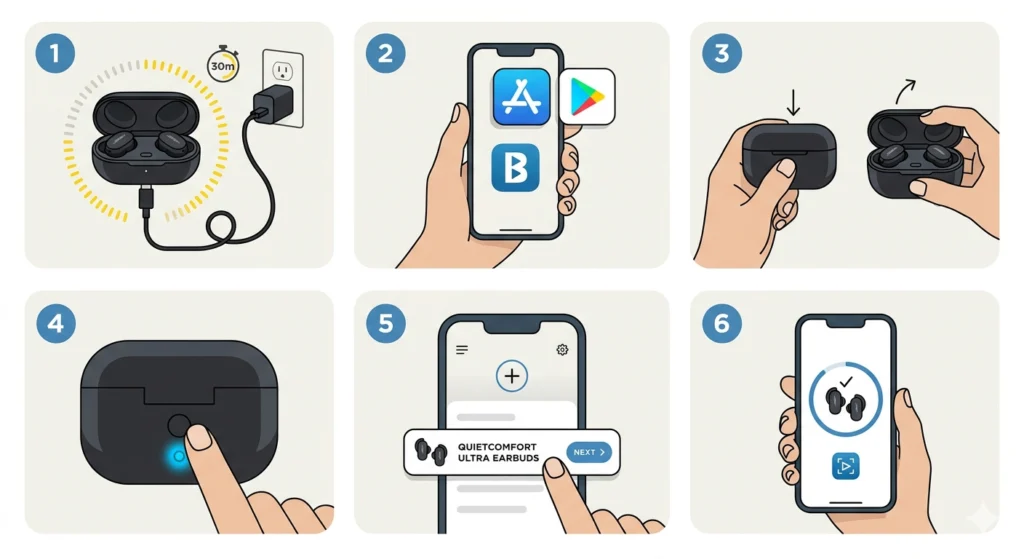
- Step 1: Charge both earbuds inside the case for at least 30 minutes before the first setup attempt. A low charge is one of the most overlooked reasons pairing mode fails to trigger.
- Step 2: Download the Bose Music App from the App Store or Google Play and create or sign in to a Bose account.
- Step 3: Place both earbuds into the charging case and close the lid for a few seconds before reopening it. This resets the connection state.
- Step 4: Press and hold the Bluetooth button on the back of the case until a voice prompt says ‘Ready to connect.’ The status light will pulse blue.
- Step 5: Open the Bose Music App, tap the ‘+’ icon on the My Bose screen, and select the QuietComfort Ultra Earbuds from the list.
- Step 6: Follow the on-screen instructions in the app to finish linking the earbuds, including any firmware update prompt that may appear.
Most people find that letting the firmware update finish completely before using the earbuds prevents random disconnects later on. Skipping this step is one of the quickest ways to run into stability issues during the first week of use.
Method 2: Manual Pairing Without the App
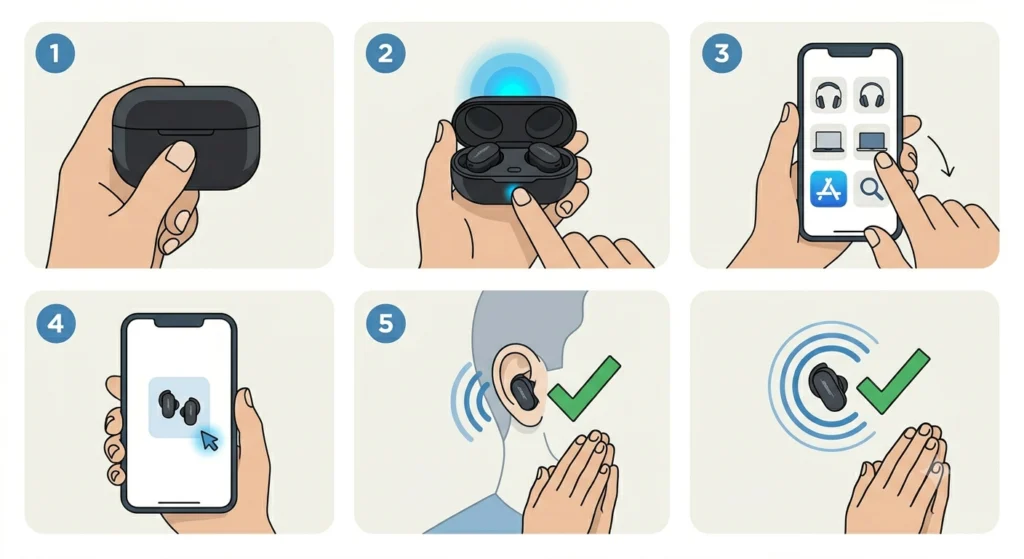
- Step 1: Place both earbuds into the case and close the lid for a moment to make sure they are seated correctly.
- Step 2: Open the lid and press and hold the Bluetooth button on the case for a few seconds until the light pulses blue.
- Step 3: On the phone, tablet, or laptop, open Bluetooth settings and scan for nearby devices.
- Step 4: Select ‘Bose QC Ultra Earbuds’ from the list of available devices.
- Step 5: Wait for the connection tone, which confirms the pairing was successful.
This works best when only one device is searching for the earbuds at a time. Having a phone and a laptop both scanning at once tends to cause the earbuds to bounce between requests instead of locking onto either one.
Pro-Tip
The key is to fully exit the case before initiating pairing mode if the earbuds are already worn. If the earbuds are in the ears instead of the case, press and hold the Bluetooth button on the case anyway, since this still triggers discoverability even when the case lid stays open. Trying to pair while one earbud is half-inserted in the case is a common reason setup stalls halfway through.
Connecting to Windows for the First Time
Windows laptops sometimes need an extra step that mobile devices skip automatically. After pairing through the Bluetooth settings menu, check that the earbuds appear as the active output device under sound settings. If the audio output is still set to internal speakers, the earbuds will connect but stay silent, which confuses a lot of first-time users. For a closer look at re-pairing Bluetooth earbuds for proper stereo sound on Windows, a dedicated walkthrough covers that exact scenario.
If the microphone does not pick up during calls after setup, this usually points to a device selection issue rather than a hardware fault. Windows 11 sometimes defaults to the laptop’s built-in mic instead of the earbuds, and a guide on resolving microphone detection problems breaks down the fix in detail.
Tips for a Smooth First Setup
- Keep the case lid open during the entire pairing process so the connection status stays visible.
- Turn off Bluetooth on any other device that previously paired with the earbuds, since multipoint conflicts can interrupt a fresh setup.
- Name the earbuds something recognizable inside the Bose Music App, especially if more than one Bose product is in the household.
- Update the Bose Music App itself before setup, not just the earbuds firmware, since older app versions sometimes fail to detect newer earbud batches.
- Test both the left and right earbud individually after setup to confirm both channels are active.
Common Problems During Setup and How to Fix Them
Fix 1: Earbuds Not Appearing in the Bluetooth List
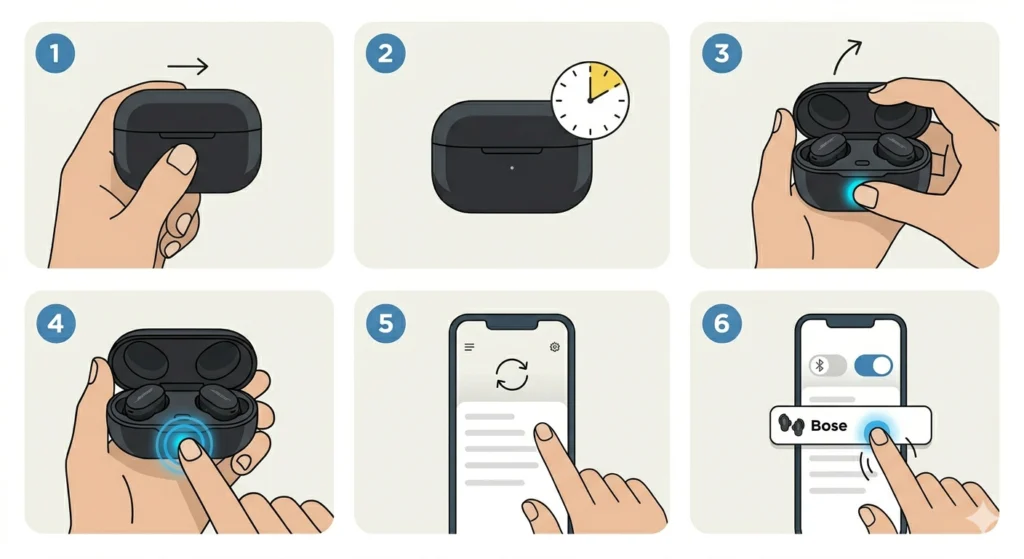
This usually means pairing mode timed out before the device finished scanning. Close the case, wait ten seconds, reopen it, and press the Bluetooth button again. Restarting Bluetooth on the connecting device often resolves this on the first retry.
Fix 2: Connected but No Sound
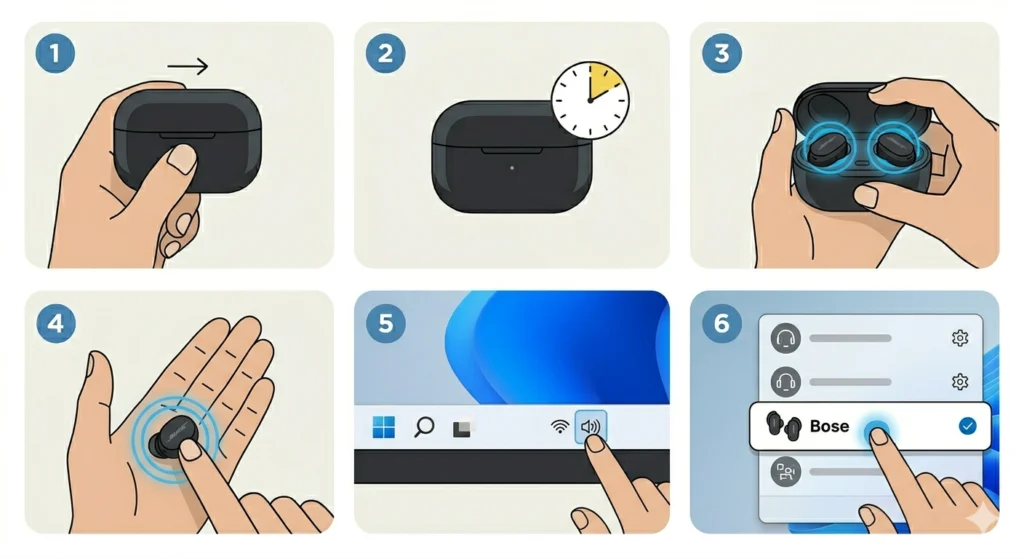
The earbuds may be paired but not selected as the active playback device. On Windows 11, this is a frequent issue, and a guide on adjusting audio output settings explains how to set the correct default device.
Fix 3: Bose Music App Cannot Find the Earbuds
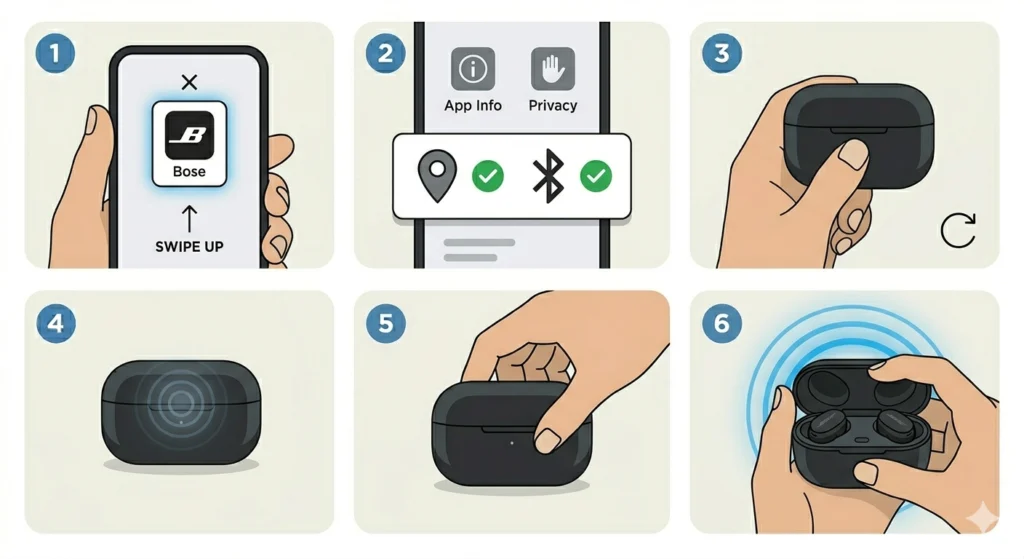
Force-close the app, confirm location and Bluetooth permissions are granted, and reopen the case to restart the discovery signal. This fixes most detection failures without needing a factory reset.
Fix 4: Audio Cuts In and Out Right After Pairing
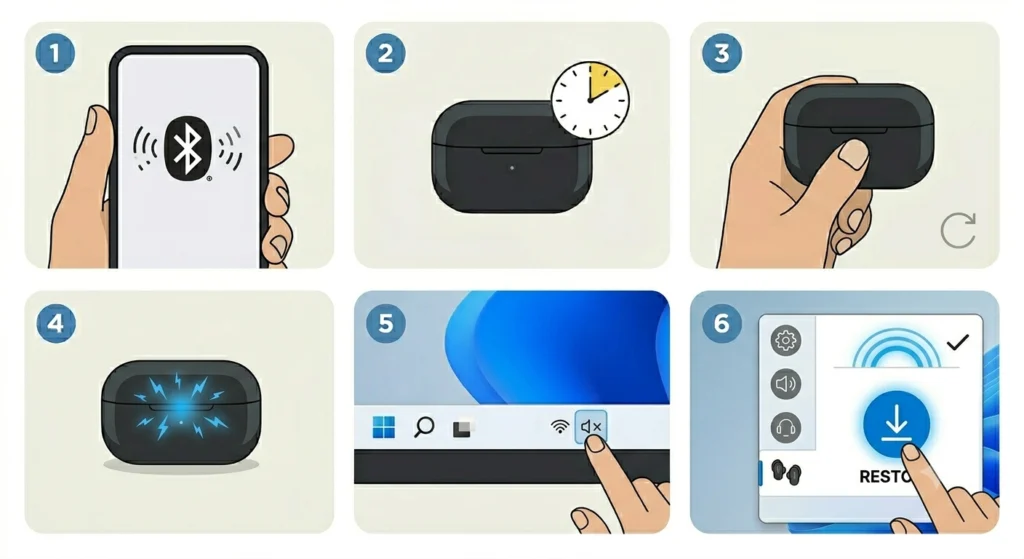
This often points to a corrupted or outdated Bluetooth profile rather than a hardware defect. Resetting the audio configuration on the connecting device clears out conflicting profiles, and a walkthrough on resetting audio settings covers the process for Windows 11 systems.
Fix 5: Multiple Bluetooth Devices Causing Conflicts
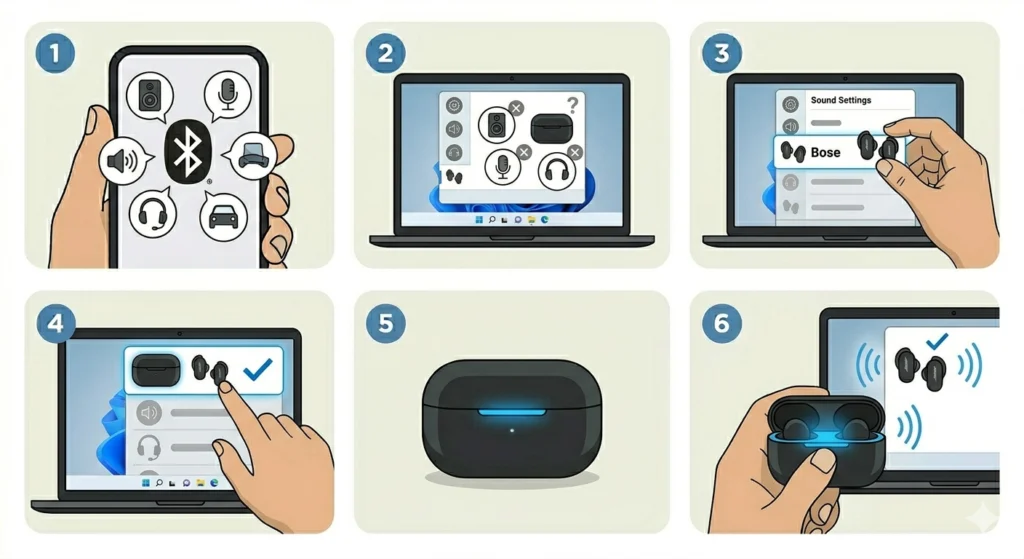
If several input or output devices are listed at once, the system may default to the wrong one. A guide on managing audio input devices shows how to prioritize the earbuds over other connected hardware.
Frequently Asked Questions
How long does it take to fully charge the Bose QuietComfort Ultra Earbuds?
A full charge from empty typically takes around one hour for the earbuds inside the case, with the case itself taking a bit longer to reach a full charge on its own.
Do the earbuds need the Bose Music App to work?
Basic playback works through standard Bluetooth pairing without the app, but features like ANC adjustment, EQ settings, and firmware updates require the Bose Music App.
Why does the Bluetooth button not trigger pairing mode?
This usually happens when the case has very low charge or when the button is not held long enough. Holding it for a few seconds until the voice prompt plays is necessary for pairing mode to activate.
Can the earbuds connect to two devices at the same time?
Yes, the QuietComfort Ultra Earbuds support multipoint connection, which allows switching between two paired devices, such as a phone and a laptop, without repeating the full pairing process.
What does the status light color mean during setup?
A pulsing blue light means the earbuds are in pairing mode and discoverable, while a solid blue light confirms a successful connection to a device.
Is a Bose account required to use the earbuds?
A Bose account is only needed to use the Bose Music App for advanced settings. The earbuds themselves will play audio through any Bluetooth connection without one.
Why do the earbuds keep disconnecting after setup?
This is often linked to outdated firmware or interference from other Bluetooth devices nearby. Completing the firmware update inside the Bose Music App resolves most disconnection issues.
Can the earbuds be set up on a laptop without Bluetooth built in?
A USB Bluetooth adapter can be used on laptops without built-in Bluetooth, and the same pairing steps apply once the adapter is installed and recognized by the system.
How many devices can be paired to the earbuds in total?
The earbuds can store multiple paired devices in memory, though only two can stay actively connected at once through multipoint pairing.
What should be done if setup fails repeatedly?
Removing the earbuds from the Bluetooth list on the connecting device, restarting both devices, and starting the pairing process from scratch resolves most repeated setup failures.