
A headphone microphone that suddenly stops working is one of the most frustrating audio issues anyone can run into – especially right before a call, recording session, or gaming match. The good news is that most of these problems come down to a few common causes, and fixing them is usually faster than expected. This guide walks through every proven fix, from the simplest checks to deeper system-level solutions.
Quick Summary
- Check the physical connection and switch of the mic before anything else
- Set the headphone mic as the default input device in system settings
- Update or reinstall the audio driver if the mic is not being detected
- Check app-level microphone permissions on Windows, Mac, and mobile
- Test the mic on another device to rule out hardware failure
- Clean the headphone jack or reset Bluetooth if using a wireless headset
Fix the Headphone Microphone That Stopped Working: Step-by-Step
Fix 1: Check the Physical Connection and Mic Switch
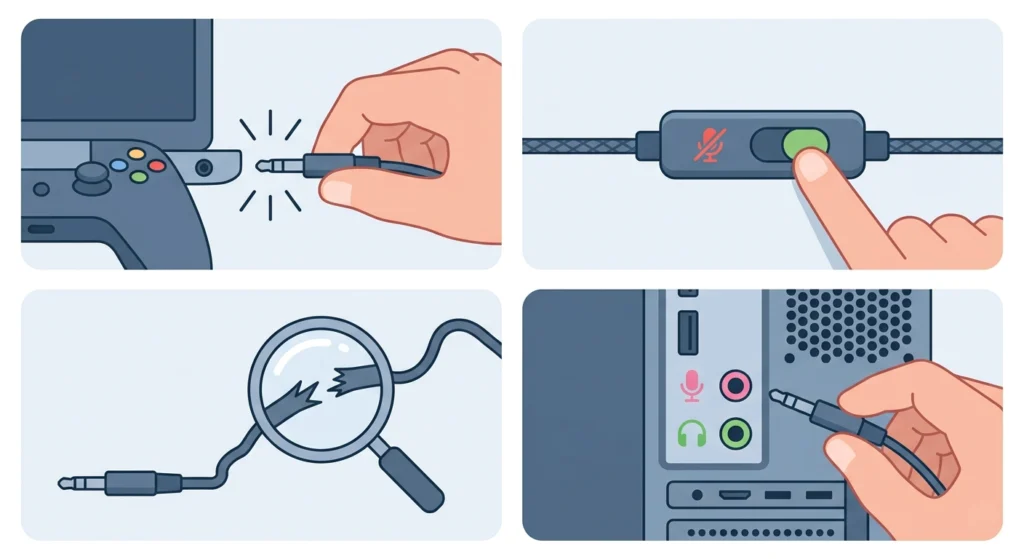
Before diving into software settings, the most practical place to start is the physical connection. A loose or partially inserted jack is one of the top reasons a headphone mic goes silent without warning.
- Step 1: Unplug the headphone completely and plug it back in firmly. Make sure it clicks into place – a half-inserted 3.5mm jack often carries audio but drops the microphone signal.
- Step 2: Check if the headset has an inline mute button or mic switch on the cable. It is surprisingly easy to bump these accidentally. Toggle it off and back on.
- Step 3: Inspect the cable for any visible damage, kinks, or fraying near the connector. A bent or broken wire at the plug end is a frequent silent killer for headset mics.
- Step 4: If the device has a separate mic port (usually pink) and headphone port (usually green), make sure the mic is plugged into the correct one. Many desktop PCs have both.
Fix 2: Set the Headphone Mic as the Default Input Device
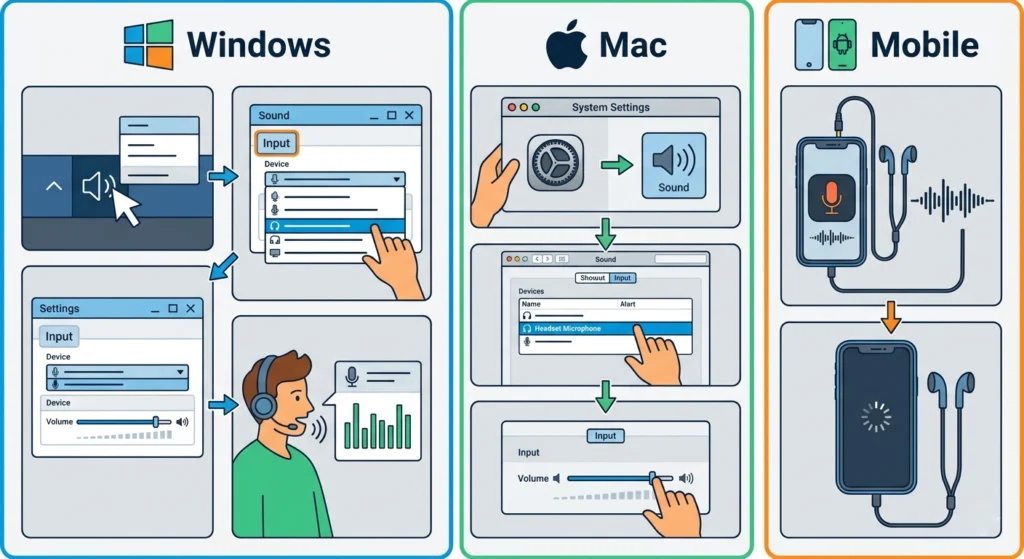
Even when a mic is physically connected, the system might still be routing audio input through the wrong device. This happens especially after updates or when switching between headsets.
On Windows 11:
- Step 1: Right-click the speaker icon in the taskbar and select ‘Sound settings.’
- Step 2: Under ‘Input,’ find the headphone microphone in the dropdown and select it as the active device.
- Step 3: Click on the device and check that the volume level is not set to zero.
- Step 4: Speak into the mic – a blue bar should move under the input meter. If nothing moves, the mic is not being picked up yet.
For a deeper look at managing audio input devices on Windows 11, that guide covers every option in the Sound Control Panel including legacy device settings.
On Mac:
- Step 1: Open ‘System Settings’ and go to ‘Sound.’
- Step 2: Click the ‘Input’ tab and select the headphone microphone from the list.
- Step 3: Adjust the input volume slider if it is turned down low.
On iPhone or Android:
- Step 1: Plug in the headset and open the Voice Memos or Phone app to test immediately – mobile devices usually switch input automatically.
- Step 2: If the phone is not recognizing the headset mic, try a restart with the headset already plugged in.
Fix 3: Check App-Level Microphone Permissions
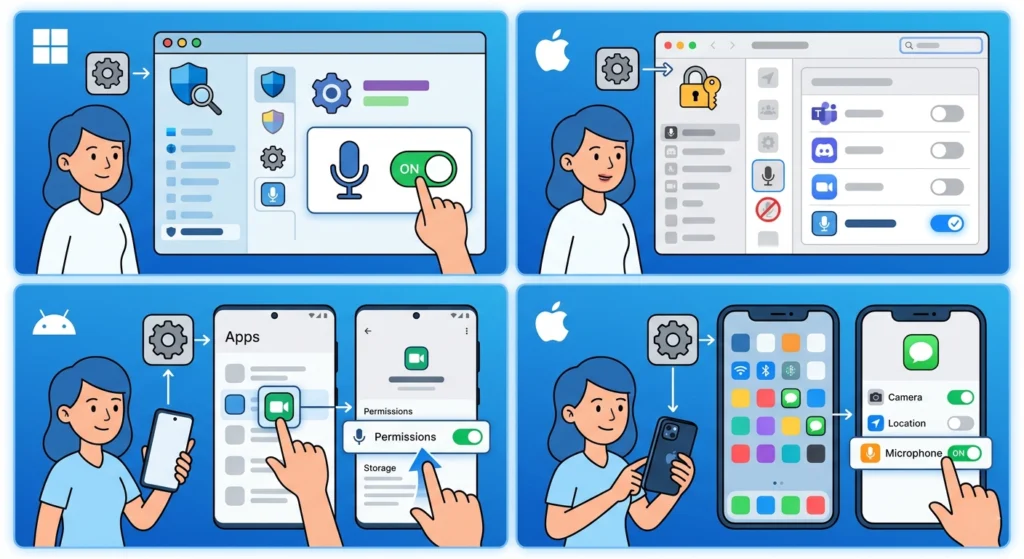
This fix catches a lot of people off guard. The mic can be perfectly connected and set as default, but if an app does not have permission to access it, nothing will come through. Both Windows and Mac now require explicit permission for each app.
On Windows 11:
- Step 1: Open ‘Settings’ and go to ‘Privacy and Security,’ then select ‘Microphone.’
- Step 2: Make sure ‘Microphone access’ is toggled on at the top.
- Step 3: Scroll down and check that the specific app (Teams, Discord, Zoom, etc.) has microphone access enabled.
On Mac:
- Step 1: Go to ‘System Settings,’ then ‘Privacy and Security,’ then ‘Microphone.’
- Step 2: Toggle on access for every app that needs the mic.
On Android:
- Step 1: Go to ‘Settings,’ then ‘Apps,’ select the app in question, tap ‘Permissions,’ and enable ‘Microphone.’
On iPhone:
- Step 1: Open ‘Settings,’ scroll to the app, and toggle on ‘Microphone’ access.
Fix 4: Update or Reinstall the Audio Driver (Windows)
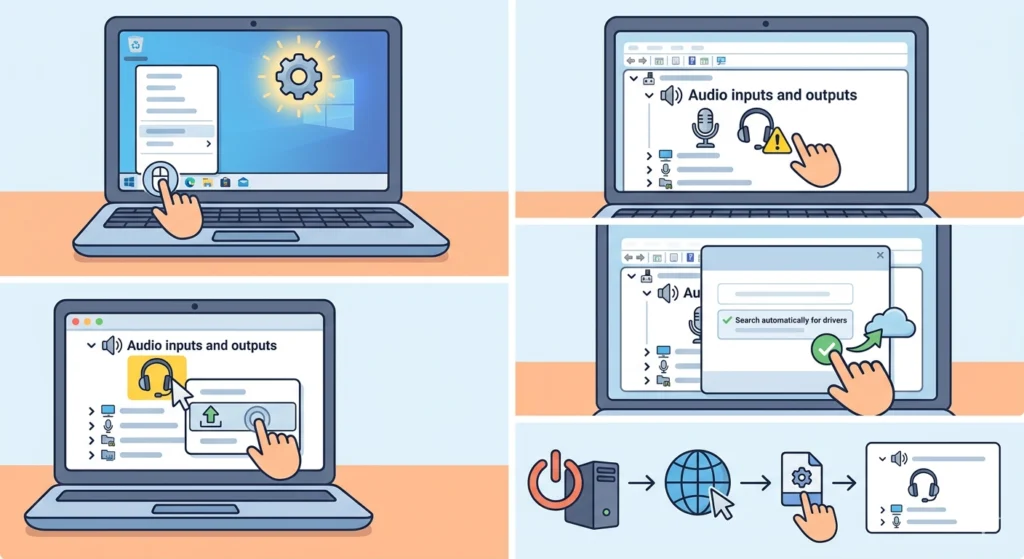
An outdated or corrupted audio driver is a very common cause of a headset mic suddenly going silent on Windows. This is especially true after a Windows update, which sometimes replaces manufacturer drivers with generic ones that have limited functionality.
- Step 1: Right-click the Start button and open ‘Device Manager.’
- Step 2: Expand ‘Audio inputs and outputs’ – the headset microphone should appear here. If it shows a yellow warning icon, the driver has an issue.
- Step 3: Right-click on the microphone device and select ‘Update driver,’ then choose ‘Search automatically for drivers.’
- Step 4: If that does not work, right-click again and select ‘Uninstall device.’ Restart the PC – Windows will reinstall the driver fresh on reboot.
- Step 5: For best results, visit the headset manufacturer’s website and download the latest driver directly.
If the microphone is not showing up at all in Device Manager, it is worth checking the full guide on resolving microphone detection problems on Windows 11 to rule out deeper system conflicts.
Pro-Tip: After reinstalling the driver, always unplug and replug the headset before testing. Windows sometimes needs that physical reconnect to assign the new driver to the device correctly.
Fix 5: Adjust Audio Input Settings and Levels
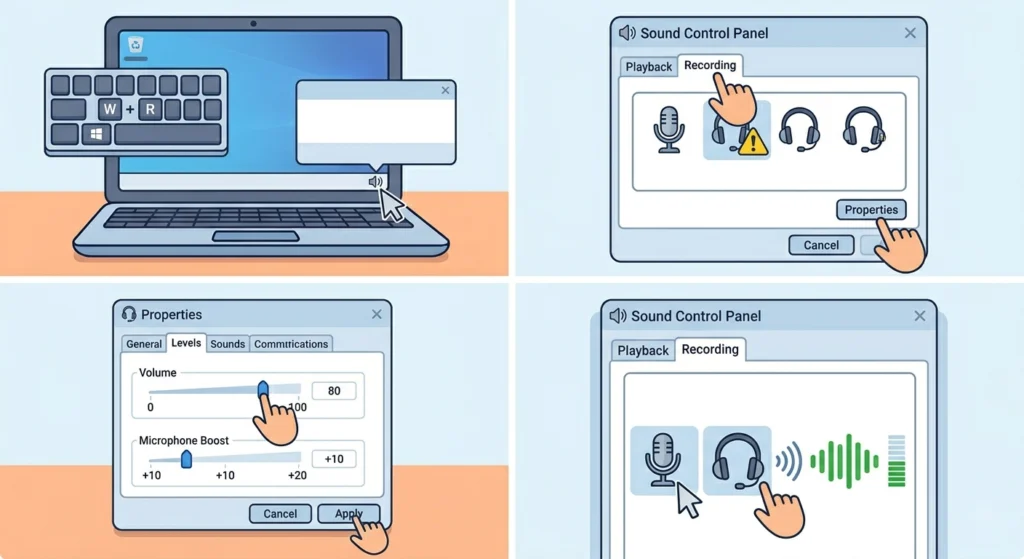
Even with the right driver and the correct default device selected, the mic input volume might be set too low or the microphone boost could be turned off. This makes the mic technically functional but practically silent.
- Step 1: Open the old Sound Control Panel on Windows by pressing Win + R, typing ‘mmsys.cpl,’ and hitting Enter.
- Step 2: Click the ‘Recording’ tab, right-click on the headset microphone, and select ‘Properties.’
- Step 3: Under the ‘Levels’ tab, set the microphone volume to at least 80 and enable ‘Microphone Boost’ if available (typically +10 to +20 dB works well).
- Step 4: Click Apply and test by speaking into the mic – the green bar on the Recording tab should respond.
For a more thorough walkthrough of volume and boost options, the guide on adjusting audio settings on Windows 11 covers the full Sound Control Panel in detail.
Fix 6: Reset Audio Settings
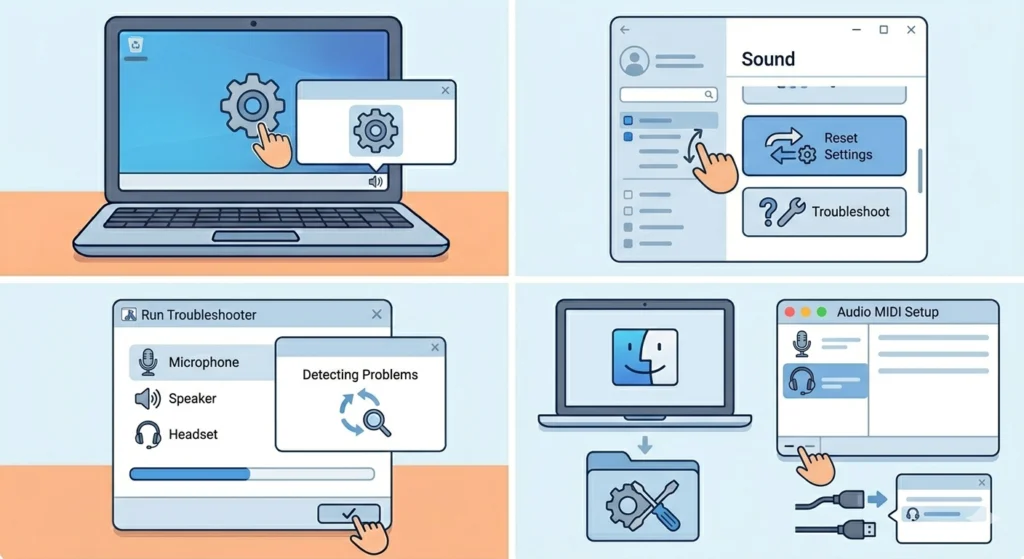
Sometimes the quickest solution is a clean slate. Resetting audio settings clears out any conflicting configurations that might be blocking the microphone – and it takes less than a minute to do.
- Step 1: On Windows 11, go to ‘Settings,’ then ‘System,’ then ‘Sound,’ and scroll to the bottom where ‘Reset sound settings’ or ‘Troubleshoot’ options appear.
- Step 2: Run the built-in audio troubleshooter – it automatically detects and fixes the most common mic issues including disabled devices and wrong defaults.
- Step 3: On Mac, go to ‘Applications,’ then ‘Utilities,’ open ‘Audio MIDI Setup,’ select the headset input, and click the minus button to remove it. Reconnect the headset to re-add it fresh.
The full process for resetting audio settings on Windows 11 is a great resource if the troubleshooter alone does not resolve the issue.
Fix 7: Fix Bluetooth Headset Microphone Issues
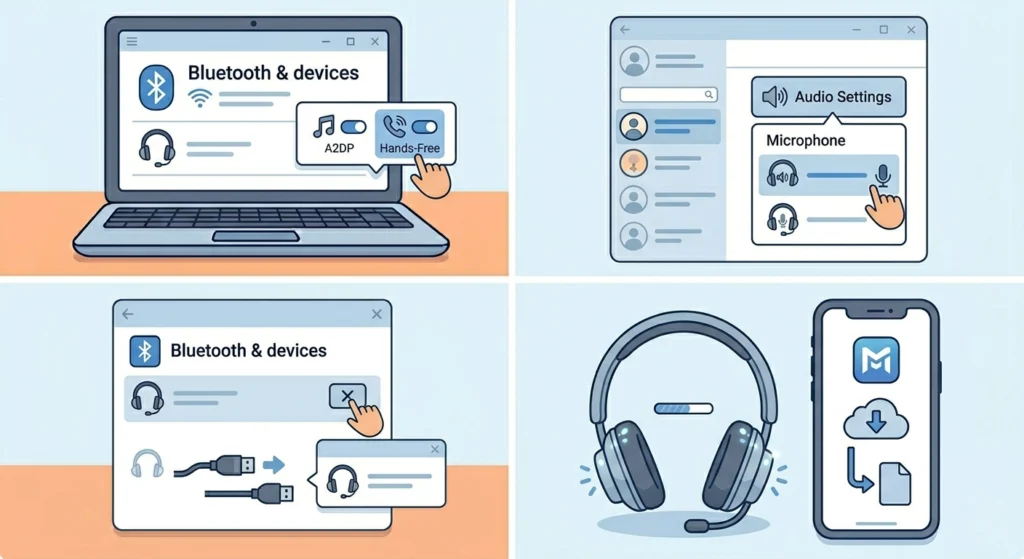
Wireless headsets add a layer of complexity because Bluetooth audio profiles affect mic functionality. When a Bluetooth headset is connected in stereo (A2DP) mode, the microphone is often completely disabled. The headset needs to switch to hands-free (HFP or HSP) profile to enable two-way audio.
- Step 1: On Windows, go to ‘Settings,’ then ‘Bluetooth and devices,’ click on the headset, and look for the audio profile or ‘Hands-Free’ option.
- Step 2: In the app being used (Discord, Teams, Zoom), check the audio input settings and manually select the Bluetooth headset as the microphone – sometimes it shows as a separate entry from the speakers.
- Step 3: If the mic still does not work, remove (unpair) the headset from Bluetooth settings and repair it from scratch.
- Step 4: Make sure the headset firmware is up to date using the manufacturer’s companion app.
If Bluetooth audio keeps cutting out or only one earbud picks up sound alongside the mic issue, the detailed guide on re-pairing Bluetooth earbuds for stereo sound on Windows addresses those profile conflicts directly.
Fix 8: Clean the Headphone Jack or Port
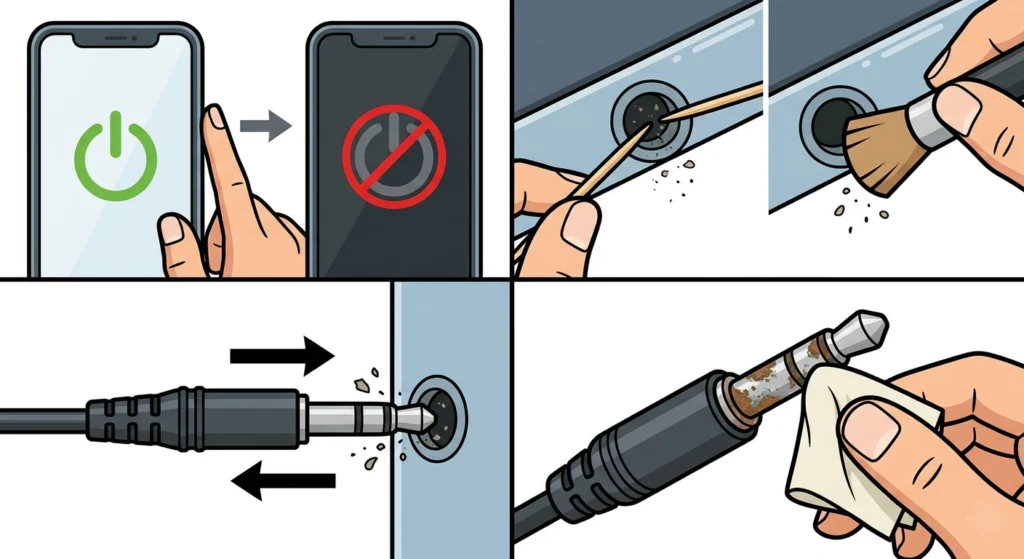
Dust and lint inside the headphone port can cause intermittent mic failure, especially on laptops and phones. This is one of the most overlooked physical fixes – and it works more often than expected.
- Step 1: Power off the device completely.
- Step 2: Use a dry toothpick or a soft anti-static brush to gently clear debris from inside the jack port. Never use metal objects or blow air forcefully into the port.
- Step 3: Plug and unplug the headset a few times to help dislodge any remaining residue on the connector.
- Step 4: If there is visible corrosion on the plug itself, a very light wipe with a dry cloth can help restore contact.
Pro-Tip: On smartphones, the headphone jack is often located at the bottom and shares space with the charging port area – lint from pockets is the number one culprit. Checking this first on mobile can save a lot of time.
Tips for Keeping the Headphone Mic Working
- Store headsets coiled loosely – tight coils stress the cable near the connector and cause internal wire breaks over time
- Avoid yanking the cable out by the wire – always pull from the plug itself
- Keep the headphone port clean with a small brush every few months, especially on laptops carried in bags
- For Bluetooth headsets, keep the firmware updated via the companion app to avoid compatibility drops after OS updates
- When switching between devices frequently, always check that the mic is set as the default input on each new device
- Test the mic in a basic app (like Voice Recorder on Windows or Voice Memos on iPhone) before blaming software like Discord or Zoom – this quickly isolates whether the issue is the system or the app
Common Microphone Problems and Solutions
Mic is detected but there is no sound coming through
This almost always points to the input volume being at zero or the microphone boost being disabled. Open the Sound Control Panel on Windows, go to Recording properties, and check the Levels tab. On Mac, check the input volume slider in System Settings under Sound.
Mic works on one app but not another
This is a permissions issue. The app that does not work has not been granted microphone access in the operating system privacy settings. Check app permissions in Windows Privacy settings or Mac System Settings under Privacy and Security.
Mic cuts in and out randomly
Intermittent mic issues are usually caused by a damaged cable (especially near the plug), a dirty or loose jack, or driver instability. Try pressing the plug gently to different angles while speaking – if the mic cuts back in, cable damage is the cause. For driver issues, reinstalling the audio driver usually fixes it.
Mic not detected at all by Windows
Check Device Manager for hidden or disabled devices. Go to ‘View’ in Device Manager and select ‘Show hidden devices.’ A greyed-out mic entry there means it was previously disabled – right-click and enable it. If nothing appears, the driver needs a full reinstall.
Bluetooth mic works on calls but not in apps
The Bluetooth headset may be stuck in A2DP (stereo audio) mode instead of HFP (hands-free) mode. The mic only works in hands-free profile. Manually switch the profile in Windows Bluetooth settings or force the app to select the headset as the microphone input device separately from the speakers.
Mic stopped working after a Windows update
Windows updates sometimes replace custom audio drivers with generic ones. Visit the headset manufacturer’s website and download the latest driver version specifically compatible with the current version of Windows. A driver rollback through Device Manager can also restore the previous working driver.
Frequently Asked Questions
Why did the headphone mic suddenly stop working?
The most common reasons are a loose physical connection, the mic being muted or at zero volume in system settings, the wrong input device being selected as default, an app lacking microphone permission, or an audio driver issue after a system update. Running through each fix in order resolves the problem in the majority of cases.
How do you know if a headphone mic is broken or if it is a software issue?
Test the headset on a completely different device – a phone, tablet, or another computer. If the mic works on the second device, the problem is software-based on the original device. If the mic fails on all devices, the headset itself has a hardware fault, usually a broken wire or damaged capsule.
Can a headphone mic stop working due to Windows updates?
Yes. Windows updates can replace manufacturer-installed audio drivers with generic Microsoft drivers, which sometimes lack full support for headset microphones. Downloading and reinstalling the original driver from the headset brand’s website usually resolves this.
Why does the mic work in one app but not in others?
Each app on both Windows and Mac requires individual microphone permission. If an app was installed before permissions were reviewed, or if a system update reset permissions, that specific app will not have access to the mic even though the mic works elsewhere. Check and enable microphone access for each app in the operating system privacy settings.
How do you fix a Bluetooth headset mic that is not working?
Bluetooth headsets use different audio profiles for listening versus speaking. Make sure the headset is connected in hands-free profile (HFP), not stereo (A2DP). In the app being used, manually set the Bluetooth headset as the microphone input. If the issue persists, remove the headset from Bluetooth settings and pair it again from scratch.
Does cleaning the headphone jack really help fix mic issues?
Absolutely. Lint and dust inside the 3.5mm jack are a very real cause of microphone failure, particularly on laptops and phones carried in pockets. A careful clean with a dry toothpick or soft brush restores the electrical contact between the plug and the port, which is what carries the microphone signal.
What should you check first when a headset mic stops working mid-use?
Check the inline mute button on the cable first – it is the most common accidental cause of mid-session mic failure. After that, check that the system has not switched the default input to another device, which can happen when a second audio device (like a USB speaker or monitor) connects and auto-sets itself as the default.
Does a low microphone volume count as the mic ‘not working’?
In practice, yes. A mic set to extremely low input volume behaves exactly like a non-functional mic – other people hear nothing or just static. Always check the input volume and microphone boost levels in the Sound Control Panel before concluding the mic is broken.
Can a software reset fix a headphone mic problem?
Yes, in many cases. Resetting audio settings clears misconfigured states, conflicting driver entries, and incorrect default device assignments. The Windows audio troubleshooter specifically addresses the most common causes including disabled recording devices, incorrect format settings, and missing drivers.
When is it time to replace the headset mic instead of fixing it?
If the headset mic fails on multiple different devices, has been tested with fresh drivers, and the jack and cable have been inspected and cleaned – and it still does not work – the mic capsule or cable has likely failed internally. At that point, repair is usually not cost-effective for consumer headsets, and replacement is the practical choice.