
Switching between a laptop and a phone without re-pairing every time is one of the most useful tricks the Bose 700 has to offer. Connecting Bose 700 headphones to multiple devices relies on a built-in feature called Multipoint Bluetooth, and once it is set up correctly, jumping between a work call on a laptop and music on a phone becomes effortless.
Quick Summary Table
- Feature used: Multipoint Bluetooth connection
- Devices supported at once: Two active connections, up to eight stored in memory
- Setup location: Bose Music app, under Settings then Bluetooth Connections
- Switching method: Pause audio on one device, then play on the other
- Calls: Both connected devices can ring through, regardless of which one is playing audio
- Time required: Around 5 minutes for first-time setup
Step-by-Step Guide to Connect Bose 700 Headphones to Multiple Devices
Method 1: Pair the First Device
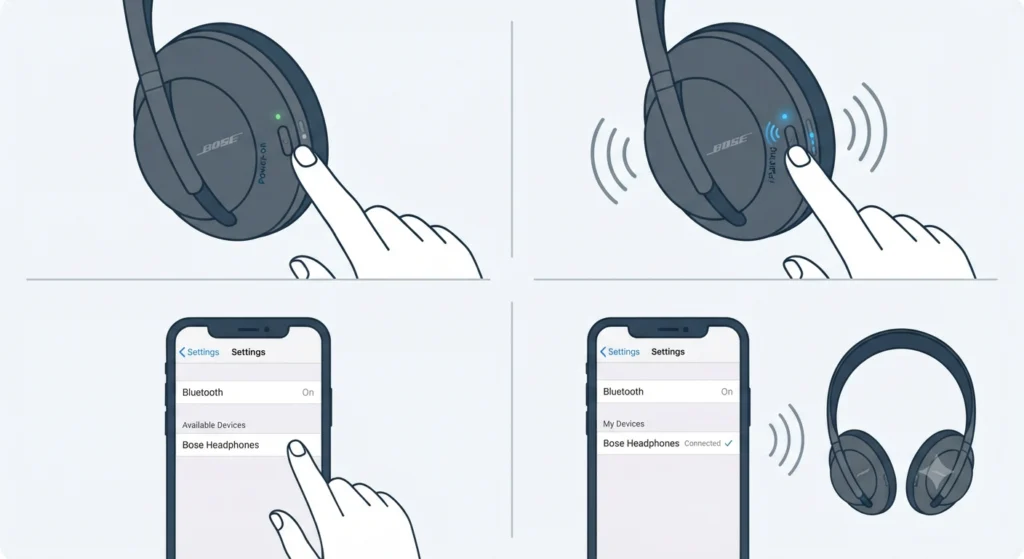
This is the foundation step, and skipping it usually causes confusion later on. The headphones need at least one device already paired before multipoint can be turned on.
- Step 1: Power on the Bose 700 headphones by pressing the power button on the right earcup once.
- Step 2: Press and hold the power button for about 3 seconds until the voice prompt announces pairing mode. On a brand new pair, this happens automatically the first time the headphones are switched on.
- Step 3: On the first device, open Bluetooth settings and select ‘Bose QC35 II’ or the listed Bose 700 entry. Naming can vary slightly depending on the device’s operating system.
- Step 4: Wait for the voice prompt to confirm the connection. Audio should now play normally on this device.
Method 2: Turn On Multipoint Connection in the Bose Music App
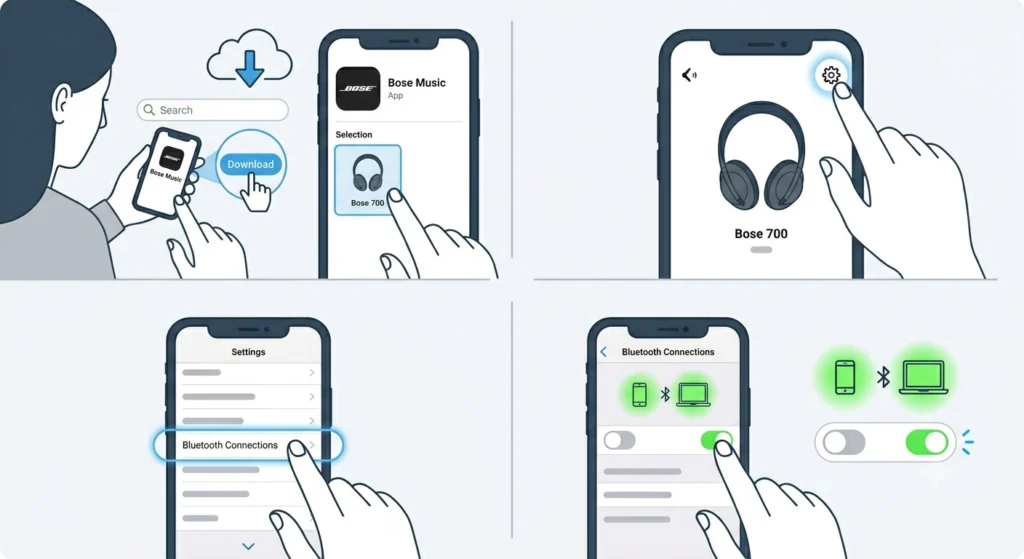
This part is where most of the actual multi-device magic happens, and it is also the step people skip most often, since it is not always obvious that a toggle even exists.
- Step 1: Download and open the Bose Music app on a smartphone, then select the Bose 700 headphones from the device list.
- Step 2: Tap the settings icon in the upper-right corner of the app.
- Step 3: Select Bluetooth Connections from the settings menu.
- Step 4: Find the Multipoint Connection toggle and switch it on if it is not already enabled. The switch should move to the right and turn a different color to confirm it is active.
Pro-Tip: Multipoint only needs to be enabled once. After that, the headphones remember the setting even after they are turned off and back on, so this step does not need to be repeated for every new pairing session.
Method 3: Pair the Second Device
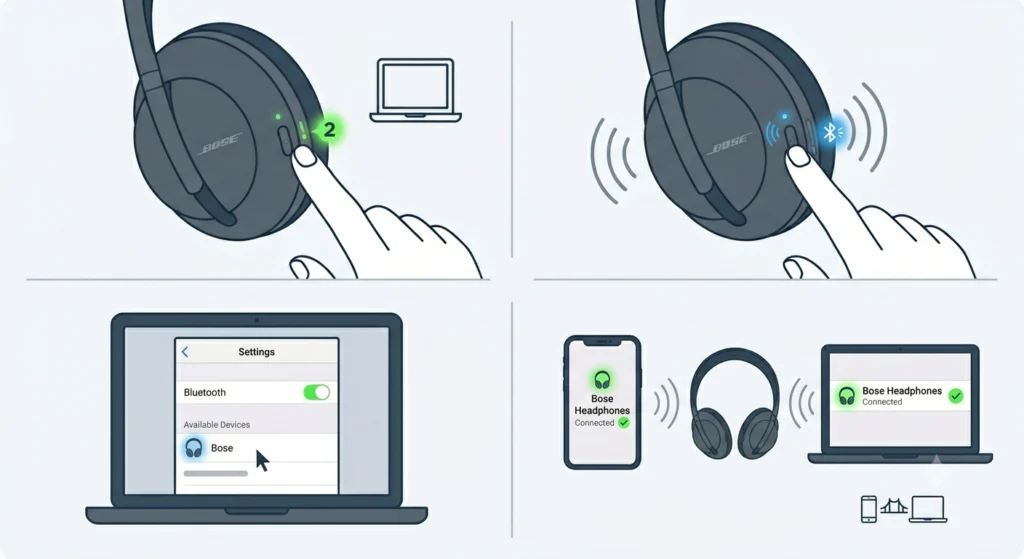
With multipoint switched on, adding a second device follows a similar pattern to the first pairing, just from a different source.
- Step 1: On the second device, such as a laptop or tablet, open its Bluetooth settings menu.
- Step 2: On the headphones, press and hold the power button again for 3 seconds to re-enter pairing mode.
- Step 3: Select the Bose 700 headphones from the list of available devices on the second device.
- Step 4: Confirm the connection through the voice prompt. Both devices should now show as connected, with the headphones actively linked to each one.
Anyone setting this up on a Windows 11 laptop and running into a missing or unrecognized Bluetooth device at this stage might find it useful to look at how to re-pair Bluetooth audio devices for proper stereo sound on Windows, since a stuck profile on the PC side is a common reason a second pairing attempt does not register.
Method 4: Switch Between the Two Connected Devices
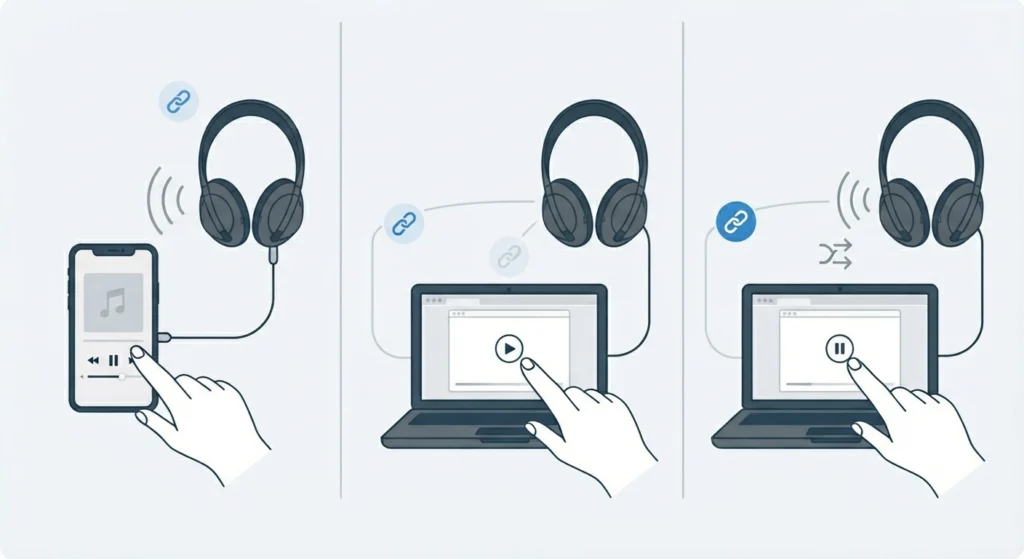
Once two devices are linked, only one can play audio at a time, though both can still send incoming call alerts through the headphones. Switching is simple and does not require touching Bluetooth settings again.
- Step 1: Pause or stop audio playback on the device currently in use.
- Step 2: Open the audio source on the second device, whether that is a music app, video call, or browser tab.
- Step 3: Press play. The headphones automatically pick up the new audio source within a second or two.
This back-and-forth works the same way for incoming calls. A call on a phone can be answered mid-task without disconnecting whatever is playing on the laptop, since that audio simply pauses for the duration of the call and picks back up afterward.
Tips for a Smoother Multi-Device Experience
- Keep both devices’ Bluetooth turned on at the same time, since multipoint relies on both connections staying live in the background.
- Rename the headphones in the Bose Music app if multiple Bose products are owned, so the correct one is easy to spot in a crowded Bluetooth list.
- On a Windows 11 machine, checking that the correct playback device is selected helps avoid sound defaulting to laptop speakers instead of the headphones; this guide on adjusting audio output settings walks through that setting clearly.
- For video calls where the microphone matters more than playback, confirming the input device is set correctly avoids the awkward moment of talking into a mic nobody can hear; this resource on managing audio input devices covers that setup on Windows 11.
Common Problems and How to Fix Them
Fix 1: Second Device Will Not Connect
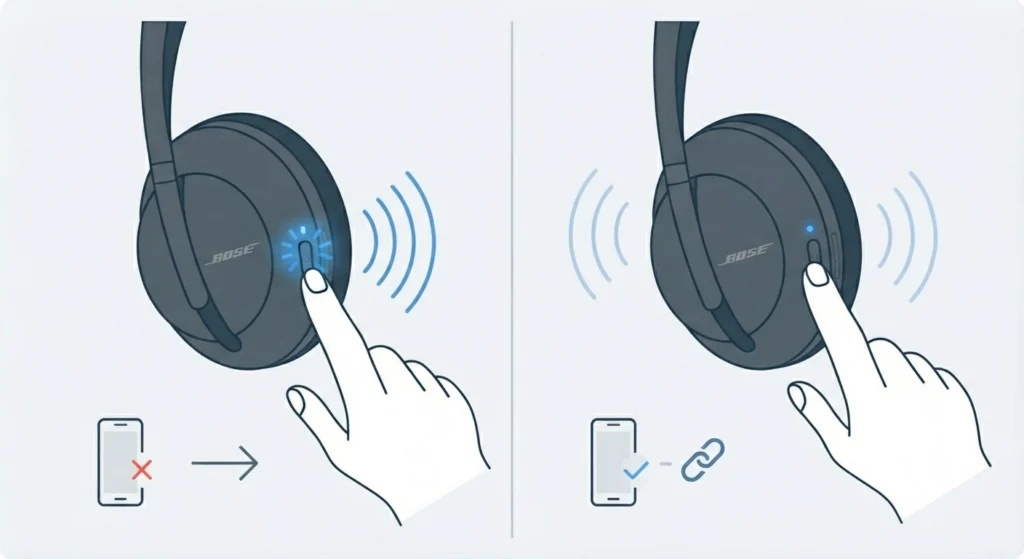
This usually happens when the headphones were not put back into pairing mode before attempting to add the second device. Holding the power button for 3 seconds resets this, and the voice prompt confirms when pairing mode is active again.
Fix 2: Audio Keeps Switching to the Wrong Device
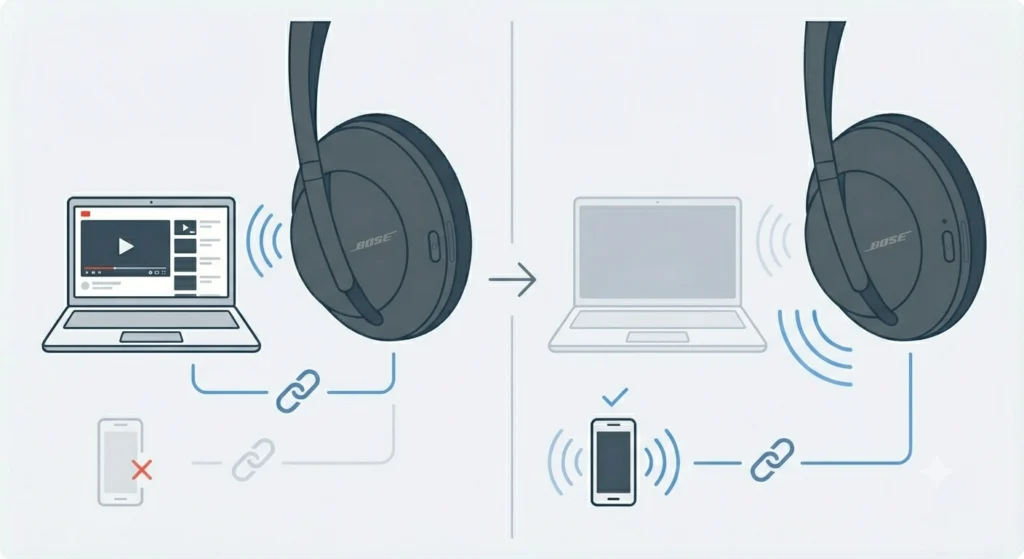
Multipoint prioritizes whichever device starts playing audio most recently. If the wrong device keeps grabbing playback, pausing audio fully on the unwanted device, rather than just lowering the volume, usually resolves it.
Fix 3: Microphone Not Working During Calls
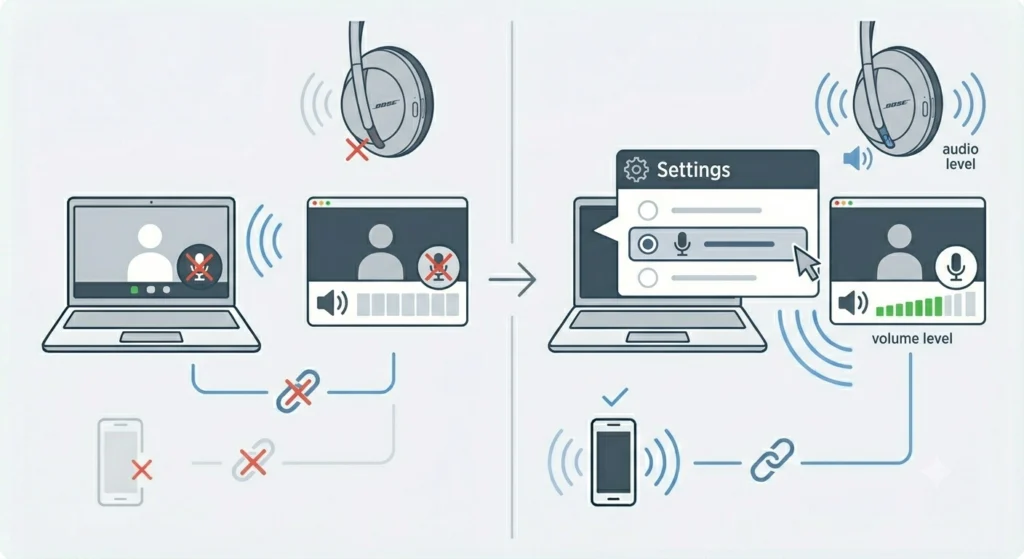
On Windows 11 specifically, the operating system sometimes defaults to a different input device after a Bluetooth reconnection. Checking the input device list directly in Windows settings, as outlined in this guide on resolving microphone detection problems, generally clears this up.
Fix 4: Headphones Behave Unpredictably After Multiple Pairings
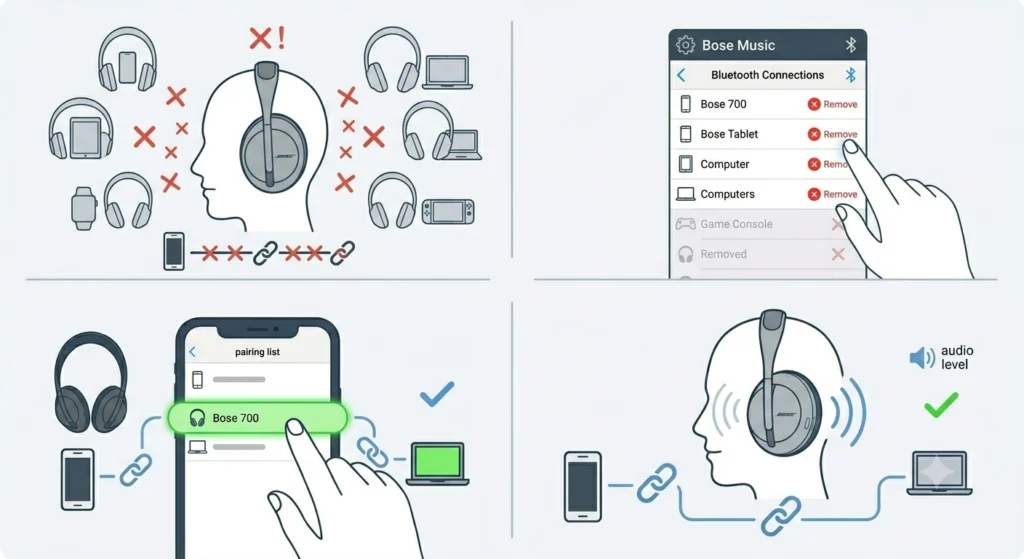
Storing too many devices without clearing old ones occasionally causes odd switching behavior. Removing unused devices from the Bluetooth Connections list in the Bose Music app and re-pairing the two that matter most usually restores normal operation. On the Windows side, a full audio settings reset can also help, and the steps for that are covered in this guide on resetting audio settings.
Frequently Asked Questions
Can Bose 700 headphones connect to two devices at the same time?
Yes. The Bose 700 uses Multipoint Bluetooth, which keeps two devices actively connected at once, though audio plays from only one device at a time.
How many devices can Bose 700 headphones remember?
The headphones can store up to eight devices in memory, while staying actively connected to two of them simultaneously.
Where is the multipoint setting located?
It is found inside the Bose Music app, under the settings icon, then Bluetooth Connections, where a toggle switch turns the feature on or off.
Why does only one device play sound at a time?
Multipoint Bluetooth is designed to keep two devices connected for convenience, but the headphones can only output audio from a single active source at once. This is standard behavior across multipoint-enabled headphones, not a limitation specific to this model.
Do both devices still receive calls when only one is playing audio?
Yes. Incoming calls come through from either connected device, regardless of which one currently has the active audio stream.
Is it necessary to repeat the pairing process every time the headphones are used?
No. Once both devices are paired and multipoint is enabled, the headphones reconnect automatically whenever both devices are nearby with Bluetooth turned on.
What happens if a third device tries to connect?
A third device can be paired and stored, but it will need to replace one of the two active connections to play audio, since only two devices stay actively linked at once.
Does switching between devices cause a noticeable delay?
The switch typically happens within a second or two once audio is paused on one device and played on the other, with no manual reconnection needed.
Can multipoint be turned off if only one device is needed?
Yes. The same toggle in the Bose Music app under Bluetooth Connections can be switched off, which limits the headphones to a single active connection.
Does using multipoint affect sound quality or battery life?
Sound quality remains the same regardless of multipoint being active. Battery life may see a very slight reduction due to maintaining two active connections, though it is not significant enough to notice during normal daily use.